Canary in Coal Mine to find Kubernetes & Jenkins

Goal:

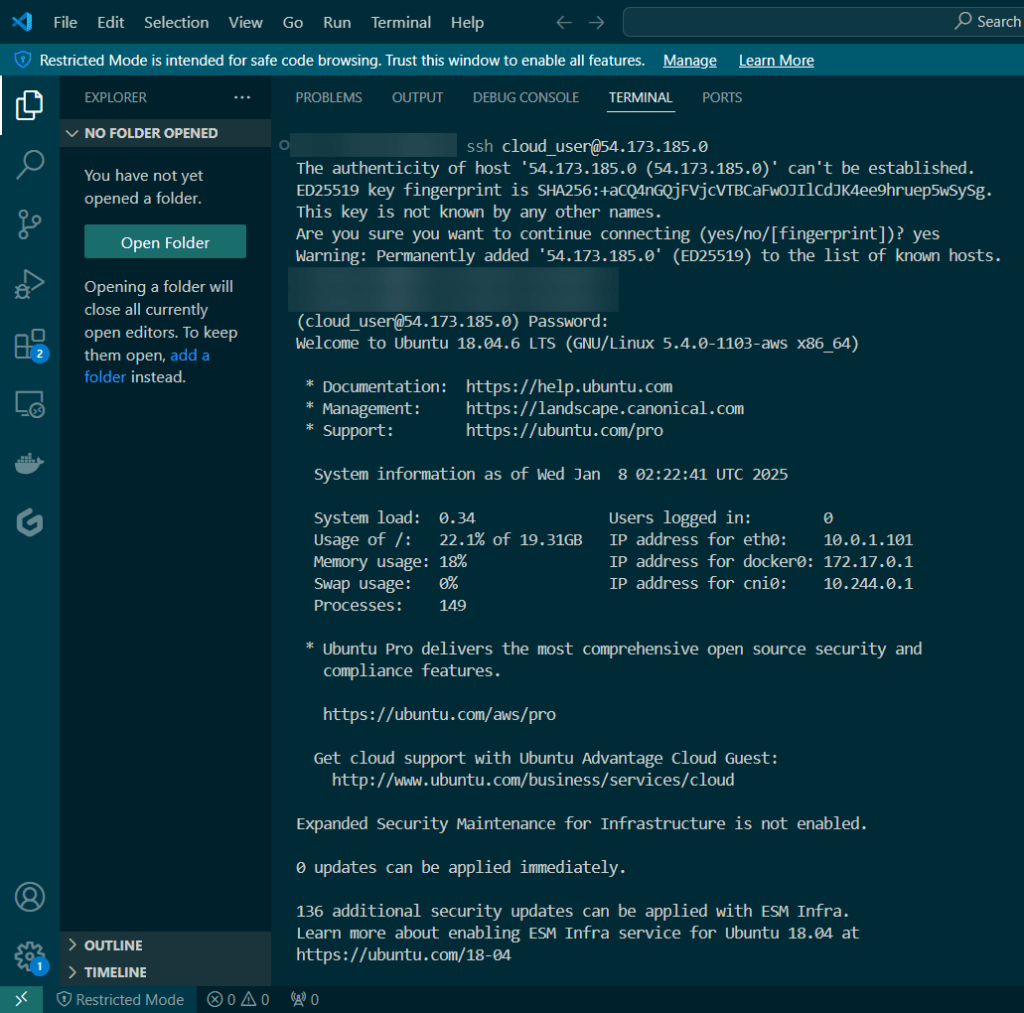
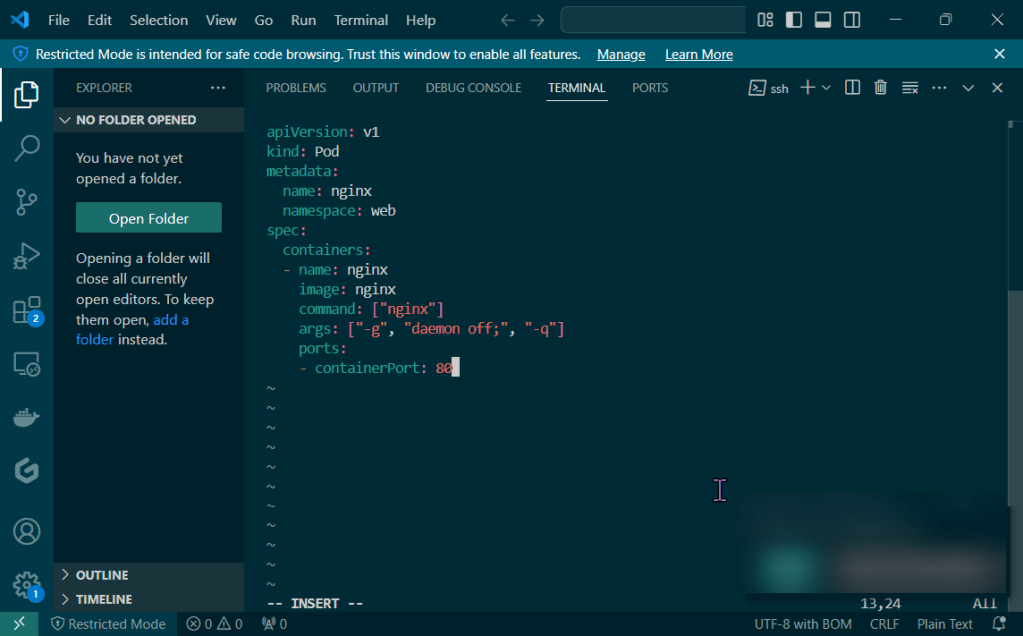
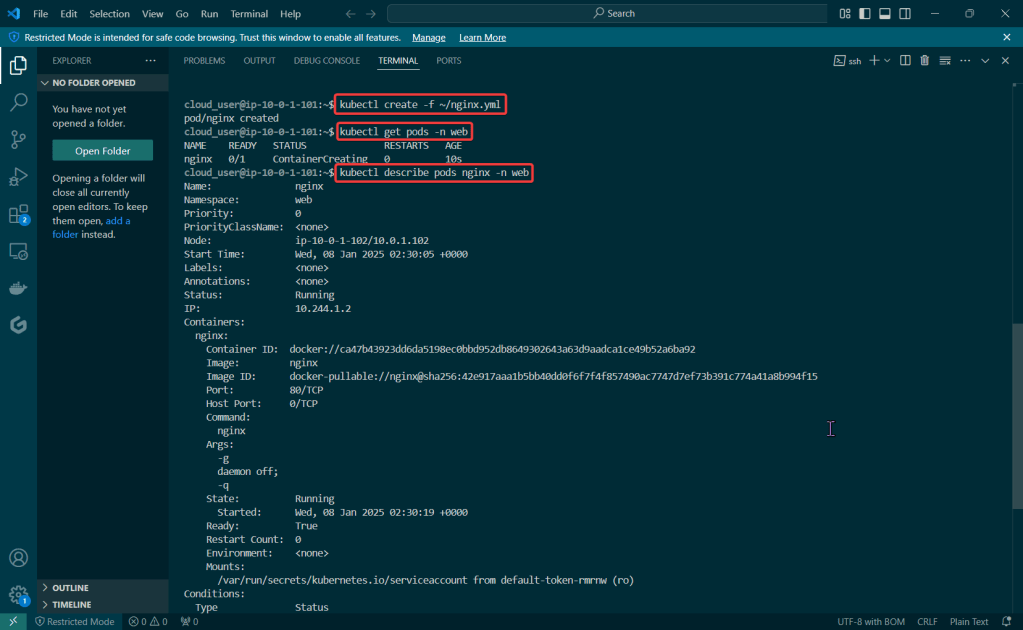
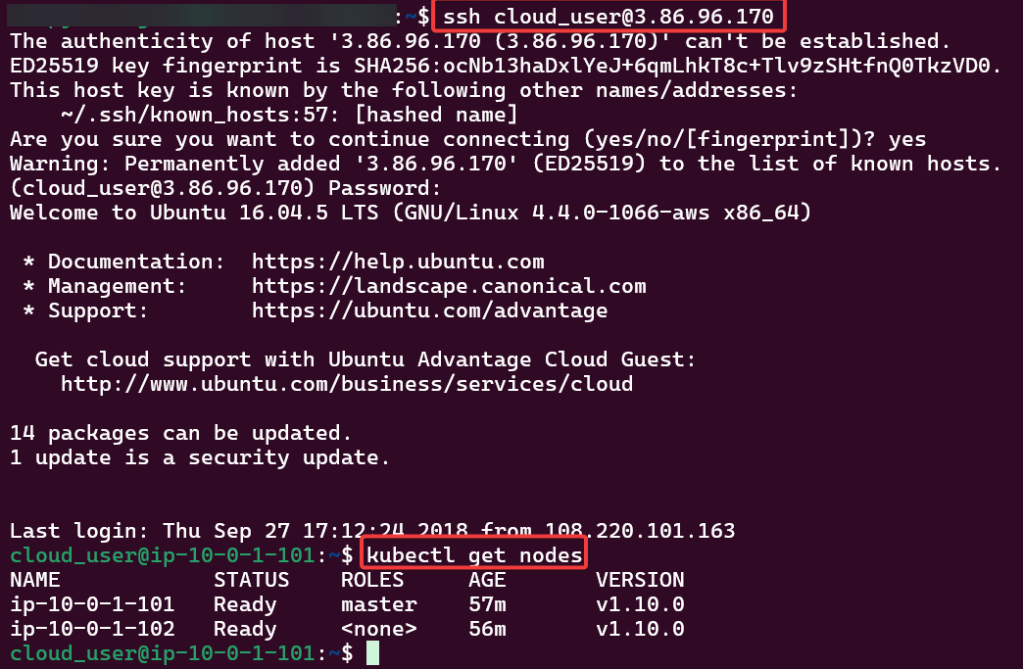
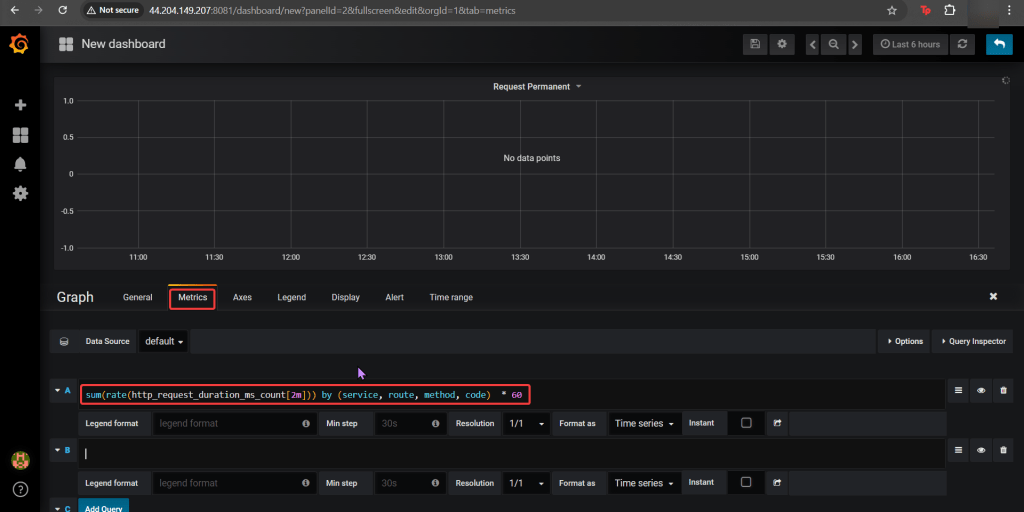
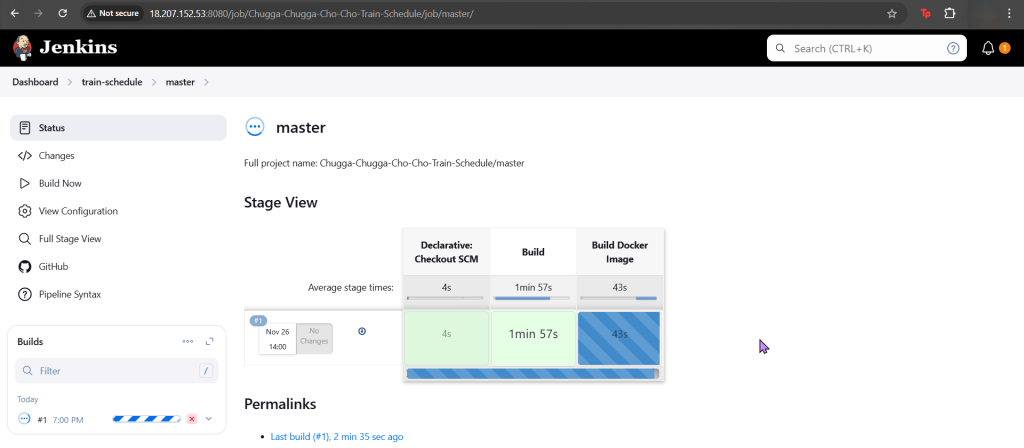
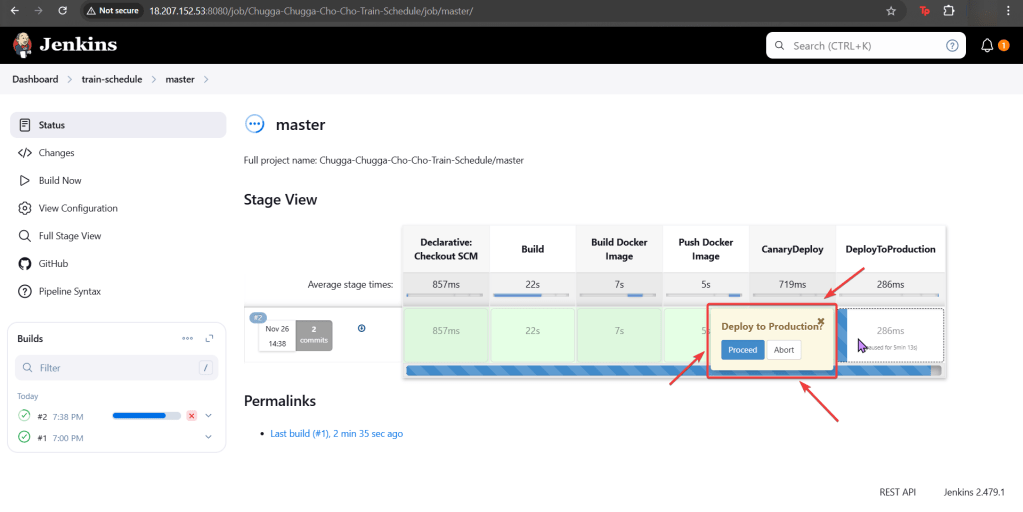
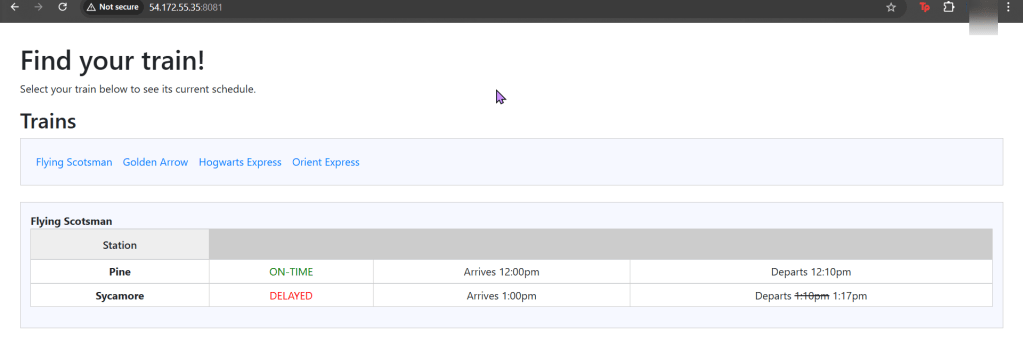
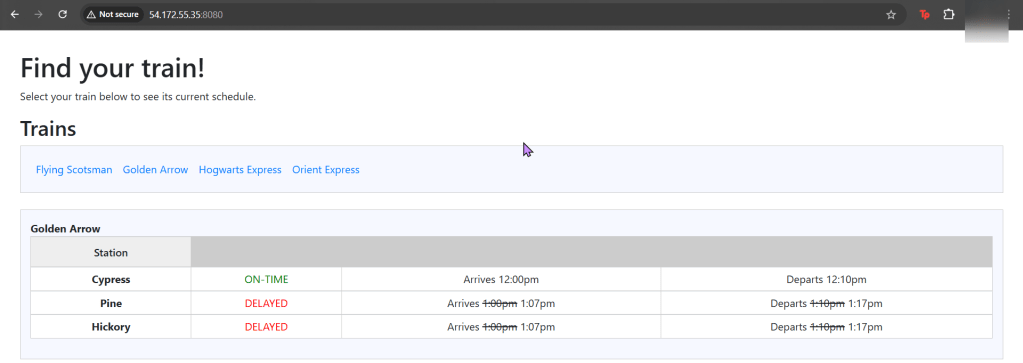
Our coal mine (CICD pipeline) is struggling, so lets use canary deployments to monitor a Kubernetes cluster under a Jenkins pipeline. Alright, lets level set here…

  • You got a Kubernetes cluster, mmmmkay?
  • A pipeline from Jenkins leads to CICD deployments, yeah?
  • Now we must add the deetz (details) to get canary to deploy

Lessons Learned:

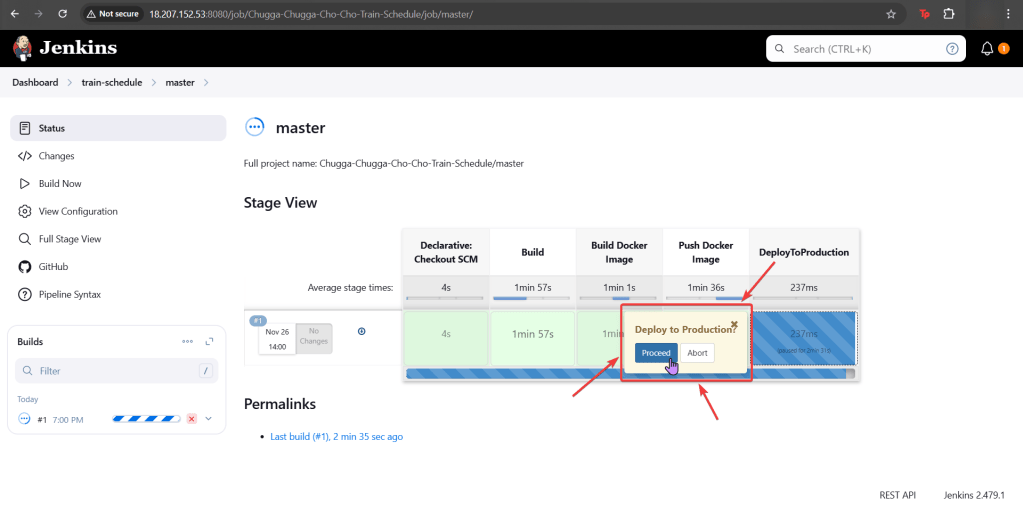
  • Run Deployment in Jenkins
  • Add Canary to Pipeline to run Deployment

Run Deployment in Jenkins:

Source Code:

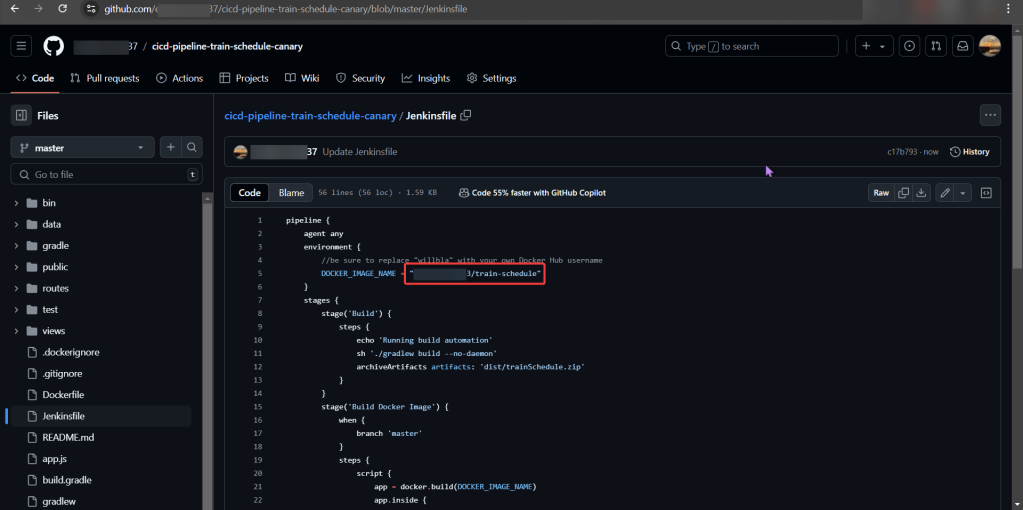
  • Create fork & update username

Setup Jenkins (Github access token, Docker Hub, & KubeConfig):

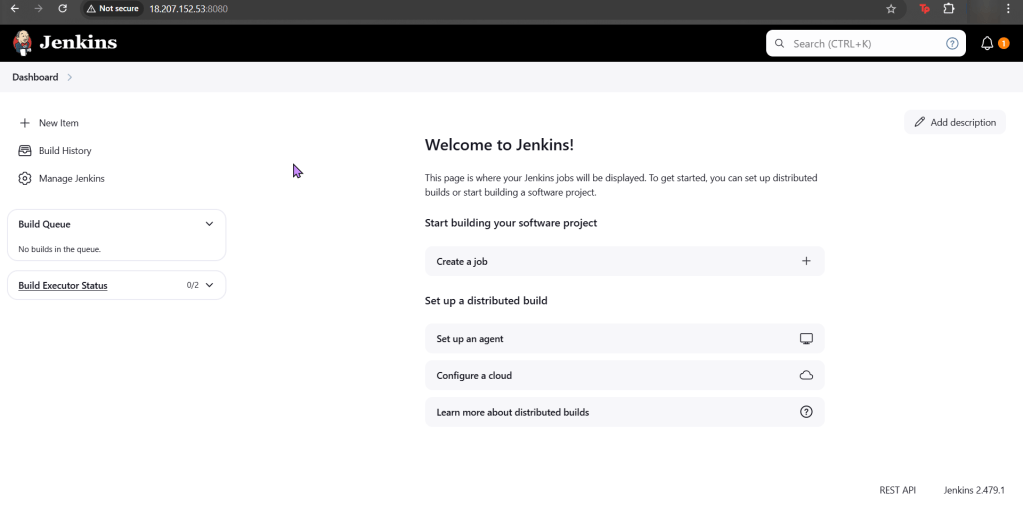
Jenkins:

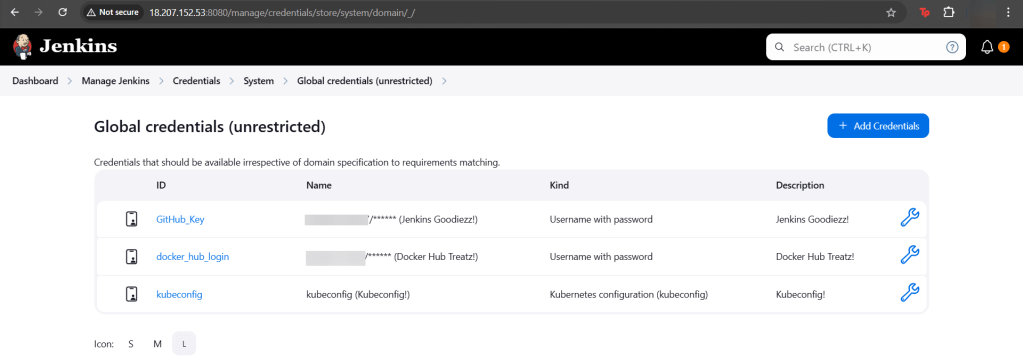
  • Credz
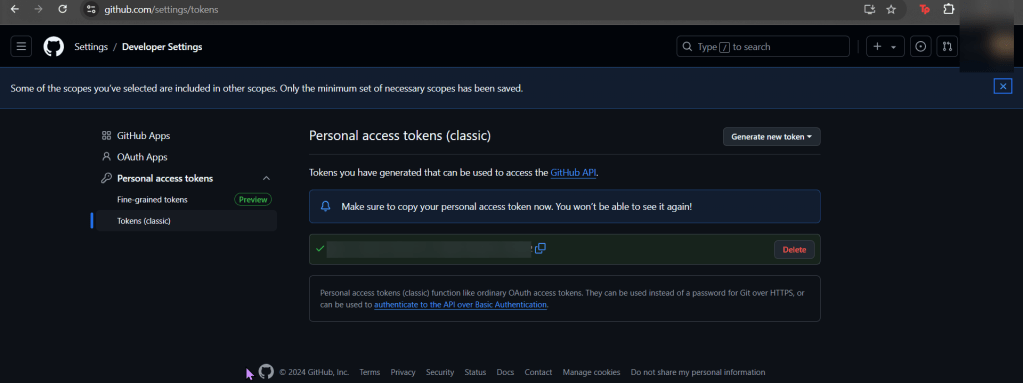
    • Github user name & password (Access token)

Github:

  • Generate access token

DockerHub:

  • DockerHub does not generate access tokens

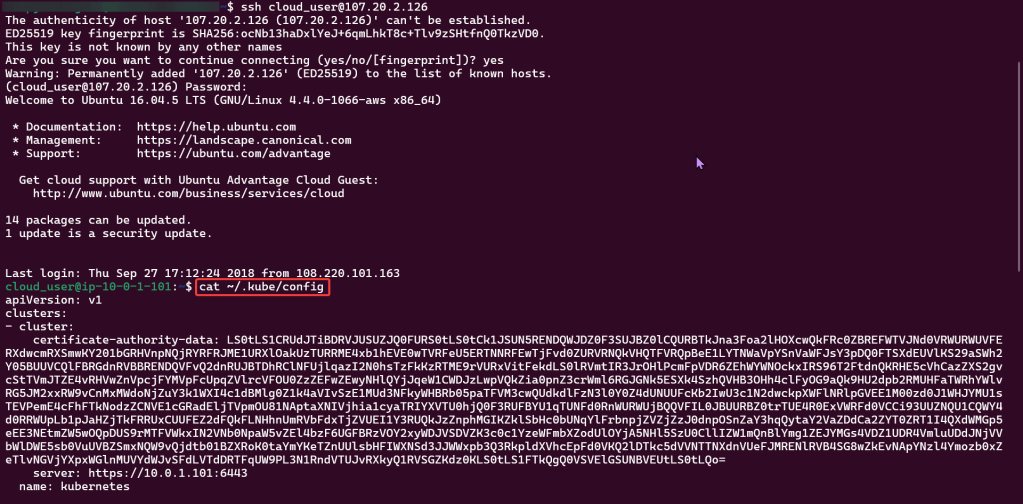
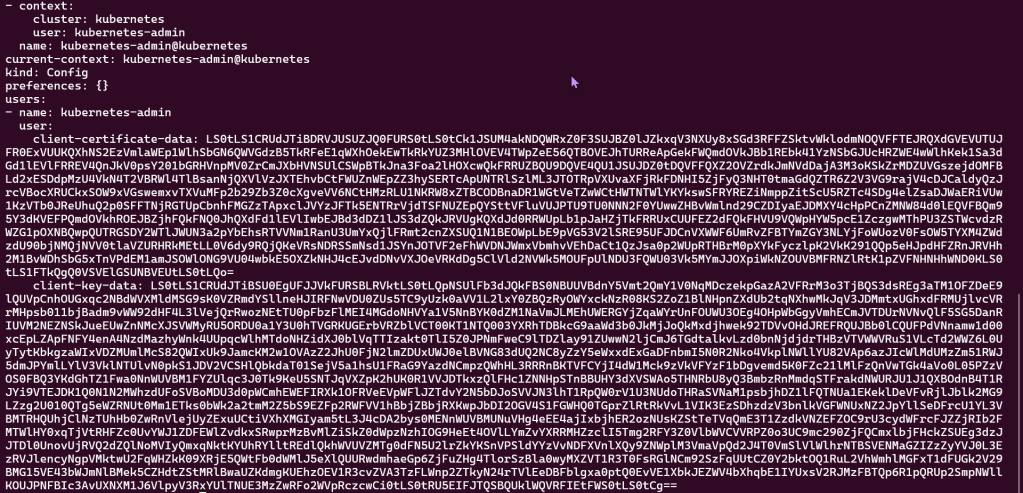
Kubernetes:

Add Canary to Pipeline to run Deployment:

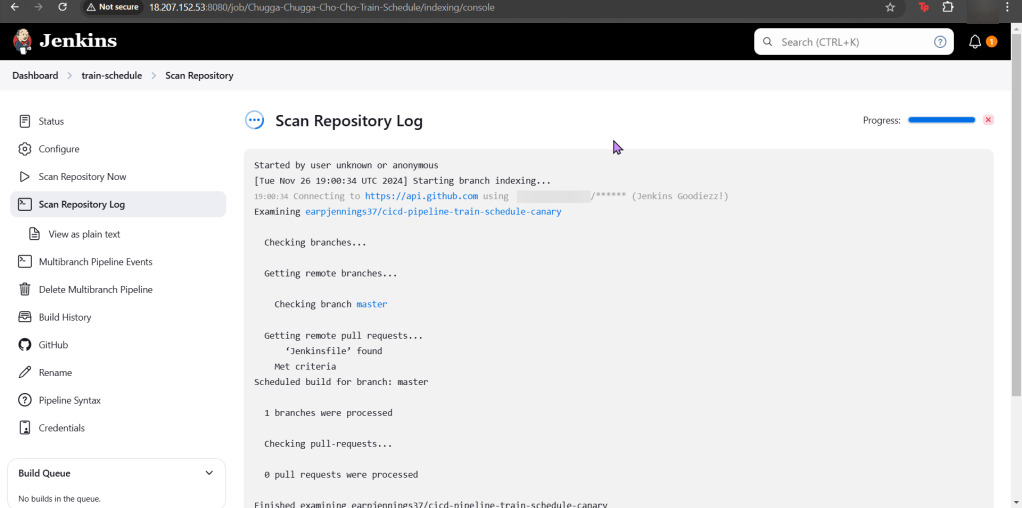
Create Jenkins Project:

  • Multi-Branch Pipeline
  • Github username
  • Owner & forked repository
    • Provided an option for URL, select deprecated visualization
  • Check it out homie!

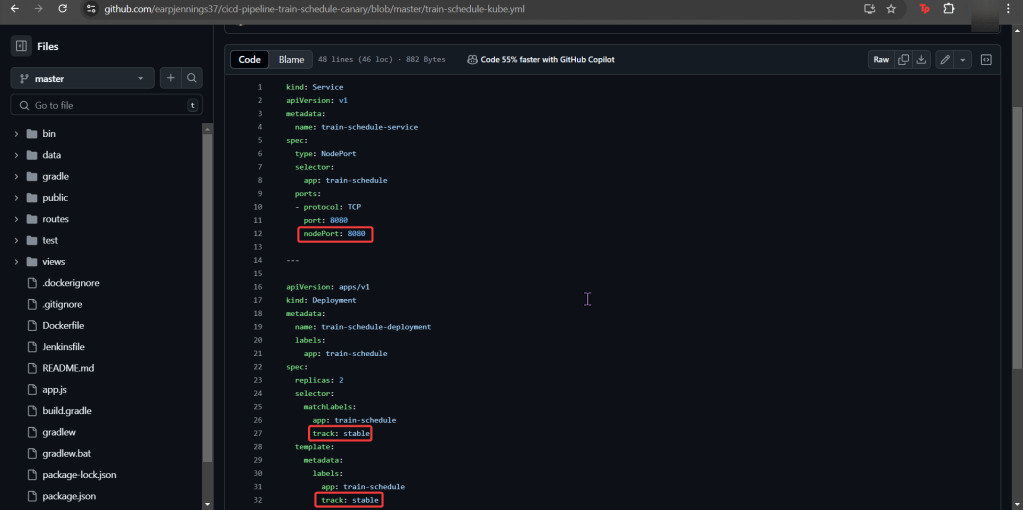
Canary Template:

  • We have prod, but need Canary features for stages in our deployment!
  • Pay Attention:
    • track
    • spec
    • selector
    • port

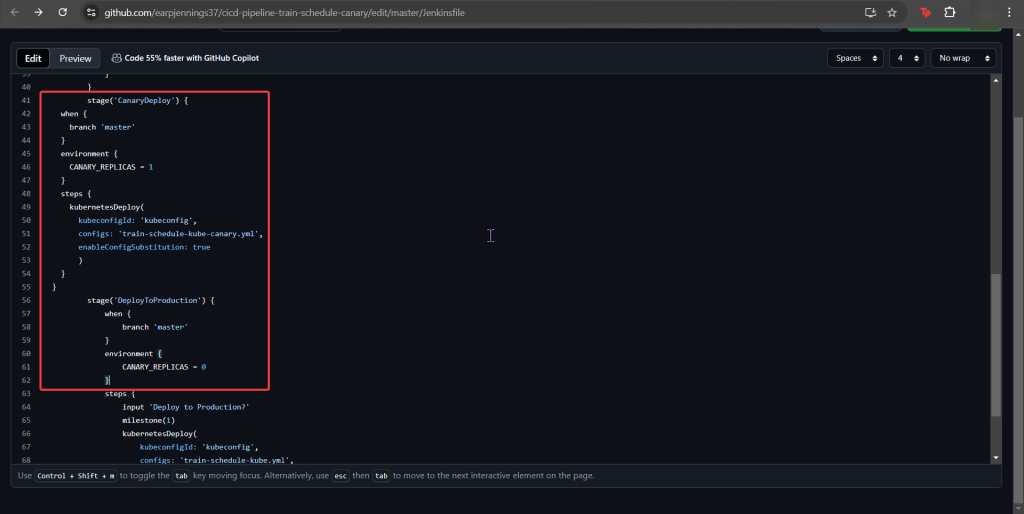
Add Jenkinsfile to Canary Stage:

  • Between Docker Push & DeployToProduction
    • We add CanaryDeployment stage!

Modify Productions Deployment Stage:

EXECUTE!!

Xbox Controller w/EKS & Terraform

Goal:

Okay, were not using Xbox controllers… but PS5 controllers! JK.. but what we will mess w/is deploy an EKS cluster to create admission controllers from a Terraform configuration file.

  • So what had happen was…
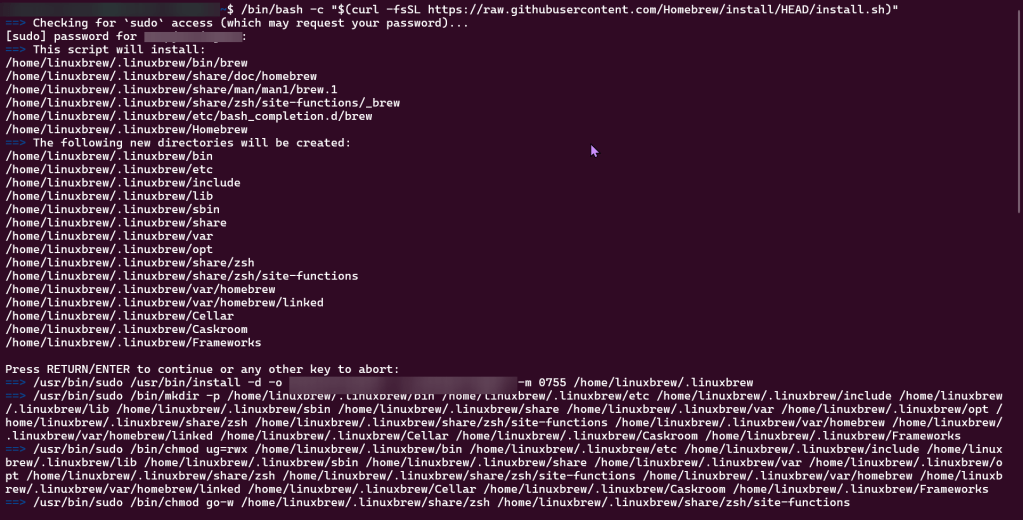
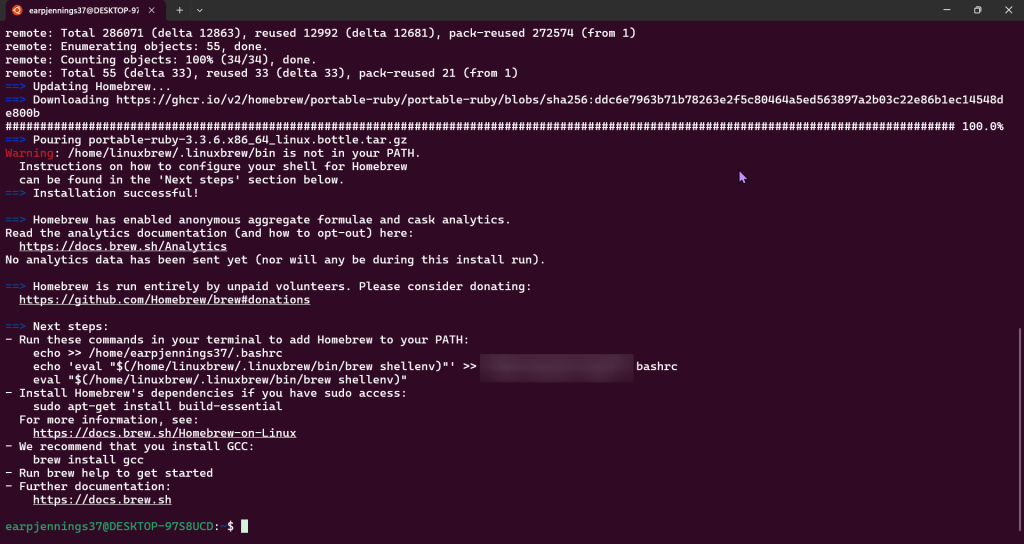
    • Deploy homebrew w/AWS CLI, kubectl, & terraform
    • Which will communicate to AWS EKS & VPC.
    • Got it? Okay dope, lets bounce.

Lessons Learned:

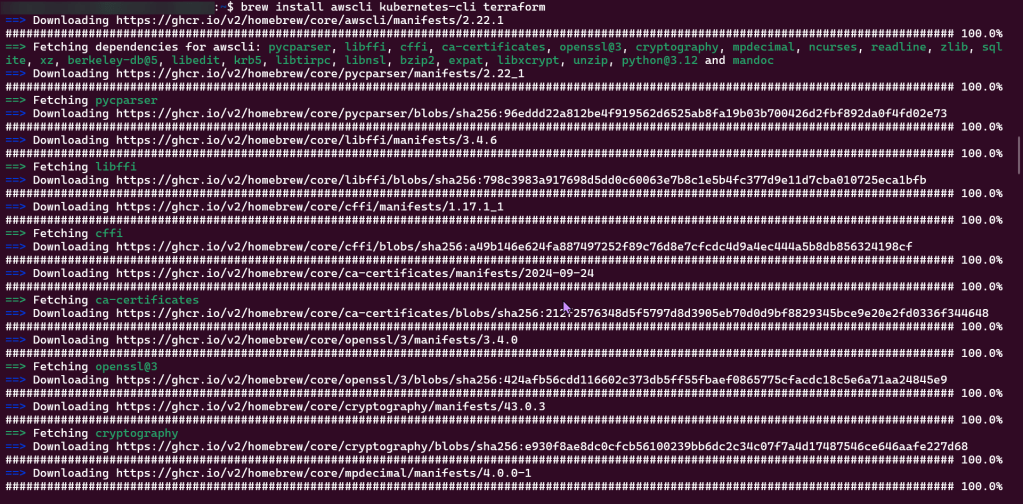
  • Installing Homebrew, AWS CLI, Kubernetes CLI, & Terraform
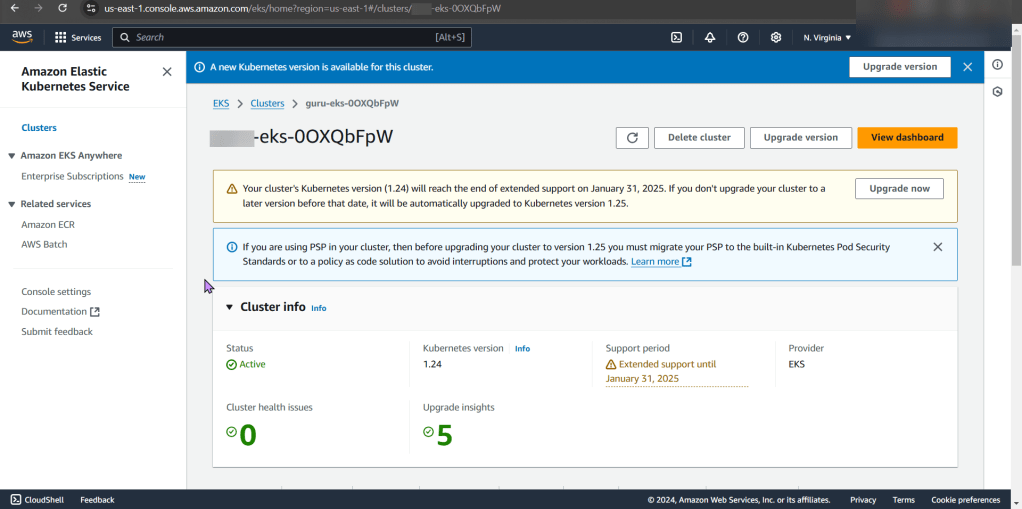
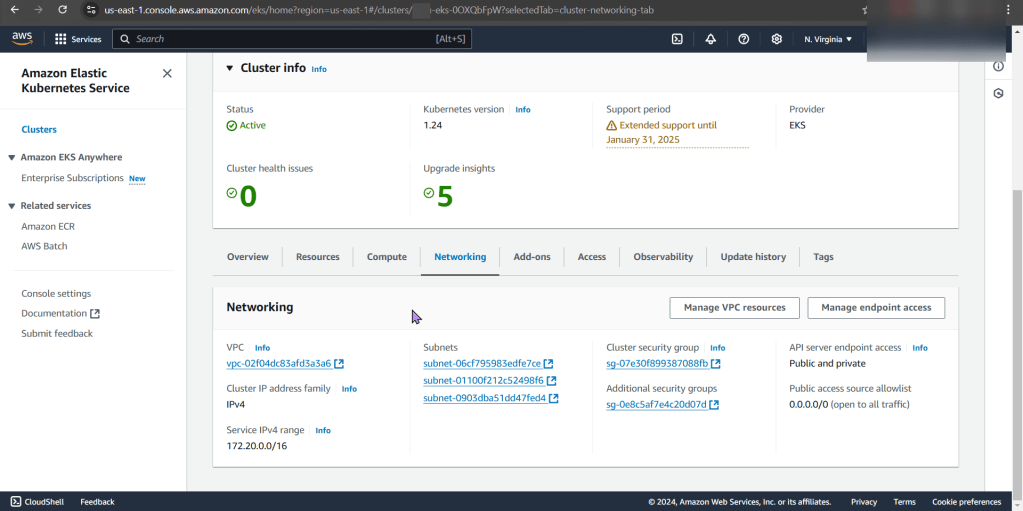
  • Deploy EKS Cluster

Install da Toolzz:

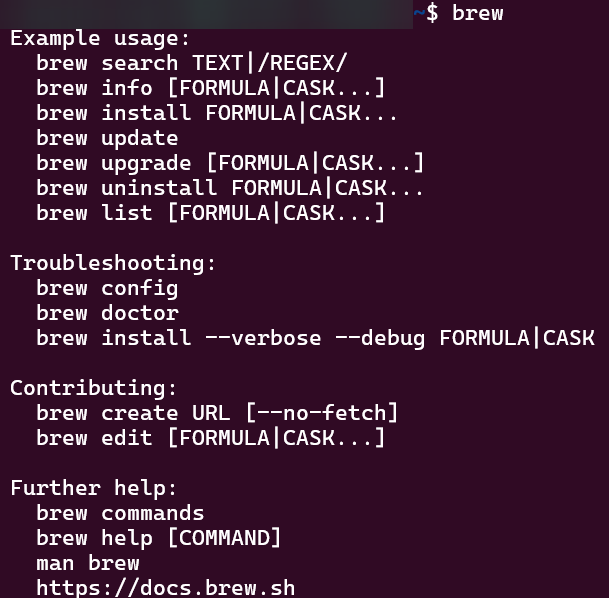
Homebrew:

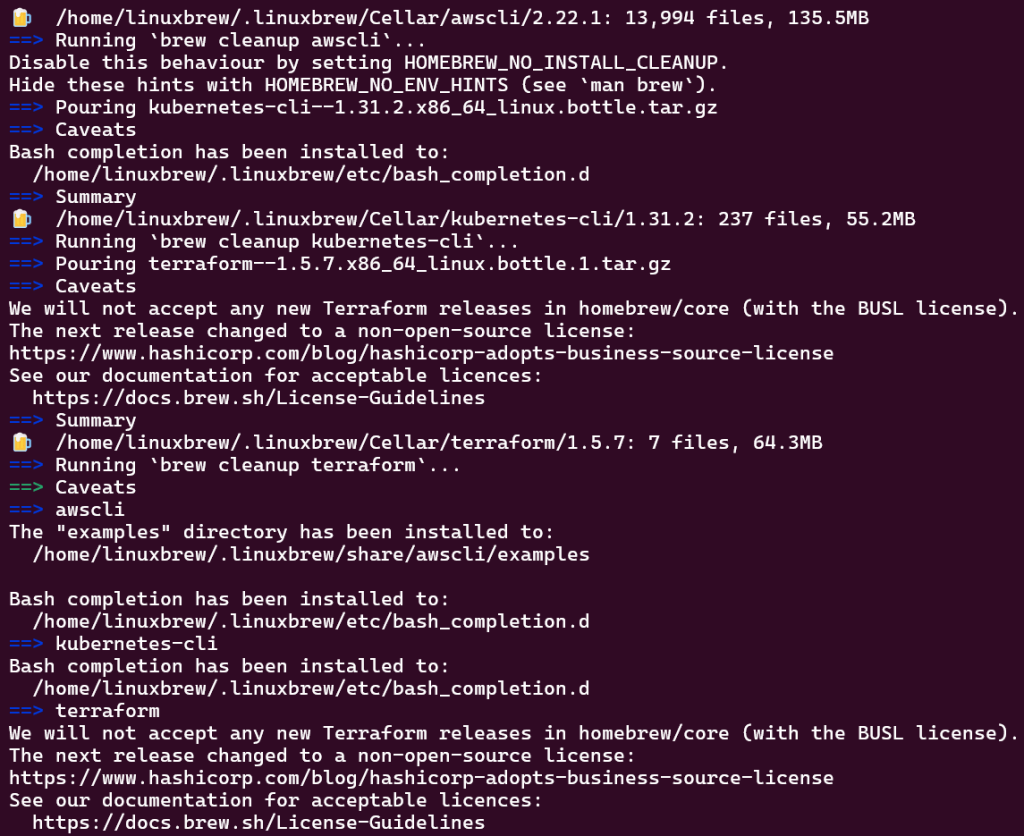
Brew Install:

  • AWS CLI
  • Kubernetes-cli (kubectl)
  • Terraform

Deploy EKS Cluster

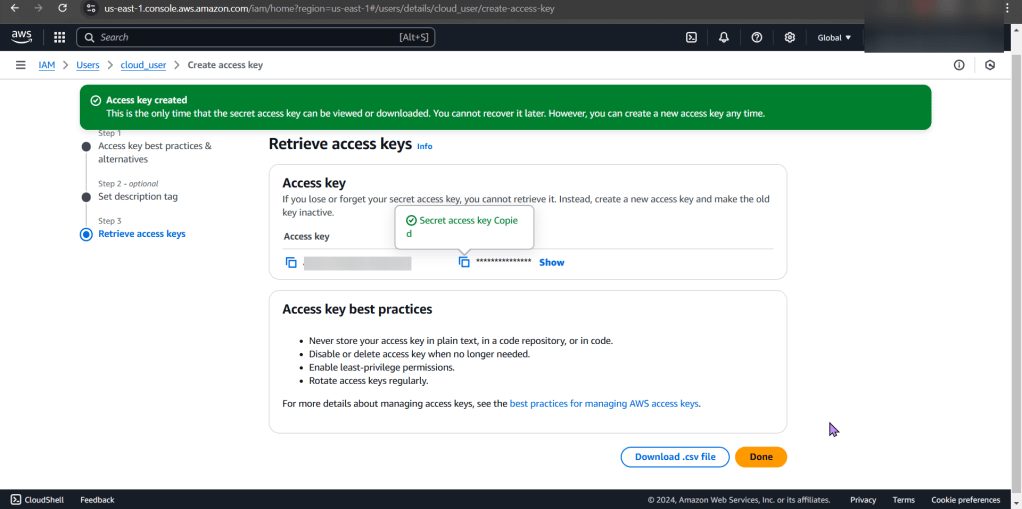
Create Access Keys:

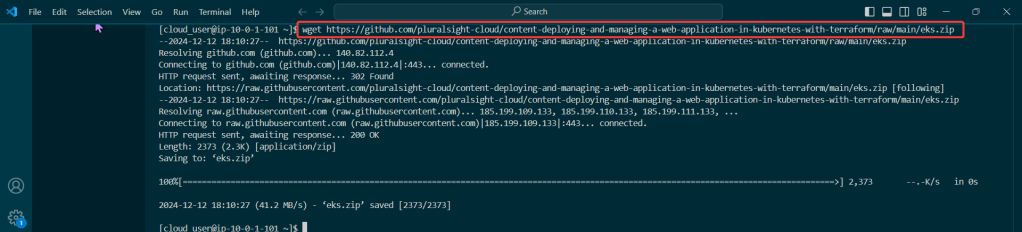
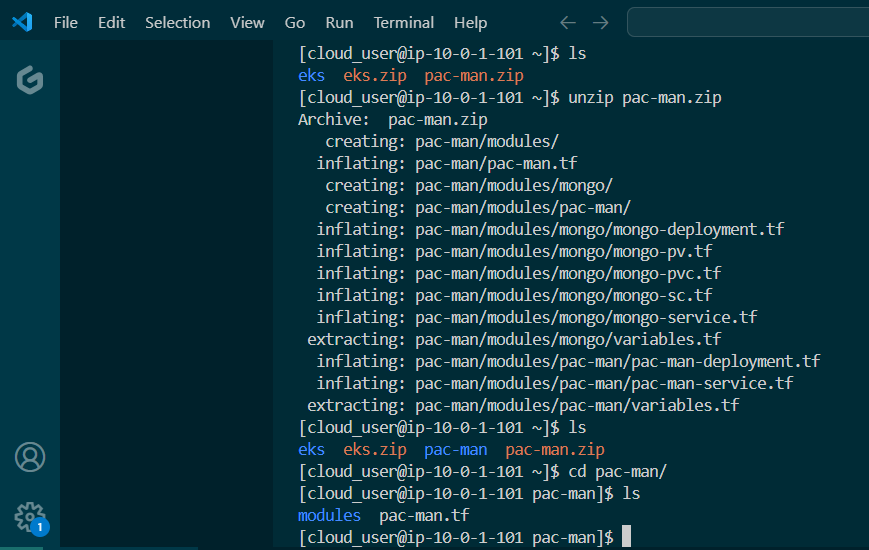
Clone Repo:

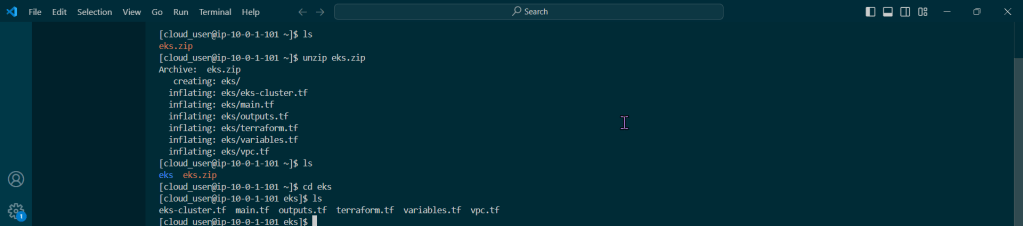
Move into EKS Directory:

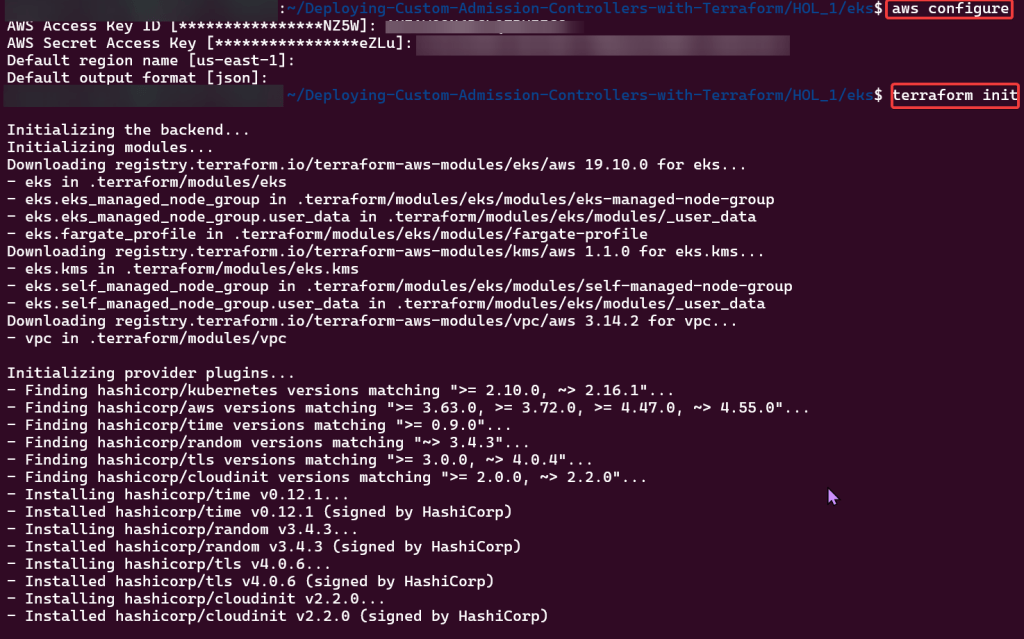
Initialize Directory:

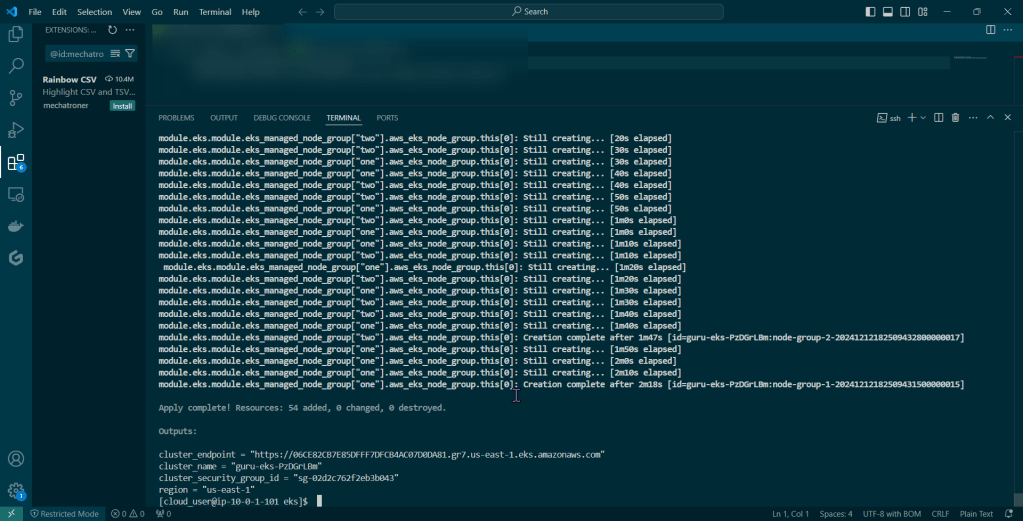
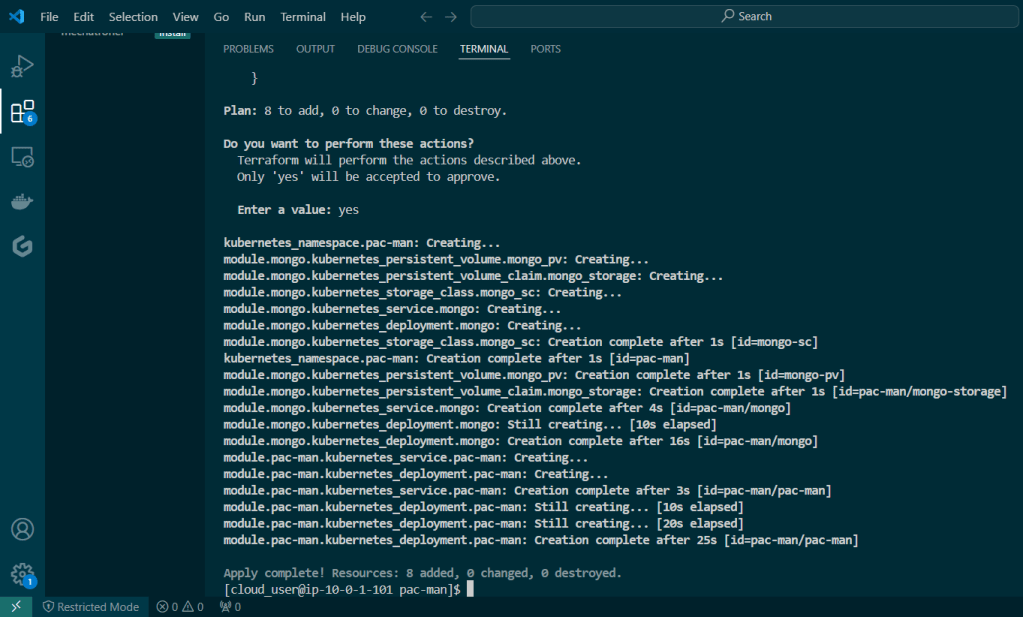
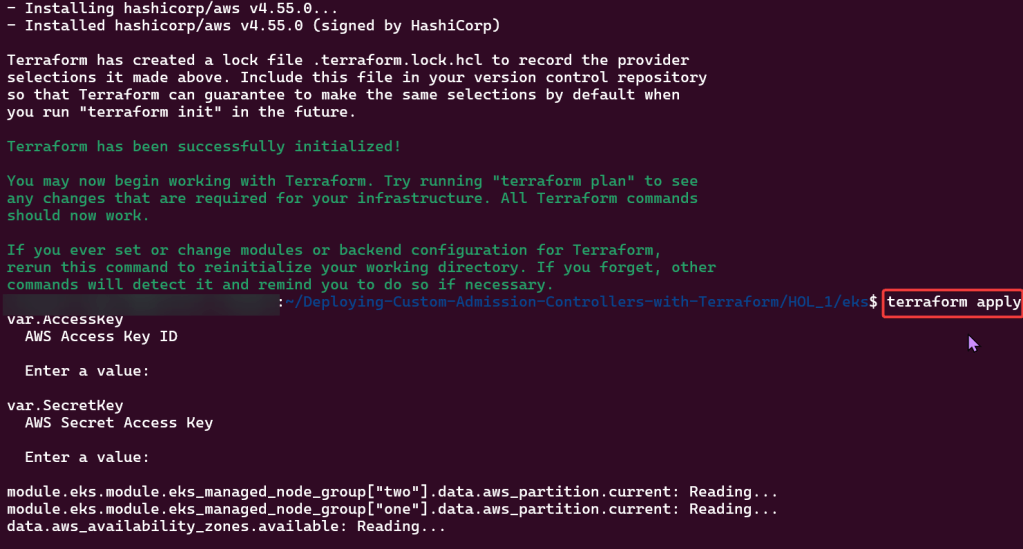
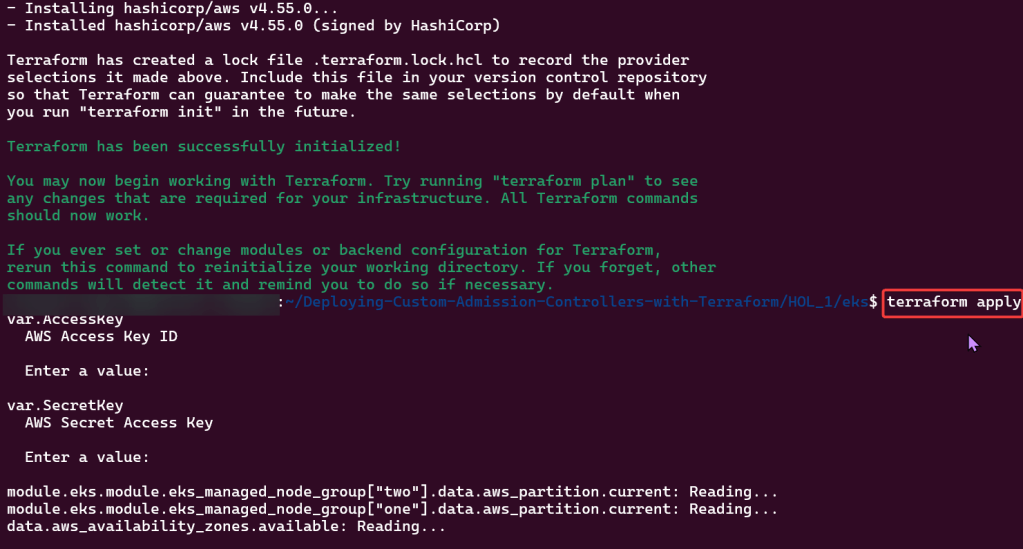
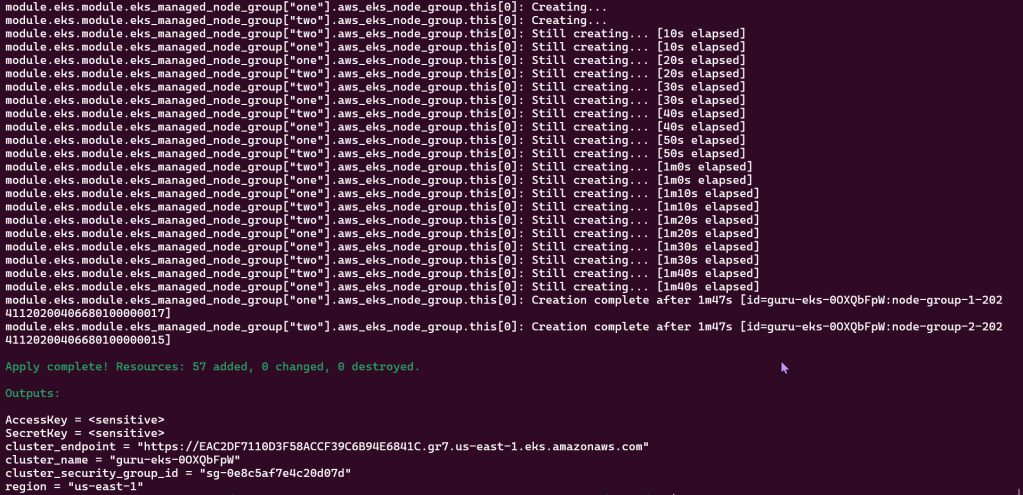
Apply Terraform Configuration:

Configure Kubernetes CLI w/EKS Cluster:

Are you connected bruh?

Need stronger EBS Volumes?

Goal:

You say you might need more storage capacity cuz of data through-put issues? So just-in-case we should change the root EBS volume of our EC2 through a bastion host & auto-scaling groups.

Lessons Learned:

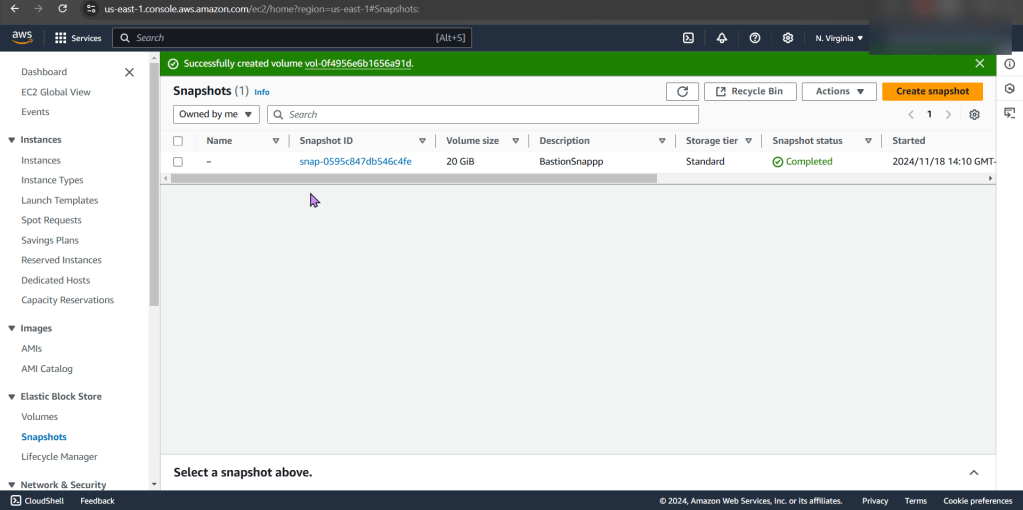
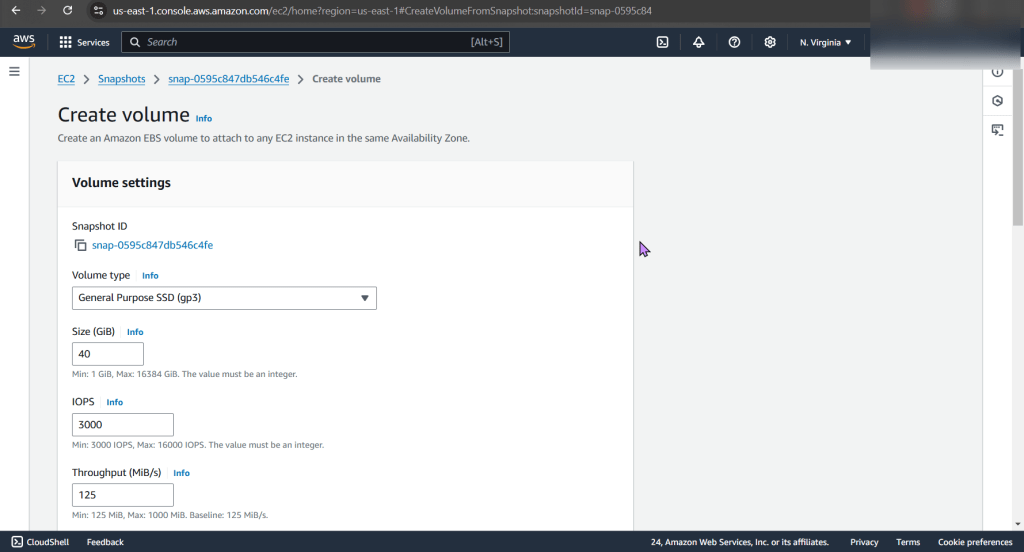
  • Create an EBS snapshot
  • Create a bigger, better EBS volume
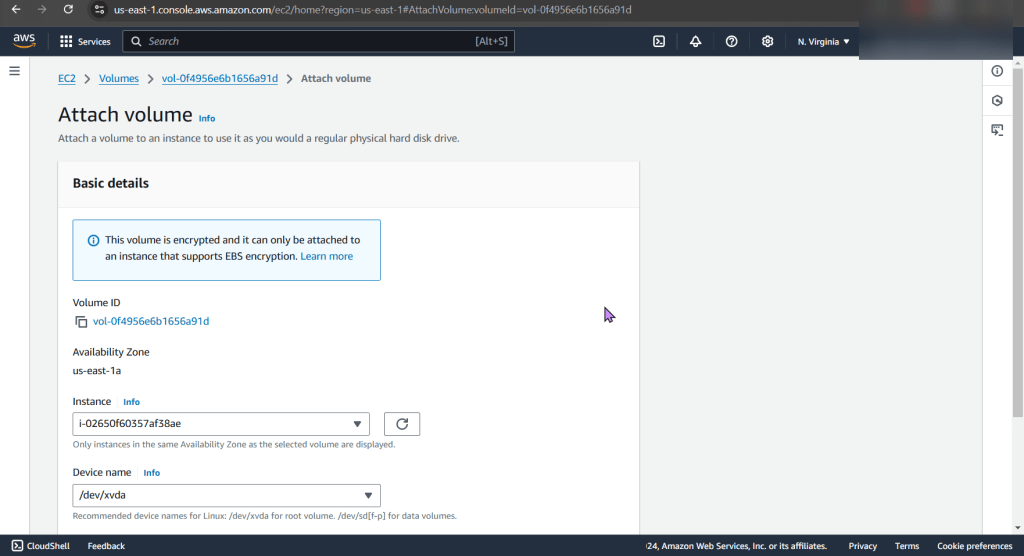
  • Attach a bigger, better EBS volume to an EC2
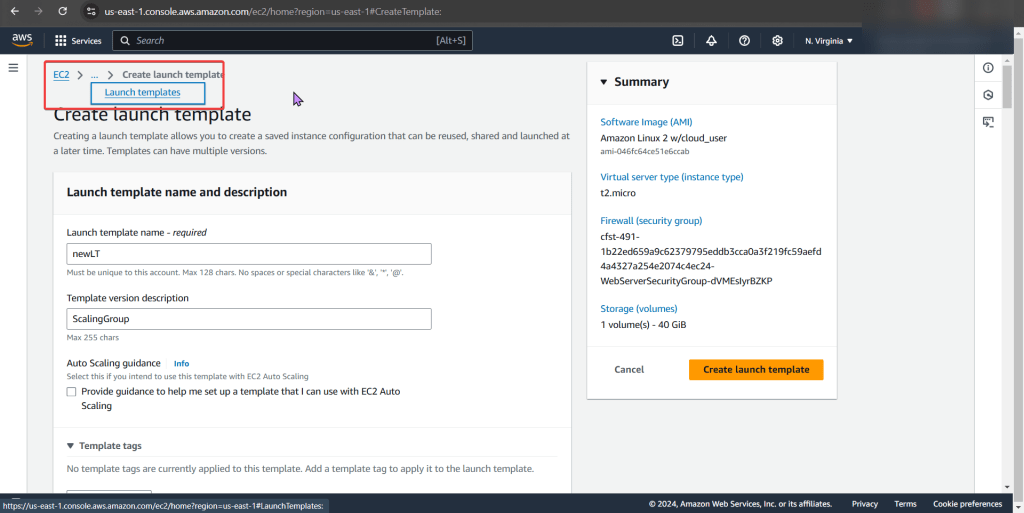
  • Create a auto-scaling template & update the current auto-scaling group

Create an EBS snapshot:

Create a bigger, better EBS volume:

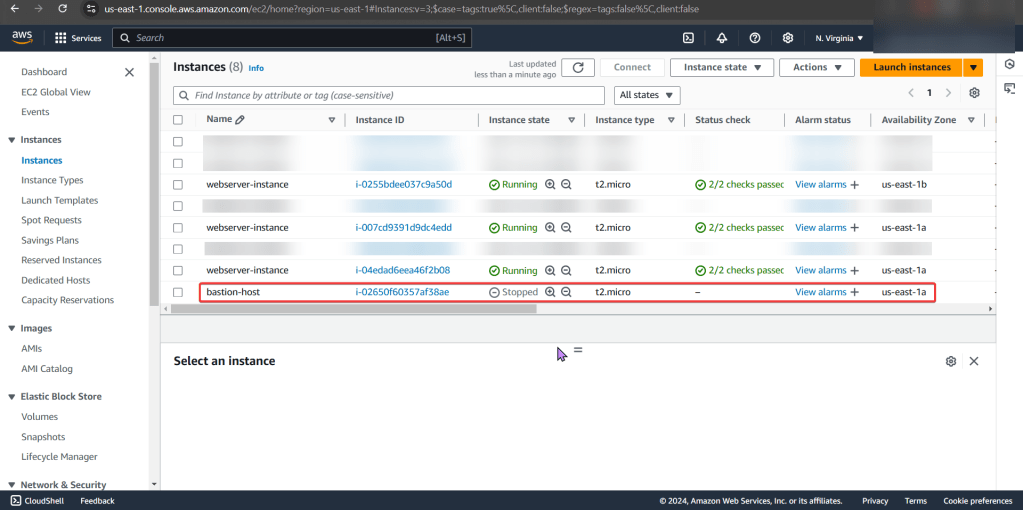
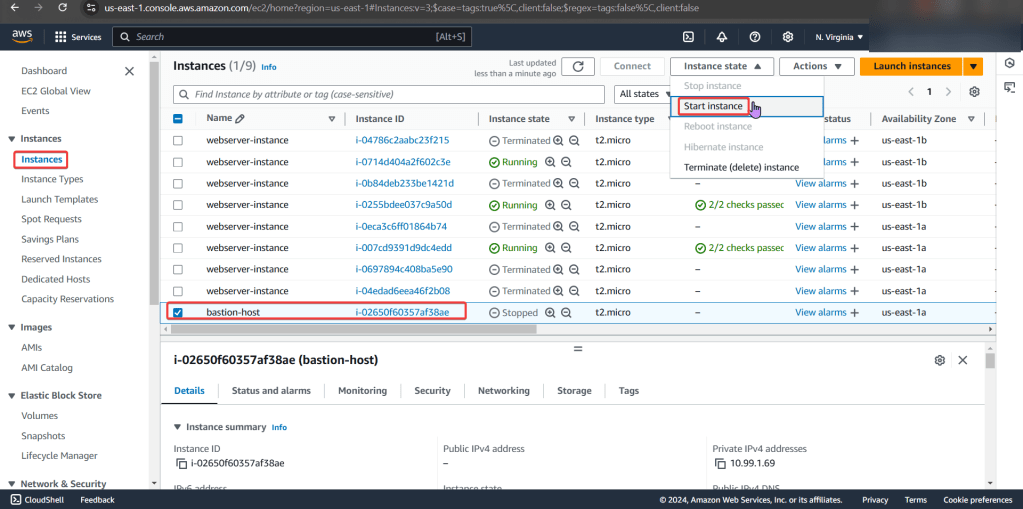
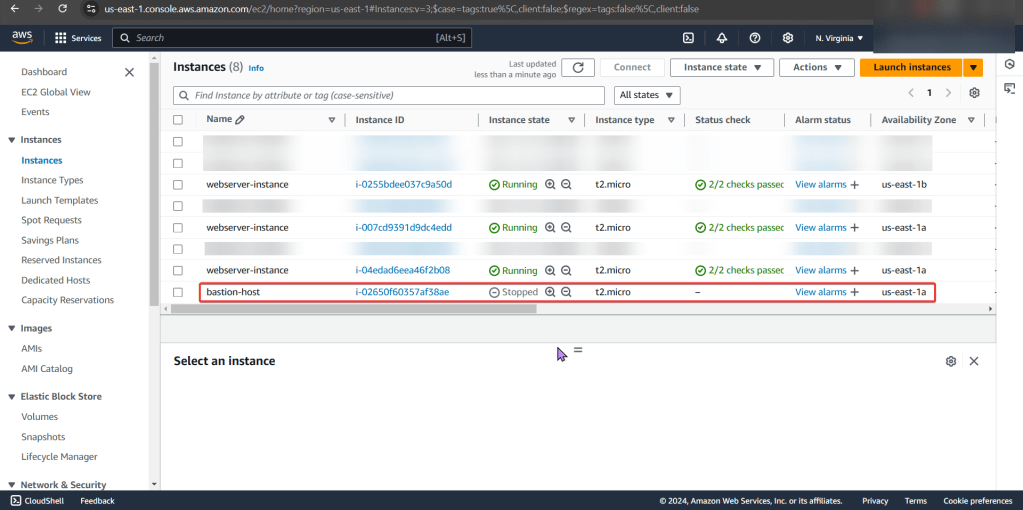
Stop the Instance!

Attach a bigger, better EBS volume to an EC2:

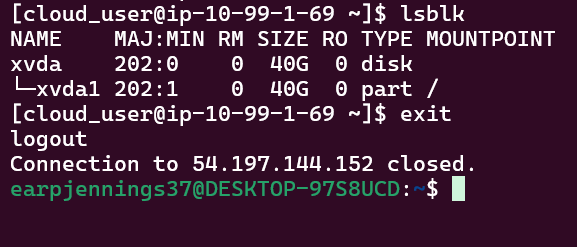
SSH!:

  • LOOKIE LOOKIE!!

Create a auto-scaling template & update the current auto-scaling group:

TERMINATE!!

  • If you can delete/terminate instances, then your fault tolerant! Scorrrrrrrrrrrrrre

ELB for the win!

Goal:

Sooooooo dont be mad, promise you wont be mad?… well, the environment is broken.. Lets take a look at the ELB DNS connection for an EC2.

  • Why can we connect to the public IP address, but not the EBS DNS?

Lessons Learned:

  • How to fix ELB security group that does NOT allow HTTP traffic
  • EC2 instance health checks are not passing

ELB Security Group:

Order of Operation Steps:

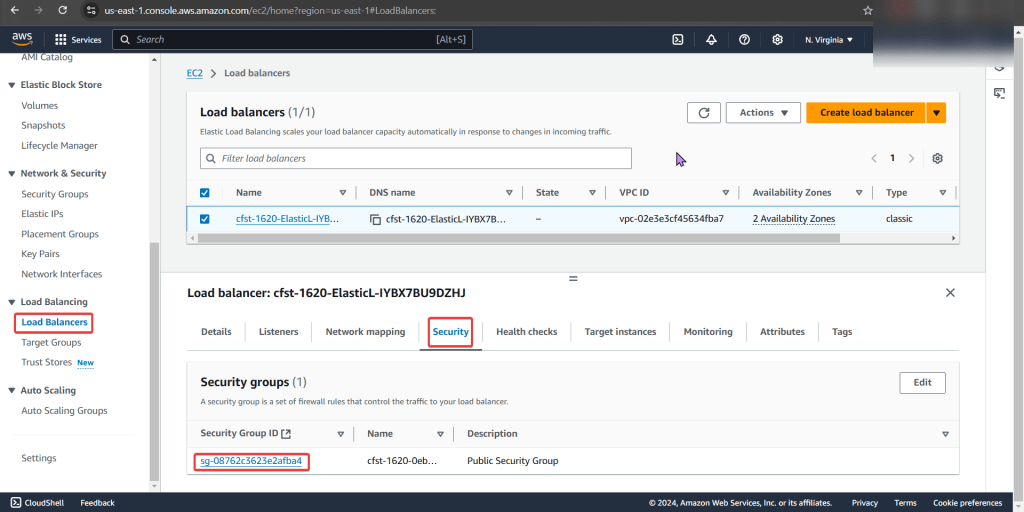
  • Under EC2
  • Scroll to “Load Balancers”
  • Select “Security”
  • Next look at “Security Groups”
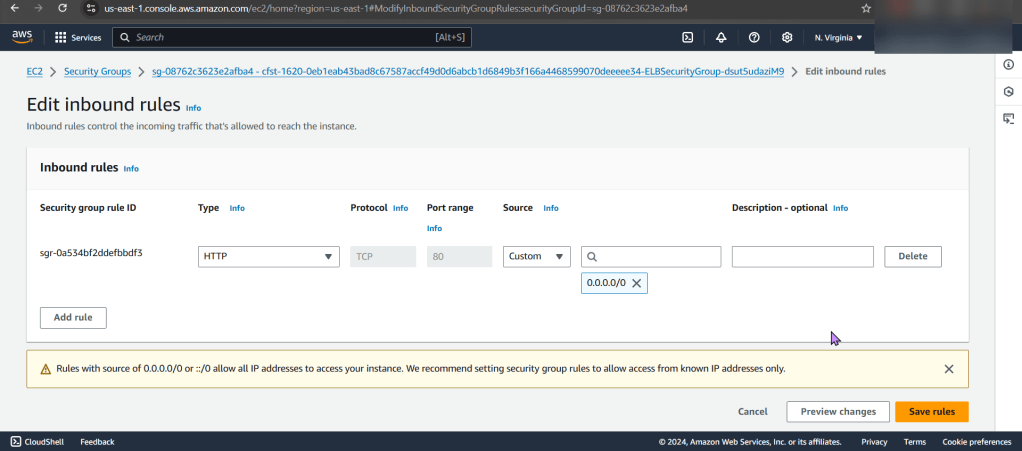
  • We notice that there is only 1 inbound rule, for port 22…

The Fix/Solution:

  • Add Allow rule for HTTP traffic on port 80 to ELB security group

EC2 Health Check:

Order of Operation Steps:

  • Under Load Balancers
  • Select Health Checks
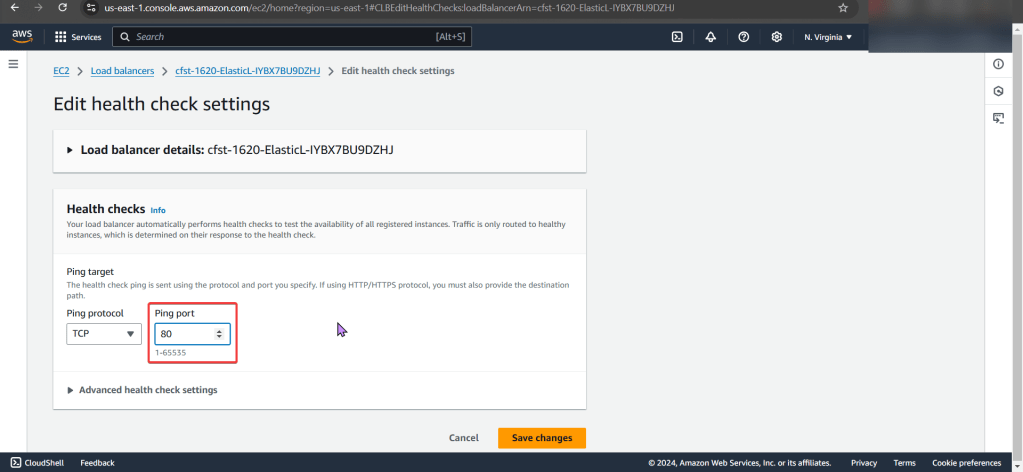
  • You see the wrong ping port..
  • CHANGGGGE IT

The Fix/Solution:

  • Change health check “ping port” on ELB to port 80
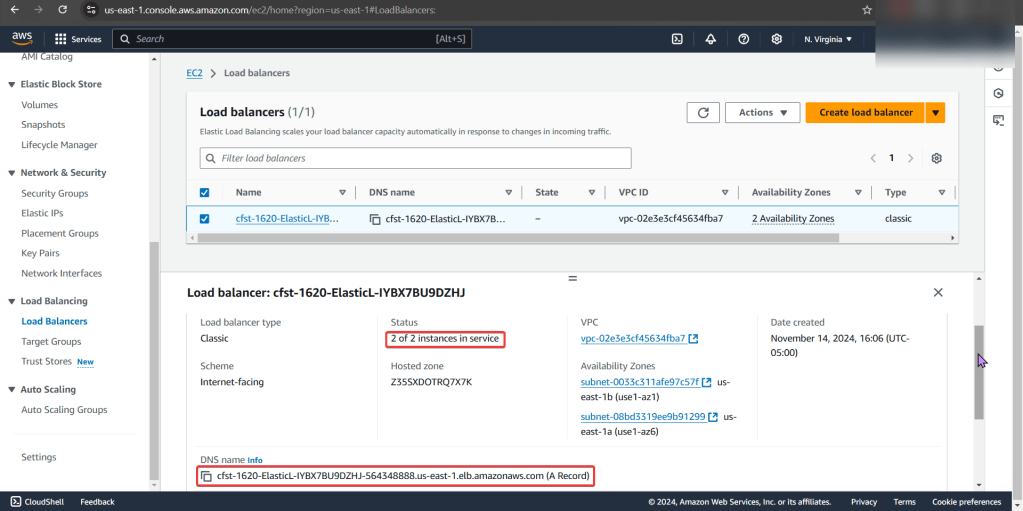
  • Now you can test the DNS name to see your webpage working properly.

Grab the Network wheel, our SGs & NACLs are 2-trackin!

Goal:

Uhh-ohh, we let the newbie drive & were off the road… lets take a peak under the hood & see why we can’t connect to the internet. We understand why an instance cant connect to internet. This post should share an order of operations if one does not know why an instance is not connecting to the internet.

Lessons Learned:

  • Determine why instance cant connect to internet
  • ID issues preventing instances from connecting to the internet
  • Important Notes:
    • We have 3 VPCs w/SSH connection & NACLs configured through route table
    • Instance 1 & 2 have connection to internet & are a-okay…
    • Instance 3 is not connected to the internet, so we outtah’ figure out the problem.

Order of Operations:

  • Instance
  • Security Group
  • Subnet
  • NACL
  • Route table
  • Internet gateway

Solution:

  • Instance
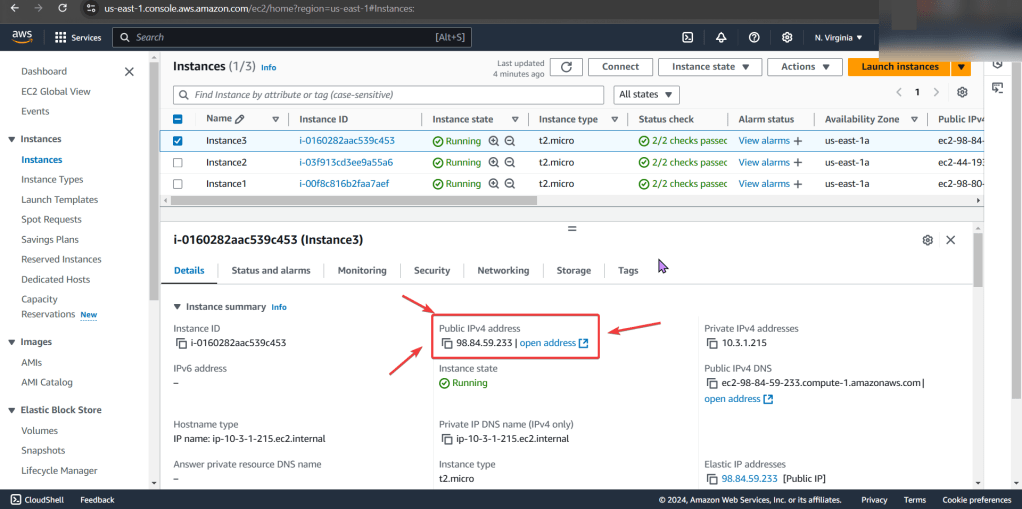
    • No public IP address
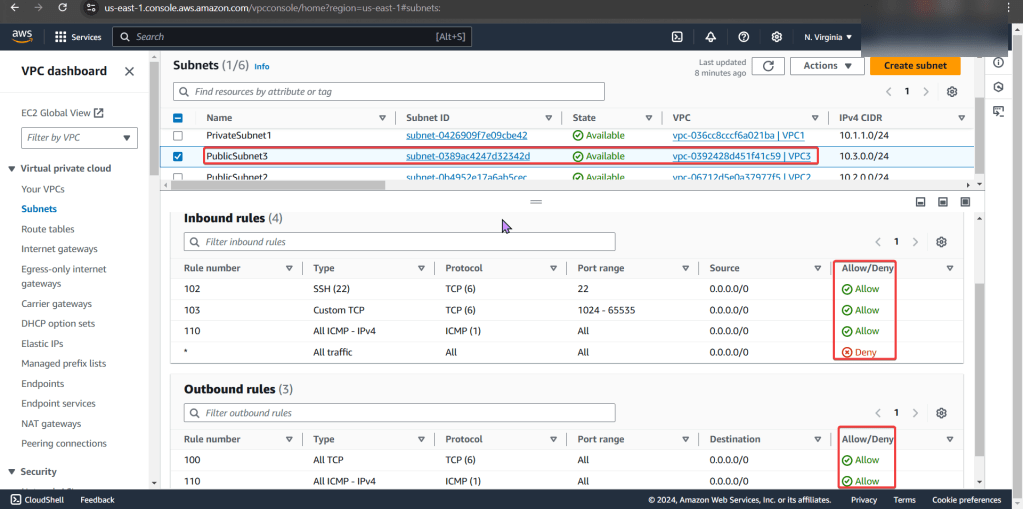
  • NACL
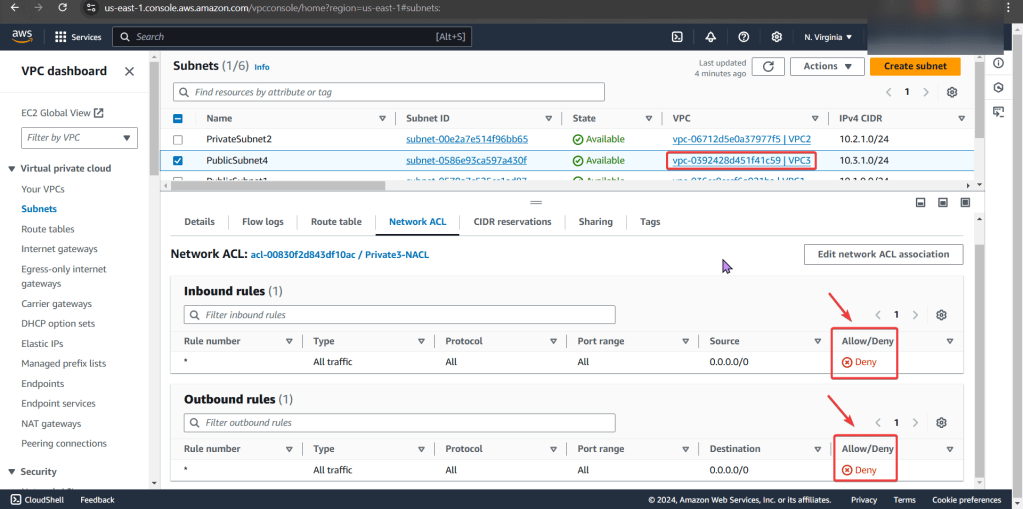
    • Deny rules for inbound & outbound that prevents all pinging & traffic to instance
  • Route Table
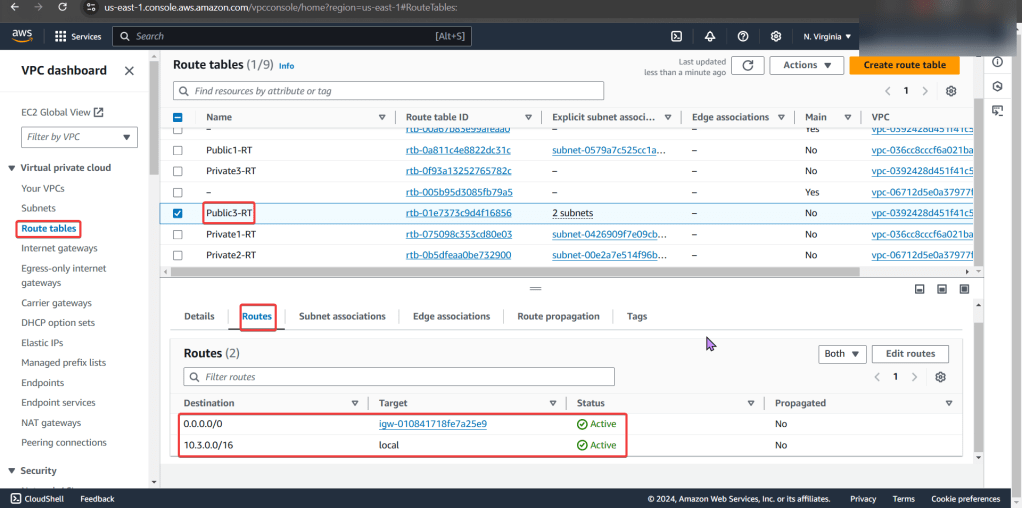
    • Did not have route to internet gateway

Determine why instance cant connect to internet:

Instance:

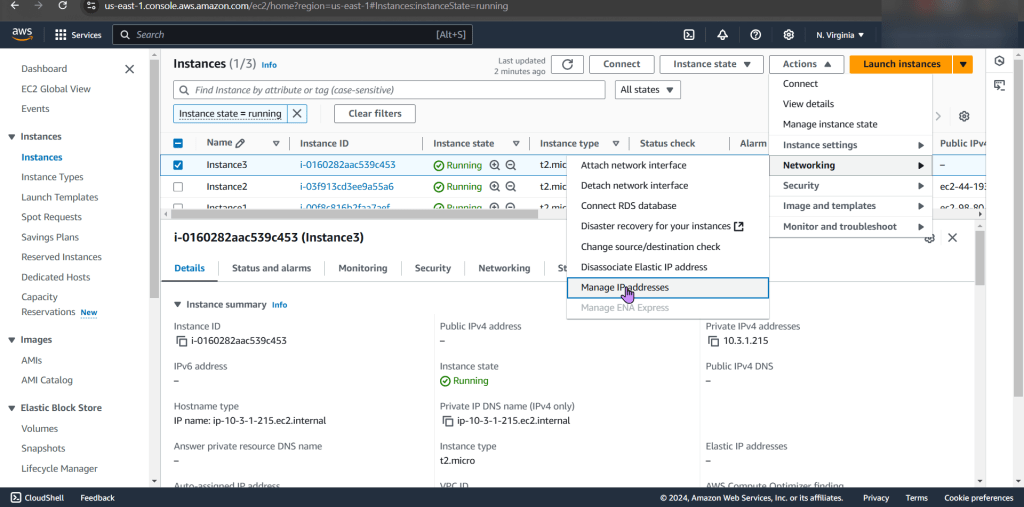
  • Start w/networking & manage IP address
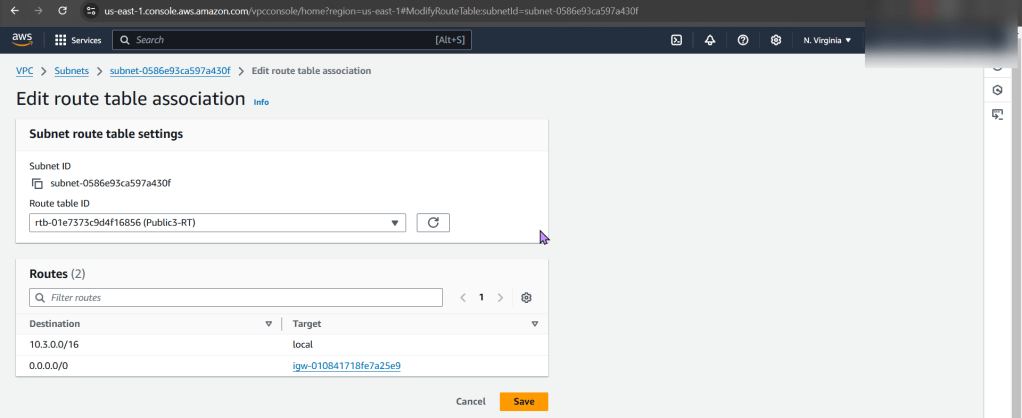
    • See no public IP address below in screenshot
  • Wham bam thank ya mam! Fixed!… Wait, it isn’t?

Security Group:

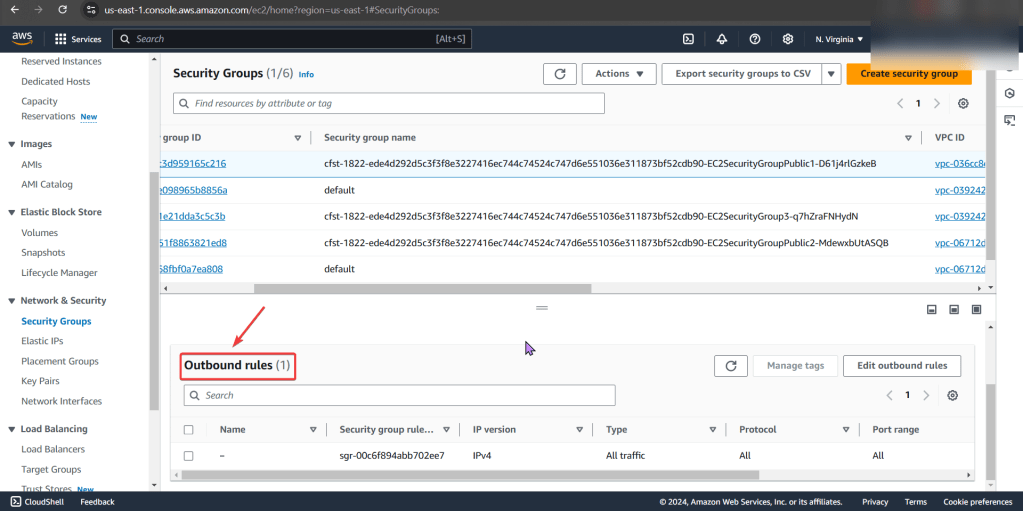
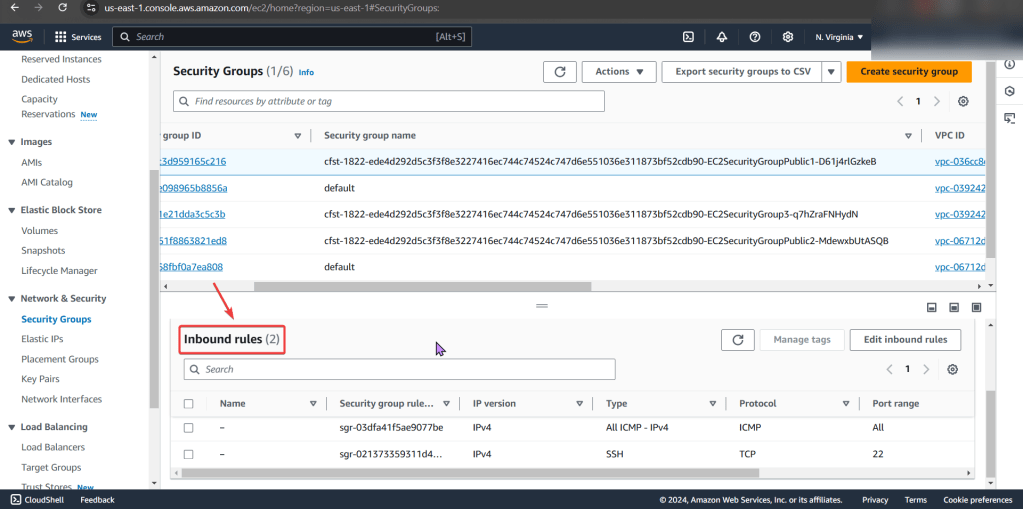
  • Can we ping the instance?
  • Remember when looking at rules, just cuz says private – doesn’t mean it is! So check the inbound/outbound rules details

PING!

  • Nothing. Okay, I reckon to keep lookin..

Subnet:

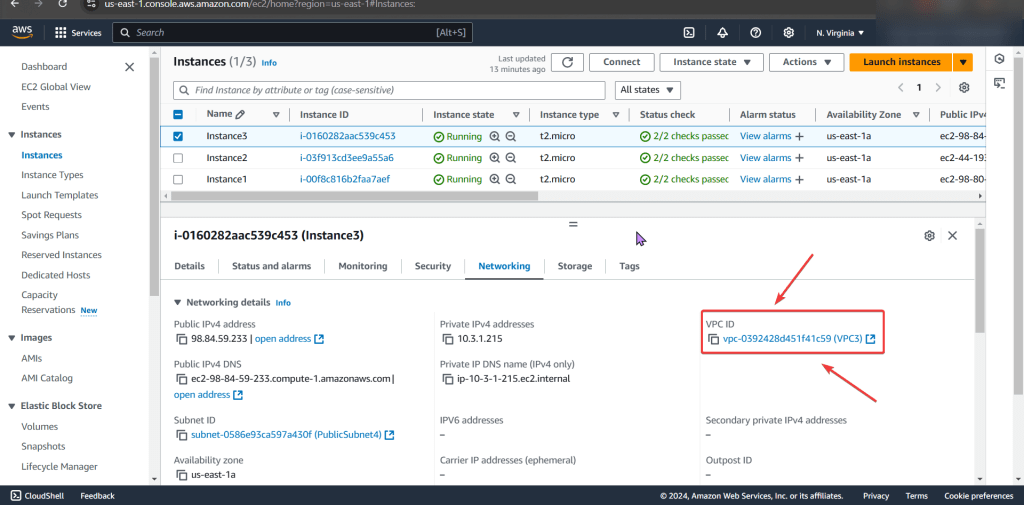
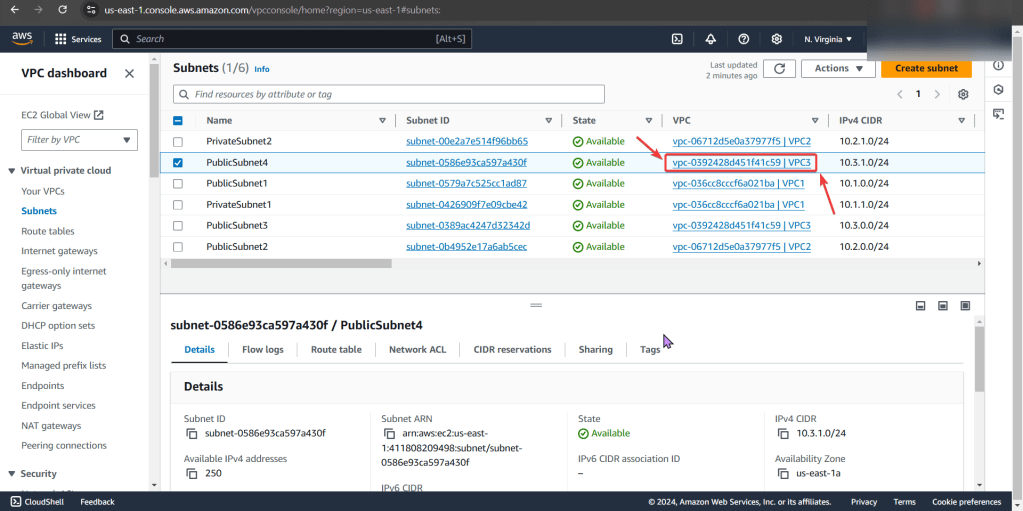
  • Look at private IP address & then VPC
    • Specifically under subnets pay attention to the VPC ID
  • Looks okay so far, keep on keepin on!

NACLs:

  • We found the issue!! The NACL rules deny all inbound/outbound traffic into the instance!
    • Even tho the security group does allow traffic, remember the order of operations from in-to-out..

PING!!

  • Still nothing, hmm..

Route Table:

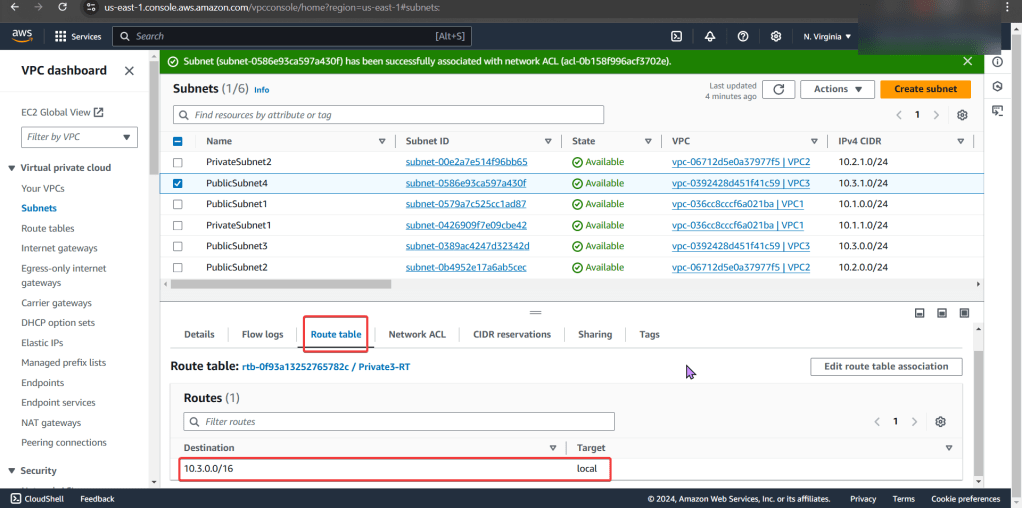
  • Ah-ha! We found the issue…again!
    • There is no route to the internet gateway

ID issues preventing instances from connecting to the internet:

Instance:

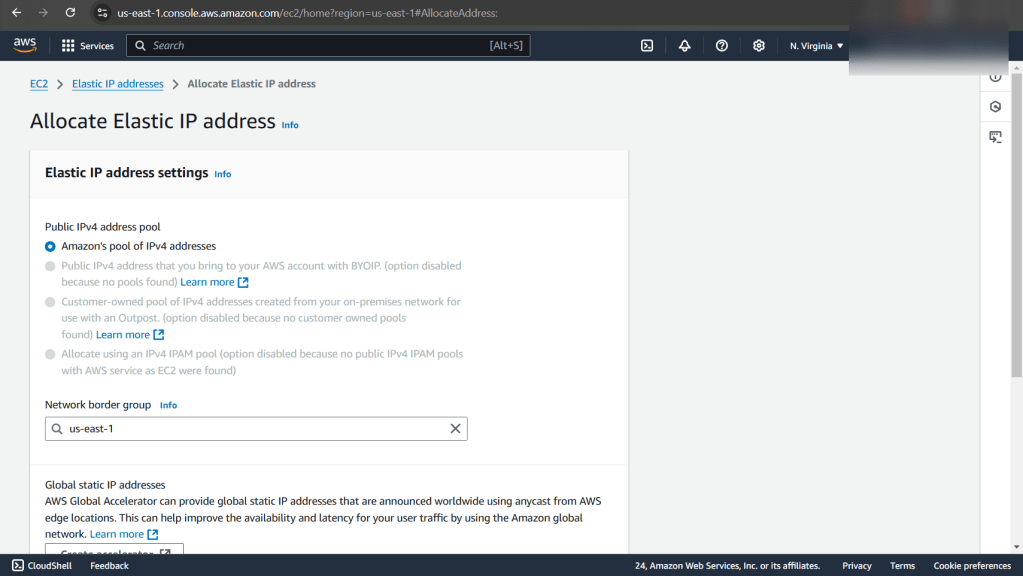
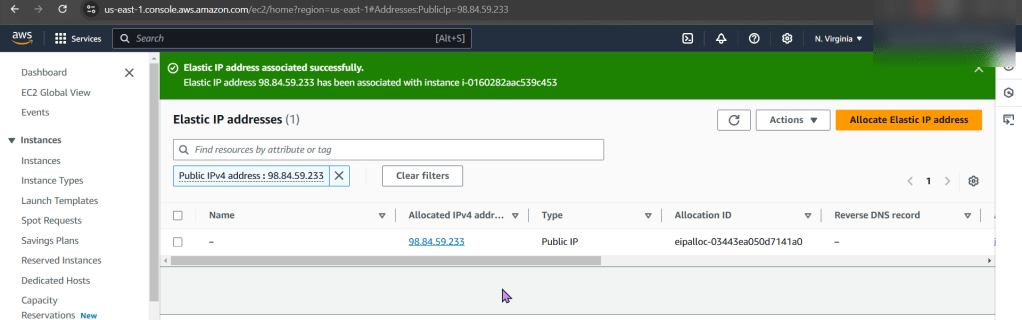
  • Allocate an Elastic IP Address, not a public one!!

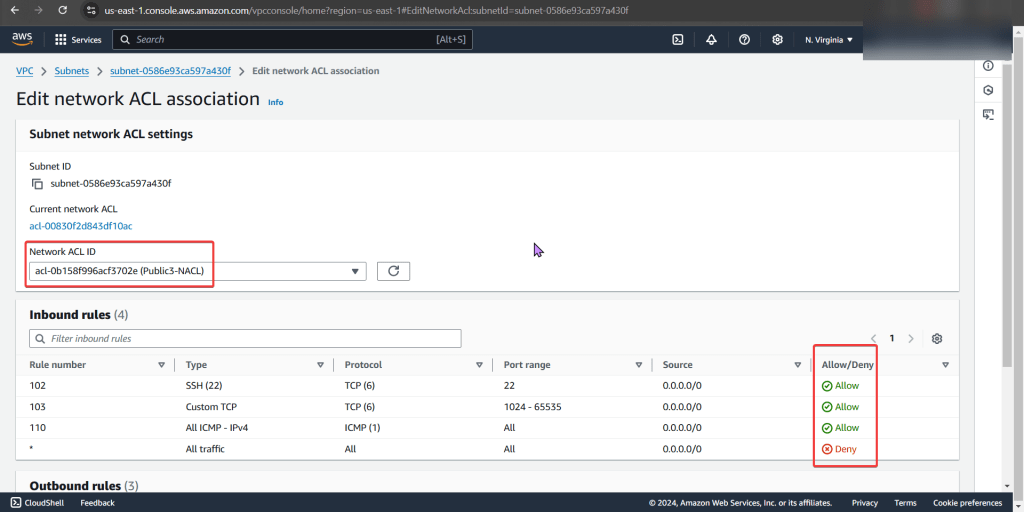
NACLs:

  • The options we have are:
    • Change the NACL security rules
    • Get a different NACL w/proper rules in it
      • In prod… dont do this cuz it can affect all the subnets inside of it.
  • Under public-subnet4 (which was the original VPC ID we had for instance 3), select edit network ACL association, & change to the NACL to the public-subnet3

Route Tables:

  • The options we have are:
    • Add a route to the table that allows traffic to flow from subnet to internet gateway
      • Remember in other environments, there maybe others using this route table only permitting private access, so not modify.
    • Select route table that has appropriate entries
  • Here we edit the route table association & then notice the difference in the route table permitting connection/traffic

Ping!

  • YEEEEEEEEEEEEEEEEEEEEEEEEEEEEEEEEEEEEEEEEEEEEEET!!
  • Now if you desired you can SSH into the instance

<Event>Bridge the SNS & CloudWatch gap!

Goal:

Lets <Event>Bridge the gap for SNS email notifications to trigger an alarm to stop an EC2 & check the CloudWatch logs

Lessons Learned:

  • Create SNS & add email address
  • Create Amazon EventBridge rule to trigger SNS when EC2 state changes
  • Change state of EC2 & verify change in CloudWatch logs from a SNS notification

Create SNS & add email address:

Create Amazon EventBridge rule to trigger SNS when EC2 state changes

    Change state of EC2 & verify change in CloudWatch logs from a SNS notification:

    Ditch the click-opps w/CLI & Lambda

    Goal:

    Click-Opps is old school! Have you ever thought what it be like to get out of the console & use CLI to create a Lambda function! During this we’ll check CloudWatch to see whats going on!

    Lessons Learned:

    • Create Lambda function using AWS CLI
    • Check CloudWatch logs

    SSH:

    • Create 2 S3 buckets & EC2, after that utilize IP address for SSH login
    • To ensure AWS is installed properly, conduct the following commands
      • aws help
      • aws lambda help

    Create & Invoke Function using AWS CLI:

    • After ensuring you lambda can be located in the S3 bucket region you located it, vim the file, next zip it.
    • Create & Update your function
    • Invoke your function

    Check CloudWatch Logs:

    • Wallah, alas.

    Lamb<da>s in the AMAZON!? (..SQS)

    Goal:

    W/magic I will make this message appear!…. or just use a Lambda function that is triggered using SQS & input data into a DB.
    Lessons Learned:

    • Create Lambda function
    • Create SQS trigger
    • Copy source code into Lambda function
    • Go to console for the EC2 & test the script
    • Double check messages were placed into the DB

    Create Lambda function:

    • 3 minor details to utilize:
      • Name = SQS DynamoDB
      • Use = Python 3.x
      • Role = lambda-execution-role
    • Alright, whew – now thats over w/it….

    Create SQS trigger:

    • Are you triggered bro? Hopefully “SQS” & “Messages” trigger you…
      • Important note – create a SQS message, so when creating the trigger – you can snag that message created in SQS

    Copy source code into Lambda function:

    • Copy-n-pasta into the lambda_function.py…. now destroy .. ahem, DEPLOY HIM!!

    Go to console for the EC2 & test the script:

    • Sign your life away & see what the damage is! (aka: go to your EC2 instance)

    Double check messages were placed into the DB

    • After you checked EC2, lets double… quadruple? You checked it 1x, so your checking 2x? Or is it multiples of 4?.. idk regardless, you can look at your DB to see if you have a message from Lambda. Have at it.
      • Below is what SQS & Dynamo DB prolly looks like

    Wanna Monitor a CloudFormation stack w/AWS Config?

    Goal:

    Lets see how to use AWS Config to monitor if EC2 instances that are launched comply w/the instance types specified in AWS Config

    Lessons Learned:

    • Create AWS Config Rule
    • Make EC2 instance compliant w/config rule

    Create AWS Config Rule:

    • You will see a couple json files, grab the 2nd one “badSG”
    • Create a key-pair
    • Example of the issue in the CloudFormation Stack
    • Here you can see we only say “securitygroups” – – – not, “SecuritygroupIDs”.
      • Easy fix, once you find it in the documentation.

    Create new stack for updated SG:

    • Go ahead & post the 3rd json file in the “infrastructure composer” under CloudFormation
    • Like before go get your subnet, SG, & VPC IDs

    Make EC2 instance compliant w/config rule:

    • Snag the 1st json file in the CloudFormation github link
    • Go to AWS Config
    • Now create a new stack for config record
    • Now your stack is created – wow.
    • Jump back to AWS Config to see your rules, are you compliant?
      • If not, re-upload your CloudFormation template depending what your AWS Config found
        • Example
          • EC2 instance non-compliant
    • Now what? Well delete whatever is not in use. OR don’t & see your bills pile up!

    Updating your goodies in CloudFormation Stacks

    Goal:

    Wanna see what happens when one can update CloudFormation stacks w/direct updates & use change sets to update the stack? Well sit back & watch the show.

    Lessons Learned:

    • Deploy a stack using AWS CloudFormation Templates
    • Update stack to scale up
    • Update stack to scale out

    Deploy a stack using AWS CloudFormation Templates:

    • After downloading the stack, go create key pair. What are you waiting for? Go, quick, run, go!
    • Remember the slick view one can peer into?!
    • Hope your stackin like this?

    Update stack to scale up:

    • Yeah, you know what to do. Update the stack EC2 instance to medium. Just do it.
    • To double-check your work, snag that http above in “value”.
      • See the same test page below!?

    Update stack to scale out:

    • Lastly snag that bottom yaml file & re-upload into your stack #CHAAAAANGE
    • Difference here is we have 2 new instances added
    • Scroll to bottom of seeing the summary of changes
    • And like before, see the changes happening live!
      • I know, fancy – ooooo ahhhh