
AWS Medical Transcribe & Comprehend w/nibble of HIPAAhh!!

View Code here for details w/this dope link:

Below are details into to use Terraform in creating a tool to upload a medical professional notes into AWS & summarize your notes auto-magically, w/the help of HIPPA the Hippo!

  • General flow of steps
  • Step 1 – upload audio file w/nifty commands
  • Step 2- check your AWS console that the infra is ALIVVVVVE
  • Step 3 – run lambda.py script
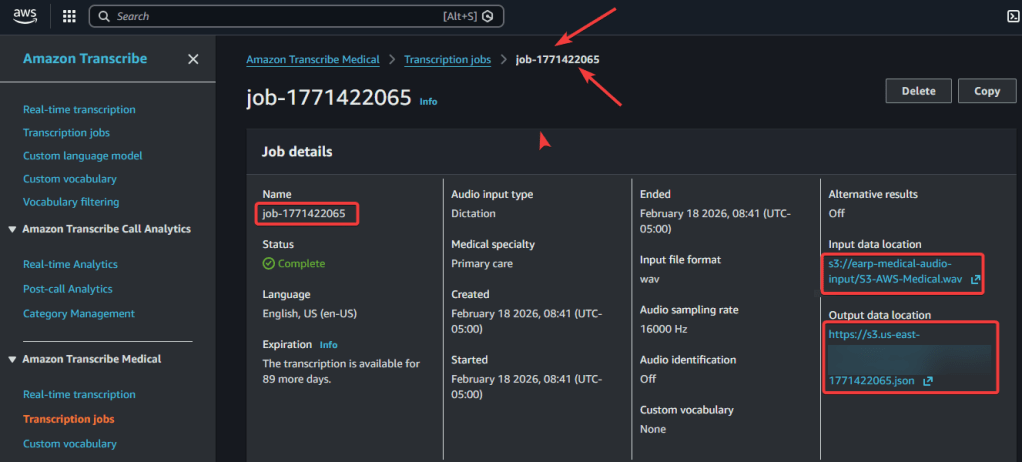
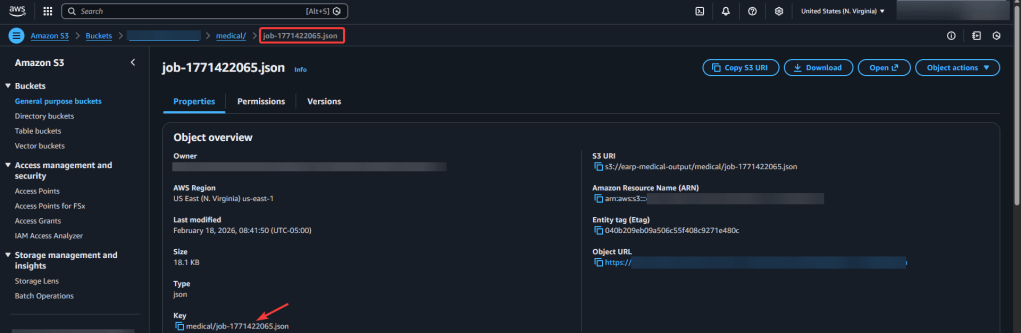
  • Step 4 – confirm AWS Transcribe Medical & S3 bucket has goodiezzzz
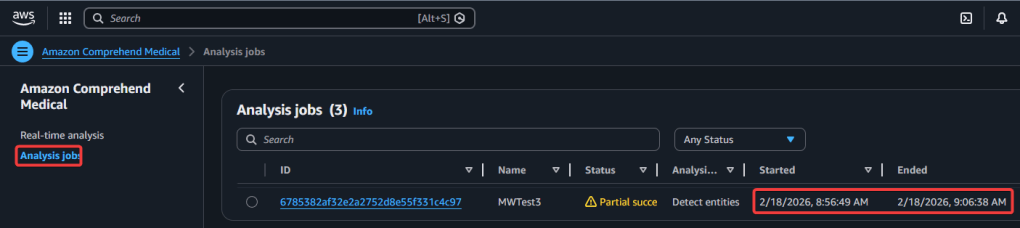
  • Step 5.1 – AWS Comprehend Medical Create Job
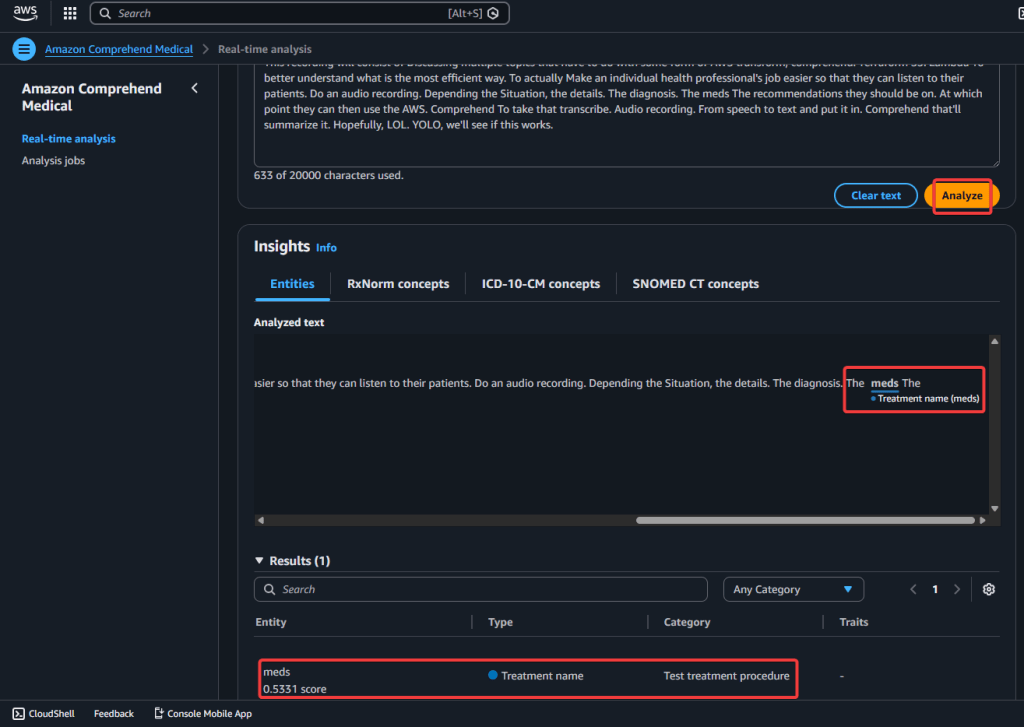
  • Step 5.2 – AWS Comprehend Medical Real-Time Analysis
  • Step 6 – the sausage aka code

##############################################

##############################################

User uploads audio → S3

        ↓

Transcribe Medical job

        ↓

Transcript saved to S3

        ↓

Lambda calls Comprehend Medical

        ↓

Extracted entities saved to S3

  • Record audio on phone or laptop, place in downloads or desired folder
sudo apt update
sudo apt install ffmpeg
ffmpeg -version
ffmpeg -i "S3-AWS-Medical.m4a" -ar 16000 -ac 1 S3-AWS-Medical.wav
terraform init
terraform fmt
terraform validate
terraform plan
terraform apply
aws s3 cp S3-AWS-Medical.wav s3://your-input-bucket-name/
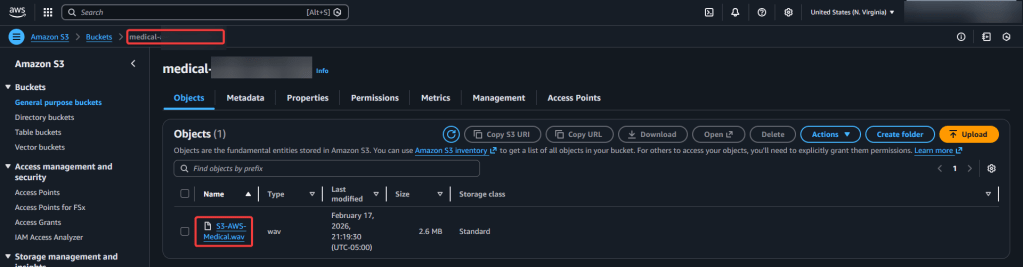
  • Check various AWS locations where you should see code – s3, lambda, iam policy/roles, transcribe, etc.
  • You should see 3 new buckets
    • audio-input
    • medical-output
      • job.json
    • results-bucket
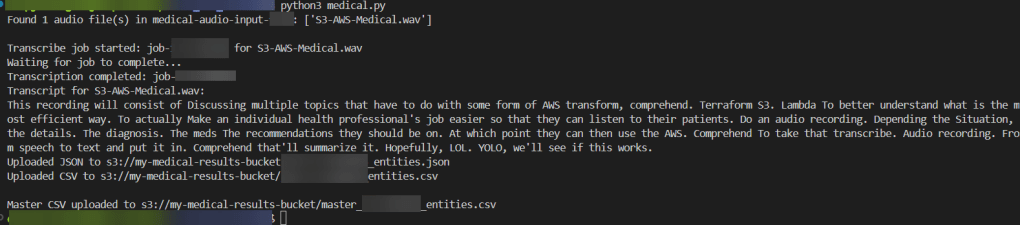
python3 transcribe.py
  • This recording will consist of Discussing multiple topics that have to do with some form of AWS transform, comprehend. Terraform S3. Lambda To better understand what is the most efficient way. To actually Make an individual health professional’s job easier so that they can listen to their patients. Do an audio recording. Depending the Situation, the details. The diagnosis. The meds The recommendations they should be on. At which point they can then use the AWS. Comprehend To take that transcribe. Audio recording. From speech to text and put it in. Comprehend that’ll summarize it. Hopefully, LOL. YOLO, we’ll see if this works.
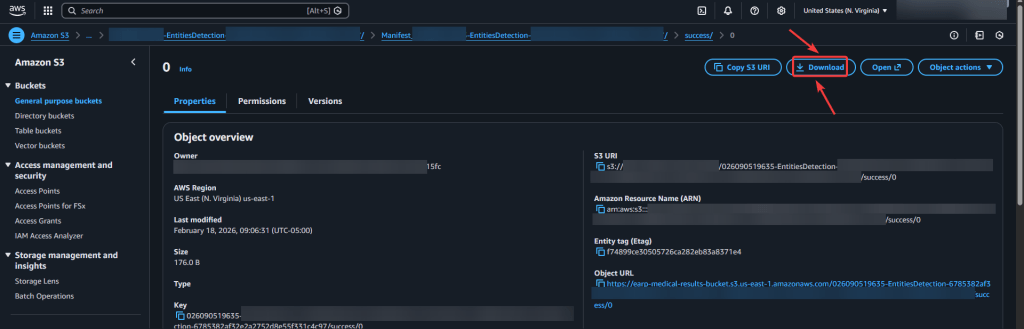
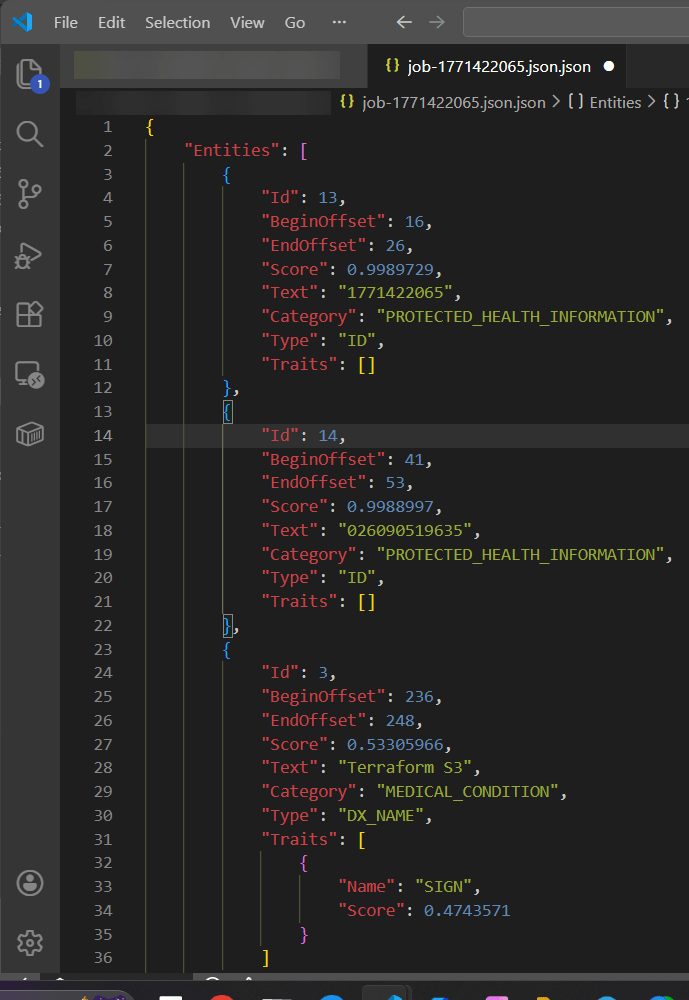
  • To confirm hit download & view in vscode json – prolly in 1 line, use shift-alt-f to quick review
  • Important Note:
    • input bucket
      • output bucket…i know confusing, dont do audio file – remember what comprehend does…
    • output bucket
      • your results bucket
    • iam role
      • should pop-up in dropdown if code is correct in policy
git init
git add .
git status
git commit -m "First commit for AWS Transcribe + Comprehend Medical w/Terraform."
git remote add origin https://github.com/earpjennings37/aws-medical-tf.git
git branch -M Main
git push -u origin main
  • to ensure connect to repo, i did a thing
    • commands
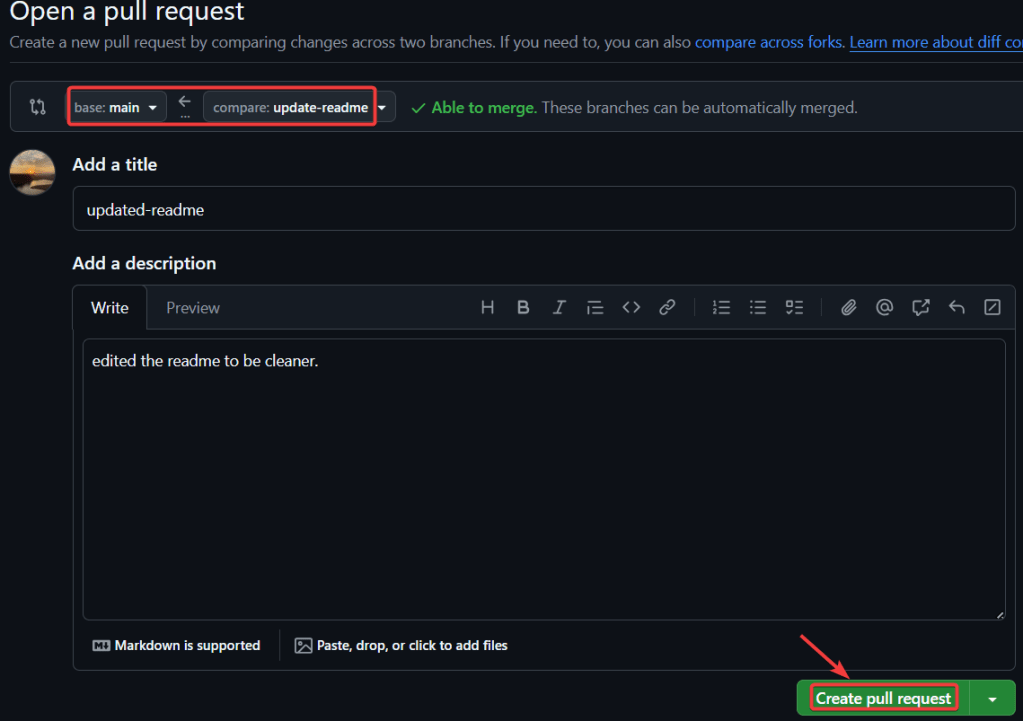
    • open a pull request – create a pull request
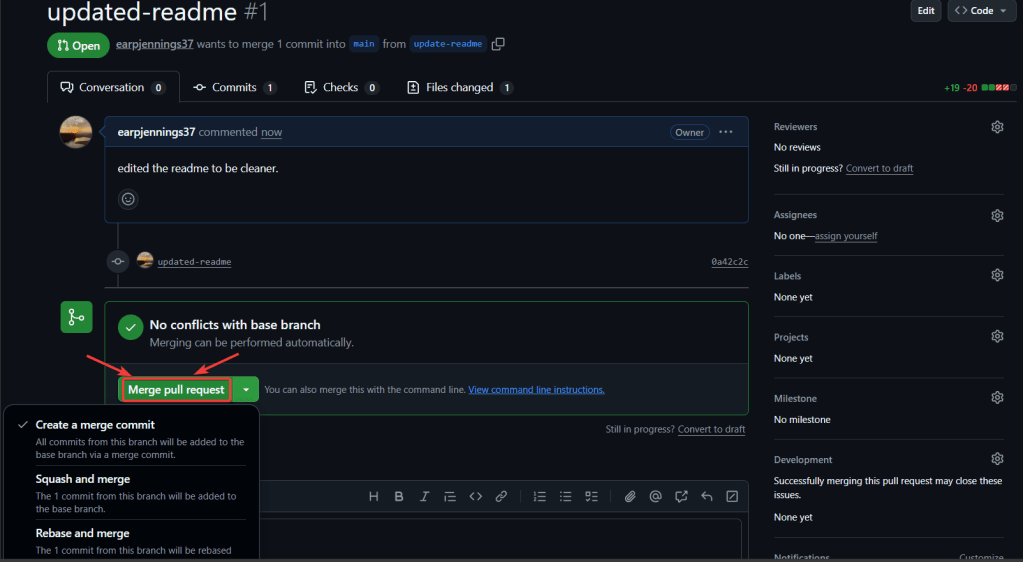
    • merge pull request
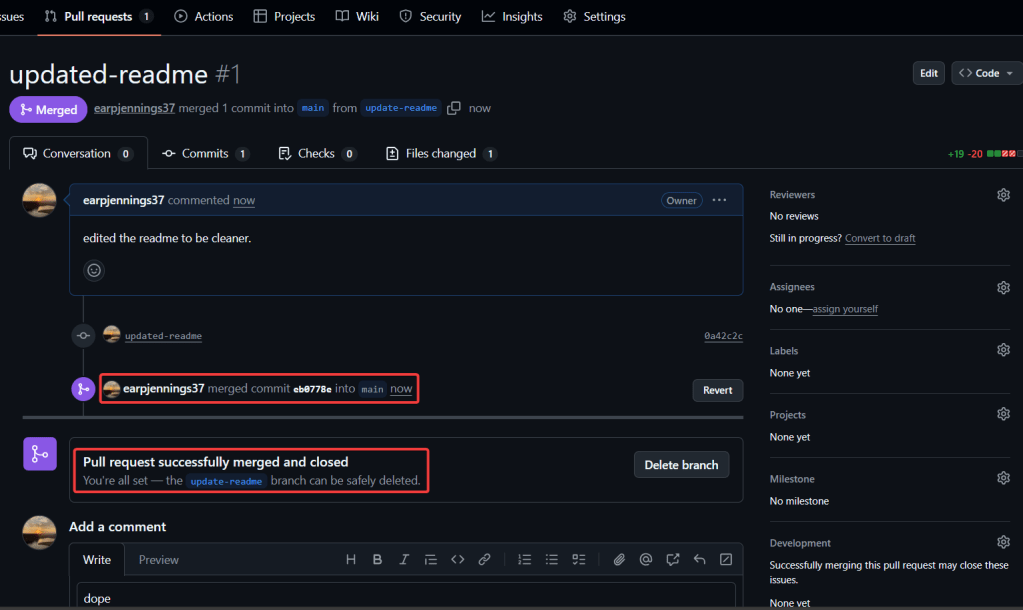
    • merged & closed
git checkout -b update-readme
git branch
git status
git add .
git commit -m "updated-readme"
git push -u origin update-readme
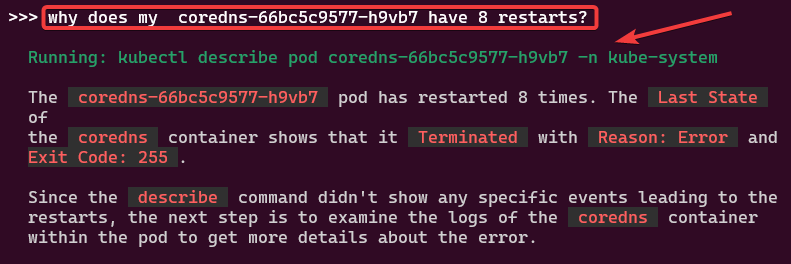
kubectl, but gooder w/”agentic”-ai.

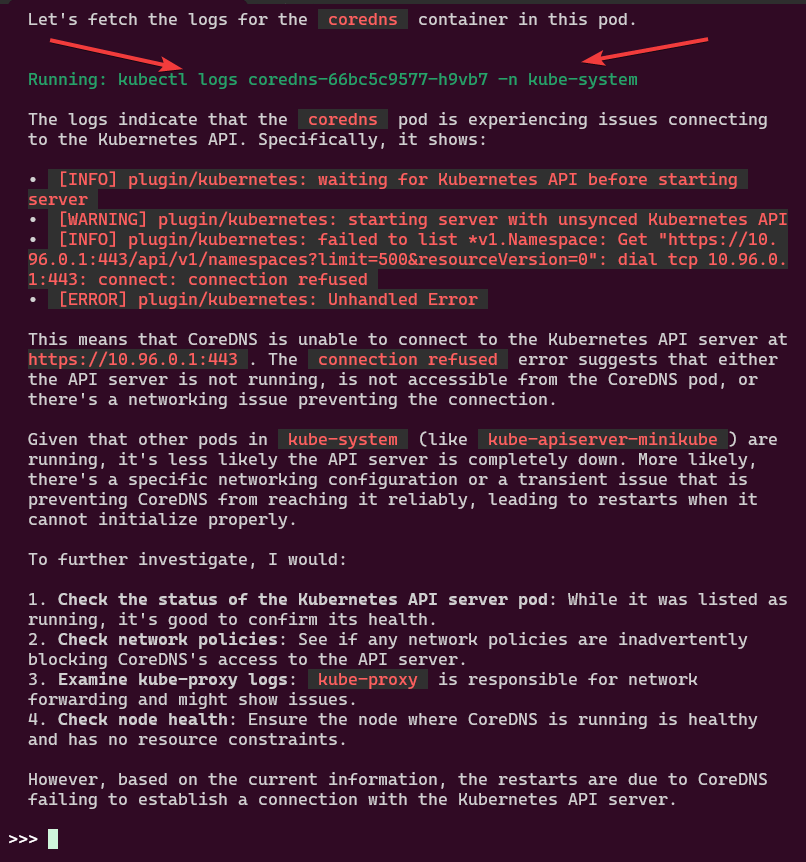
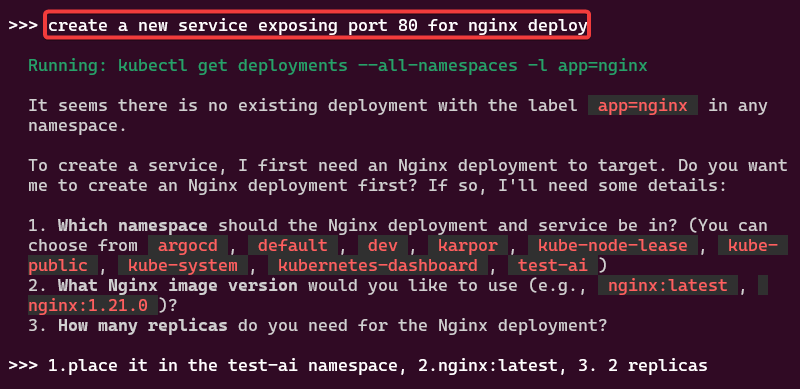
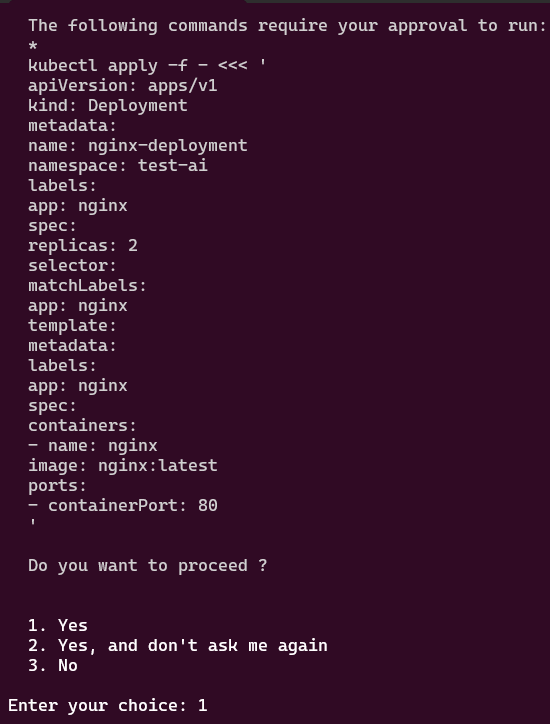
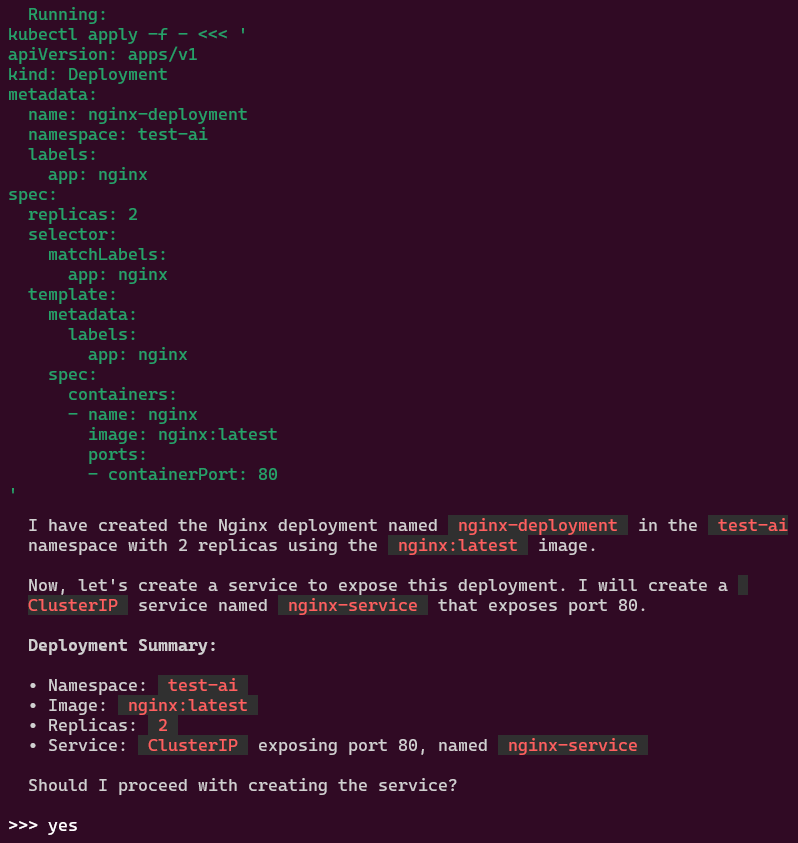
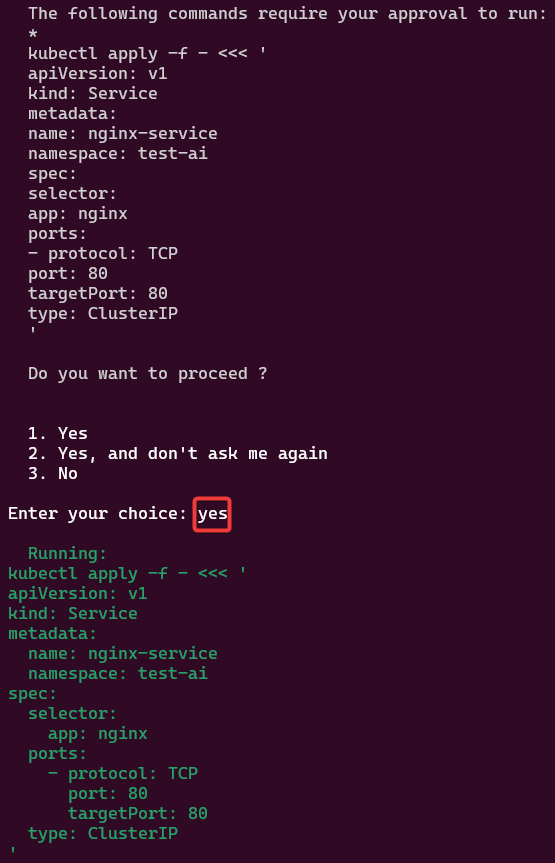
You like kubectl ya? Well how about slappin some “agentic-ai” on that cli & see what happens. Lets run it, see below for 4 examples.
Pre-Reqxzz aka 3 stepzz:

Commands to get goin:

curl -sSL https://raw.githubusercontent.com/GoogleCloudPlatform/kubectl-ai/main/install.sh | bash
export GEMINI_API_KEY=your_api_key_here
kubectl-ai --help
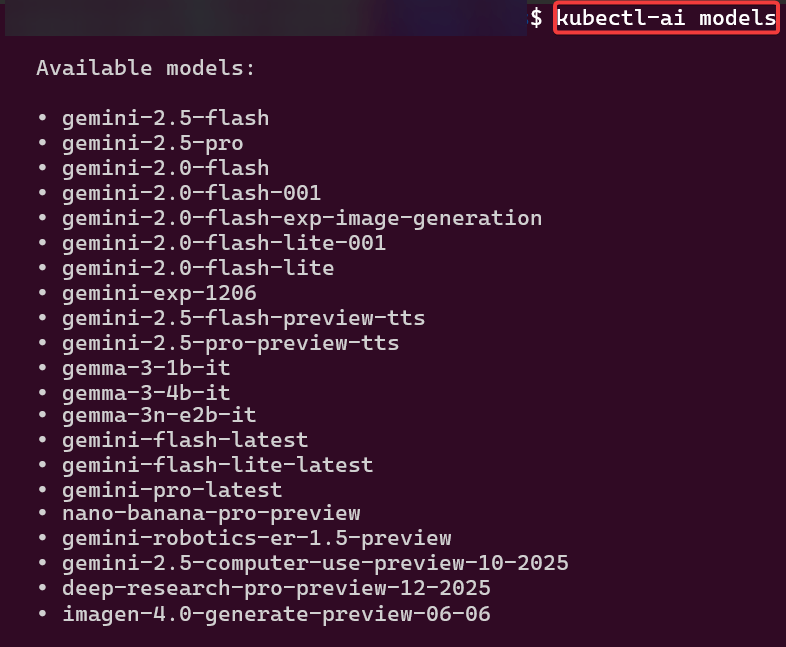
kubectl-ai models
kubectl-ai --model gemini-2.5-flash

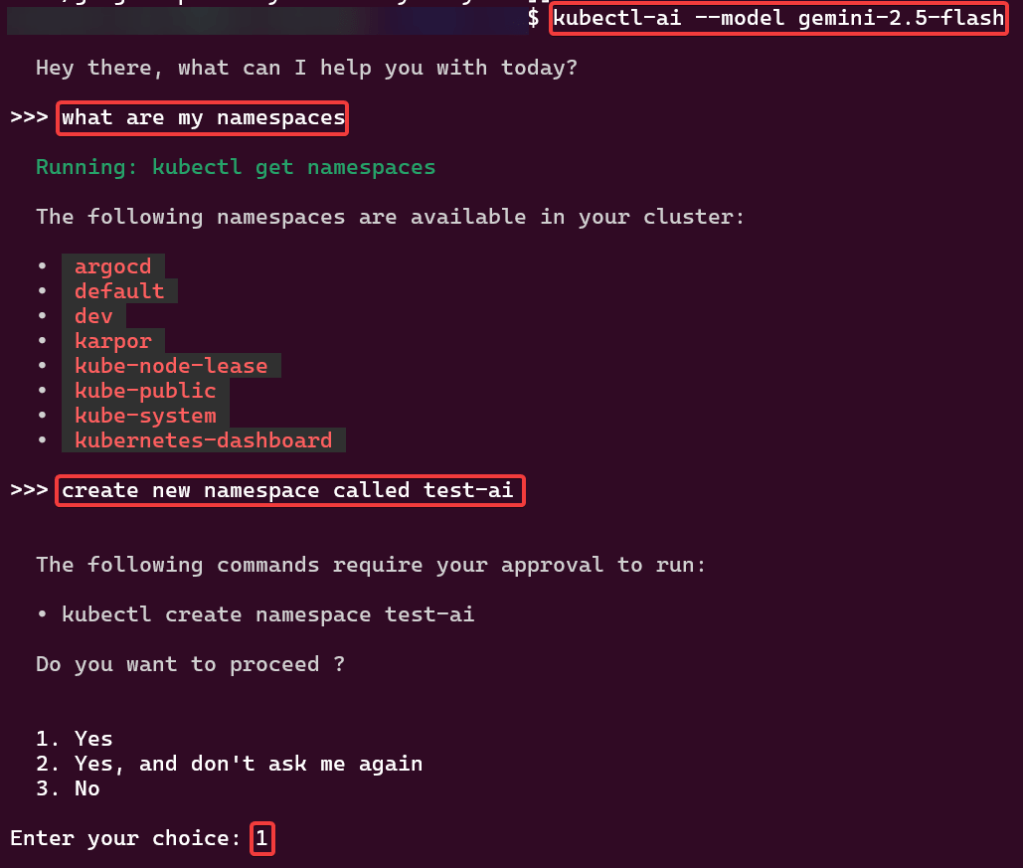
Example 1:

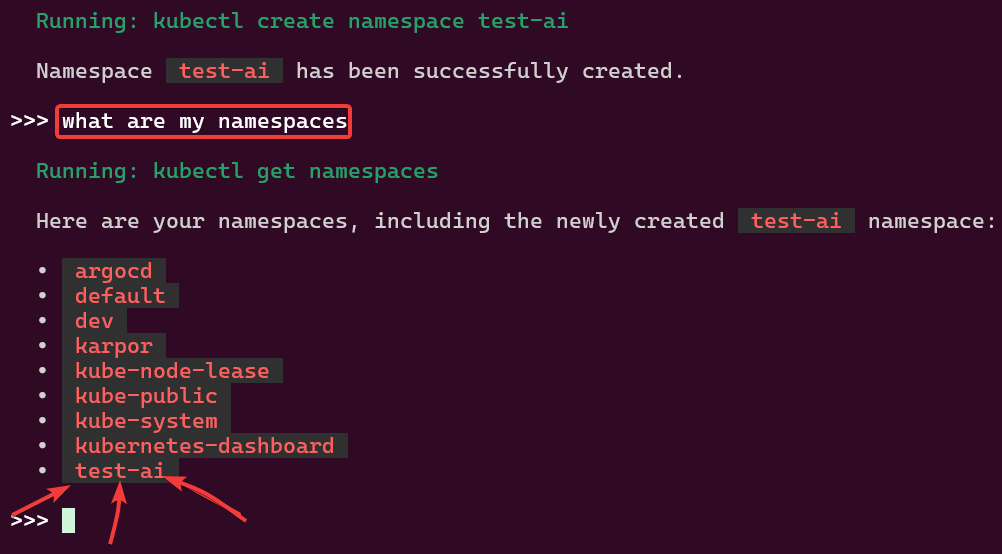
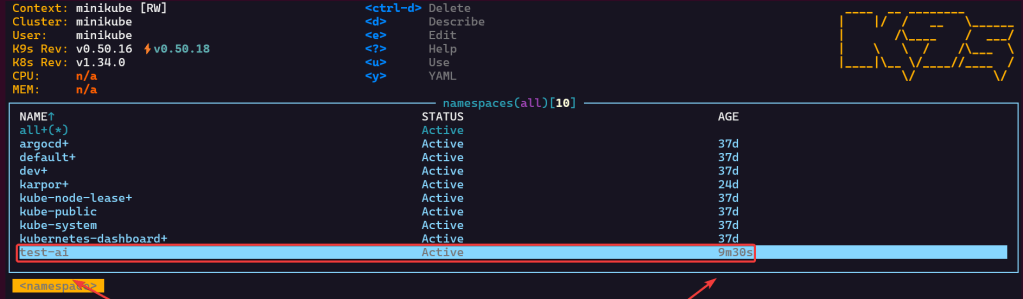
  • informally talk w/to get namespaces & create namespace
  • then can check k9s to see if it worked
    • trust but verify type of thing ya know?

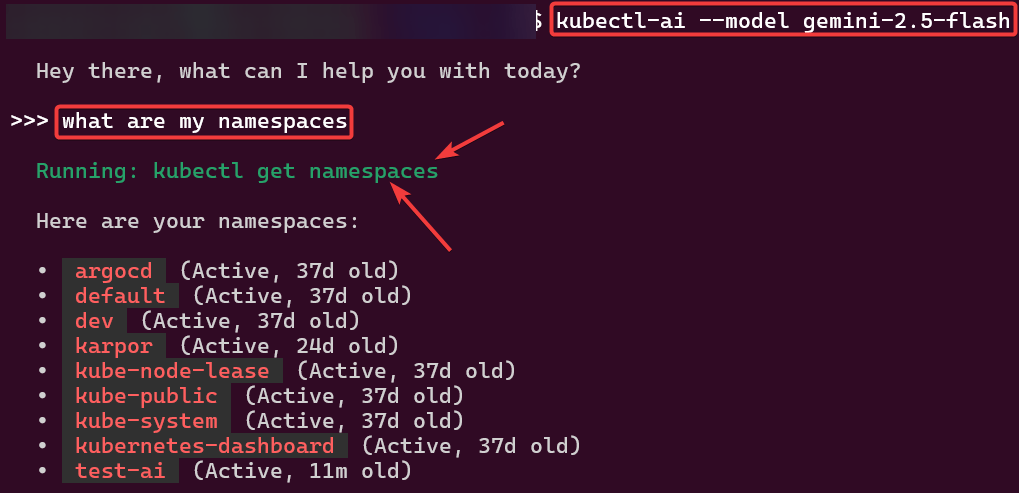
Example 2:

  • shows you what command its running based off your informal dialogue

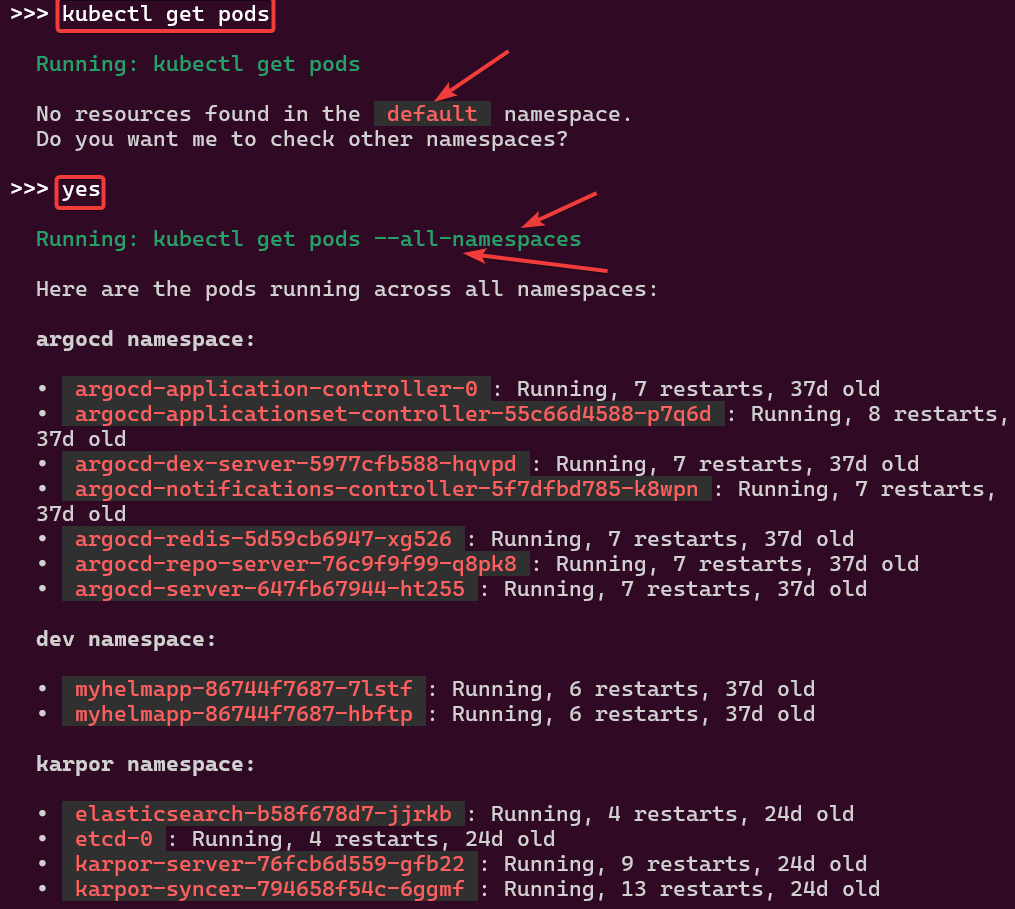
Example 3:

Example 4:

alrite peace

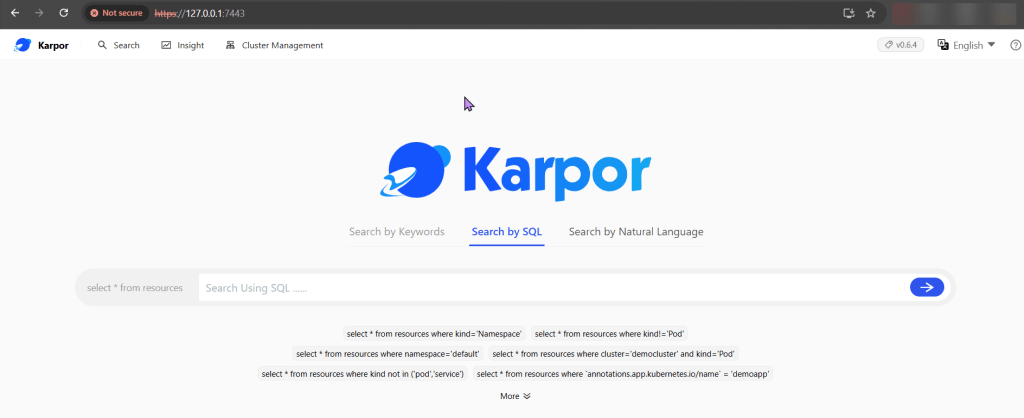
Karpor Evolves K8s like Magicarp to Gyarados

Install KusionStack Karpor CLI:

# brew tap KusionStack/tap
# brew install KusionStack/tap/kusion

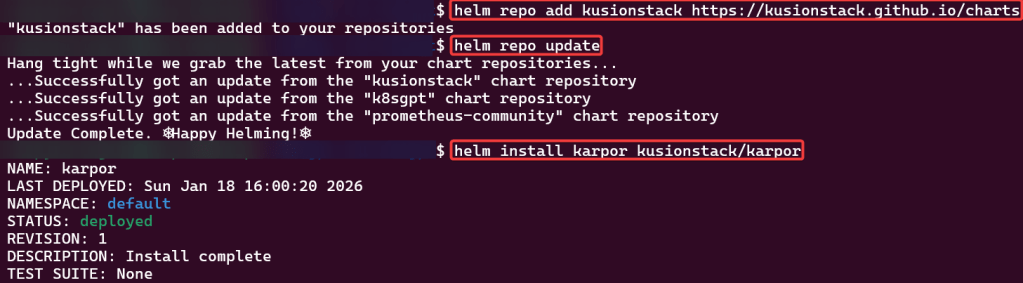
Helm Repo Add Karpor

# helm repo add kusionstack https://kusionstack.github.io/charts
# helm repo update
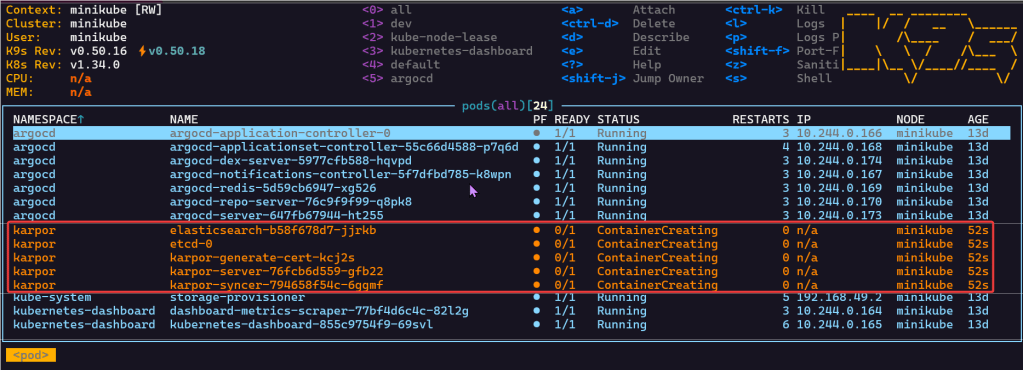
# helm install karpor kusionstack/karpor

Port-Forward to 7443 & Review Dashboard:

  • Now you can register a cluster to review w/magic “agentic” ai

K8s on Roidz aka K8sGPT

Blog post includes installing K8s…GPT, see below for the goodies:

Installszz:

Github
https://github.com/k8sgpt-ai/k8sgpt
k8sgpt Docx:
https://docs.k8sgpt.ai/getting-started/in-cluster-operator/?ref=anaisurl.com
Ubuntu
# curl -LO https://github.com/k8sgpt-ai/k8sgpt/releases/download/v0.4.26/k8sgpt_amd64.deb
# sudo dpkg -i k8sgpt_amd64.deb
# k8sgpt version
# k8sgpt --help (handful of commands & flags available)

Pre-Reqzz:

Minikube
# unset KUBECONFIG
# minikube start
# minikube status
OpenAi
#  https://platform.openai.com/account/api-keys
K8sgpt
# k8sgpt generate
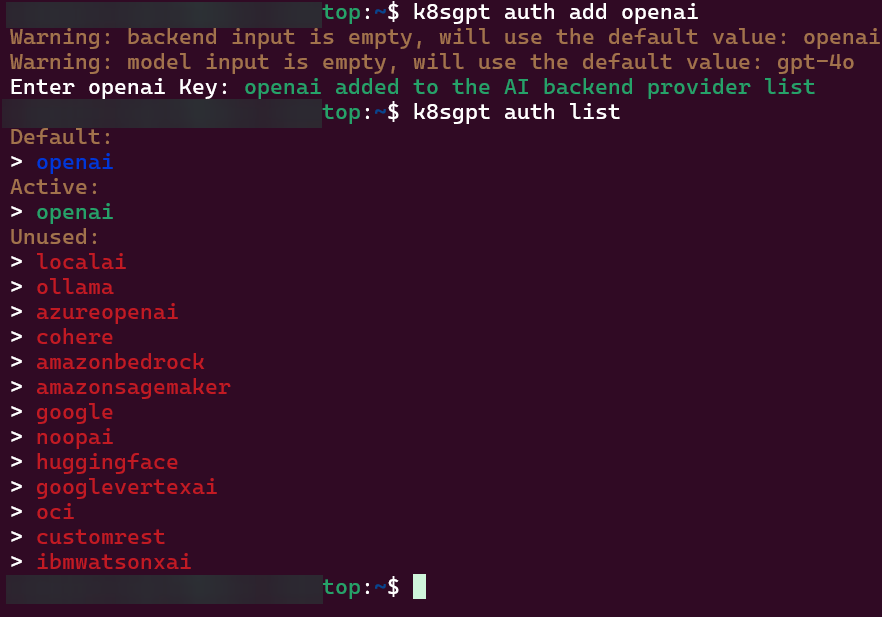
# k8sgpt auth add openai
# k8sgpt auth list

Troubleshoot why deployment is not running:

  • Create yaml file
  • Create namespace
  • Apply file
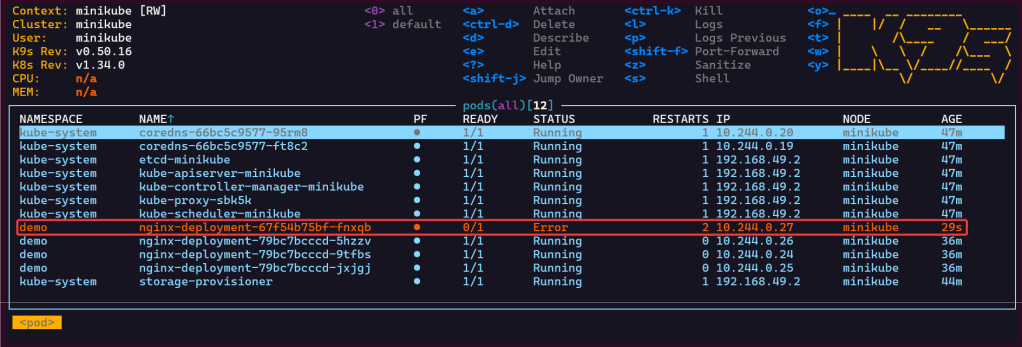
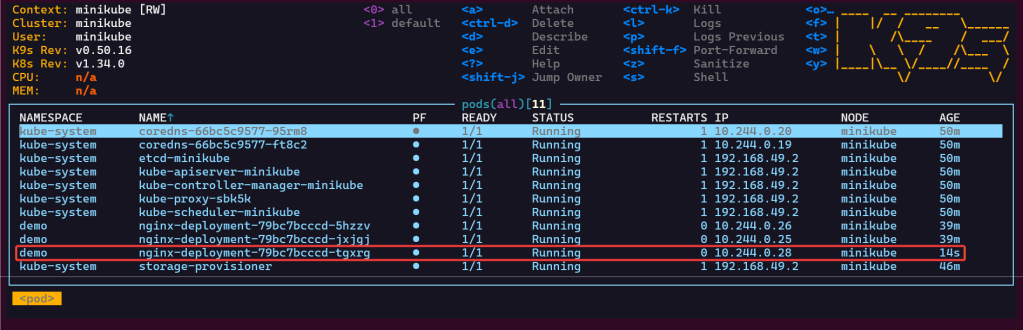
  • Review K9s
  • Utilize k8sgpt to see what’s going on…

2 Links to leverage:

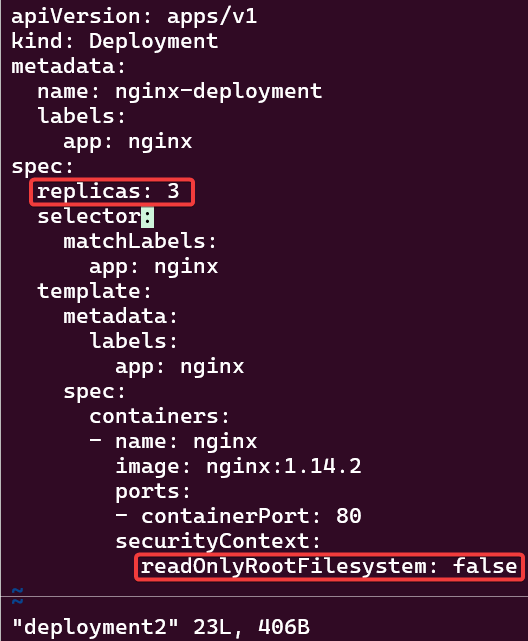
# deployment2
apiVersion: apps/v1
kind: Deployment
metadata:
  name: nginx-deployment
  labels:
    app: nginx
spec:
  replicas: 3
  selector:
    matchLabels:
      app: nginx
  template:
    metadata:
      labels:
        app: nginx
    spec:
      containers:
      - name: nginx
        image: nginx:1.14.2
        ports:
        - containerPort: 80
        securityContext:
          readOnlyRootFilesystem: true
# kubectl create ns demo
# kubectl apply -f deployment2 -n demo
# k8sgpt analyse
# k8sgpt analyse --explain
Set pods, deployments, etc w/the following commands
# kubectl get pods -n demo
# kubectl get pods -A
# kubectl get deployments -n demo
# kubectl get pods --all-namespaces
# k8sgpt integration list
# k8sgpt filters list
# k8sgpt analyse --filter=VulnerabilityReport
# vi deployment2
# kubectl apply -f deployment2 -n demo
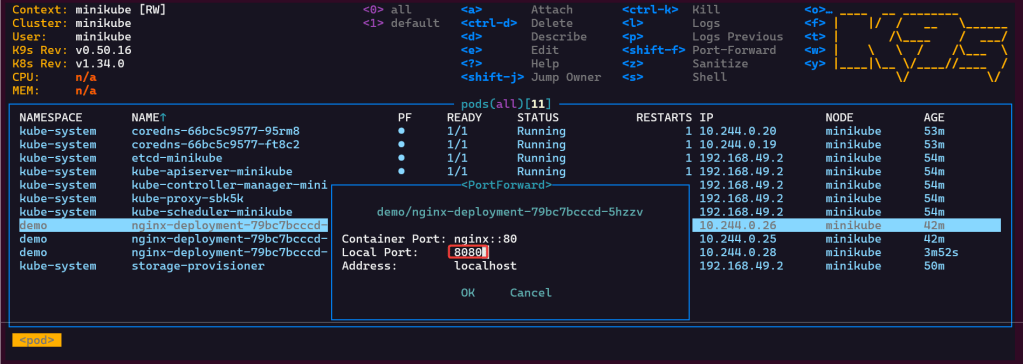
  • port-forward to ensure can access pod

K8s Operator:

# brew install helm
# helm repo add k8sgpt https://charts.k8sgpt.ai/
# helm repo update
# helm install release k8sgpt/k8sgpt-operator -n k8sgpt-operator-system --create-namespace --values values.yaml
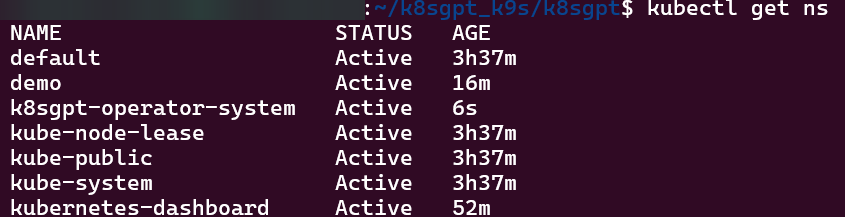
Commands to see if your new ns installed:
# kubectl get ns
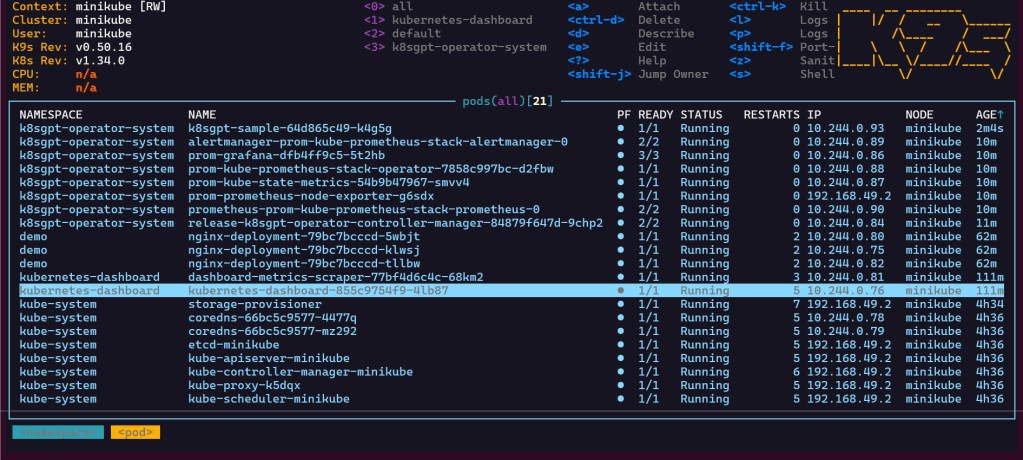
# kubectl get pods -n k8sgpt-operator-system
# k9s

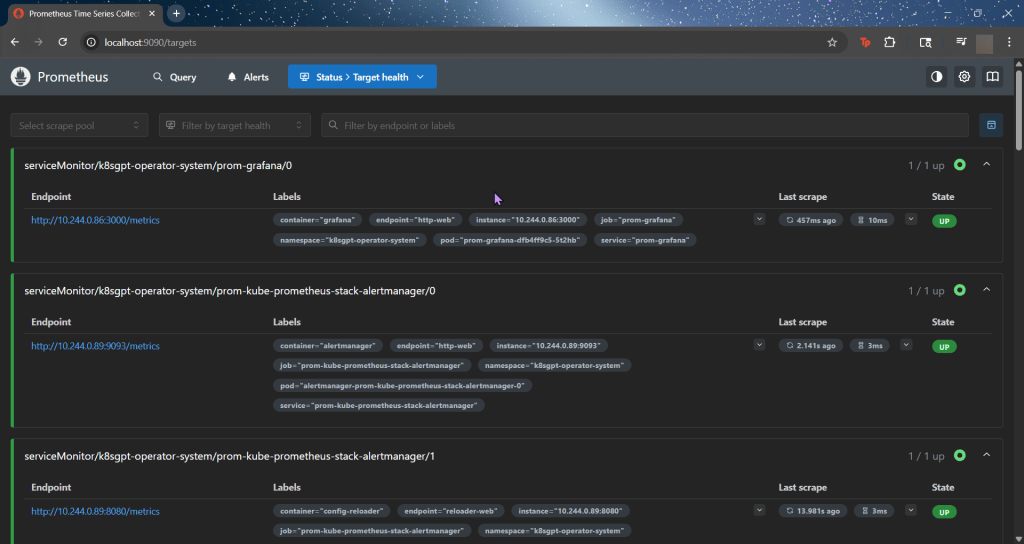
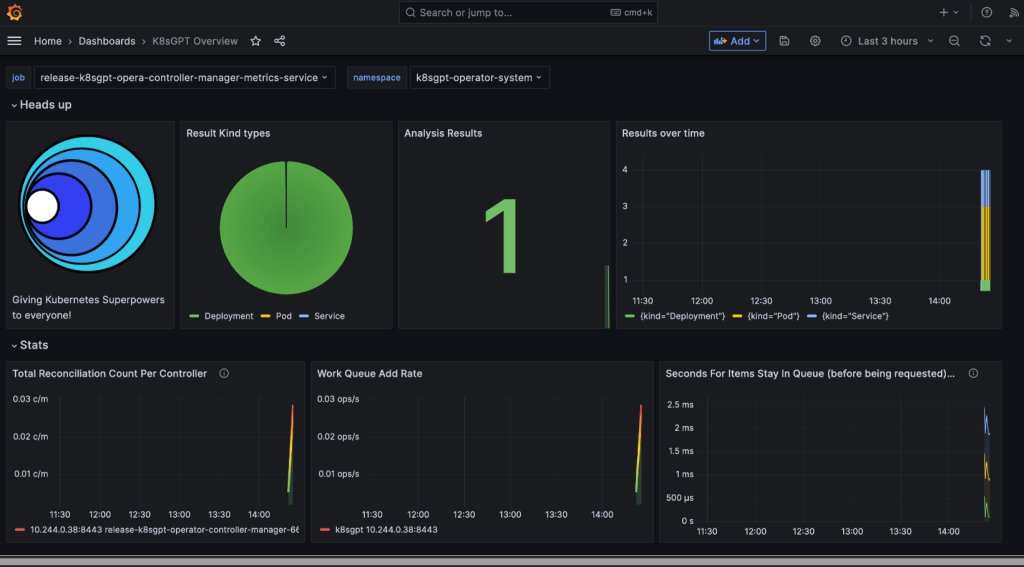
ServiceMonitor to send reports to Prometheus & create DB for K8sgpt:

# helm repo add prometheus-community https://prometheus-community.github.io/helm-charts
# kube-prometheus-stack has been installed. Check its status by running:
  kubectl --namespace k8sgpt-operator-system get pods -l "release=prom"
Commands to squirrel away:
- Get Grafana 'admin' user password by running:
# kubectl --namespace k8sgpt-operator-system get secrets prom-grafana -o jsonpath="{.data.admin-password}" | base64 -d ; echo
- Access Grafana local instance:
# export POD_NAME=$(kubectl --namespace k8sgpt-operator-system get pod -l "app.kubernetes.io/name=grafana,app.kubernetes.io/instance=prom" -oname)
  kubectl --namespace k8sgpt-operator-system port-forward $POD_NAME 3000
- Get your grafana admin user password by running:
  kubectl get secret --namespace k8sgpt-operator-system -l app.kubernetes.io/component=admin-secret -o jsonpath="{.items[0].data.admin-password}" | base64 --decode ; ech

OpenAi API-Keyz for K8s Secret:

# export OPENAI_TOKEN=<YOUR API KEY HERE>
# kubectl create secret generic k8sgpt-sample-secret --from-literal=openai-api-key=$OPENAI_TOKEN -n k8sgpt-operator-system
# 
apiVersion: core.k8sgpt.ai/v1alpha1
kind: K8sGPT
metadata:
  name: k8sgpt-sample
  namespace: k8sgpt-operator-system
spec:
  ai:
    enabled: true
    model: gpt-4o-mini
    backend: openai
    secret:
      name: k8sgpt-sample-secret
      key: openai-api-key
  noCache: false
  version: v0.4.26
# kubectl apply -f k8sgpt-resource.yaml -n k8sgpt-operator-system
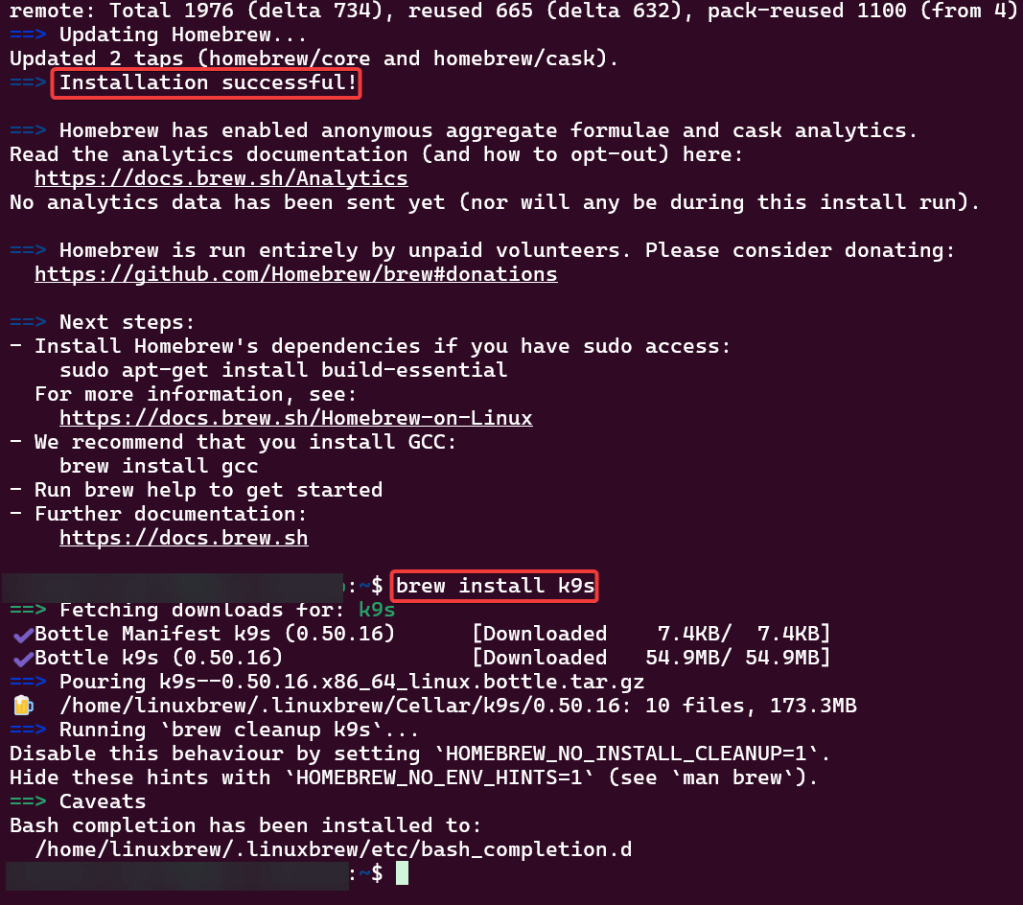
k9s
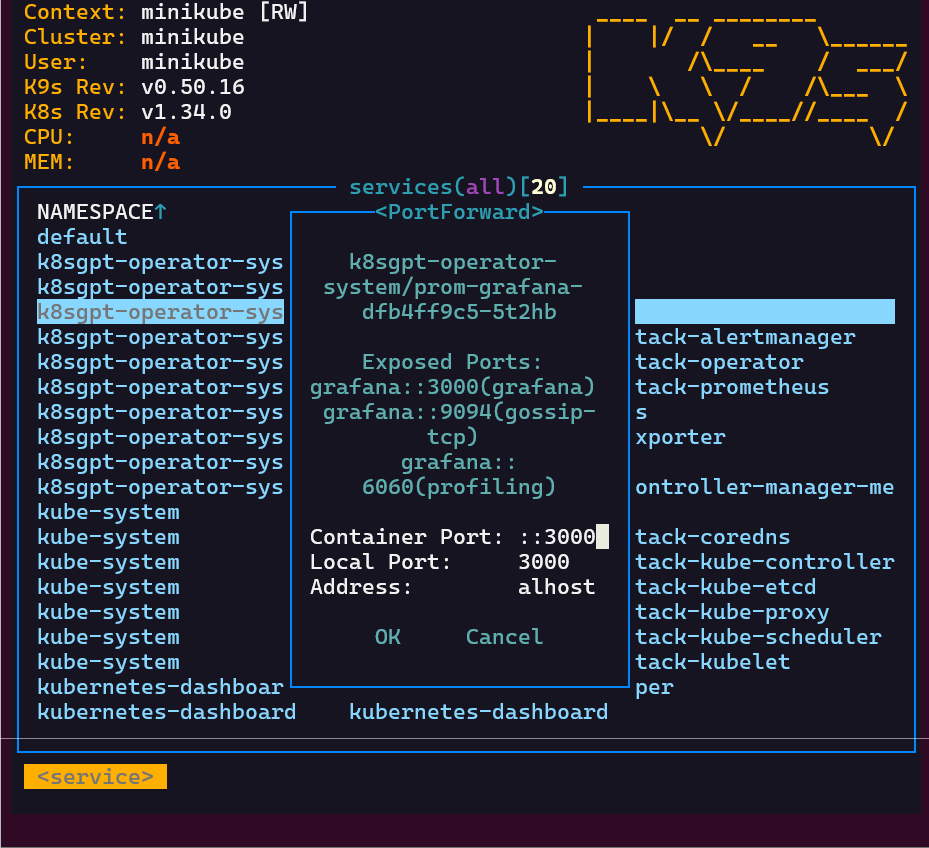
- services, shift-f, port-forward prometheus-operated:9090
# kubectl get results -n k8sgpt-operator-system
# kubectl port-forward service/prom-grafana -n prom 3000:80
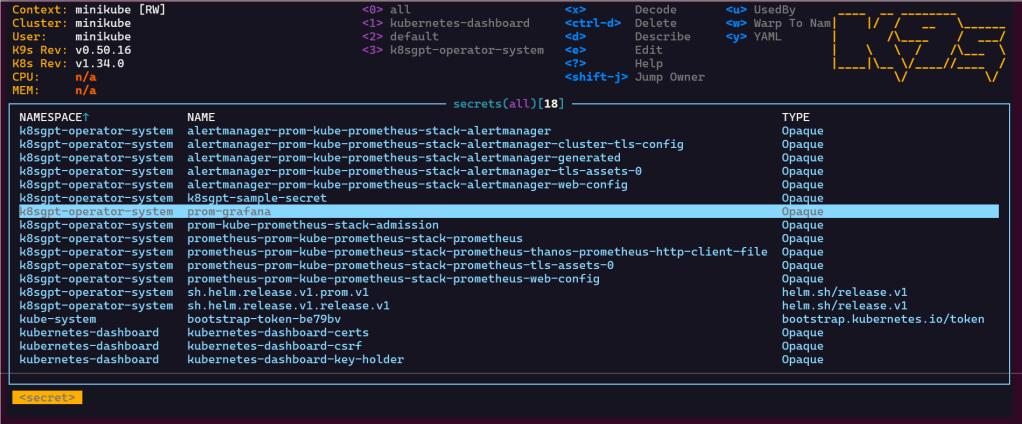
Finding grafana password
- secrets & press-x