
Series of blog posts show progress of updating/adding to EKS Cluster
Below are links for details:
- Github Repo:
- Terraform:
- AWS:

Blog posts talking about stuff around AWS.
Series of blog posts show progress of updating/adding to EKS Cluster
Below are links for details:

View Code here for details w/this dope link:
Below is a summary of steps:
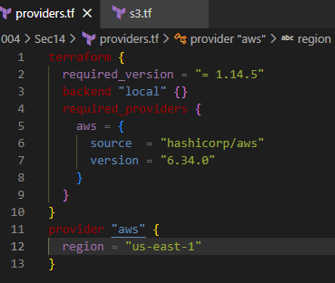
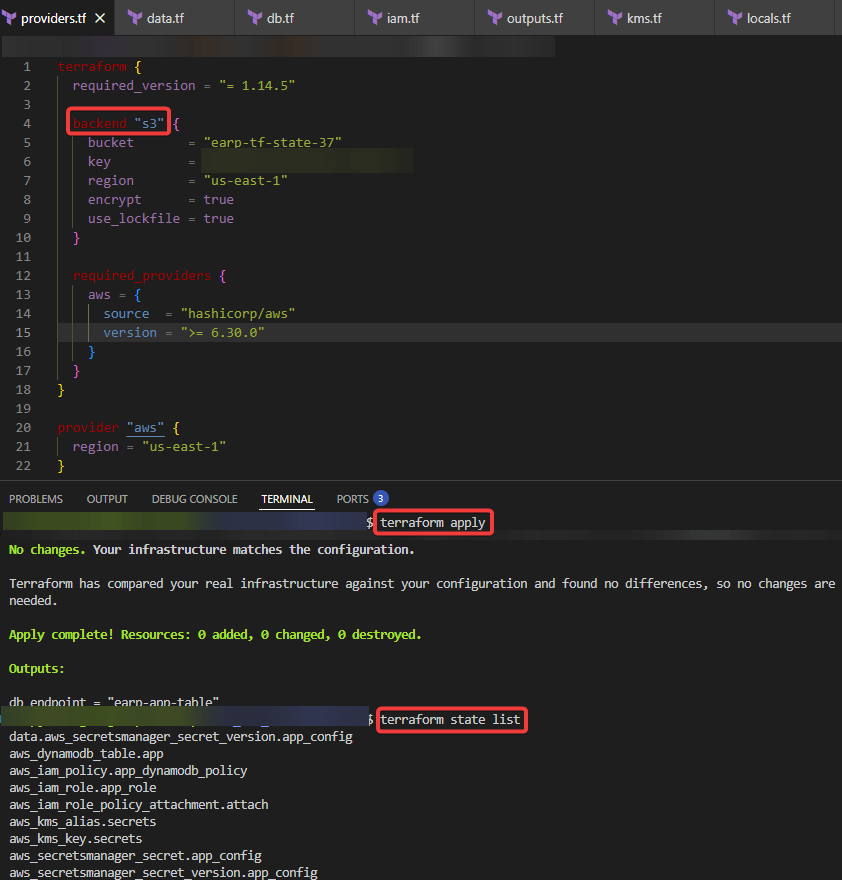
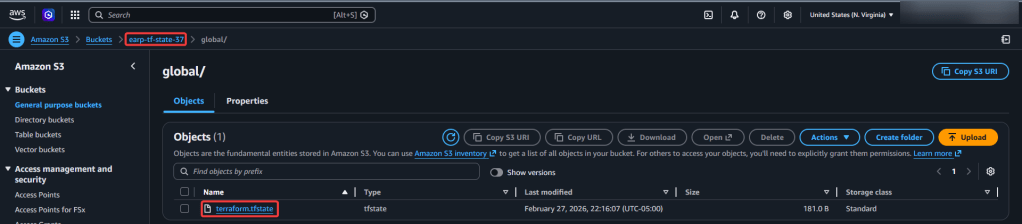

View Code here for details w/this dope link:
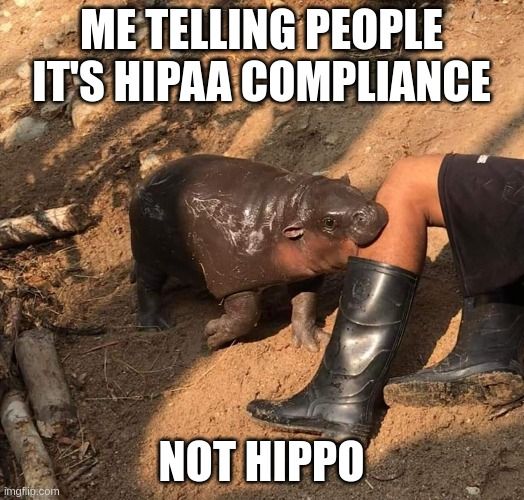
Below are details into to use Terraform in creating a tool to upload a medical professional notes into AWS & summarize your notes auto-magically, w/the help of HIPPA the Hippo!
Contents of Tables:
General Steps followed in my brain:
##############################################
##############################################
User uploads audio → S3
↓
Transcribe Medical job
↓
Transcript saved to S3
↓
Lambda calls Comprehend Medical
↓
Extracted entities saved to S3
Step 1 – Upload audio file w/commands you might need:
sudo apt updatesudo apt install ffmpegffmpeg -versionffmpeg -i "S3-AWS-Medical.m4a" -ar 16000 -ac 1 S3-AWS-Medical.wav
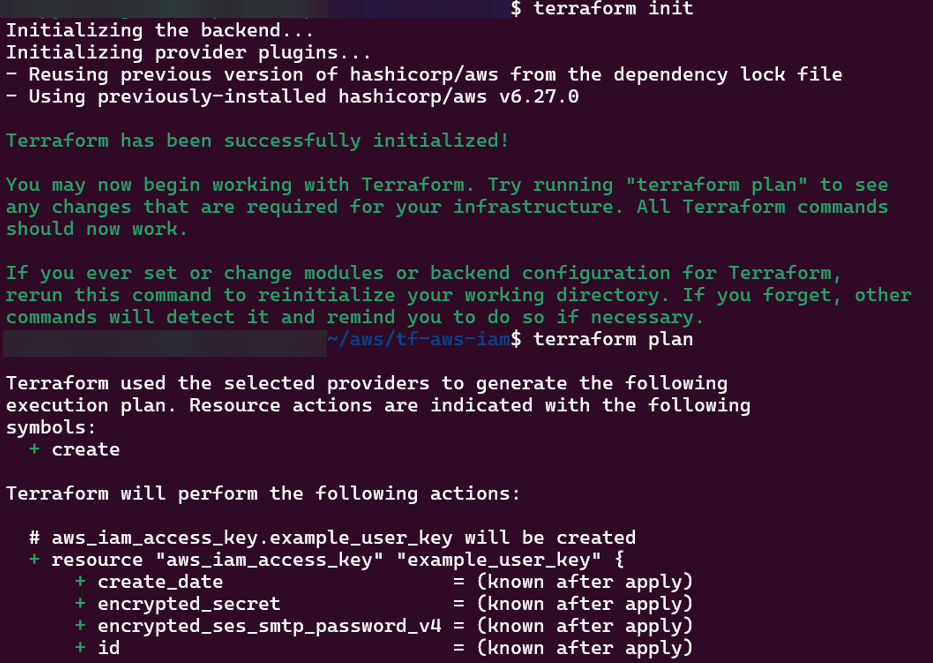
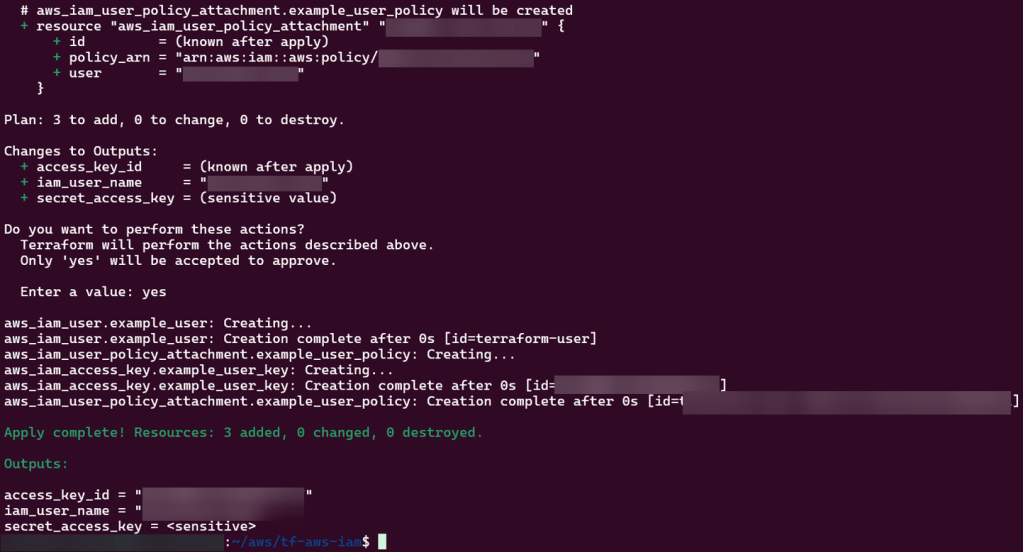
terraform initterraform fmtterraform validateterraform planterraform applyaws s3 cp S3-AWS-Medical.wav s3://your-input-bucket-name/
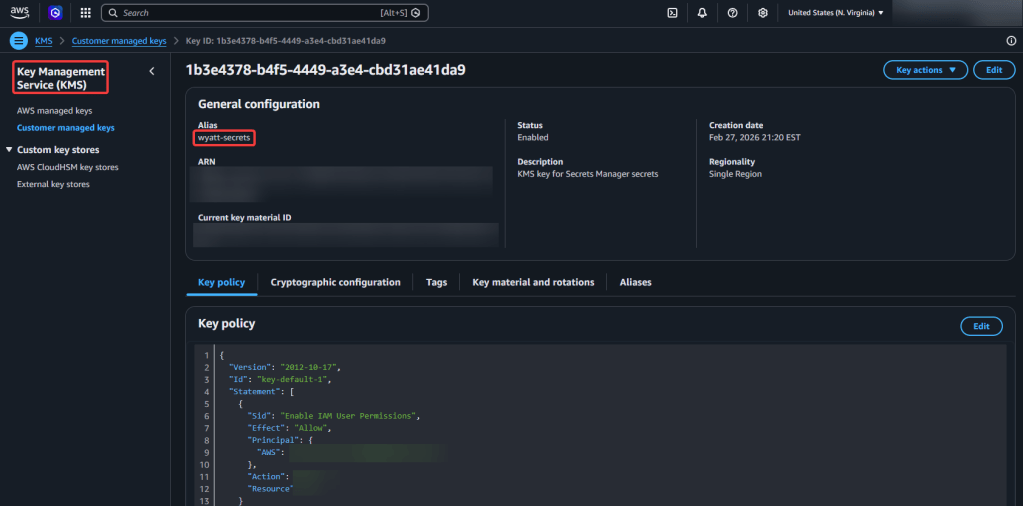
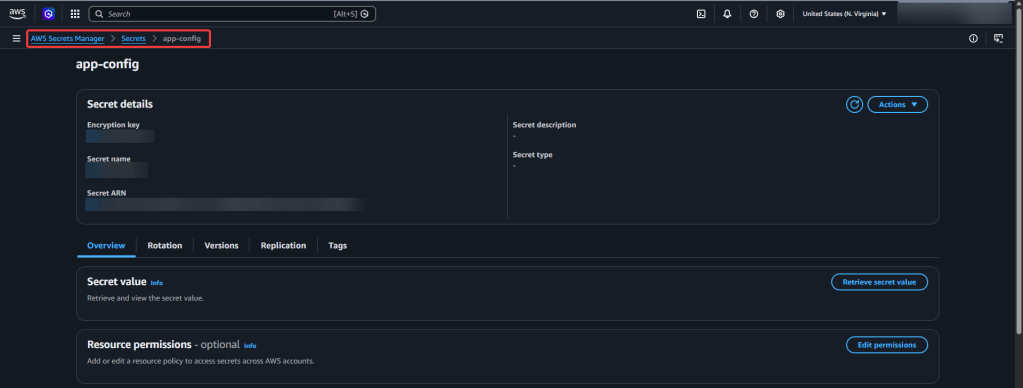
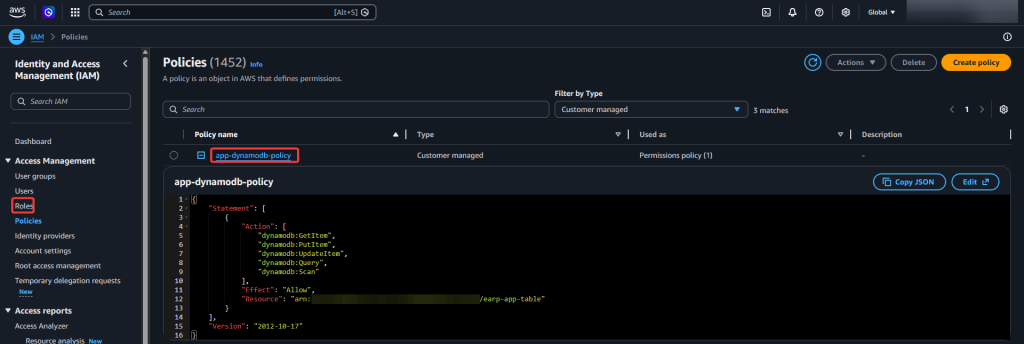
Step 2 – Check various AWS locations (s3, lambdas, roles, etc):
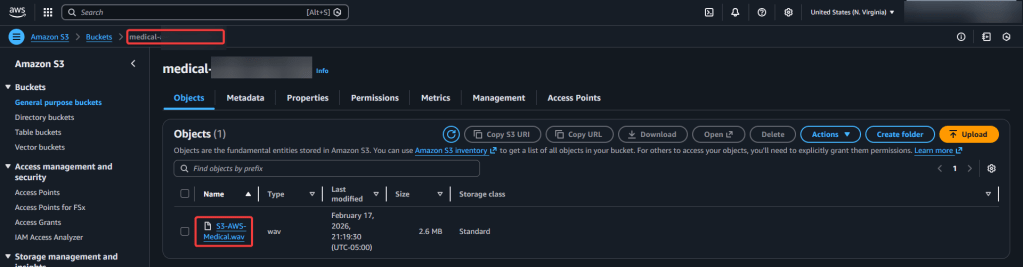
Step 3 – Run Lambda.py script:
python3 transcribe.py
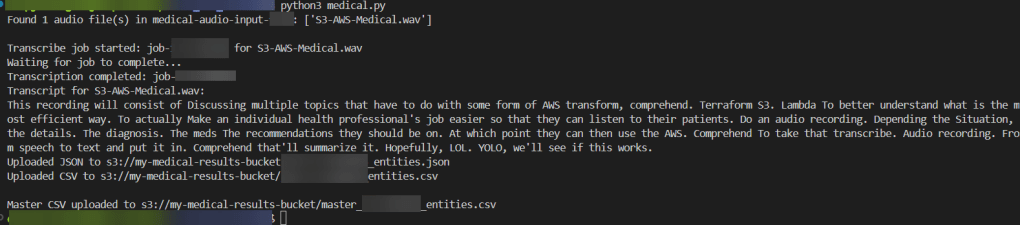
Step 4 – Confirm in AWS Transcribe Medical & S3 Buckets of data:
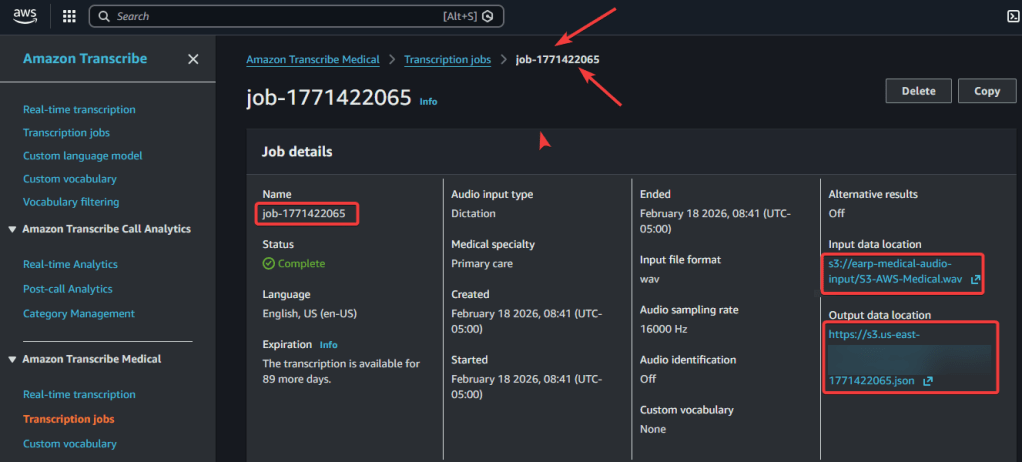
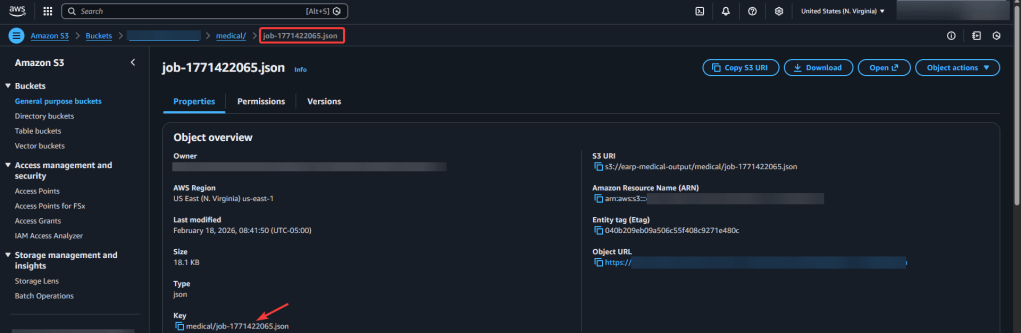
Step 5.1 AWS Comprehend Medical – Create Job:
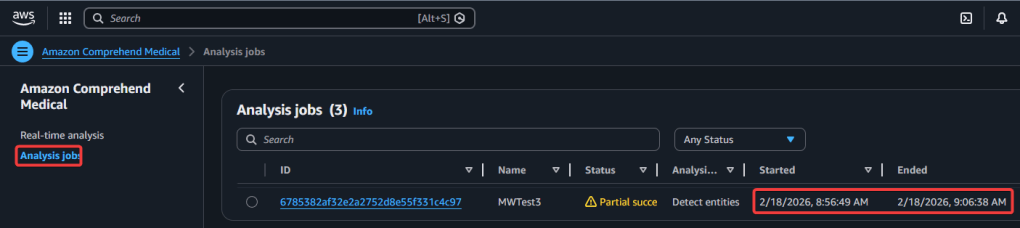
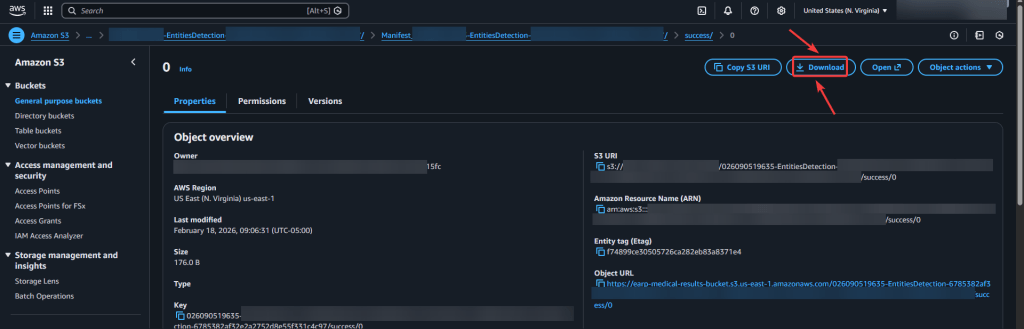
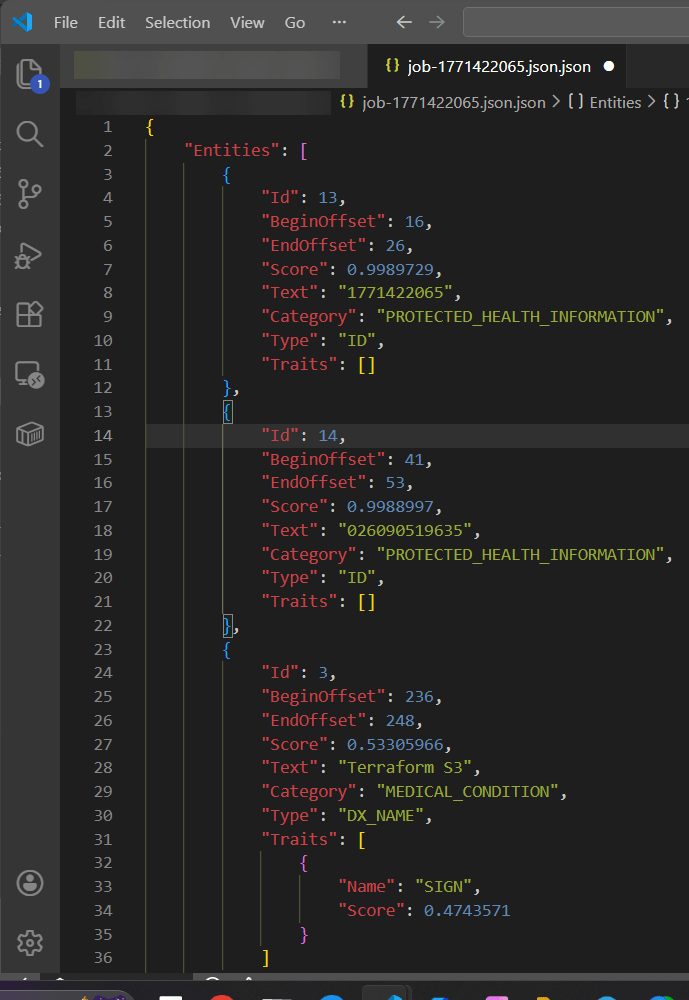
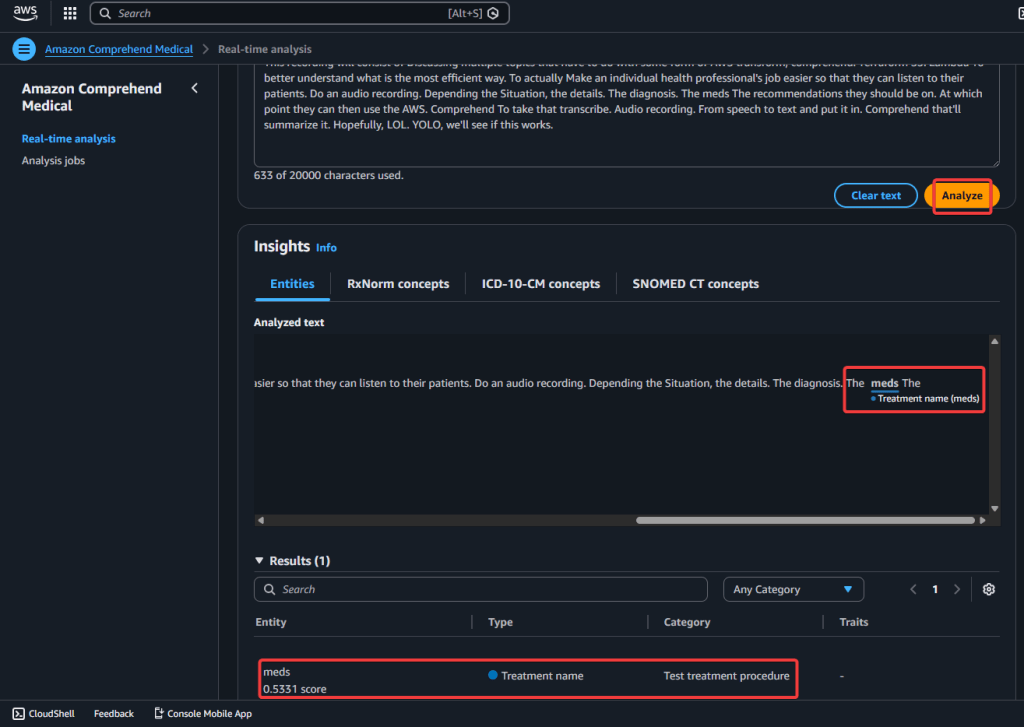
Step 5.2 AWS Comprehend Medical – Real-Time Analysis:
View Zaaa Code here:
git initgit add .git statusgit commit -m "First commit for AWS Transcribe + Comprehend Medical w/Terraform."git remote add origin https://github.com/earpjennings37/aws-medical-tf.gitgit branch -M Maingit push -u origin main
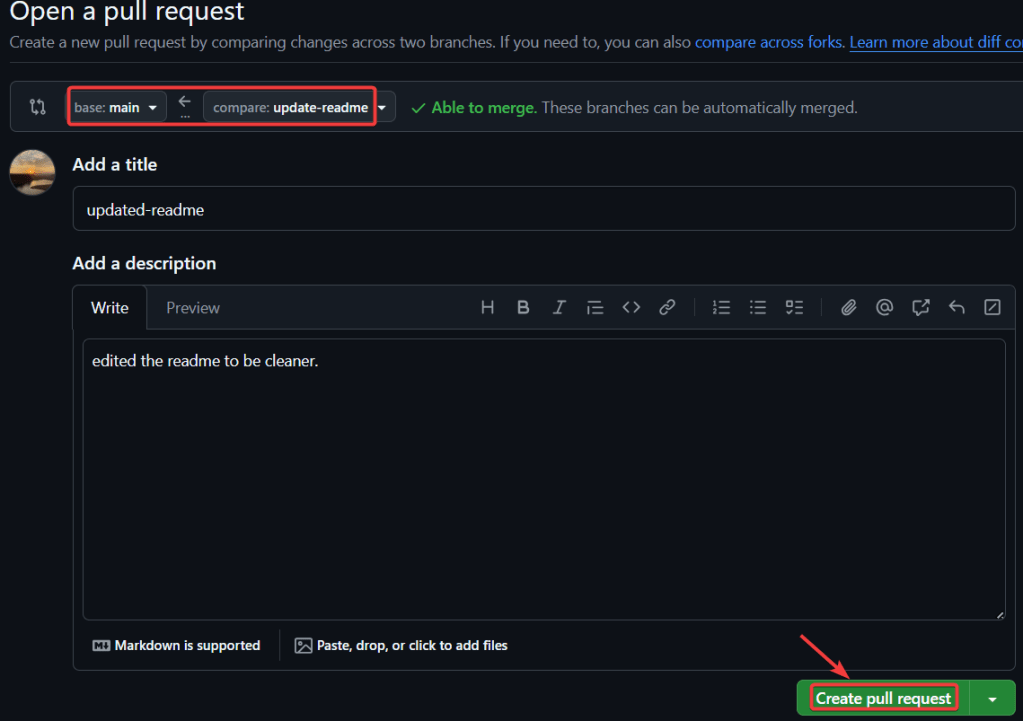
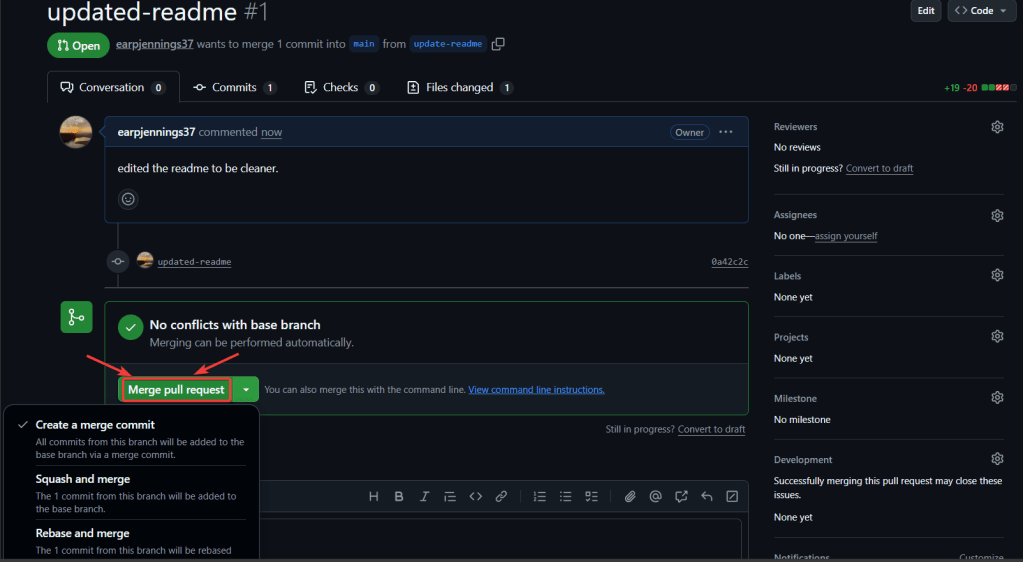
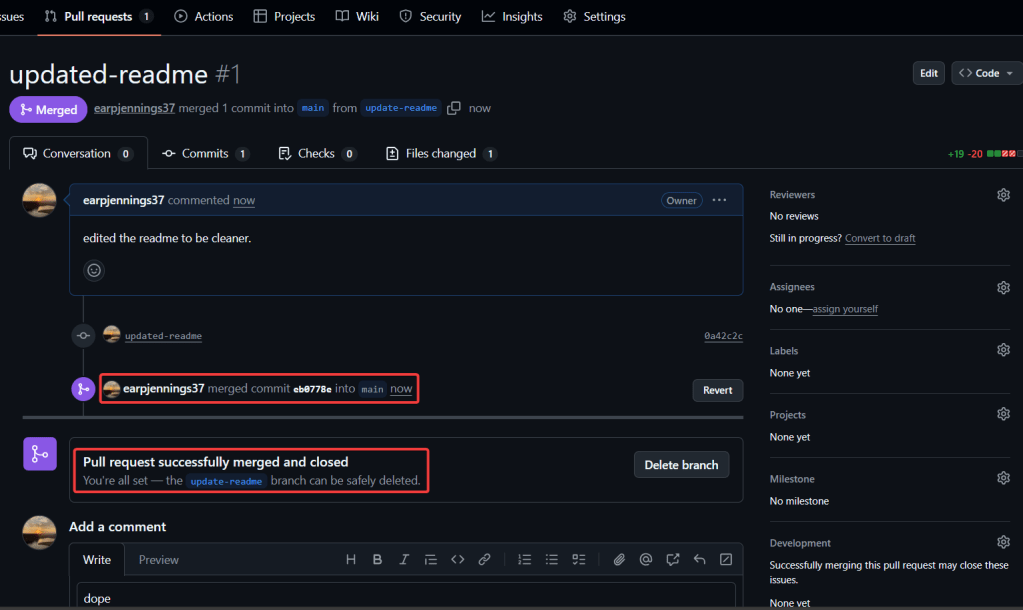
git checkout -b update-readmegit branchgit statusgit add .git commit -m "updated-readme"git push -u origin update-readme
Summary of Steps Below:
git initgit remote add origin https://github.com/<YOUR_GIT_HUB_ACCOUNT>/my-app.git
git add .git commit -m "terraform code update for my app"git push --set-upstream origin master
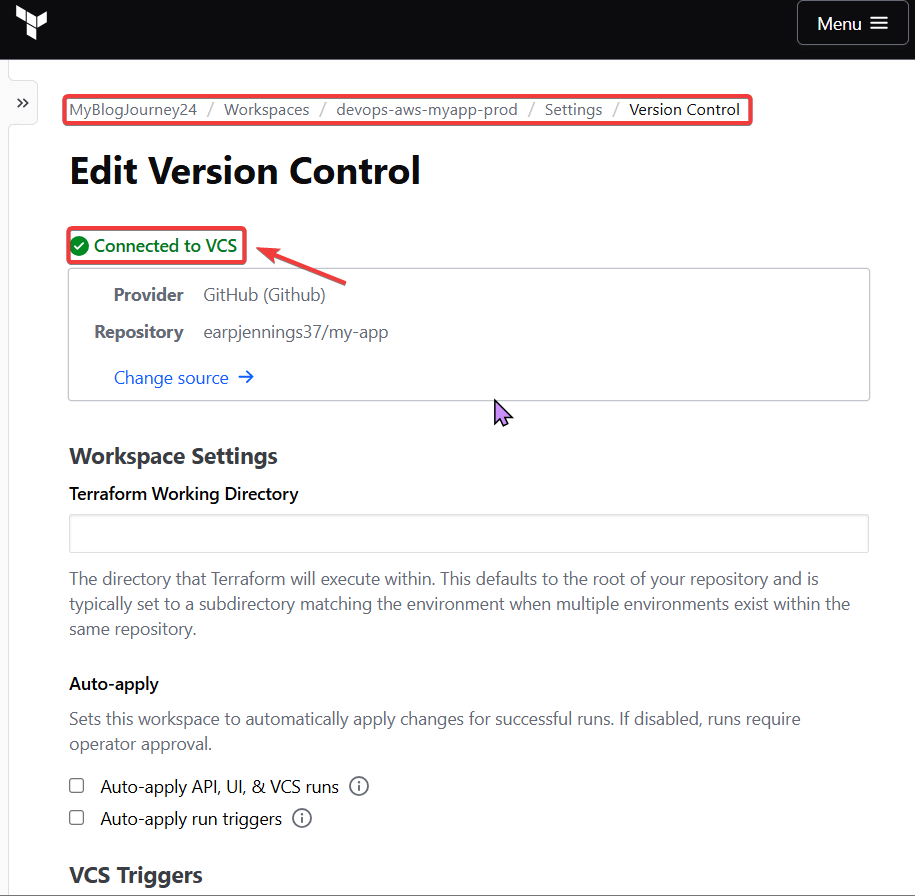
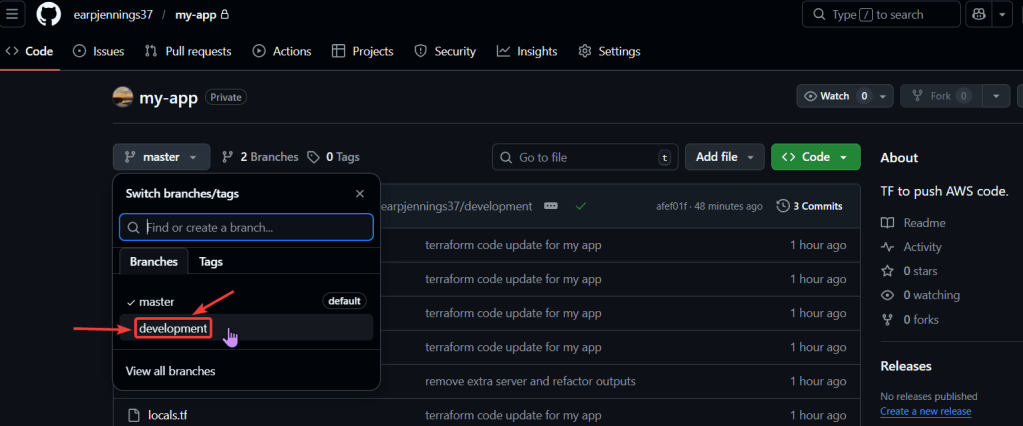
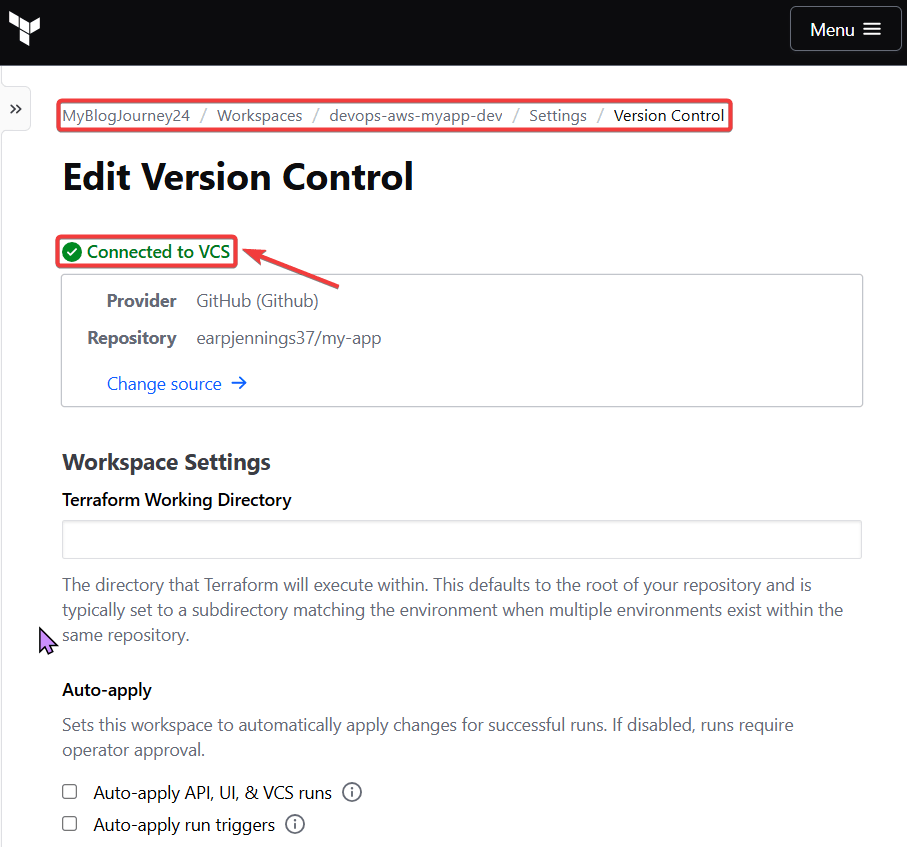
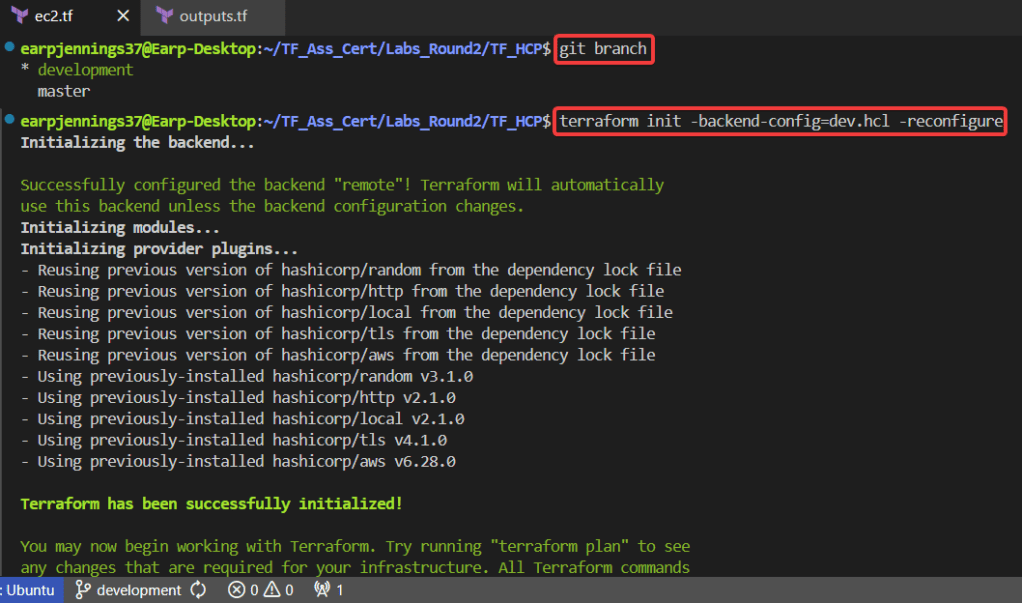
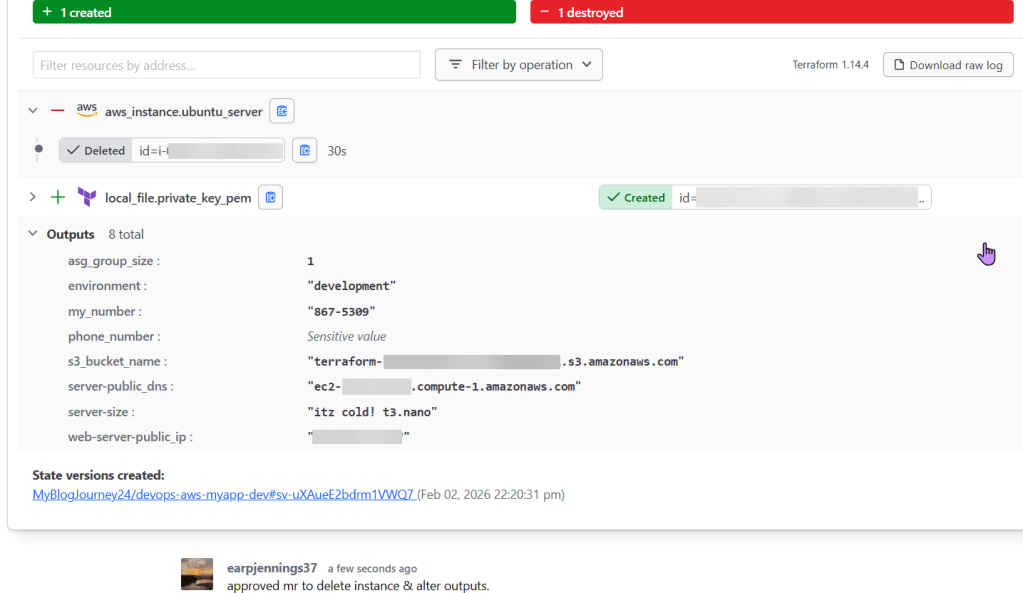
git branch -f development origin/developmentgit checkout developmentgit branchterraform init -backend-config=dev.hcl -reconfigureterraform validateterraform plan

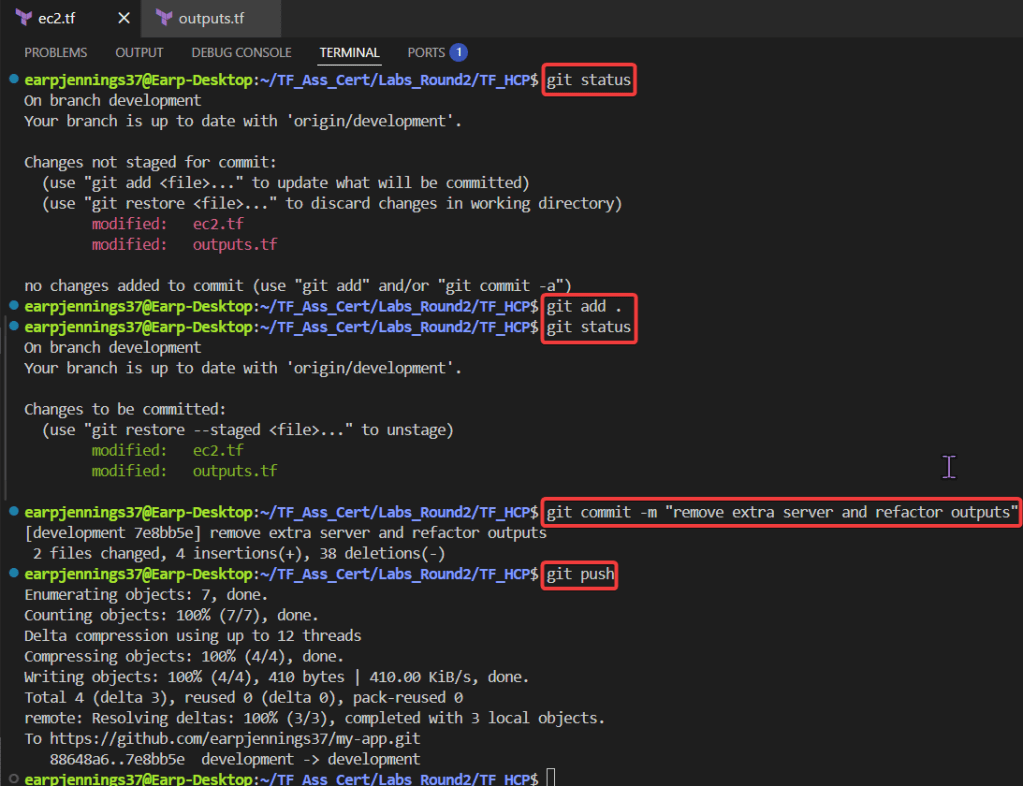
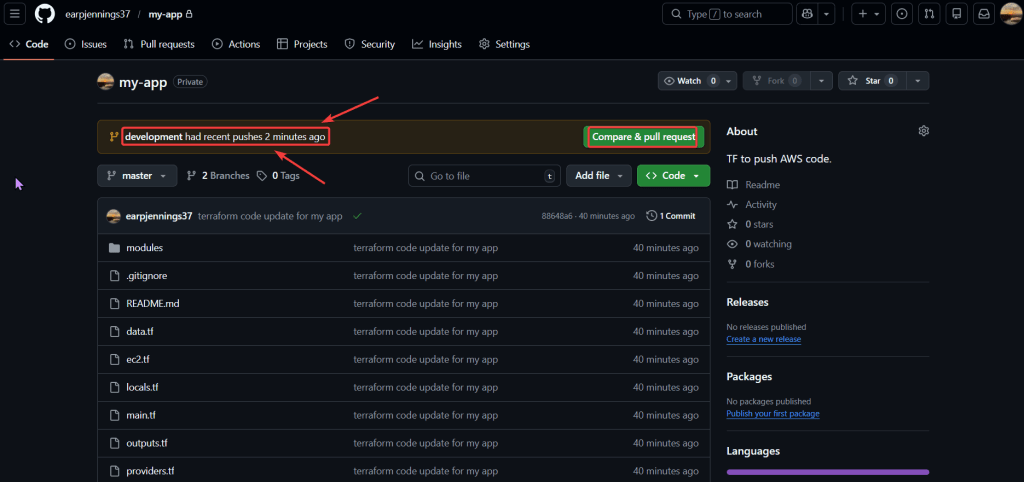
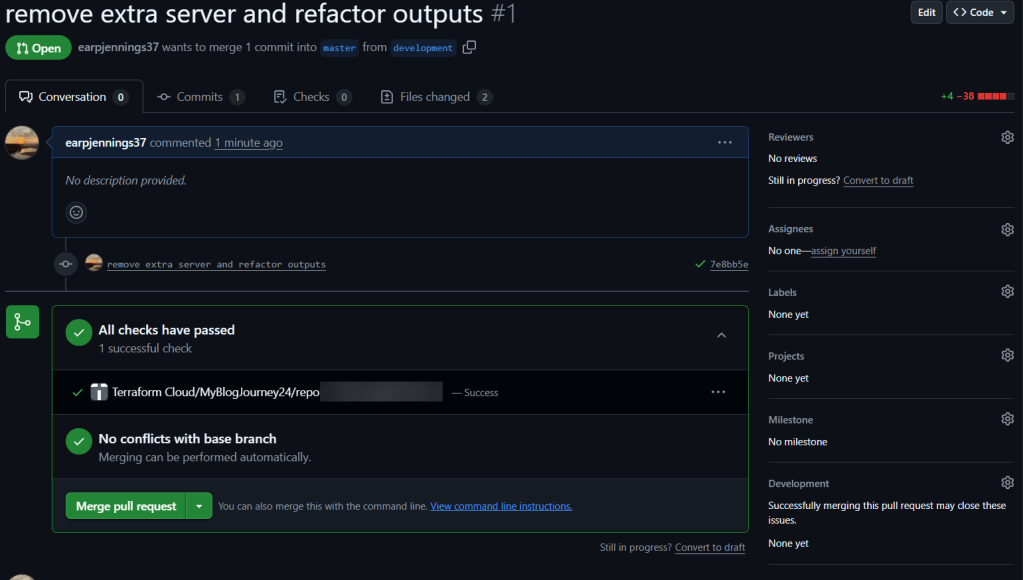
git statusgit add .git commit -m "remove extra server & refactor outputs"git push
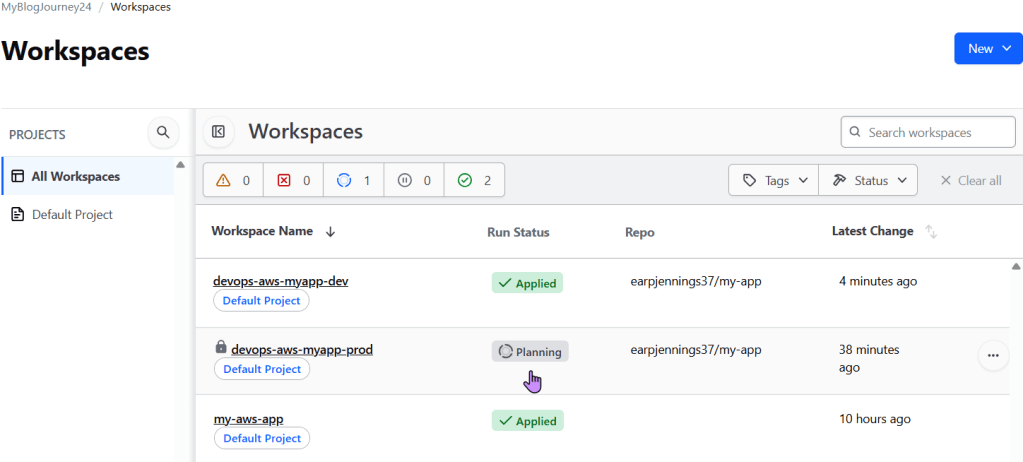
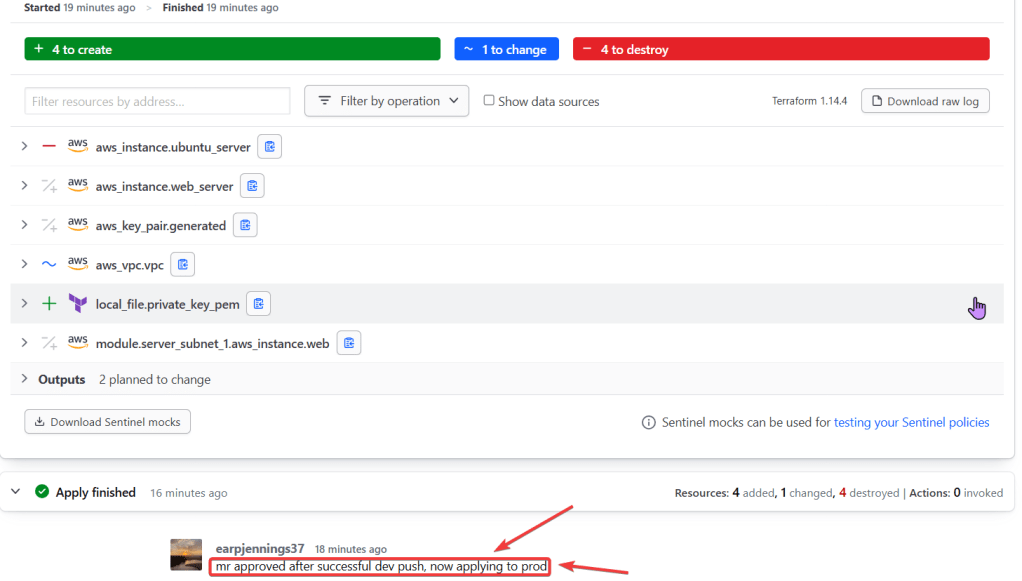
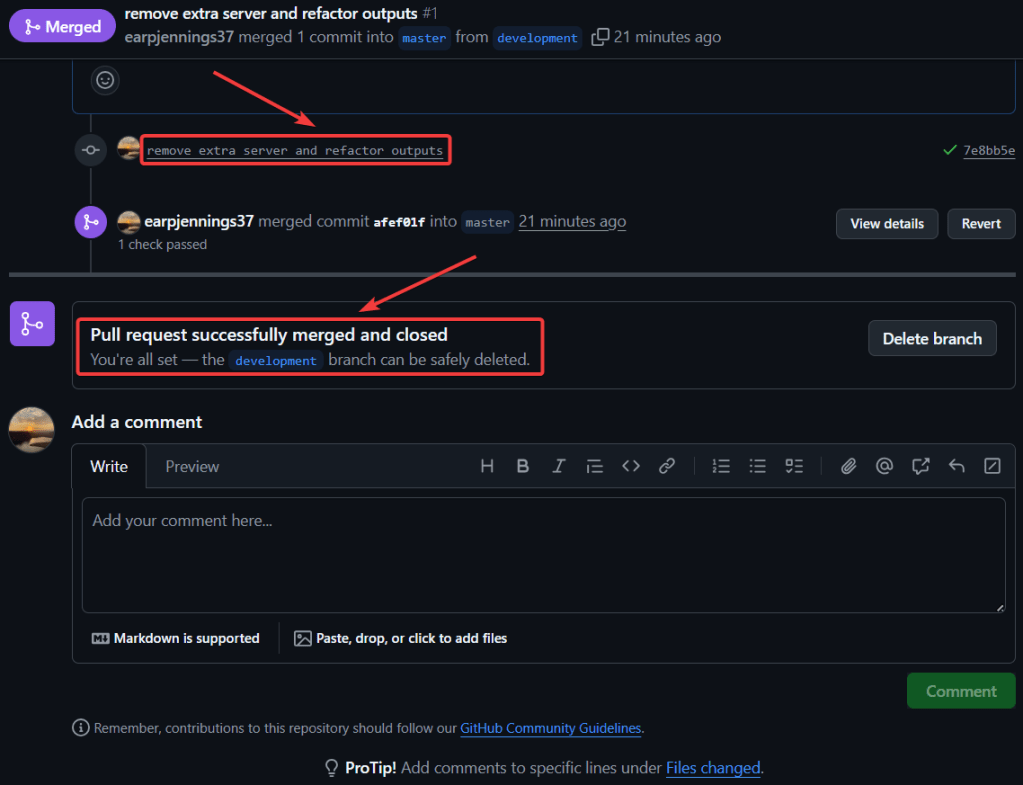

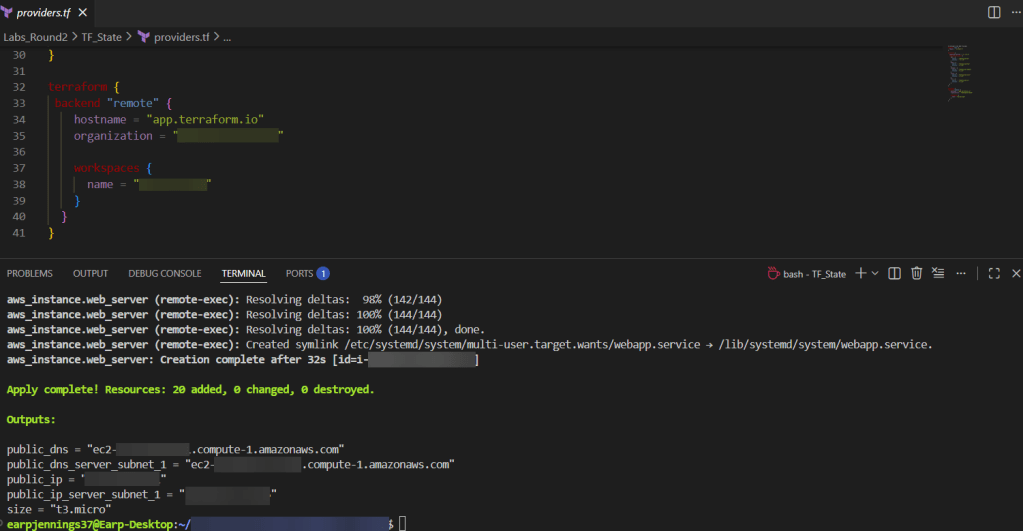
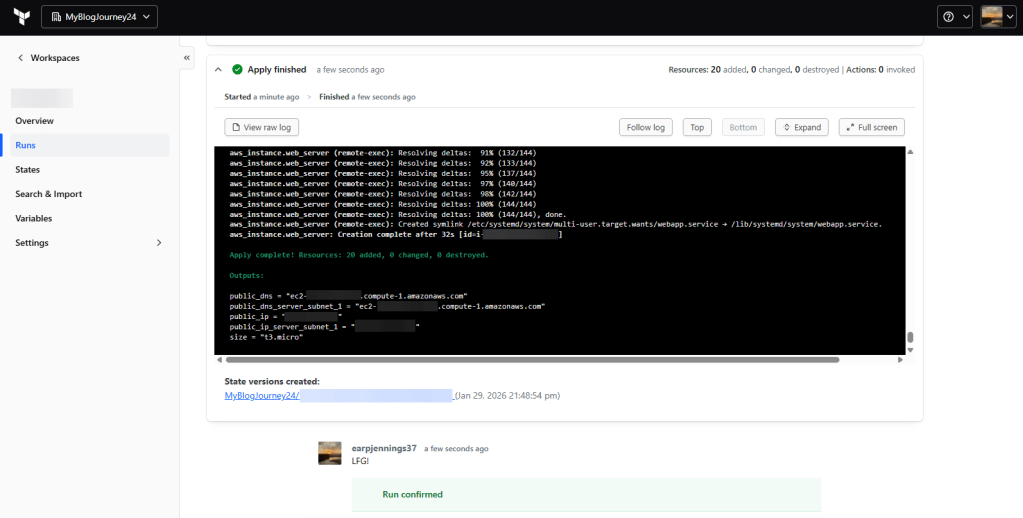
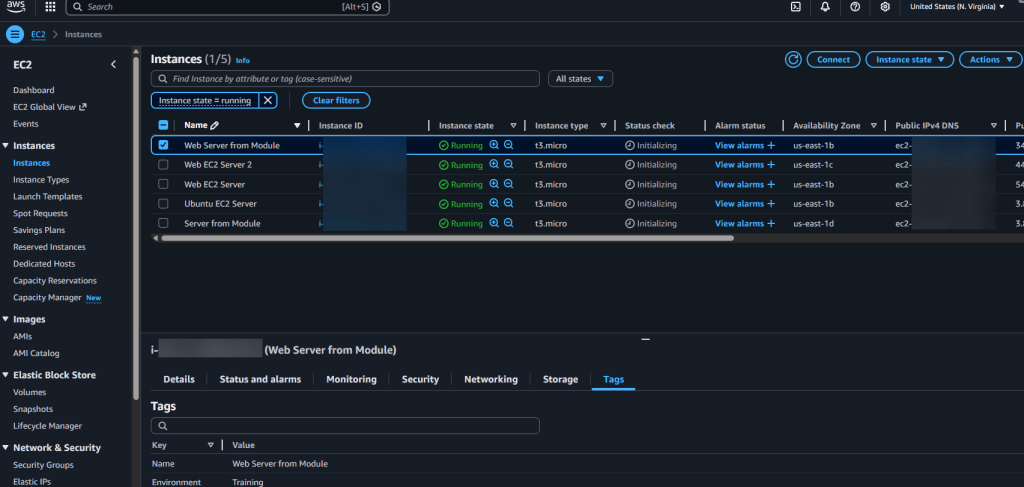
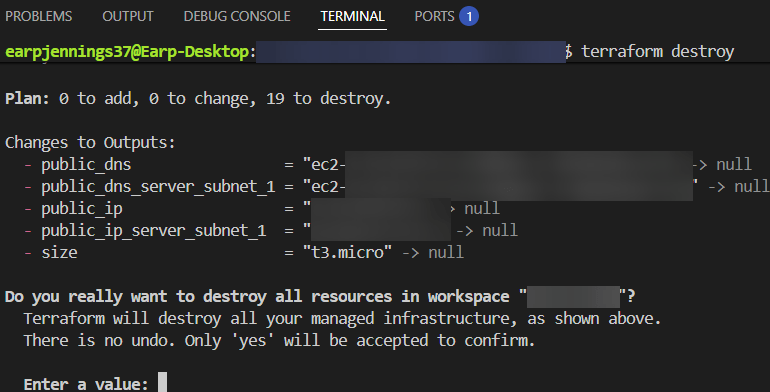
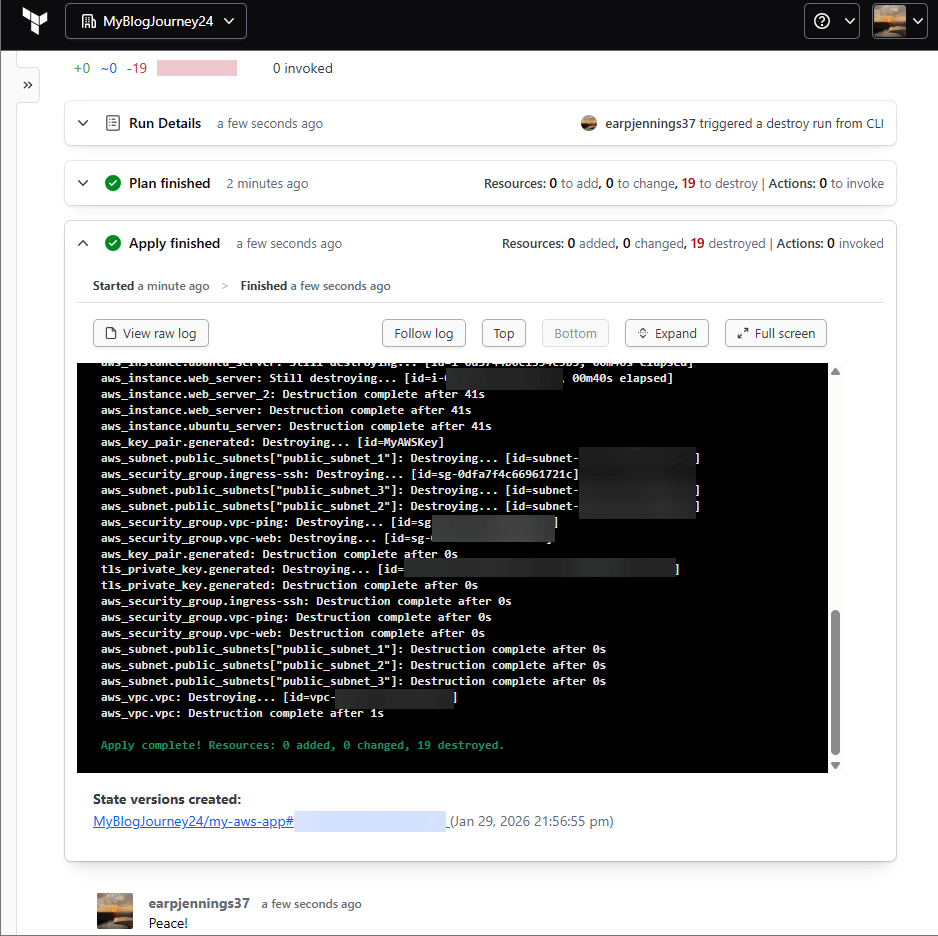
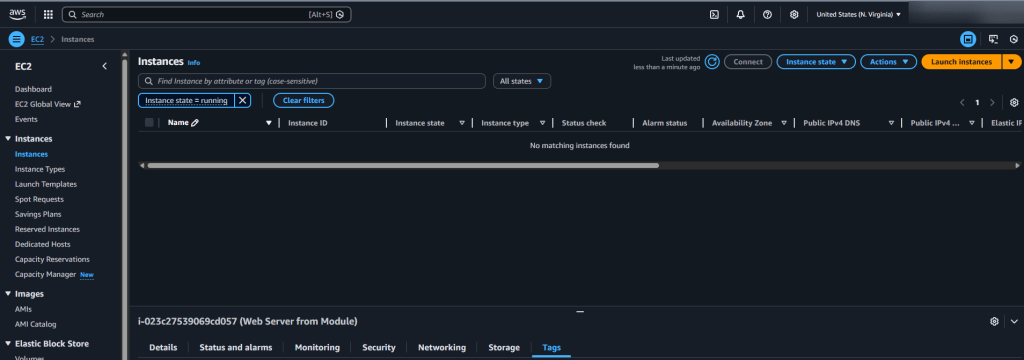

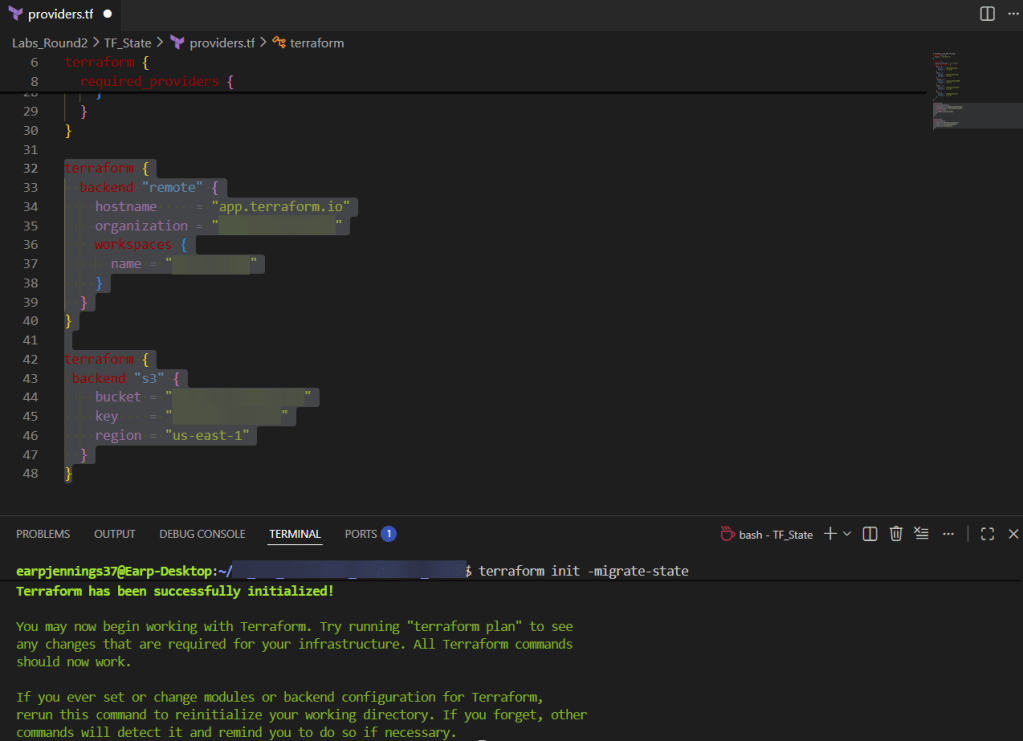
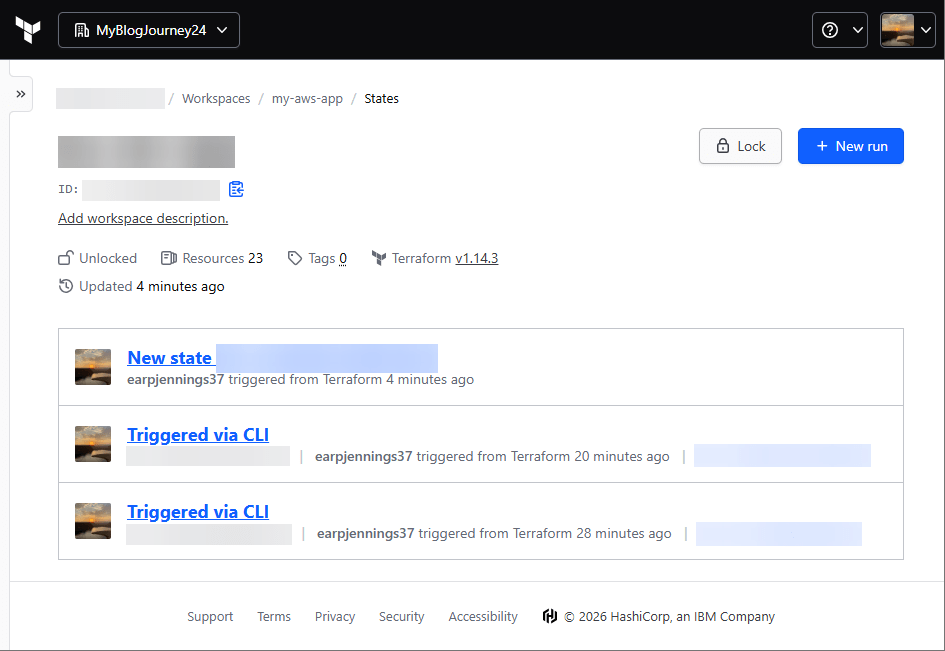

.TF Files:
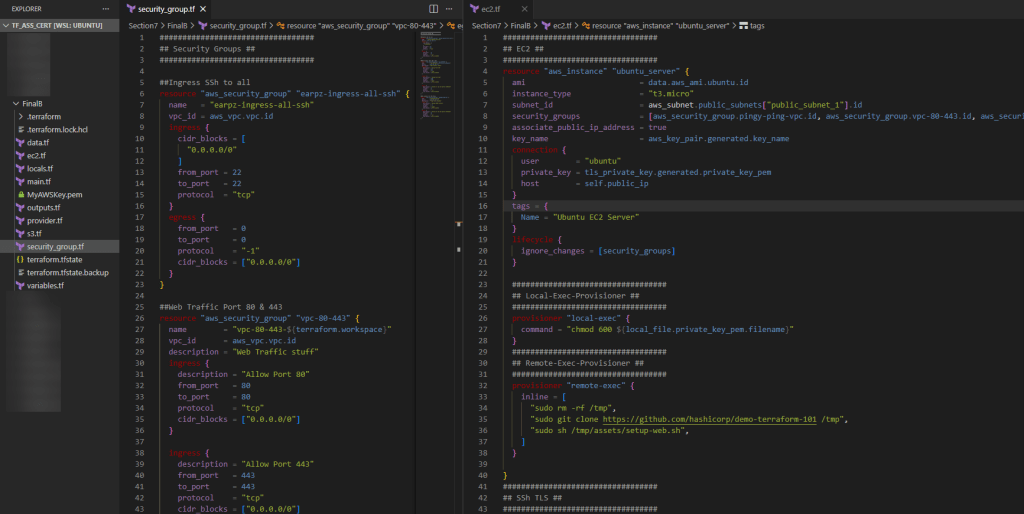
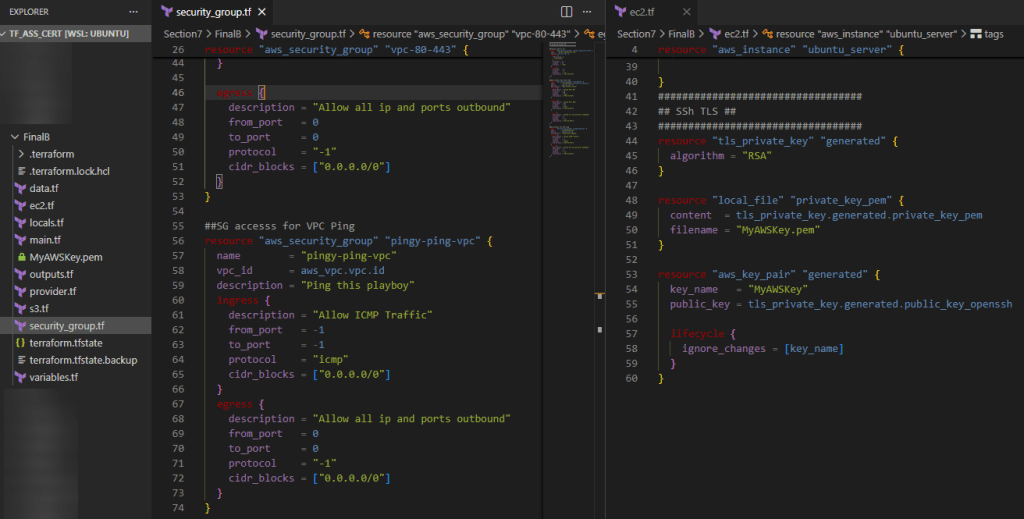
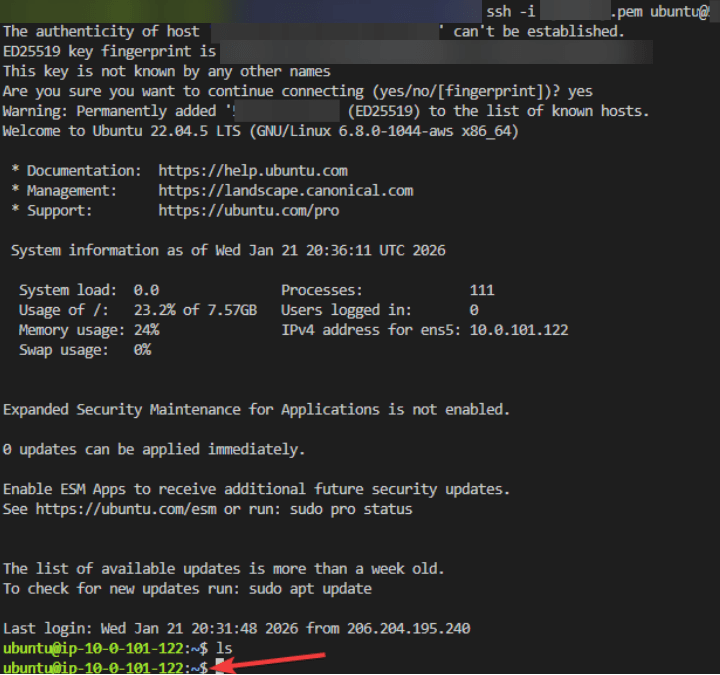
CLI:
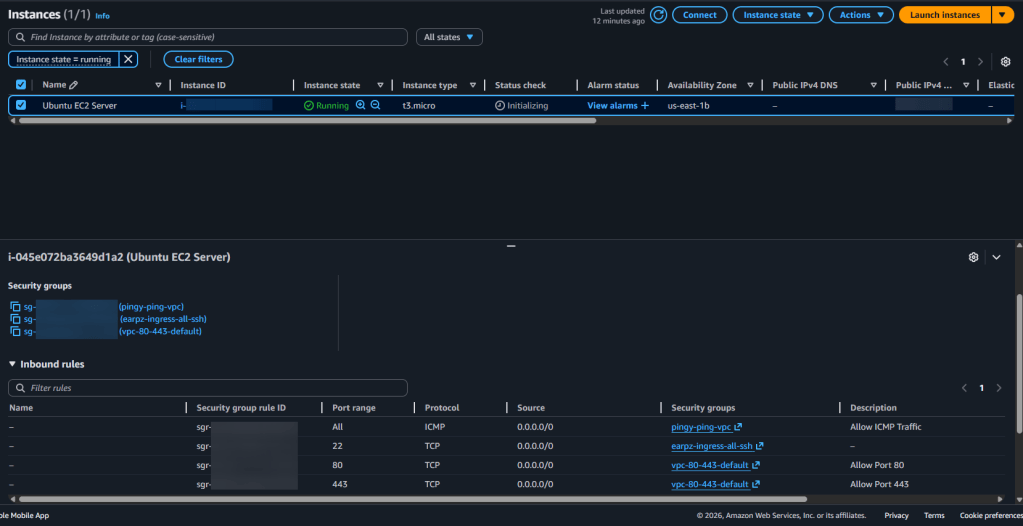
AWS:
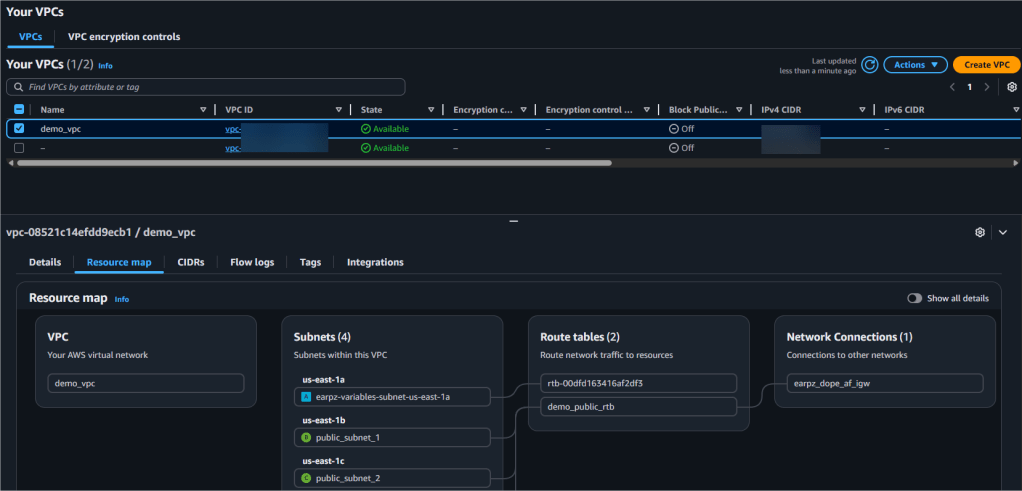
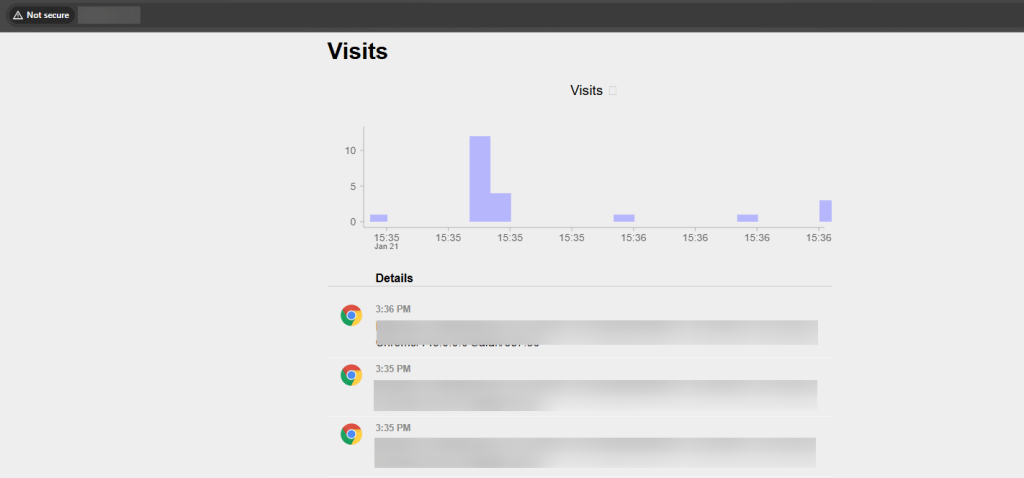
Web-Server Public IP Address:

main.tf
provider "aws" {
  region = var.aws_region
}

# Create IAM user
resource "aws_iam_user" "example_user" {
  name = var.user_name
}

# Attach policy to the user
resource "aws_iam_user_policy_attachment" "example_user_policy" {
  user       = aws_iam_user.example_user.name
  policy_arn = var.policy_arn
}

# Create access keys for the user
resource "aws_iam_access_key" "example_user_key" {
  user = aws_iam_user.example_user.name
}
output.tf
output "iam_user_name" {
value = aws_iam_user.example_user.name
}
output "access_key_id" {
value = aws_iam_access_key.example_user_key.id
}
output "secret_access_key" {
value = aws_iam_access_key.example_user_key.secret
sensitive = true
}variables.tf
variable "aws_region" {
description = "AWS region"
type = string
default = "us-east-1"
}
variable "user_name" {
description = "IAM username"
type = string
default = "example-user"
}
variable "policy_arn" {
description = "IAM policy ARN to attach"
type = string
default = "arn:aws:iam::aws:policy/AmazonS3ReadOnlyAccess"
}terrform.tfvars
aws_region = "us-east-1"
user_name = "terraform-user"
policy_arn = "arn:aws:iam::aws:policy/AdministratorAccess"

Steps below to create:
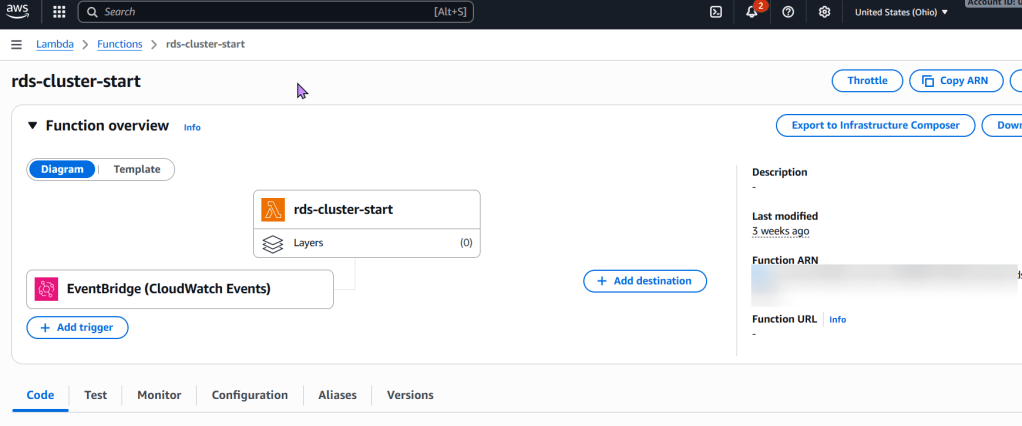
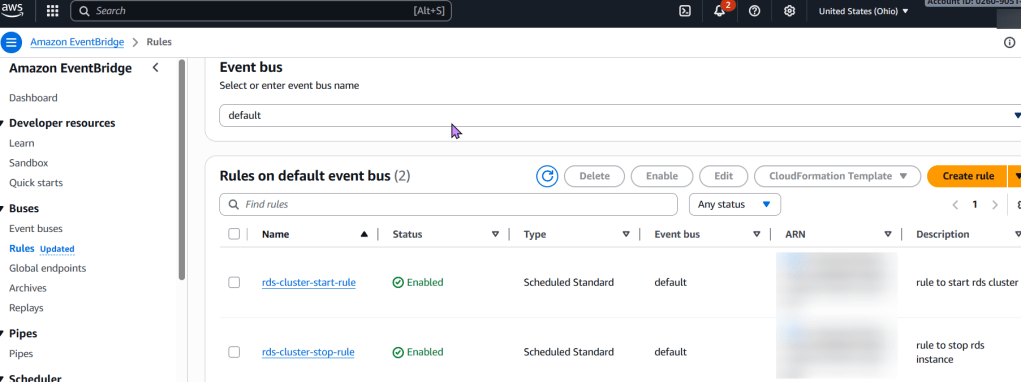
To stop an RDS instance every 7 days using AWS Lambda and Terraform, below are the following concepts followed:
Explanation:
aws_iam_role.rds_stop_lambda_role and aws_iam_role_policy.rds_stop_lambda_policy: These define the necessary permissions for the Lambda function to interact with RDS and CloudWatch Logs.aws_lambda_function.rds_stop_lambda: This resource defines the Lambda function itself, including its runtime, handler, associated IAM role, and the zipped code. It also passes the RDS_INSTANCE_IDENTIFIER and REGION as environment variables for the Python script.aws_cloudwatch_event_rule.rds_stop_schedule: This creates a scheduled EventBridge rule using a cron expression. cron(0 0 ? * SUN *) schedules the execution for every Sunday at 00:00 UTC. Adjust this cron expression as needed for your desired 7-day interval and time.aws_cloudwatch_event_target.rds_stop_target: This links the EventBridge rule to the Lambda function, ensuring the function is invoked when the schedule is met.aws_lambda_permission.allow_cloudwatch_to_call_lambda: This grants EventBridge the explicit permission to invoke the Lambda function..tf files and the Python code as lambda_function.py.lambda_function.zip.terraform initterraform plan
terraform apply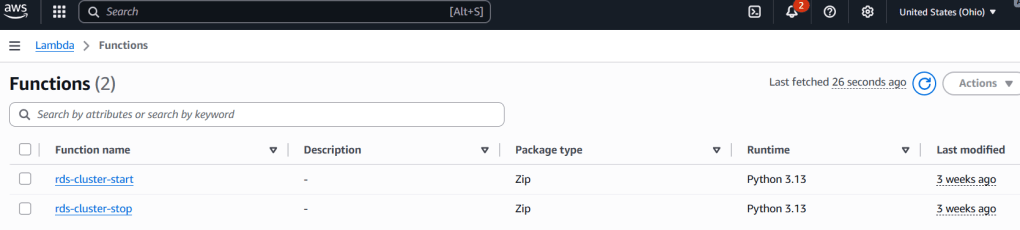
# Define an IAM role for the Lambda function
resource "aws_iam_role" "rds_stop_lambda_role" {
  name = "rds-stop-lambda-role"

  assume_role_policy = jsonencode({
    Version = "2012-10-17",
    Statement = [
      {
        Action = "sts:AssumeRole",
        Effect = "Allow",
        Principal = {
          Service = "lambda.amazonaws.com"
        }
      }
    ]
  })
}

# Attach a policy to the role allowing RDS stop actions and CloudWatch Logs
resource "aws_iam_role_policy" "rds_stop_lambda_policy" {
  name = "rds-stop-lambda-policy"
  role = aws_iam_role.rds_stop_lambda_role.id

  policy = jsonencode({
    Version = "2012-10-17",
    Statement = [
      {
        Effect = "Allow",
        Action = [
          "rds:StopDBInstance",
          "rds:DescribeDBInstances"
        ],
        Resource = "*" # Restrict this to specific RDS instances if needed
      },
      {
        Effect = "Allow",
        Action = [
          "logs:CreateLogGroup",
          "logs:CreateLogStream",
          "logs:PutLogEvents"
        ],
        Resource = "arn:aws:logs:*:*:*"
      }
    ]
  })
}

# Create the Lambda function
resource "aws_lambda_function" "rds_stop_lambda" {
  function_name = "rds-stop-every-7-days"
  handler       = "lambda_function.lambda_handler"
  runtime       = "python3.9"
  role          = aws_iam_role.rds_stop_lambda_role.arn
  timeout       = 60

  # Replace with the path to your zipped Lambda code
  filename         = "lambda_function.zip"
  source_code_hash = filebase64sha256("lambda_function.zip")

  environment {
    variables = {
      RDS_INSTANCE_IDENTIFIER = "my-rds-instance" # Replace with your RDS instance identifier
      REGION                  = "us-east-1"       # Replace with your AWS region
    }
  }
}

# Create an EventBridge (CloudWatch Event) rule to trigger the Lambda
resource "aws_cloudwatch_event_rule" "rds_stop_schedule" {
  name                = "rds-stop-every-7-days-schedule"
  schedule_expression = "cron(0 0 ? * SUN *)" # Every Sunday at 00:00 UTC
}

# Add the Lambda function as a target for the EventBridge rule
resource "aws_cloudwatch_event_target" "rds_stop_target" {
  rule      = aws_cloudwatch_event_rule.rds_stop_schedule.name
  target_id = "rds-stop-lambda-target"
  arn       = aws_lambda_function.rds_stop_lambda.arn
}

# Grant EventBridge permission to invoke the Lambda function
resource "aws_lambda_permission" "allow_cloudwatch_to_call_lambda" {
  statement_id  = "AllowExecutionFromCloudWatch"
  action        = "lambda:InvokeFunction"
  function_name = aws_lambda_function.rds_stop_lambda.function_name
  principal     = "events.amazonaws.com"
  source_arn    = aws_cloudwatch_event_rule.rds_stop_schedule.arn
}
lambda_function.py (Python code for the Lambda function):import boto3
import os
def lambda_handler(event, context):
rds_instance_identifier = os.environ.get('RDS_INSTANCE_IDENTIFIER')
region = os.environ.get('REGION')
if not rds_instance_identifier or not region:
print("Error: RDS_INSTANCE_IDENTIFIER or REGION environment variables are not set.")
return {
'statusCode': 400,
'body': 'Missing environment variables.'
}
rds_client = boto3.client('rds', region_name=region)
try:
response = rds_client.stop_db_instance(
DBInstanceIdentifier=rds_instance_identifier
)
print(f"Successfully initiated stop for RDS instance: {rds_instance_identifier}")
return {
'statusCode': 200,
'body': f"Stopping RDS instance: {rds_instance_identifier}"
}
except Exception as e:
print(f"Error stopping RDS instance {rds_instance_identifier}: {e}")
return {
'statusCode': 500,
'body': f"Error stopping RDS instance: {e}"
}zip lambda_function.zip lambda_function.py
Goal:
Look man, I just wanna set up a tin EKS cluster w/a couple nodes using Terraform.
Lessons Learned:
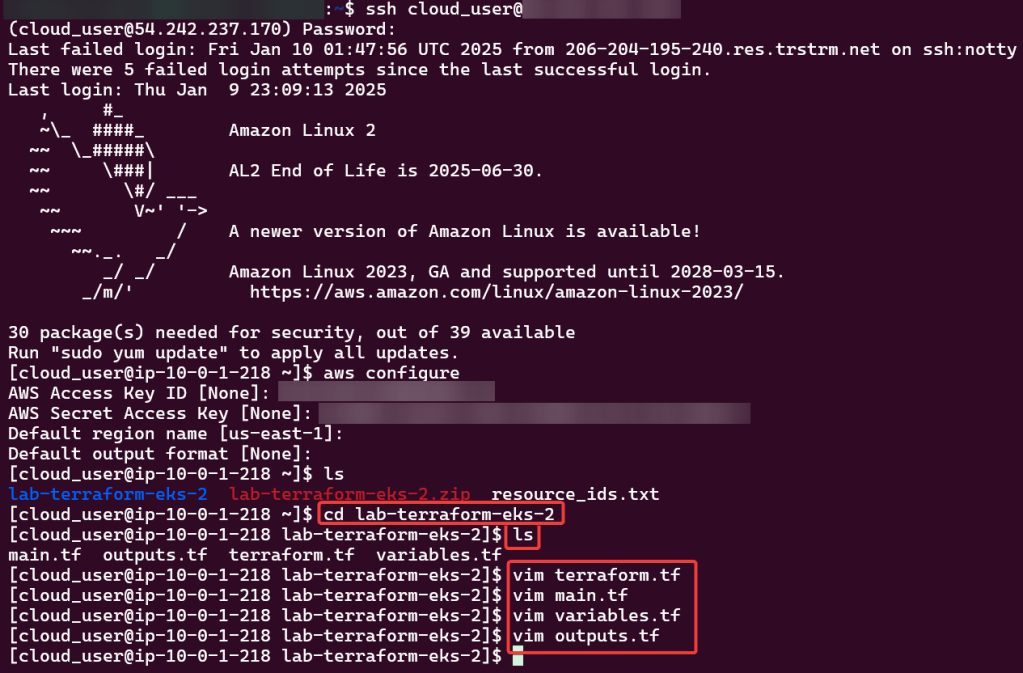
Configure AWS CLI:
Use Access & Secret Access Key:
Change Directory:
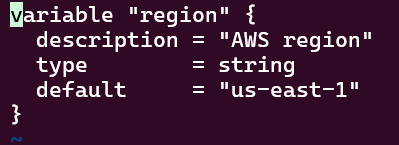
Review TF Configuration Files:
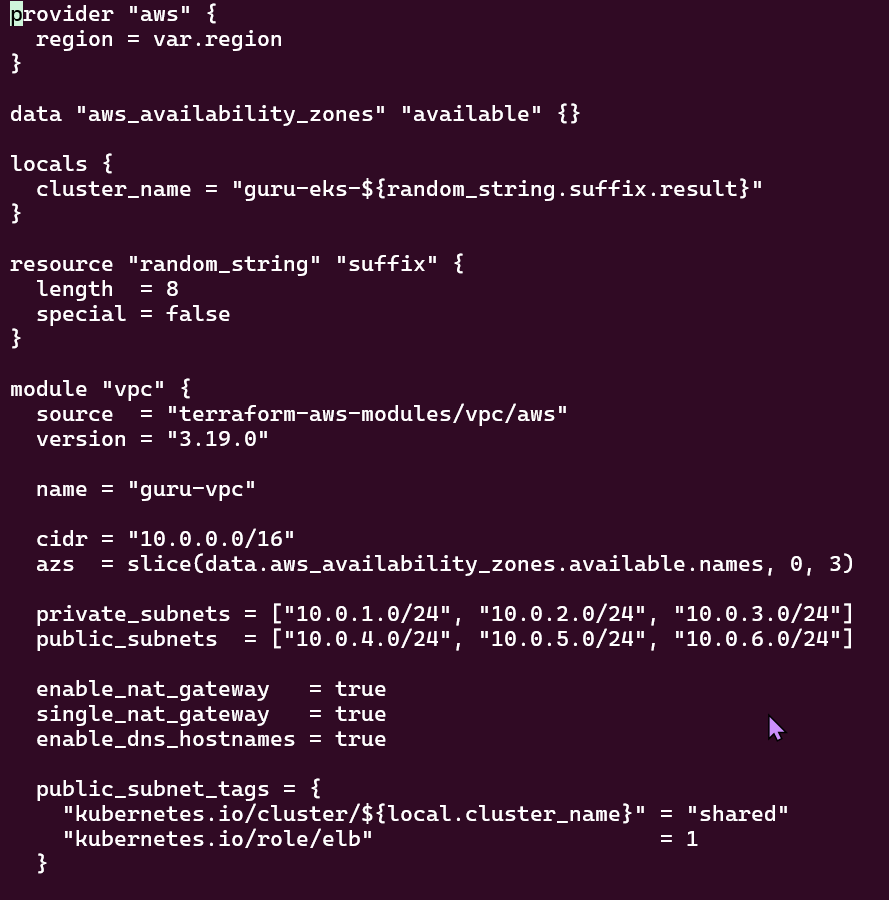
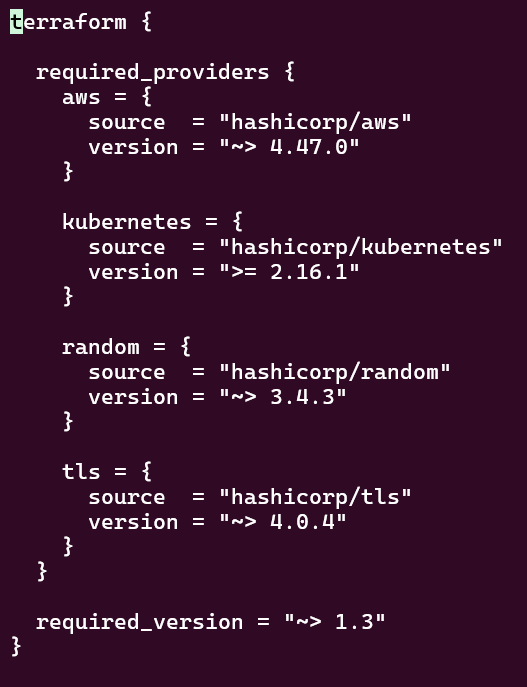
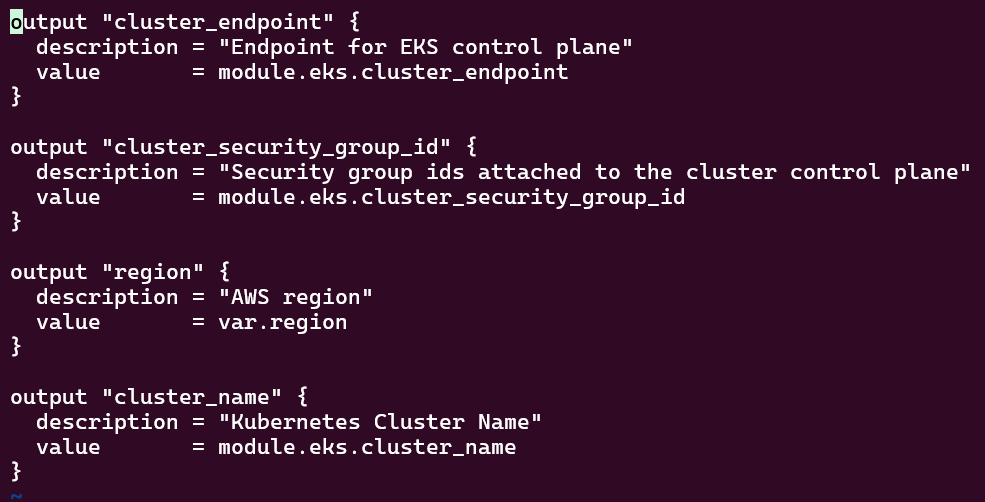
Deploy EKS Cluster:
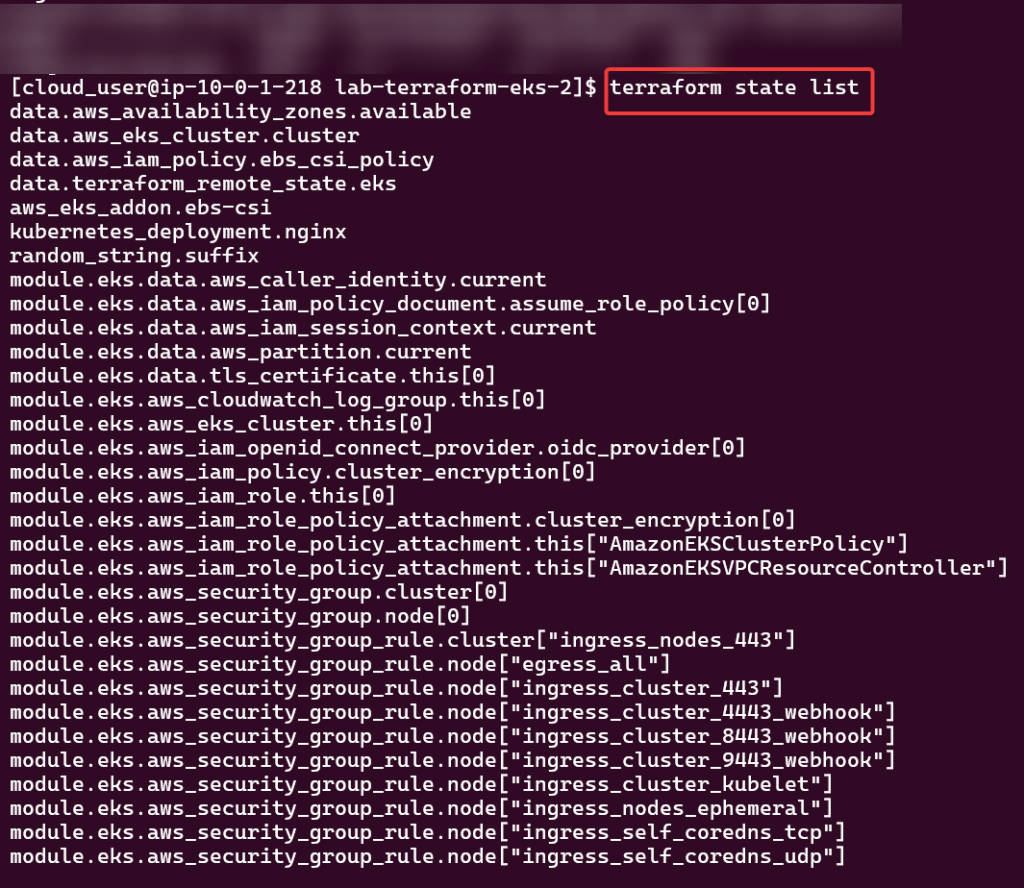
Terraform init, plan, & apply:
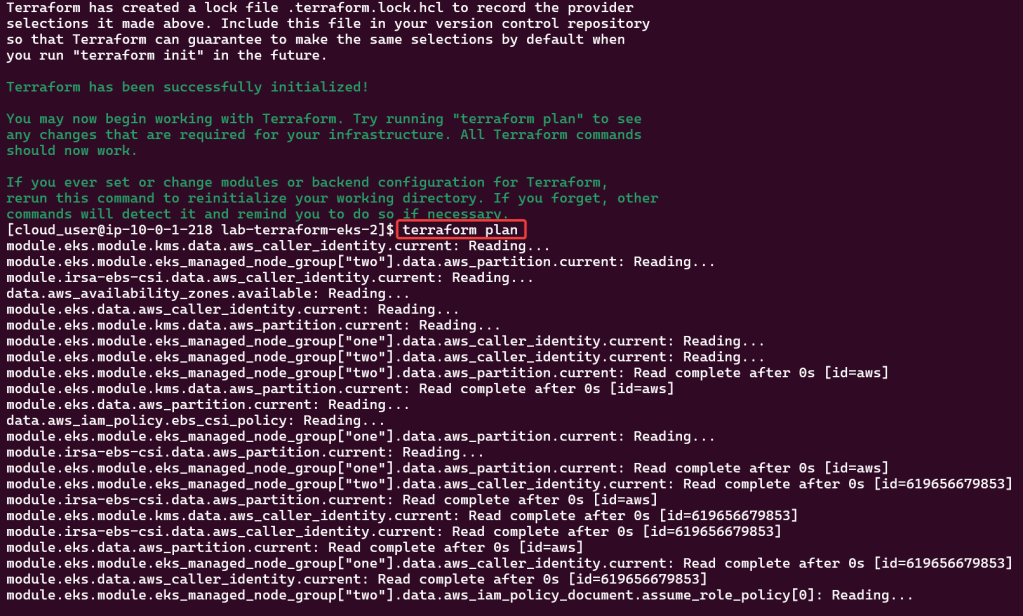
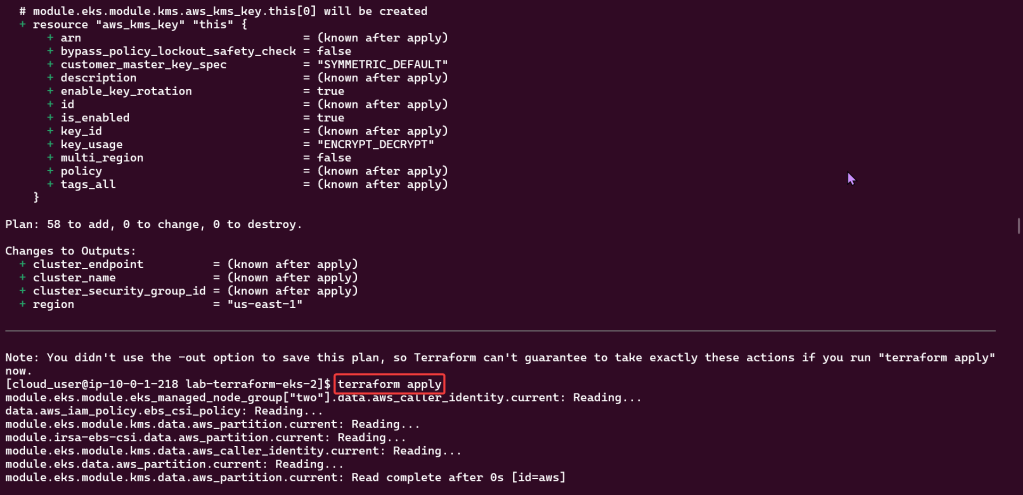
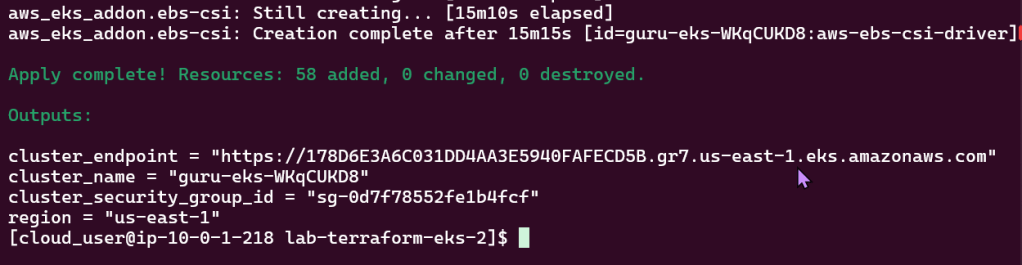
Kubectl to chat w/yo EKS cluster:
Check to see your cluster is up & moving:

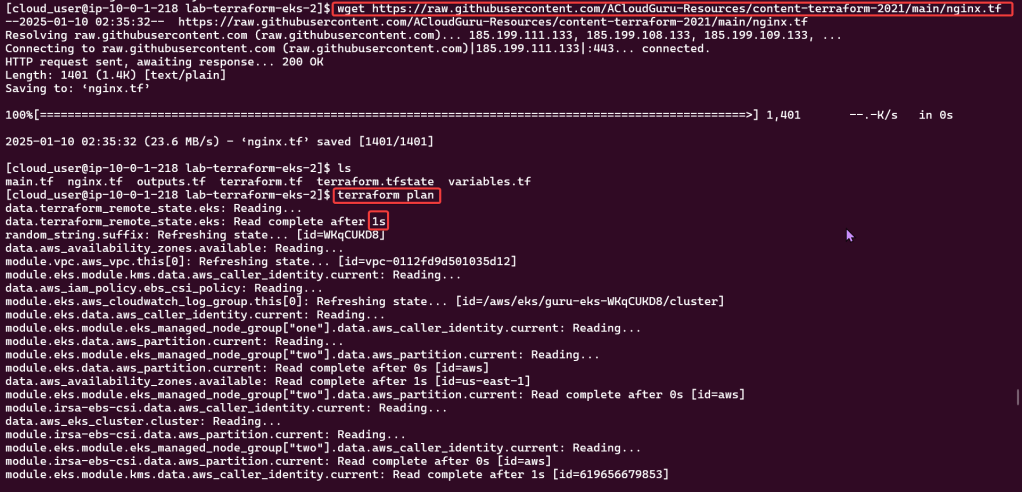
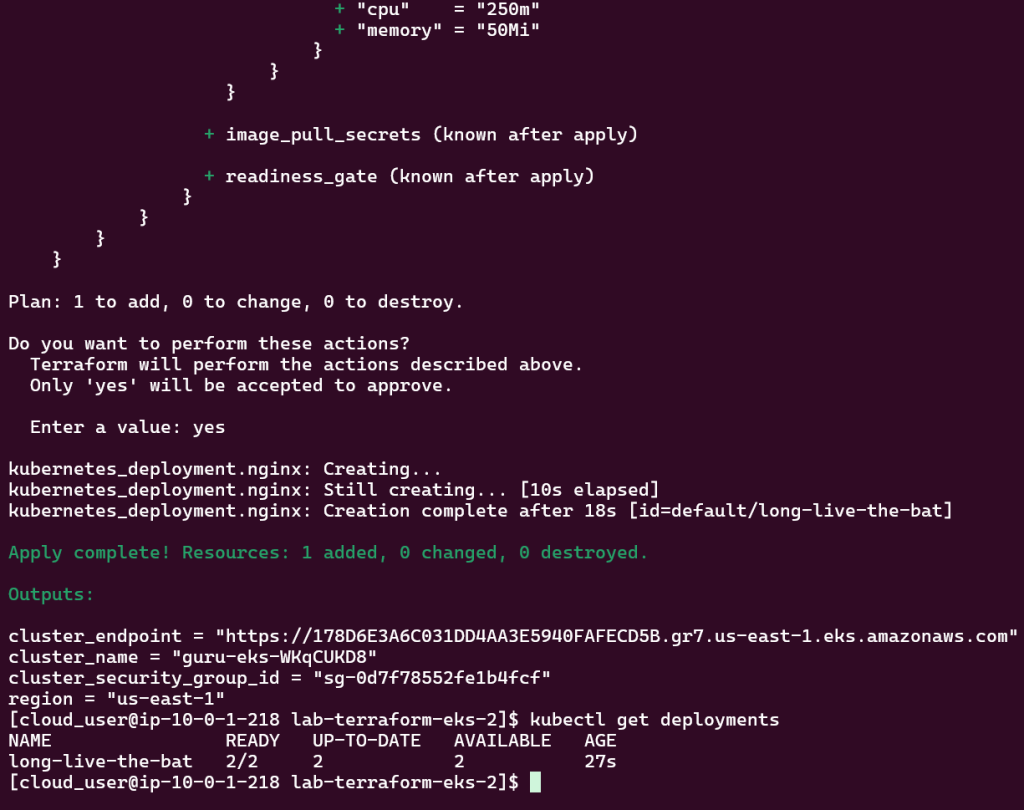
Deploy NGINX Pods:
Deploy to EKS Cluster:
Check again if your cluster is up… & MOVINGG!:
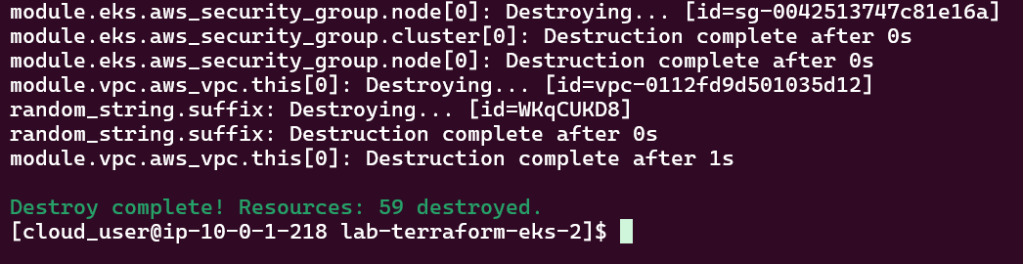
Destroy!!

Goal:
Shells are da bomb right? Just like in Mario Kart! Cloud Shell can be dope too in creating a Kubernetes cluster using EKS, lets party Mario.

Lessons Learned:
AWS Stuff:
Create user w/admin access for CLI, & download access keys:

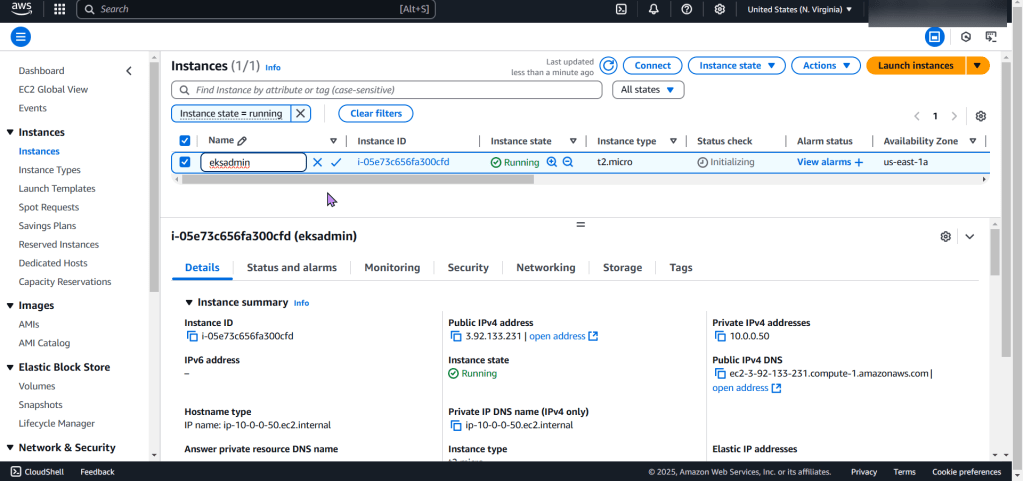
Create EC2:
Create an EKS cluster in a Region:
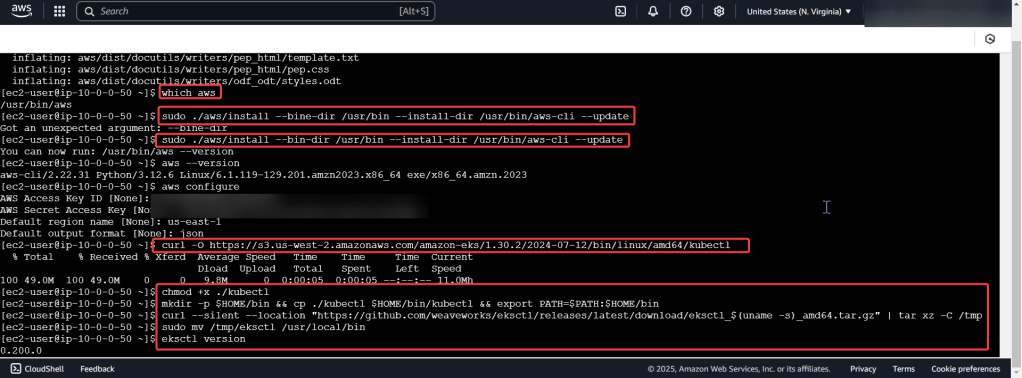
Download AWS CLI v2, kubectl, ekcctl, & move directory files:
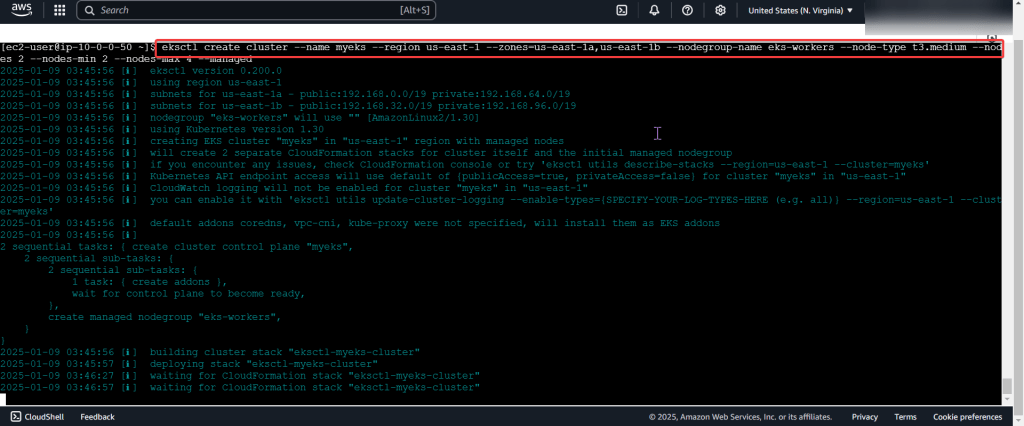
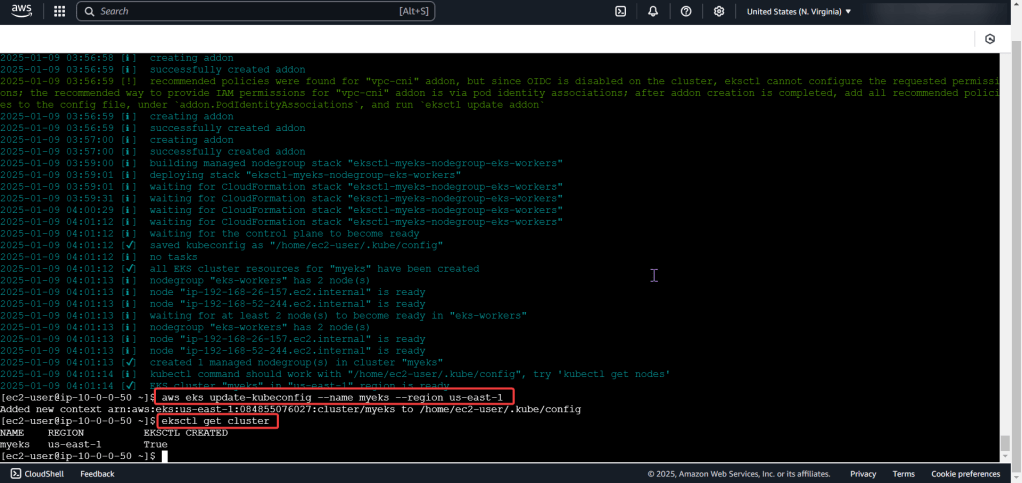
Create the cluster, connect, & verify running eksctl:
Deploy a Application to Mimic the Application

Run thru some kubectl applys to yaml files & test to see those pods running:
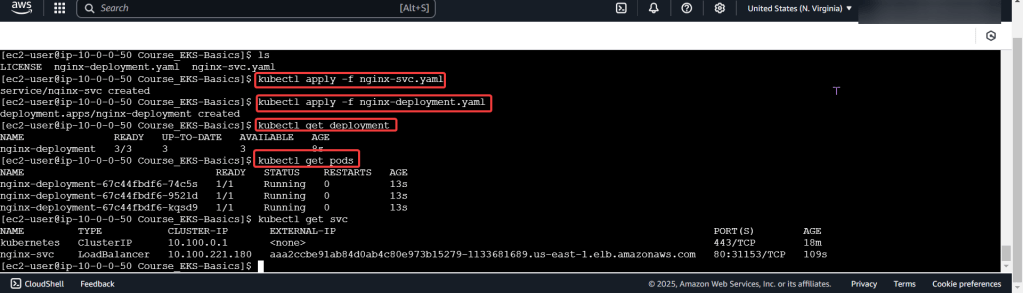
Use DNS name of Load Balancer to Test the Cluster:
 Say When..