
The Watcher, of all Containers

Goal:

  • Learn to use Watchtower to update all images running in containers simultaneously

Lessons Learned:

  • Create Dockerfile
  • Build Dockerfile
  • Push image to Docker Hub
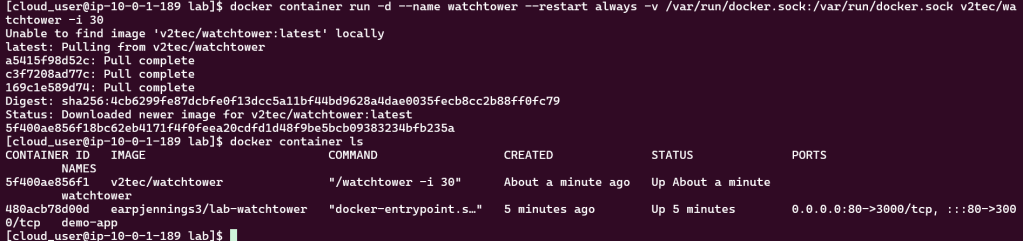
  • Create Watchtower container
  • Update Docker image

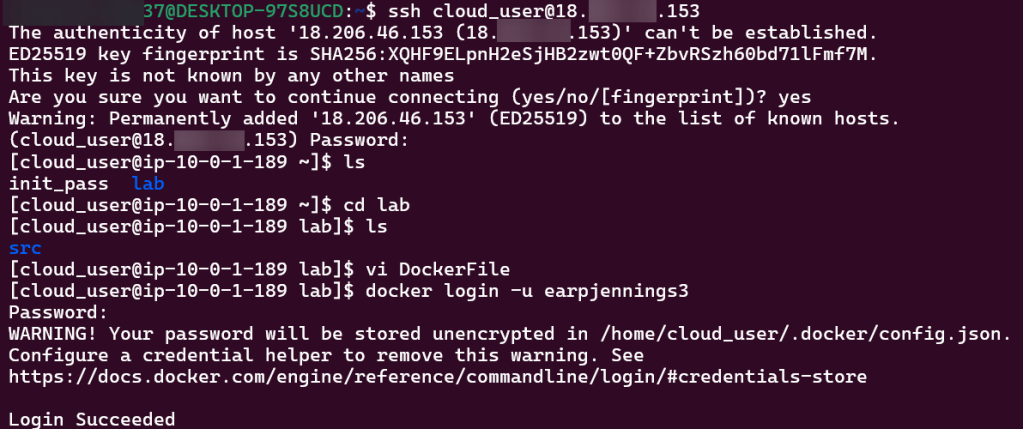
SSH & Create the DockerFile:

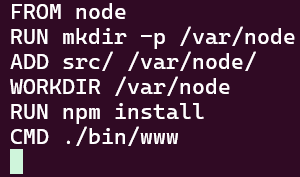
  • After SSH, the DockerFile was created w/around 6 instructions
Build the Dockerfile:

  • docker image build -t earpjennings3/lab-watchtower -f Dockerfile .
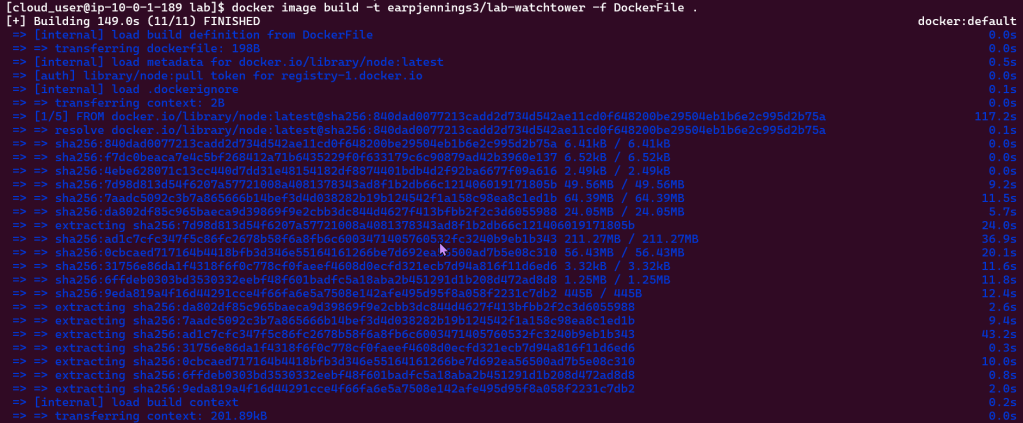
Create Container:

Create Watchtower Container:
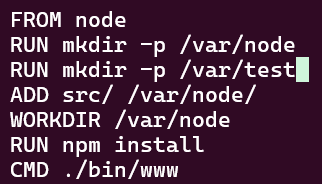
Update Image:
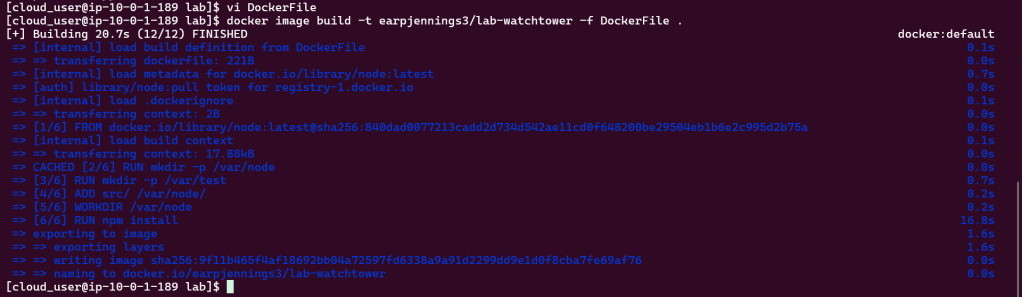
Re-Build the image:
Re-Push Image:
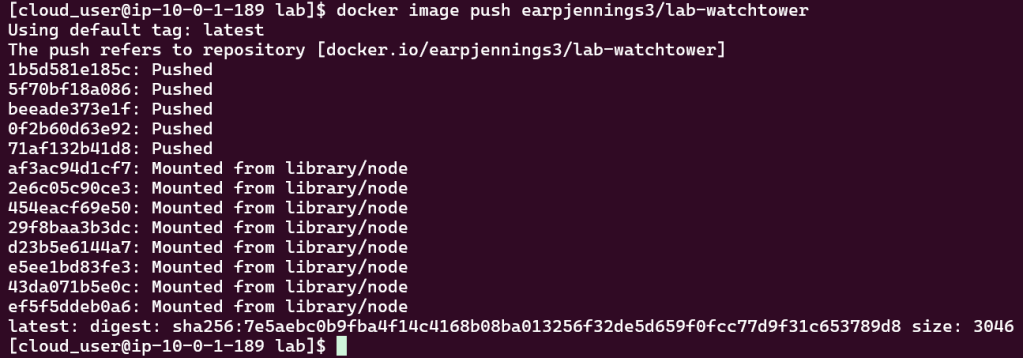
View to see image updating as instructed:


Portainer? Never heard of her!

Goal:

  • I have a lot of servers to manage & the Docker servers are getting plentiful, so lets see if Portainers can help

Lessons Learned:

  • Create a volume
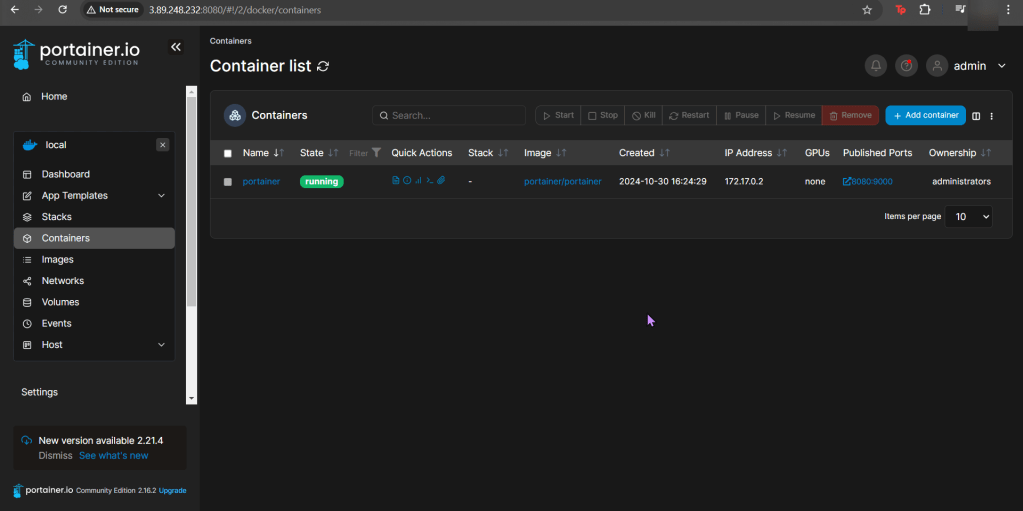
  • Create a portainer
  • Login to Portainer

Create Volume & Portainer:

  • Few steps to make life easier in this “master-piece”
    • SSH
      • Connect to public IP address
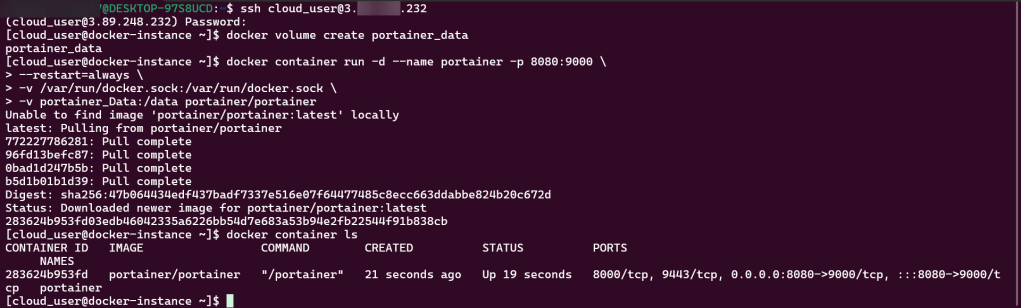
    • Create portainer w/command –
      • docker volume create portainer_data
    • Run portainer w/command –
      • docker container run -d –name portainer -p 8080:9000 \
        • – d = run in background
        • Make sure portainer is mapped port 8080 to 9000
        • Ensure a restart policy is set to always w/a bind mount that maps var/run/docker.sock to container
    • List container w/command –
      • docker container ls

Login to Portainer & Create Container:

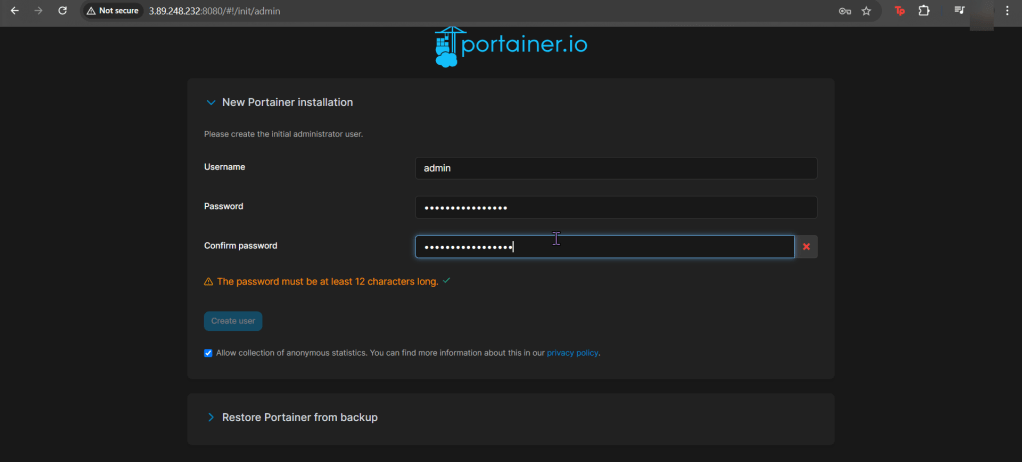
  • Login to Portainer
    • Create user
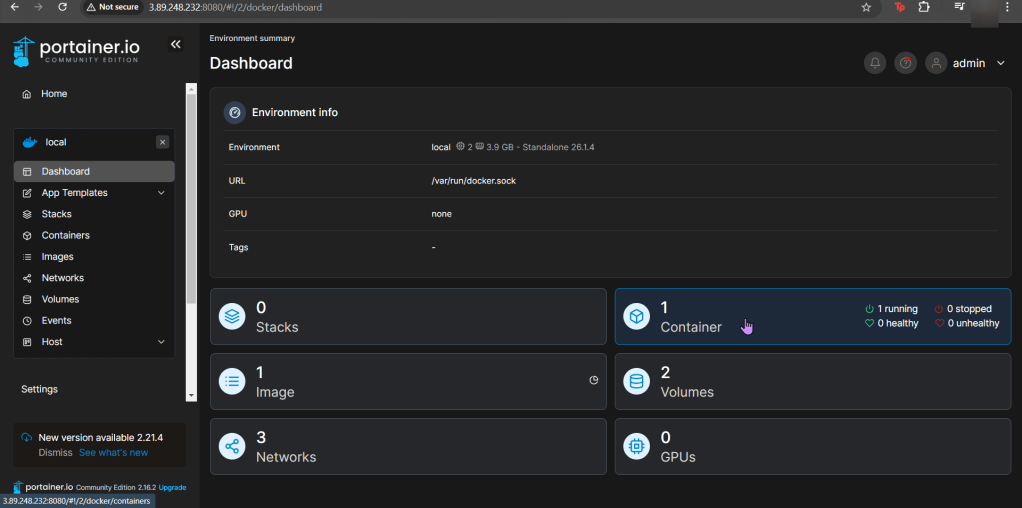
  • Go to local
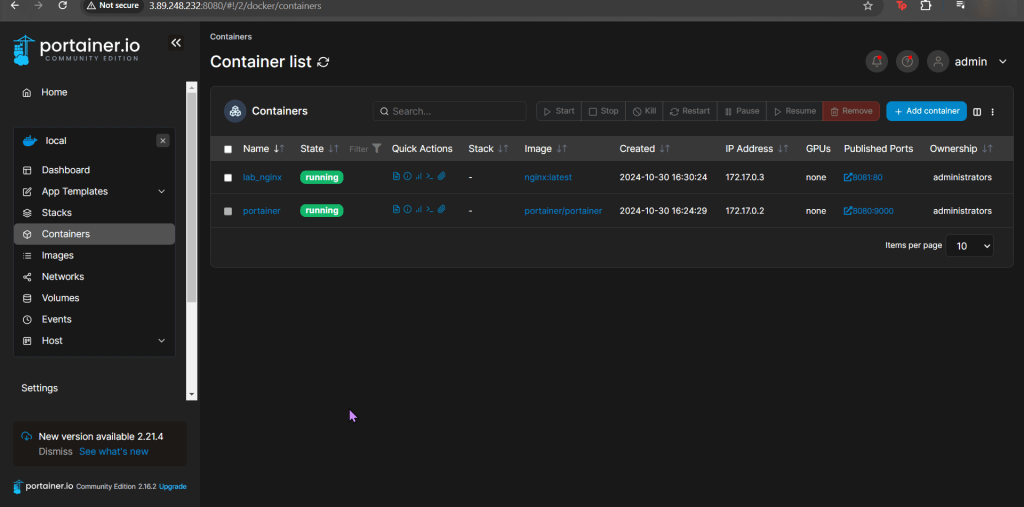
  • Create container:
    • On port 8081
    • From nging:latest image
  • Go to URL

<Docker> – Hub goin up on a Tuesday!

Goal:

  • So you got a Dockerfile now huh? Well lets celly & go the Hub!

Lessons Learned:

  • From CLI:

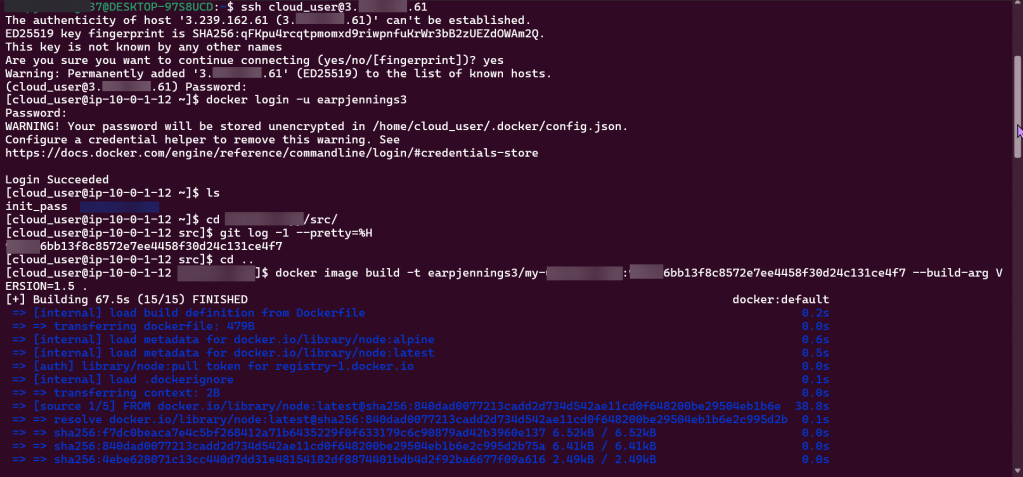
    • Login to DockerHub
    • Git Commit Hash
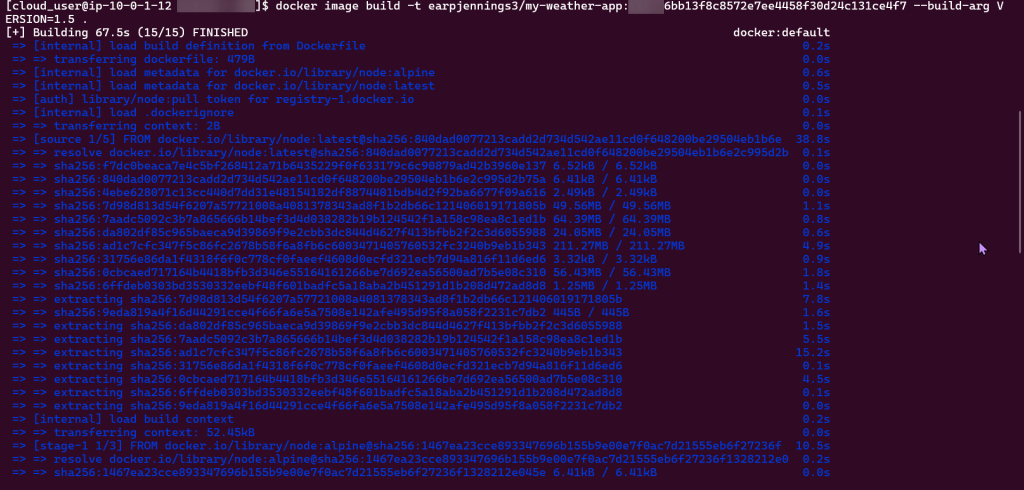
    • Build image
    • Tag image
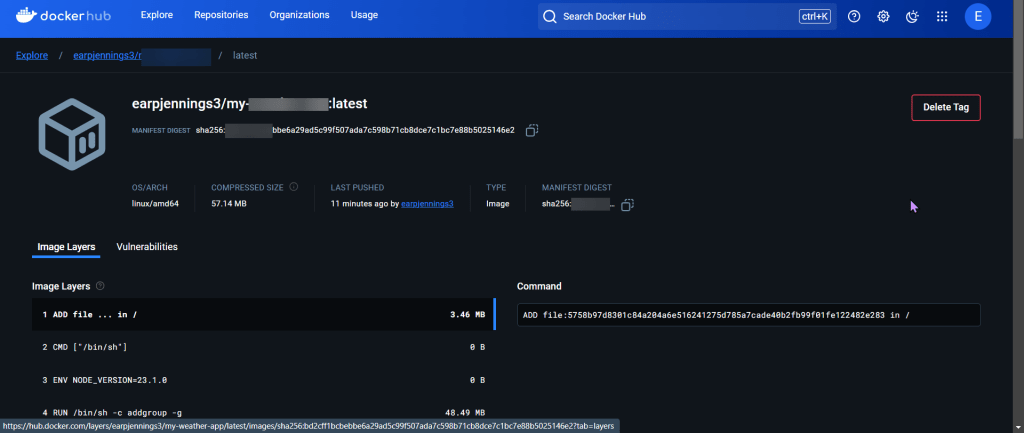
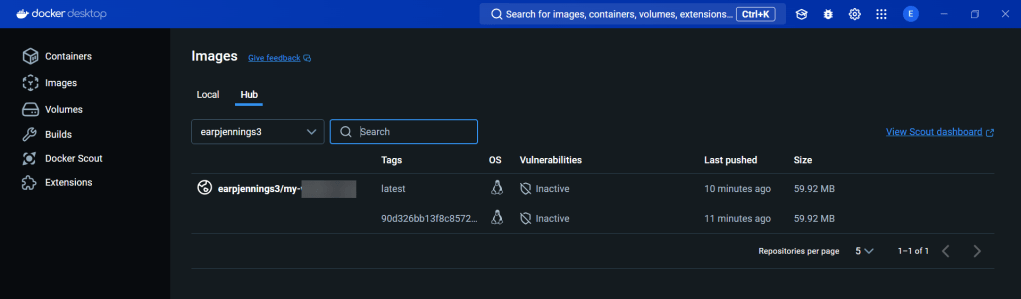
    • Push image to Dockerhub

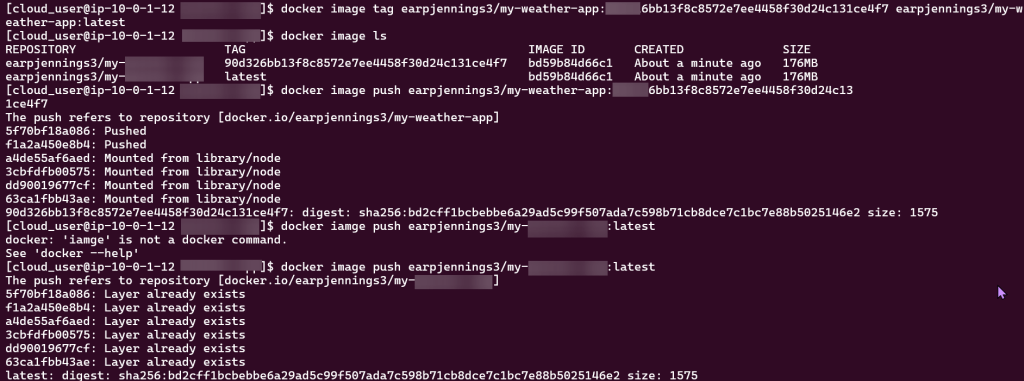
SSH, Login to DockerHub, & Git Commit Hash:

  • W/the command:
    • git log -1 –pretty=%H
  • This provides the Git commit hash as the image tag

Build Image:

  • W/the command:
    • docker image build -t (see below for details)

Tag Image:

  • W/the command:
    • docker image tag (see below for details)
  • W/the command:
    • docker image push (see below for details)

Push image to Docker Hub:

Wanna Dock<er> some Secrets?

Goal:

  • Secure crucial data/info on MySQL DB & deploy the container as a SWARRRRM w/…secrrrrrretzz!

Lessons Learned:

  • Create secrets!
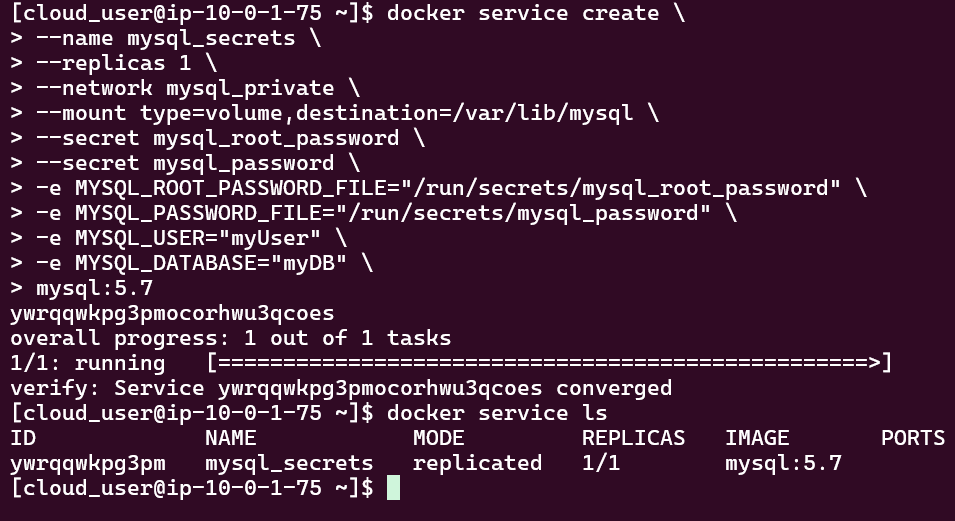
  • Create MySQL Service

Initiate Connection from Manager to Worker:

  • Connect w/command:
    • SSH into public IP address
  • Begin to conduct swarm w/command:
    • Perform docker swarm init \

Create Secrets:

  • Generate passwords for MySQL root & MySQL secrets to be created

Create Network:

  • Create network for docker secret passwords to be safe in!

Create MySQL Service:

Frakenstein a WordPress Stack from Docker Compose

Goal:

  • Only fitting to create WordPress site w/MySQL using (Queue dramatic music for effects)…
    • SWARRRRRM! from a compose file to deploy a stack

Lessons Learned:

  • Setup a swarrrrrrm!
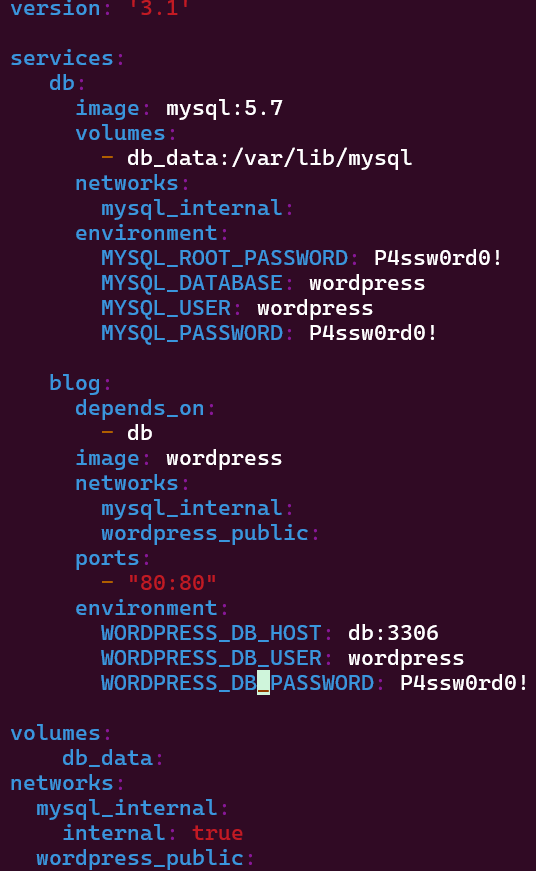
  • Compose the file w/the pertinent SQL, volume, network, & WordPress information
  • Stack deploy the wordpress blog
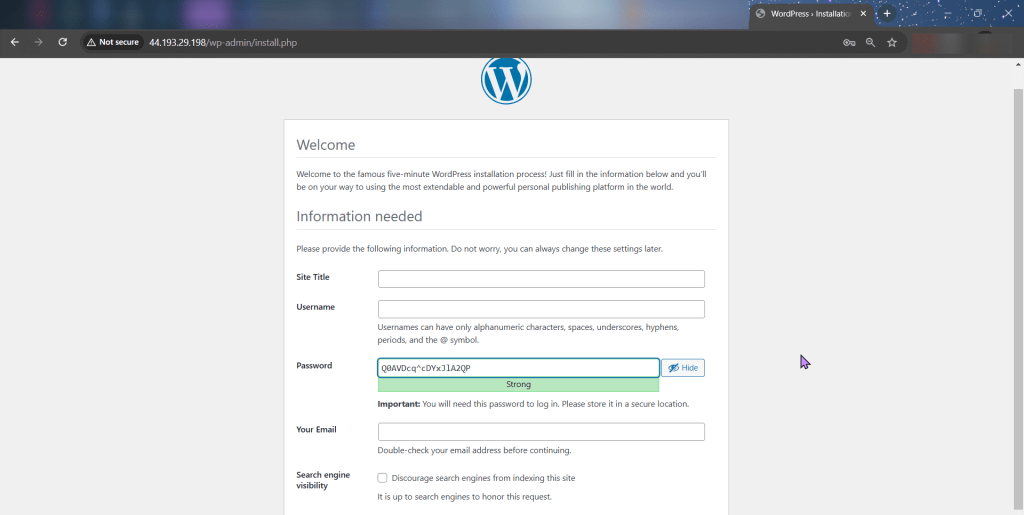
  • Set up WordPress!

Swarm setup:

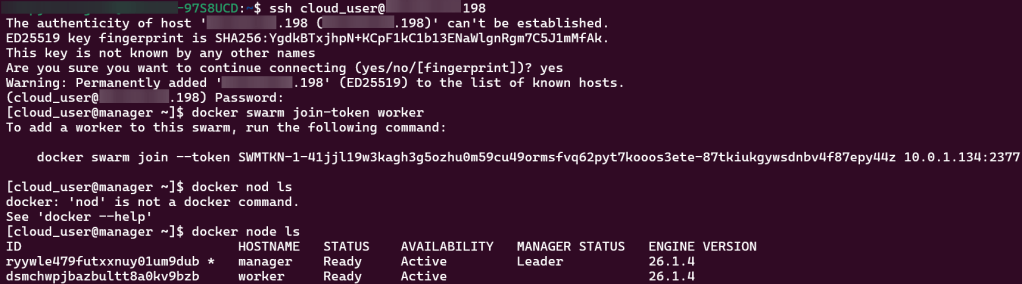
  • SSH again into node manager & create the swarm join connection token for the worker
  • Once the docker swarm join –token command is created, copy-pasta into your worker node
  • To view your nodes, run the command below
    • docker node ls

Compose file:

WordPress blog:

  • To put your Docker compose stack to the test, run the following command:
    • docker stack deploy –compose-file docker-compose.yml wp
  • To view your service/stack, run the commands below
    • docker stack ls
    • docker service ls

WordPress setup:

  • Taaaaah-daaaaahhhhh!!

Docked some Containers

Goal:

  • Create Container from Docker Hub for environment

Lessons Learned:

  • Create Container using Nginx Docker Hub
  • Used Docker commands to set Nginx server to access on port 80
  • Build image & test

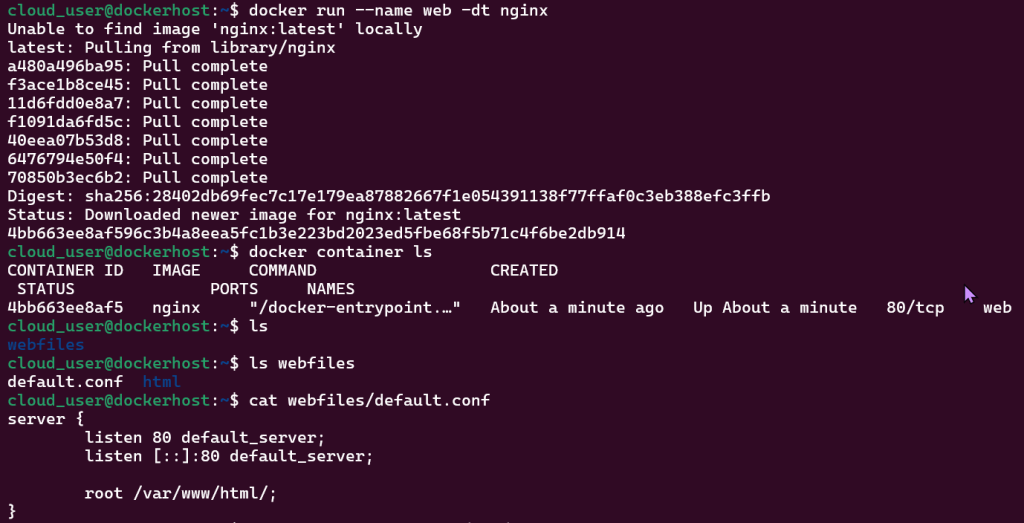
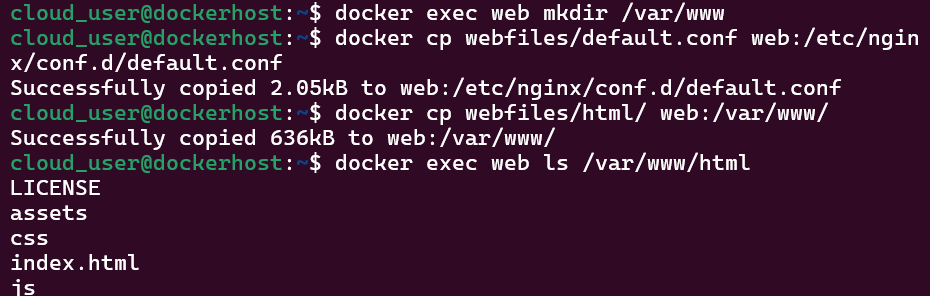
Create Container:

  • — = renamed container
  • -dt = run in background
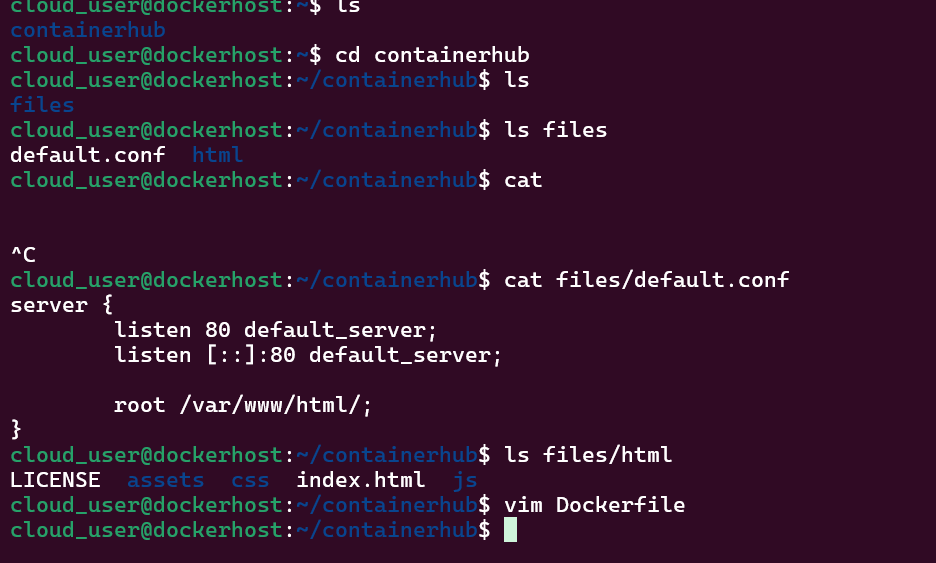
  • ls & cat = ensure we have the correct file

Mkdir & cp:

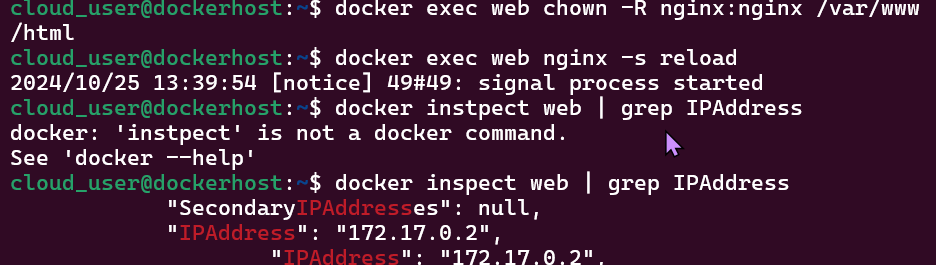
Nginx to port 80:

  • chown =
  • – R =
  • – s =

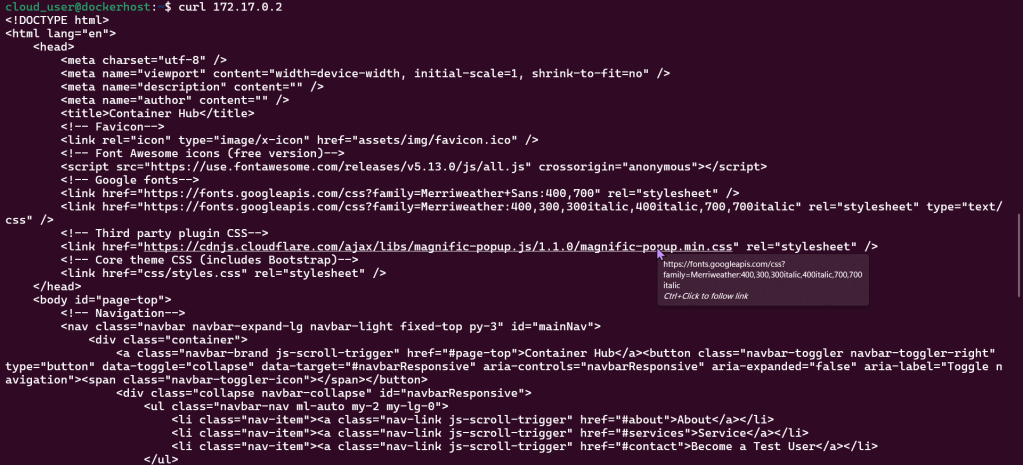
Connect/inspect to port 80:

  • – curl = double check to IP-Address

Commit & Run image:

Stacks on Stacks of Docker Swarmzzz

Goal:

  • Migrate my plethora of Docker Containers w/Docker SWARRRRRRM

Lessons Learned:

  • Set up Swarm cluster w/manager & worker nodes
  • Test cluster

Initialize the SWARRRM:

  • Connect w/command:
    • SSH into public IP address
  • Begin to conduct swarm w/command:
    • Perform docker swarm init \
  • Establish private IP address w/command:
    • –advertise-addr
  • BOOOOM, now your an assistant-to-the-regional-manager!
  • Now you receive a command to place in your worker node, you did create a worker node…right?
  • Once your worker node is connected, quick see your list of nodes w/command:
    • docker node ls
  • Now create Ngninx service for the swarm w/the command above
    • (see above for the 4 lines of code)
  • To quick see your list of services w/the command:
    • docker service ls

Add Worker to Cluster:

  • Connect w/command:
    • SSH into public IP address
  • Add worker node to manager node w/command seen below
    • (see below for lengthy command)

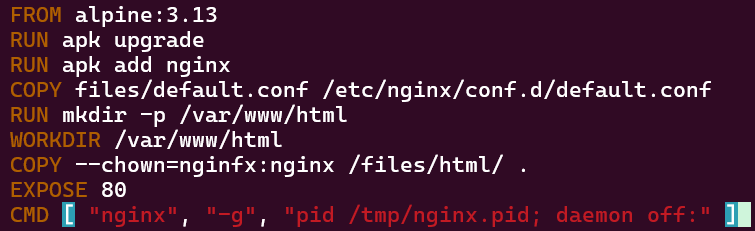
Build Docker Image w/Dockerfile

Goal:

  • Figured I should start from the basics to see how one can create an application from an file. Then in turn any updates/changes can be generated in an image w/out having to update the file at all. #swish

Lessons Learned:

  • Create Dockerfile
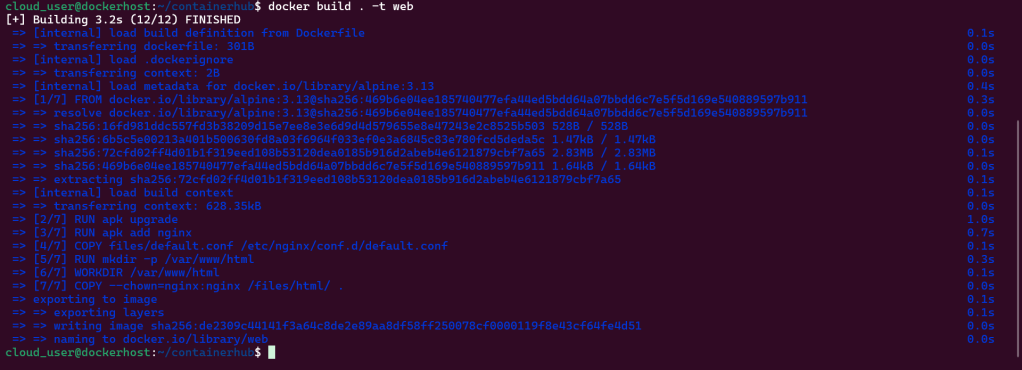
  • Test/Build the image using the file
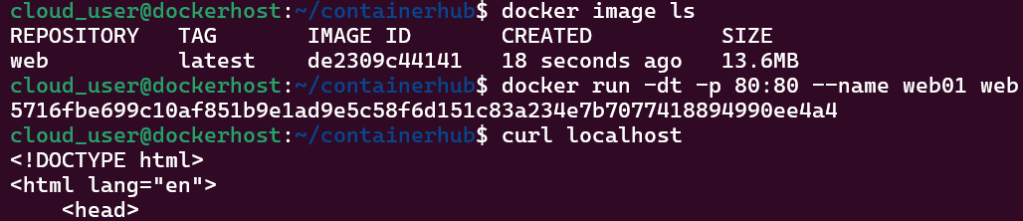
  • Launch the container from port 80

Create DockerFile:

  • After you SSH, now you can do the things below…

Build the Image:

Test the image from port 80