
Series of blog posts show progress of updating/adding to EKS Cluster
Below are links for details:
- Github Repo:
- Terraform:
- AWS:
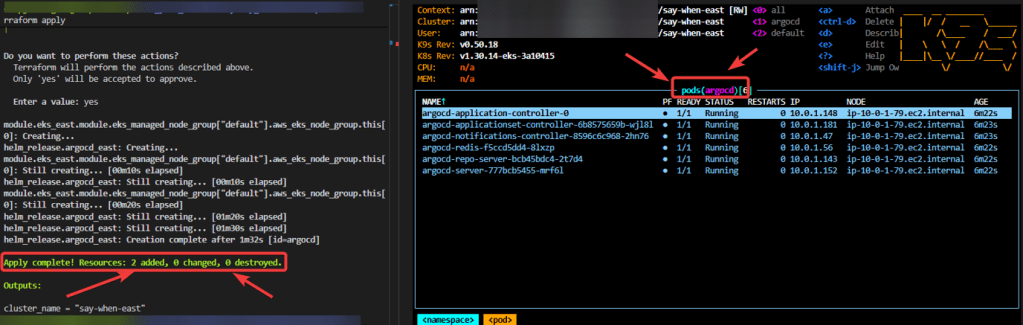
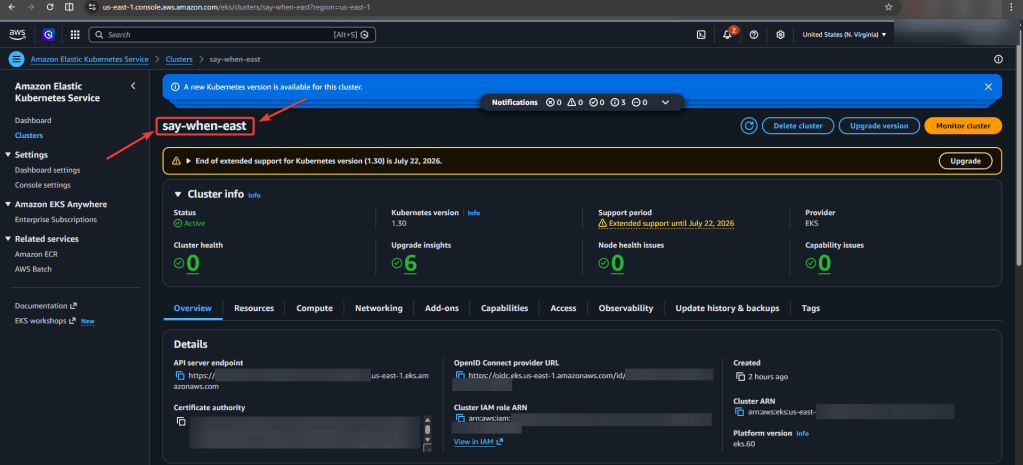
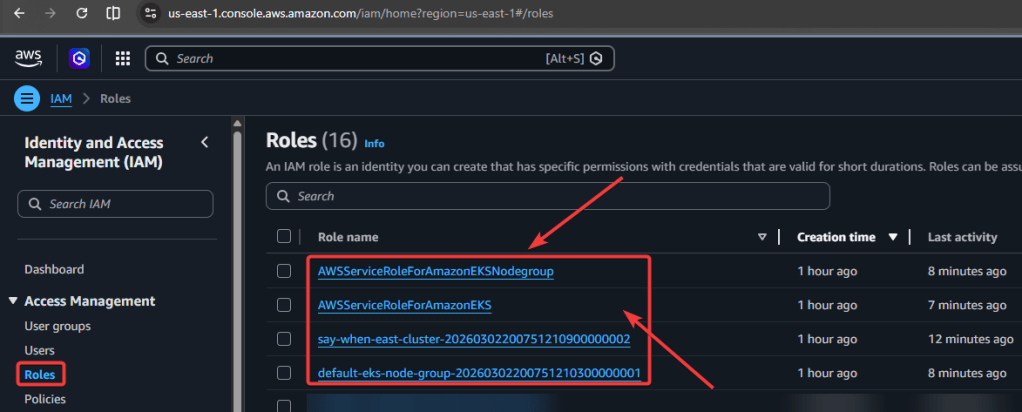
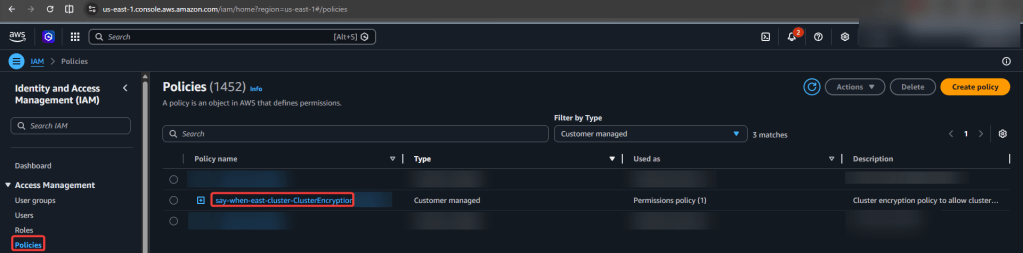


Series of blog posts show progress of updating/adding to EKS Cluster
Below are links for details:

View Code here for details w/this dope link:
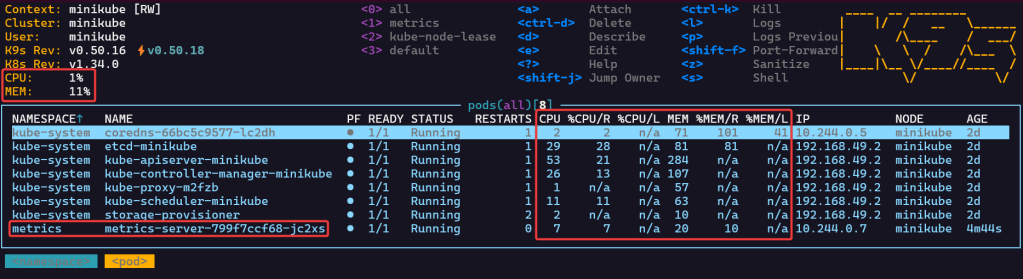
Commands below:
$ kubectl create namespace metrics$ helm repo add metrics-server https://kubernetes-sigs.github.io/metrics-server/$ helm repo update$ helm upgrade --install metrics-server metrics-server/metrics-server \ --namespace metrics \ --set args={--kubelet-insecure-tls}

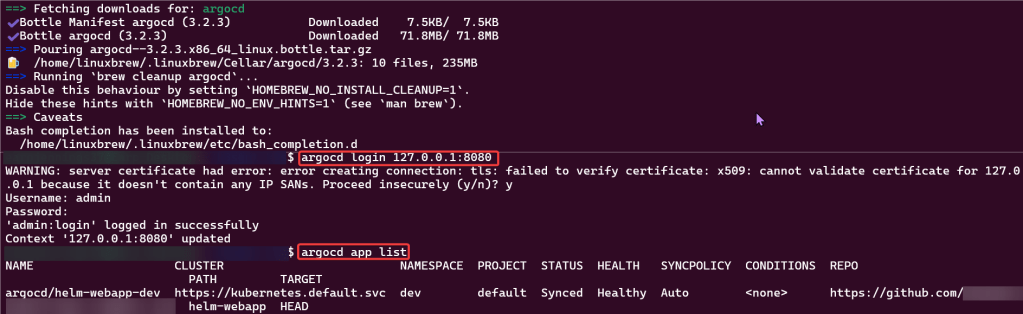
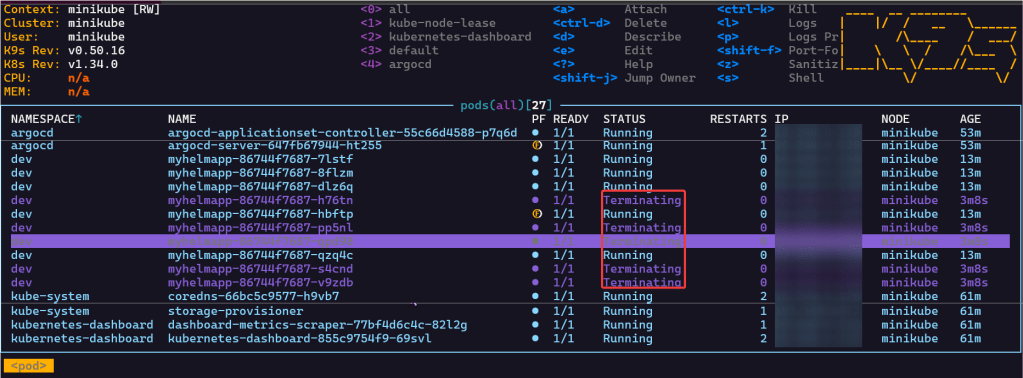
Install ArgoCD:
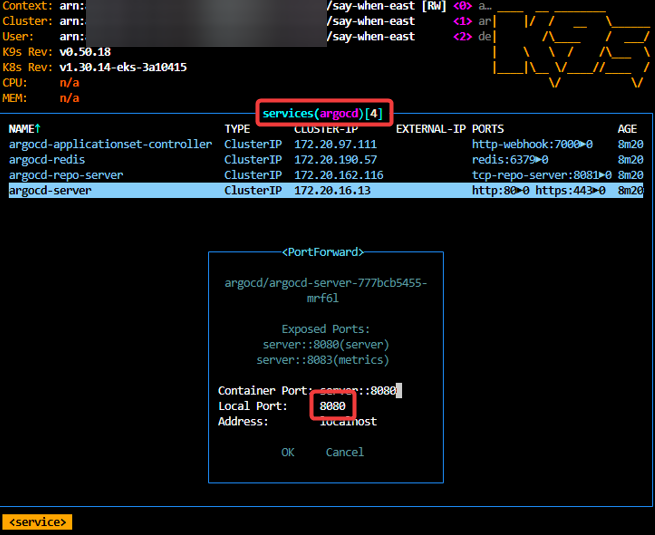
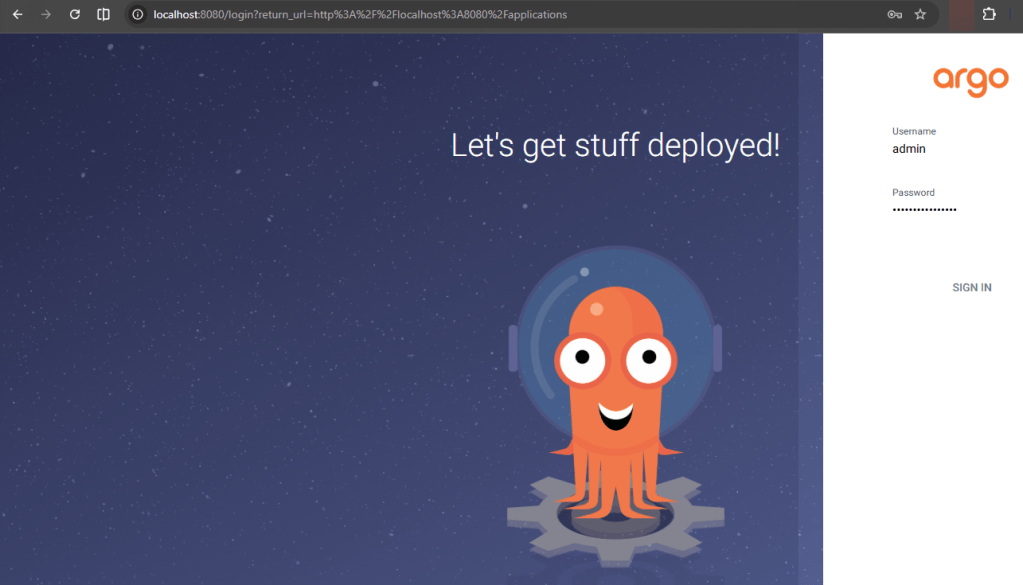
brew install argocdkubectl port-forward svc/argocd-server -n argocd 8080:443argocd login 127.0.0.1:8080

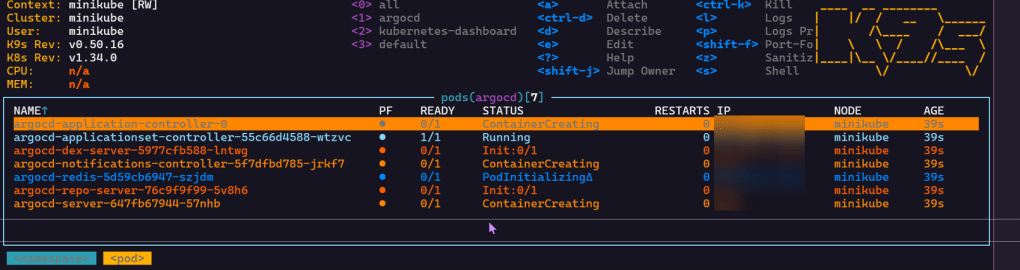
Code:
kubectl create namespace argocdkubectl apply -n argocd -f https://raw.githubusercontent.com/argoproj/argo-cd/stable/manifests/install.yaml
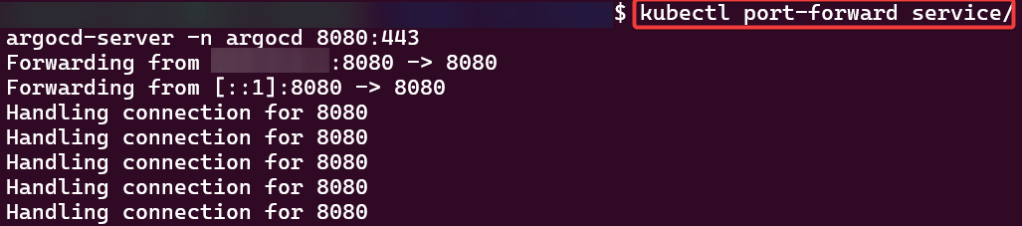
Port-forward:

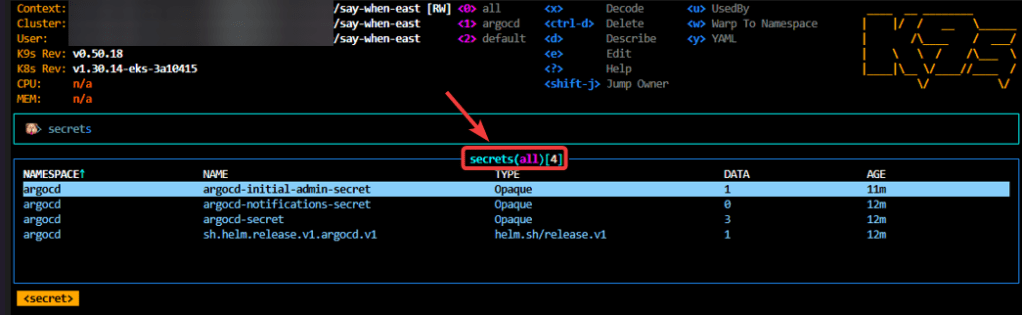
“Secret” Password:
kubectl -n argocd get secret argocd-initial-admin-secret -o jsonpath="{.data.password}" | base64 -d

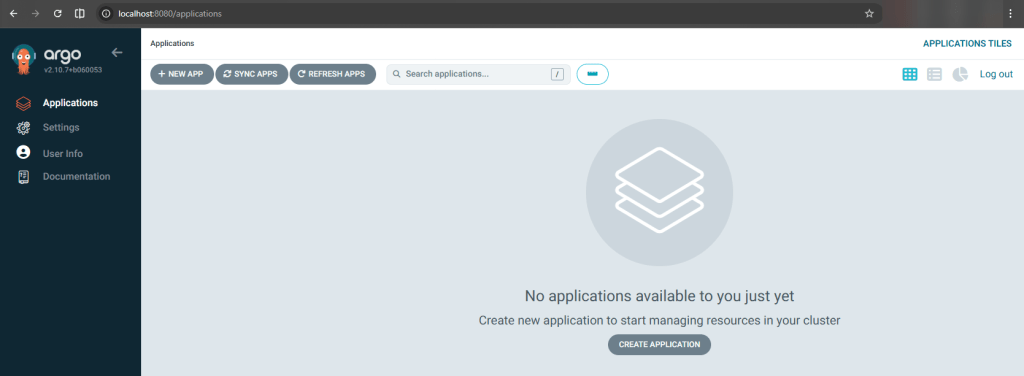
Helm Chart install:
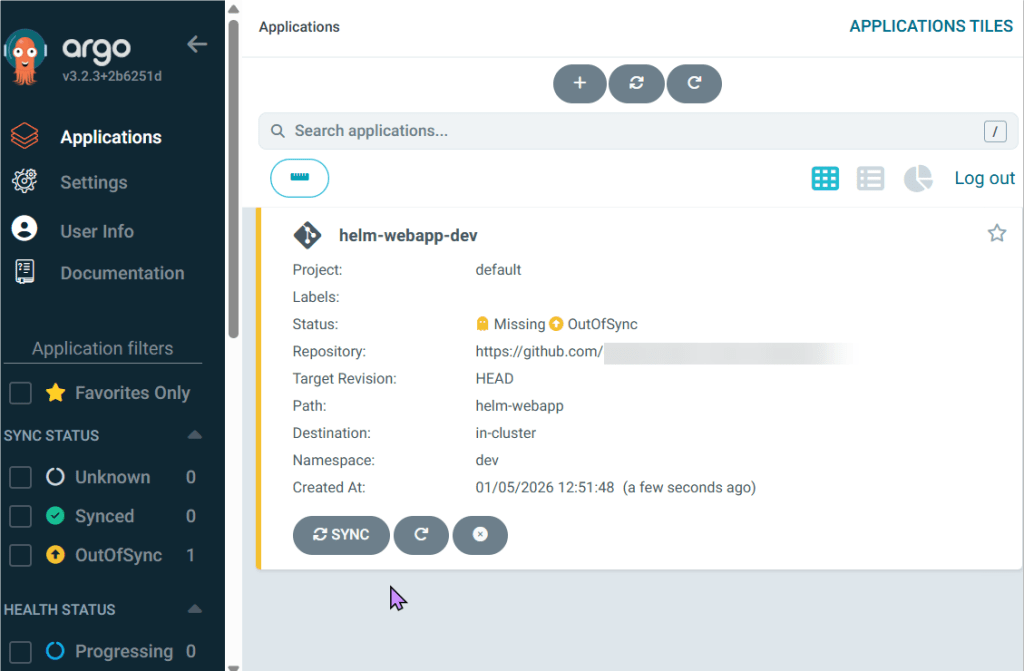

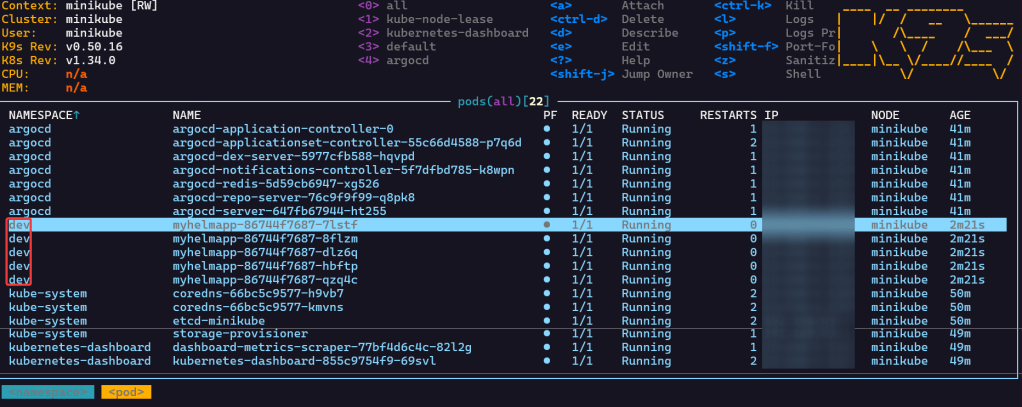


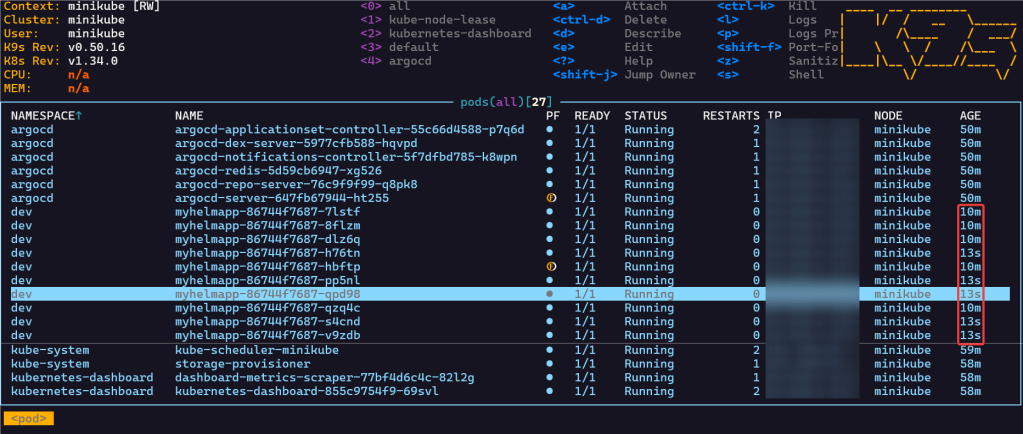
Scale-Up Replicas to 10:
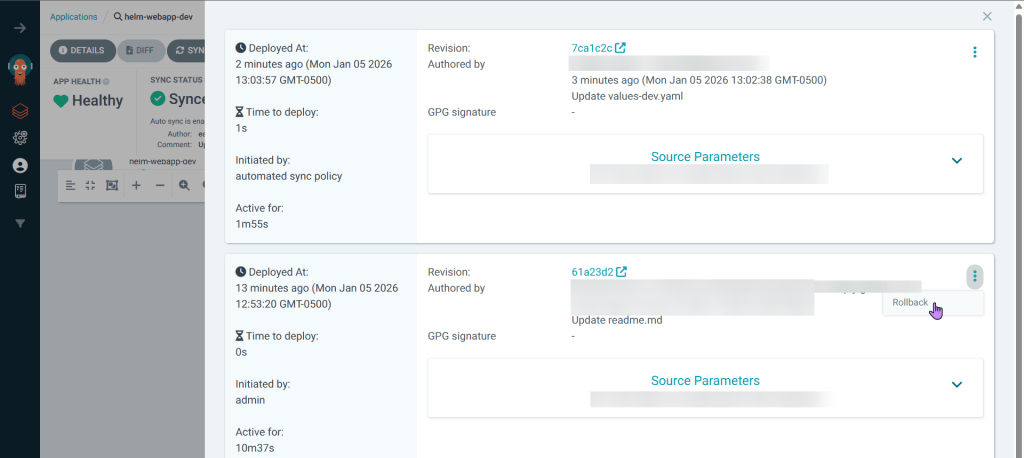
Rollback in ArgoCD
Blog post includes installing K8s…GPT, see below for the goodies:

Installszz:
Github
https://github.com/k8sgpt-ai/k8sgpt
k8sgpt Docx:
https://docs.k8sgpt.ai/getting-started/in-cluster-operator/?ref=anaisurl.com
Ubuntu
# curl -LO https://github.com/k8sgpt-ai/k8sgpt/releases/download/v0.4.26/k8sgpt_amd64.deb
# sudo dpkg -i k8sgpt_amd64.deb
# k8sgpt version
# k8sgpt --help (handful of commands & flags available)
Pre-Reqzz:
Minikube
# unset KUBECONFIG
# minikube start
# minikube status
OpenAi
#  https://platform.openai.com/account/api-keys
K8sgpt
# k8sgpt generate
# k8sgpt auth add openai
# k8sgpt auth list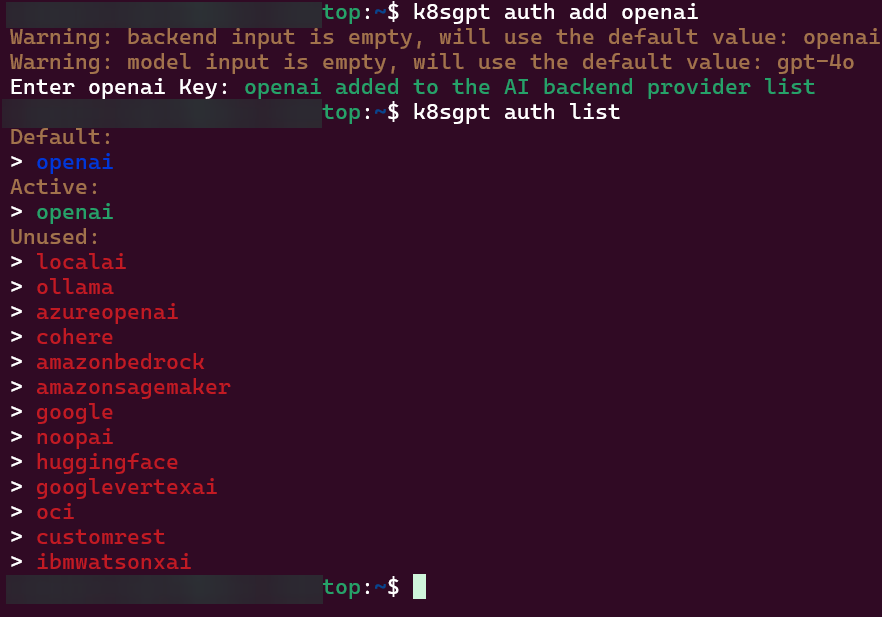
Troubleshoot why deployment is not running:
2 Links to leverage:
# deployment2
apiVersion: apps/v1
kind: Deployment
metadata:
  name: nginx-deployment
  labels:
    app: nginx
spec:
  replicas: 3
  selector:
    matchLabels:
      app: nginx
  template:
    metadata:
      labels:
        app: nginx
    spec:
      containers:
      - name: nginx
        image: nginx:1.14.2
        ports:
        - containerPort: 80
        securityContext:
          readOnlyRootFilesystem: true
# kubectl create ns demo
# kubectl apply -f deployment2 -n demo
# k8sgpt analyse
# k8sgpt analyse --explain

Set pods, deployments, etc w/the following commands
# kubectl get pods -n demo
# kubectl get pods -A
# kubectl get deployments -n demo
# kubectl get pods --all-namespaces
# k8sgpt integration list
# k8sgpt filters list
# k8sgpt analyse --filter=VulnerabilityReport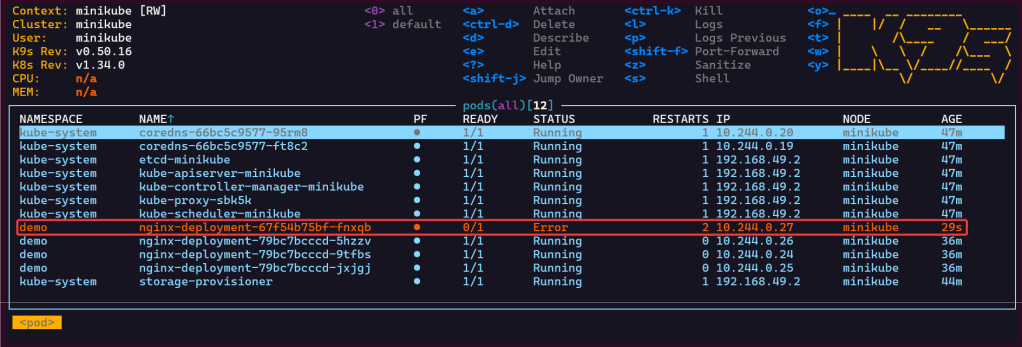
# vi deployment2
# kubectl apply -f deployment2 -n demo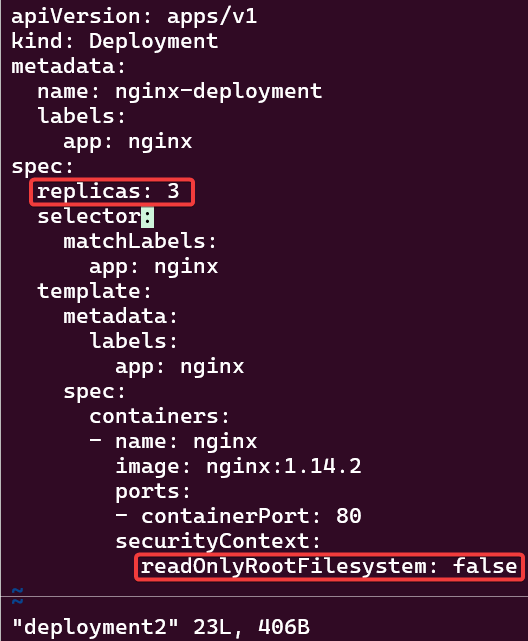
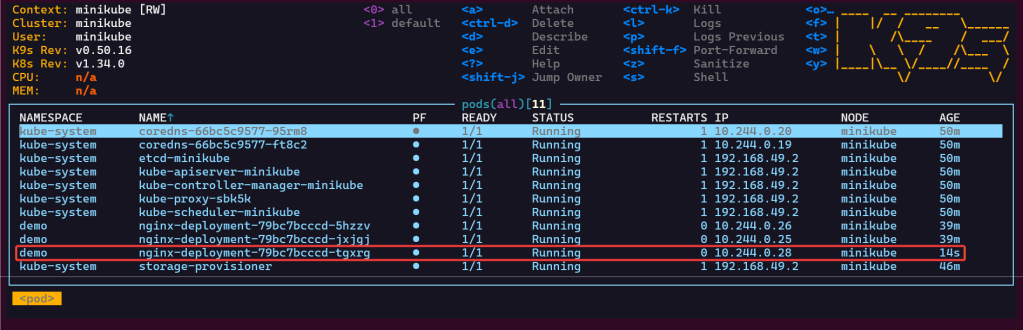
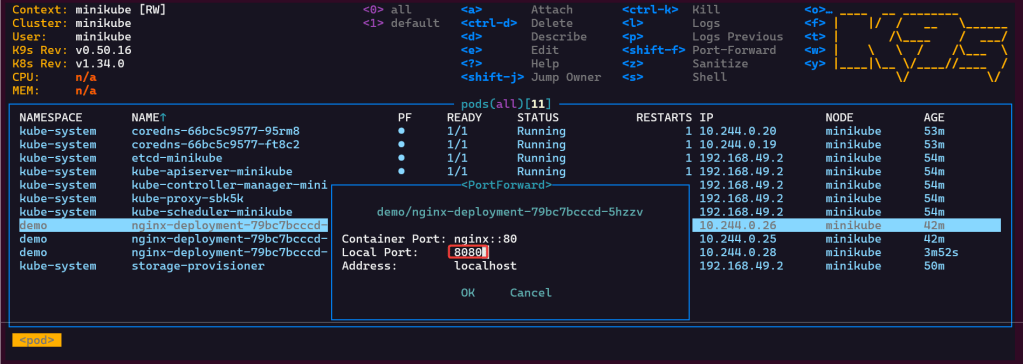

K8s Operator:
# brew install helm
# helm repo add k8sgpt https://charts.k8sgpt.ai/
# helm repo update
# helm install release k8sgpt/k8sgpt-operator -n k8sgpt-operator-system --create-namespace --values values.yaml
Commands to see if your new ns installed:
# kubectl get ns
# kubectl get pods -n k8sgpt-operator-system
# k9s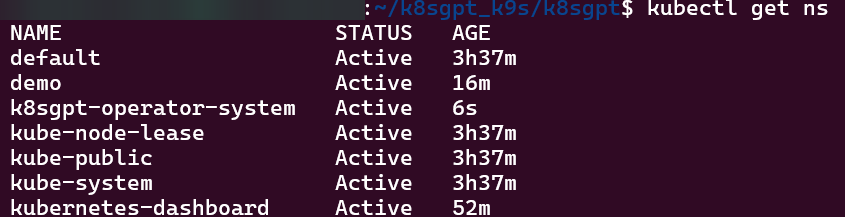
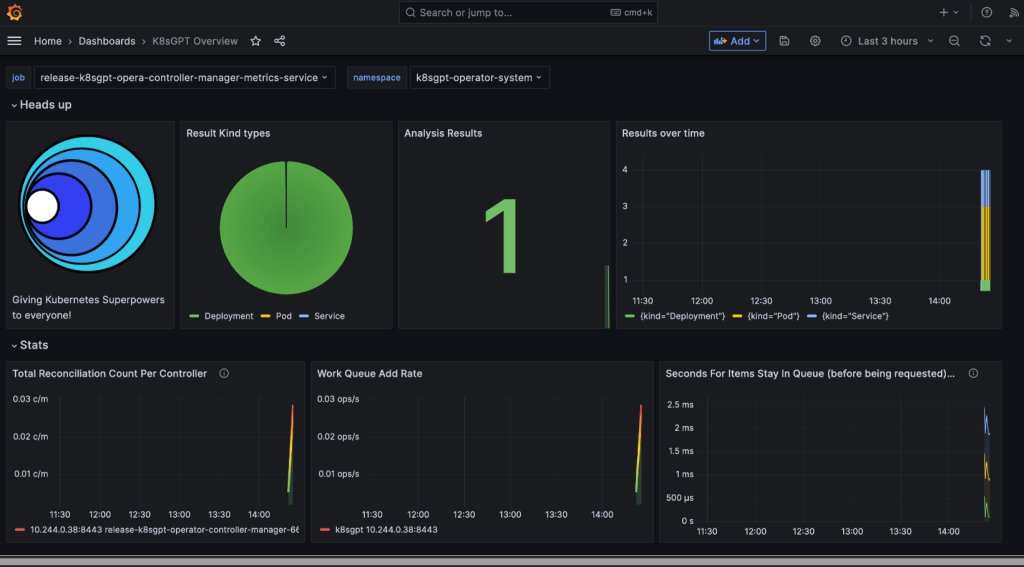
ServiceMonitor to send reports to Prometheus & create DB for K8sgpt:
# helm repo add prometheus-community https://prometheus-community.github.io/helm-charts
# kube-prometheus-stack has been installed. Check its status by running:
  kubectl --namespace k8sgpt-operator-system get pods -l "release=prom"
Commands to squirrel away:
- Get Grafana 'admin' user password by running:
# kubectl --namespace k8sgpt-operator-system get secrets prom-grafana -o jsonpath="{.data.admin-password}" | base64 -d ; echo
- Access Grafana local instance:
# export POD_NAME=$(kubectl --namespace k8sgpt-operator-system get pod -l "app.kubernetes.io/name=grafana,app.kubernetes.io/instance=prom" -oname)
  kubectl --namespace k8sgpt-operator-system port-forward $POD_NAME 3000
- Get your grafana admin user password by running:
  kubectl get secret --namespace k8sgpt-operator-system -l app.kubernetes.io/component=admin-secret -o jsonpath="{.items[0].data.admin-password}" | base64 --decode ; ech
OpenAi API-Keyz for K8s Secret:
# export OPENAI_TOKEN=<YOUR API KEY HERE>
# kubectl create secret generic k8sgpt-sample-secret --from-literal=openai-api-key=$OPENAI_TOKEN -n k8sgpt-operator-system
#
apiVersion: core.k8sgpt.ai/v1alpha1
kind: K8sGPT
metadata:
  name: k8sgpt-sample
  namespace: k8sgpt-operator-system
spec:
  ai:
    enabled: true
    model: gpt-4o-mini
    backend: openai
    secret:
      name: k8sgpt-sample-secret
      key: openai-api-key
  noCache: false
  version: v0.4.26
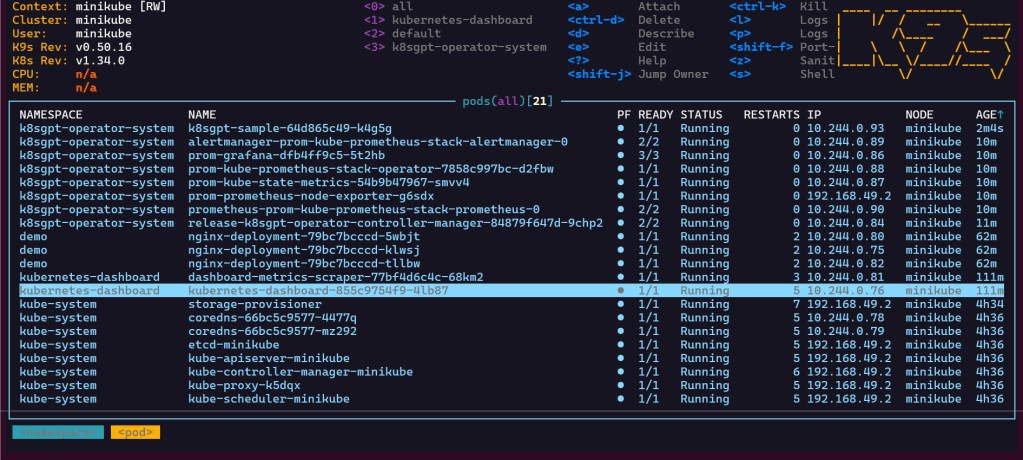
# kubectl apply -f k8sgpt-resource.yaml -n k8sgpt-operator-system
k9s
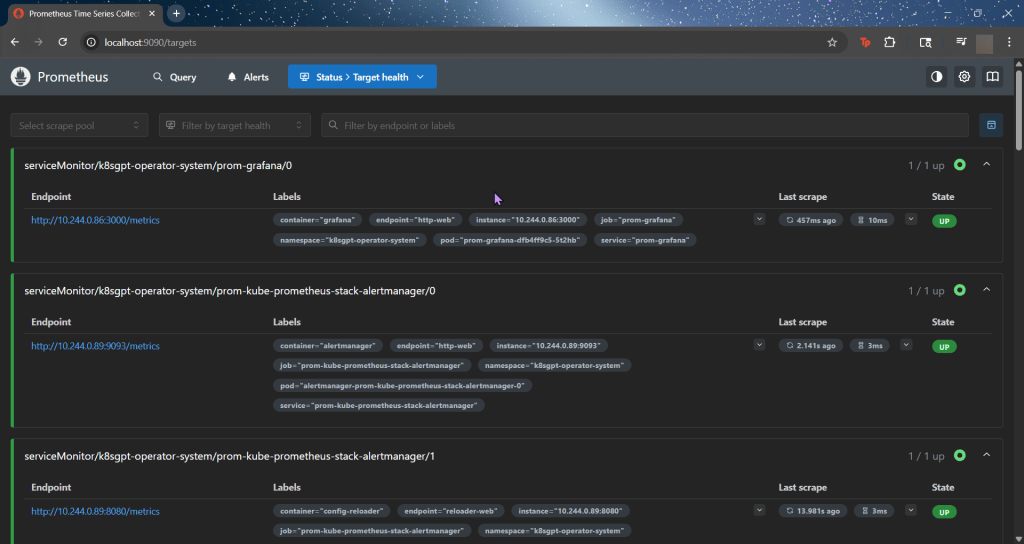
- services, shift-f, port-forward prometheus-operated:9090
# kubectl get results -n k8sgpt-operator-system
# kubectl port-forward service/prom-grafana -n prom 3000:80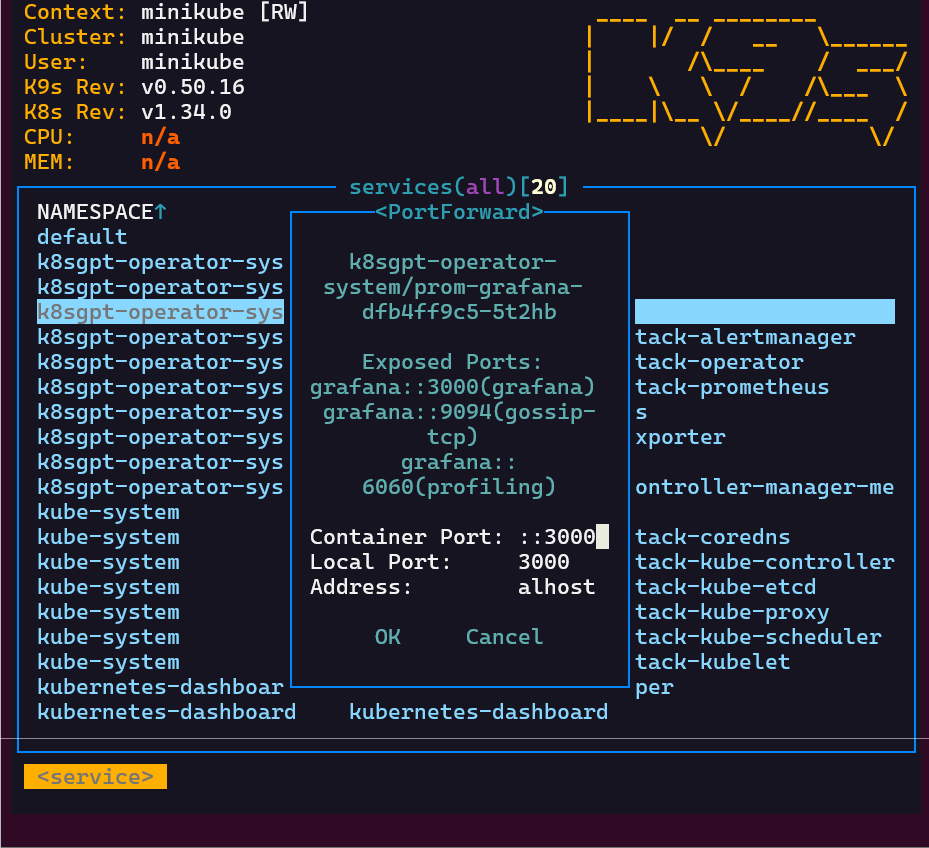
Finding grafana password
- secrets & press-x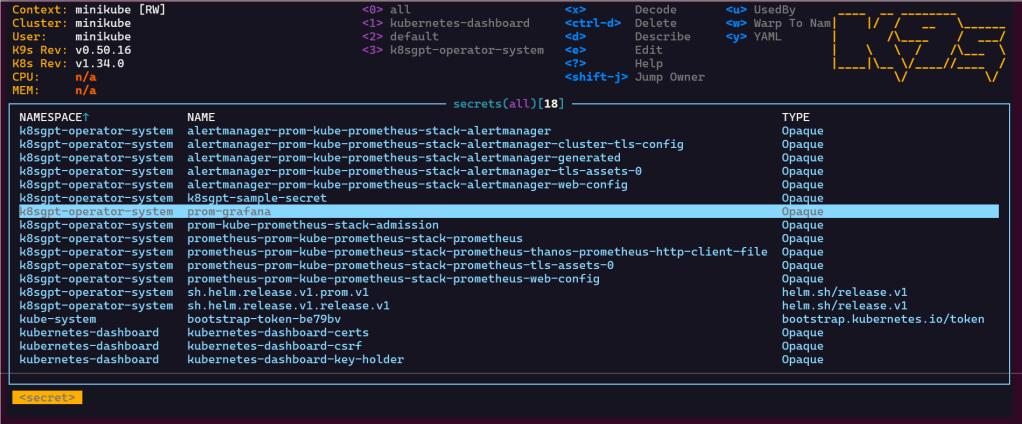

Blog post includes covering K8s Automation, Telemetry, & Observability in preparation for the KCNA.
Helm Charts: there magic simply put..conduct your standard linux practices & can navigate thru your helm chart install
# apt update && apt install -y git tree
# curl https://raw.githubusercontent.com/helm/helm/main/scripts/get-helm-3 | bash
# cd flappy-app
# vim Chart.yaml
# vim values.yaml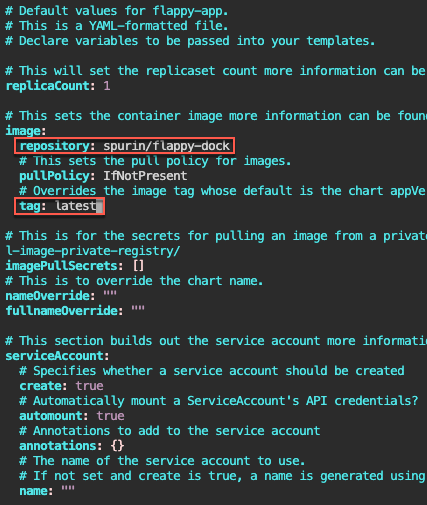
# helm install flappy-app ./flappy-app-0.1.0.tgz
# export POD_NAME=$(kubectl get pods --namespace default -l "app.kubernetes.io/name=flappy-app,app.kubernetes.io/instance=flappy-app" -o jsonpath="{.items[0].metadata.name}"); export CONTAINER_PORT=$(kubectl get pod --namespace default $POD_NAME -o jsonpath="{.spec.containers[0].ports[0].containerPort}"); echo "Visit http://127.0.0.1:8080 to use your application"; kubectl --namespace default port-forward $POD_NAME 8080:$CONTAINER_PORT
# kubectl get deployment; echo; kubectl get pods; echo; kubectl get svc
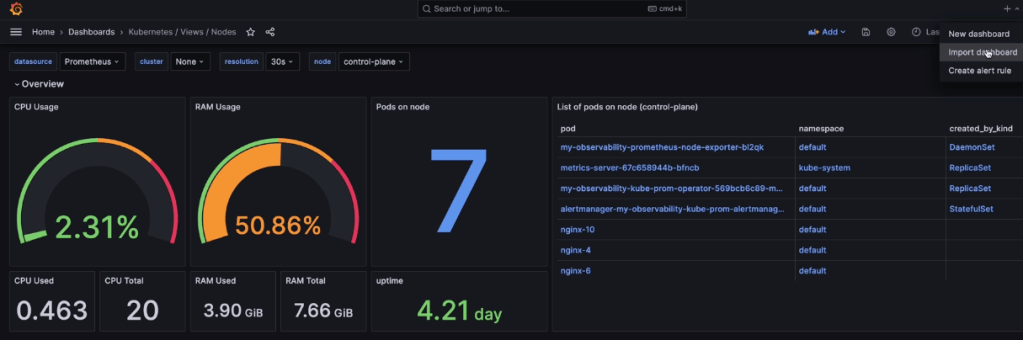
Prometheus & Grafana: 1st – add specific helm version for prometheus. 2nd – add nginx pod every 30 seconds. 3rd – then use cluster-ip to see the pods being added in prometheus & grafana.
# apt update && apt install -y git
# curl https://raw.githubusercontent.com/helm/helm/main/scripts/get-helm-3 | bash
# helm repo add prometheus-community https://prometheus-community.github.io/helm-charts
# helm search repo prometheus-community/kube-prometheus-stack -l
# helm install my-observability prometheus-community/kube-prometheus-stack --version 55.5.0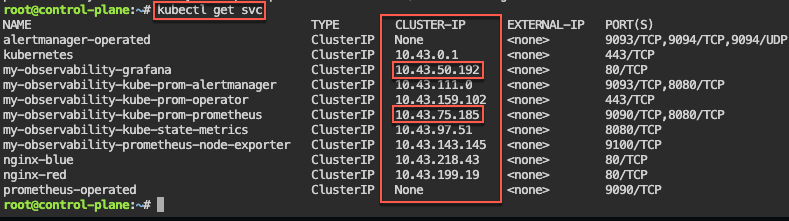
# kubectl get all -A
# kubectl get svc
# for i in {1..10}; do kubectl run nginx-${i} --image=nginx; sleep 30; done
# helm uninstall my-observability
# kubectl -n kube-system delete service/my-observability-kube-prom-kubelet --now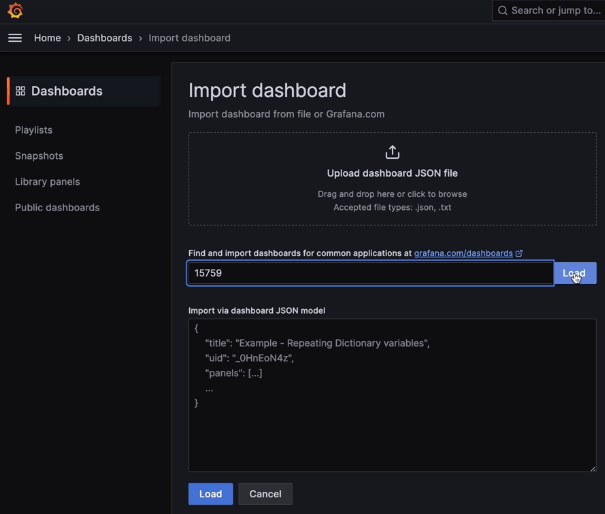
When Nodes Fail:
Probes & The Kubelet:

Goal:
So you got a Minikube cluster right? Now lets use Helm to deploy a microservice stack!
Lessons Learned:
Start Minikube Cluster:
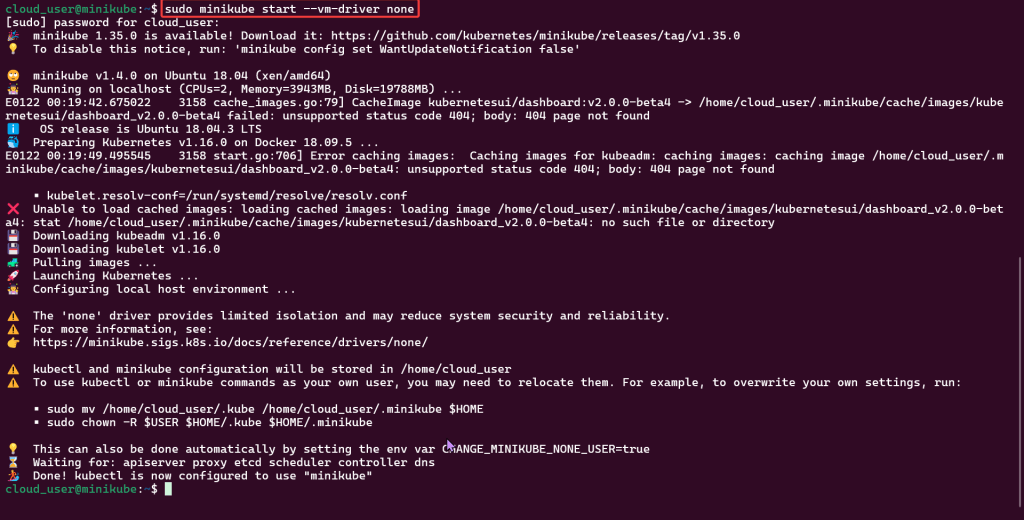
Edit to use Nodeport & Configure Nginx to Proxy:
tar -xvzf ~/helm.tar.gz:
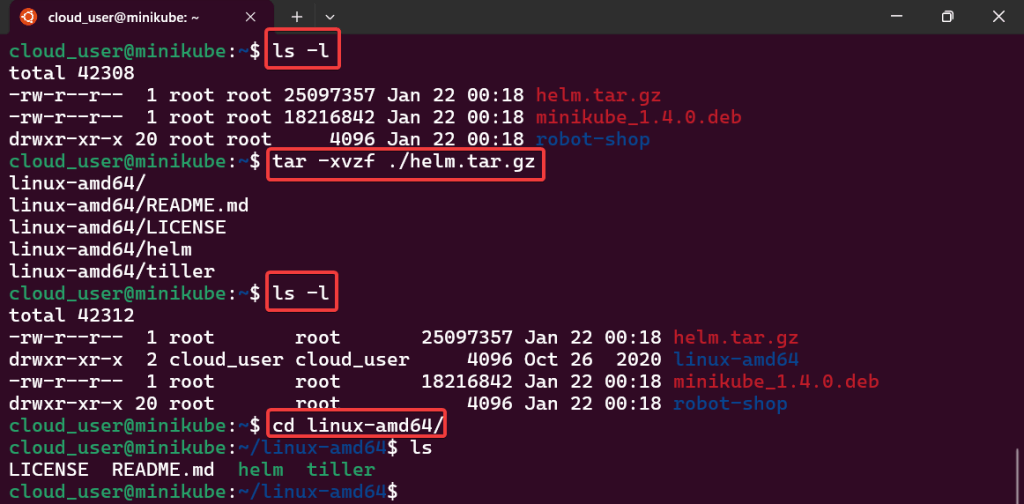
sudo mv:

Sudo helm init:
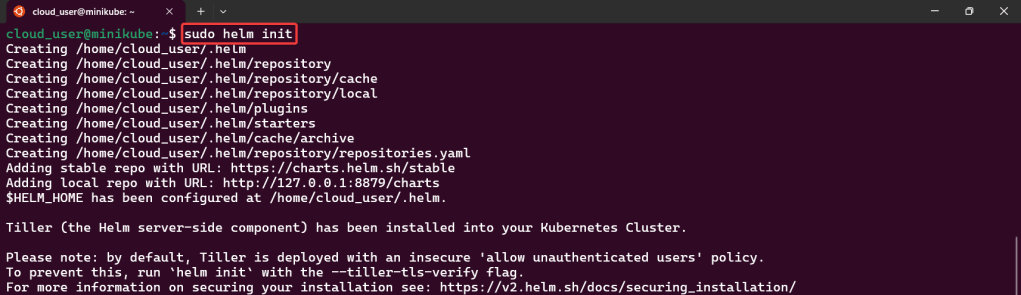
Install Namespace w/Helm:
Sudo kubectl:

Sudo helm install:
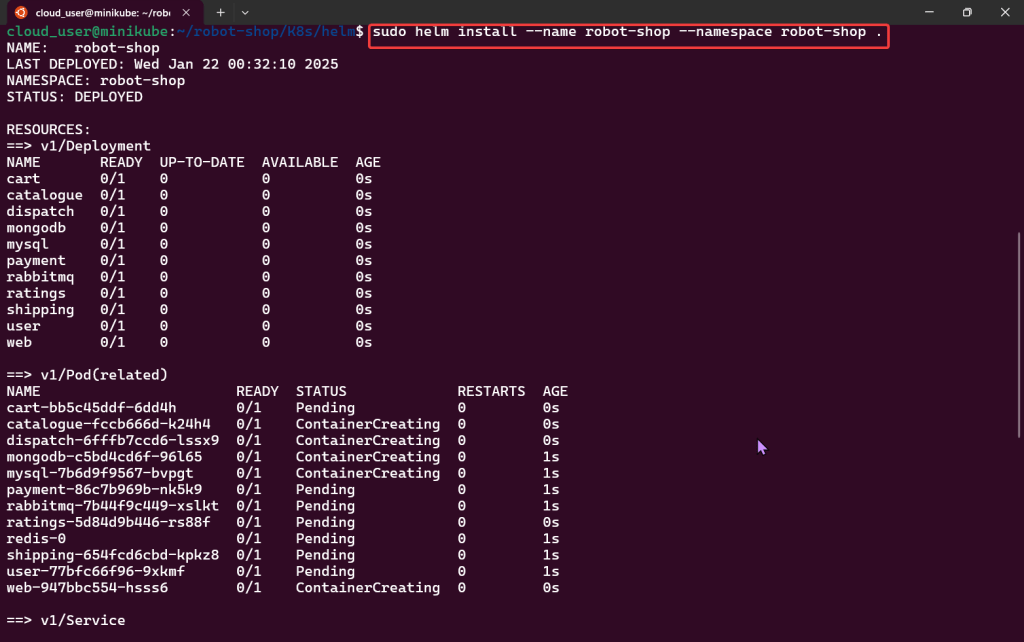
Sudo kubectl:
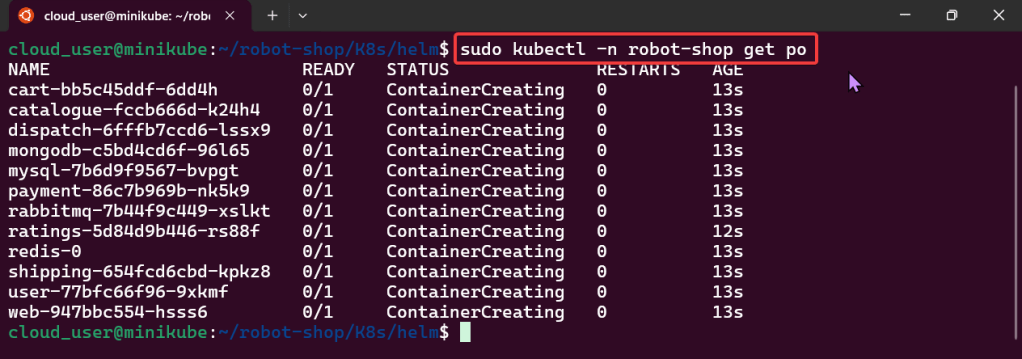
Edit to use Nodeport & Configure Nginx to Proxy:
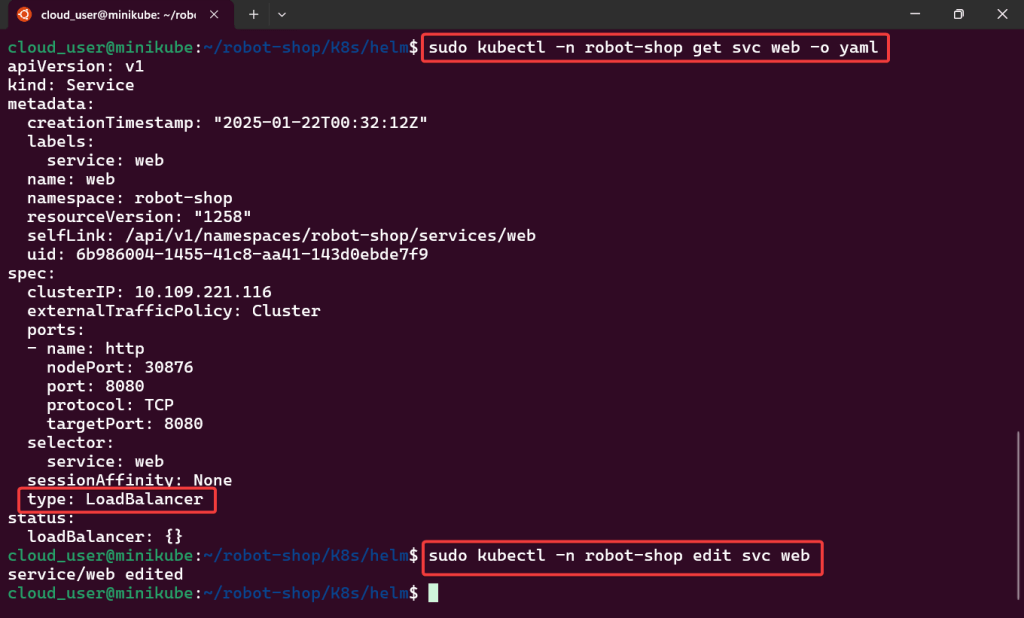
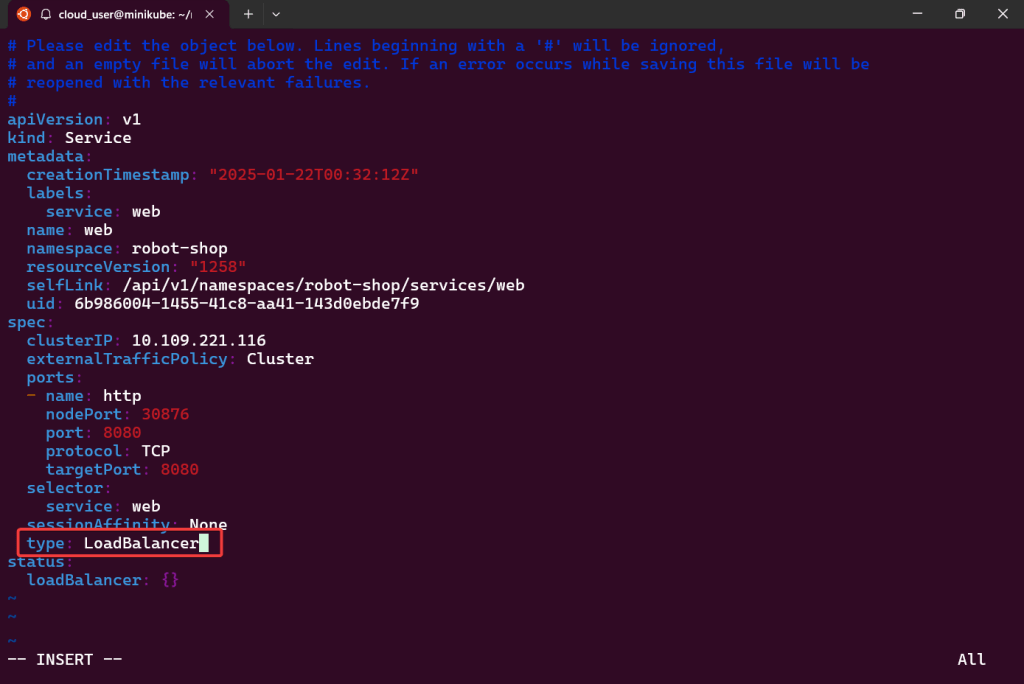
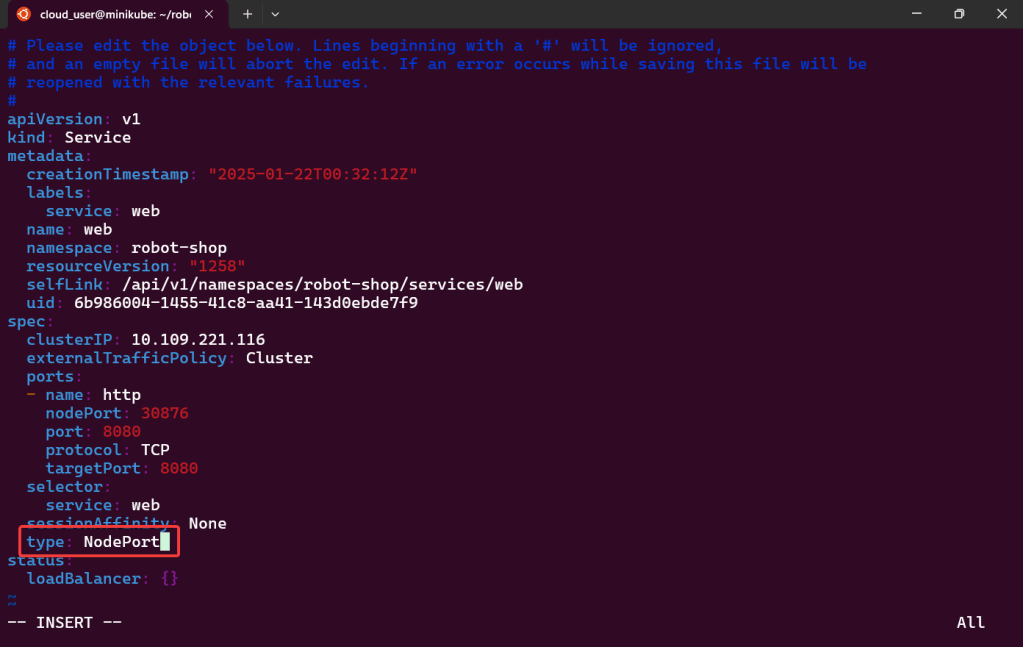
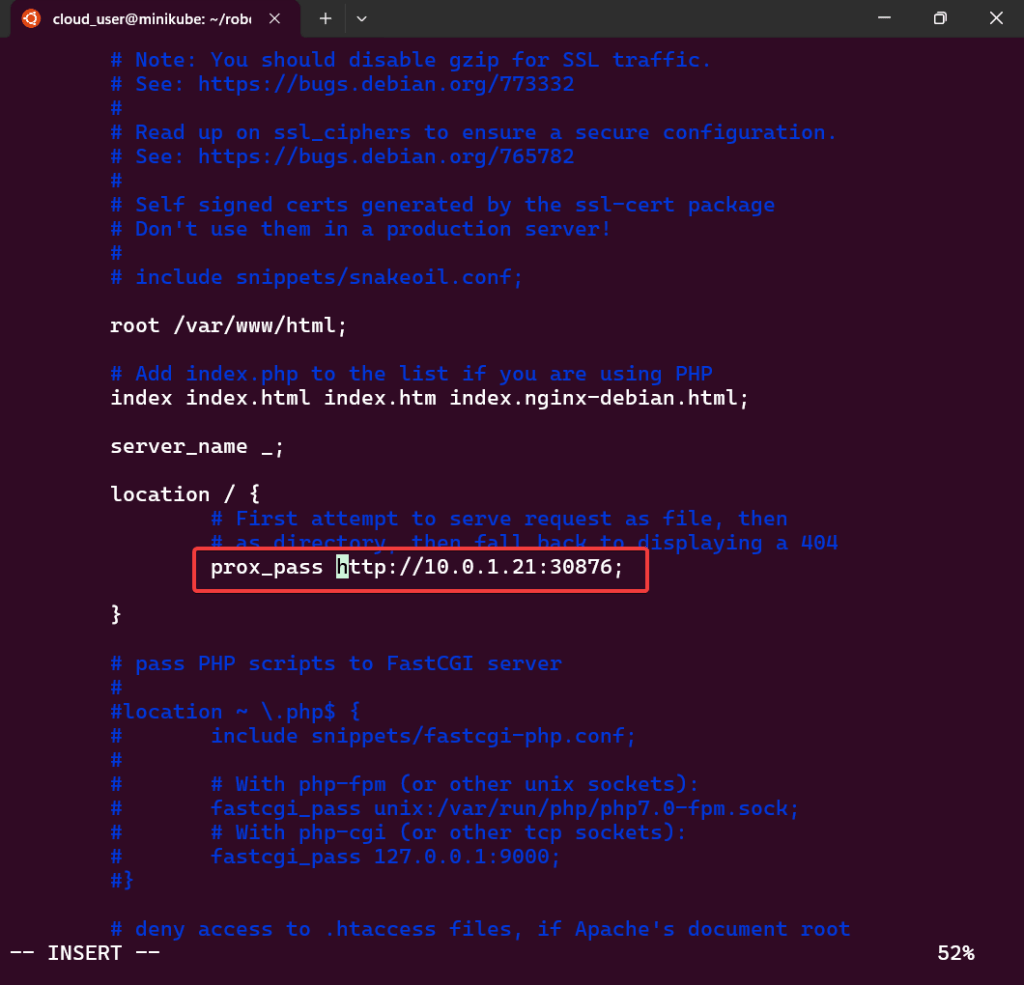
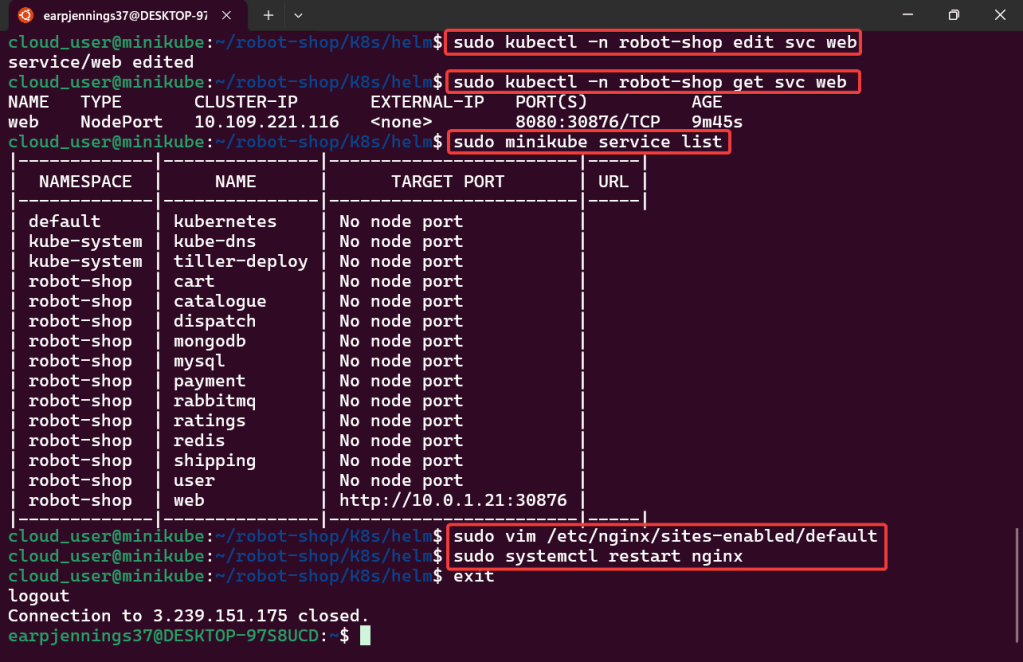
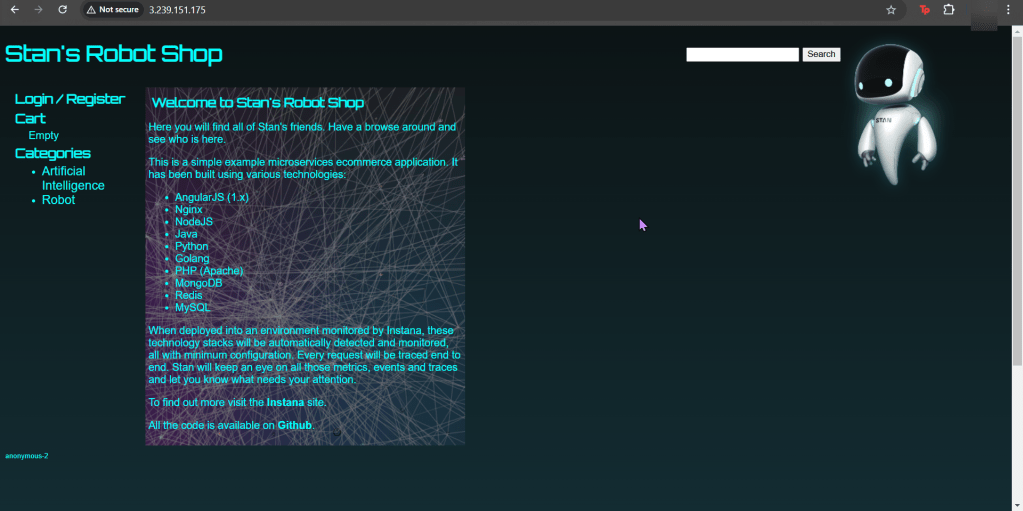

Goal:
Humans aren’t constant, but Helm versions are! So this is an efficient way to release & clarify your versions of charts in Helm. Then for gigs we will rollback to the original state, cuz – why not?
Lessons Learned:
Update index & version #:
Update values.yaml:
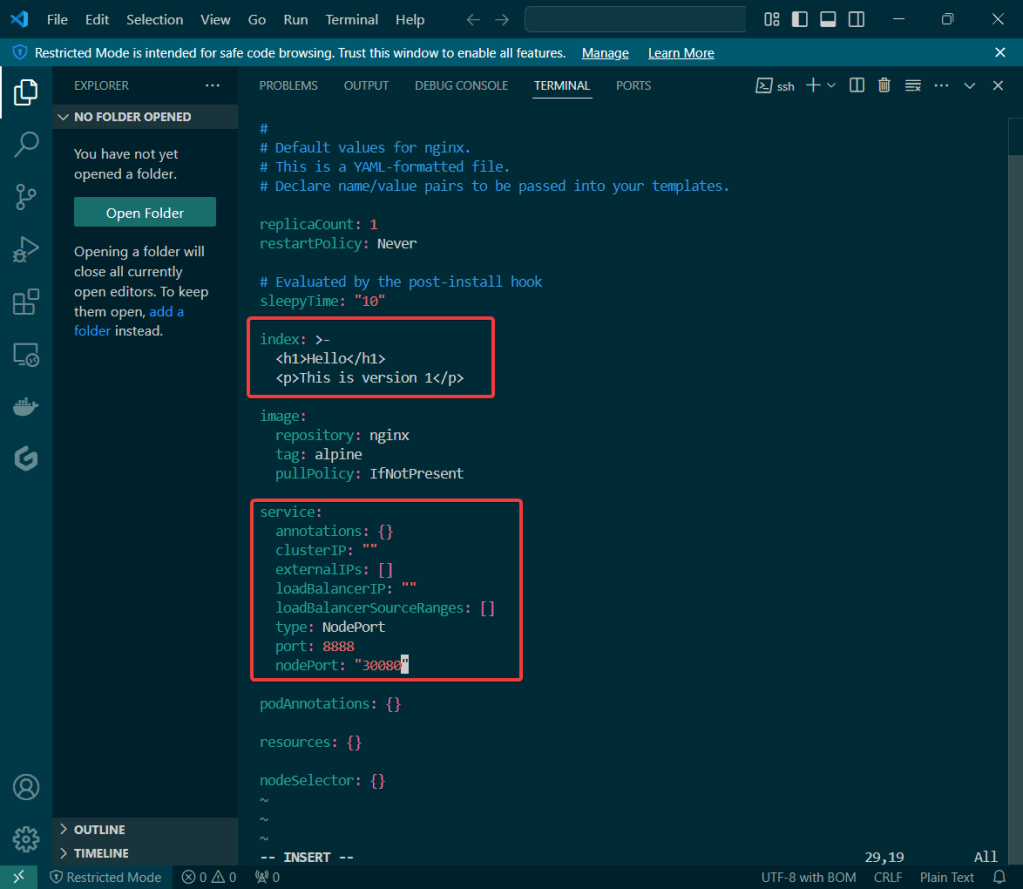
Update Chart.yaml:
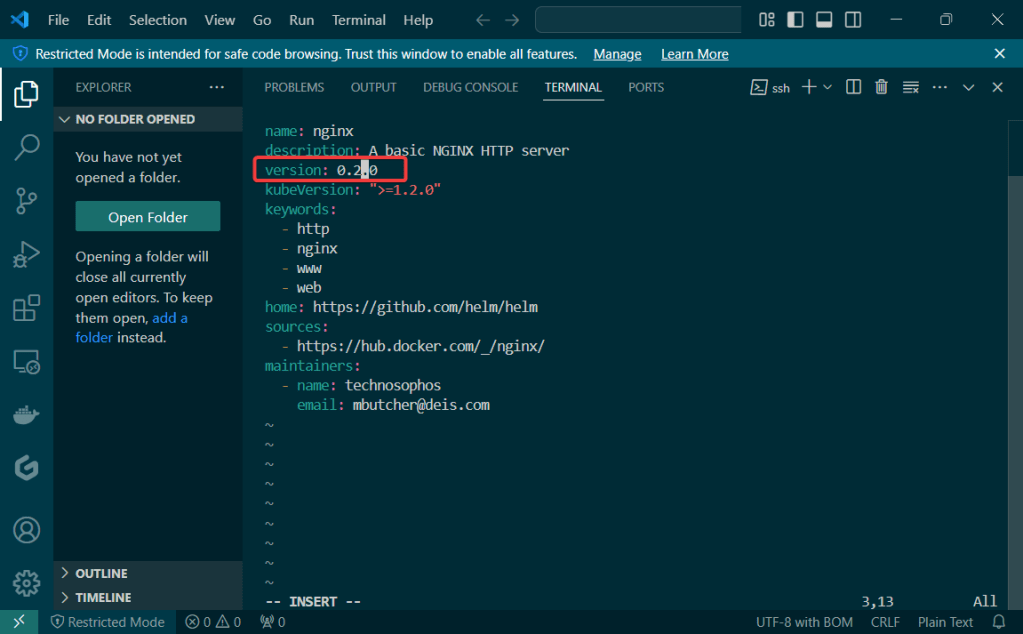
Initialize & Patch Helm:
Helm install:

Release the chart & confirm version #:
Check the node port & see it launched!

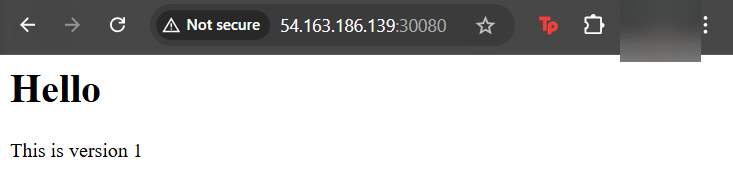
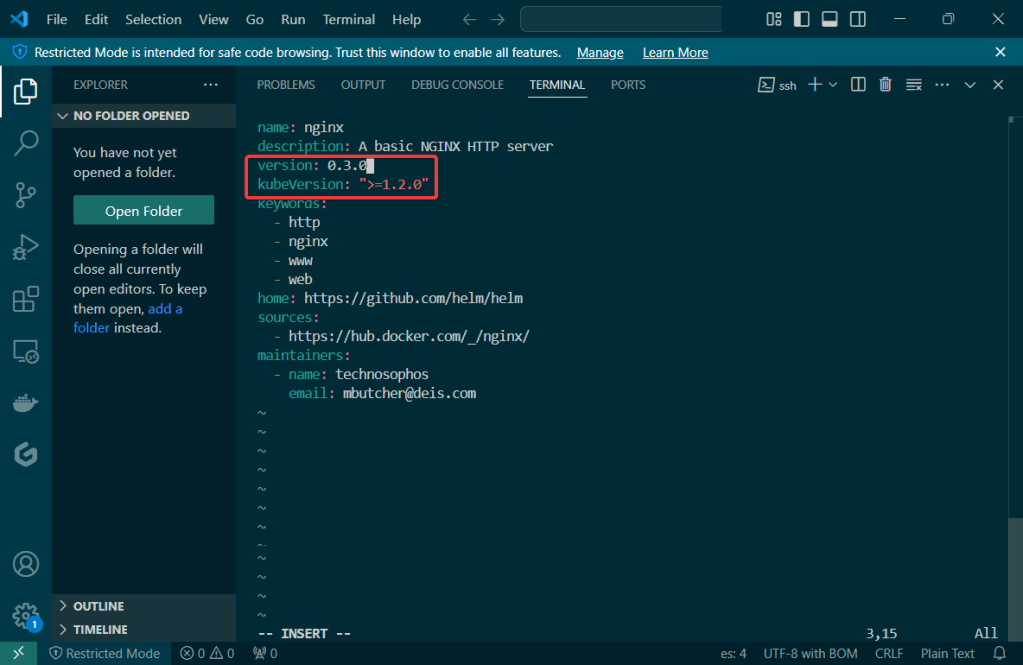
Update Index Data & Version #:
Update the files again:

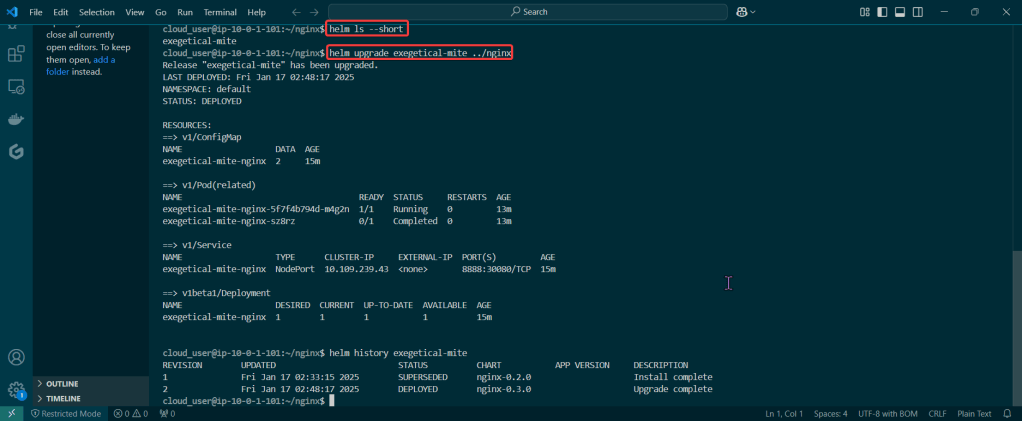
Helm ls –short & upgrade the release
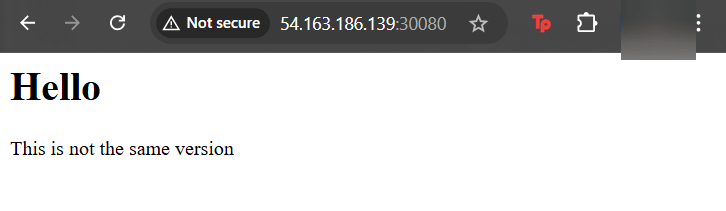
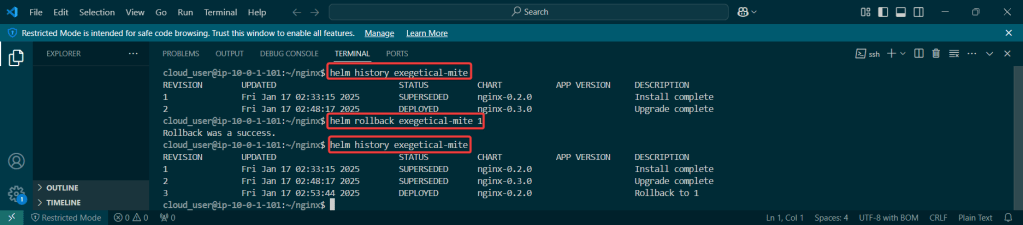
Rollback it on back now! – – – to Previous Version #:

Goal:
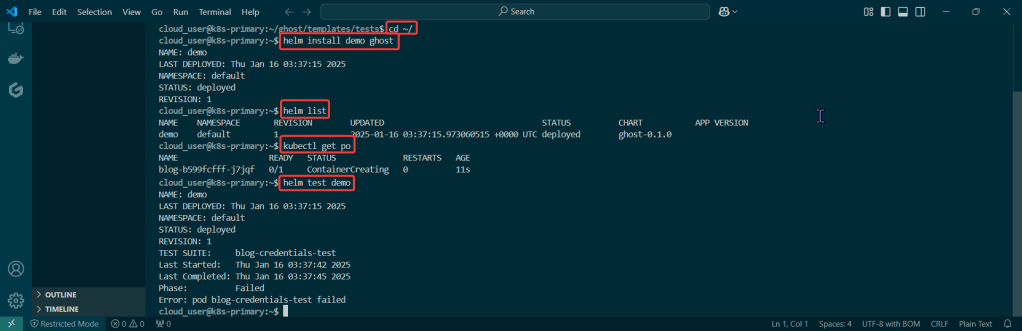
Hmmm I wish there was a way to validate the resources deployed in Kubernetes.. wait, I just had an epiphany, or was it a download from the universe? Either way, Helm can help w/creating a special hook deploy & operate.
Lessons Learned:
Create Manifest for test the Helm Charts Location:
Create directory along w/new manifest:
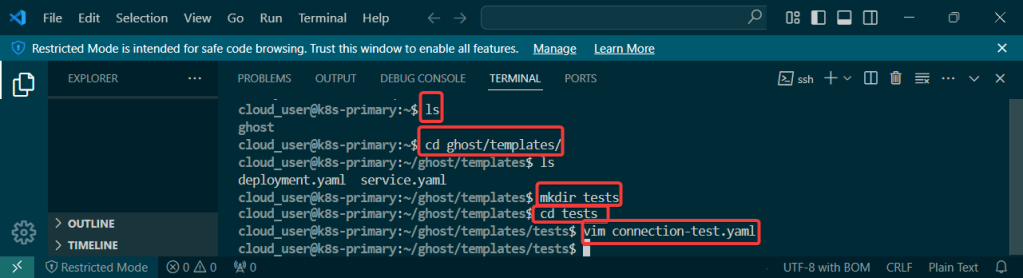
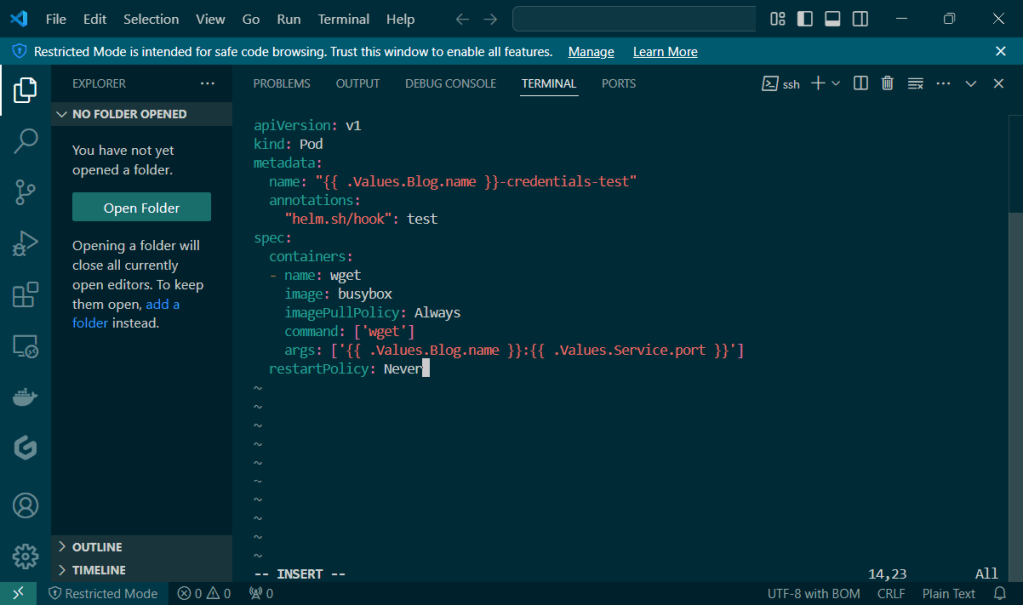
Validate, Release, & Test the App:
Cd into top directory & run Helm install & Kubectl:

Goal:
Everyone likes bread-n-butter, unless you physically cant cuz of some gluten thing or cuz your lactose intolerant.. BUT IF YOUR NOT, check this basic bread-n-butter stuff out homie..
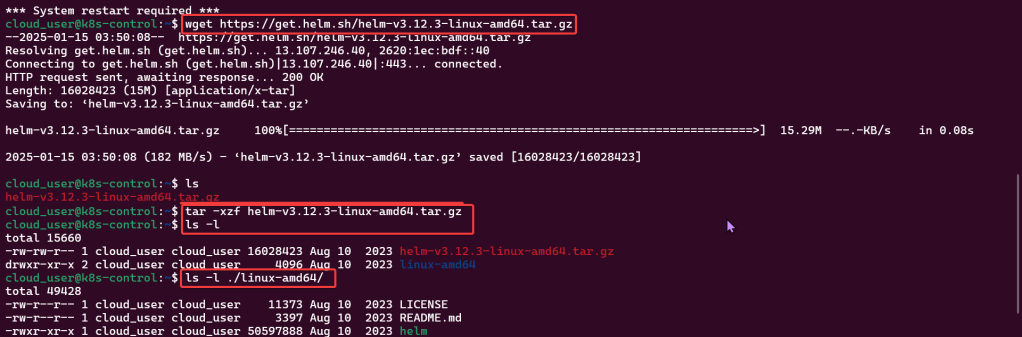
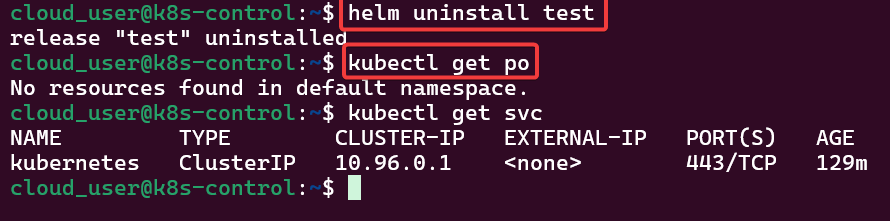
First your gonna install Helm, k? Next configure the repository yah? Following that well release the chart to see what were rollin with, mmkay? Lastly we’ll clean up our messy cluster w/, you guessed it – HELMMMMMMMMMMMMM.
Lessons Learned:
Install & Configure Helm:
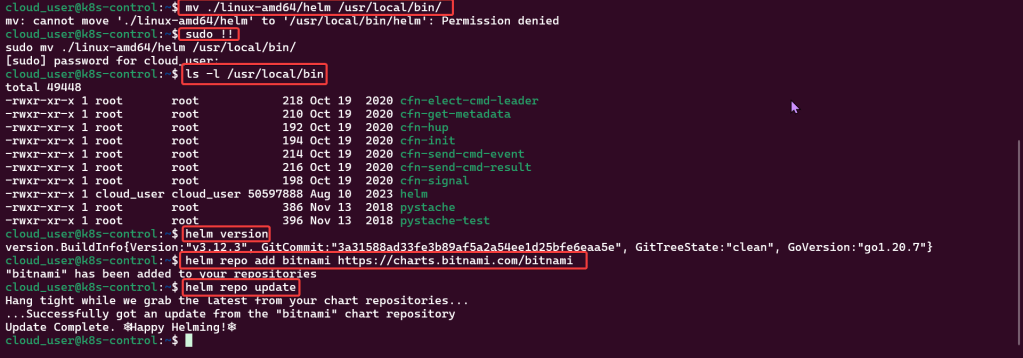
Create a Helm Release:



Verify the Release & Clean:

Goal:
Quick our homework is due in a half hour…lets copy (leverage…refer..) your buddies! But how can we do it the quickest way possible!? Helm charts you say? What are these… Helm Charts you speak of?
So your telling me I can modify a chart to access my application on a node port in the cluster & make changes? Well lets get-r-dun!
Lessons Learned:
Create a release of a Helm chart from the directory:
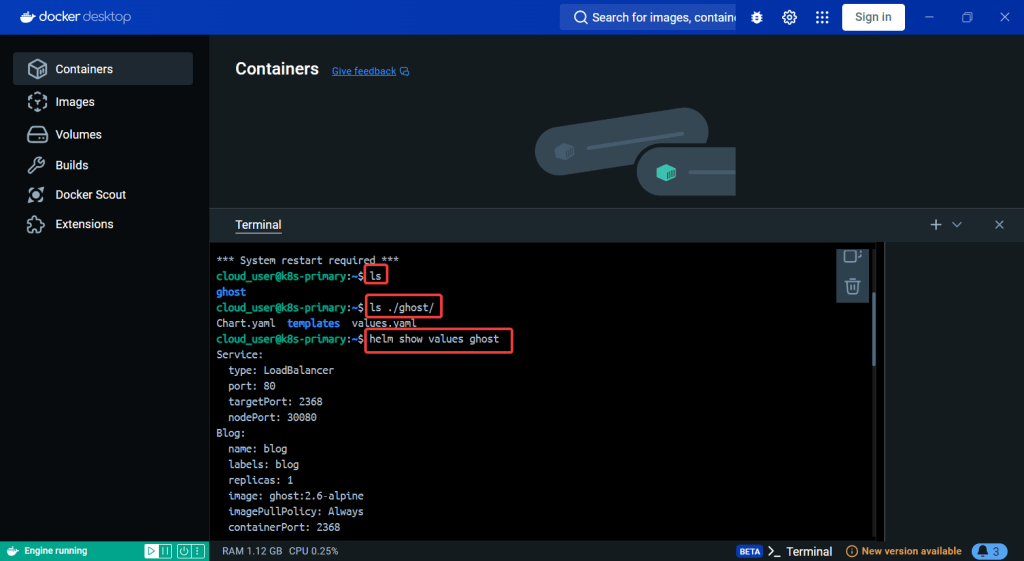
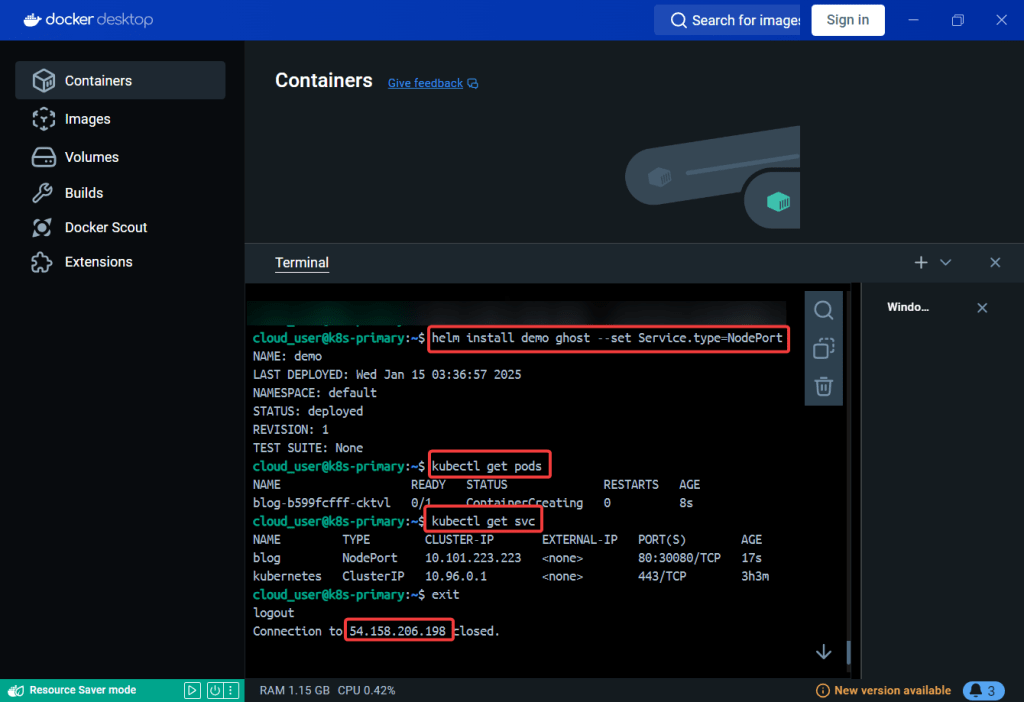
Double-check the node port our homework isnt the same on the node port cluster:
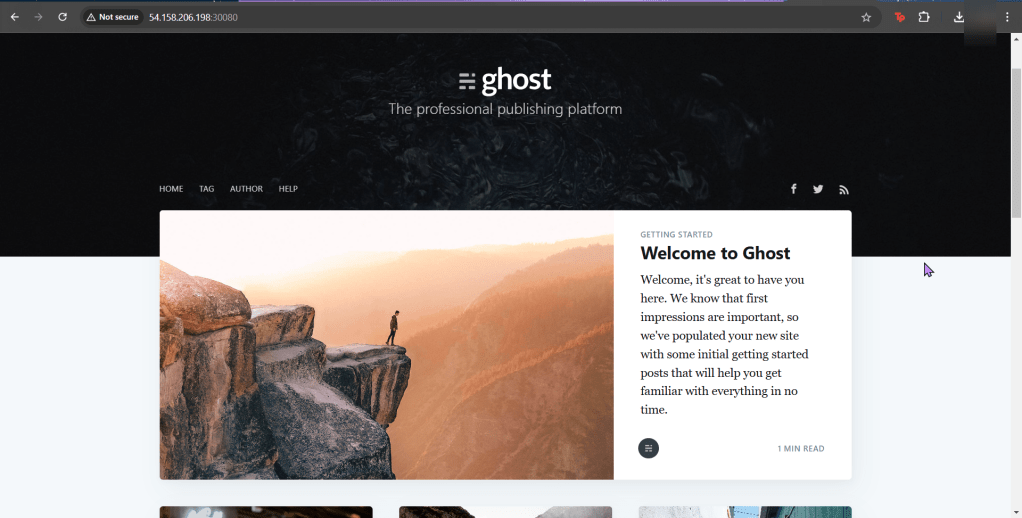
 Say When..