

DevSecOps IaC tooling resembles my favorite anime/cartoons –
- Dragon Ball Z
- Pokemon
- X-Men
- Avengers
- Justice League
- & now this is your queue to think of your bestest squaaaaad.
My Goal:
W/that said, why not look at how these dope tools can integrate together!? This post is dedicated to showing how AWS, Ansible, Jenkins, & Terraform can work together.
Lessons Learned (so what had happen was…):
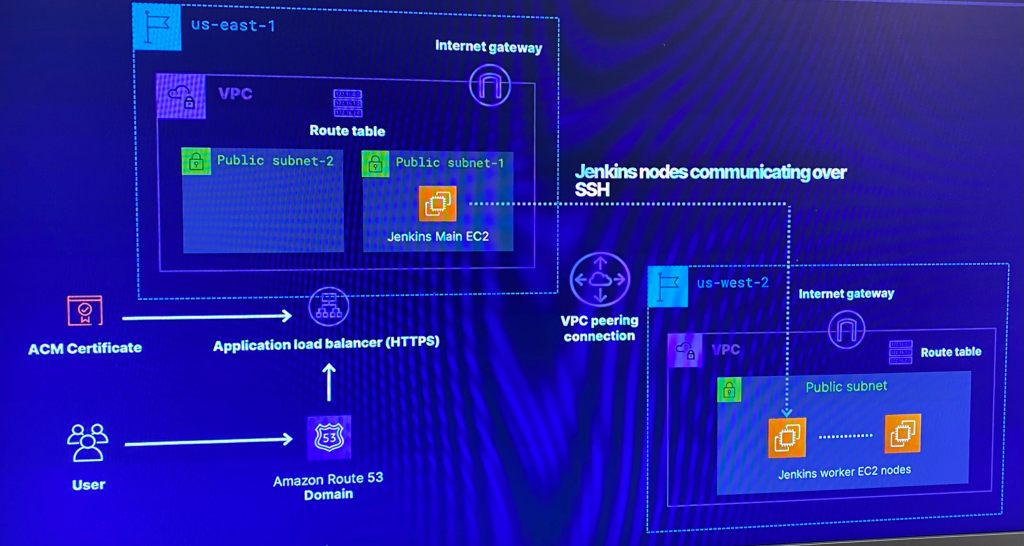
- Deploy a distributed multi-region Jenkins CI/CD Pipeline
- Include VPC (& of course peering!) along w/gateways, public subnets & security groups
- In addition are EC2 that have Jenkins running w/main & worker nodes
- Place Jenkins main node behind an ALB that is attached to allow HTTPs traffic w/a SSL certificate from AWS certificate manager in a Route 53 public zone
- Create Ansible playbooks to install software for Jenkins & apply configurations
So w/out further a-due, provide me an applause (I know, so humble) for the next 7 minute read!
Below is a table of contents for your ability to jump around to key places you fancy (click here to see table of contents)
- Pre-requisites:
- Install Terraform, IAM Permissions, Ansible, & AWS CLI
- Create S3 Bucket, Vim backend.tf, Vim Providers.tf & Variables.tf
- Network Deployment – VPC, Subnets, Security Groups, & Internet Gateways:
- Create environment w/networks.tf file
- Includes route table, VPC peering, etc
- Quick view into AWS console to see Terraform magic
- Create ALB.tf w/Jenkins Master & Worker
- Created security_groups.tf
- Created variables.tf w/Jenkins variables
- Create environment w/networks.tf file
- VM Deployment – AMIs, Key Pairs, & Jenkins:
- Deploy Jenkins to snag AMI IDs from the SSM parameter store
- Create instances.tf
- Deploy key pairs into Jenkins to permit SSH access
- Deploy Jenkins master & worker instances
- Update isntances.tf, variables.tf, & outputs.tf w/IP addresses
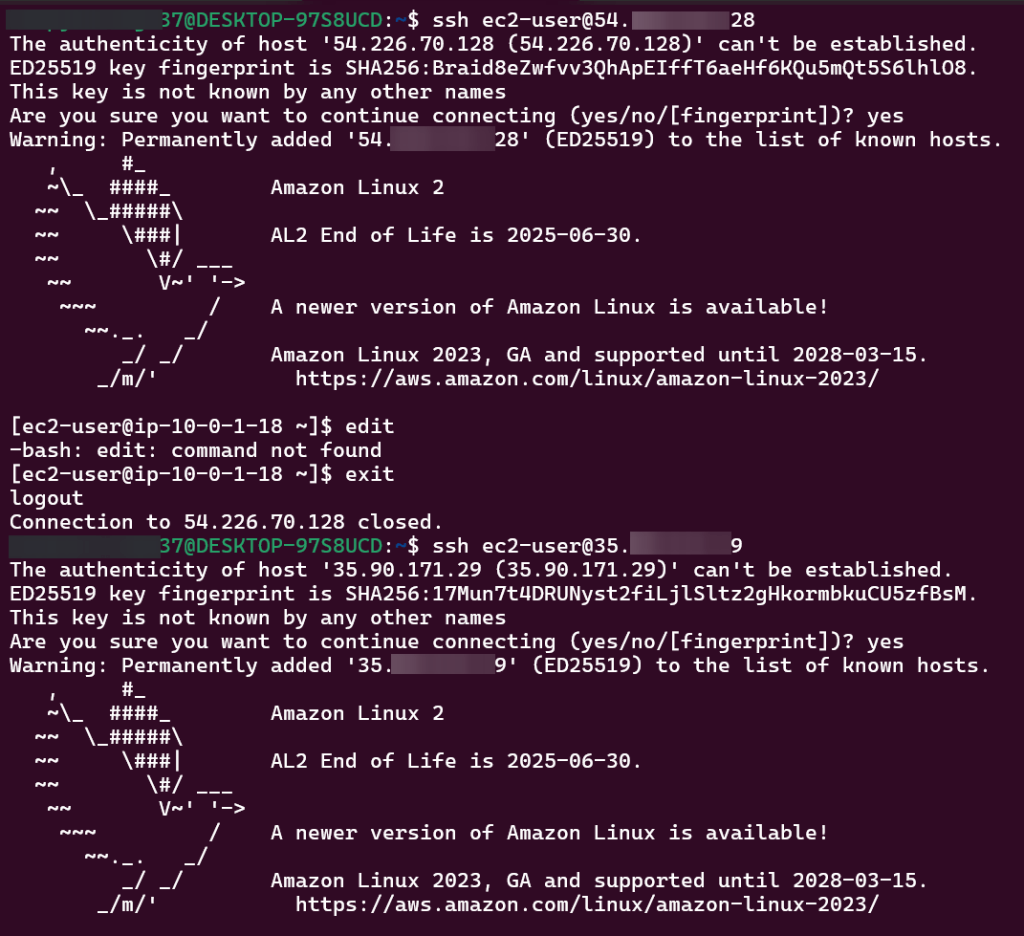
- SSH into EC2 Jenkins Master/Worker nodes
- Terraform Configuration Management w/Ansible:
- Create new directory for Jenkins regions to hold ansible_templates
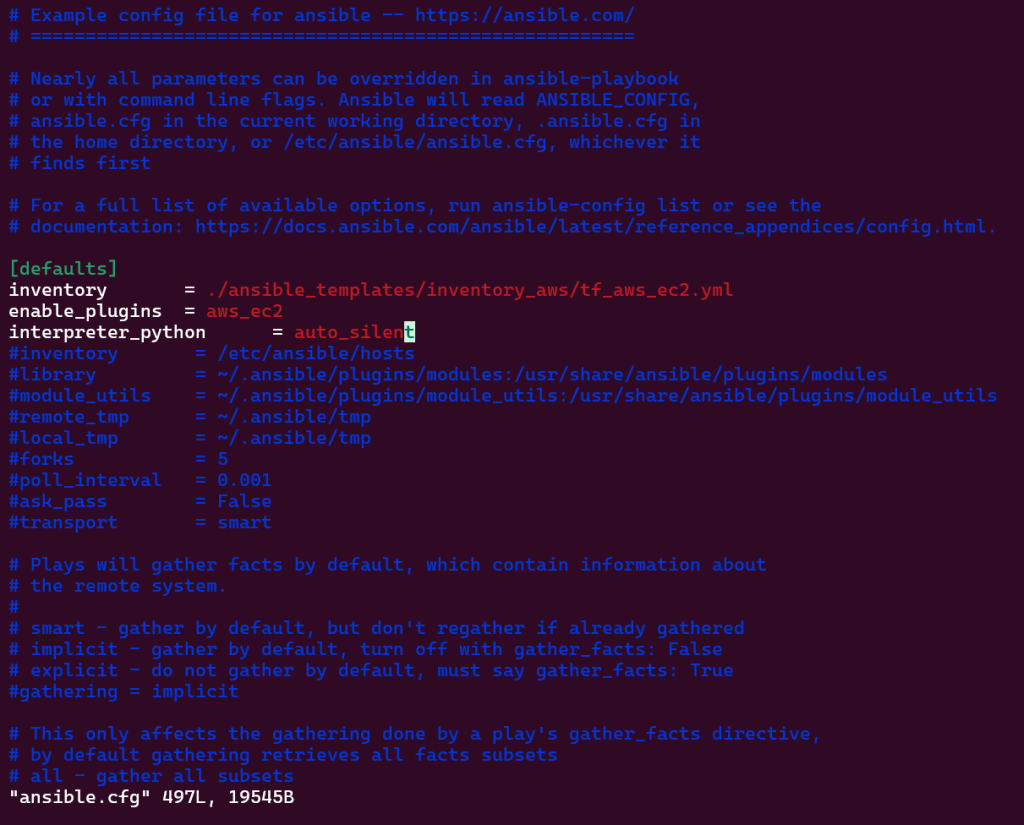
- Update ansible.cfg backend file
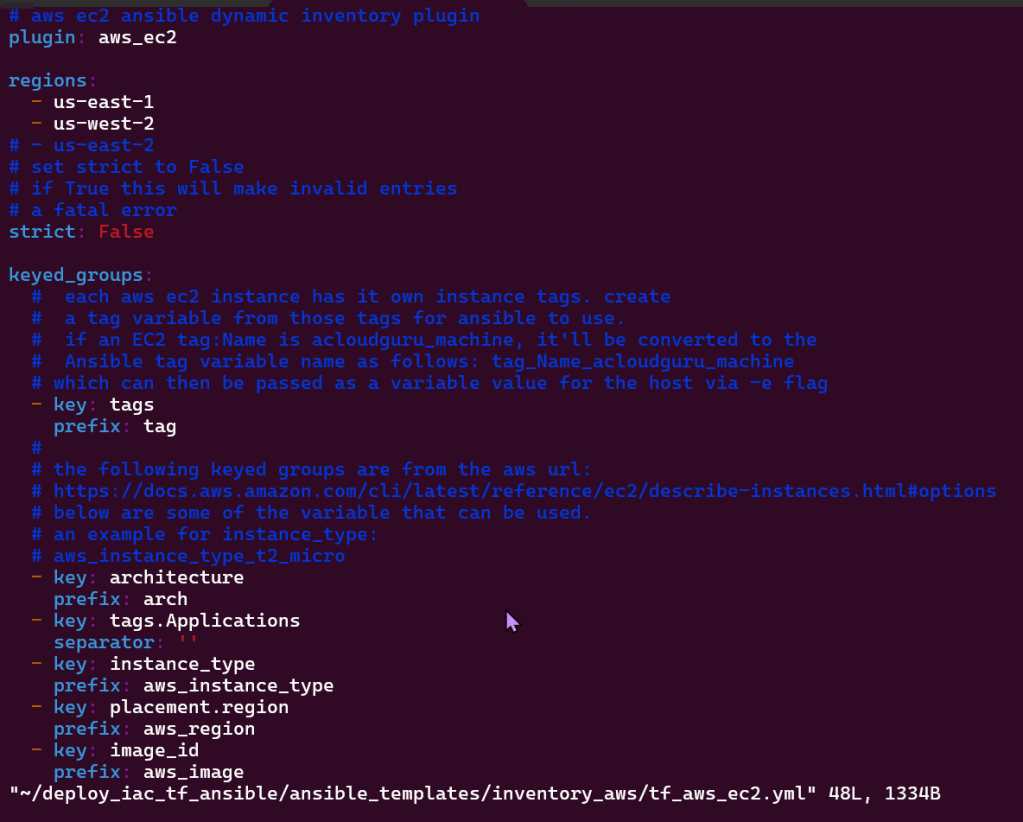
- Create inventory_aws directory
- Update instances.tf
- Routing Traffic via ALB to EC2:
- Update ALB.tf w/a new playbook for ingress rules into the security group & port information
- Update instances.tf & security_groups.tf w/port information
- Update output.tf w/DNS
- Create jenkins-master/worker-sample.yml
- Route 53 & HTTPs:
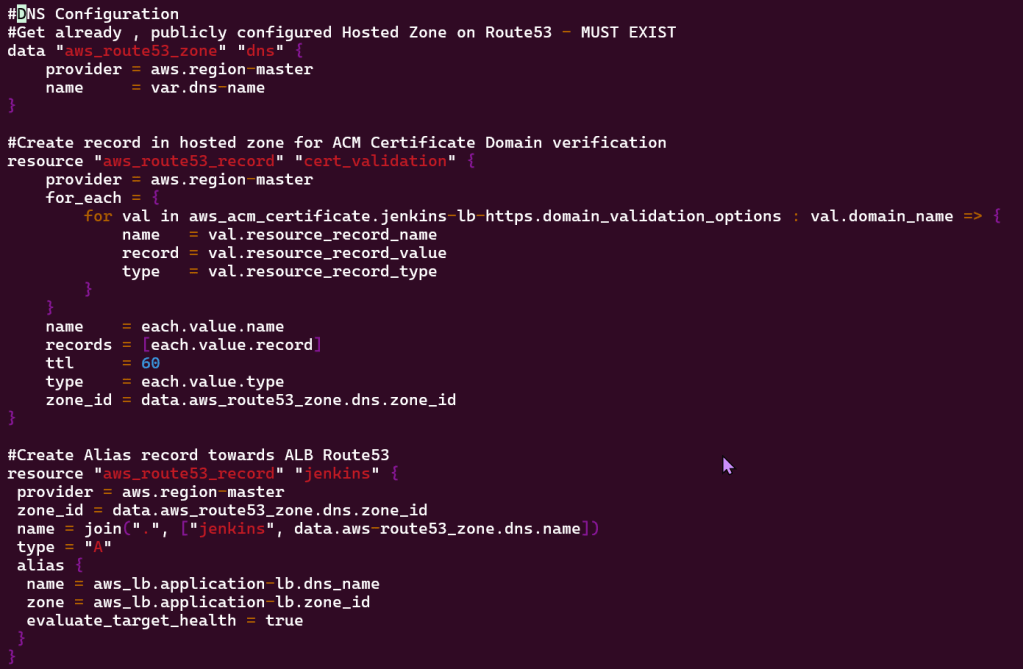
- Create path for user to connect to application from Route 53, ALB, & ACM
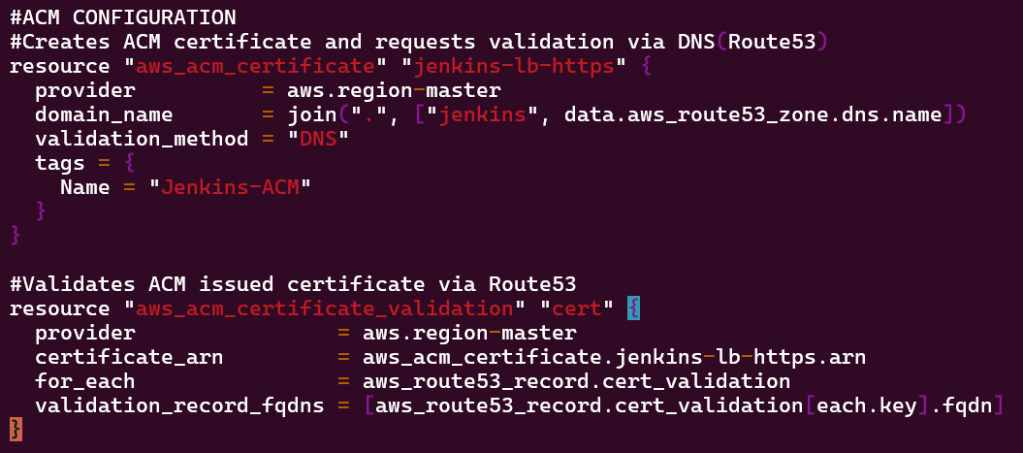
- Create acm.tf for certification requests to be validated via DNS route 53
- Ansible Playbooks:
- Create playbook w/7 tasks to install Jenkins master/worker
- Generate SSH key-pair
- Jinja2:
- Build Jinja2 template for Ansible playbook for tasks
- Verifying IaC Code & Terraform Apply:
- Do the thing, terraform fmt, validate, plan, & apply
- Conclusion – Summary:
Pre-requisites:
Here are some housekeeping items I addressed before I stood up this environment:
Installed Terraform:
- Follow link here for whatever your lil heart desires – I been messing around w/Linux – Ubuntu PowerShell & AWS Linux from the Packet Manager myself.
- https://developer.hashicorp.com/terraform/install
- wget -O- https://apt.releases.hashicorp.com/gpg | sudo gpg –dearmor -o /usr/share/keyrings/hashicorp-archive-keyring.gpg
- echo “deb [signed-by=/usr/share/keyrings/hashicorp-archive-keyring.gpg] https://apt.releases.hashicorp.com $(lsb_release -cs) main” | sudo tee /etc/apt/sources.list.d/hashicorp.list
- sudo apt update && sudo apt install terraform
IAM Permissions for Terraform
- sudo apt-get -y install python-pip
- pip3 install awscli –user
Connect Ansible:
- sudo pip3 install –upgrade pip
- pip3 install ansib le –user
- wget https://raw.githubusercontent.com/linuxacademy/content-deploying-to-aws-ansible-terraform/master/aws_la_cloudplayground_version/ansible.cfg
- ansible –version
- terraform –version
- aws configure
- access key ID
- secret access key
- region
- output
- aws ec2 describe-instances
AWS CLI:
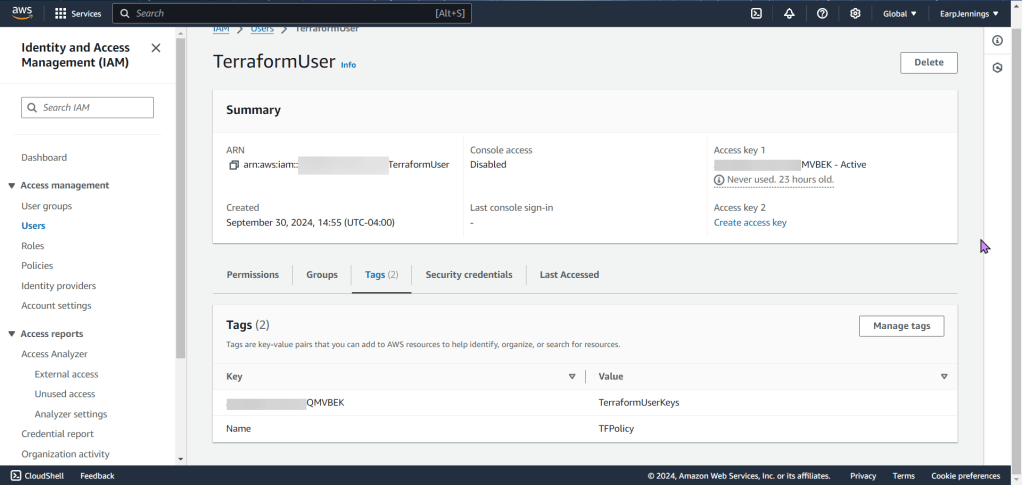
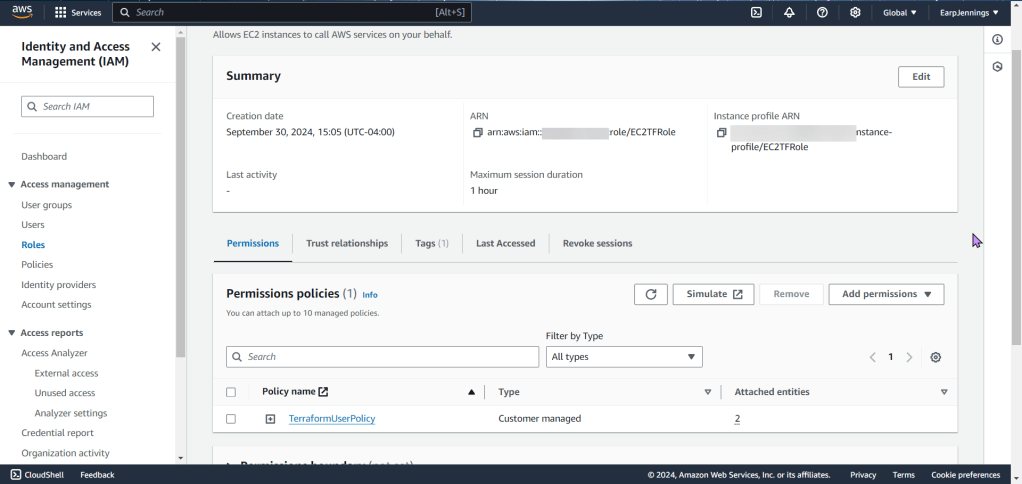
- A extensive policy was created & seen here, copy & prepare to pasta!
- Log-in to your AWS Console & either;
- Create a separate IAM user w/required permissions
- Create an EC2 (IAM Role) instance profile w/required permissions & attach it to EC2
Create S3 Bucket:
- Ls
- cd deploy_iac_tf_ansible
- aws s3api create-bucket –bucket terraformstatebucketwp
- Important Notes:
- Remember the region you are in
- S3 bucket names are global, so don’t copy-pasta my bucket or you will get an error
- The bucket name can be between 3 and 63 characters long, and can contain only lower-case characters, numbers, periods, and dashes.

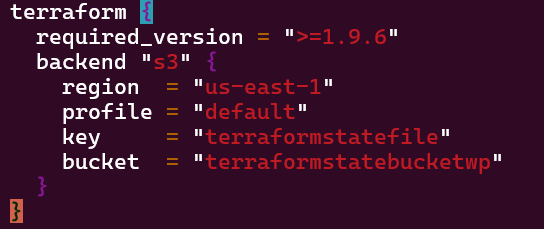
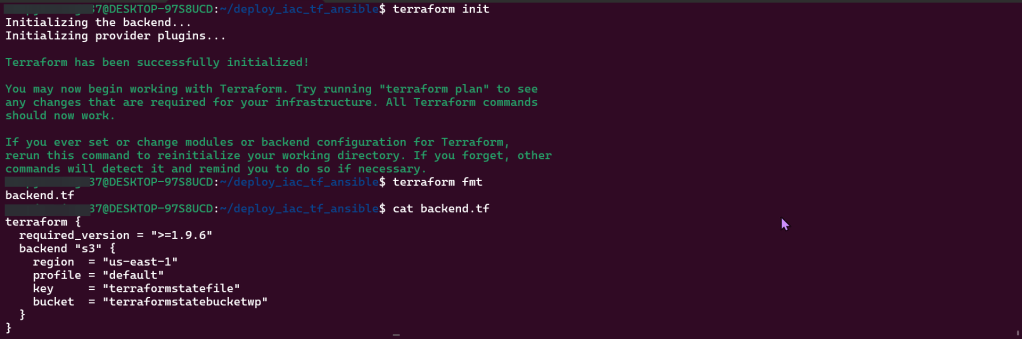
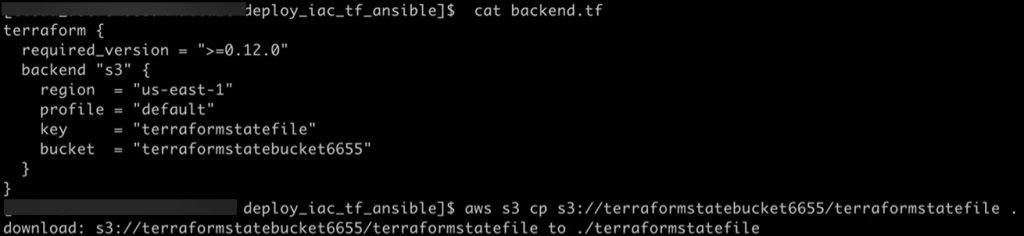
Vim Backend.tf
- Step showed how to tie AWS & Terraform together in a quick script, screenshots below

Vim Providers.tf & Variables.tf in Terraform:
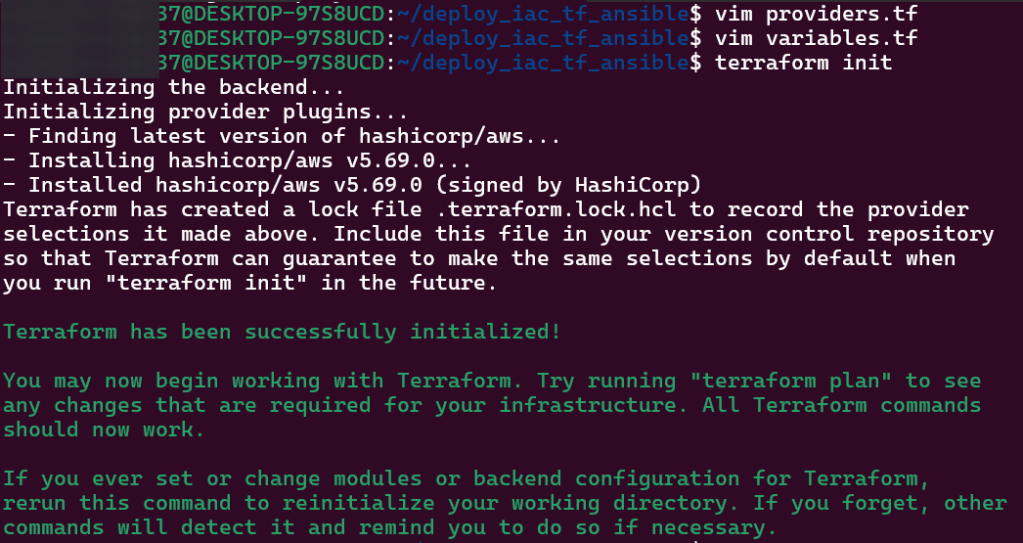
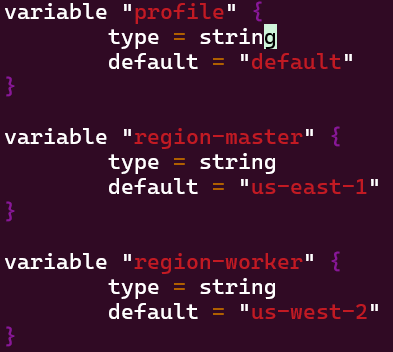
- Created 2 files that will be the key/foundation to the rest of infrastructure built & reference. This is the source code used to manage Terraform resources:
- The first file/variable is where the EC2 instances are deployed in
- The second file displays the providers region.

Network Deployment – VPC, Subnets, Security Groups, & Internet Gateways:
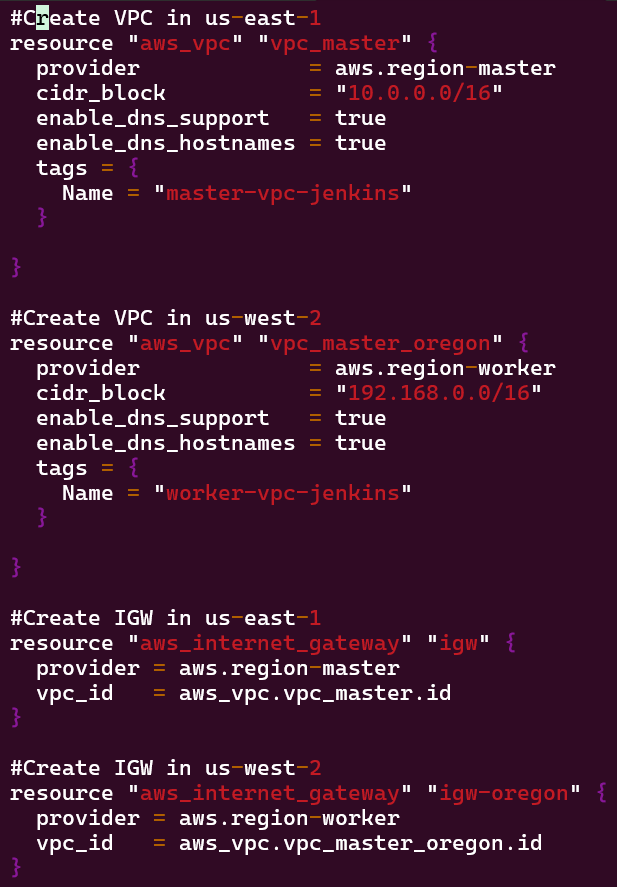
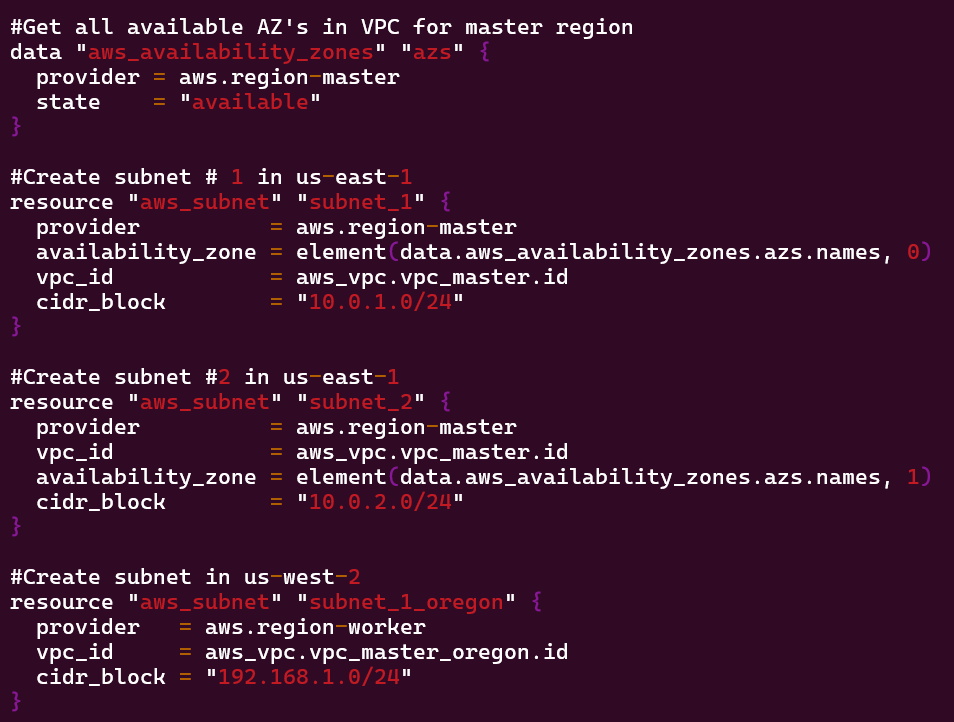
Goal is to create:
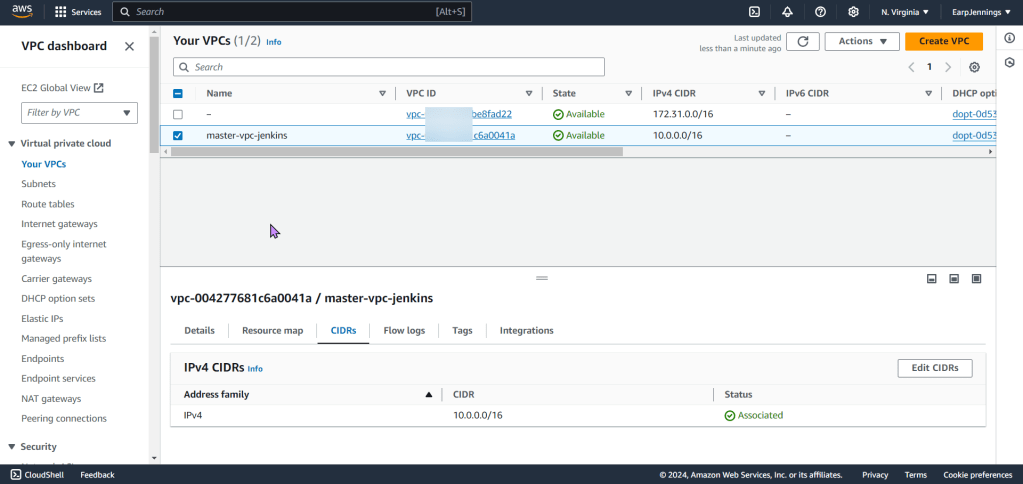
- Environment w/VPC, internet gateway, & 2 public subnets
- Environment w/VPC, internet gateway, & 1 public subnet
Lessons Learned:
- vim networks.tf
- terraform fmt
- terraform validate

Goal is to create:
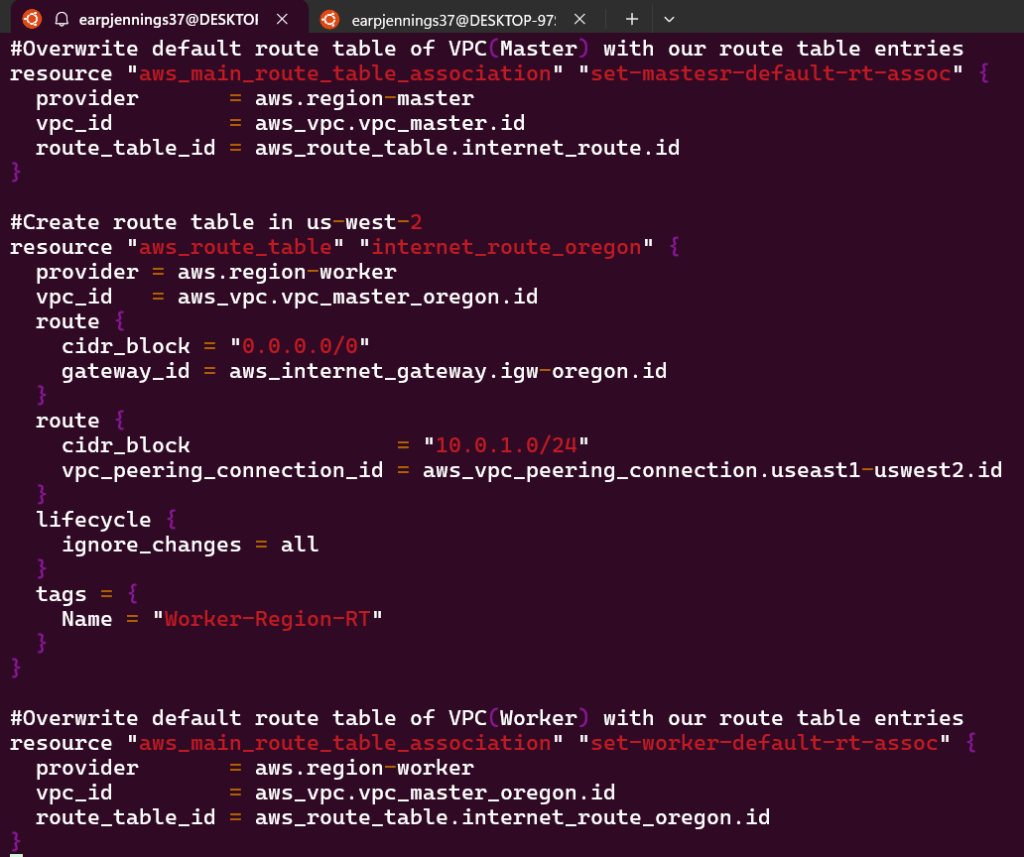
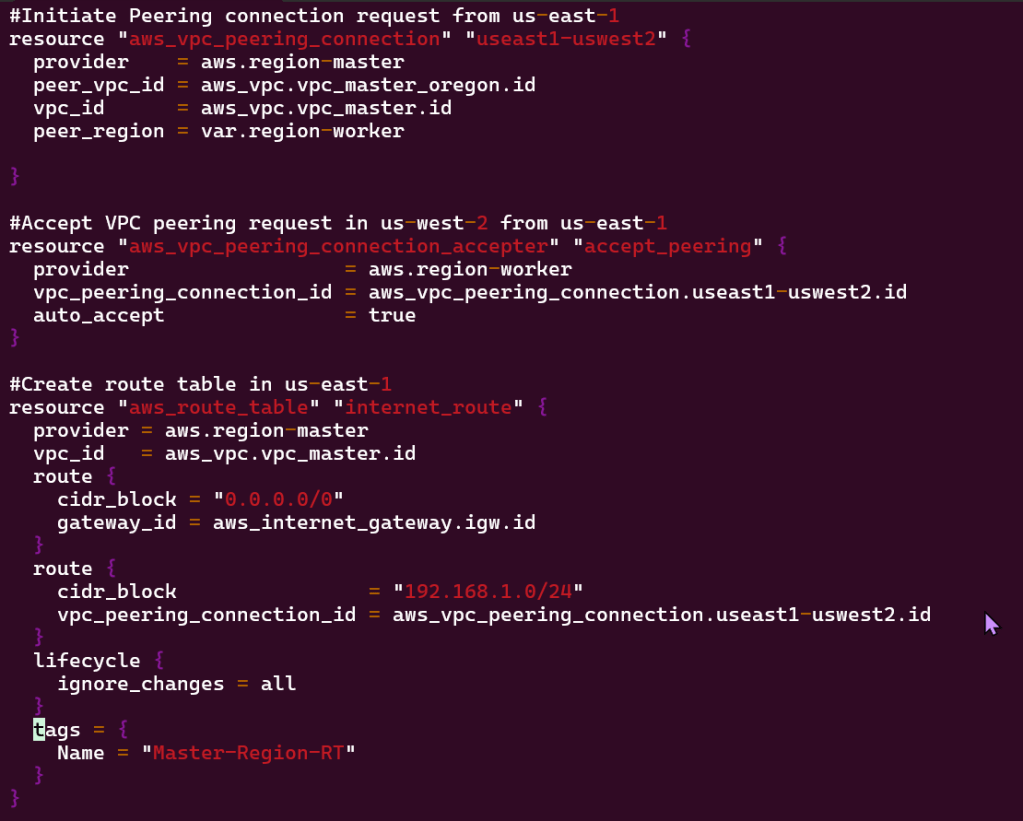
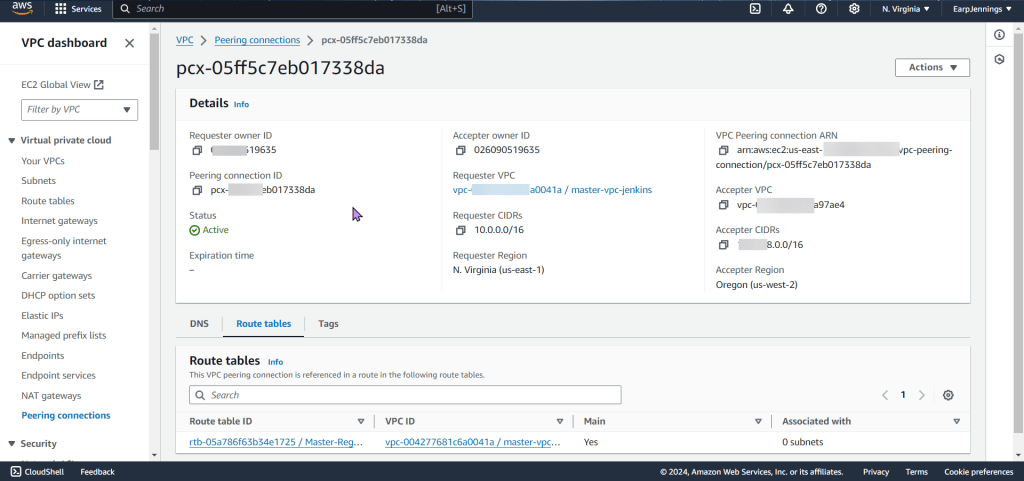
- VPC Peering connection between 2 regions
- As well as route tables for each VPC
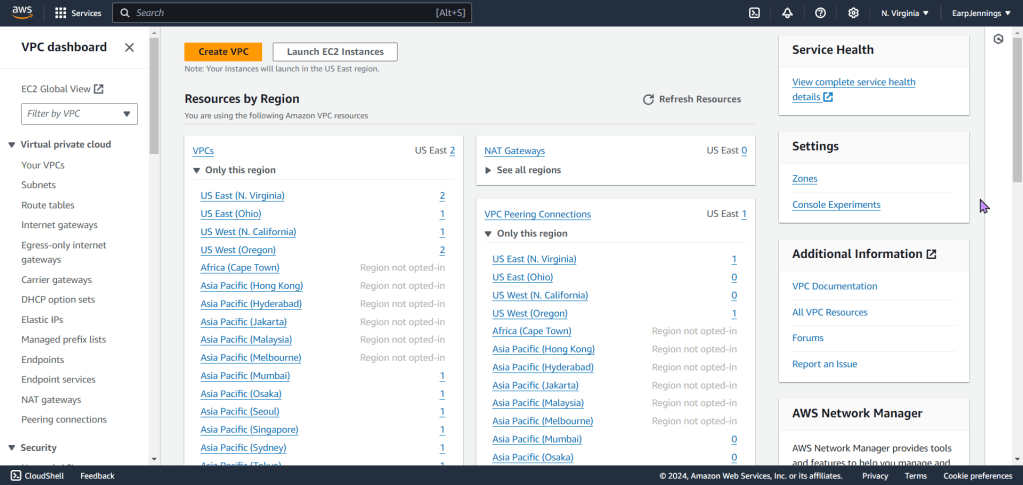
- View the magic in AWS!!

Lessons Learned:
- Vim networks.tf
- terraform fmt
- terraform validate
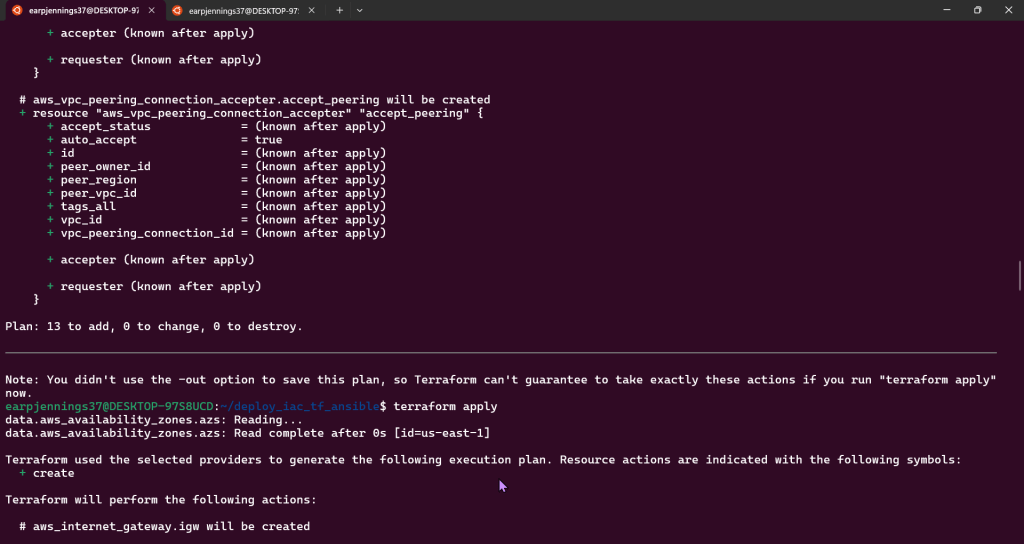
- terraform plan

Terraform Fmt & Validate:

Terraform Plan:
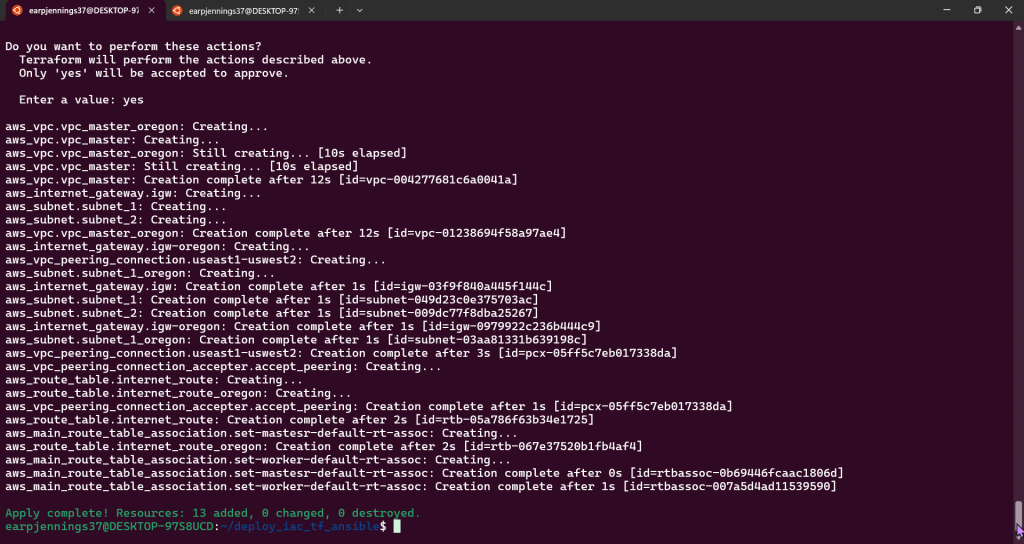
- AWS account to see Terraform communicating w/AWS #maaaaaaagic
Goal is to create:
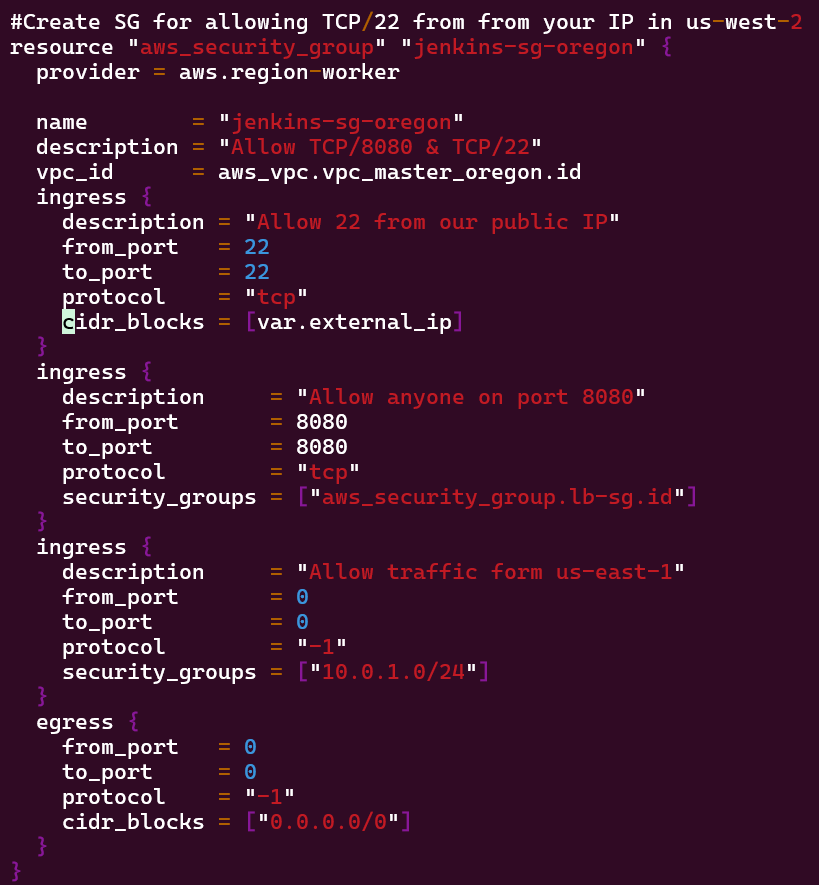
- Deploy Security Groups w/ALB communicating w/Jenkins Master & Worker
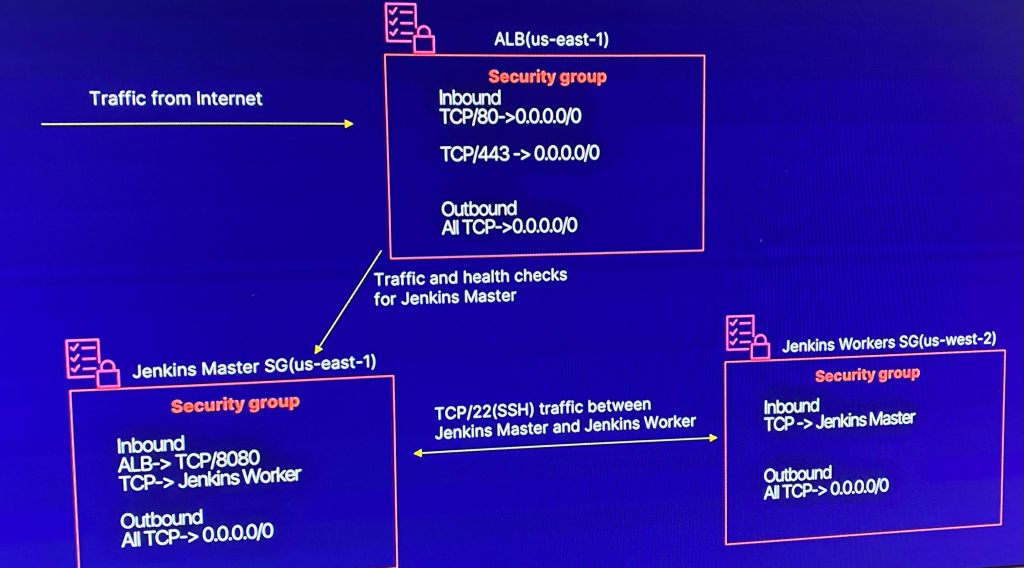
Lessons Learned:
- Vim Security_groups.tf
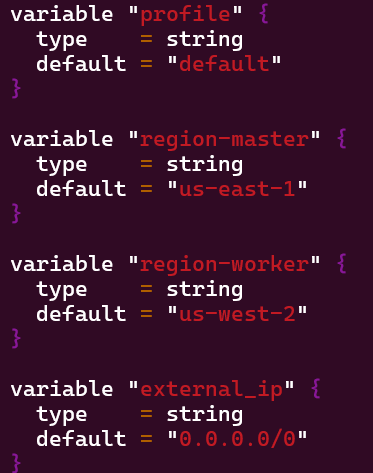
- Vim variables.tf
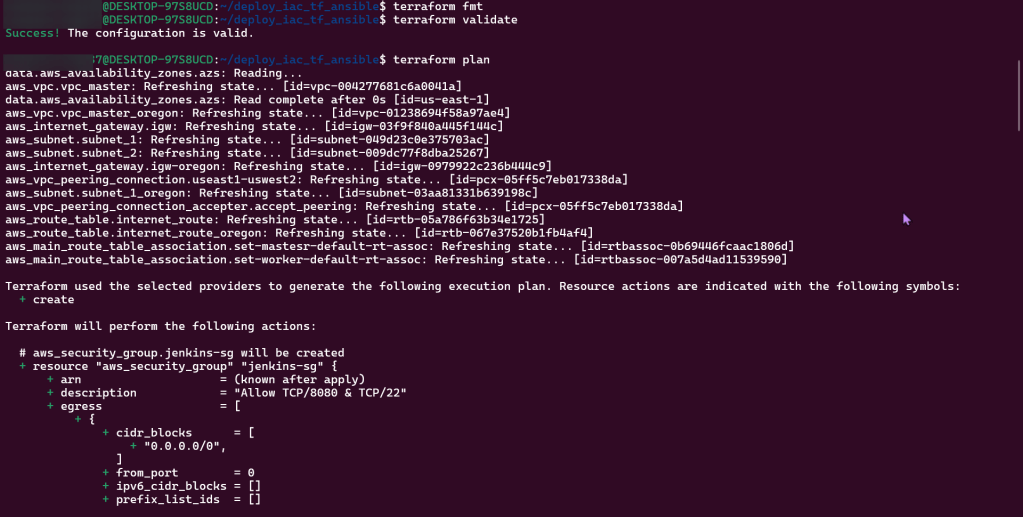
- Terraform plan
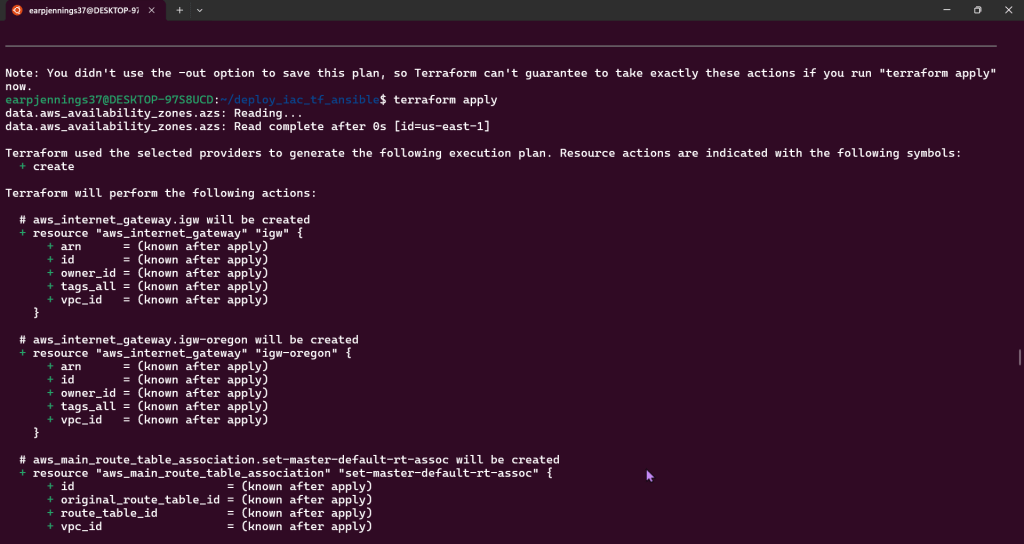
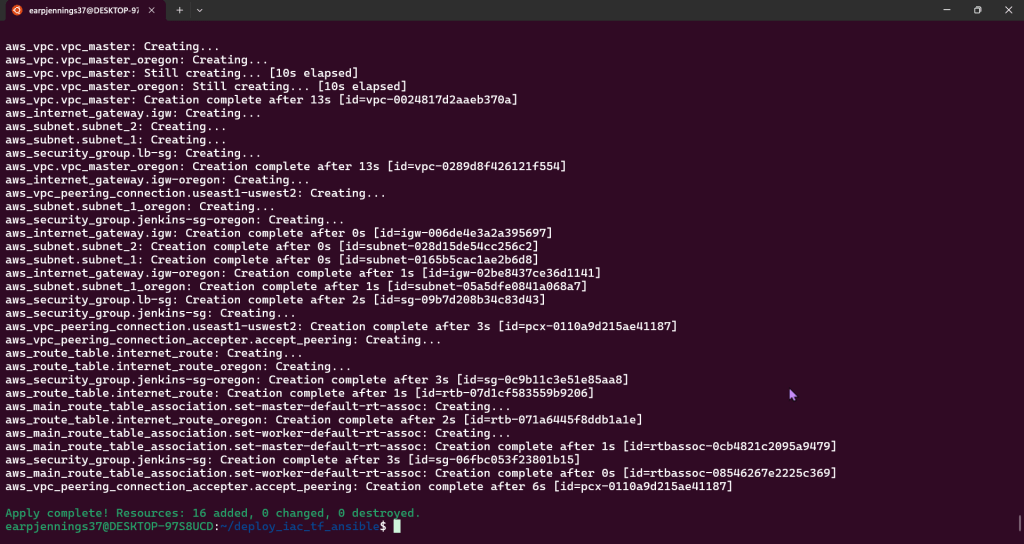
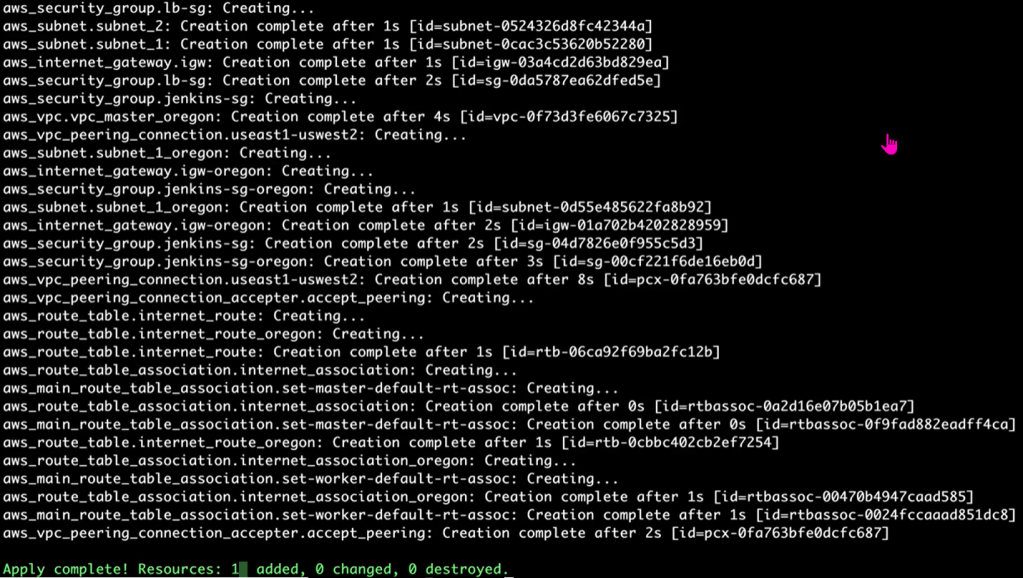
- Terraform apply
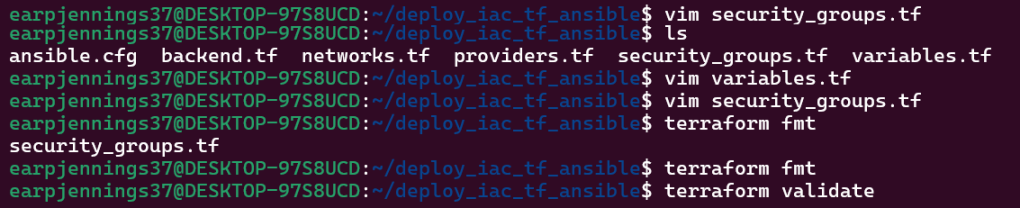
Vim security_groups.tf:
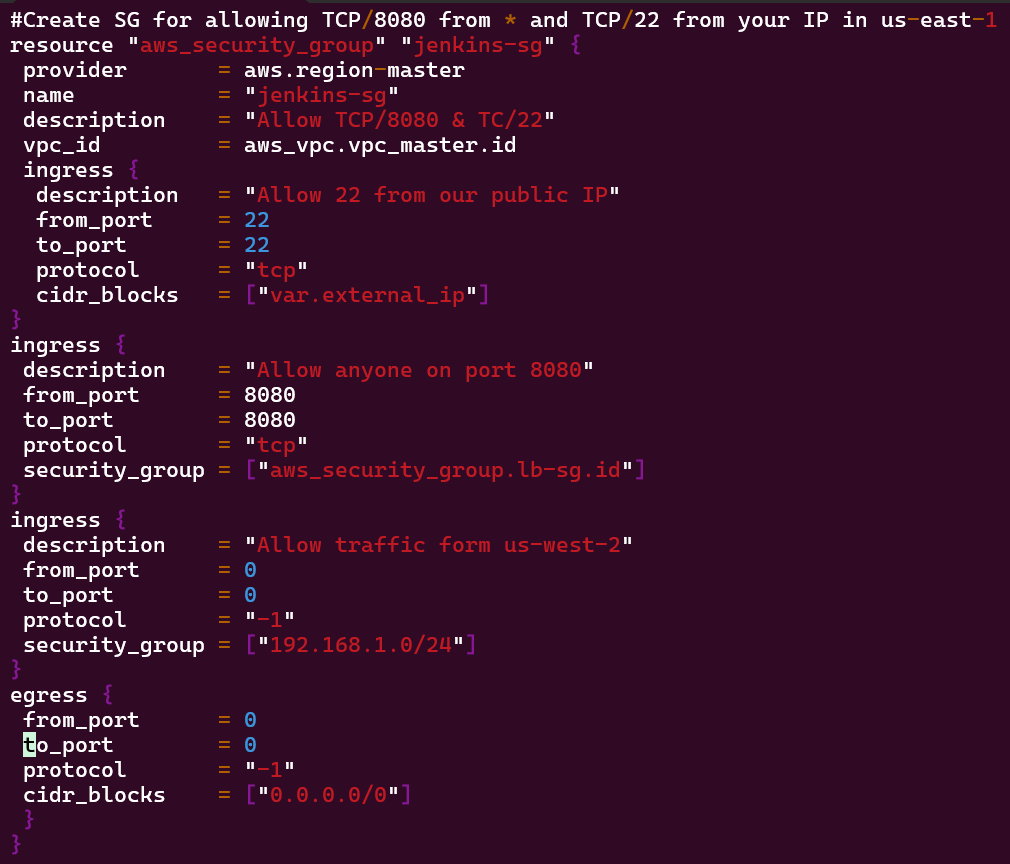
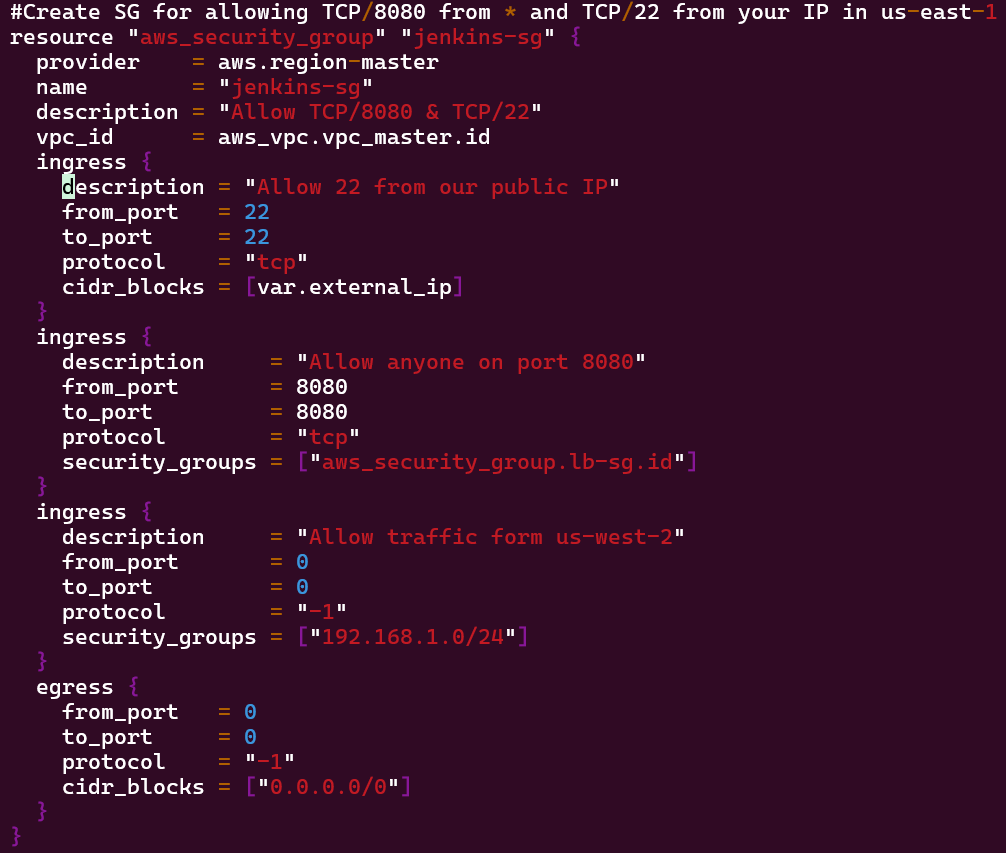
Vim Variables.tf:
- Added Jenkins worker variable
Terraform Plan:

Terraform Apply:
VM Deployment – AMIs, Key Pairs, & Jenkins:
Goal is to create:
- Deploying application node to Jenkins application that will fetch AMI IDs
- Data Source (SSM Parameter Store) to AMI IDs
Lessons Learned:
- Terraform Data Source for SSM Parameter
- SSM Parameter Store – Parameter for Public AMI IDs
- Terraform SSM Data Source Returns AMI ID
Vim Instances.tf
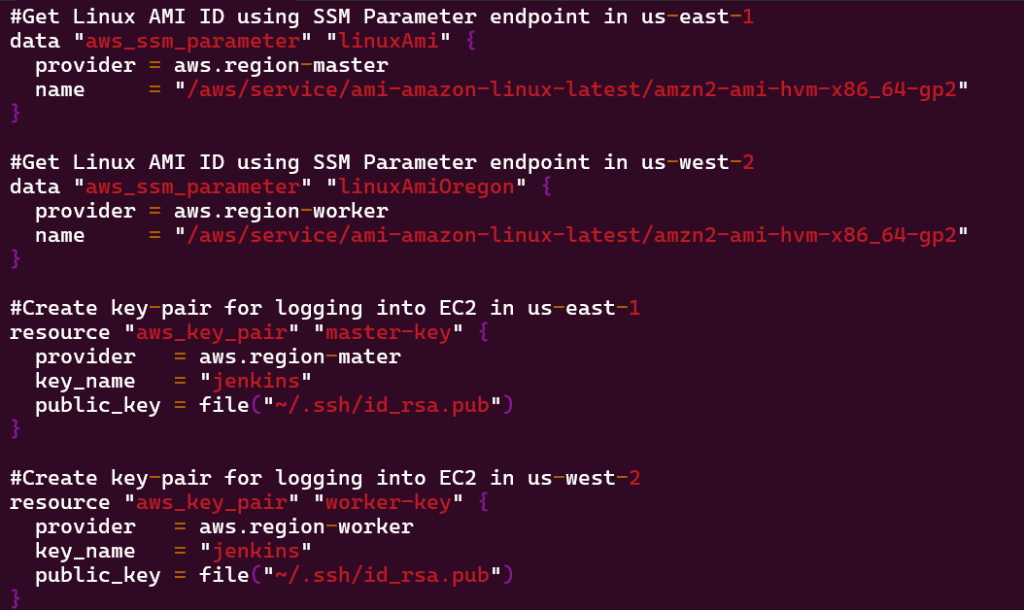
- #Get Linux AMI ID using SSM Parameter endpoint in us-east-1 data “aws_ssm_parameter” “linuxAmi” { provider = aws.region-master name = “/aws/service/ami-amazon-linux-latest/amzn2-ami-hvm-x86_64-gp2” }
- #Get Linux AMI ID using SSM Parameter endpoint in us-west-2 data “aws_ssm_parameter” “linuxAmiOregon” { provider = aws.region-worker name = “/aws/service/ami-amazon-linux-latest/amzn2-ami-hvm-x86_64-gp2” }
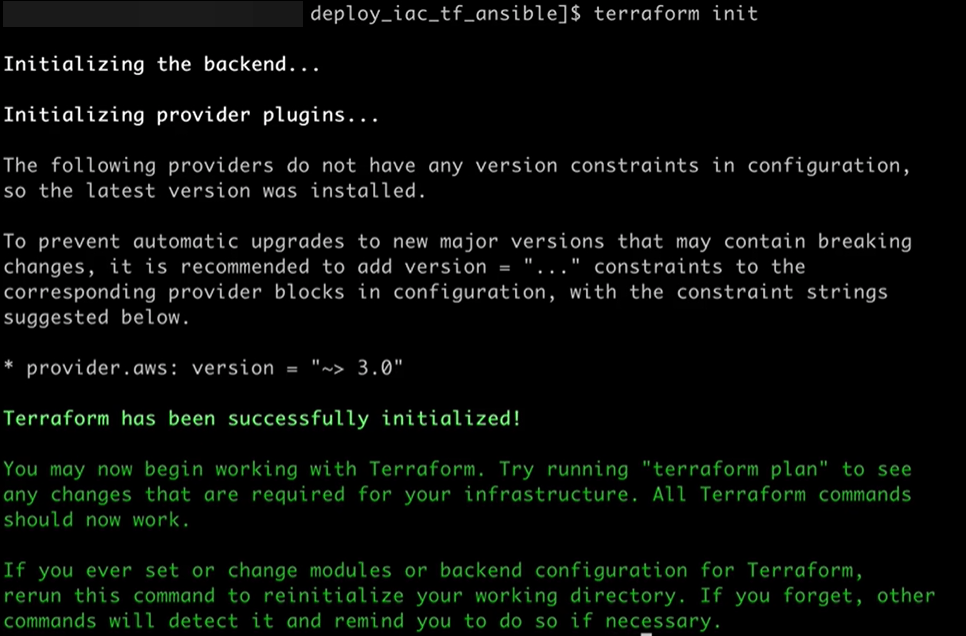
Terraform Init & fmt & validate:
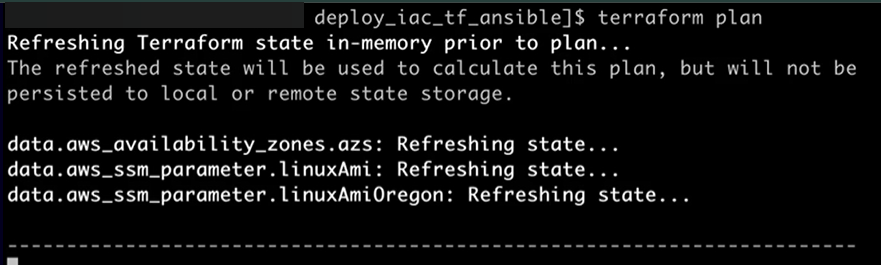
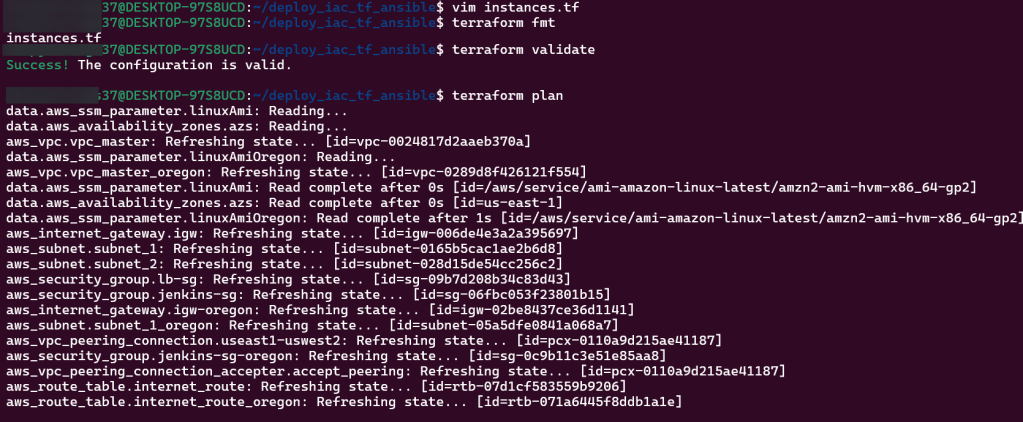
Terraform Plan:

Vim Backend.tf:

Goal is to create:
- Deploying EC2 key pairs into Jenkins EC2 instance to permit SSH access
Lessons Learned:
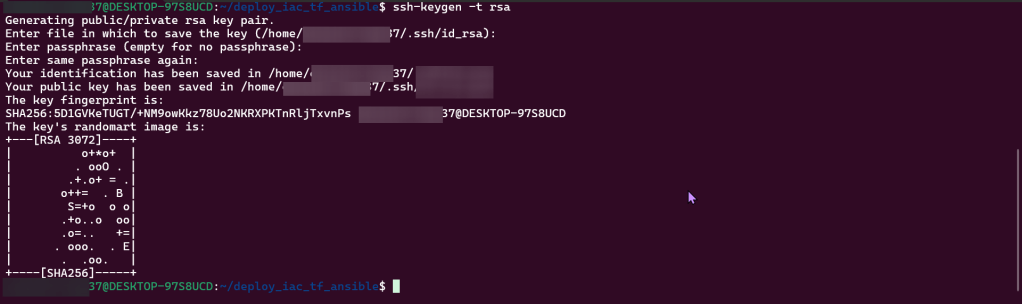
- Create SSH-key gen private/public key
- Edit script to incorporate key-pairs for both regions
SSH:
Vim instances.tf
Terraform fmt, validate, plan, & apply:
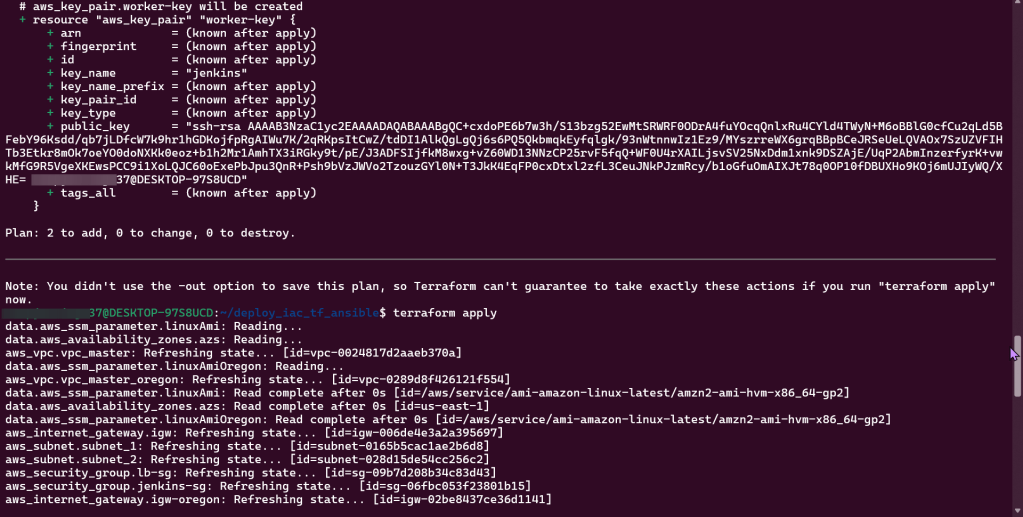
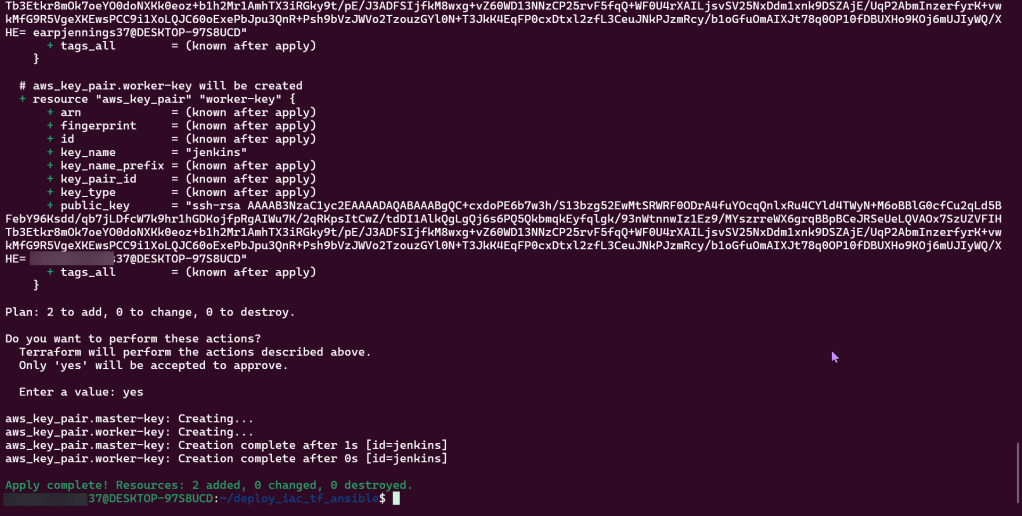
Goal is to create:
- Deploy Jenkins Master & Worker Instances
Lessons Learned:
- Created 1 new script (outputs) & edited 2 scripts (instances & variables)
- Can connect instances over SSH & IP addresses
Vim instances, variables, & outputs:

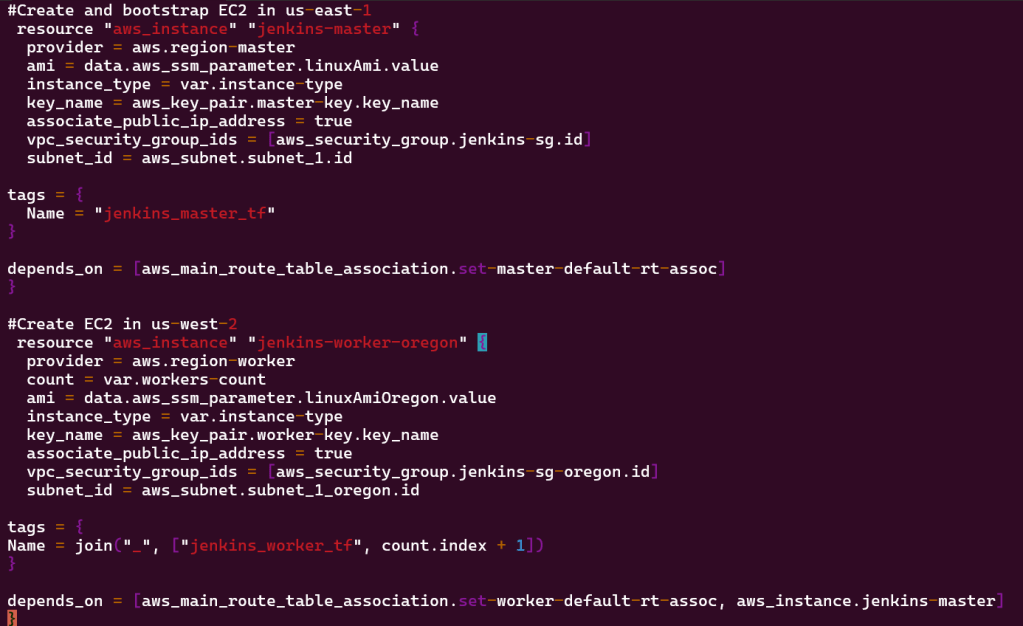
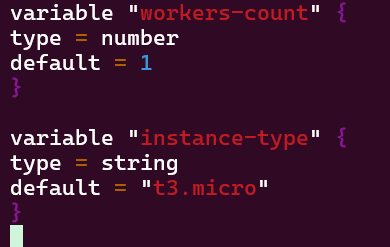
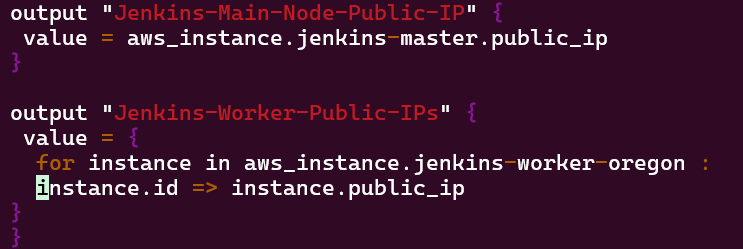
Terraform fmt, validate, plan, & apply:
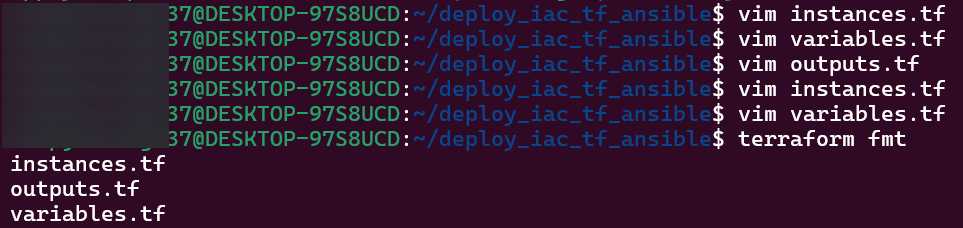
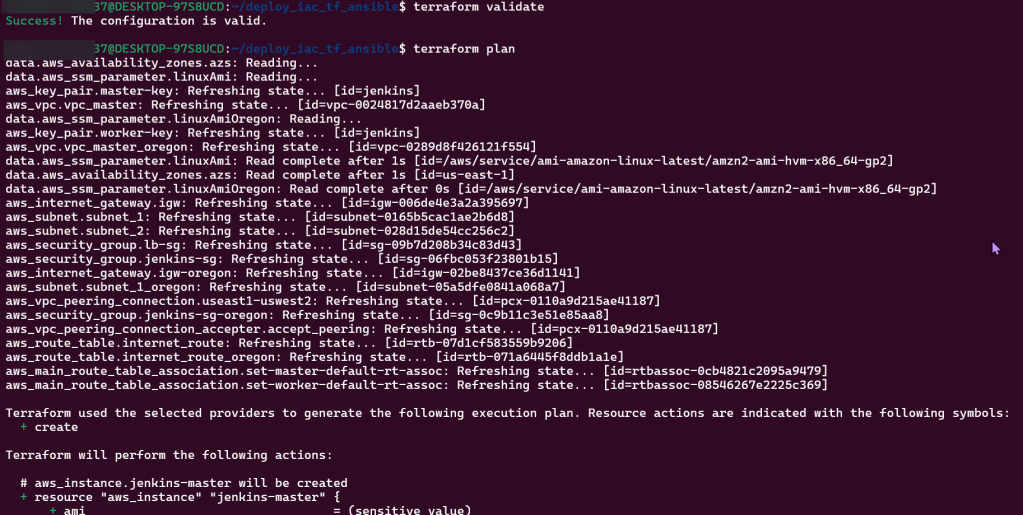
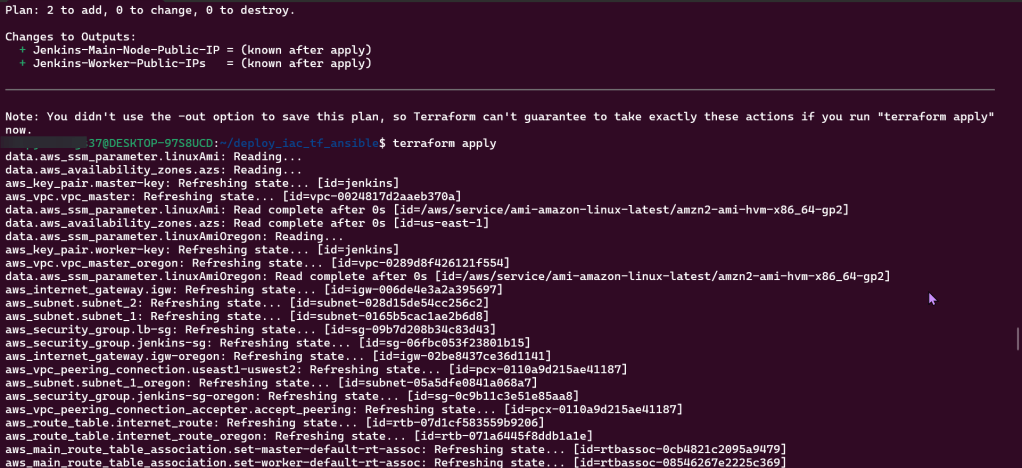
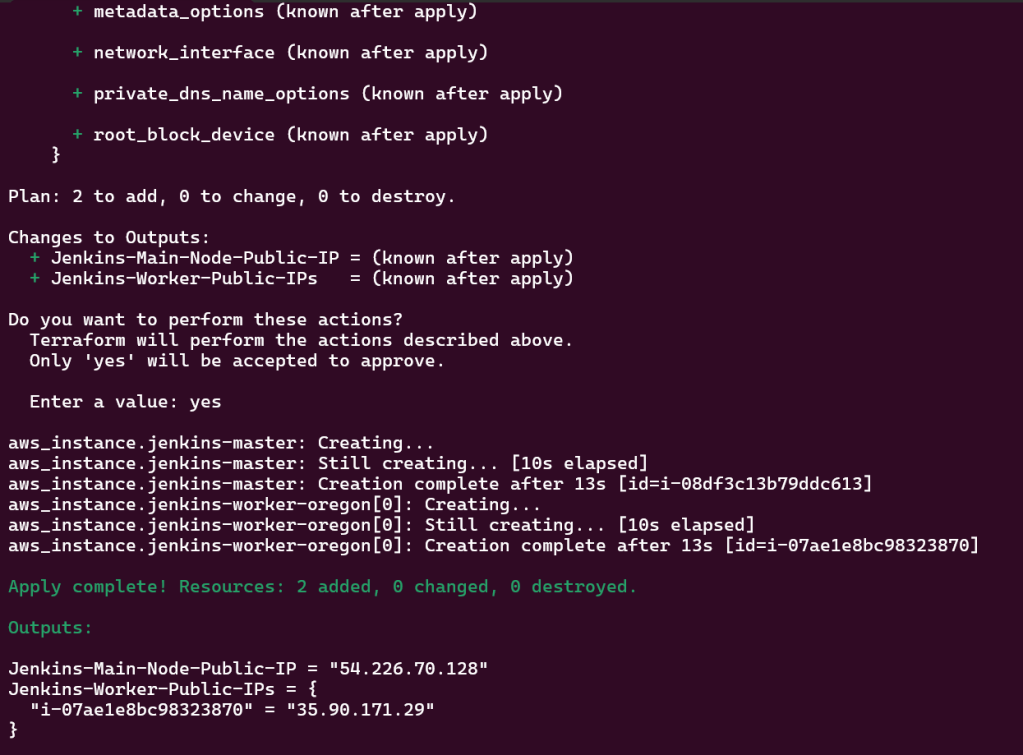
SSH into EC2 Jenkins Master & Worker Nodes:
Terraform Configuration Management w/Ansible:
Goal is to create:
- Configure TF Provision’s for Config Mgmt via Ansible
Lessons Learned:
- Created new directory to hold 2 new scripts for Jenkins regions
- Update script to call Ansible playbook
Mkdir ansible templates:

Vim ansible.cfg:
Mkdir inventory_aws:
wget -c: (might have to re-do)

Vim ‘tf_aws_ec2.yml: (created from above)
Vim pip3 install boto3 –user:

Vim instances.tf:
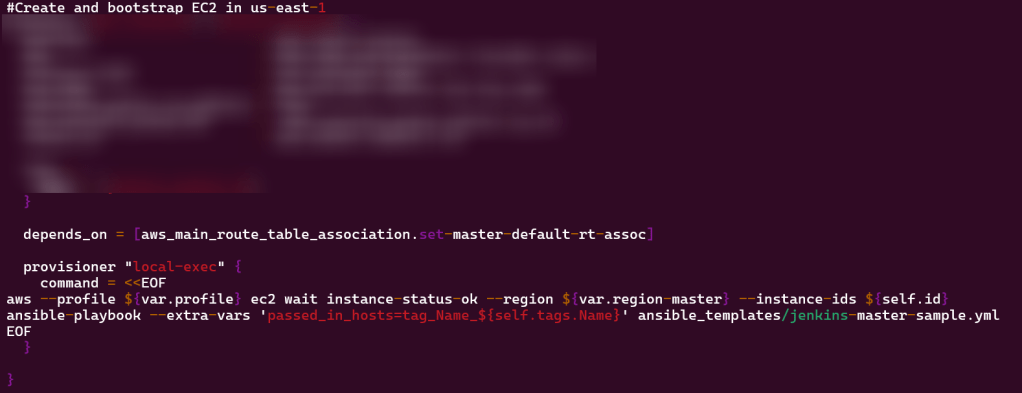
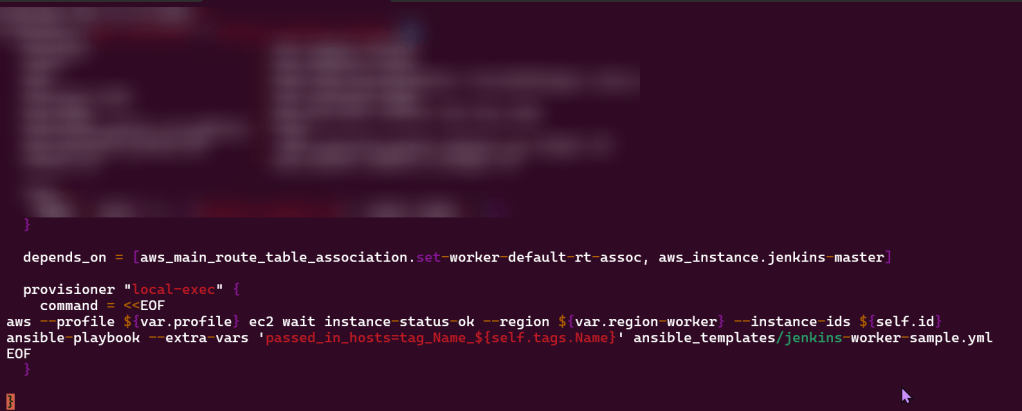
Terraform fmt, validate, plan, & apply:
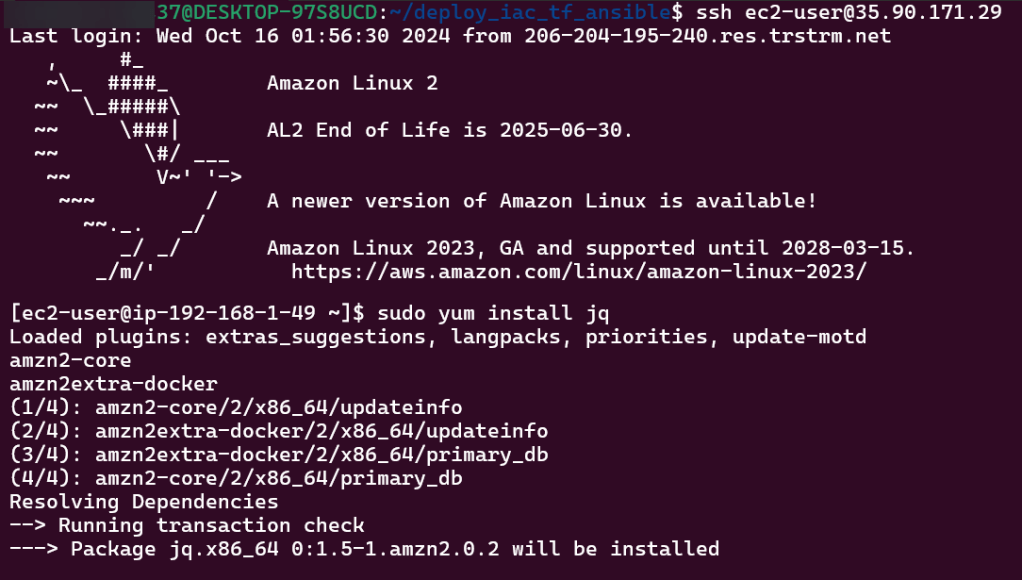
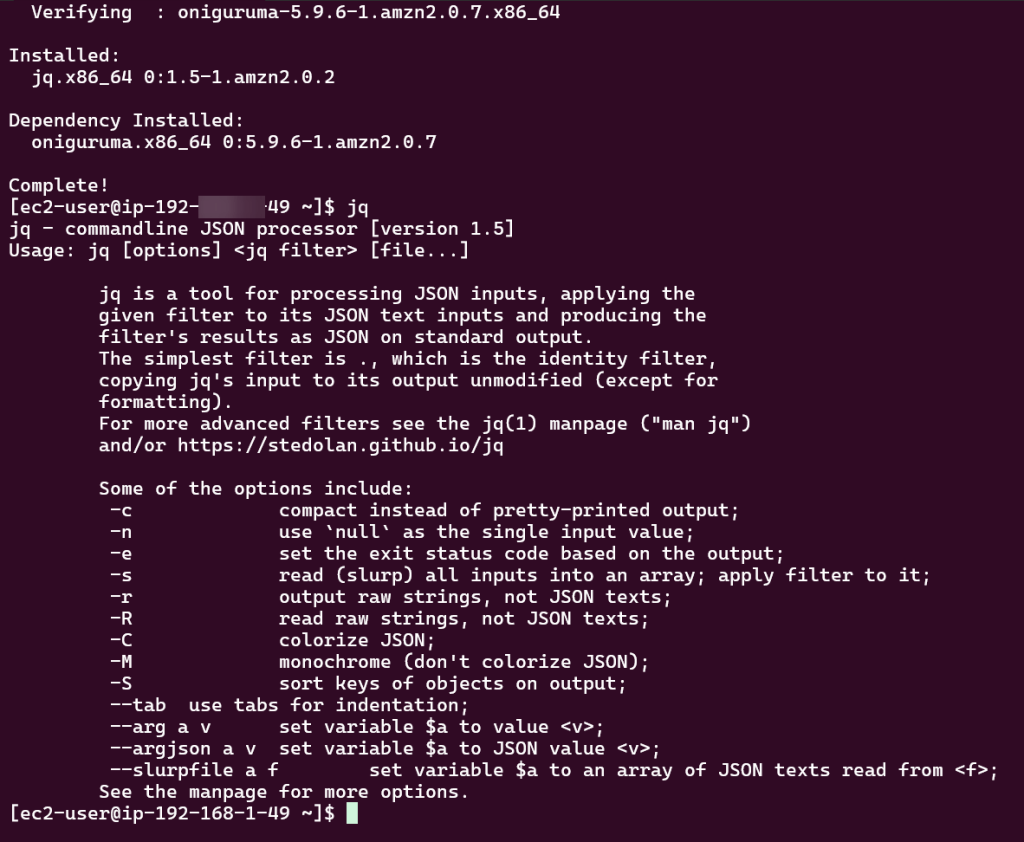
JQ:
- sudo yum install jq
- jq
Routing Traffic via ALB to EC2:
Goal is to create:
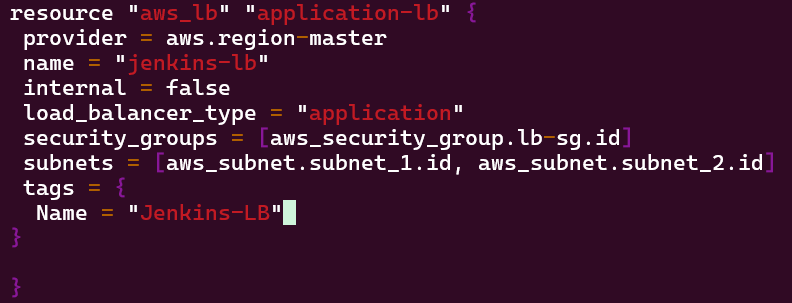
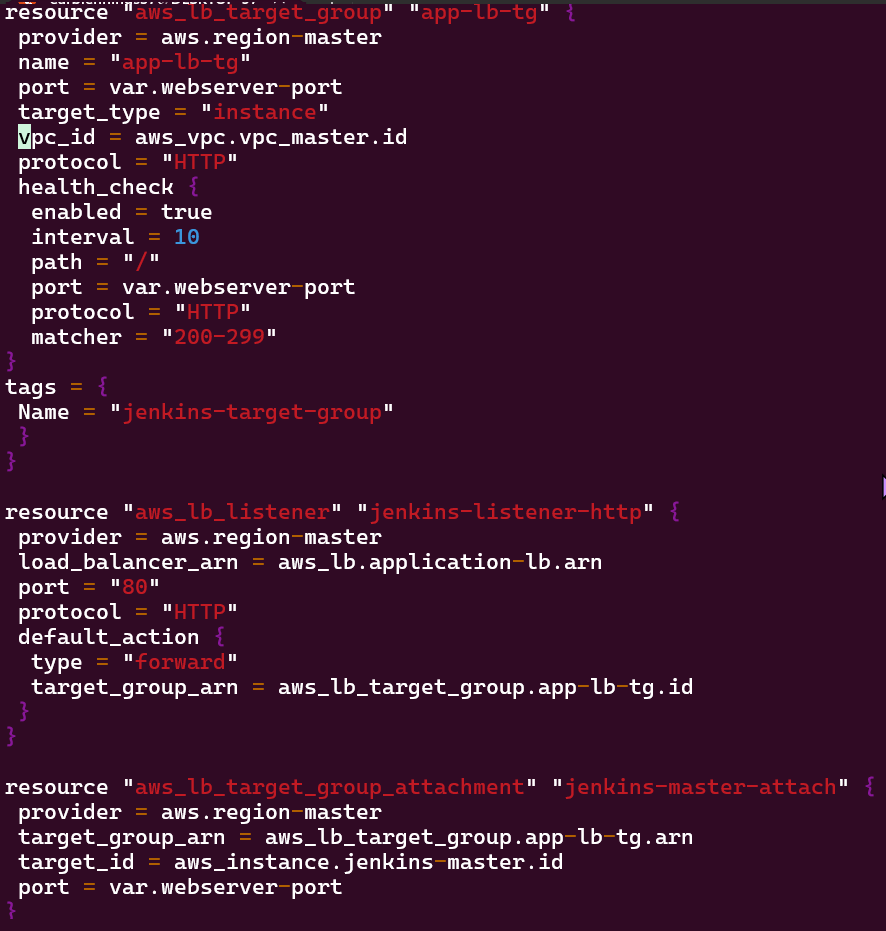
- Create ALB to route traffic to EC2 node
- Via Terraform run a web server behind ALB on EC2
Lessons Learned:
- Use Ansible playbook on EC2 nodes to run Jenkins application
- Create new playbook for ALB
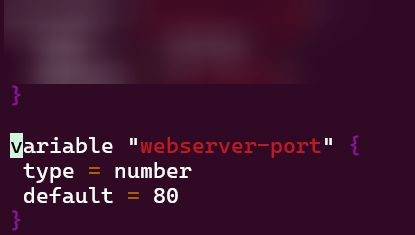
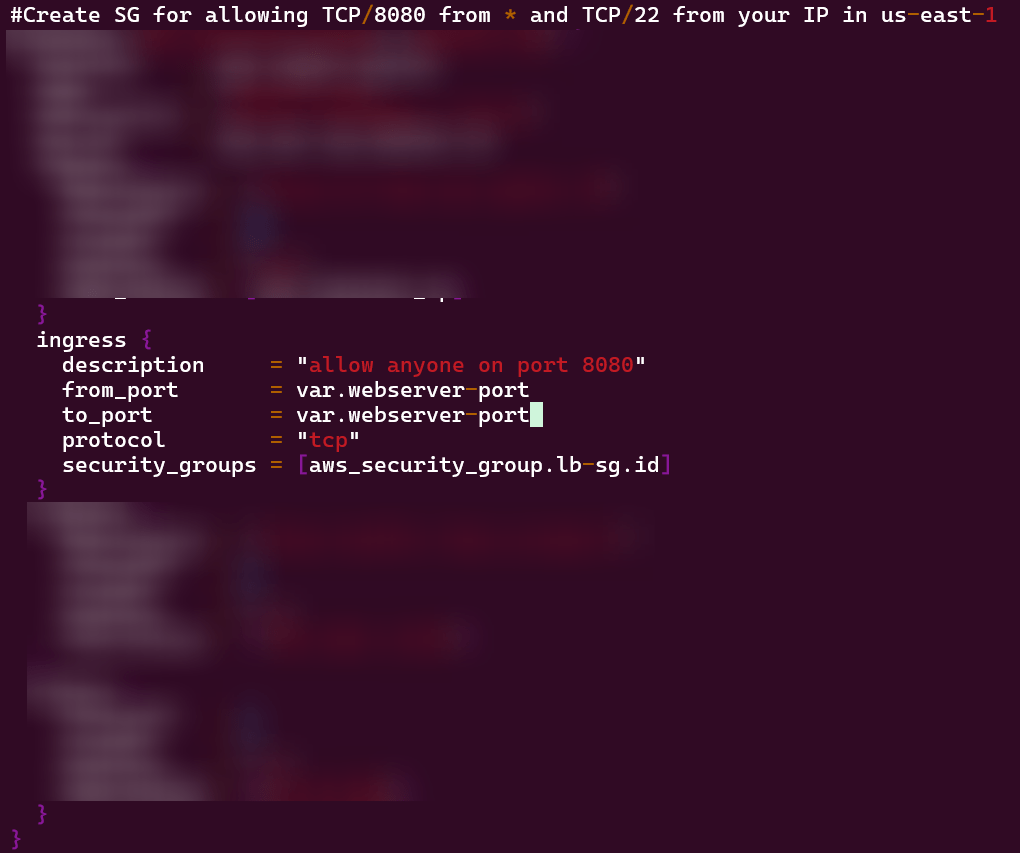
- Edit variable playbook for port information as well as the security groups playbook ingress rule
Vim alb.tf:
Vim variables.tf:
Vim security_groups.tf:
Vim outputs.tf:

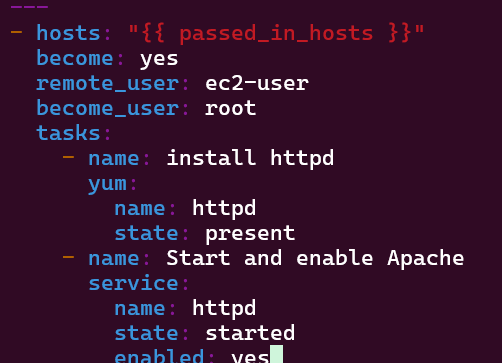
Vim jenkins-master-sample.yml:
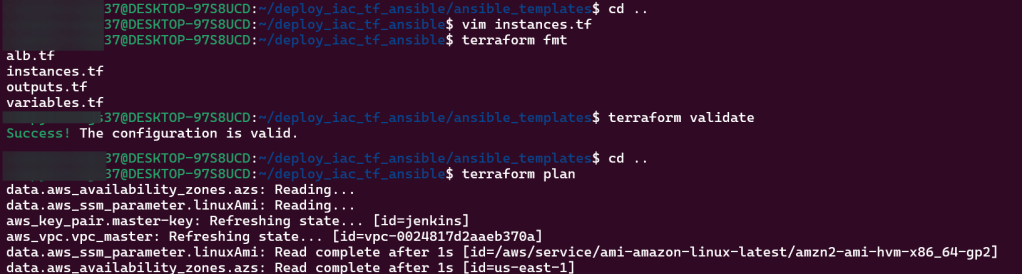
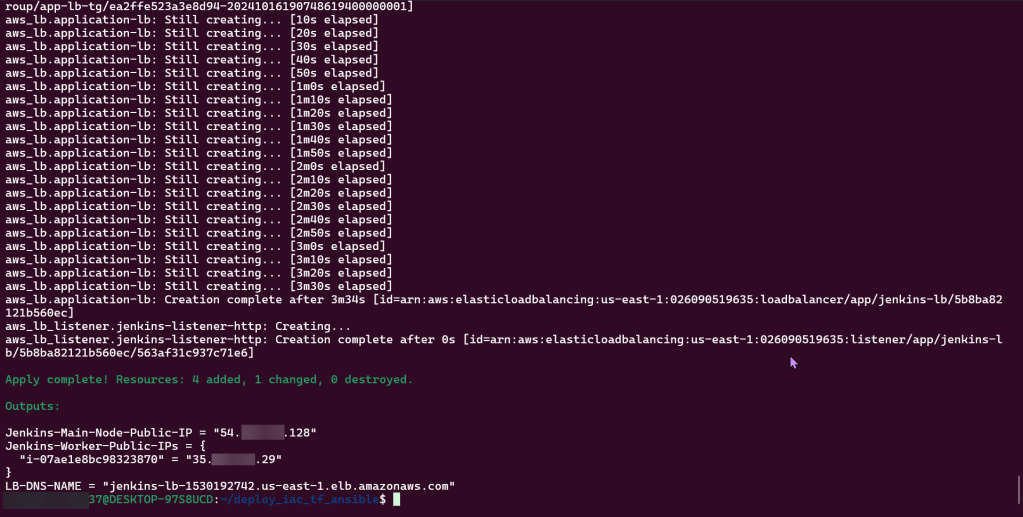
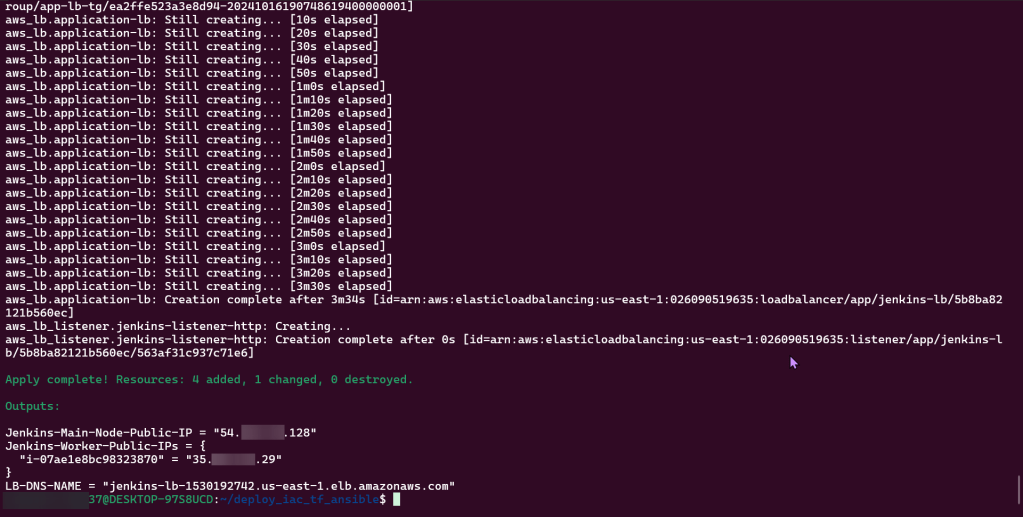
Terraform fmt, validate, plan, & apply:
Route 53 & HTTPs:
Goal is to create:
- Create path for user to connect to Jenkins application from Route 53, ALB, & ACM
Lessons Learned:
- Create AWS Route 53 & generate SSL certificate
- Connect w/public hosted zone connected pointing to DNS ALB
- Traffic routed to Jenkins EC2 application

Vim variables.tf:
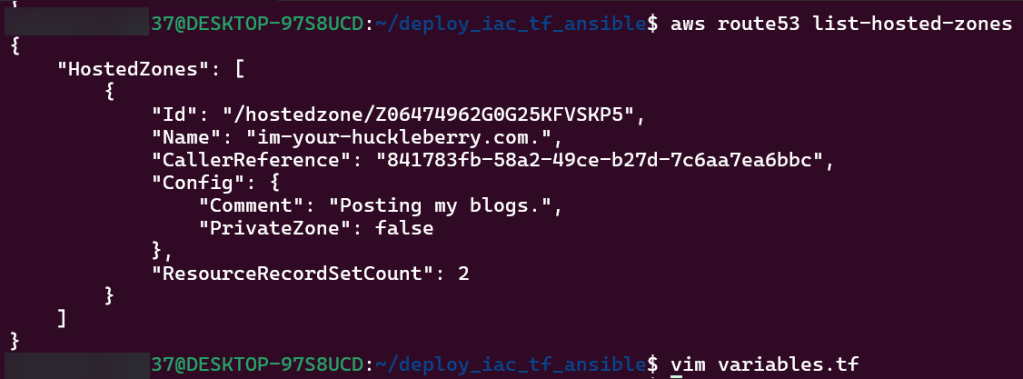
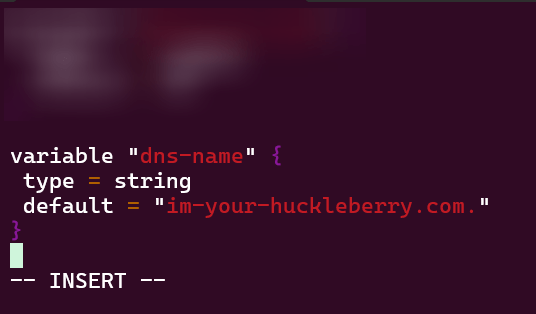
Vim acm.tf:
Vim dns.tf:
Vim alb.tf:

Terraform fmt, validate, plan, & apply:

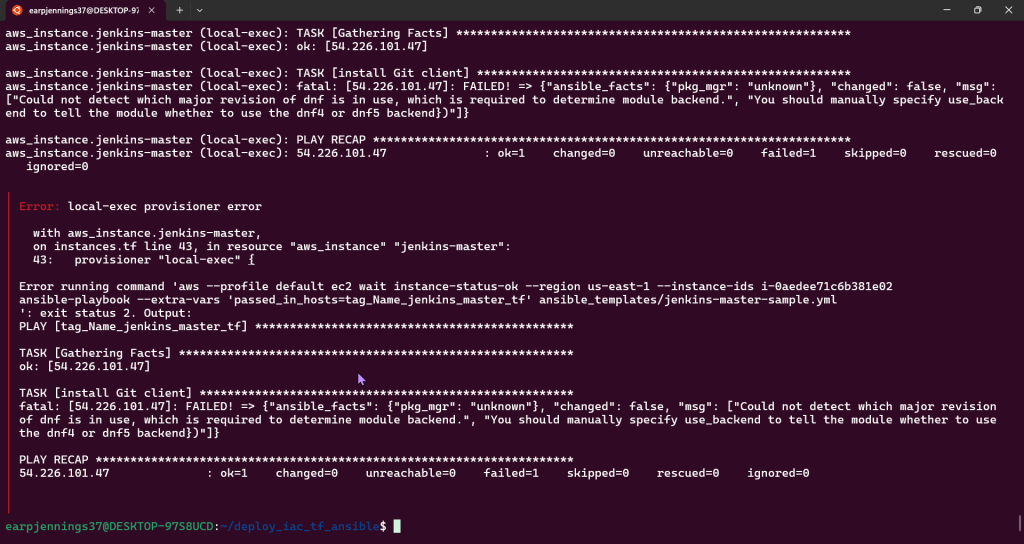
Ansible Playbooks:
Goal is to create:
Building Ansible playbook w/tasks by installing Jenkins Master/Worker
Lessons Learned:
- Install dependencies
- Clone Jenkins files
- Set up Jenkins repo & GPG key
- Install Jenkins & ensure its stopped
- Delete default installation & copy clone Jenkins fles
- Restore Jenkins files & restart Jenkins
- Wait for Jenkins to start up before ending playbook
Vim install_jenkins_master.yml:
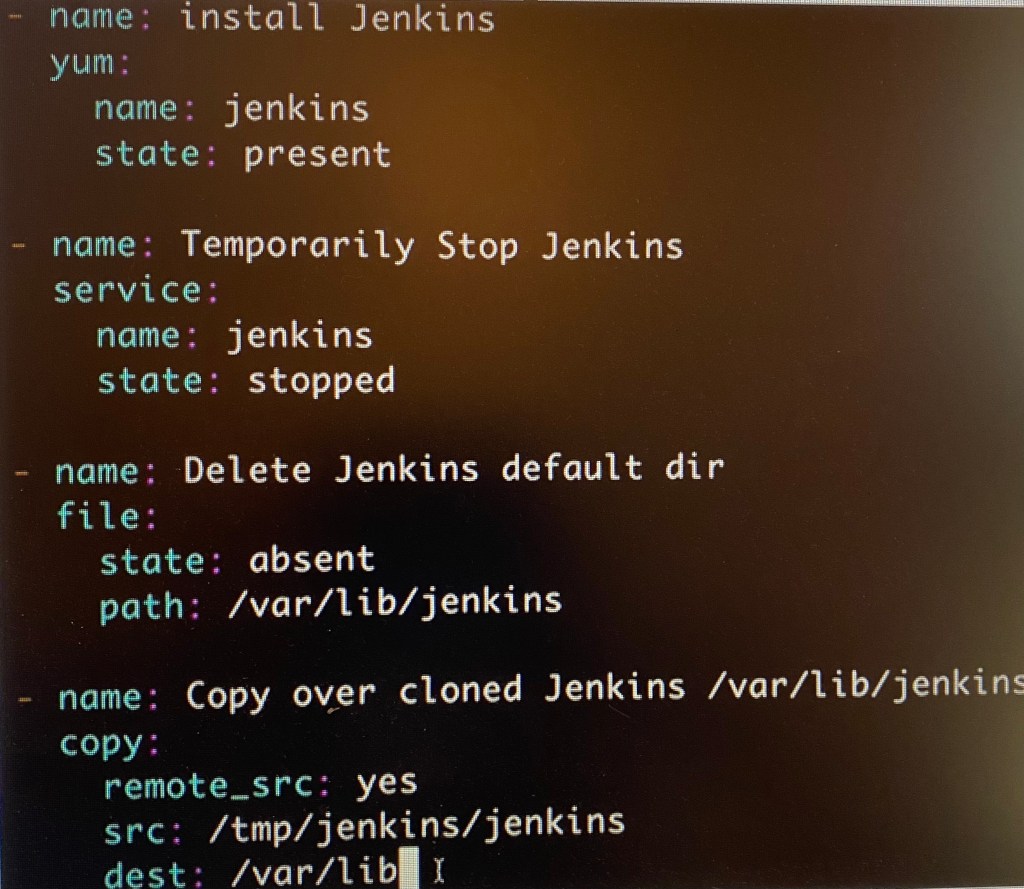
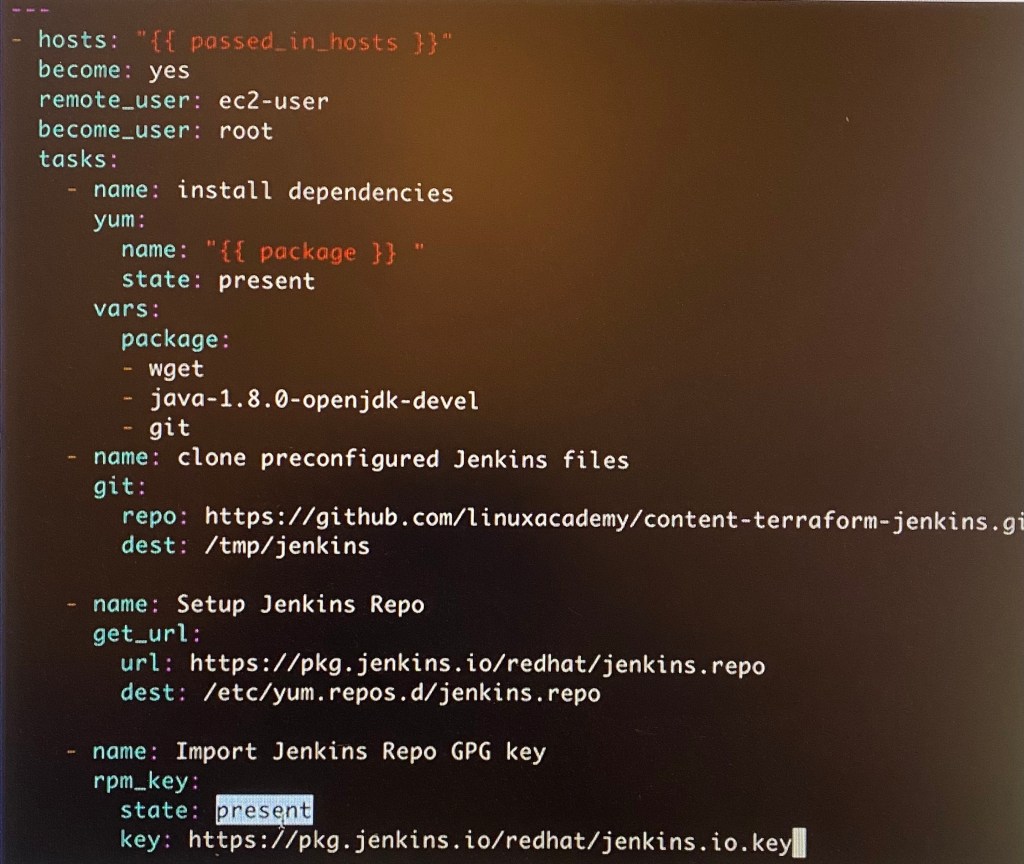
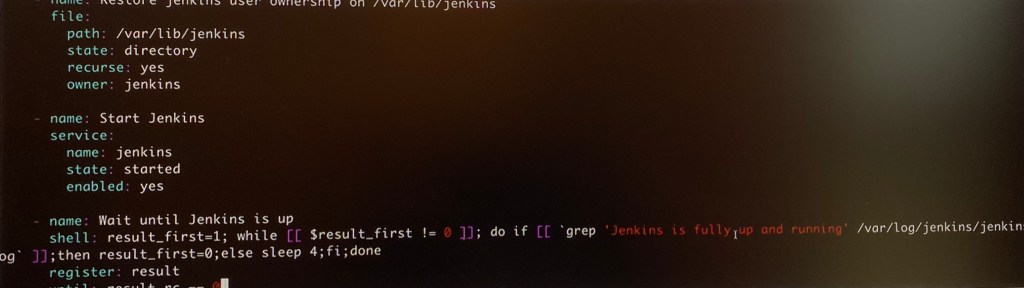
ansible-playbook –syntax-check -e”passed_in_hosts-localhost” install_jenkins_master.yml
Lessons Learned:
- Generate SSH key-pair & add own public key to file
- Copy Jenkins worker agent XML config file
- Jinja Template
- Read SSH private key from copying over Jenkins worker credz XML Jinja template & embed into private key
- Install dependencies
- yum
- Download Jenkins API from Jenkins Master
- Copy Jenkins auth file
- Use Jenkins API client to create credz for Jenkins worker & connect to Jenkins Master
Vim install_jenkins_worker.yml (under ansible_templates):
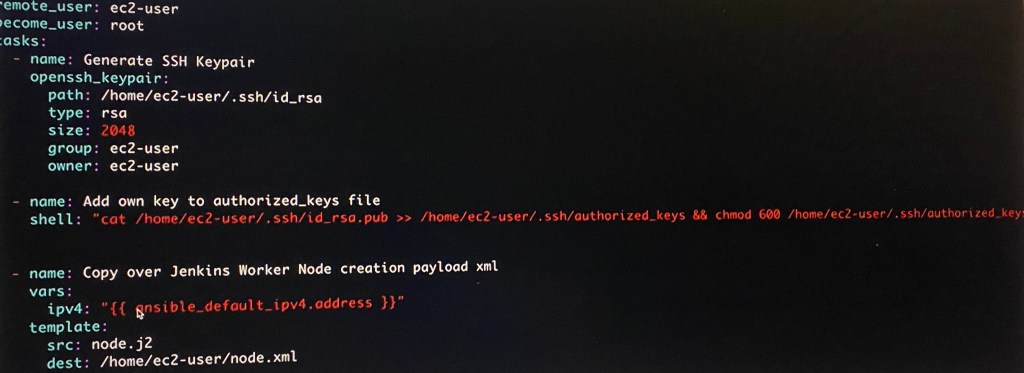
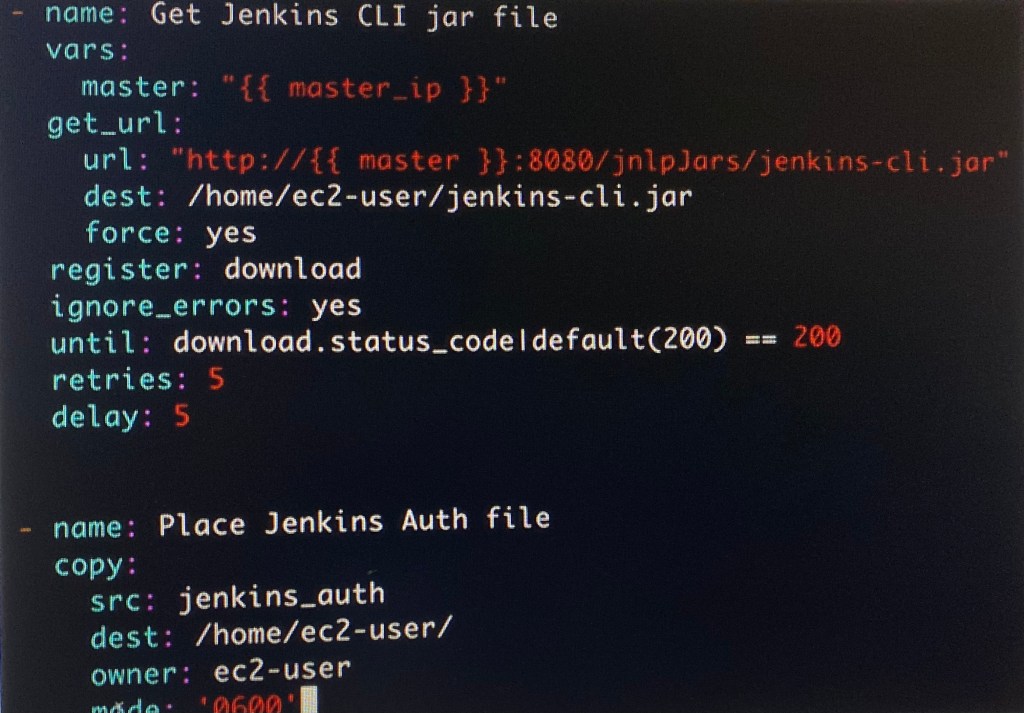
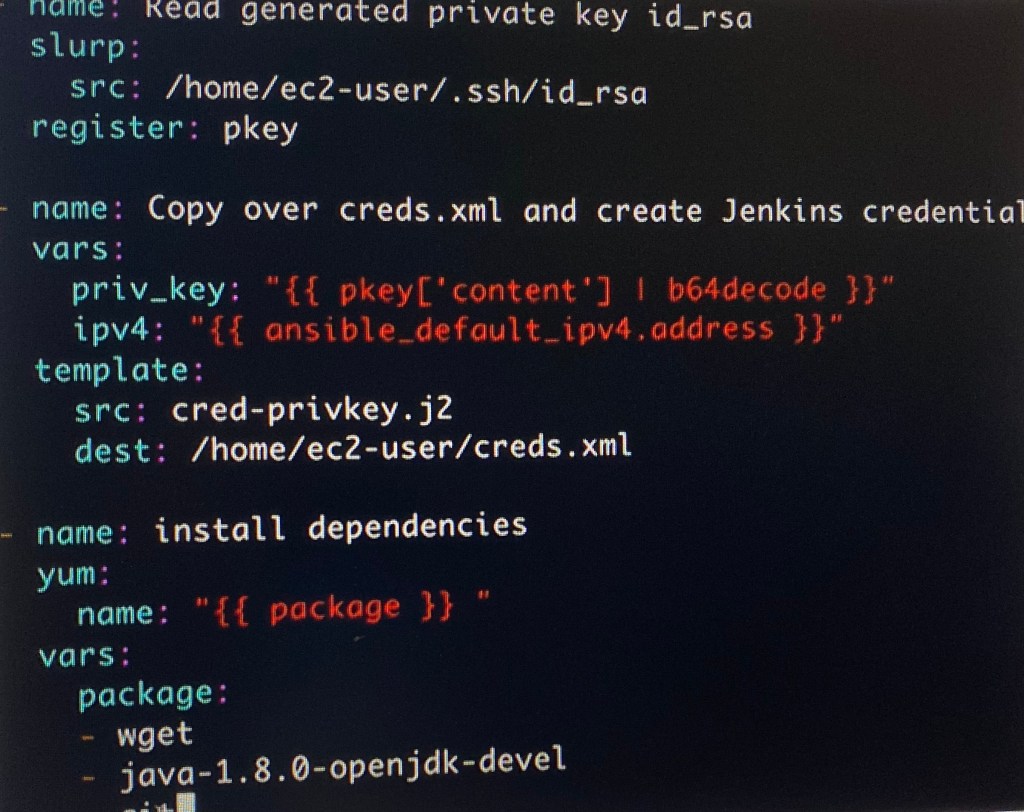

ansible-playbook –syntax-check -e”passed_in_hosts-localhost” install_jenkins_worker.yml
Jinja2:
Goal is to create:
- Build Jinja2 Templates for Ansible Playbooks
Lessons Learned:
- Leverage Jinja2 from Ansible playbook tasks created
Vim Node.j2:
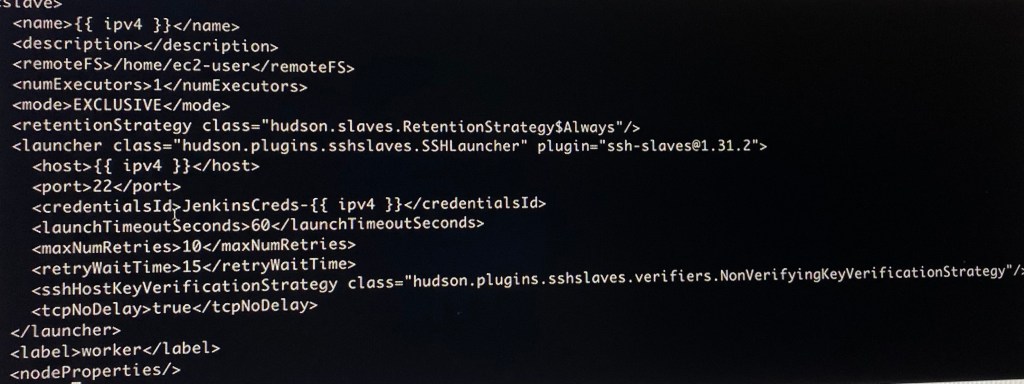
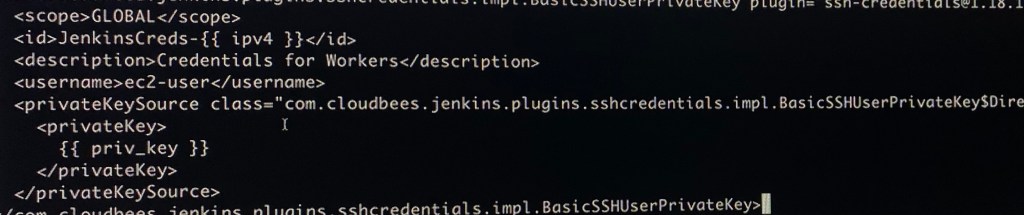
Vim cred-privkey.j2:
Verifying IaC Code & Terraform Apply:
Goal is to create:
- Go-live & hope it doesn’t break…
Lessons Learned:
- Ensure all dependencies such as Ansible, Terraform, AWS, CLI, boto3, & SSH work!
- Run that Terraform fmt, validate, plan, & apply!
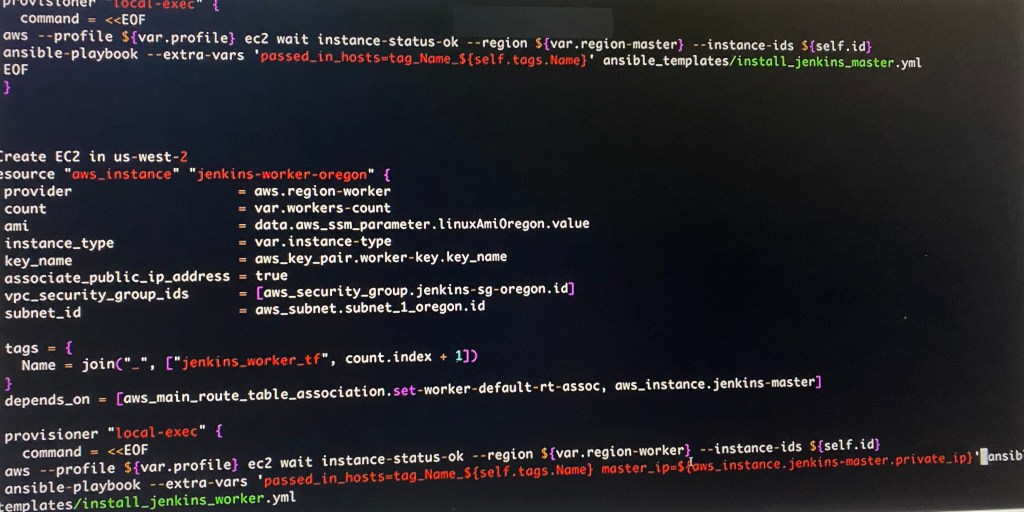
Vim instances.tf:

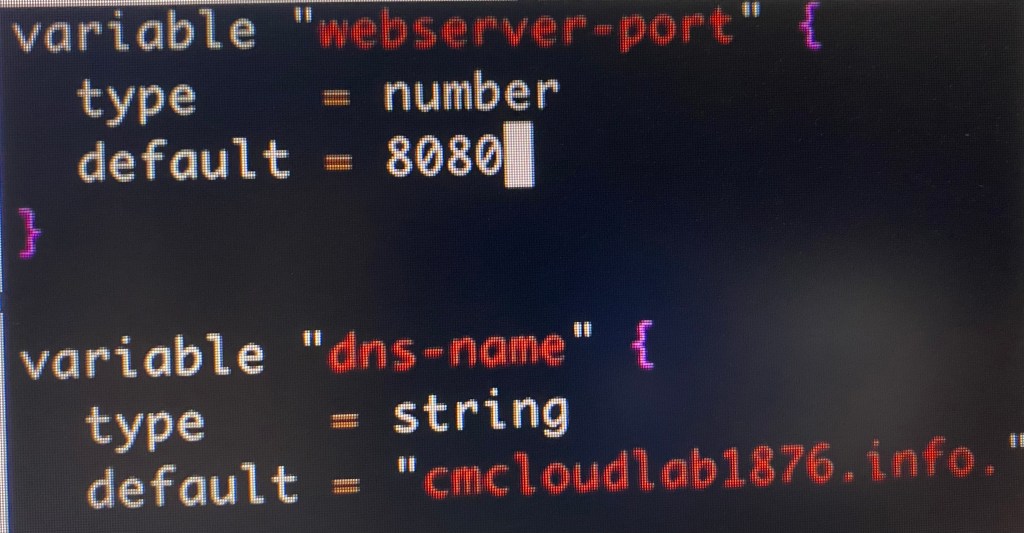
Vim variables.tf:
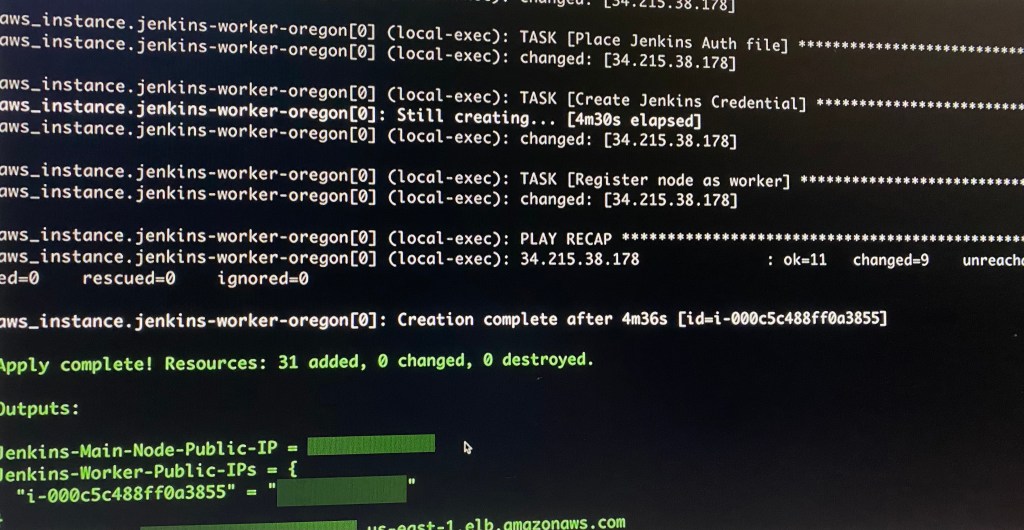
Terraform fmt, validate, plan, & apply:
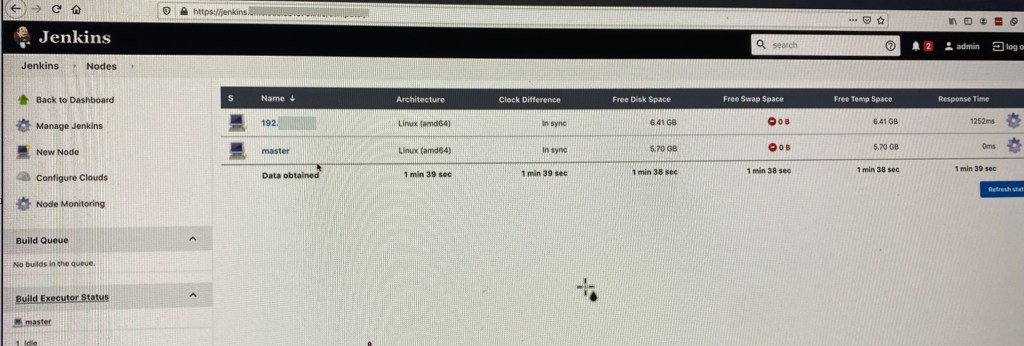
- Annnnnnnnnd time. Done. Now can connect CiCd pipelines w/distributed jobs.
Conclusion – Summary:
Annnnnnnnnd time. Done. Now can connect CiCd pipelines w/distributed jobs.



 Say When..