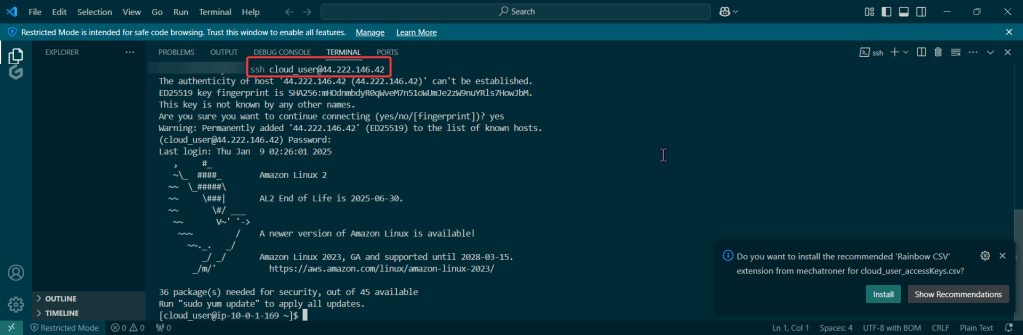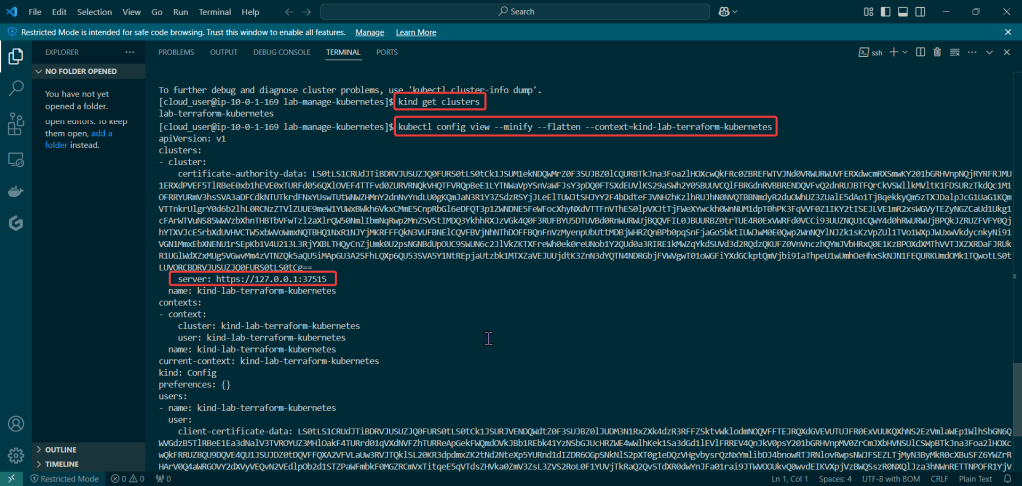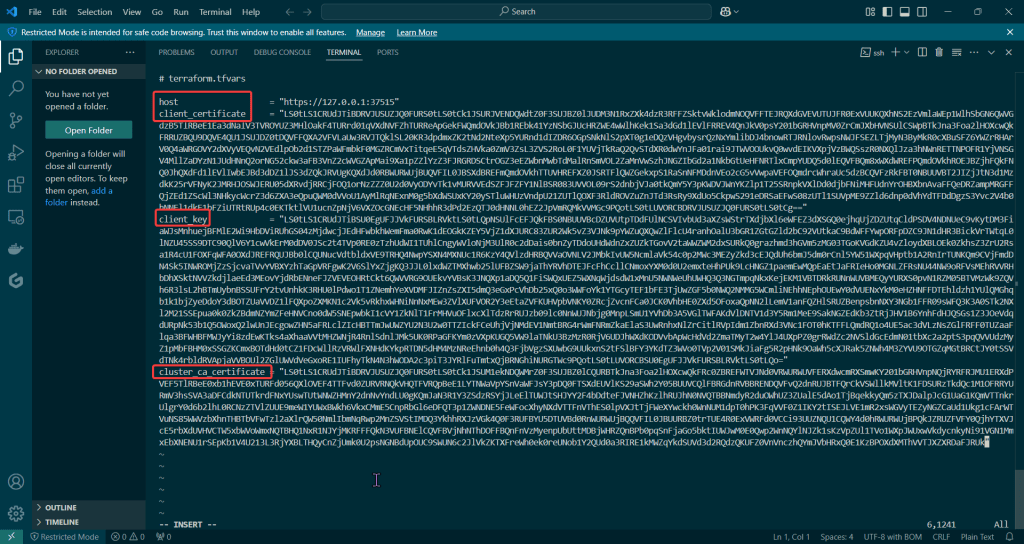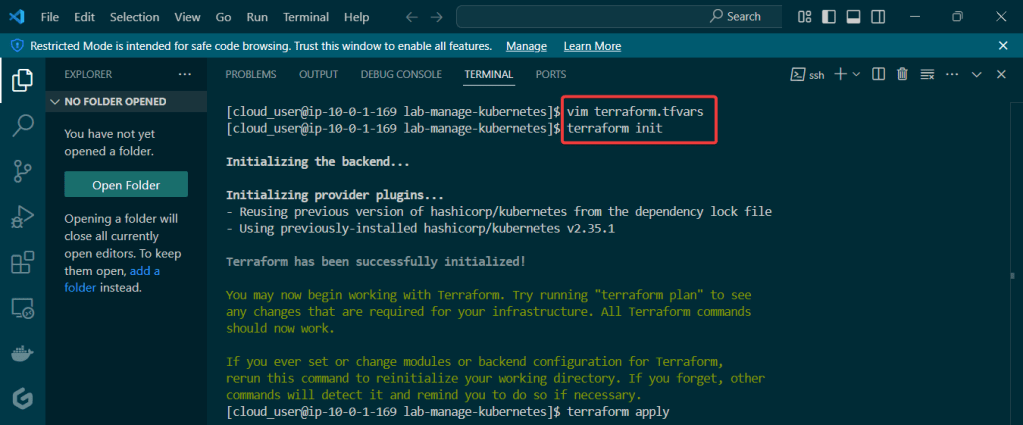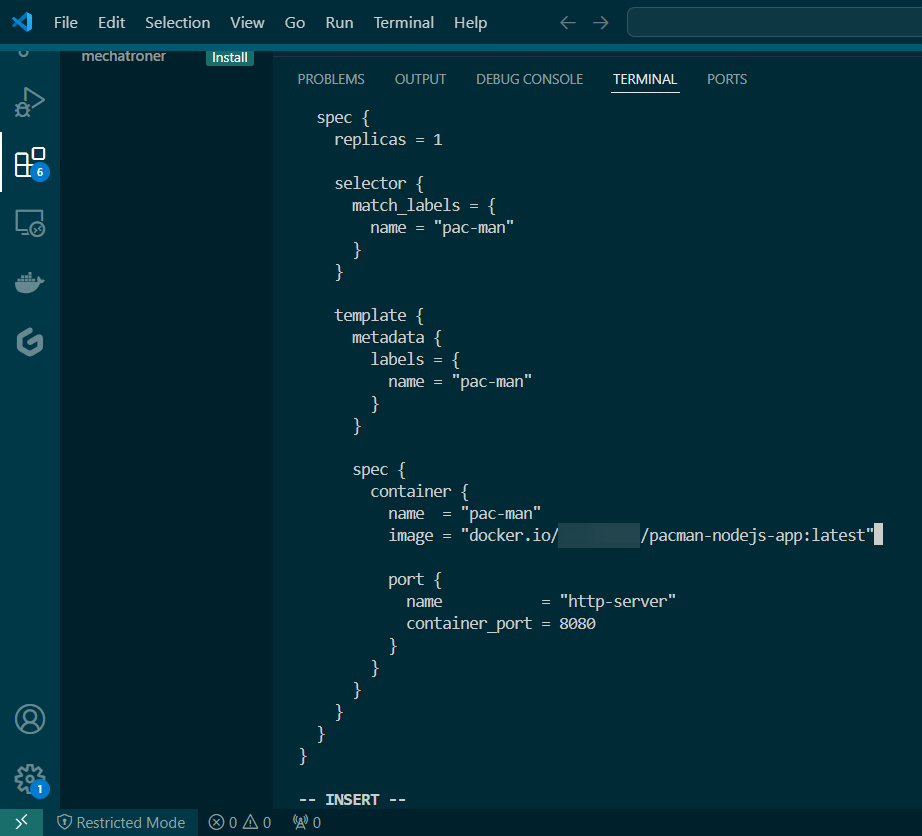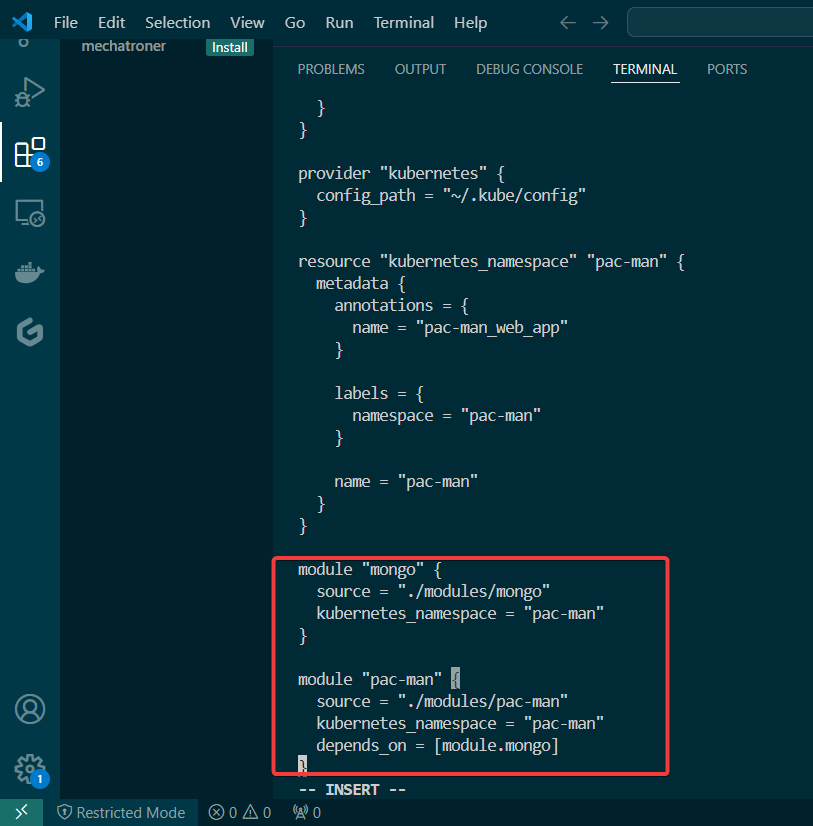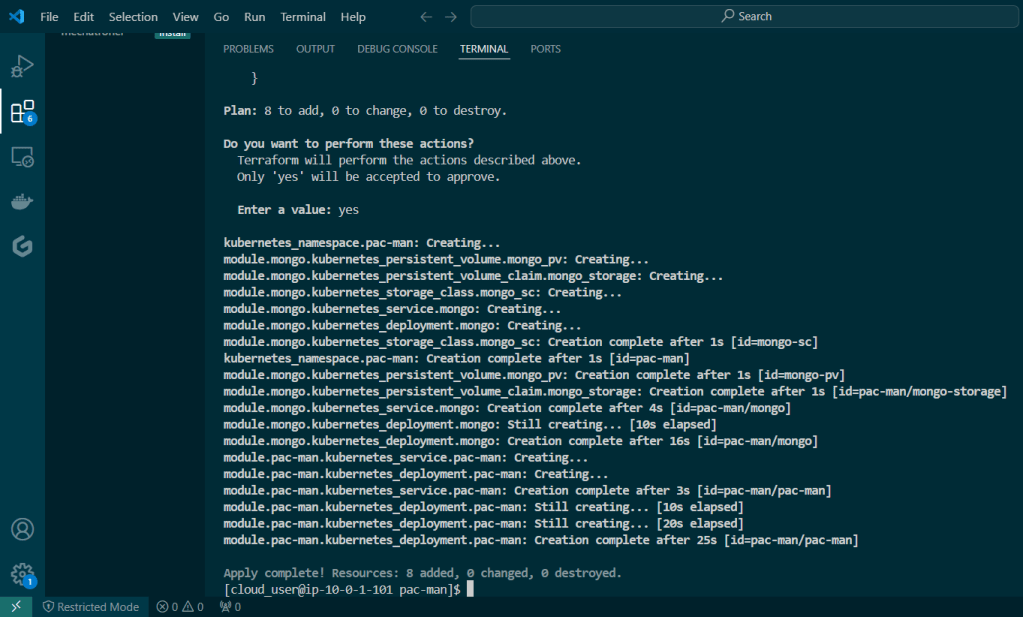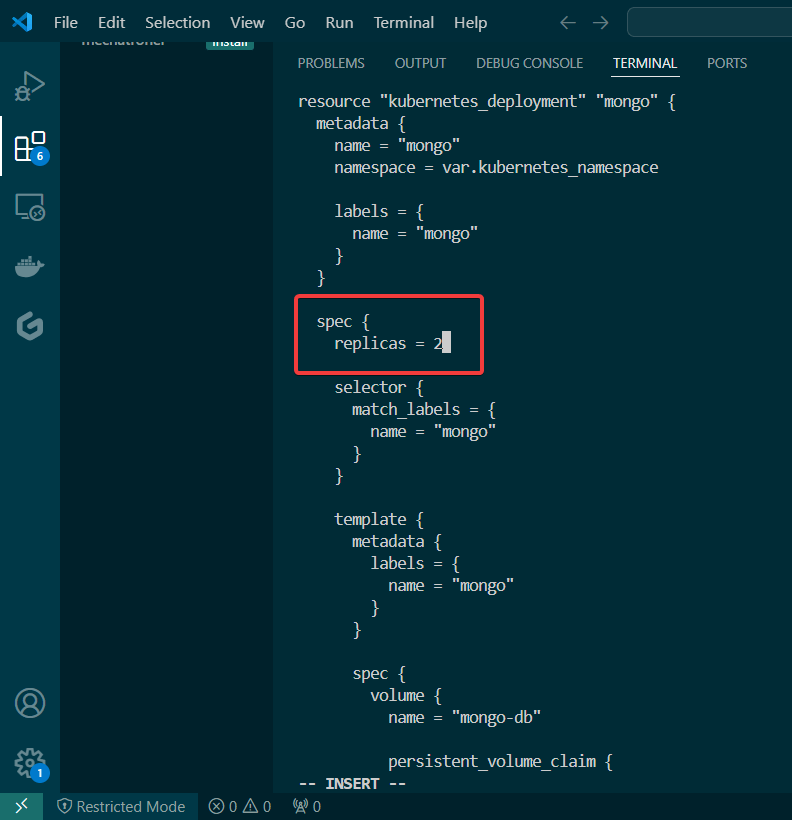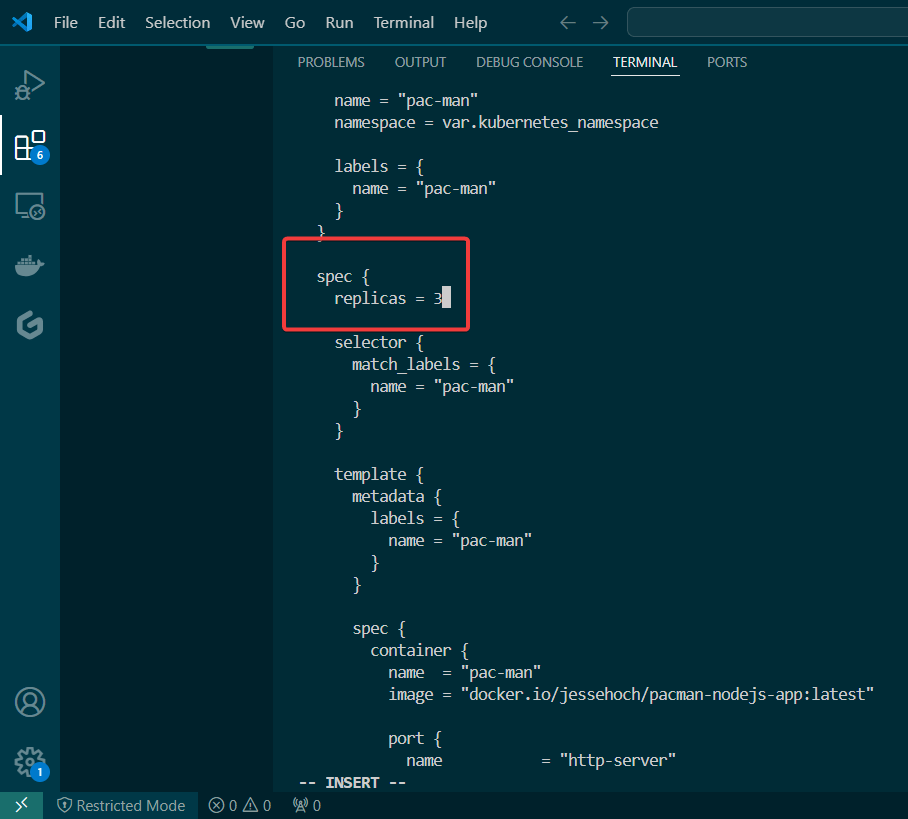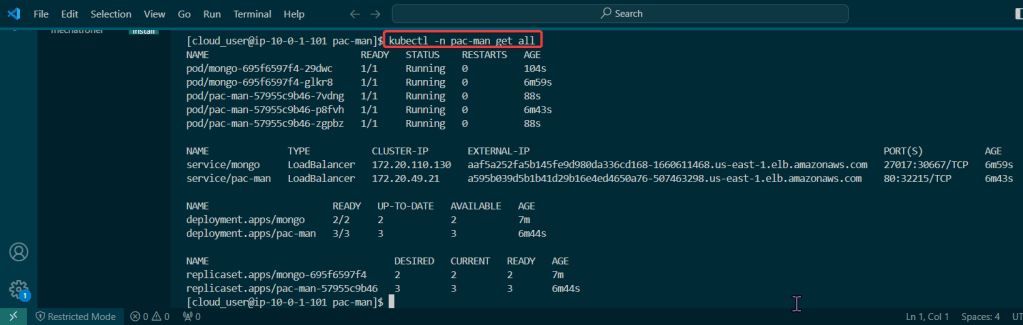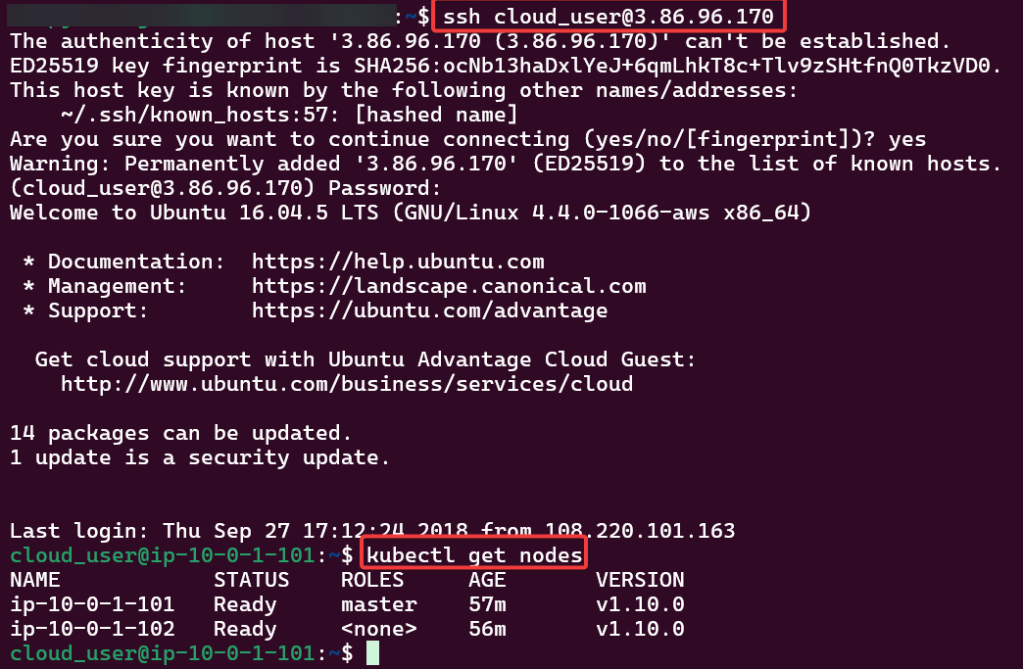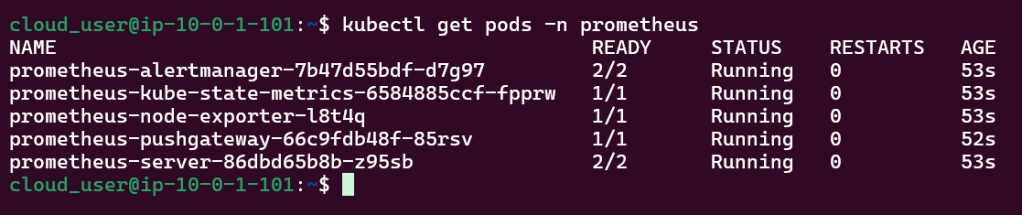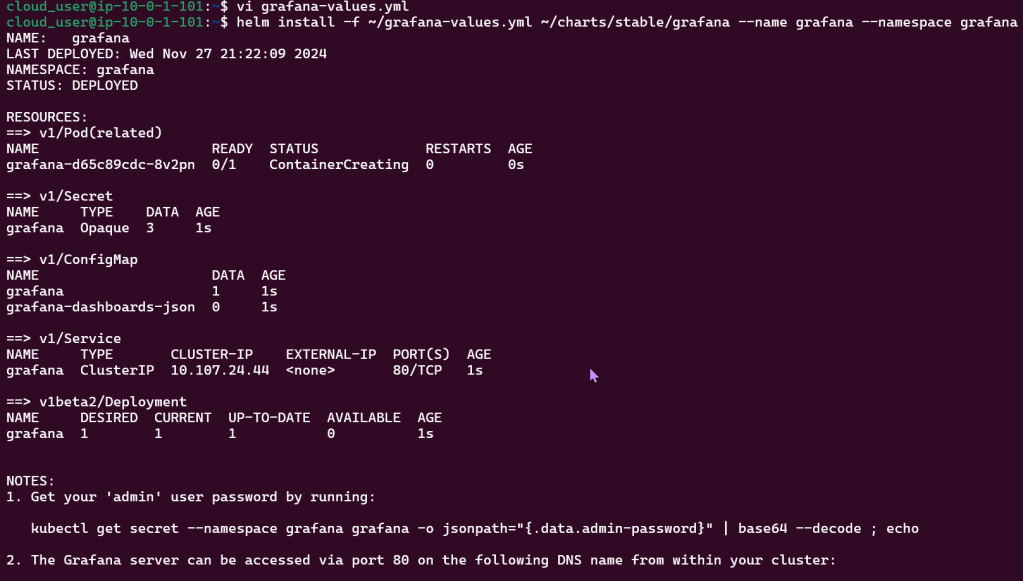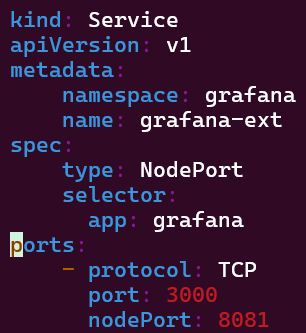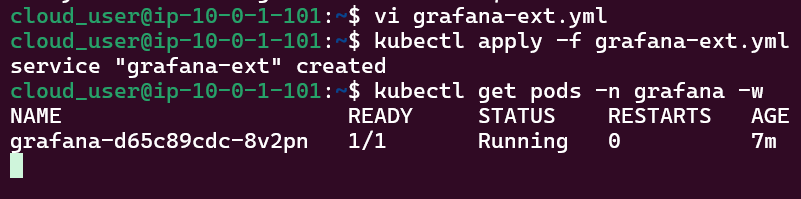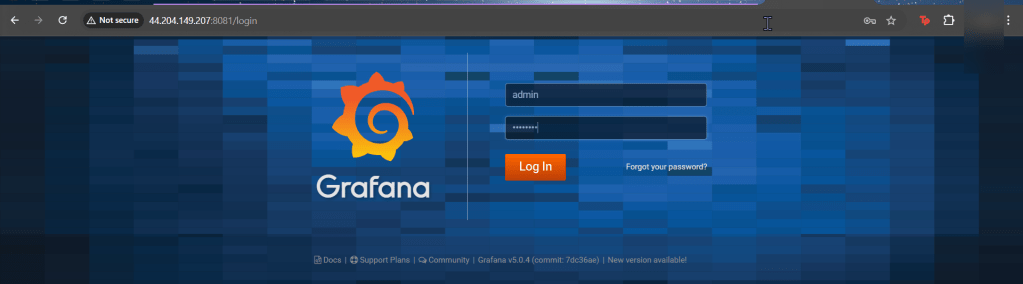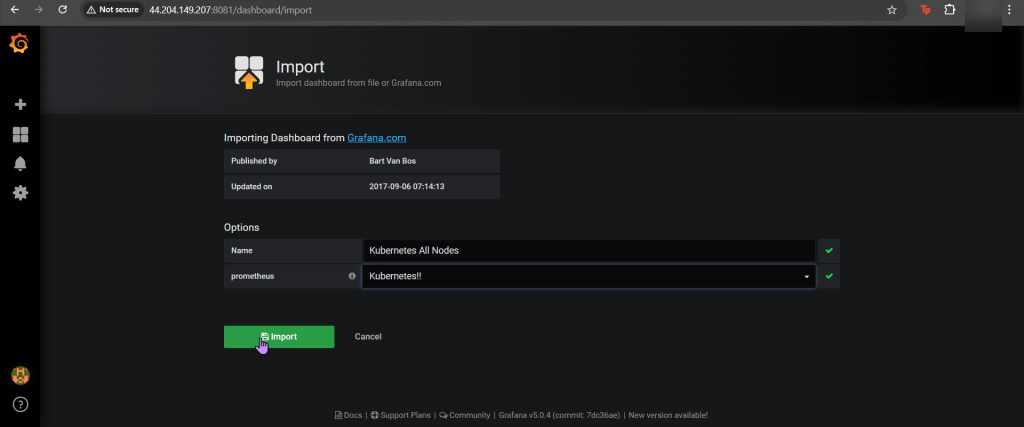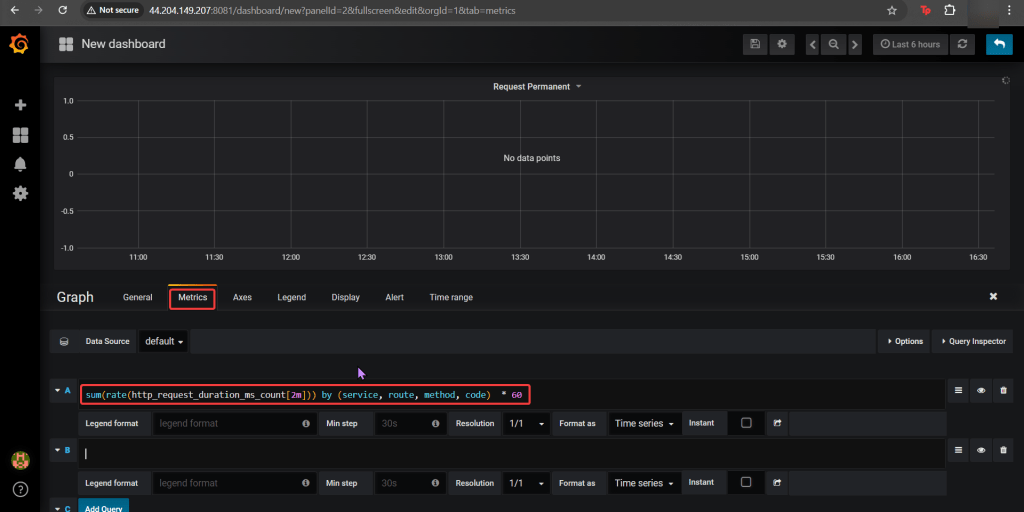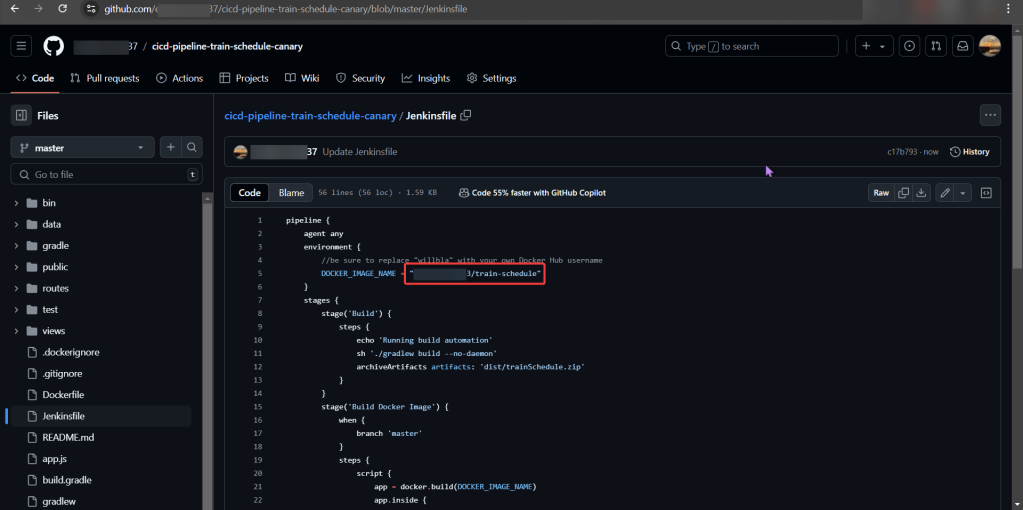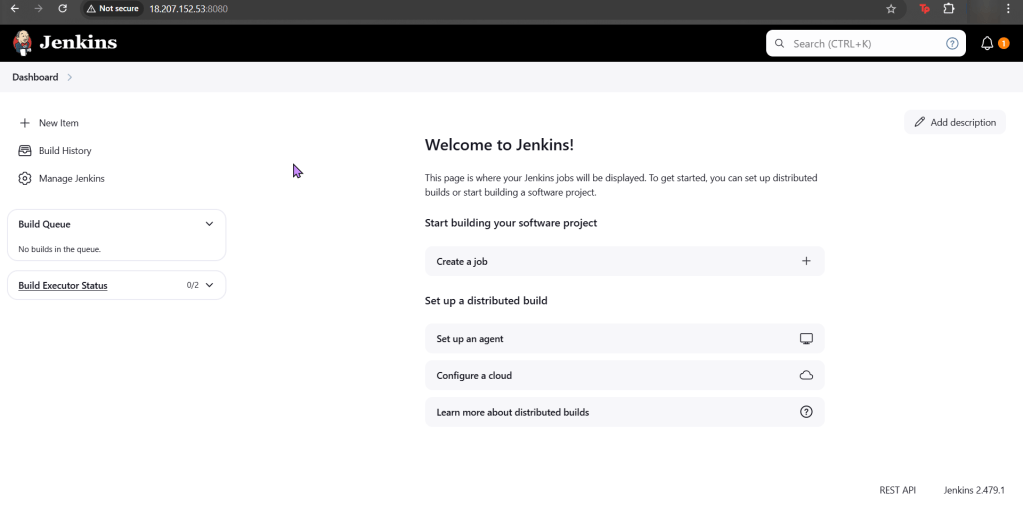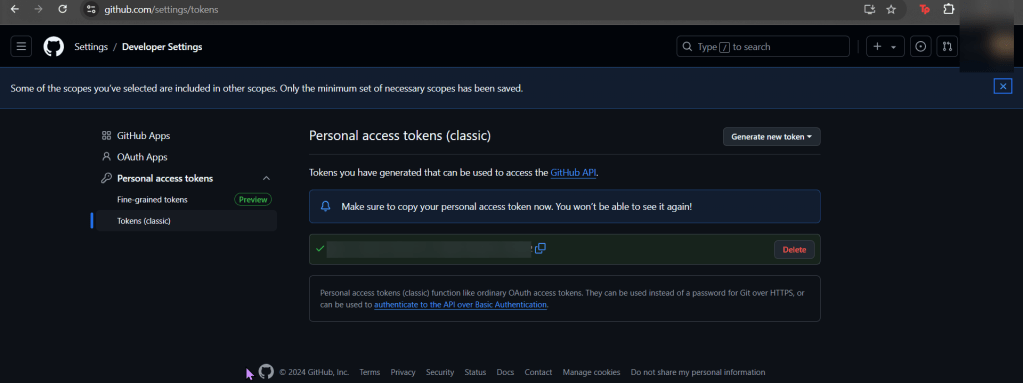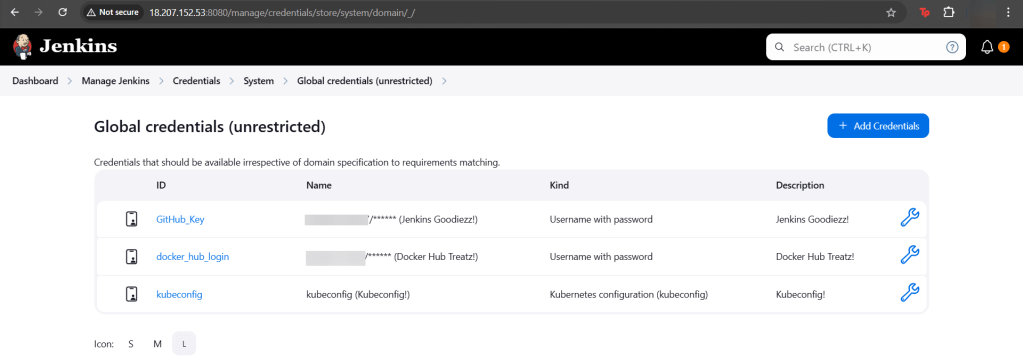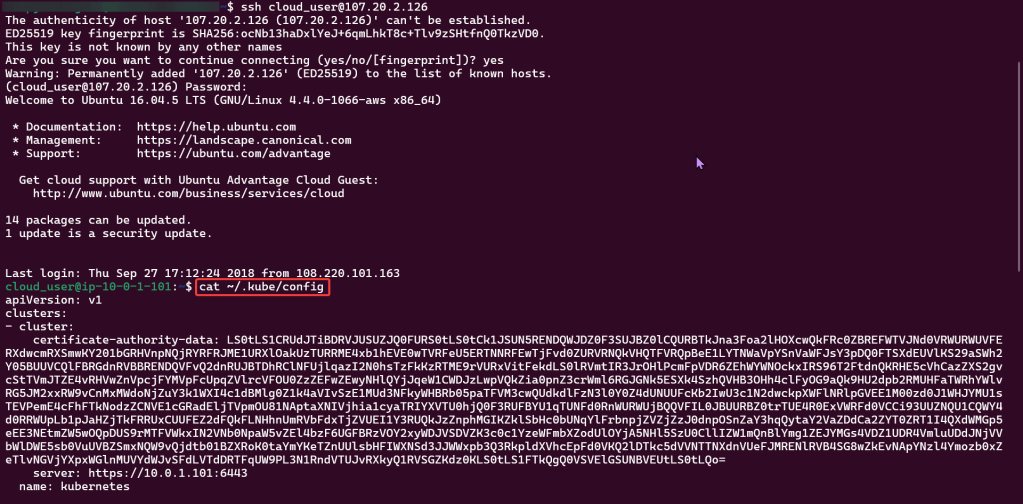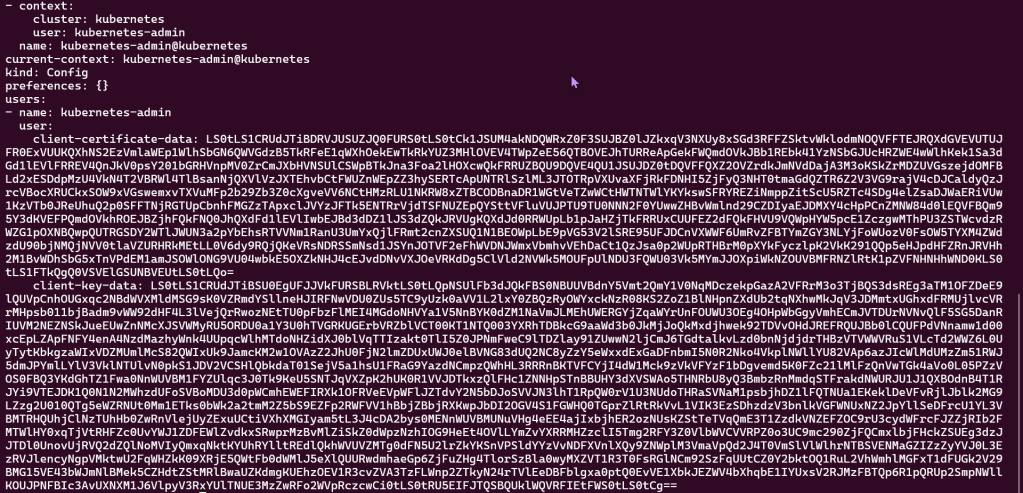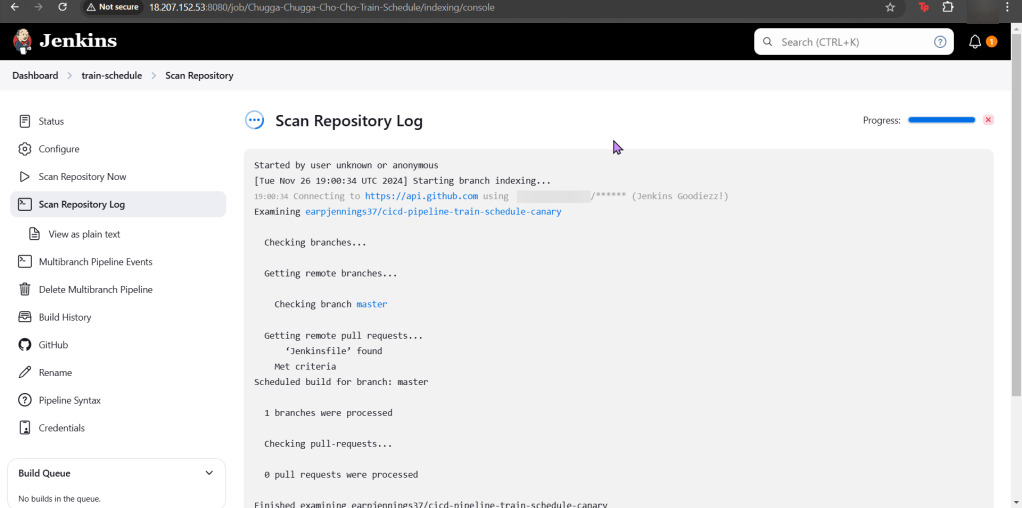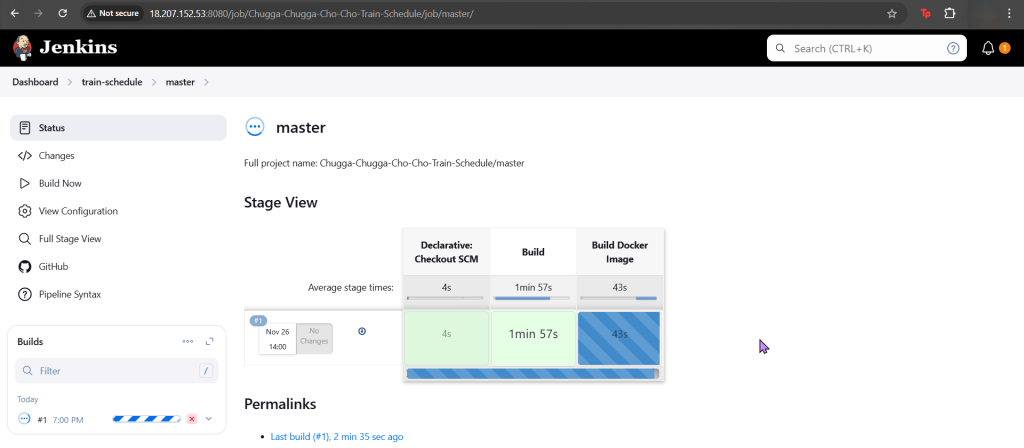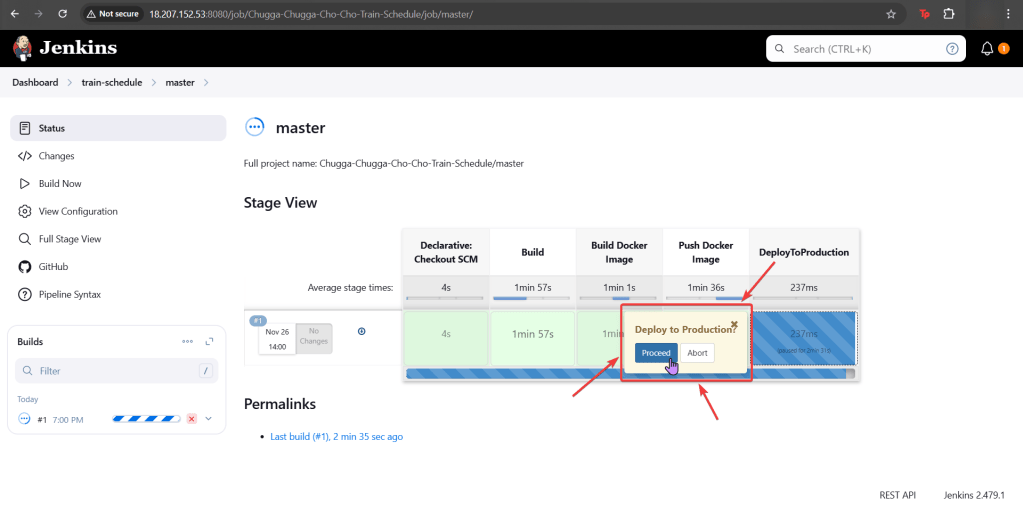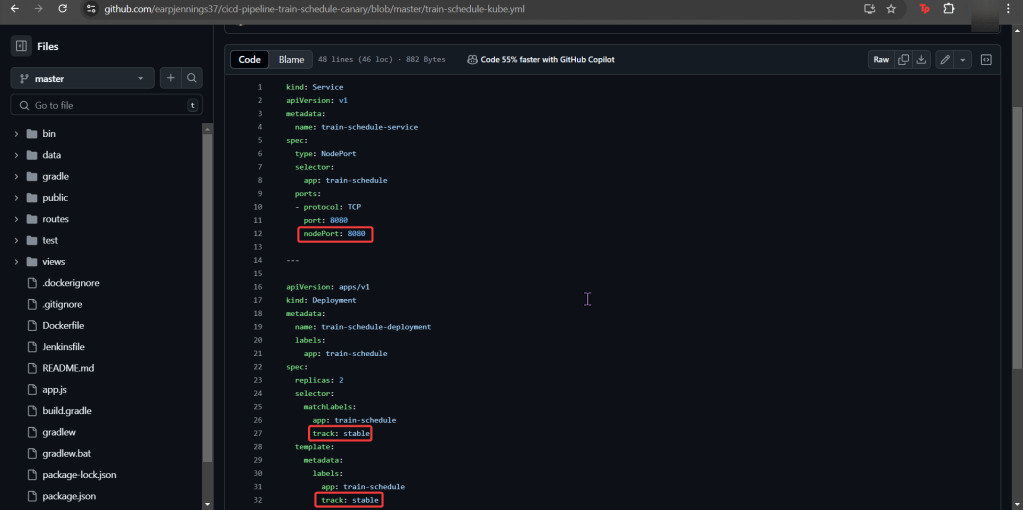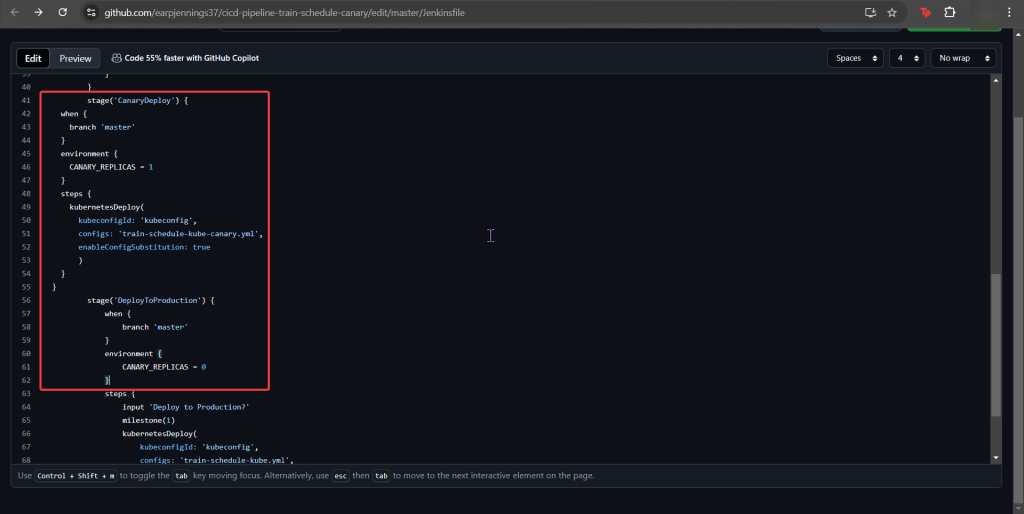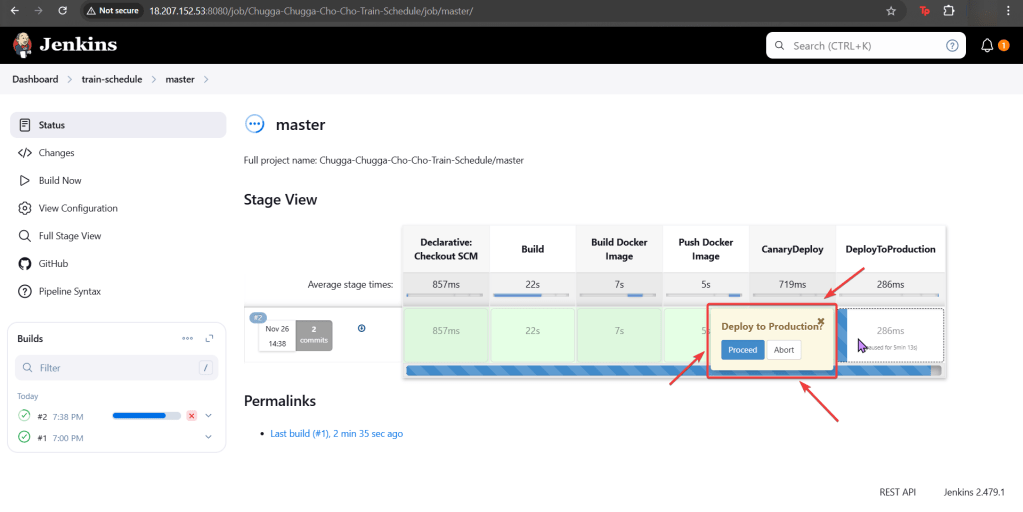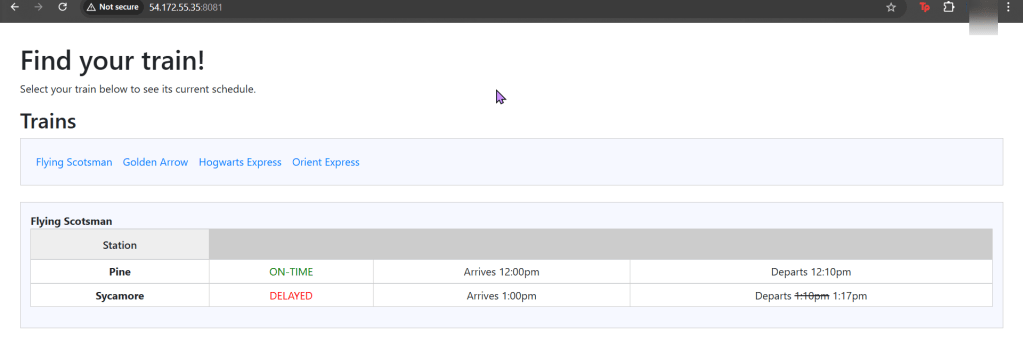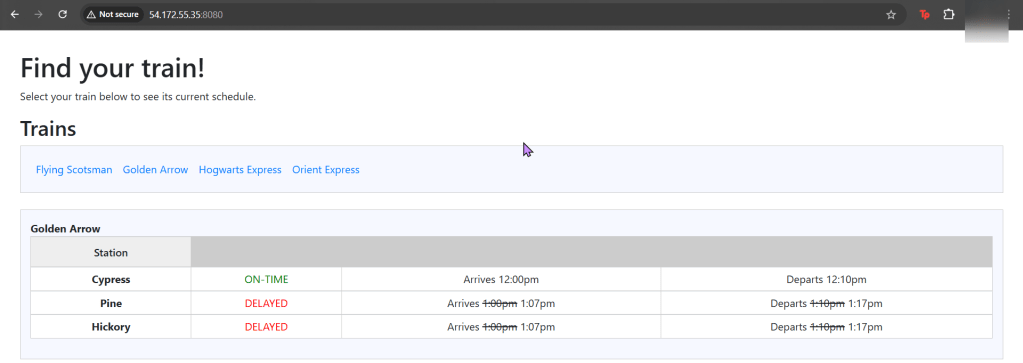
Our coal mine (CICD pipeline) is struggling, so lets use canary deployments to monitor a Kubernetes cluster under a Jenkins pipeline. Alright, lets level set here…
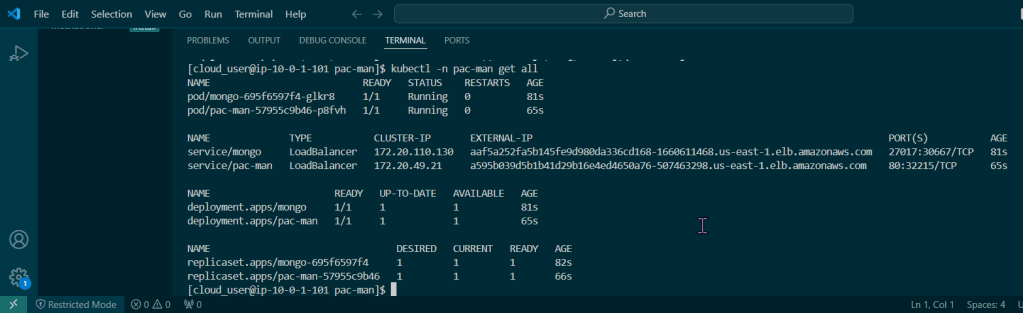
You got a Kubernetes cluster, mmmmkay?

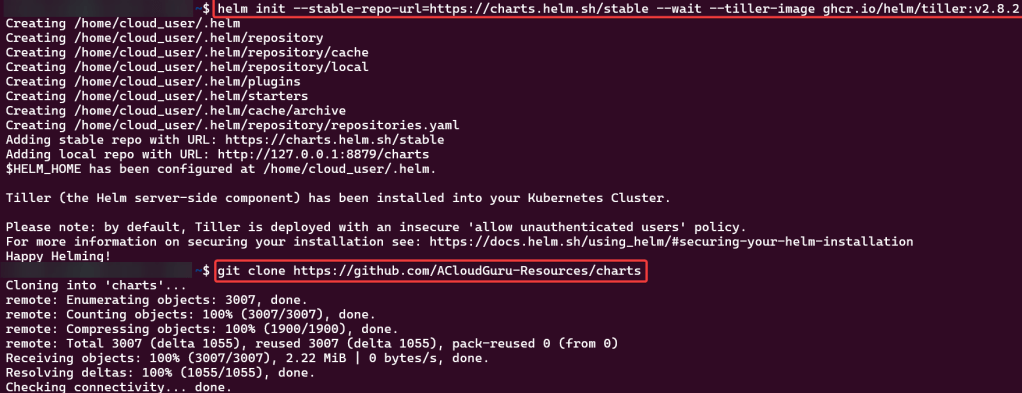
A pipeline from Jenkins leads to CICD deployments, yeah?
Now we must add the deetz (details) to get canary to deploy
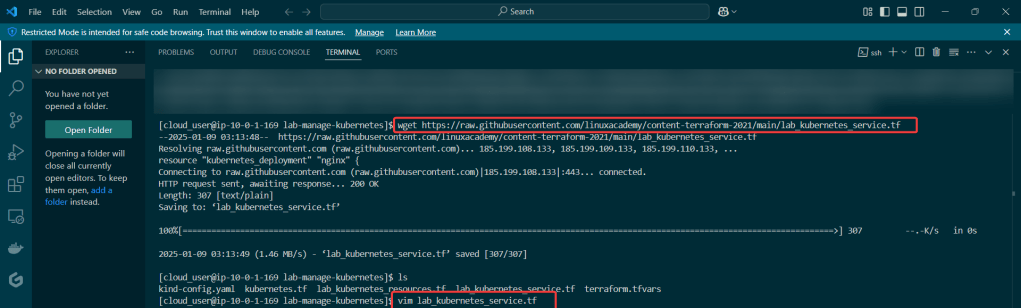
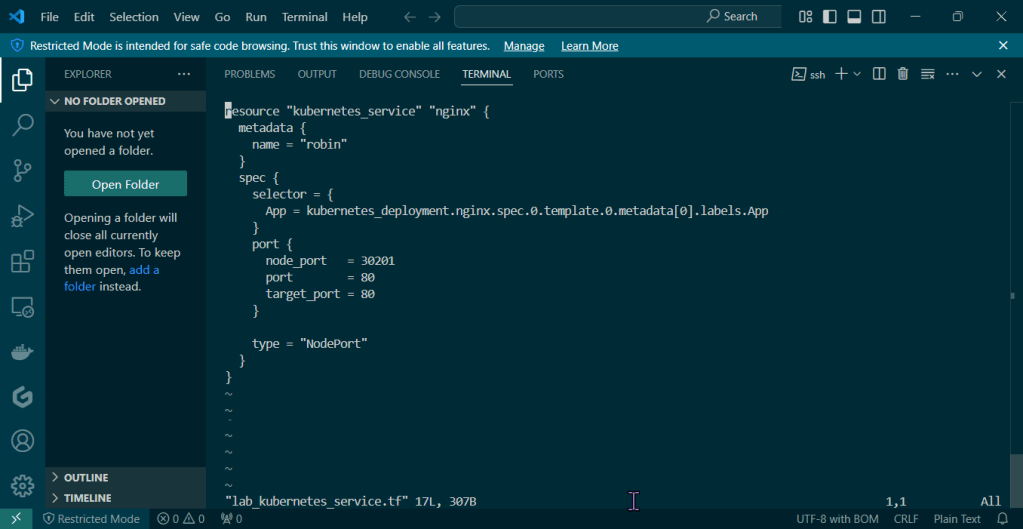
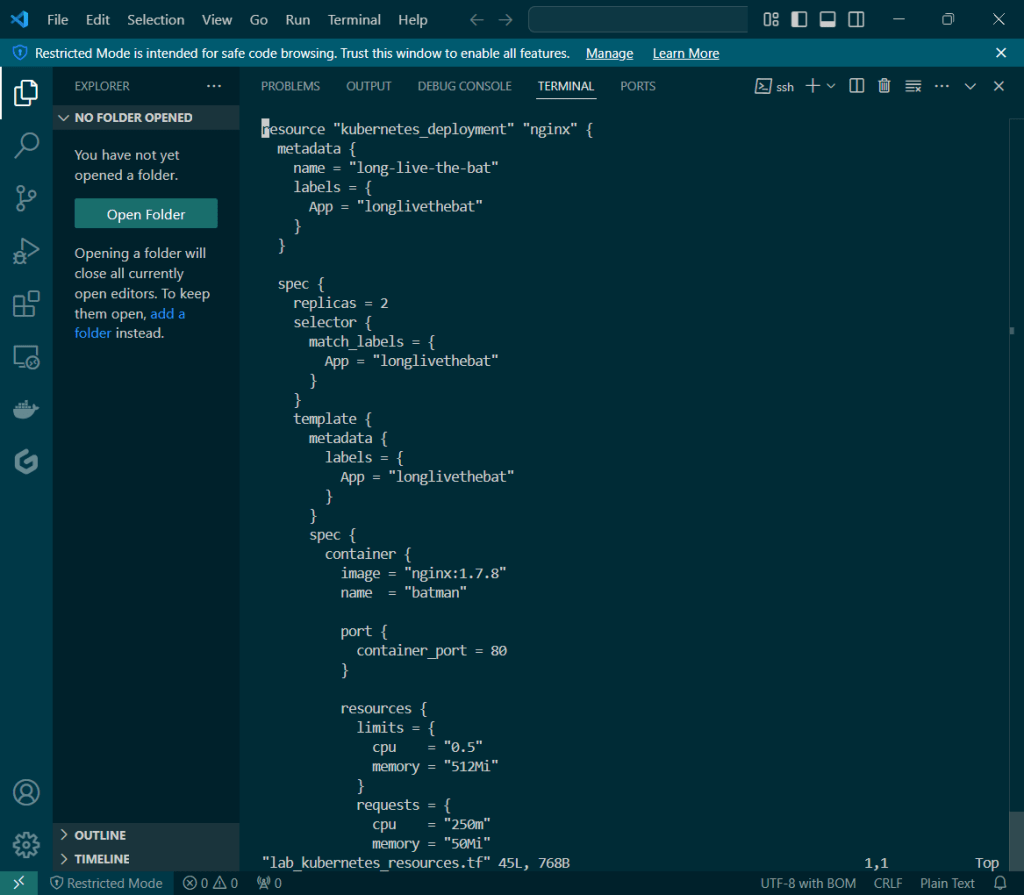
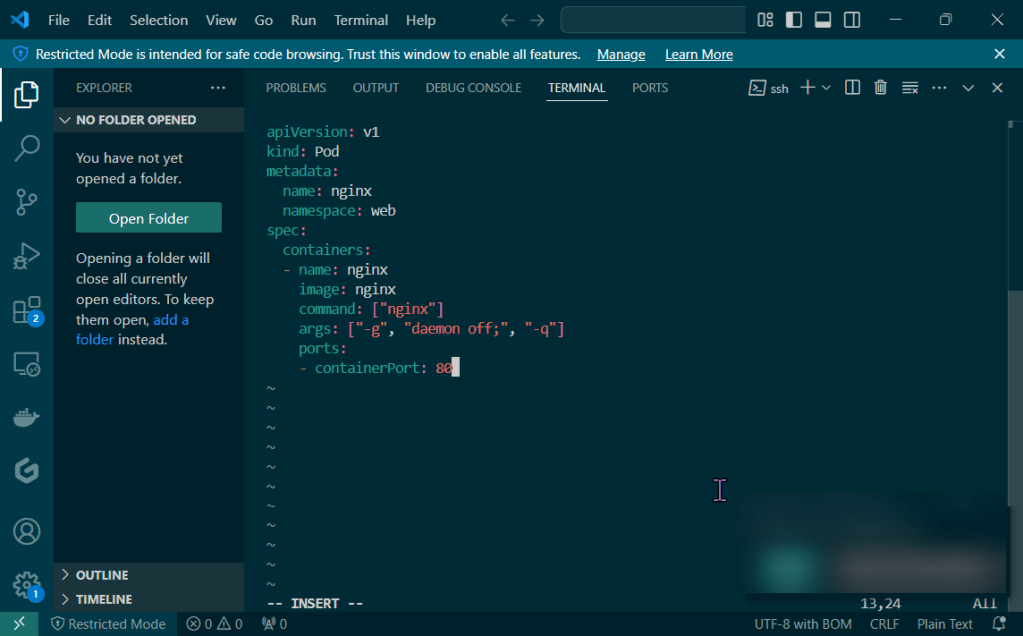
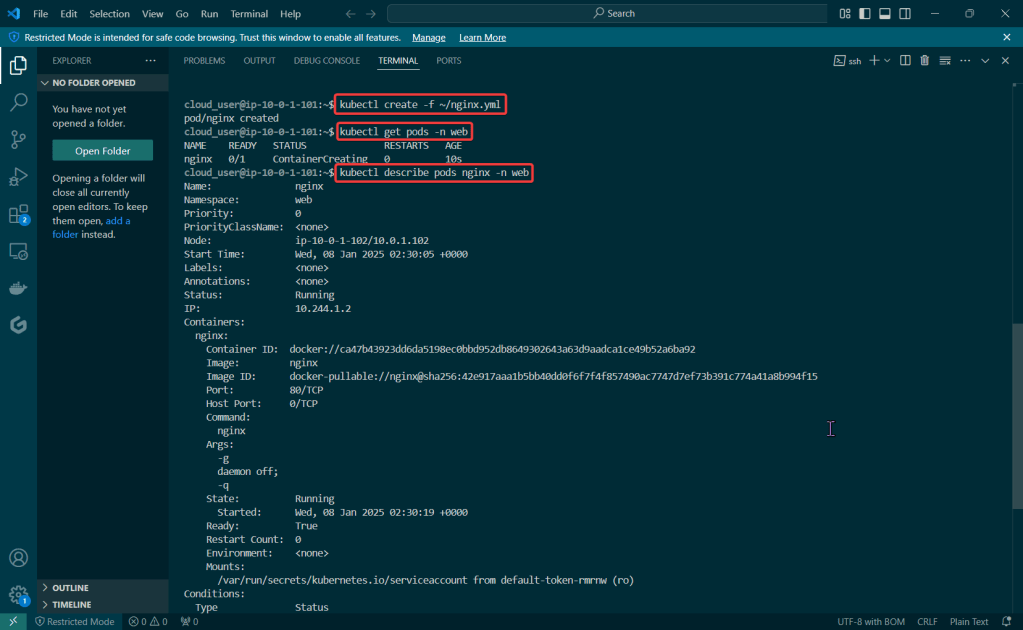
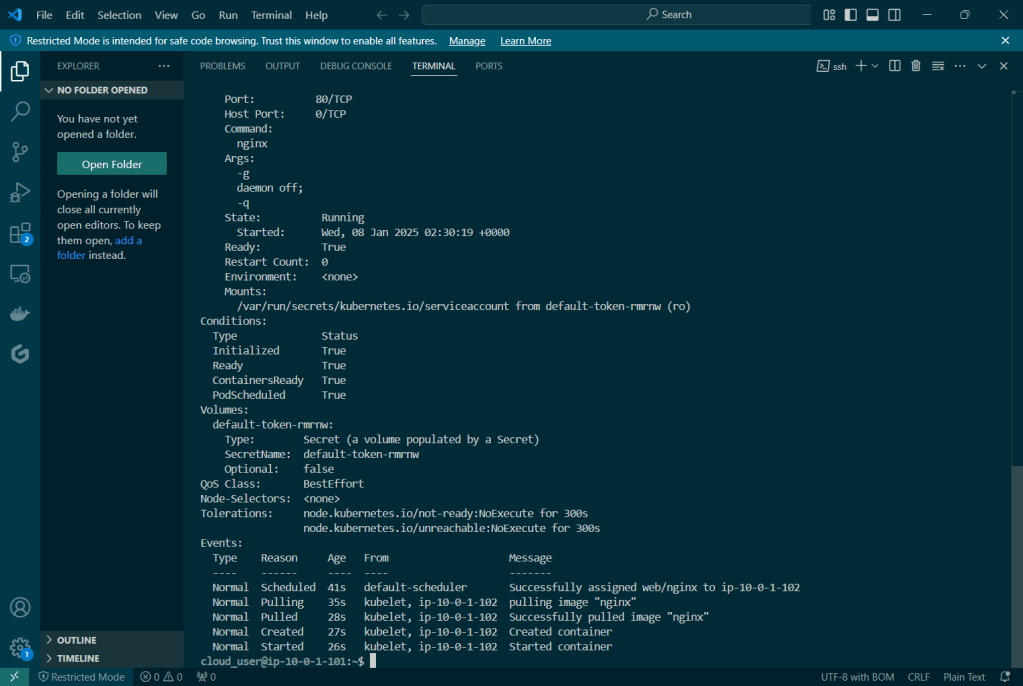
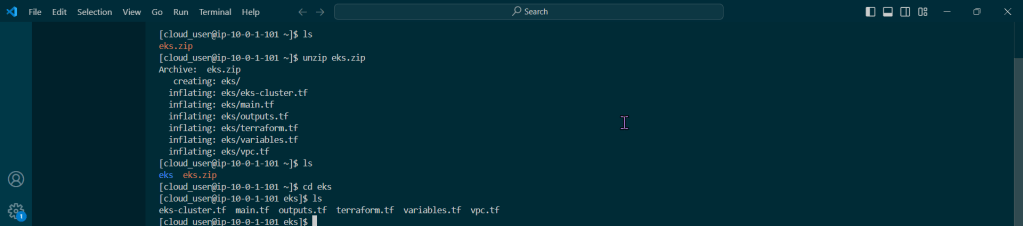
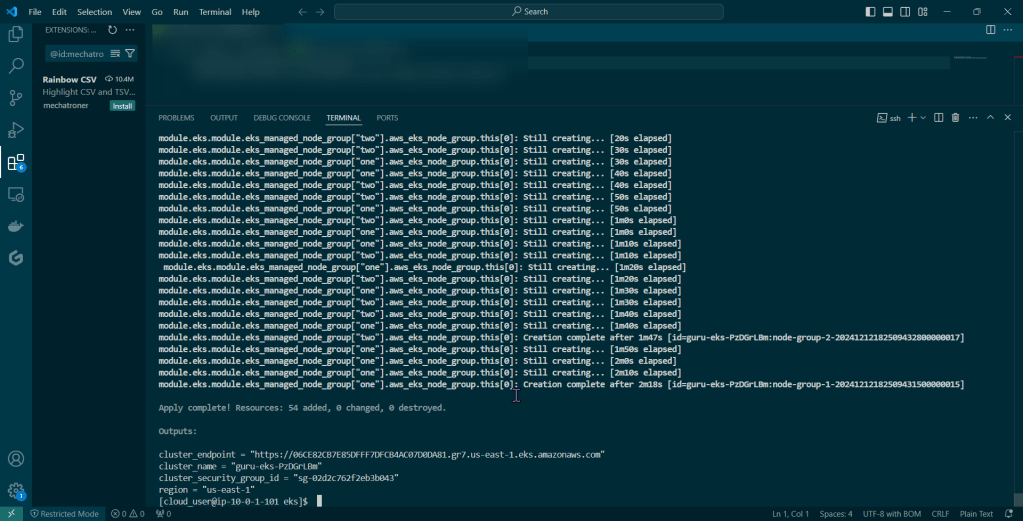
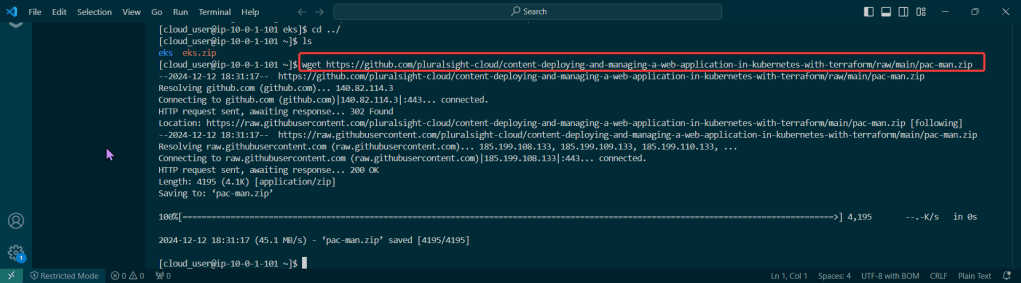
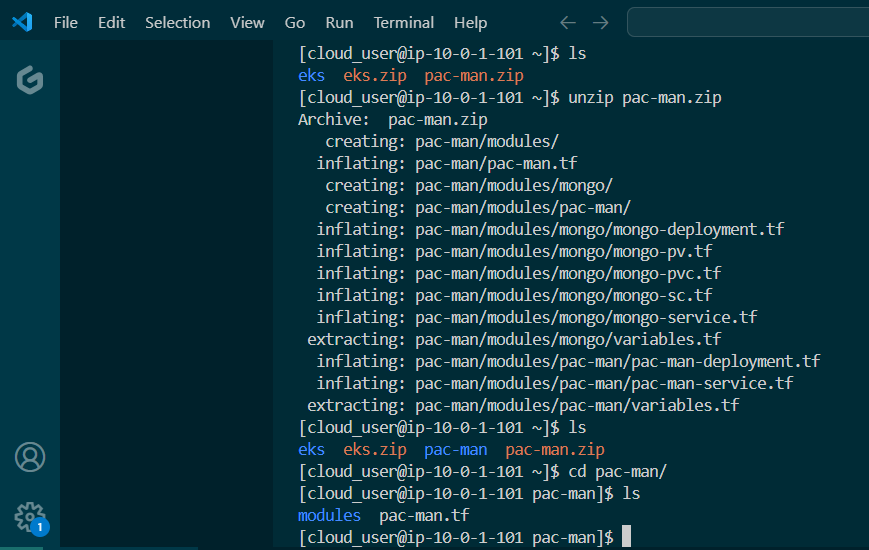
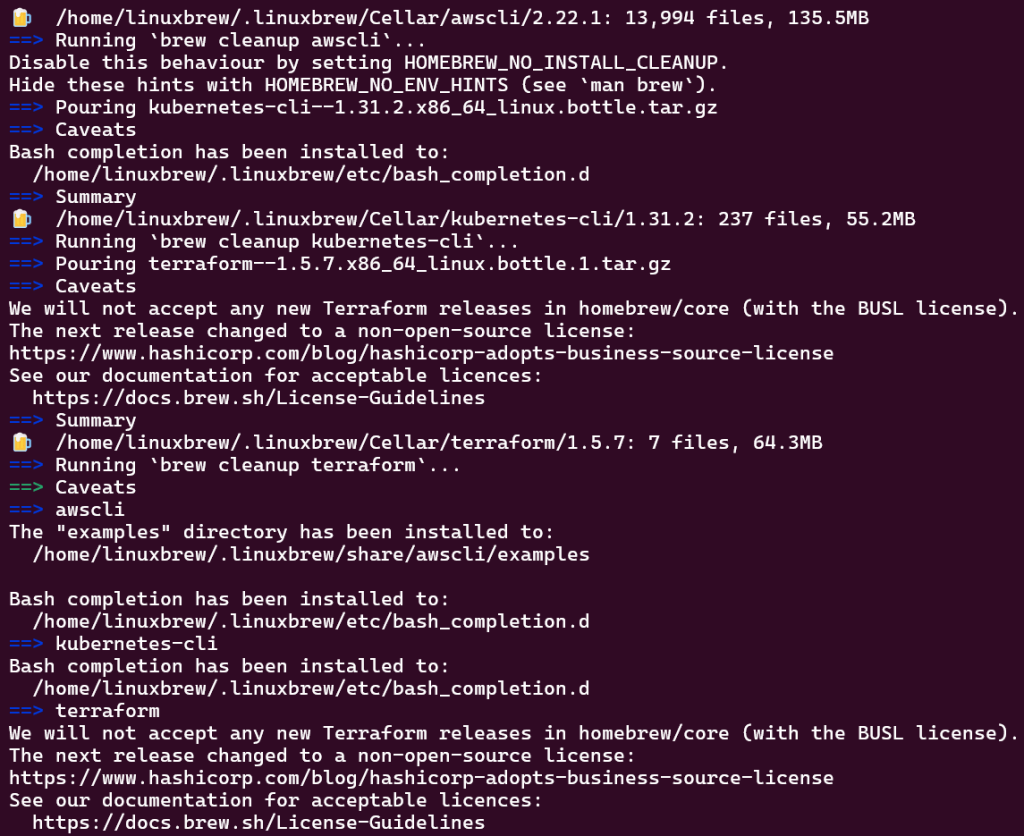
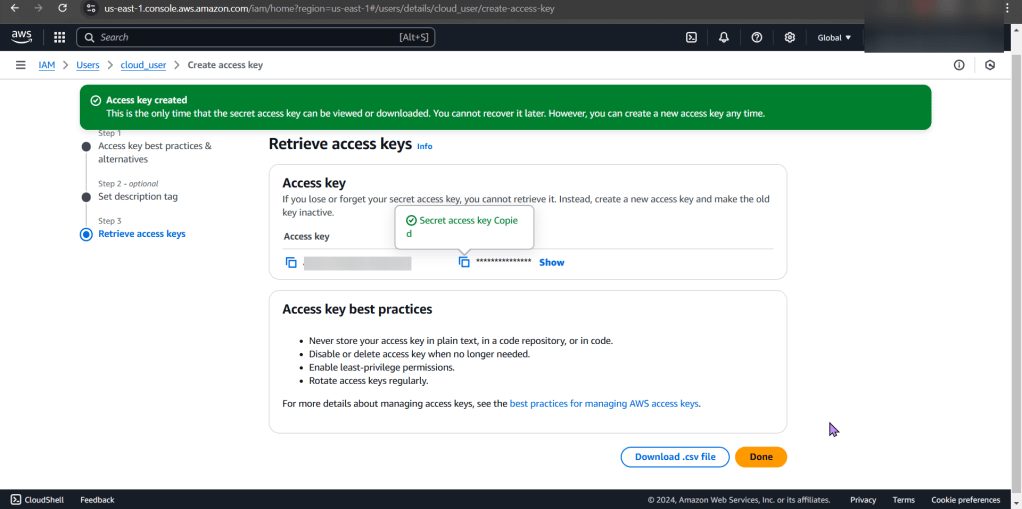
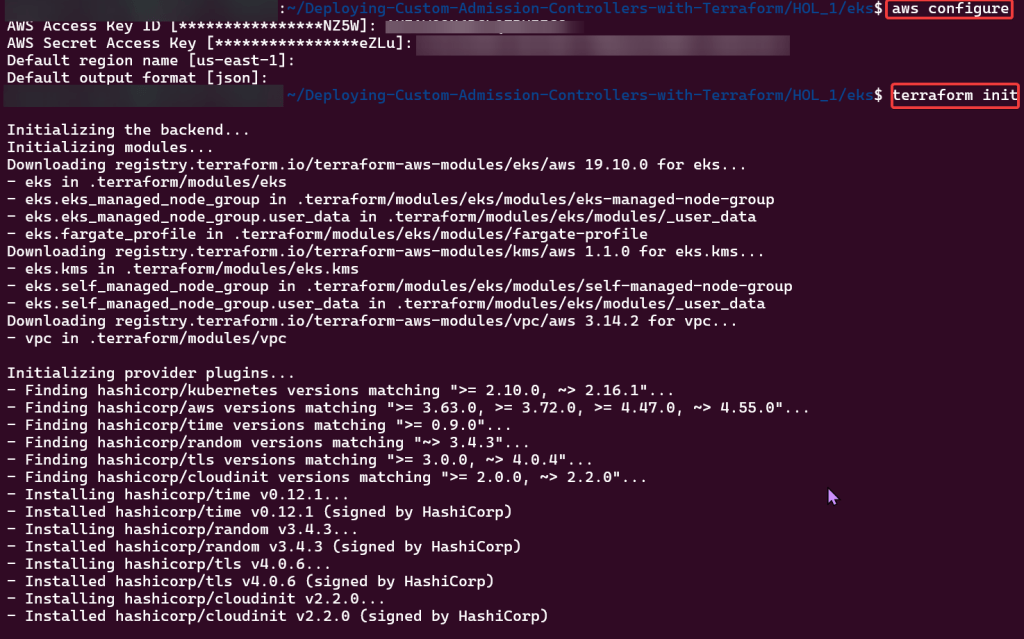
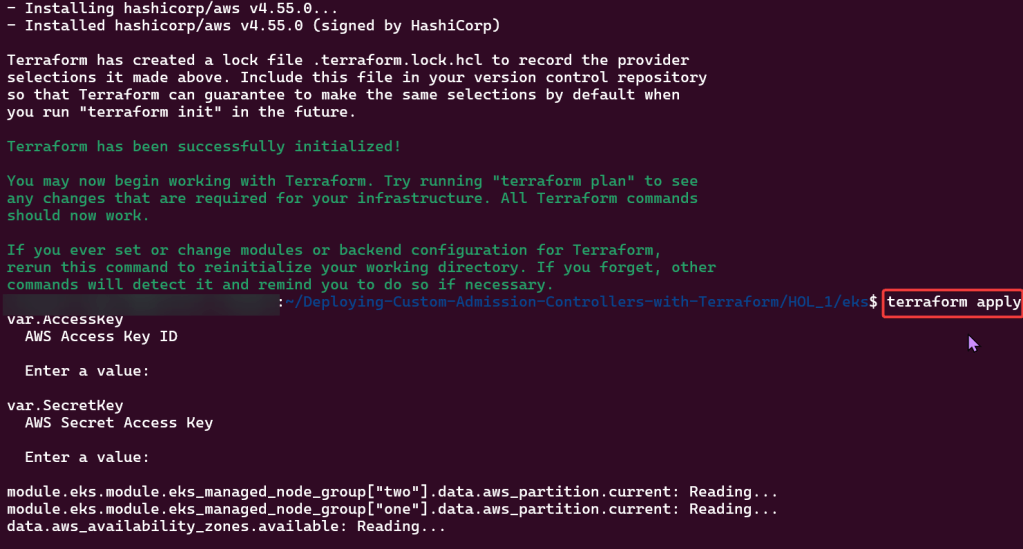
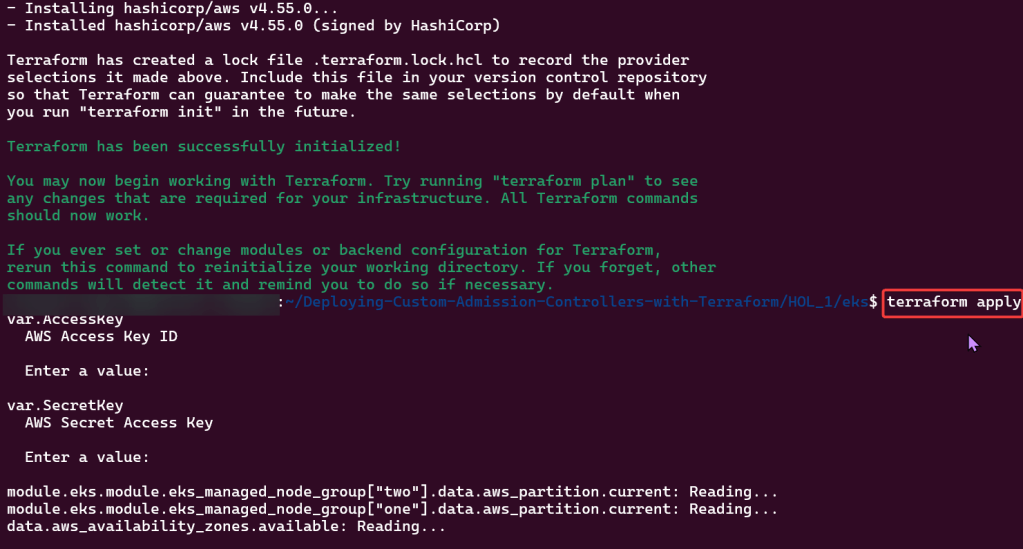
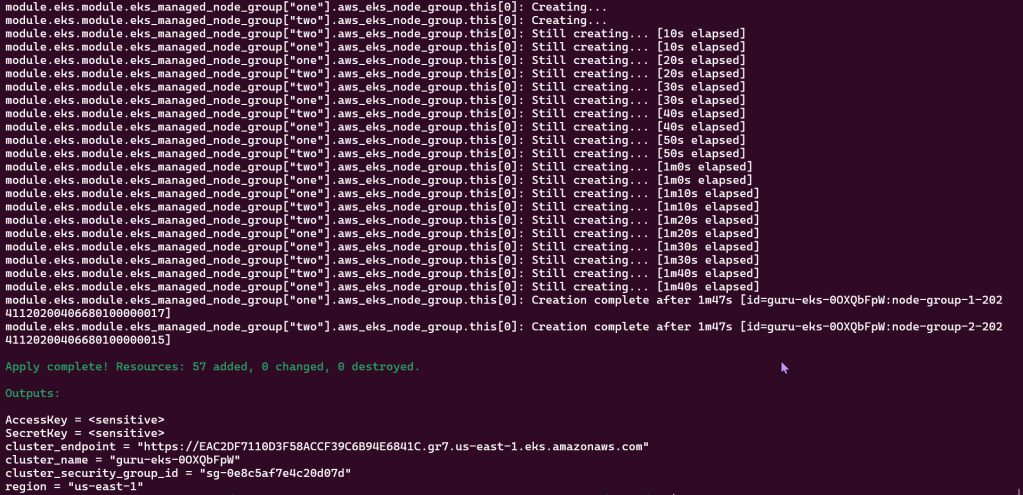
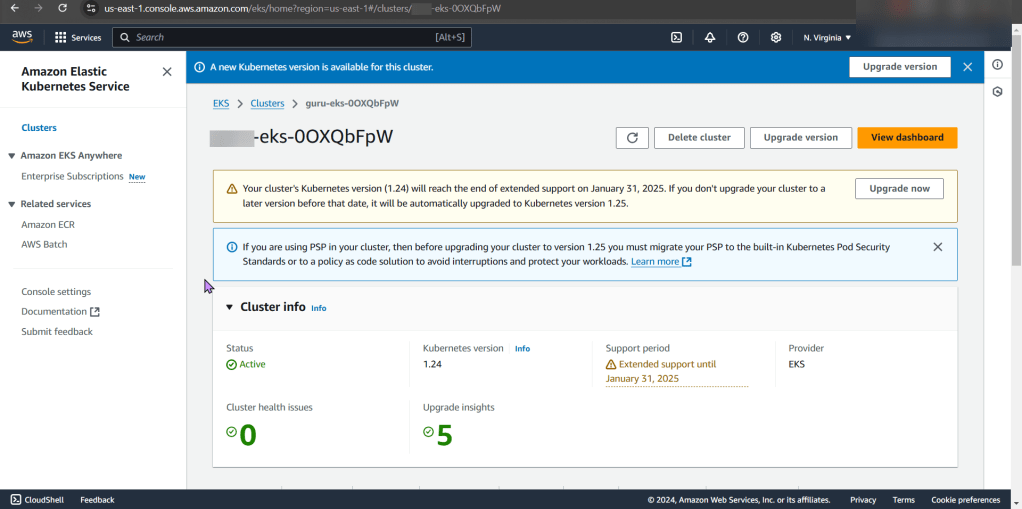
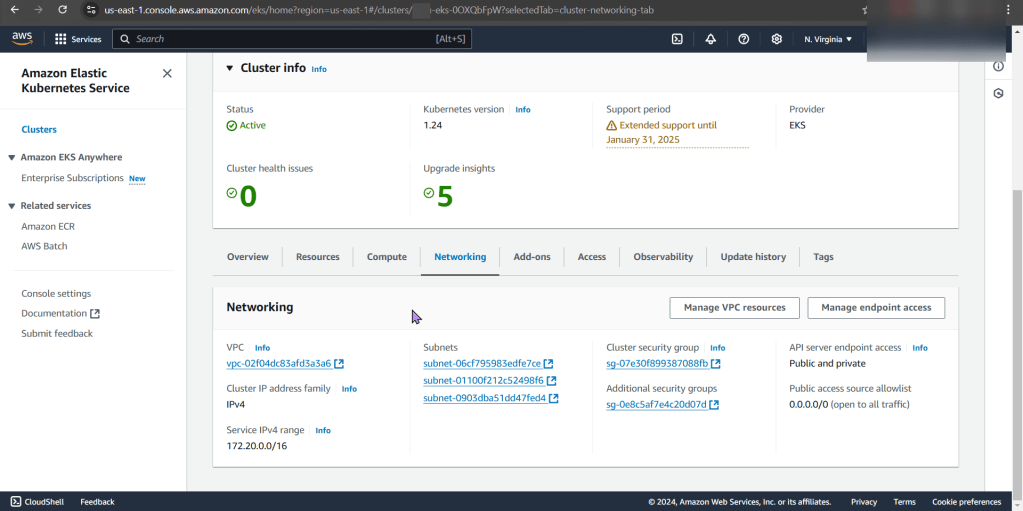
Okay, were not using Xbox controllers… but PS5 controllers! JK.. but what we will mess w/is deploy an EKS cluster to create admission controllers from a Terraform configuration file.
Uhh-ohh, we let the newbie drive & were off the road… lets take a peak under the hood & see why we can’t connect to the internet. We understand why an instance cant connect to internet. This post should share an order of operations if one does not know why an instance is not connecting to the internet.
Lessons Learned:
Determine why instance cant connect to internet
ID issues preventing instances from connecting to the internet
Important Notes:
We have 3 VPCs w/SSH connection & NACLs configured through route table
Instance 1 & 2 have connection to internet & are a-okay…
Instance 3 is not connected to the internet, so we outtah’ figure out the problem.
Order of Operations:
Instance
Security Group
Subnet
NACL
Route table
Internet gateway
Solution:
Instance
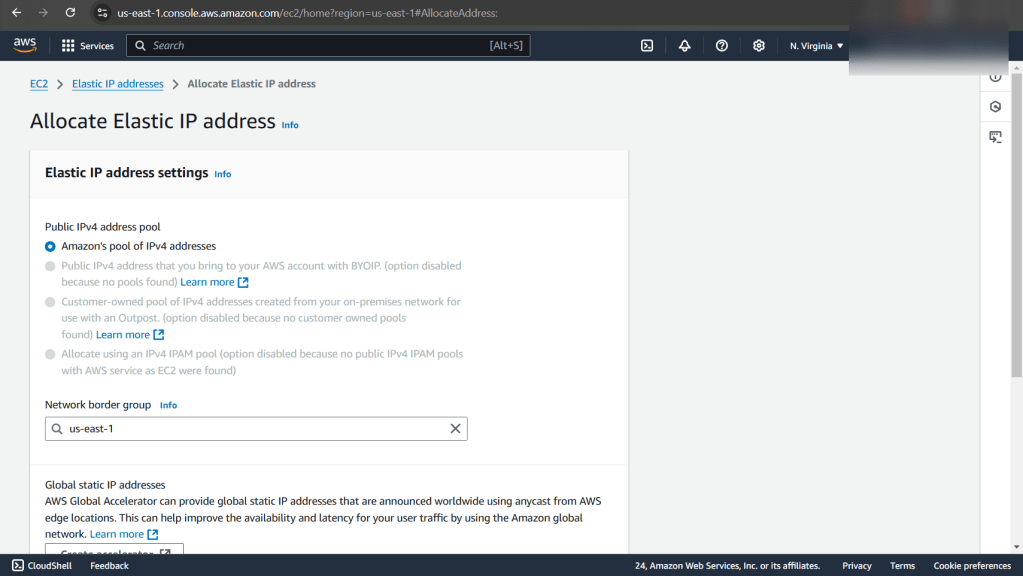
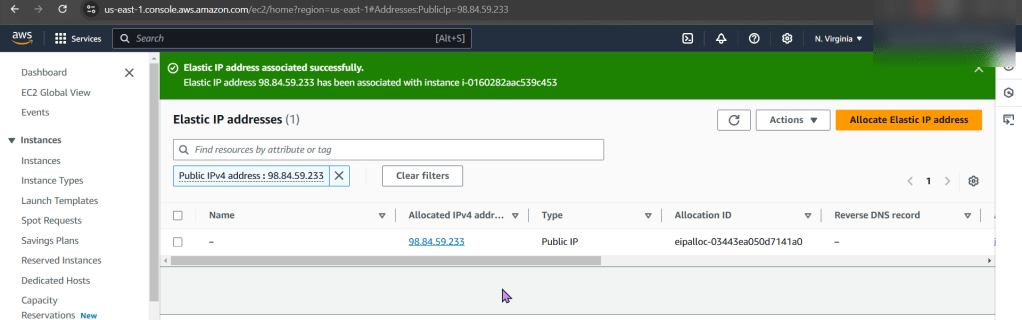
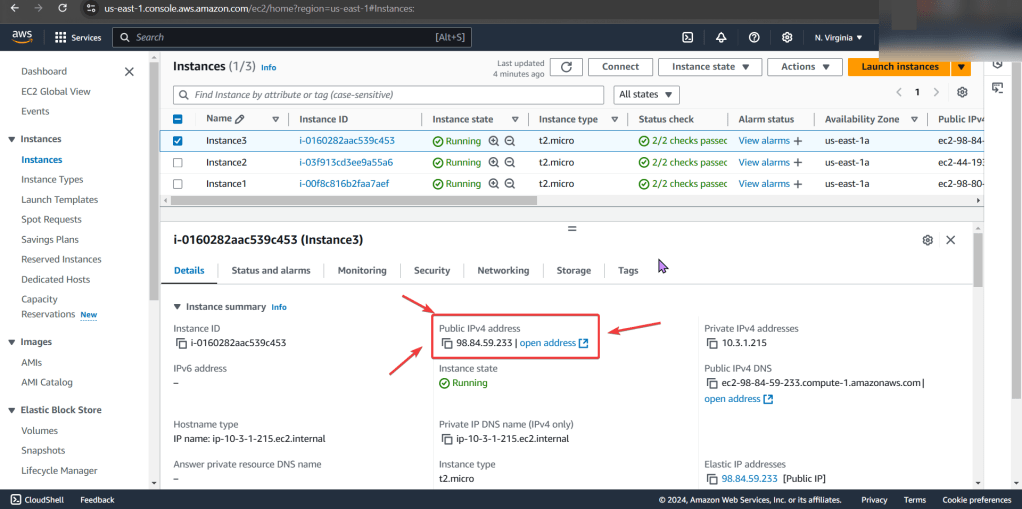
No public IP address
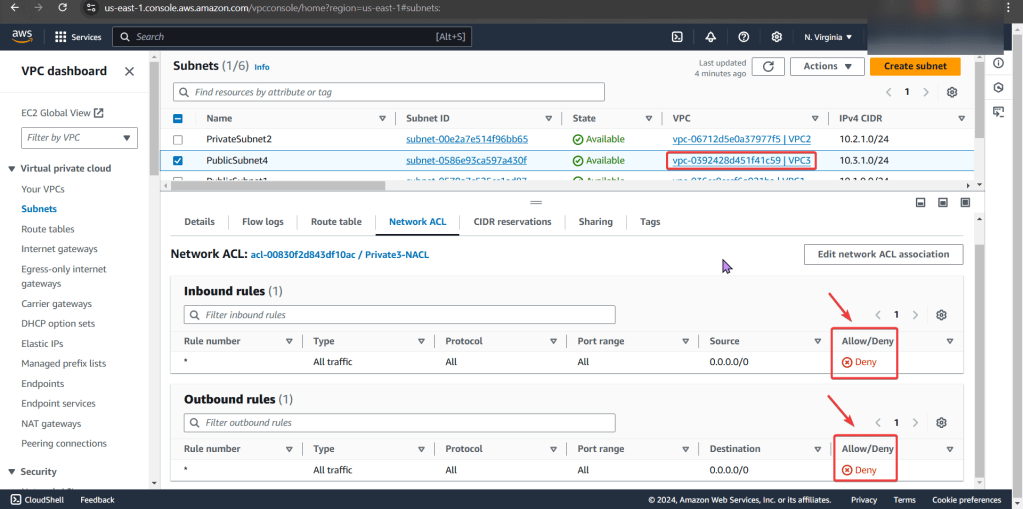
NACL
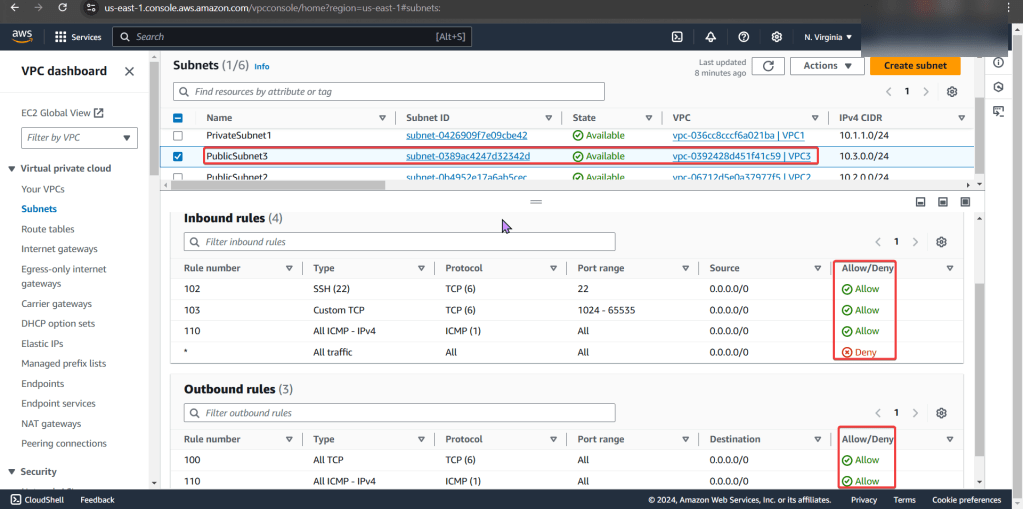
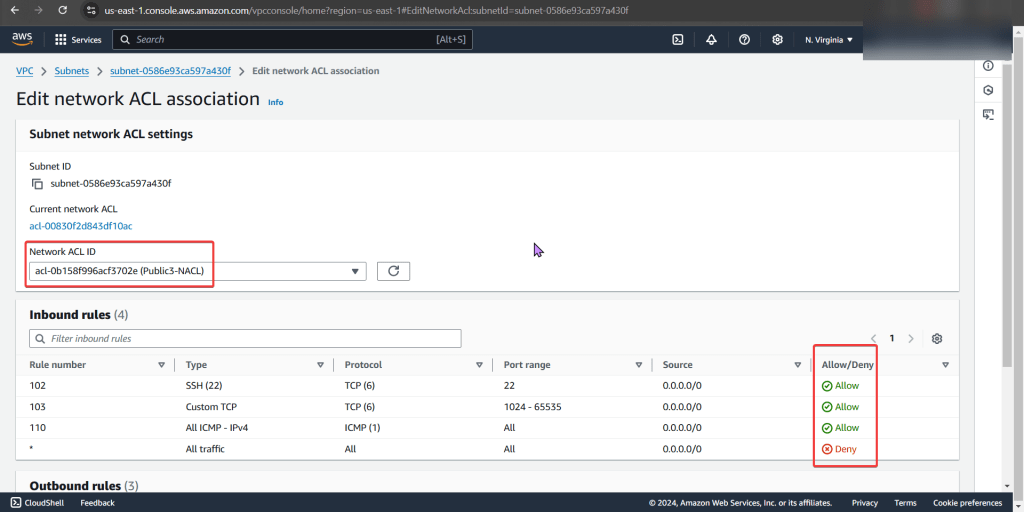
Deny rules for inbound & outbound that prevents all pinging & traffic to instance
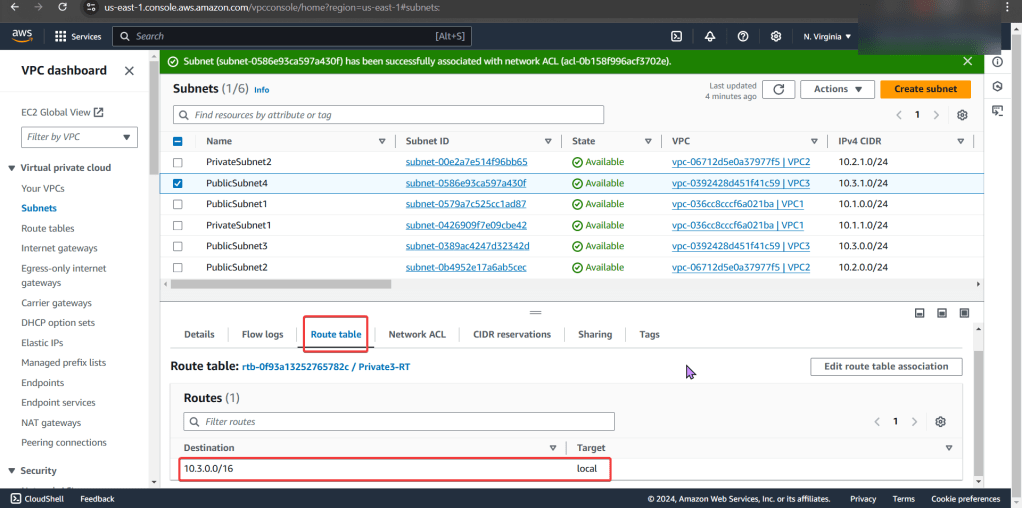
Route Table
Did not have route to internet gateway
Determine why instance cant connect to internet:
Instance:
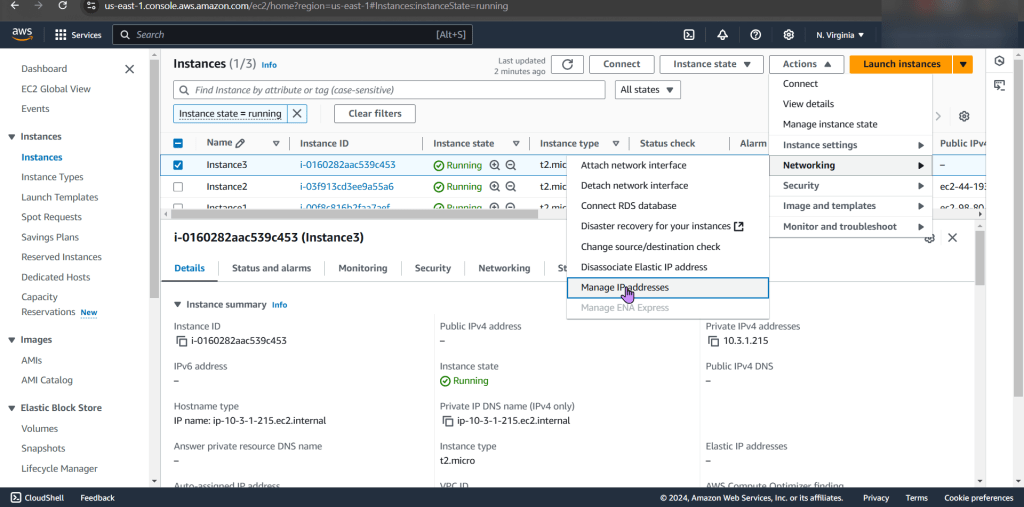
Start w/networking & manage IP address
See no public IP address below in screenshot
Wham bam thank ya mam! Fixed!… Wait, it isn’t?
Security Group:
Can we ping the instance?
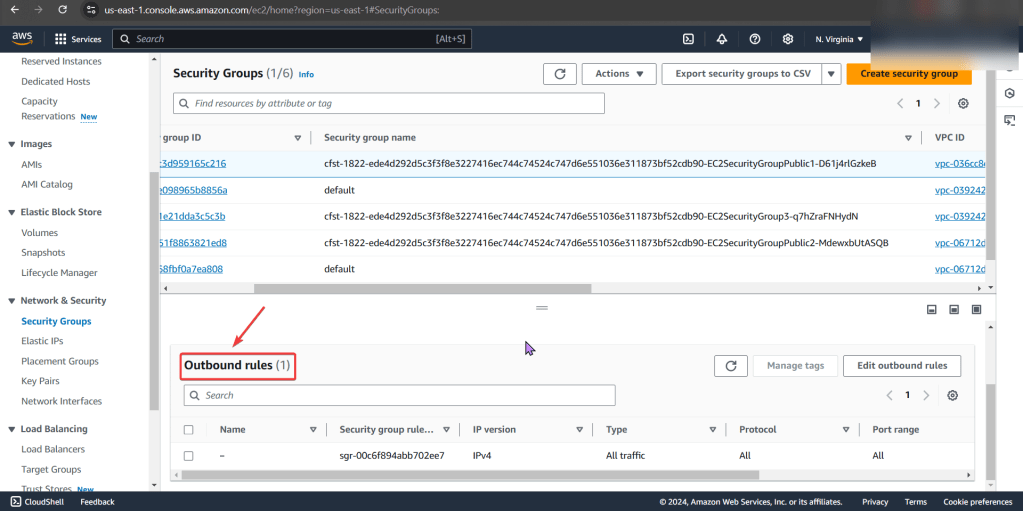
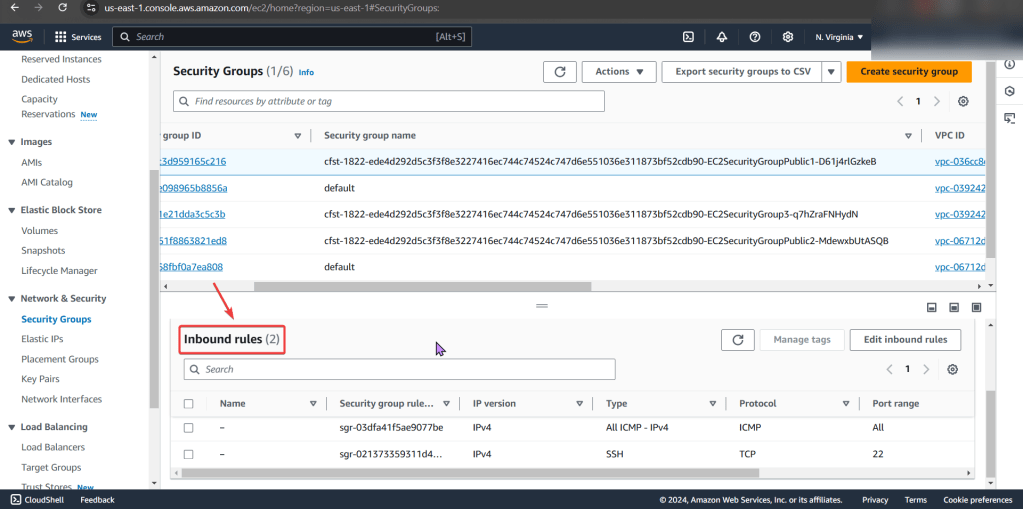
Remember when looking at rules, just cuz says private – doesn’t mean it is! So check the inbound/outbound rules details
PING!
Nothing. Okay, I reckon to keep lookin..
Subnet:
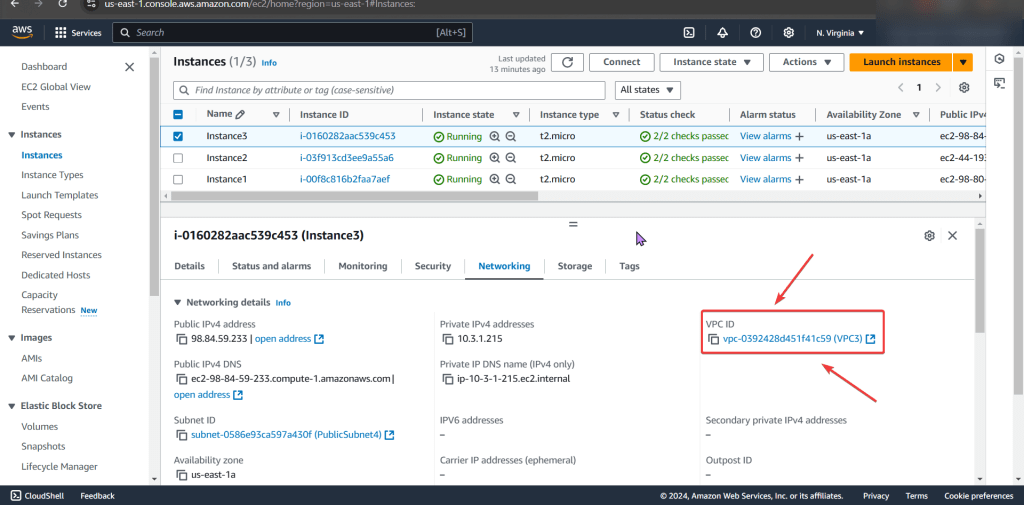
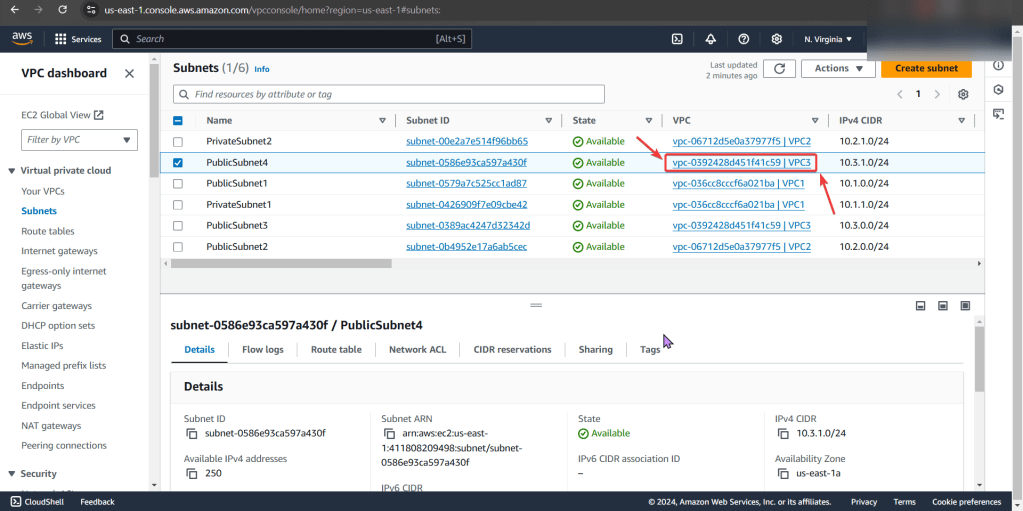
Look at private IP address & then VPC
Specifically under subnets pay attention to the VPC ID
Looks okay so far, keep on keepin on!
NACLs:
We found the issue!! The NACL rules deny all inbound/outbound traffic into the instance!
Even tho the security group does allow traffic, remember the order of operations from in-to-out..
PING!!
Still nothing, hmm..
Route Table:
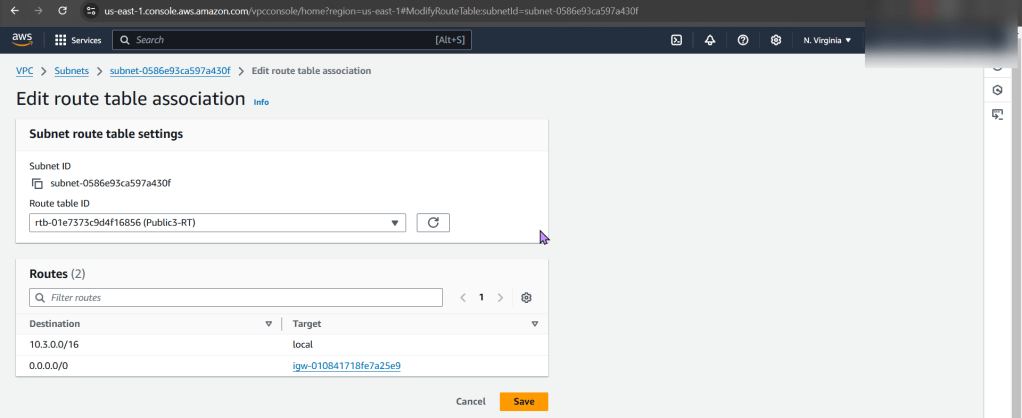
Ah-ha! We found the issue…again!
There is no route to the internet gateway
ID issues preventing instances from connecting to the internet:
Instance:
Allocate an Elastic IP Address, not a public one!!
NACLs:
The options we have are:
Change the NACL security rules
Get a different NACL w/proper rules in it
In prod… dont do this cuz it can affect all the subnets inside of it.
Under public-subnet4 (which was the original VPC ID we had for instance 3), select edit network ACL association, & change to the NACL to the public-subnet3
Route Tables:
The options we have are:
Add a route to the table that allows traffic to flow from subnet to internet gateway
Remember in other environments, there maybe others using this route table only permitting private access, so not modify.
Select route table that has appropriate entries
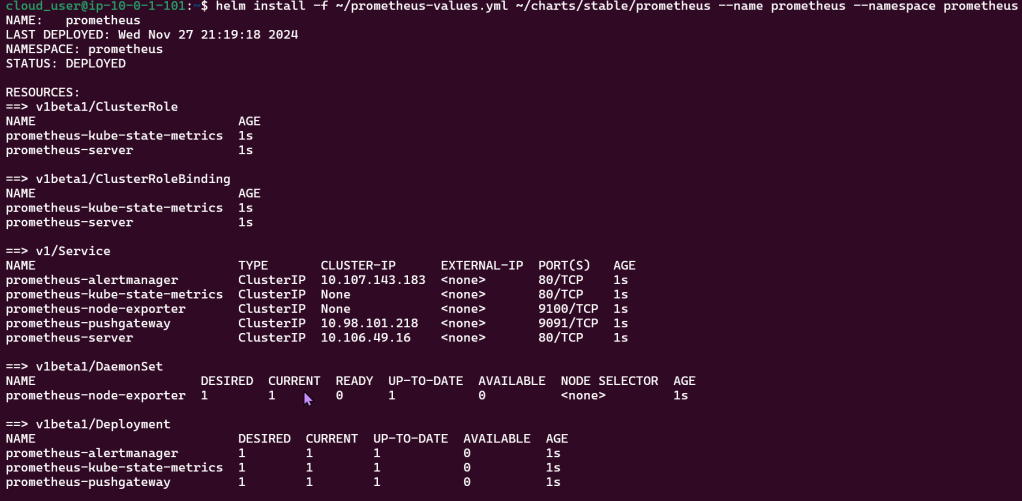
Here we edit the route table association & then notice the difference in the route table permitting connection/traffic
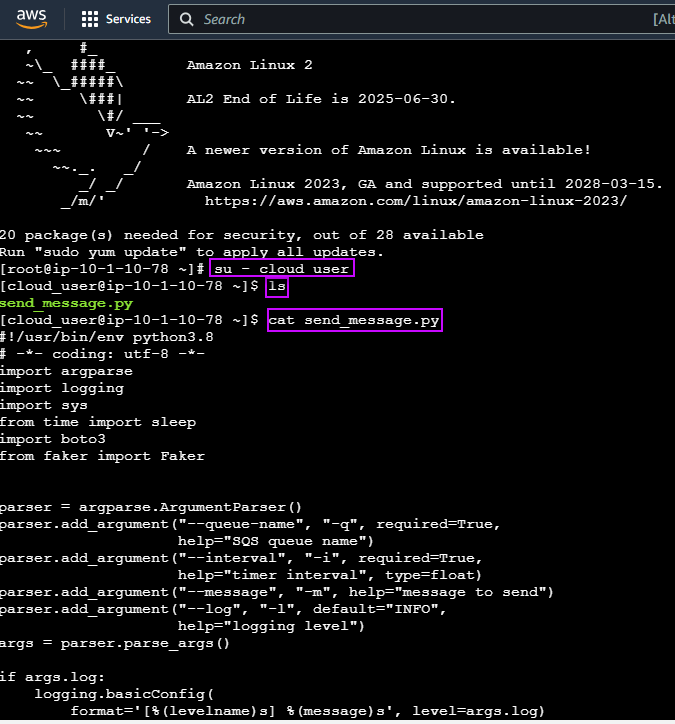
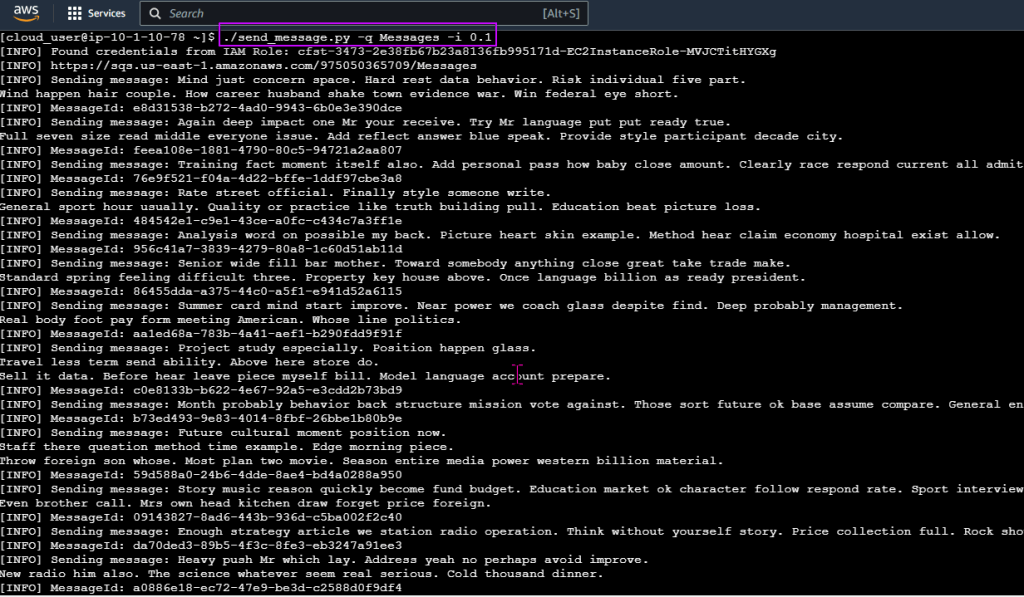
W/magic I will make this message appear!…. or just use a Lambda function that is triggered using SQS & input data into a DB.
Lessons Learned:
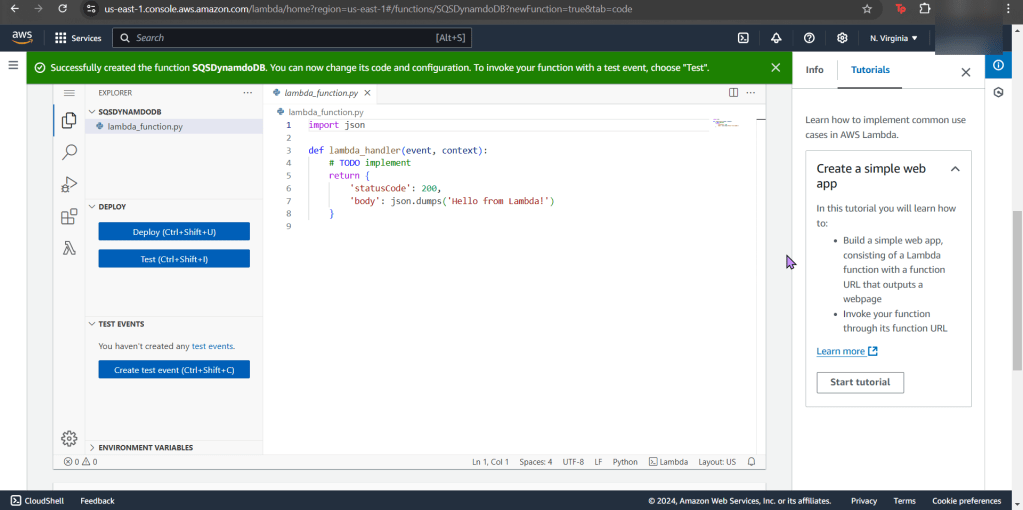
Create Lambda function
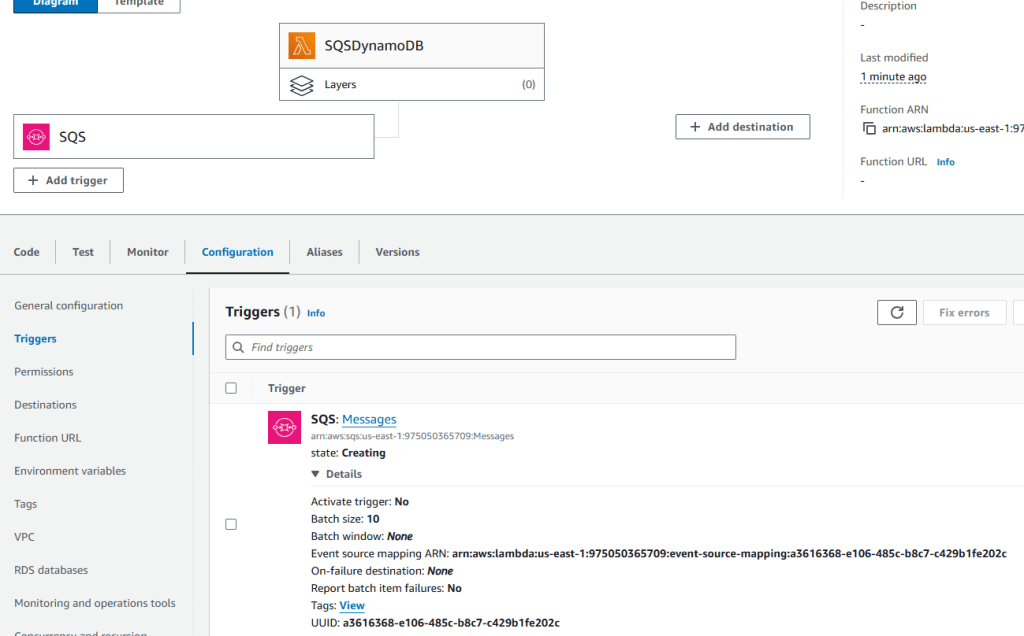
Create SQS trigger
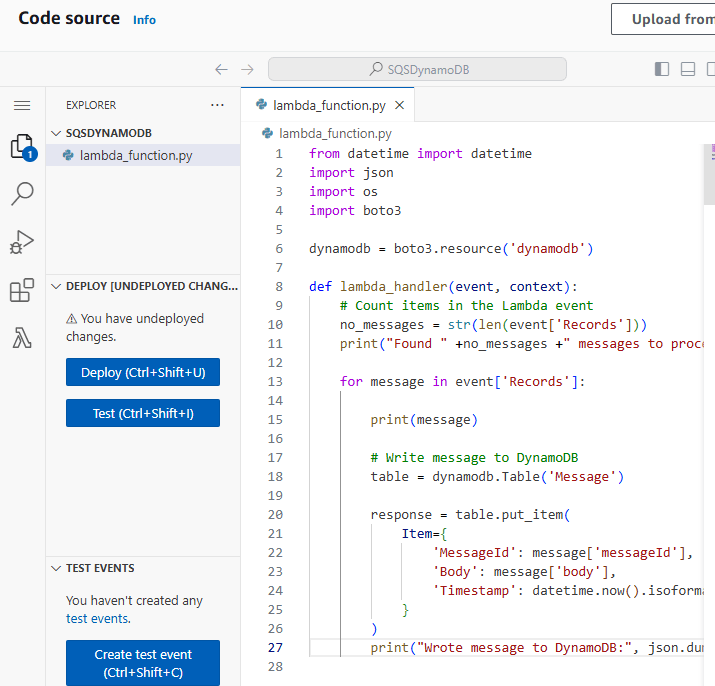
Copy source code into Lambda function
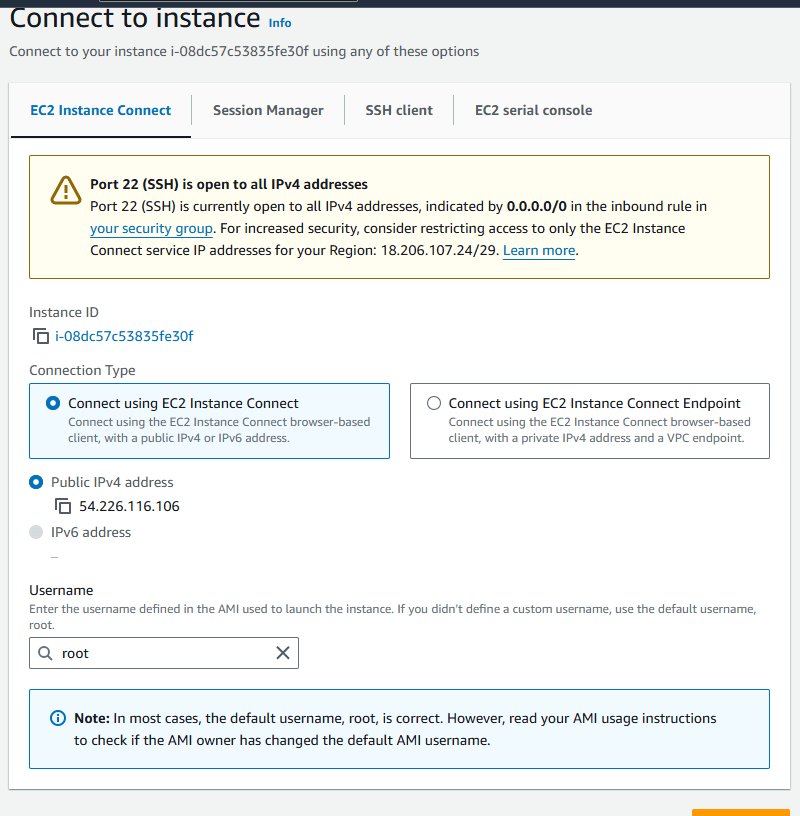
Go to console for the EC2 & test the script
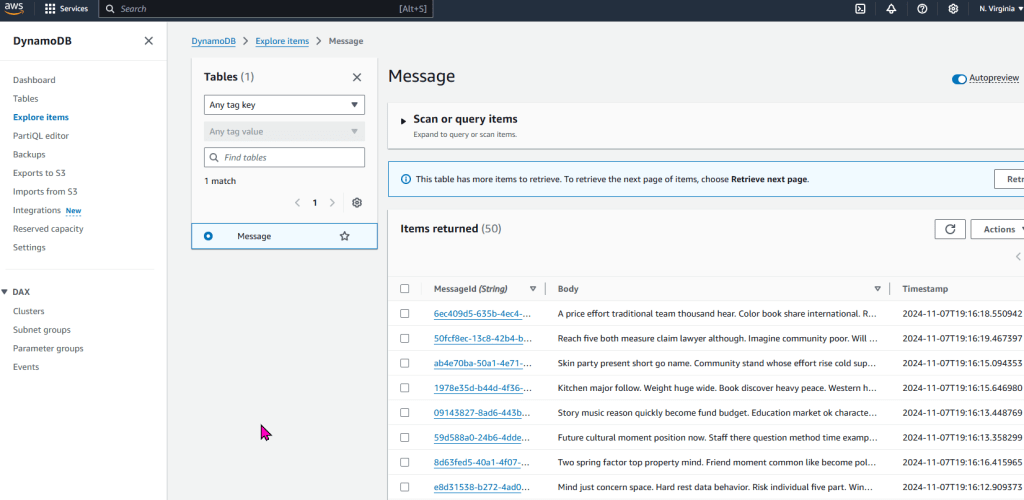
Double check messages were placed into the DB
Create Lambda function:
3 minor details to utilize:
Name = SQS DynamoDB
Use = Python 3.x
Role = lambda-execution-role
Alright, whew – now thats over w/it….
Create SQS trigger:
Are you triggered bro? Hopefully “SQS” & “Messages” trigger you…
Important note – create a SQS message, so when creating the trigger – you can snag that message created in SQS
Copy source code into Lambda function:
Copy-n-pasta into the lambda_function.py…. now destroy .. ahem, DEPLOY HIM!!
Go to console for the EC2 & test the script:
Sign your life away & see what the damage is! (aka: go to your EC2 instance)
Double check messages were placed into the DB
After you checked EC2, lets double… quadruple? You checked it 1x, so your checking 2x? Or is it multiples of 4?.. idk regardless, you can look at your DB to see if you have a message from Lambda. Have at it.
Wanna see what happens when one can update CloudFormation stacks w/direct updates & use change sets to update the stack? Well sit back & watch the show.
Lessons Learned:
Deploy a stack using AWS CloudFormation Templates
Update stack to scale up
Update stack to scale out
Deploy a stack using AWS CloudFormation Templates:
After downloading the stack, go create key pair. What are you waiting for? Go, quick, run, go!
Remember the slick view one can peer into?!
Hope your stackin like this?
Update stack to scale up:
Yeah, you know what to do. Update the stack EC2 instance to medium. Just do it.
To double-check your work, snag that http above in “value”.
See the same test page below!?
Update stack to scale out:
Lastly snag that bottom yaml file & re-upload into your stack #CHAAAAANGE
Configuration draft is like poetry, & everyone hates poetry…Cloudformation can assist in bringing the stack back in sync to the original template after IDing the drift.
Lessons Learned:
Create CloudFormation Stack
Terminate an EC2 instance for stack drfit
Eliminate drift from stack
Create Key Pair:
Before you get into the house, gotta have keys right?!
Create CloudFormation Stack:
I think what AWS has in the “infrastructure composer” is sick, both options of “canvas” and “template” are so slick, also toggling between “YAML” & “JSON” is epic!
After the template is created, go ahead & select your VPC as well as subnet of choice
Tahhhhh DAhhhhhhhhhhhhhhhhhh!!!!
Terminate an EC2 instance for stack drift:
Annnnnd now its time to run some EVILLL experiments, muuhh-hahahaha… ahemm..
Go to your EC2 instances
Change instance 3 security groups
Delete/Terminate instance 1!!
Now edit your security group inbound rules
Add HTTP & HTTPs
Go to S3
Detect drift on CloudFormation stack
You can see the details of your drift detection & compare the before/after
Terminate Drift on Individual Resource:
Put the “afterdriftdetection” file in & prepare for re-upload
Update Stack to Eliminate Drift:
Go giggles, you can manually re-add the security group and re-enable the s3 static web hosting… OR just upload the other file & see the magic happen.
Cuz as as seen above, AWS tells you the difference for the drift & w/that code you can re-update the file for re-upload. #ohhhyeaaaaah
Dont forget to delete your stack if your done, orrrr it will stay there – – – … 4Evahhhh
GREAT-SCOTT! One just realized our EC2 instance is more compute power than required, & thats not all! Plus were spending wayyy to much chedahhhhhhhh (we want to save for more other goodies – like Pokemon cards & new fancy coffee mugs.. just a thought)
Lessons Learned:
Configure InstanceType Parameter to “t3.micro”
Launch Updated stack & ensure EC2 can connect
The Appetizer before configuring “t3.micro” & Updating the stack:
This link above engulfs a whole slue of base templates for anyone to leverage for you to need any AWS services for CloudFormation
Configure InstanceType Parameter to “t3.micro”:
After maneuvering to your CloudFormation stack & selecting update – take a peak at the template as seen below.
Don’t fret, all these lines can be leveraged from the link above in the github repository.
Screenshot below shows the “Default: t3.small” that requires update
This is a perty-neat feature I thunk you would find dope. Instead of lines of code, you can mold your own visual CloudFormation by selections on the side.
OR you can just see how each AWS service connects to one another.
After you make the minor edit for the EC2 size, select validate
Once that is complete, your screen will look like this below
Launch Updated stack & ensure EC2 can connect:
Queue Jeopardy theme song…
After a couple minutes you will see updates to your template
Scroll down to find your instance ID to see if your instance update is complete
SEEE!??!
Wanna double check? Go to outputs & lastly snag your Public IP address
DevSecOps IaC tooling resembles my favorite anime/cartoons –
Dragon Ball Z
Pokemon
X-Men
Avengers
Justice League
& now this is your queue to think of your bestest squaaaaad.
My Goal:
W/that said, why not look at how these dope tools can integrate together!? This post is dedicated to showing how AWS, Ansible, Jenkins, & Terraform can work together.
Lessons Learned (so what had happen was…):
Deploy a distributed multi-region Jenkins CI/CD Pipeline
Include VPC (& of course peering!) along w/gateways, public subnets & security groups
In addition are EC2 that have Jenkins running w/main & worker nodes
Place Jenkins main node behind an ALB that is attached to allow HTTPs traffic w/a SSL certificate from AWS certificate manager in a Route 53 public zone
Create Ansible playbooks to install software for Jenkins & apply configurations
So w/out further a-due, provide me an applause (I know, so humble) for the next 7 minute read!
6–9 minutes
Below is a table of contents for your ability to jump around to key places you fancy (click here to see table of contents)
S3 bucket names are global, so don’t copy-pasta my bucket or you will get an error
The bucket name can be between 3 and 63 characters long, and can contain only lower-case characters, numbers, periods, and dashes.
Vim Backend.tf
Step showed how to tie AWS & Terraform together in a quick script, screenshots below
Vim Providers.tf & Variables.tf in Terraform:
Created 2 files that will be the key/foundation to the rest of infrastructure built & reference. This is the source code used to manage Terraform resources:
The first file/variable is where the EC2 instances are deployed in
The second file displays the providers region.
Network Deployment – VPC, Subnets, Security Groups, & Internet Gateways:
Goal is to create:
Environment w/VPC, internet gateway, & 2 public subnets
Environment w/VPC, internet gateway, & 1 public subnet
Lessons Learned:
vim networks.tf
terraform fmt
terraform validate
Goal is to create:
VPC Peering connection between 2 regions
As well as route tables for each VPC
View the magic in AWS!!
Lessons Learned:
Vim networks.tf
terraform fmt
terraform validate
terraform plan
Terraform Fmt & Validate:
Terraform Plan:
AWS account to see Terraform communicating w/AWS #maaaaaaagic
Goal is to create:
Deploy Security Groups w/ALB communicating w/Jenkins Master & Worker
Lessons Learned:
Vim Security_groups.tf
Vim variables.tf
Terraform plan
Terraform apply
Vim security_groups.tf:
Vim Variables.tf:
Added Jenkins worker variable
Terraform Plan:
Terraform Apply:
VM Deployment – AMIs, Key Pairs, & Jenkins:
Goal is to create:
Deploying application node to Jenkins application that will fetch AMI IDs
Data Source (SSM Parameter Store) to AMI IDs
Lessons Learned:
Terraform Data Source for SSM Parameter
SSM Parameter Store – Parameter for Public AMI IDs
Terraform SSM Data Source Returns AMI ID
Vim Instances.tf
#Get Linux AMI ID using SSM Parameter endpoint in us-east-1 data “aws_ssm_parameter” “linuxAmi” { provider = aws.region-master name = “/aws/service/ami-amazon-linux-latest/amzn2-ami-hvm-x86_64-gp2” }
#Get Linux AMI ID using SSM Parameter endpoint in us-west-2 data “aws_ssm_parameter” “linuxAmiOregon” { provider = aws.region-worker name = “/aws/service/ami-amazon-linux-latest/amzn2-ami-hvm-x86_64-gp2” }
Terraform Init & fmt & validate:
Terraform Plan:
Vim Backend.tf:
Goal is to create:
Deploying EC2 key pairs into Jenkins EC2 instance to permit SSH access
Lessons Learned:
Create SSH-key gen private/public key
Edit script to incorporate key-pairs for both regions
SSH:
Vim instances.tf
Terraform fmt, validate, plan, & apply:
Goal is to create:
Deploy Jenkins Master & Worker Instances
Lessons Learned:
Created 1 new script (outputs) & edited 2 scripts (instances & variables)
Can connect instances over SSH & IP addresses
Vim instances, variables, & outputs:
Terraform fmt, validate, plan, & apply:
SSH into EC2 Jenkins Master & Worker Nodes:
Terraform Configuration Management w/Ansible:
Goal is to create:
Configure TF Provision’s for Config Mgmt via Ansible
Lessons Learned:
Created new directory to hold 2 new scripts for Jenkins regions
Update script to call Ansible playbook
Mkdir ansible templates:
Vim ansible.cfg:
Mkdir inventory_aws:
wget -c: (might have to re-do)
Vim ‘tf_aws_ec2.yml: (created from above)
Vim pip3 install boto3 –user:
Vim instances.tf:
Terraform fmt, validate, plan, & apply:
JQ:
sudo yum install jq
jq
Routing Traffic via ALB to EC2:
Goal is to create:
Create ALB to route traffic to EC2 node
Via Terraform run a web server behind ALB on EC2
Lessons Learned:
Use Ansible playbook on EC2 nodes to run Jenkins application
Create new playbook for ALB
Edit variable playbook for port information as well as the security groups playbook ingress rule
Vim alb.tf:
Vim variables.tf:
Vim security_groups.tf:
Vim outputs.tf:
Vim jenkins-master-sample.yml:
Terraform fmt, validate, plan, & apply:
Route 53 & HTTPs:
Goal is to create:
Create path for user to connect to Jenkins application from Route 53, ALB, & ACM
Lessons Learned:
Create AWS Route 53 & generate SSL certificate
Connect w/public hosted zone connected pointing to DNS ALB
Traffic routed to Jenkins EC2 application
Vim variables.tf:
Vim acm.tf:
Vim dns.tf:
Vim alb.tf:
Terraform fmt, validate, plan, & apply:
Ansible Playbooks:
Goal is to create:
Building Ansible playbook w/tasks by installing Jenkins Master/Worker
Inspiration is clutch & I received it for starting this bad boy, so why not dedicate the first post in how I Frankensteined (woah – I created a blog, a blog post, & a past tense verb all in one) it together?
My Goal:
Was to create a blog & WordPress site – I then had a brain blast (Queue Jimmy Neutron), what if I did this through some from of IaC? So I tried the basic goodies, you know:
Terraform
Ansible
Docker
AWS
ChatGPT
WUT!?
Click-Opps
Back-pocked that for last on the learning journey
All were fun to mess w/& see where I got stuck quicker than others to debug some of the code. However this post follows the option of AWS & I see joy in posting the other journeys I had later, but for now lets not see double & jerk that pistol & go to work (name that movie).
Lessons Learned:
New ways to spend my Bennies ($$$) w/a AWS Account, ayyyy
Create an RDS instance for the MySQL database
Create an EC2 instance for the WordPress application
Install and configure WordPress on EC2
Upload and download files to and from S3
Access your WordPress site from the internet
Step 1: Create a RDS instance for MySQL Database
Prolly important to have something to store “my precious” (another movie quote) data aka goodiezzzz
Step 2: Create EC2 Instance
I wanted to get virtual & had a plethora of options to configure w/AMI, instance type, storage, tags, key names, security groups, etc.
Oh yeah, I overlooked the key pair part…I didn’t save/remember that information – so I had to re-do this. #DOAHHHHH
Step 3: SSH into EC2
Here was a quick double check of my work that helped me re-navigate in the console to find key information to plug-in to my SSH command (yeah, I used PowerShell. Why? Cuz its the most powerfullest, duh)
Then after some yum & systemctl – I had an apache test page… Woah, I know fancy.
Really had to pay attention to the next handful of commands to download the latest WordPress Package, Extract it, change ownership w/some chown, & then nano/vi into the configuration file.
Couple Example Below (sparing you all the commands):
Then after copy-pasta the public-IP-Address from AWS I started to click more stuff..
Conclusion:
Just like that it was done & could check into the blog & AWS to see the specimen…. ANNNNND then I tore it down. Why? Cuz I was intrigued by the other options available & see the other avenues to create a blog. I don’t have a favorite, but as mentioned above I’ll have posts about how to create a WordPress blog in the handful of options above. Yeah, even some Chat GPT action, stay tuned.