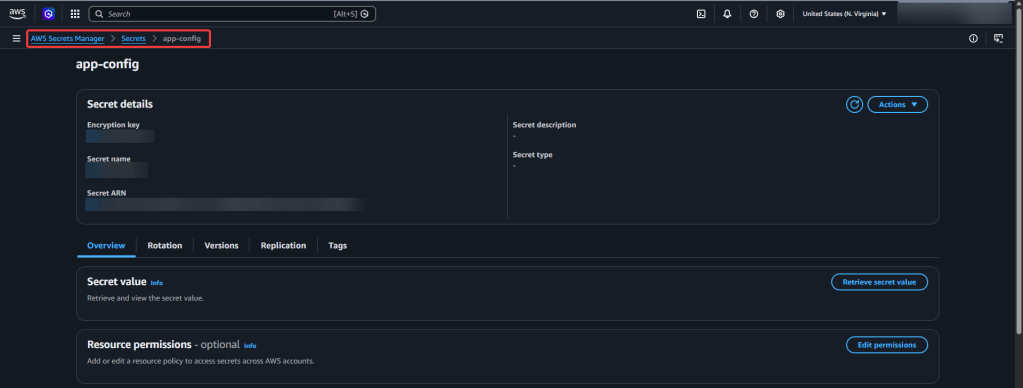
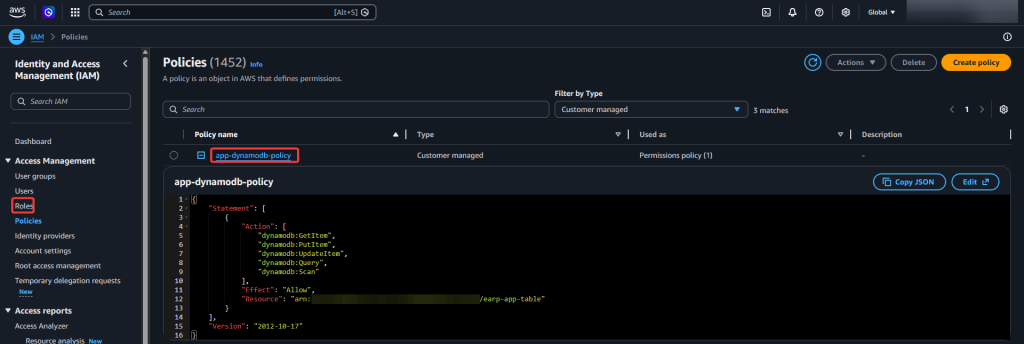
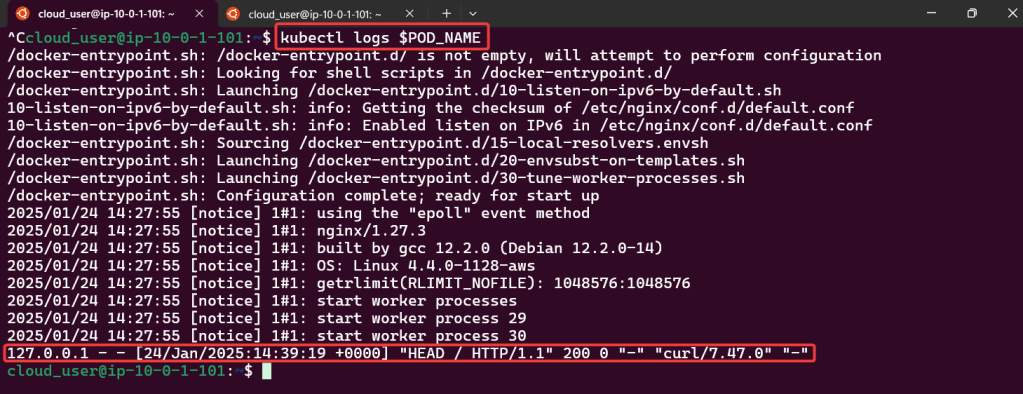
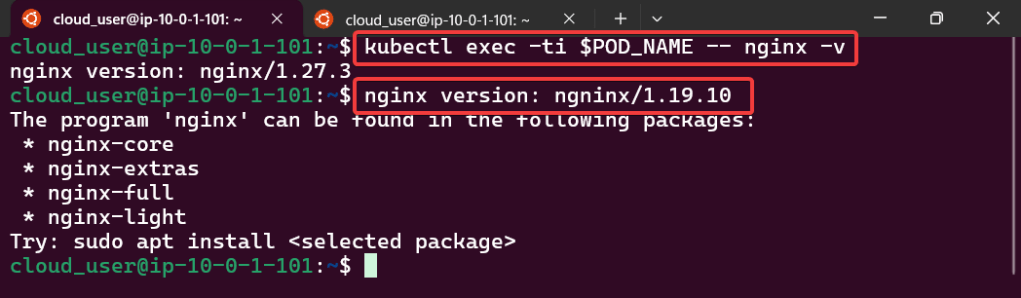
AWS IAM +1 to partayyyy

  • logged into AWS
    • aws configure
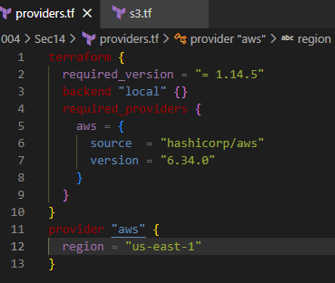
  • Created 4 tf files
    • main
    • variables
    • output
    • tfvars
main.tf
provider "aws" {
  region = var.aws_region
}

# Create IAM user
resource "aws_iam_user" "example_user" {
  name = var.user_name
}

# Attach policy to the user
resource "aws_iam_user_policy_attachment" "example_user_policy" {
  user       = aws_iam_user.example_user.name
  policy_arn = var.policy_arn
}

# Create access keys for the user
resource "aws_iam_access_key" "example_user_key" {
  user = aws_iam_user.example_user.name
}
output.tf
output "iam_user_name" {
  value = aws_iam_user.example_user.name
}

output "access_key_id" {
  value = aws_iam_access_key.example_user_key.id
}

output "secret_access_key" {
  value     = aws_iam_access_key.example_user_key.secret
  sensitive = true
}
variables.tf
variable "aws_region" {
  description = "AWS region"
  type        = string
  default     = "us-east-1"
}

variable "user_name" {
  description = "IAM username"
  type        = string
  default     = "example-user"
}

variable "policy_arn" {
  description = "IAM policy ARN to attach"
  type        = string
  default     = "arn:aws:iam::aws:policy/AmazonS3ReadOnlyAccess"
}
terrform.tfvars
aws_region = "us-east-1"
user_name  = "terraform-user"
policy_arn = "arn:aws:iam::aws:policy/AdministratorAccess"
  • terraform fmt
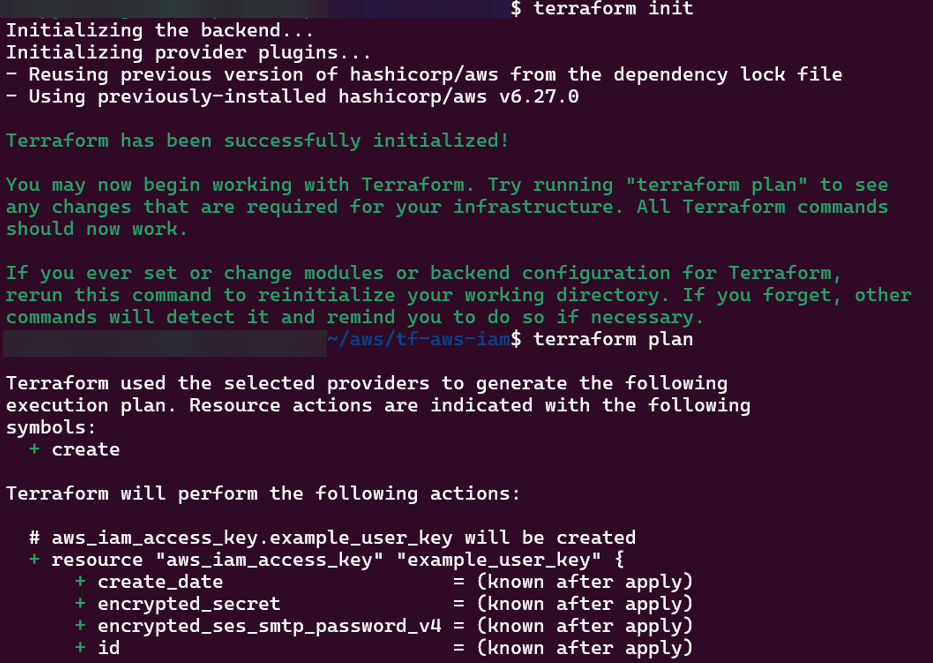
  • terraform init
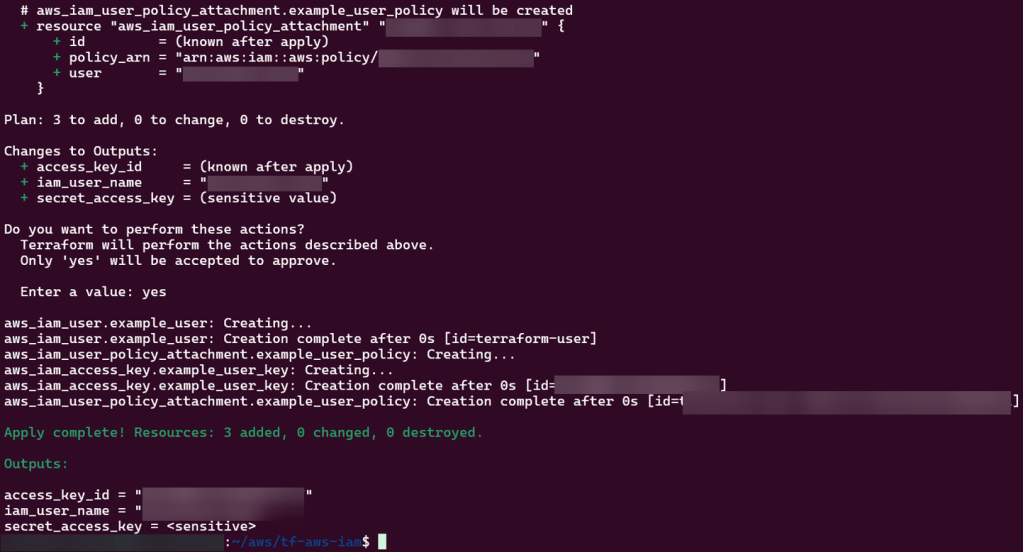
  • terraform plan
  • terraform apply

KCNA: P5 Automate Em’ All

Blog post includes covering K8s Automation, Telemetry, & Observability in preparation for the KCNA.

  • Helm Charts
  • Prometheus
  • Grafana
  • Probes & Kubelet
  • When Nodes Fail

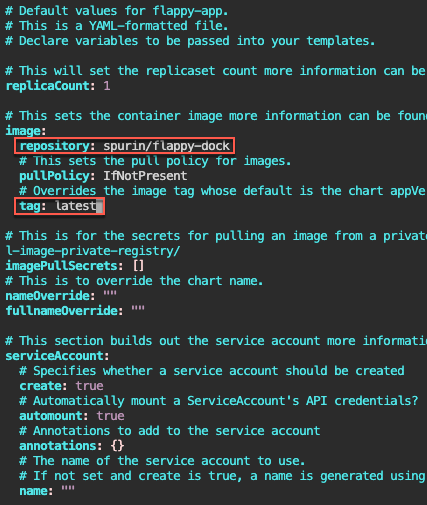
Helm Charts: there magic simply put..conduct your standard linux practices & can navigate thru your helm chart install

# apt update && apt install -y git tree
# curl https://raw.githubusercontent.com/helm/helm/main/scripts/get-helm-3 | bash
# cd flappy-app
# vim Chart.yaml
# vim values.yaml
# helm install flappy-app ./flappy-app-0.1.0.tgz
# export POD_NAME=$(kubectl get pods --namespace default -l "app.kubernetes.io/name=flappy-app,app.kubernetes.io/instance=flappy-app" -o jsonpath="{.items[0].metadata.name}"); export CONTAINER_PORT=$(kubectl get pod --namespace default $POD_NAME -o jsonpath="{.spec.containers[0].ports[0].containerPort}"); echo "Visit http://127.0.0.1:8080 to use your application"; kubectl --namespace default port-forward $POD_NAME 8080:$CONTAINER_PORT
# kubectl get deployment; echo; kubectl get pods; echo; kubectl get svc

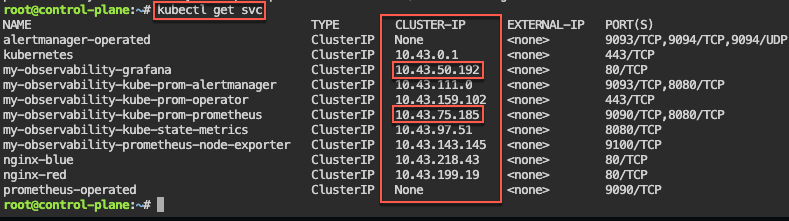
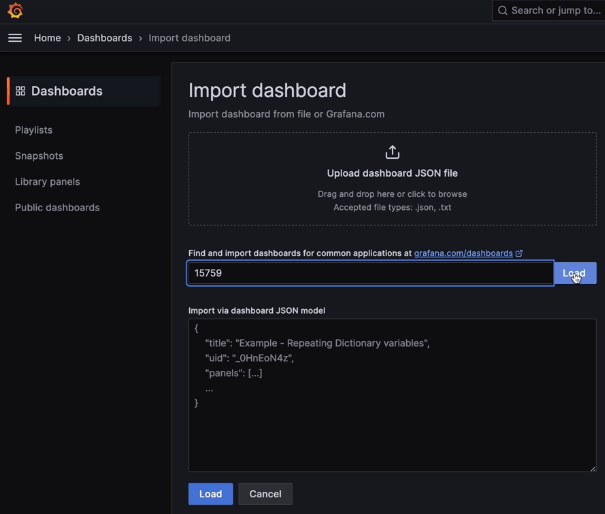
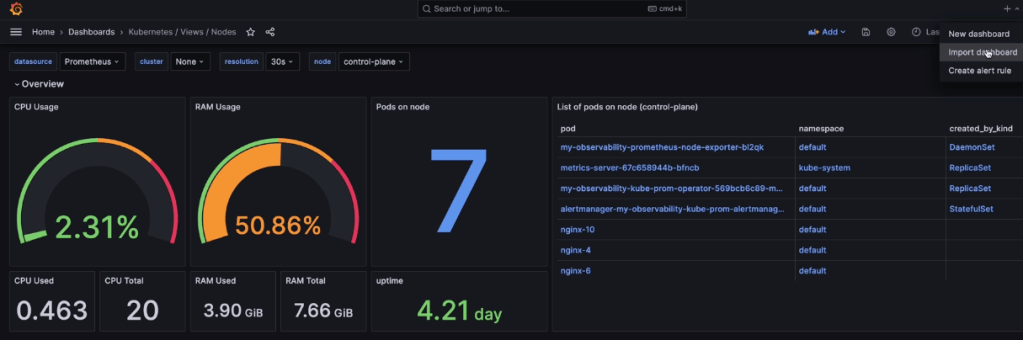
Prometheus & Grafana: 1st – add specific helm version for prometheus. 2nd – add nginx pod every 30 seconds. 3rd – then use cluster-ip to see the pods being added in prometheus & grafana.

# apt update && apt install -y git
# curl https://raw.githubusercontent.com/helm/helm/main/scripts/get-helm-3 | bash
# helm repo add prometheus-community https://prometheus-community.github.io/helm-charts
# helm search repo prometheus-community/kube-prometheus-stack -l
# helm install my-observability prometheus-community/kube-prometheus-stack --version 55.5.0
# kubectl get all -A
# kubectl get svc
# for i in {1..10}; do kubectl run nginx-${i} --image=nginx; sleep 30; done
# helm uninstall my-observability
# kubectl -n kube-system delete service/my-observability-kube-prom-kubelet --now

When Nodes Fail:

  • Start as Healthy Nodes
  • Deployment
  • Stop kubelet & fail
    • Documentation informs us that we wait 5 minutes before posting as unknown & evicted
  • Grep to see pods moving from node to node
  • If a node stops reporting & taking pods… it becomes NotReady, existing workload continues if permitted, after 5 minutes the node controller evicts the pods onto healthy nodes, & can describe to see the status as unknown

Probes & The Kubelet:

  • Health Checks tell k8s what to do w/a container..
    • Liveness Probe
      • ARE YOU ALIVE!? if fails, kubelet restarts container
    • Readiness Probe
      • Ready for traffic? if fails, kubelet tells API to remove pod from svc endpt
        • Does NOT restart
    • Startup Probe
      • Kubelet checks if application is inside the container & started
        • If probe is running, liveness, & readiness checks are paused..once succeeds & probes take over
    • Probes don’t act on their own

KCNA: P4 K8s Going Deep Homeboy.. part 2

Blog post includes covering Kubernetes Deep Dive in preparation for the KCNA.

  • RBAC

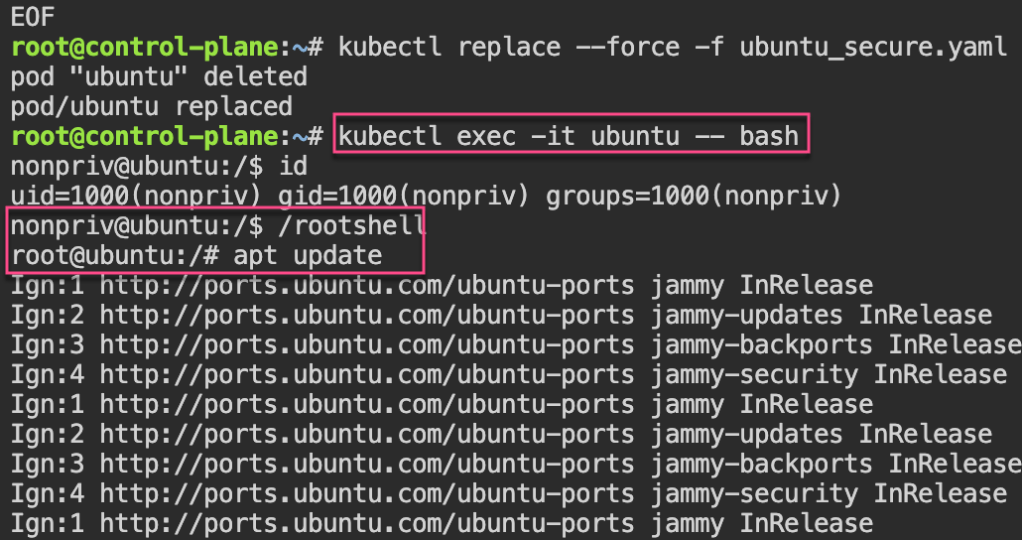
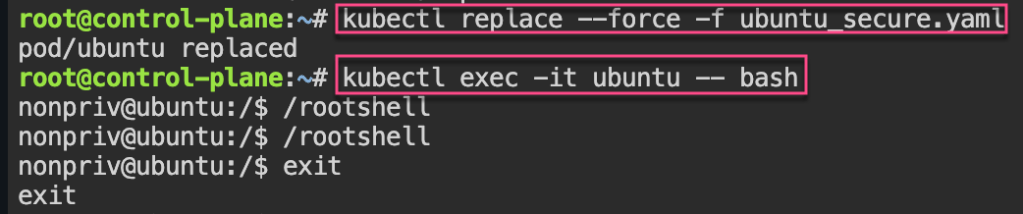
Security: 1st – create yaml file for ubuntu & can shell into root. 2nd – update spec for non-priv user & can escalate priv, 3rd – add spec to not allowed in escalating priv.

# kubectl run ubuntu --image=spurin/rootshell:latest -o yaml --dry-run=client -- sleep infinity | tee ubuntu_secure.yaml
# apiVersion: v1
kind: Pod
metadata:
  creationTimestamp: null
  labels:
    run: ubuntu
  name: ubuntu
spec:
  containers:
  - args:
    - sleep
    - infinity
    image: spurin/rootshell:latest
    name: ubuntu
    resources: {}
  dnsPolicy: ClusterFirst
  restartPolicy: Always
status: {}
apiVersion: v1
kind: Pod
metadata:
  creationTimestamp: null
  labels:
    run: ubuntu
  name: ubuntu
spec:
  securityContext:
    runAsUser: 1000
    runAsGroup: 1000
  containers:
  - args:
    - sleep
    - infinity
    image: spurin/rootshell:latest
    name: ubuntu
    resources: {}
  dnsPolicy: ClusterFirst
  restartPolicy: Always
status: {}
EOF
cat <<EOF > ubuntu_secure.yaml
apiVersion: v1
kind: Pod
metadata:
  creationTimestamp: null
  labels:
    run: ubuntu
  name: ubuntu
spec:
  securityContext:
    runAsUser: 1000
    runAsGroup: 1000
  containers:
  - args:
    - sleep
    - infinity
    image: spurin/rootshell:latest
    name: ubuntu
    resources: {}
    securityContext:
      allowPrivilegeEscalation: false
  dnsPolicy: ClusterFirst
  restartPolicy: Always
status: {}
EOF

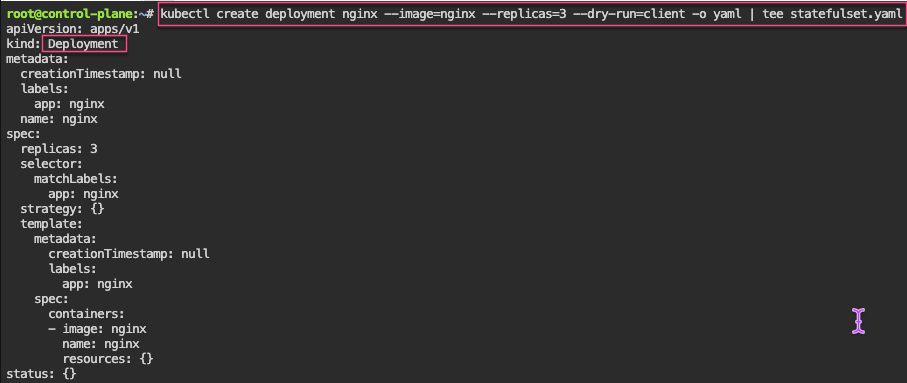
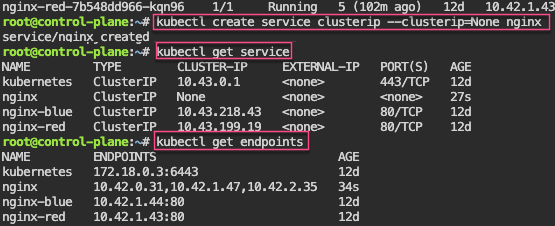
Stateful Sets: create yaml w/3 replicas, delete pod & watch magic to re-appear! 2nd – create clusterip service. 3rd – curl into shell & add rolling update.

# kubectl delete pod/nginx-2 --now
# kubectl get pods -o wide
# kubectl patch statefulset/nginx -p '{"spec":{"updateStrategy":{"rollingUpdate":{"partition":2}}}}'
# kubectl set image statefulset/nginx nginx=nginx:alpine && kubectl rollout status statefulset/nginx

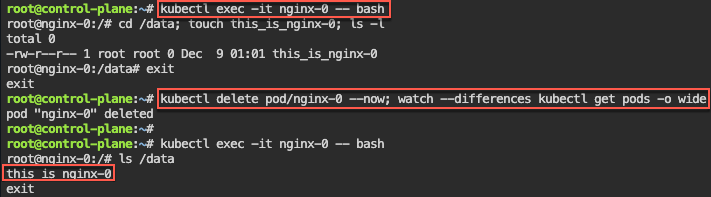
Persistent Storage: 1st – update yaml spec for volume mount. 2nd – shell into pod, create a note. 3rd – delete the pod & watch to spin back up, shell back into see the note.

cat <<EOF > statefulset.yaml
apiVersion: apps/v1
kind: StatefulSet
metadata:
  labels:
    app: nginx
  name: nginx
spec:
  replicas: 3
  selector:
    matchLabels:
      app: nginx
  serviceName: nginx
  template:
    metadata:
      labels:
        app: nginx
    spec:
      containers:
      - image: nginx
        name: nginx
        volumeMounts:
        - name: nginx
          mountPath: /data
  volumeClaimTemplates:
  - metadata:
      name: nginx
    spec:
      accessModes: [ "ReadWriteOnce" ]
      storageClassName: "local-path"
      resources:
        requests:
          storage: 1Gi
EOF
# kubectl delete -f statefulset.yaml && kubectl apply -f statefulset.yaml
# watch --differences kubectl get pods -o wide
# kubectl get pvc
# kubectl get pv
# kubectl exec -it nginx-0 -- bash
# kubectl delete statefulset/nginx --now; for i in 0 1 2; do kubectl delete pvc/nginx-nginx-$i --now; done; kubectl delete service/nginx; rm statefulset.yaml

RBAC: 1st variation of echo & base64 -d the CLIENT_KEY_DATA or CERTIFICATE_AUTHORITY_DATA.

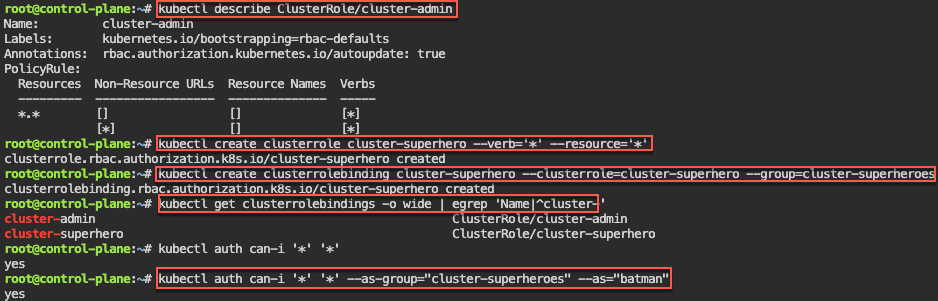
RBAC – Cluster Role Binding: 1st – create own super user group by creating clusterrole & then bind together.

# kubectl get clusterrolebindings -o wide
# kubectl describe ClusterRole/cluster-admin

Manual – genrsa, key & csr, CSR_DATA & CSR_USER, yaml, apply, get csr base64 -d,

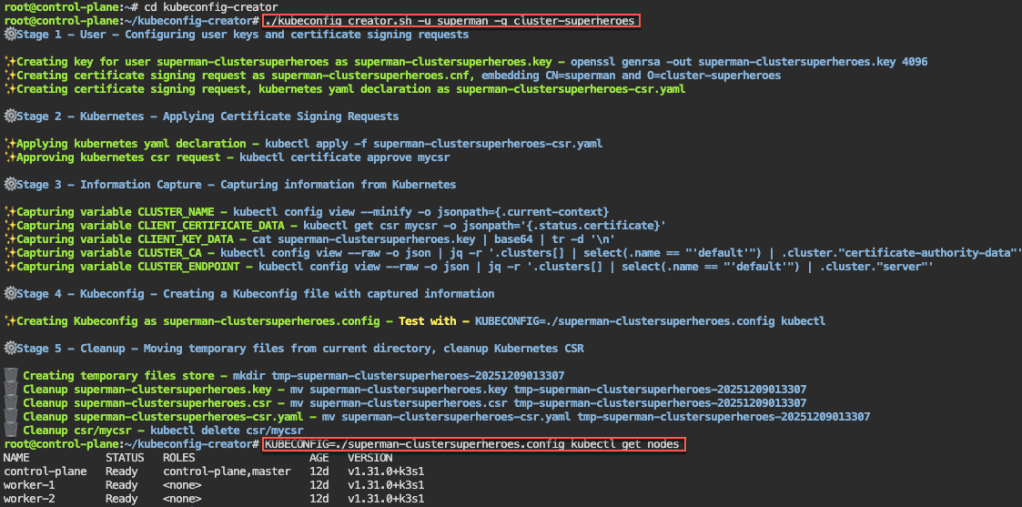
Automate RBAC Kubeconfig file: 1st – configure key & CSR, apply CSR, capture k8s info, create kubeconfig file, & cleanup k8s CSRs

# apt update && apt install -y git jq openssl
# git clone https://github.com/spurin/kubeconfig-creator.git
# 

Watch-Only RBAC Group: 1st – create cluster role & clusterrolebinding. 2nd, – see if can access w/specific role. 3rd – run shell script & get nodes.

# ./kubeconfig_creator.sh -u uatu -g cluster-watchers

Roles & RoleBindings w/Namespaces: 1st create NS w/role & rolebinding. 2nd – see if user can access NS. 3rd – run shell to add more users.

# kubectl create namespace gryffindor
# kubectl -n gryffindor create role gryffindor-admin --verb='*' --resource='*'
# kubectl -n gryffindor create rolebinding gryffindor-admin --role=gryffindor-admin --group=gryffindor-admins
# kubectl -n gryffindor auth can-i '*' '*' --as-group="gryffindor-admins" --as="harry"
# ./kubeconfig_creator.sh -u harry -g gryffindor-admins -n gryffindor

KCNA: P4 K8s Going Deep Homeboy.. part 1

Blog post includes covering Kubernetes Deep Dive in preparation for the KCNA.

API: run kubectl proxy to interact w/API in background, curl IP request/local-host, create yaml file for pod, and delete/rm pods.

kubectl proxy & echo $! > /var/run/kubectl-proxy.pid
curl --location 'http://localhost:8001/api/v1/namespaces/default/pods?pretty=true' 
--header 'Content-Type: application/json' 
--header 'Accept: application/json' 
--data '{
    "kind": "Pod",
    "apiVersion": "v1",
    "metadata": {
        "name": "nginx",
        "creationTimestamp": null,
        "labels": {
            "run": "nginx"
        }
    },
    "spec": {
        "containers": [
            {
                "name": "nginx",
                "image": "nginx",
                "resources": {}
            }
        ],
        "restartPolicy": "Always",
        "dnsPolicy": "ClusterFirst"
    },
    "status": {}
}'
kubectl get pods
kill $(cat /var/run/kubectl-proxy.pid)
rm /var/run/kubectl-proxy.pid
kubectl get pods

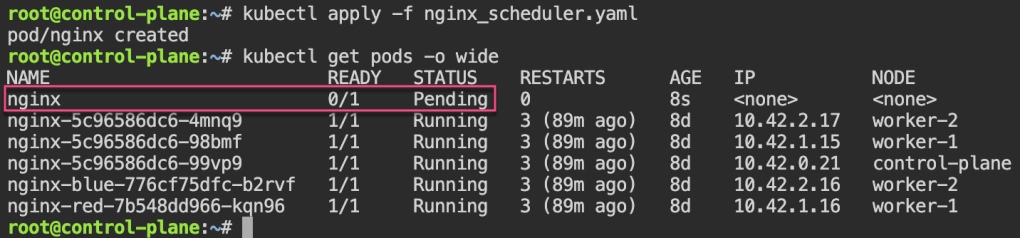
Scheduling: create yaml file for scheduler, pod is pending cuz no scheduler selected created, git clone, & view pod

kubectl run nginx --image=nginx -o yaml --dry-run=client | tee nginx_scheduler.yaml
cat <<EOF > nginx_scheduler.yaml
apiVersion: v1
kind: Pod
metadata:
  creationTimestamp: null
  labels:
    run: nginx
  name: nginx
spec:
  schedulerName: my-scheduler
  containers:
  - image: nginx
    name: nginx
    resources: {}
  dnsPolicy: ClusterFirst
  restartPolicy: Always
status: {}
EOF
apt update && apt install -y git jq
git clone https://github.com/spurin/simple-kubernetes-scheduler-example.git
cd simple-kubernetes-scheduler-example; more my-scheduler.sh
# ./my_scheduler.sh 
🚀 Starting the custom scheduler...
🎯 Attempting to bind the pod nginx in namespace default to node worker-2
🎉 Successfully bound the pod nginx to node worker-2
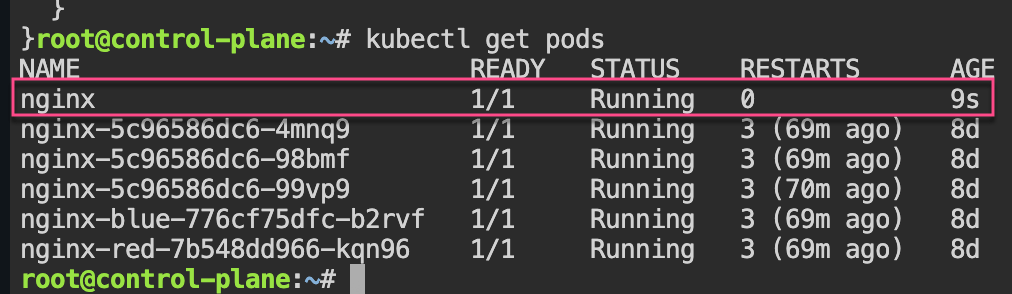
# kubectl get pods -o wide
NAME    READY   STATUS    RESTARTS   AGE   IP          NODE       NOMINATED NODE   READINESS GATES
nginx   1/1     Running   0          28s   10.42.2.3   worker-2   <none>           <none>

Node Name: change spec to nodename specific area & notice variance of spec usage

# cat <<EOF > nginx_scheduler.yaml
apiVersion: v1
kind: Pod
metadata:
  creationTimestamp: null
  labels:
    run: nginx
  name: nginx
spec:
  nodeName: worker-2
  containers:
  - image: nginx
    name: nginx
    resources: {}
  dnsPolicy: ClusterFirst
  restartPolicy: Always
status: {}
EOF
# kubectl apply -f nginx_scheduler.yaml
# kubectl get pods -o wide

Node Selector: now change spec to nodeselector from label selector

# cat <<EOF > nginx_scheduler.yaml
apiVersion: v1
kind: Pod
metadata:
  creationTimestamp: null
  labels:
    run: nginx
  name: nginx
spec:
  nodeSelector:
    kubernetes.io/hostname: worker-1
  containers:
  - image: nginx
    name: nginx
    resources: {}
  dnsPolicy: ClusterFirst
  restartPolicy: Always
status: {}
EOF
# kubectl apply -f nginx_scheduler.yaml
# kubectl get pods -o wide

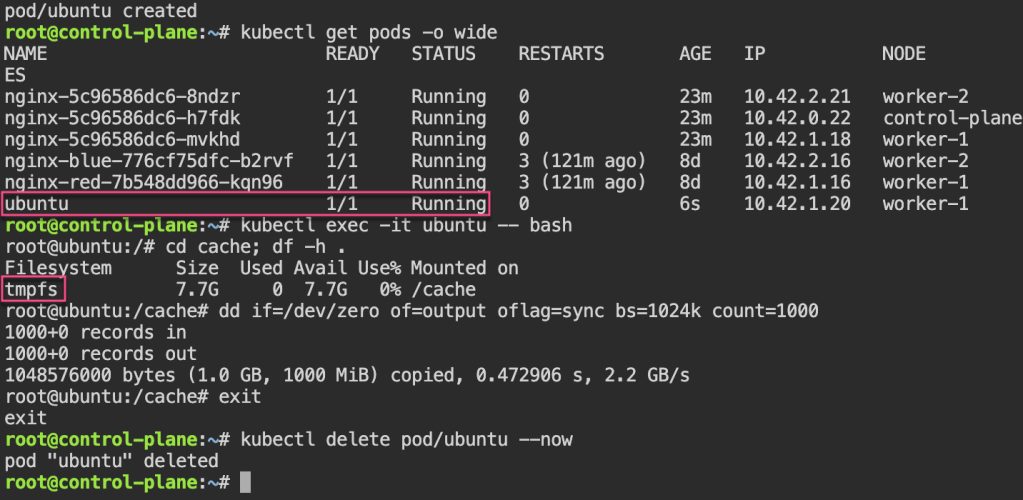
Storage: create ubuntu yaml, add volume mount to file, & shell into the ubuntu pod to see storage mount

# kubectl run --image=ubuntu ubuntu -o yaml --dry-run=client --command sleep infinity | tee ubuntu_emptydir.yaml

# cat <<EOF > ubuntu_emptydir.yaml
apiVersion: v1
kind: Pod
metadata:
  creationTimestamp: null
  labels:
    run: ubuntu
  name: ubuntu
spec:
  containers:
  - command:
    - sleep
    - infinity
    image: ubuntu
    name: ubuntu
    resources: {}
    volumeMounts:
    - mountPath: /cache
      name: cache-volume
  dnsPolicy: ClusterFirst
  restartPolicy: Always
  volumes:
  - name: cache-volume
    emptyDir: {
      medium: Memory,
    }
status: {}
EOF
# kubectl get pods -o wide
# kubectl exec -it ubuntu -- bash

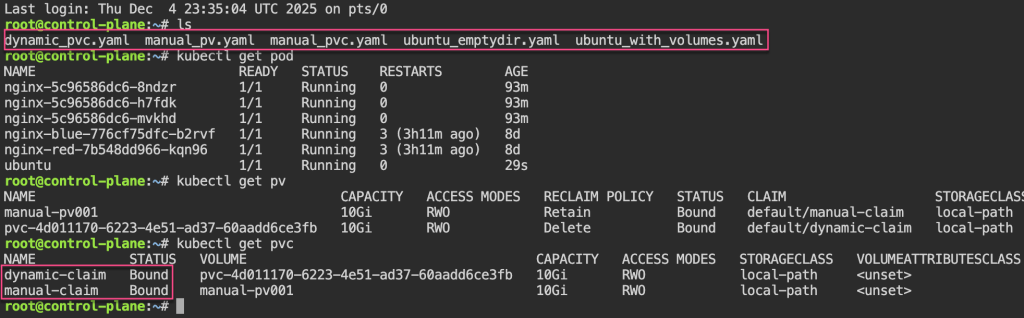
Persistent Storage: create yaml pv & pvc (mention pv name in spe),

# cat <<EOF > manual_pv.yaml
apiVersion: v1
kind: PersistentVolume
metadata:
  name: manual-pv001
spec:
  storageClassName: local-path
  capacity:
    storage: 10Gi
  accessModes:
    - ReadWriteOnce
  hostPath:
    path: "/var/lib/rancher/k3s/storage/manual-pv001"
    type: DirectoryOrCreate
EOF
------------------------------------
# cat <<EOF > manual_pvc.yaml
apiVersion: v1
kind: PersistentVolumeClaim
metadata:
  name: manual-claim
spec:
  accessModes:
    - ReadWriteOnce
  volumeMode: Filesystem
  resources:
    requests:
      storage: 10Gi
  storageClassName: local-path
  volumeName: manual-pv001
EOF

Dynamic PVC: create yaml for pvc, edit yaml for volume mount to manua/dynamic claim, then add to node-selector a specific node desired.

# cat <<EOF > dynamic_pvc.yaml
apiVersion: v1
kind: PersistentVolumeClaim
metadata:
  name: dynamic-claim
spec:
  accessModes:
    - ReadWriteOnce
  volumeMode: Filesystem
  resources:
    requests:
      storage: 10Gi
  storageClassName: local-path
EOF
# kubectl run --image=ubuntu ubuntu -o yaml --dry-run=client --command sleep infinity | tee ubuntu_with_volumes.yaml
# cat <<EOF > ubuntu_with_volumes.yaml
apiVersion: v1
kind: Pod
metadata:
  creationTimestamp: null
  labels:
    run: ubuntu
  name: ubuntu
spec:
  containers:
  - command:
    - sleep
    - infinity
    image: ubuntu
    name: ubuntu
    resources: {}
    volumeMounts:
    - mountPath: /manual
      name: manual-volume
    - mountPath: /dynamic
      name: dynamic-volume
  dnsPolicy: ClusterFirst
  restartPolicy: Always
  volumes:
    - name: manual-volume
      persistentVolumeClaim:
        claimName: manual-claim
    - name: dynamic-volume
      persistentVolumeClaim:
        claimName: dynamic-claim
status: {}
EOF
# cat <<EOF > ubuntu_with_volumes.yaml
apiVersion: v1
kind: Pod
metadata:
  creationTimestamp: null
  labels:
    run: ubuntu
  name: ubuntu
spec:
  nodeSelector:
    kubernetes.io/hostname: worker-1
  containers:
  - command:
    - sleep
    - infinity
    image: ubuntu
    name: ubuntu
    resources: {}
    volumeMounts:
    - mountPath: /manual
      name: manual-volume
    - mountPath: /dynamic
      name: dynamic-volume
  dnsPolicy: ClusterFirst
  restartPolicy: Always
  volumes:
    - name: manual-volume
      persistentVolumeClaim:
        claimName: manual-claim
    - name: dynamic-volume
      persistentVolumeClaim:
        claimName: dynamic-claim
status: {}
EOF

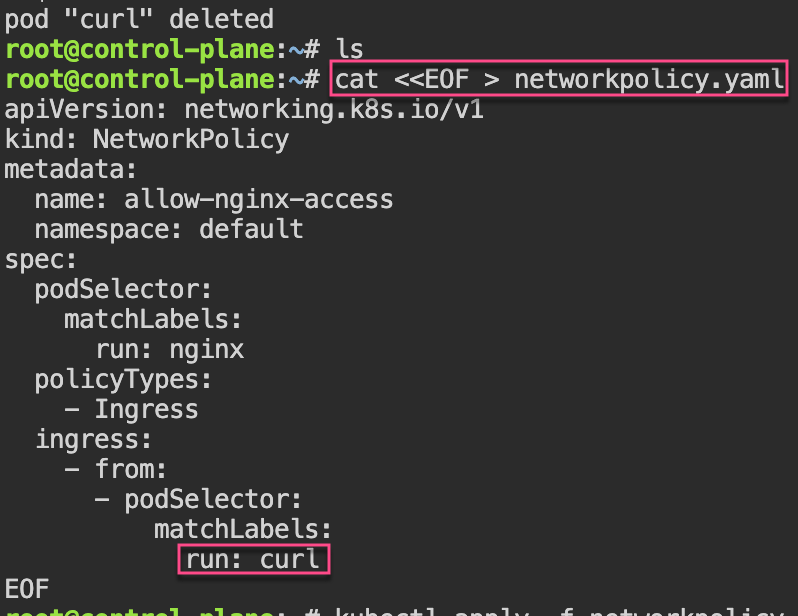
Network Policies: 1st – create pod, expose port, & curl to see access. 2nd – policy to restrict access w/label…cant access now..

# kubectl run nginx --image=nginx
# kubectl expose pod/nginx --port=80
# kubectl run --rm -i --tty curl --image=curlimages/curl:8.4.0 --restart=Never -- sh
# curl nginx.default.svc.cluster.local
If you don't see a command prompt, try pressing enter.
~ $ curl nginx.default.svc.cluster.local
<!DOCTYPE html>
<html>
<head>
<title>Welcome to nginx!</title>
<style>
html { color-scheme: light dark; }
body { width: 35em; margin: 0 auto;
font-family: Tahoma, Verdana, Arial, sans-serif; }
</style>
</head>
<body>
<h1>Welcome to nginx!</h1>
<p>If you see this page, the nginx web server is successfully installed and
working. Further configuration is required.</p>

<p>For online documentation and support please refer to
<a href="http://nginx.org/">nginx.org</a>.<br/>
Commercial support is available at
<a href="http://nginx.com/">nginx.com</a>.</p>

<p><em>Thank you for using nginx.</em></p>
</body>
</html>
~ $ exit
pod "curl" deleted
# cat <<EOF > networkpolicy.yaml
apiVersion: networking.k8s.io/v1
kind: NetworkPolicy
metadata:
  name: allow-nginx-access
  namespace: default
spec:
  podSelector:
    matchLabels:
      run: nginx
  policyTypes:
    - Ingress
  ingress:
    - from:
      - podSelector:
          matchLabels:
            run: curl
EOF

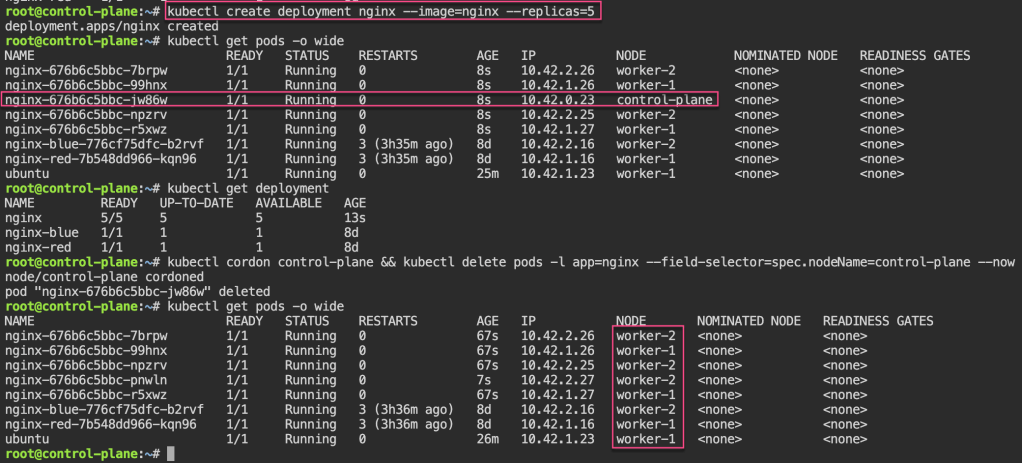
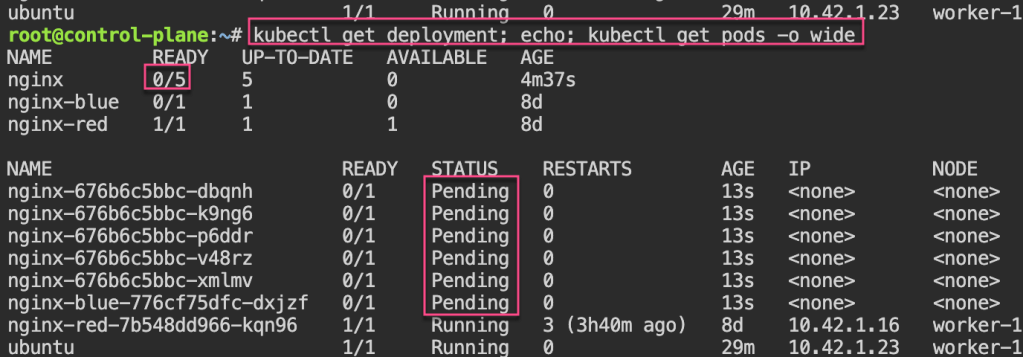
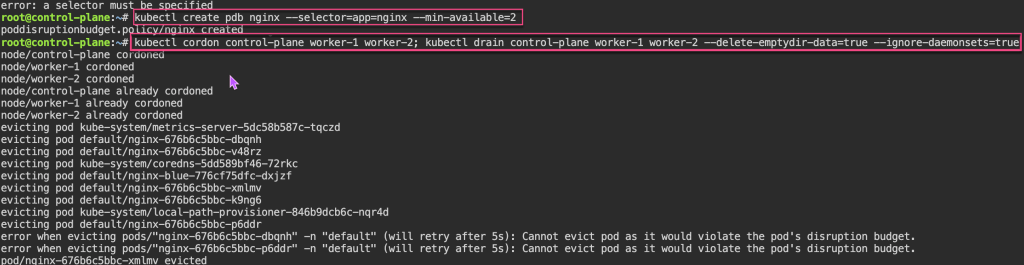
Pod Disruption Budgets: 1st – create replica-set deployment, & cordon node. 2nd – drain to now notice disruption cuz control-plane & worker-1 are “protected” & you all worker-2 nodes are empty. 3rd – uncordon. 4th – create PDB, & notice cant cordon or drain more than the PDB created.

# kubectl create deployment nginx --image=nginx --replicas=5
# kubectl cordon control-plane && kubectl delete pods -l app=nginx --field-selector=spec.nodeName=control-plane --now
# kubectl drain worker-2 --delete-emptydir-data=true --ignore-daemonsets=true
# kubectl uncordon control-plane worker-1 worker-2
# kubectl create pdb nginx --selector=app=nginx --min-available=2
# kubectl cordon control-plane worker-1 worker-2; kubectl drain control-plane worker-1 worker-2 --delete-emptydir-data=true --ignore-daemonsets=true
# kubectl uncordon worker-1 worker-2

Security:

KCNA: P3 Kubernetes Fundyzzz..part 2

Blog post includes covering Kubernetes Fundamental’s in preparation for the KCNA.

  • Deployments & ReplicaSets
  • Services
  • Jobs
  • ConfigMaps
  • Secrets

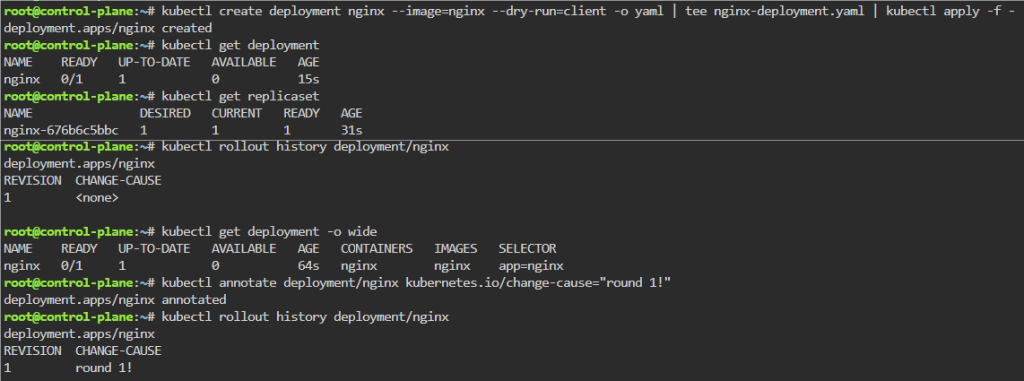
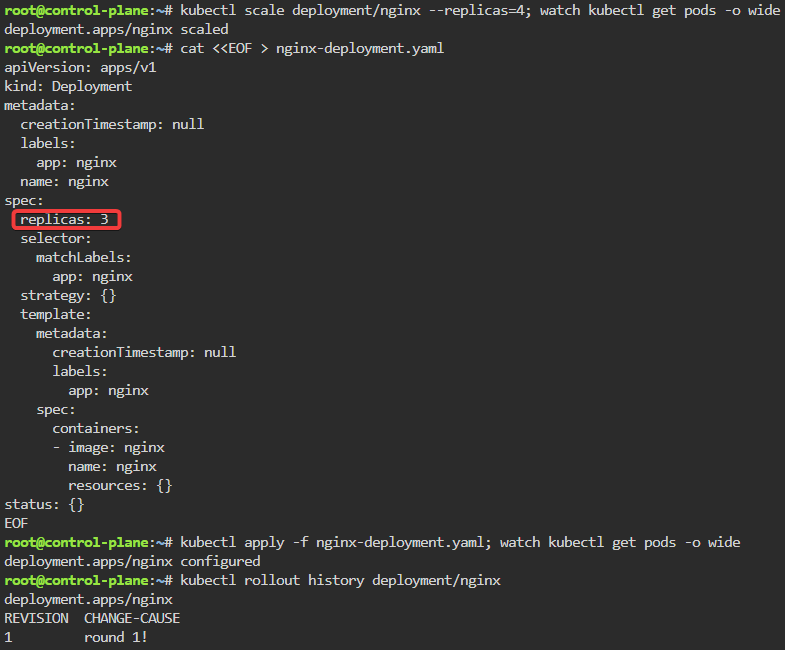
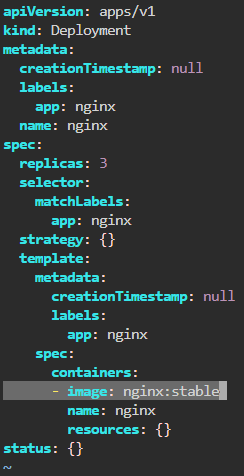
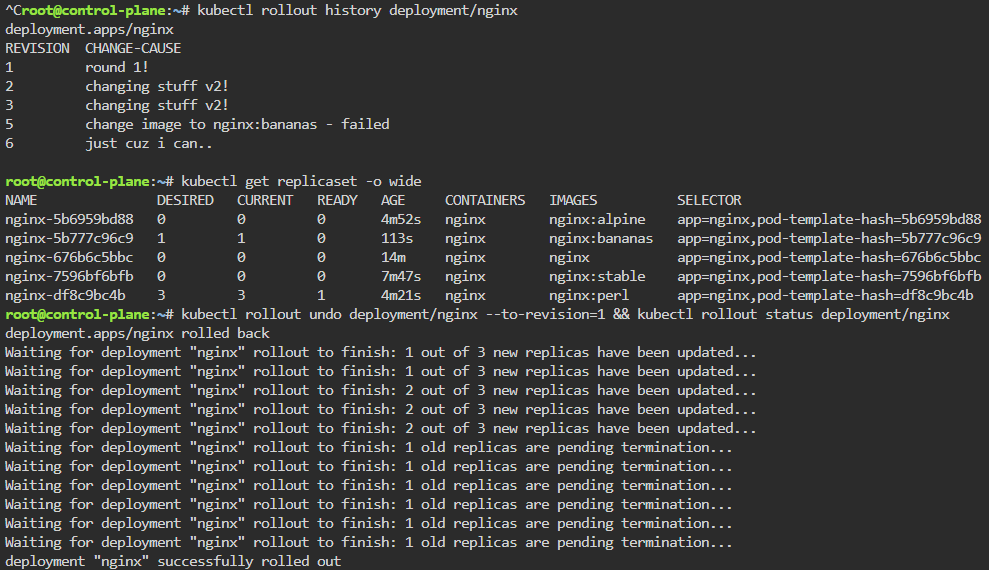
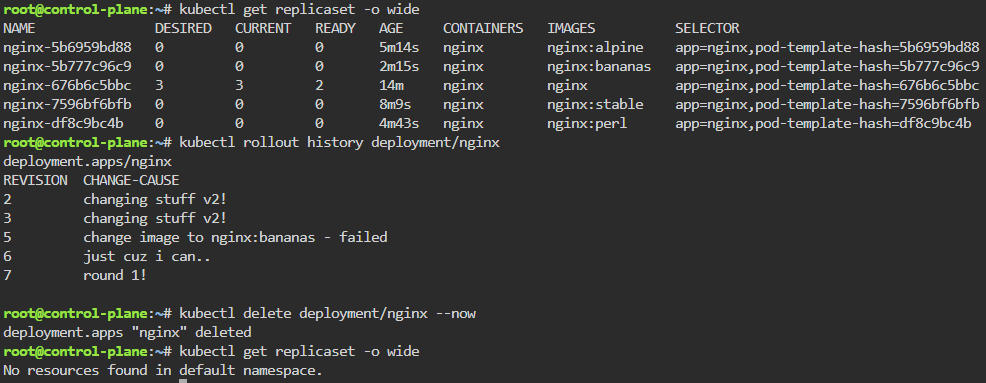
Deployments & Replicasets: create image deployment & replicaset, annotate/version yaml alteration by changing scale or image name, view rollout history, & undo/revert back deployment to specific version/annotation.

kubectl create deployment nginx --image=nginx --dry-run=client -o yaml | tee nginx-deployment.yaml | kubectl apply -f -
kubectl scale deployment/nginx --replicas=4; watch kubectl get pods -o wide
kubectl rollout history deployment/nginx
kubectl get pods -o wide
kubectl rollout undo deployment/nginx --to-revision=1 && kubectl rollout status deployment/nginx
kubectl delete deployment/nginx --now

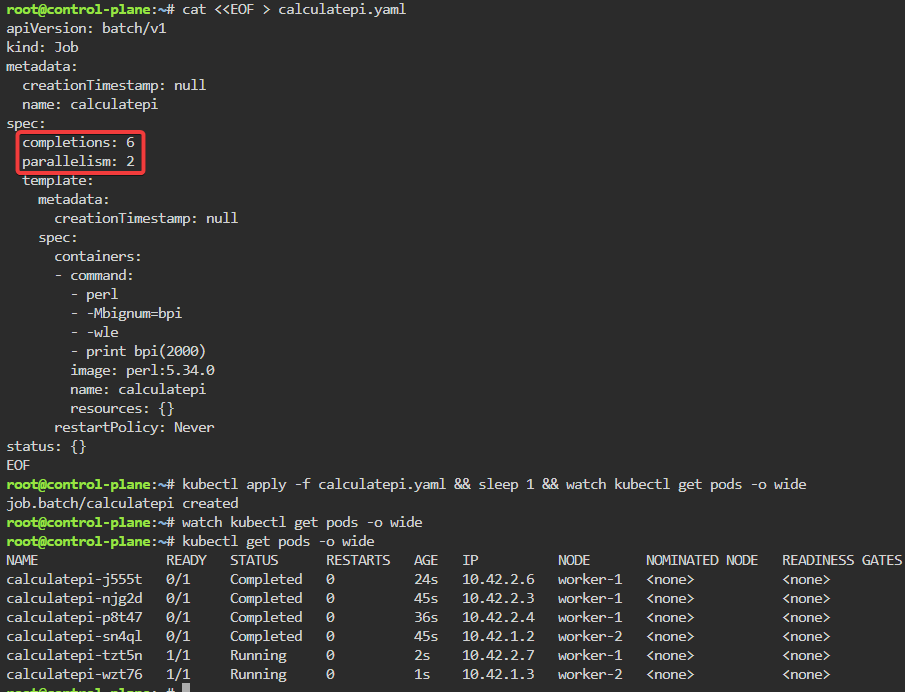
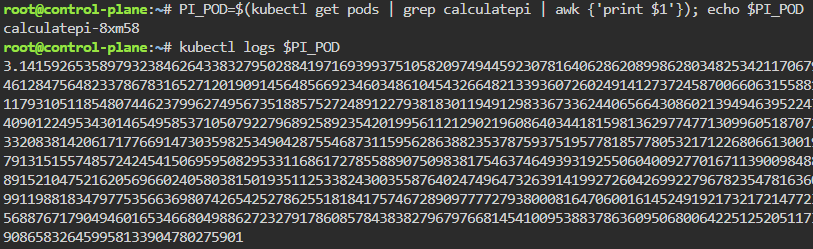
Jobs/Cron-Job: create a job & watch rollout of pod, alter yaml file to add pod amount, grep to see log of answer, then also can set cronjob of when to launch a pod.

kubectl create job calculatepi --image=perl:5.34.0 -- "perl" "-Mbignum=bpi" "-wle" "print bpi(2000)"
watch kubectl get jobs
kubectl apply -f calculatepi.yaml && sleep 1 && watch kubectl get pods -o wide
PI_POD=$(kubectl get pods | grep calculatepi | awk {'print $1'}); echo $PI_POD
kubectl create cronjob calculatepi --image=perl:5.34.0 --schedule="* * * * *" -- "perl" "-Mbignum=bpi" "-wle" "print bpi(2000)"

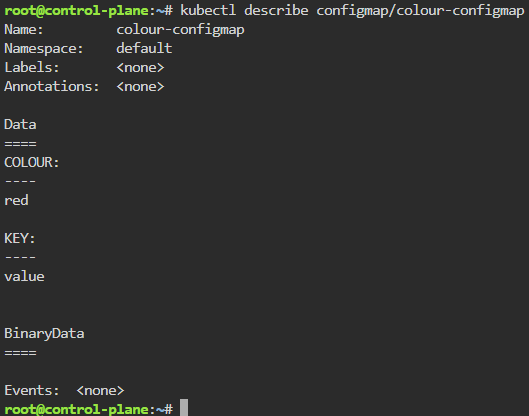
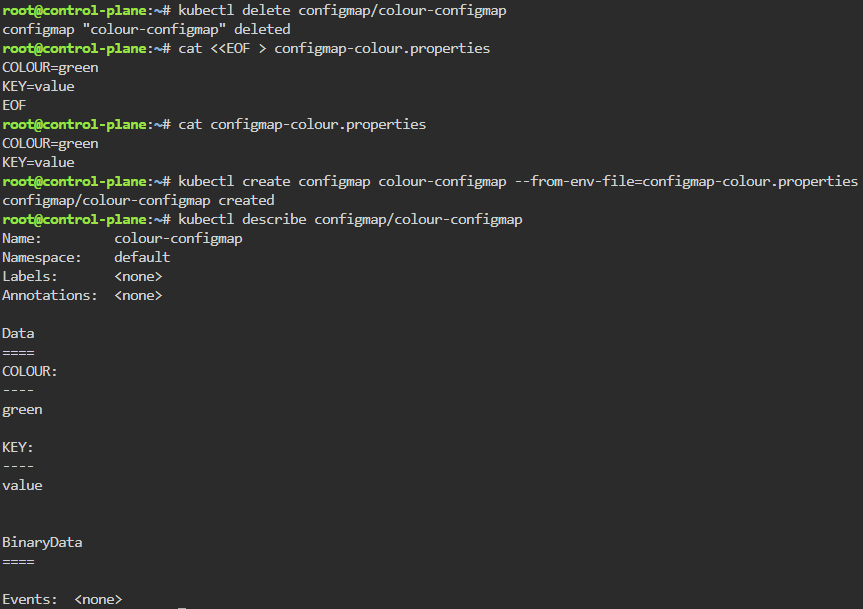
ConfigMaps: create configmap, edit, run, logs, delete…rinse & repeat.

kubectl create configmap colour-configmap --from-literal=COLOUR=red --from-literal=KEY=value
kubectl describe configmap/colour-configmap
cat configmap-colour.properties
kubectl create configmap colour-configmap --from-env-file=configmap-colour.properties
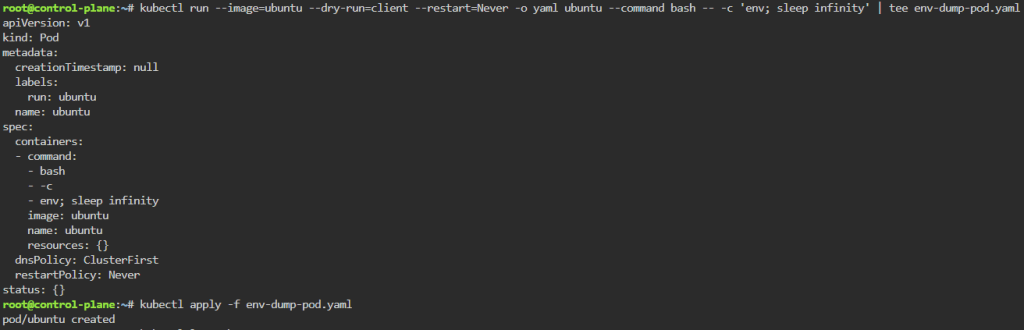
kubectl run --image=ubuntu --dry-run=client --restart=Never -o yaml ubuntu --command bash -- -c 'env; sleep infinity' | tee env-dump-pod.yaml
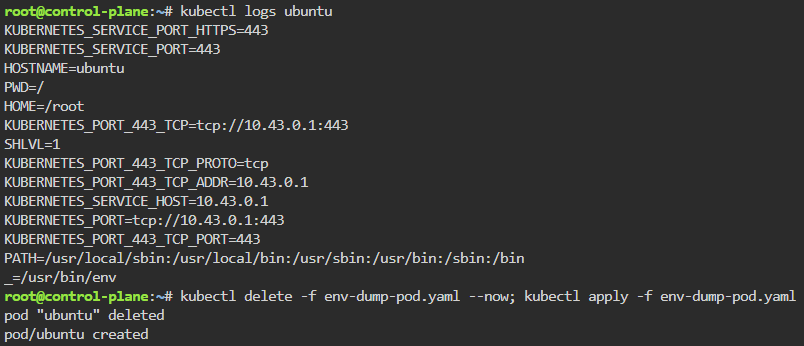
kubectl delete -f env-dump-pod.yaml --now; kubectl apply -f env-dump-pod.yaml

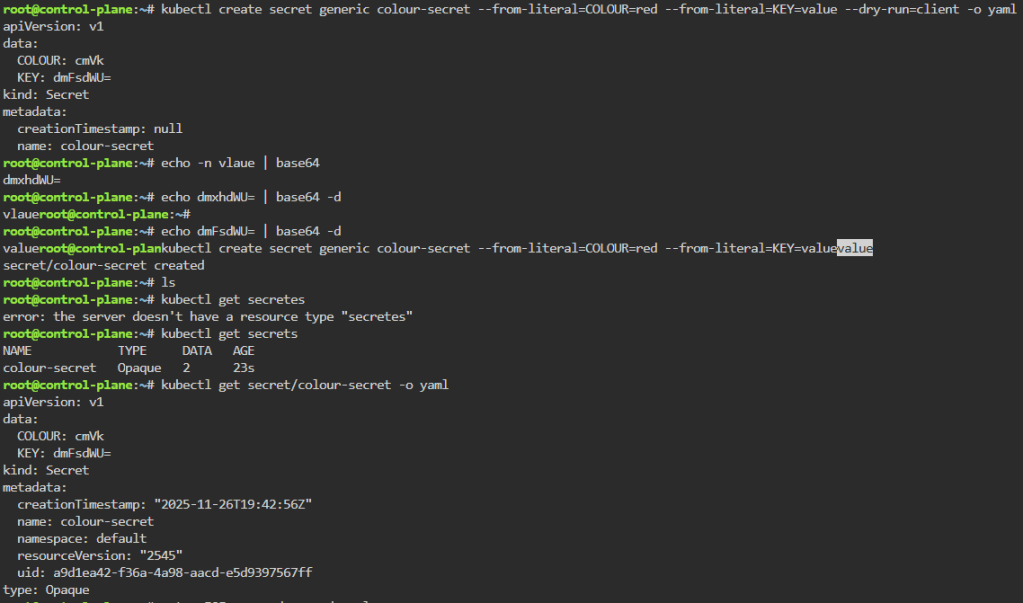
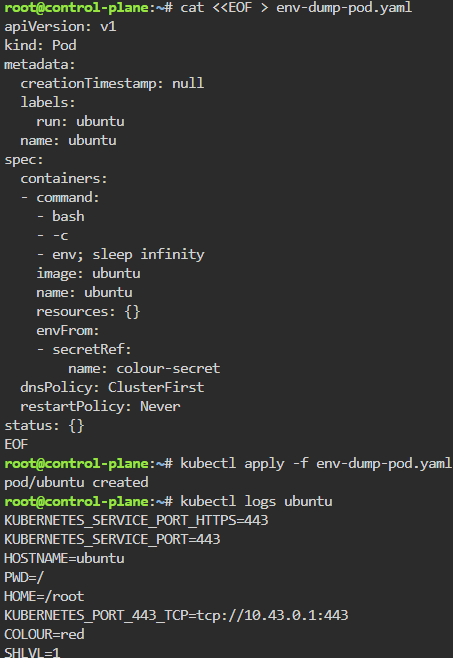
Secrets: create a secret color, echo decode w/base64, & then cat to apply

kubectl create secret generic colour-secret --from-literal=COLOUR=red --from-literal=KEY=value --dry-run=client -o yaml
echo -n value | base64
echo dmFsdWU= | base64 -d
kubectl get secret/colour-secret -o yaml
kubectl apply -f env-dump-pod.yaml
kubectl logs ubuntu

Services:

  • Can cover multiple types –
    • ClusterIP
    • NodePort
    • LoadBalancer
    • ExternalName
    • Headless

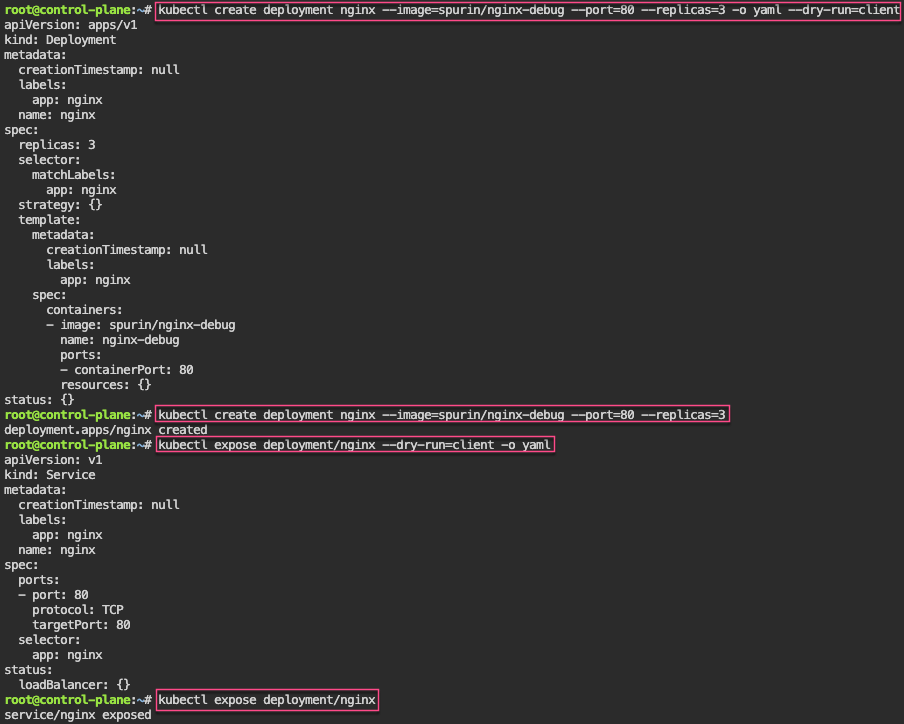
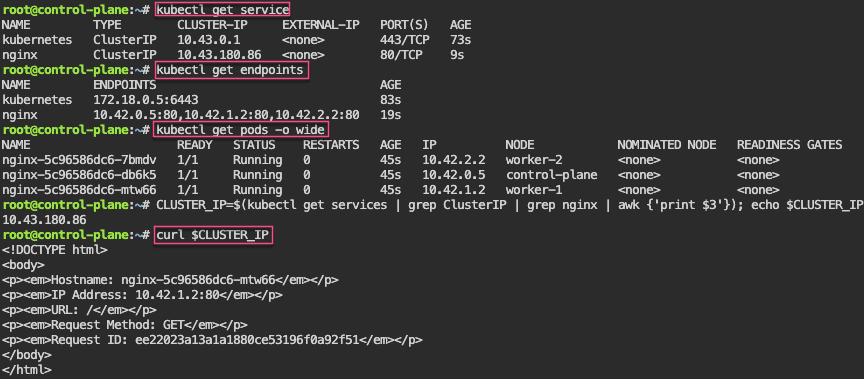
Service – ClusterIP: create image deployment on port 80 w/3 replicas, expose, get IP, & shell into curl

kubectl create deployment nginx --image=spurin/nginx-debug --port=80 --replicas=3 -o yaml --dry-run=client
kubectl create deployment nginx --image=spurin/nginx-debug --port=80 --replicas=3
kubectl expose deployment/nginx --dry-run=client -o yaml
kubectl expose deployment/nginx
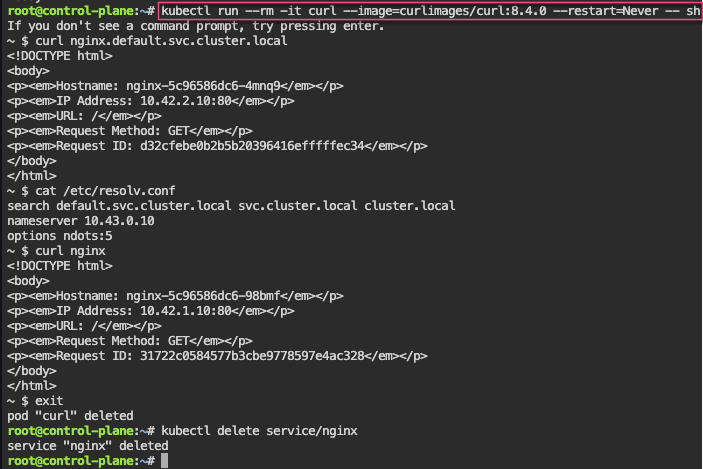
kubectl run --rm -it curl --image=curlimages/curl:8.4.0 --restart=Never -- sh

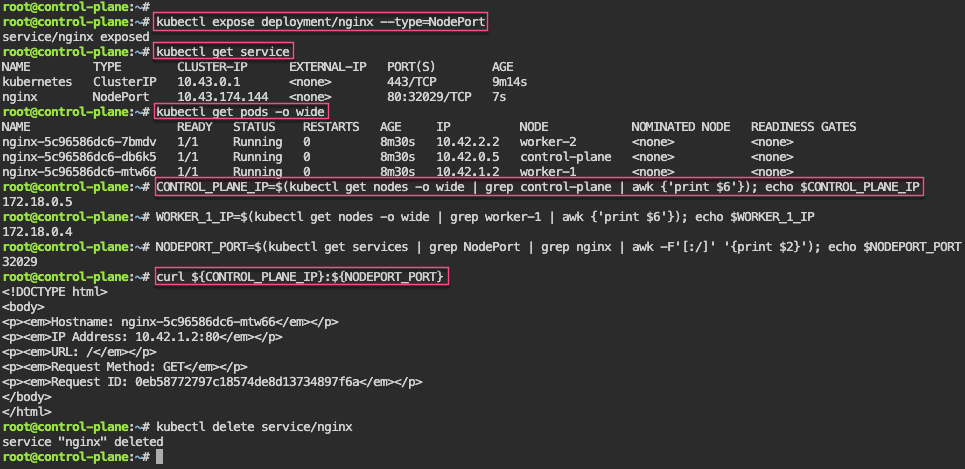
Service – NodePort: expose a node, grep to get control-plane-ip & nodeport-port, then shell into curl the pod information

kubectl expose deployment/nginx --type=NodePort
CONTROL_PLANE_IP=$(kubectl get nodes -o wide | grep control-plane | awk {'print $6'}); echo $CONTROL_PLANE_IP
NODEPORT_PORT=$(kubectl get services | grep NodePort | grep nginx | awk -F'[:/]' '{print $2}'); echo $NODEPORT_PORT
curl ${CONTROL_PLANE_IP}:${NODEPORT_PORT}

Service – LoadBalancer: expose LB to port 80, grep to get IP & port, then scale to watch the IP change from each of the 3 scaled pods

kubectl expose deployment/nginx --type=LoadBalancer --port 8080 --target-port 80
LOADBALANCER_IP=$(kubectl get service | grep LoadBalancer | grep nginx | awk '{split($0,a," "); split(a[4],b,","); print b[1]}'); echo $LOADBALANCER_IP
LOADBALANCER_PORT=$(kubectl get service | grep LoadBalancer | grep nginx | awk -F'[:/]' '{print $2}'); echo $LOADBALANCER_PORT
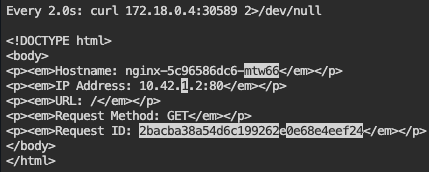
kubectl scale deployment/nginx --replicas=1; watch --differences "curl ${LOADBALANCER_IP}:${LOADBALANCER_PORT} 2>/dev/null"
watch --differences "curl ${LOADBALANCER_IP}:${LOADBALANCER_PORT} 2>/dev/null"

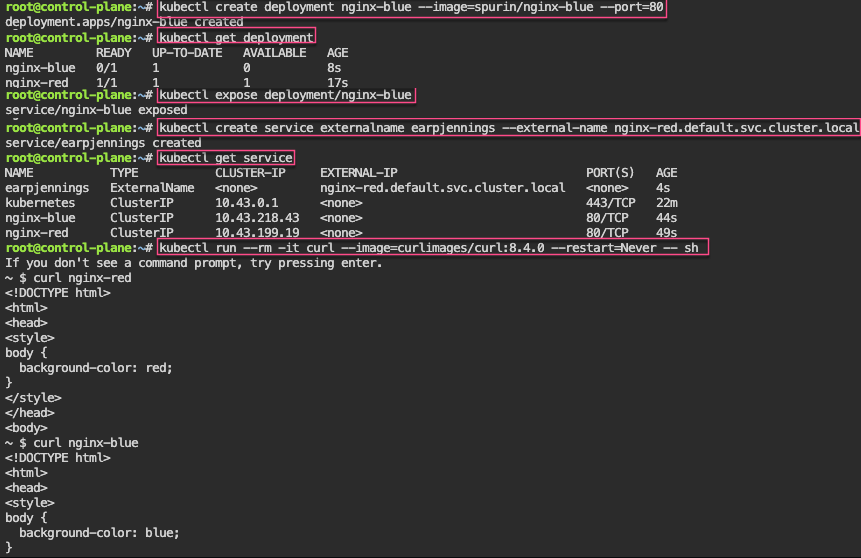
Service – ExternalName: create various deployments on port 80, then expose them, & finally curl IP to shell into deployment name

kubectl create deployment nginx-blue --image=spurin/nginx-blue --port=80
kubectl expose deployment/nginx-blue
kubectl create service externalname my-service --external-name nginx-red.default.svc.cluster.local
kubectl run --rm -it curl --image=curlimages/curl:8.4.0 --restart=Never -- sh
curl nginx-blue

KCNA: P3 Kubernetes Fundyzzz..part 1

Blog post includes covering Kubernetes Fundamental’s in preparation for the KCNA.

  • Init-Containers
  • Pods
  • Namespaces
  • Labels

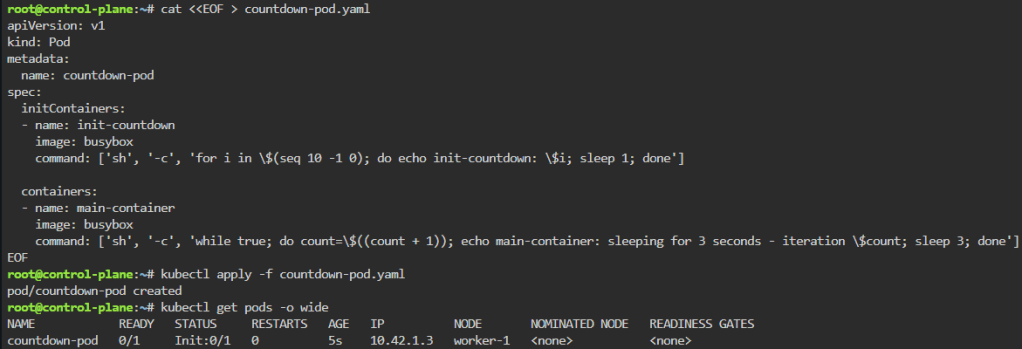
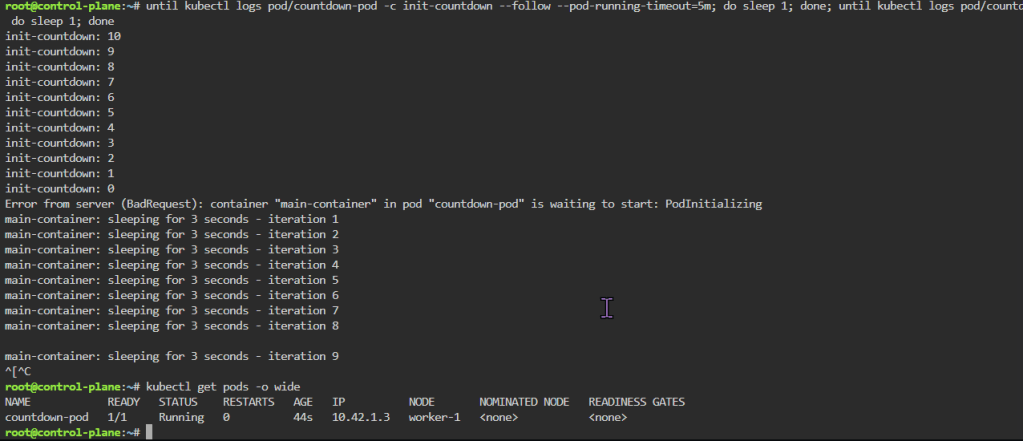
K8 Pods – Init Containers: create yaml file w/init container before main container, apply, & then watch logs

cat <<EOF > countdown-pod.yaml
apiVersion: v1
kind: Pod
metadata:
  name: countdown-pod
spec:
  initContainers:
  - name: init-countdown
    image: busybox
    command: ['sh', '-c', 'for i in \$(seq 120 -1 0); do echo init-countdown: \$i; sleep 1; done']

  containers:
  - name: main-container
    image: busybox
    command: ['sh', '-c', 'while true; do count=\$((count + 1)); echo main-container: sleeping for 30 seconds - iteration \$count; sleep 30; done']
EOF
kubectl apply -f countdown-pod.yaml
kubectl get pods -o wide
until kubectl logs pod/countdown-pod -c init-countdown --follow --pod-running-timeout=5m; do sleep 1; done; until kubectl logs pod/countdown-pod -c main-container --follow --pod-running-timeout=5m; do sleep 1; done
kubectl get pods -o wide

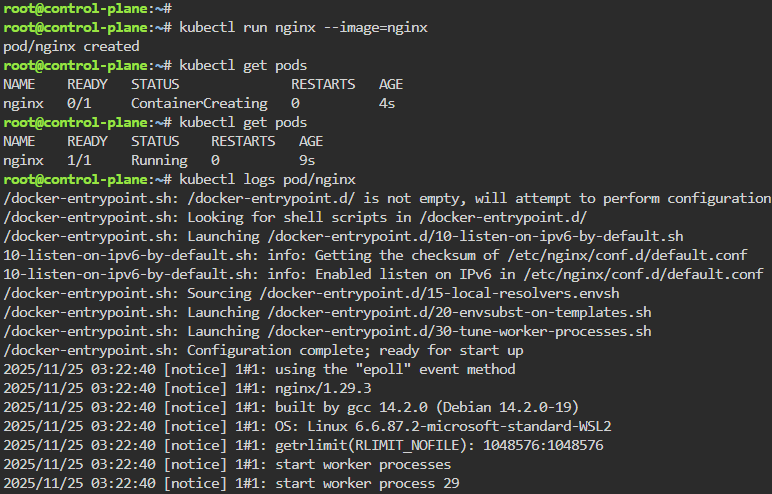
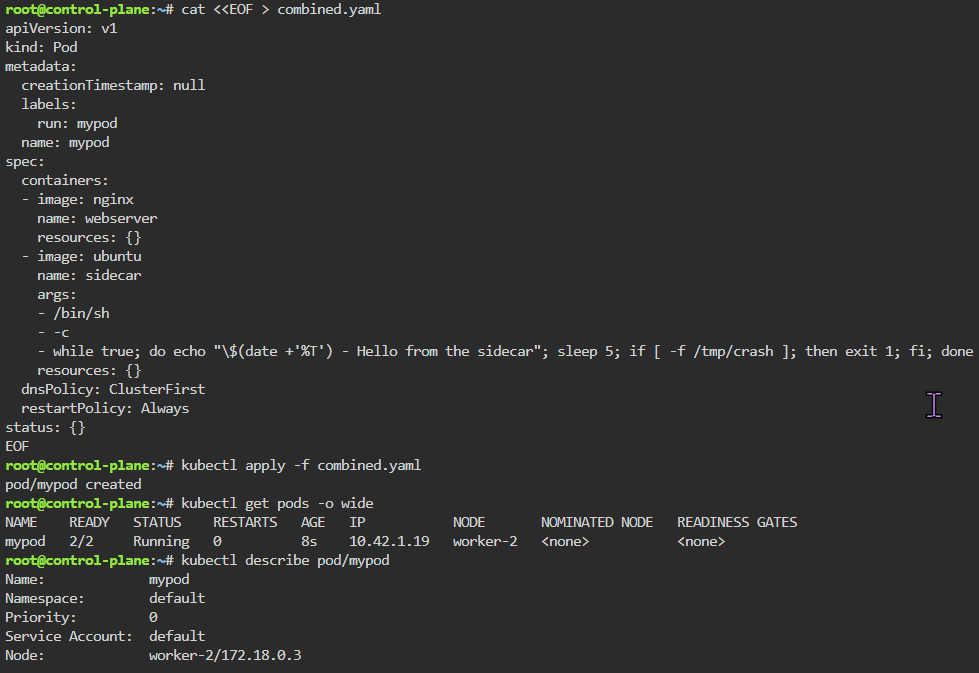
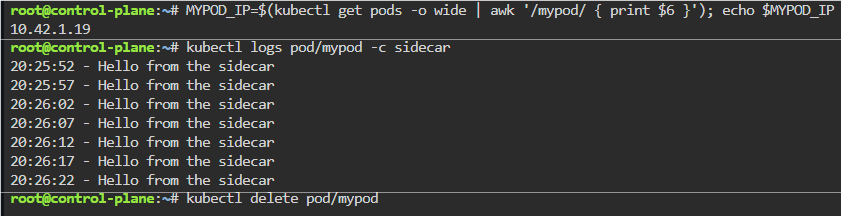
K8 Pods: create image, port forward, curl/shell into pod, create another yaml file image combined as sidecar, & output sidecar response of pod containers

kubectl run nginx --image=nginx
kubectl get pods
kubectl logs pod/nginx
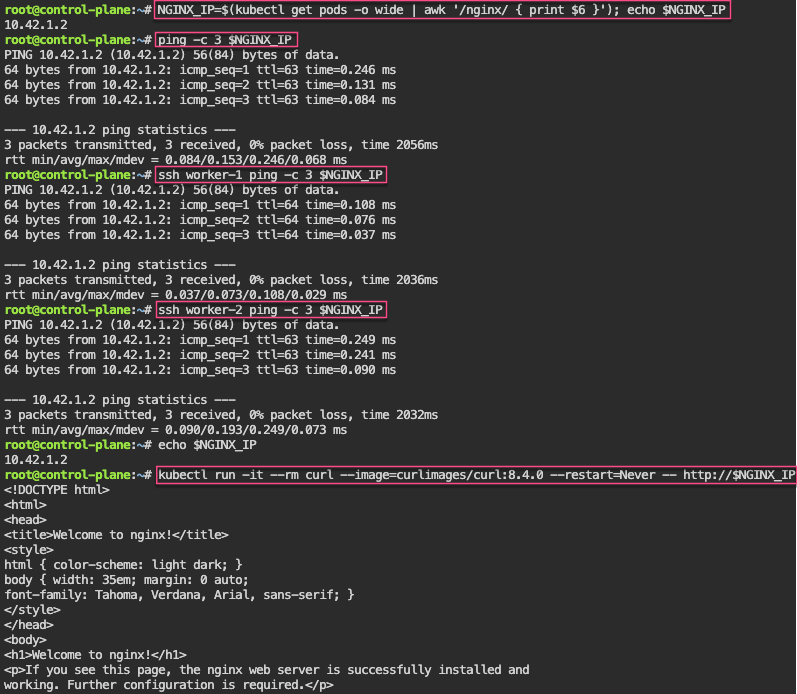
kubectl get pods -o wide
NGINX_IP=$(kubectl get pods -o wide | awk '/nginx/ { print $6 }'); echo $NGINX_IP
ping -c 3 $NGINX_IP
ssh worker-1 ping -c 3 $NGINX_IP
ssh worker-2 ping -c 3 $NGINX_IP
echo $NGINX_IP
kubectl run -it --rm curl --image=curlimages/curl:8.4.0 --restart=Never -- http://$NGINX_IP
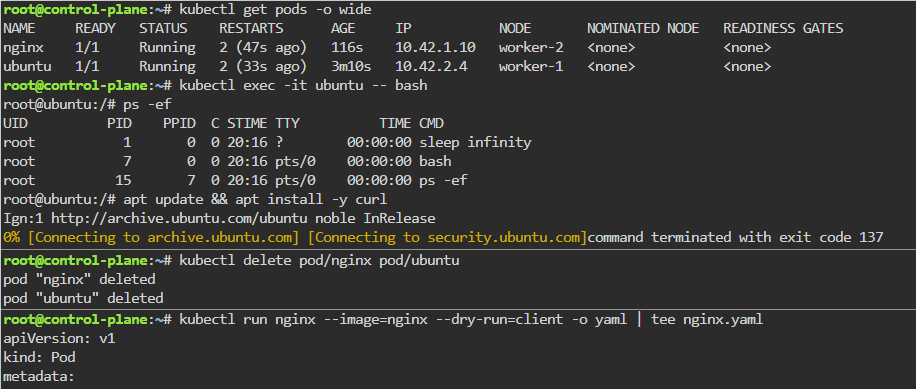
kubectl exec -it ubuntu -- bash
apt update && apt install -y curl
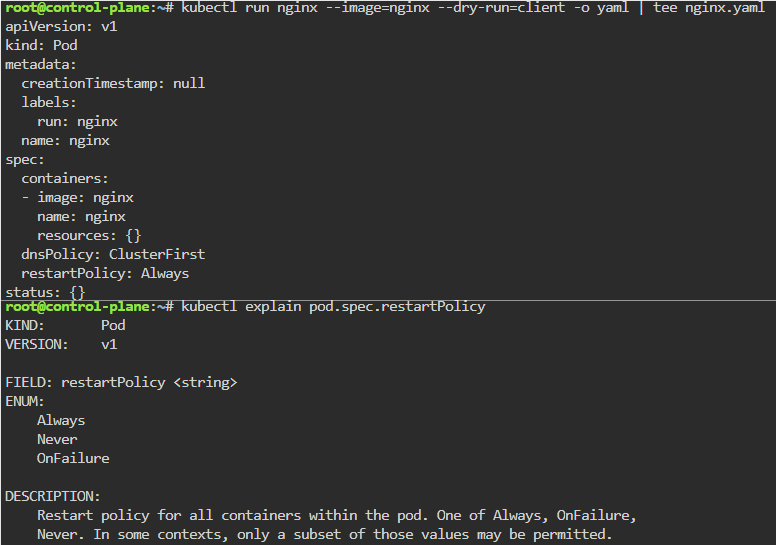
kubectl run nginx --image=nginx --dry-run=client -o yaml | tee nginx.yaml
cat <<EOF > combined.yaml
apiVersion: v1
kind: Pod
metadata:
  creationTimestamp: null
  labels:
    run: mypod
  name: mypod
spec:
  containers:
  - image: nginx
    name: webserver
    resources: {}
  - image: ubuntu
    name: sidecar
    args:
    - /bin/sh
    - -c
    - while true; do echo "\$(date +'%T') - Hello from the sidecar"; sleep 5; if [ -f /tmp/crash ]; then exit 1; fi; done
    resources: {}
  dnsPolicy: ClusterFirst
  restartPolicy: Always
status: {}
EOF
MYPOD_IP=$(kubectl get pods -o wide | awk '/mypod/ { print $6 }'); echo $MYPOD_IP
kubectl logs pod/mypod -c sidecar
kubectl delete pod/mypod --now

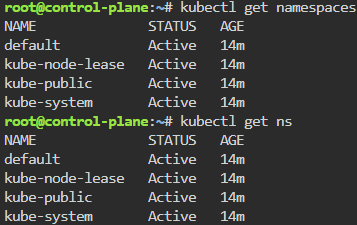
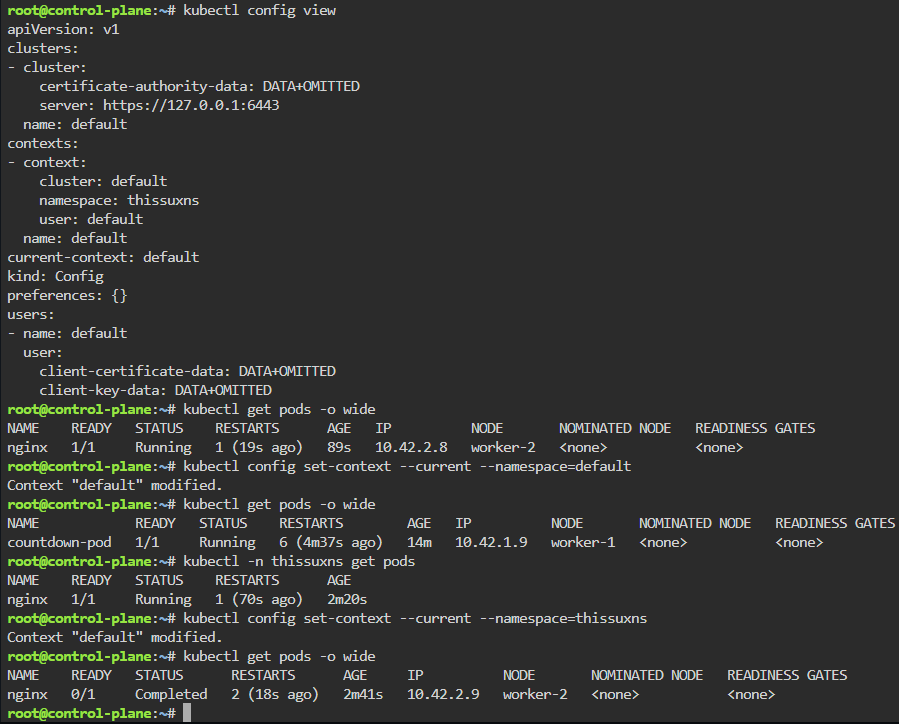
    Namespaces: make an ns w/image, change config context default to new ns, & switch back & forth to notice not all pods created under ns

    kubectlget ns
    kubectl -n thissuxns run nginx --image=nginx
    kubectl get pods -o wide
    kubectl -n thissuxns get pods
    kubectl config view
    kubectl config set-context --current --namespace=thissuxns
    kubectl get pods -o wide
    kubectl config set-context --current --namespace=default
    kubectl get pods -o wide

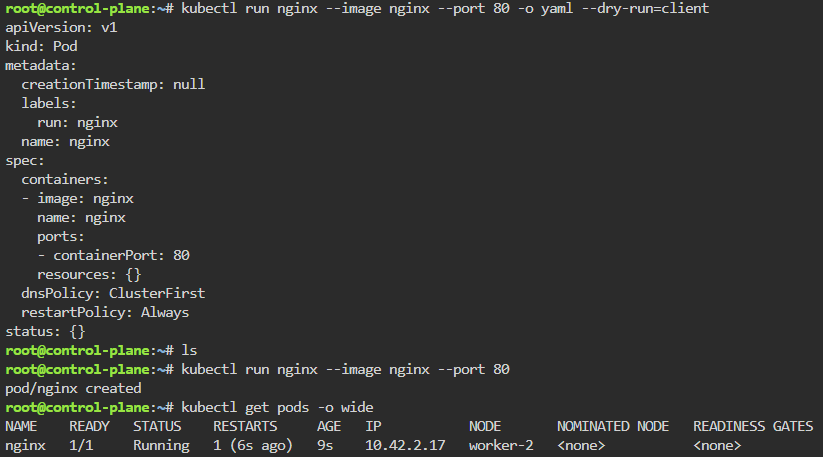
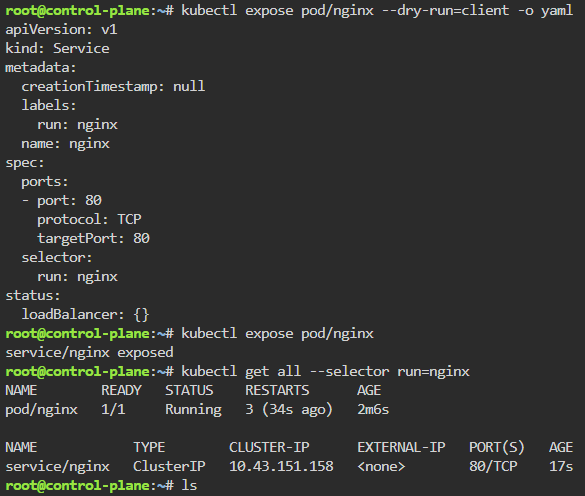
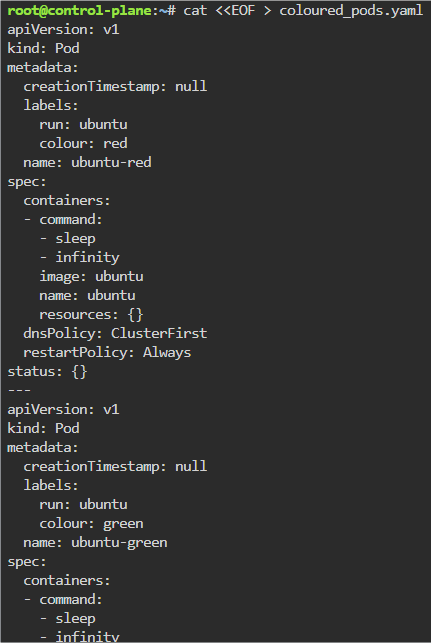
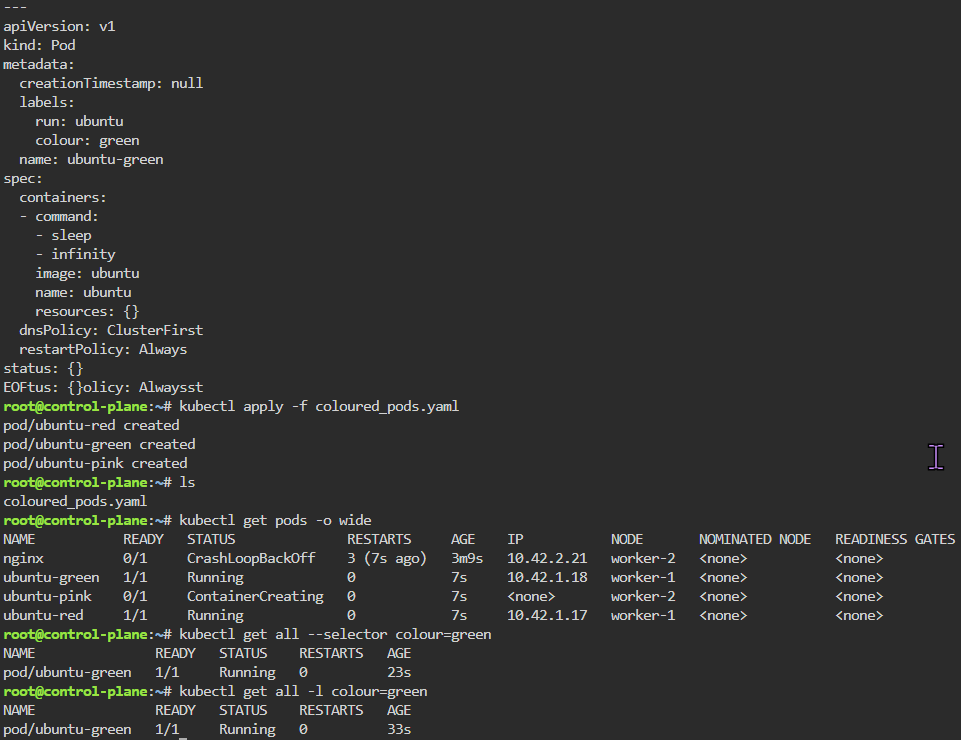
    Labels: starting pod on port 80, utilize selector label, apply new yaml file of 3 options for selector label, & then get pods for just that particular label selector

    kubectl run nginx --image nginx --port 80 -o yaml --dry-run=client
    kubectl run nginx --image nginx --port 80
    kubectl expose pod/nginx --dry-run=client -o yaml
    kubectl expose pod/nginx
    cat <<EOF > coloured_pods.yaml
    apiVersion: v1
    kind: Pod
    metadata:
      creationTimestamp: null
      labels:
        run: ubuntu
        colour: red
      name: ubuntu-red
    spec:
      containers:
      - command:
        - sleep
        - infinity
        image: ubuntu
        name: ubuntu
        resources: {}
      dnsPolicy: ClusterFirst
      restartPolicy: Always
    status: {}
    ---
    apiVersion: v1
    kind: Pod
    metadata:
      creationTimestamp: null
      labels:
        run: ubuntu
        colour: green
      name: ubuntu-green
    spec:
      containers:
      - command:
        - sleep
        - infinity
        image: ubuntu
        name: ubuntu
        resources: {}
      dnsPolicy: ClusterFirst
      restartPolicy: Always
    status: {}
    ---
    apiVersion: v1
    kind: Pod
    metadata:
      creationTimestamp: null
      labels:
        run: ubuntu
        colour: pink
      name: ubuntu-pink
    spec:
      containers:
      - command:
        - sleep
        - infinity
        image: ubuntu
        name: ubuntu
        resources: {}
      dnsPolicy: ClusterFirst
      restartPolicy: Always
    status: {}
    EOF
    kubectl apply -f coloured_pods.yaml
    kubectl get pods -o wide
    kubectl get all --selector colour=green

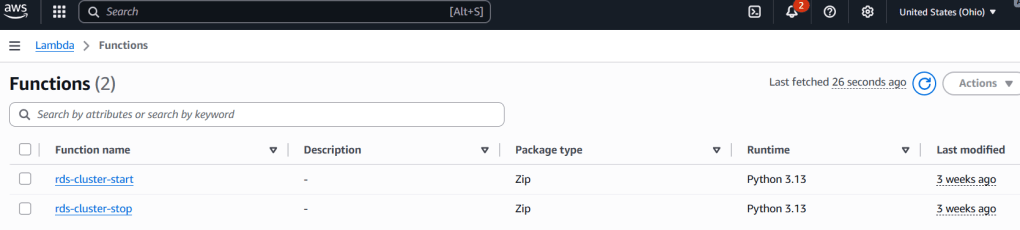
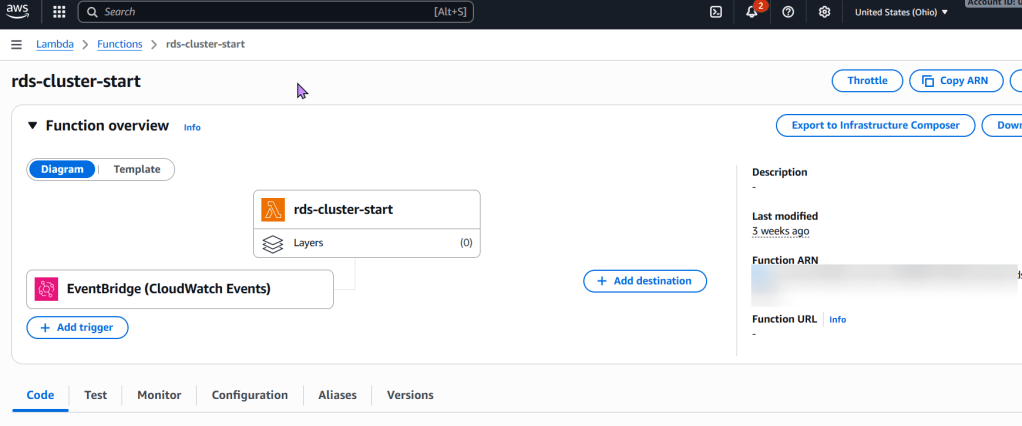
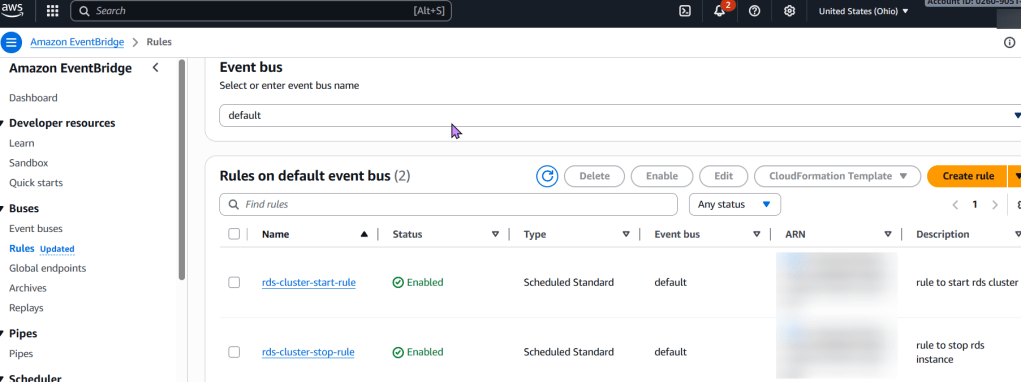
    Lambda Magic for RDS

    Steps below to create:

    To stop an RDS instance every 7 days using AWS Lambda and Terraform, below are the following concepts followed:

    Explanation:

    • Step 1
    • Step 2
      • Lambda FunctionA Python-based Lambda function that uses the AWS SDK (boto3) to stop the specified RDS instance(s).
    • Step 3
    • Step 4
      • To deploy:
        • Save the Terraform code in .tf files and the Python code as lambda_function.py.
        • Zip the Python file into lambda_function.zip.
        • Initialize Terraform: terraform init
        • Plan the deployment: terraform plan
          • Apply the changes: terraform apply
    • Main.tf
    # Define an IAM role for the Lambda function
    resource "aws_iam_role" "rds_stop_lambda_role" {
      name = "rds-stop-lambda-role"
    
      assume_role_policy = jsonencode({
        Version = "2012-10-17",
        Statement = [
          {
            Action = "sts:AssumeRole",
            Effect = "Allow",
            Principal = {
              Service = "lambda.amazonaws.com"
            }
          }
        ]
      })
    }
    
    # Attach a policy to the role allowing RDS stop actions and CloudWatch Logs
    resource "aws_iam_role_policy" "rds_stop_lambda_policy" {
      name = "rds-stop-lambda-policy"
      role = aws_iam_role.rds_stop_lambda_role.id
    
      policy = jsonencode({
        Version = "2012-10-17",
        Statement = [
          {
            Effect = "Allow",
            Action = [
              "rds:StopDBInstance",
              "rds:DescribeDBInstances"
            ],
            Resource = "*" # Restrict this to specific RDS instances if needed
          },
          {
            Effect = "Allow",
            Action = [
              "logs:CreateLogGroup",
              "logs:CreateLogStream",
              "logs:PutLogEvents"
            ],
            Resource = "arn:aws:logs:*:*:*"
          }
        ]
      })
    }
    
    # Create the Lambda function
    resource "aws_lambda_function" "rds_stop_lambda" {
      function_name = "rds-stop-every-7-days"
      handler       = "lambda_function.lambda_handler"
      runtime       = "python3.9"
      role          = aws_iam_role.rds_stop_lambda_role.arn
      timeout       = 60
    
      # Replace with the path to your zipped Lambda code
      filename         = "lambda_function.zip"
      source_code_hash = filebase64sha256("lambda_function.zip")
    
      environment {
        variables = {
          RDS_INSTANCE_IDENTIFIER = "my-rds-instance" # Replace with your RDS instance identifier
          REGION                  = "us-east-1"       # Replace with your AWS region
        }
      }
    }
    
    # Create an EventBridge (CloudWatch Event) rule to trigger the Lambda
    resource "aws_cloudwatch_event_rule" "rds_stop_schedule" {
      name                = "rds-stop-every-7-days-schedule"
      schedule_expression = "cron(0 0 ? * SUN *)" # Every Sunday at 00:00 UTC
    }
    
    # Add the Lambda function as a target for the EventBridge rule
    resource "aws_cloudwatch_event_target" "rds_stop_target" {
      rule      = aws_cloudwatch_event_rule.rds_stop_schedule.name
      target_id = "rds-stop-lambda-target"
      arn       = aws_lambda_function.rds_stop_lambda.arn
    }
    
    # Grant EventBridge permission to invoke the Lambda function
    resource "aws_lambda_permission" "allow_cloudwatch_to_call_lambda" {
      statement_id  = "AllowExecutionFromCloudWatch"
      action        = "lambda:InvokeFunction"
      function_name = aws_lambda_function.rds_stop_lambda.function_name
      principal     = "events.amazonaws.com"
      source_arn    = aws_cloudwatch_event_rule.rds_stop_schedule.arn
    }
    • lambda_function.py (Python code for the Lambda function):
    import boto3
    import os
    
    def lambda_handler(event, context):
        rds_instance_identifier = os.environ.get('RDS_INSTANCE_IDENTIFIER')
        region = os.environ.get('REGION')
    
        if not rds_instance_identifier or not region:
            print("Error: RDS_INSTANCE_IDENTIFIER or REGION environment variables are not set.")
            return {
                'statusCode': 400,
                'body': 'Missing environment variables.'
            }
    
        rds_client = boto3.client('rds', region_name=region)
    
        try:
            response = rds_client.stop_db_instance(
                DBInstanceIdentifier=rds_instance_identifier
            )
            print(f"Successfully initiated stop for RDS instance: {rds_instance_identifier}")
            return {
                'statusCode': 200,
                'body': f"Stopping RDS instance: {rds_instance_identifier}"
            }
        except Exception as e:
            print(f"Error stopping RDS instance {rds_instance_identifier}: {e}")
            return {
                'statusCode': 500,
                'body': f"Error stopping RDS instance: {e}"
            }
    • Zipping the Lambda Code:
    zip lambda_function.zip lambda_function.py

    Wanna secure EKS w/CA & TLS?

    Goal:

    DO YOU HAVE A KUBERNETES CLUSTER! IS IT INSECURE!? …. I’m out of breath & getting dizzy, Idk how those commercials bring that outside voice & energy – – its exhausting!

    Alright, I’m back – all this will show you is how to secure your cluster. Below you can see how one can authenticate w/one another’s Kubernetes after you have a certificate & attach a certificate authority (CA) by creating certificate’s to bootstrap your Kubernetes cluster.

    • Please note – there are two (2) controllers, two (2) workers, & an Kubernetes API Load Balancer

    Lessons Learned:

    • Permit/Provision CA
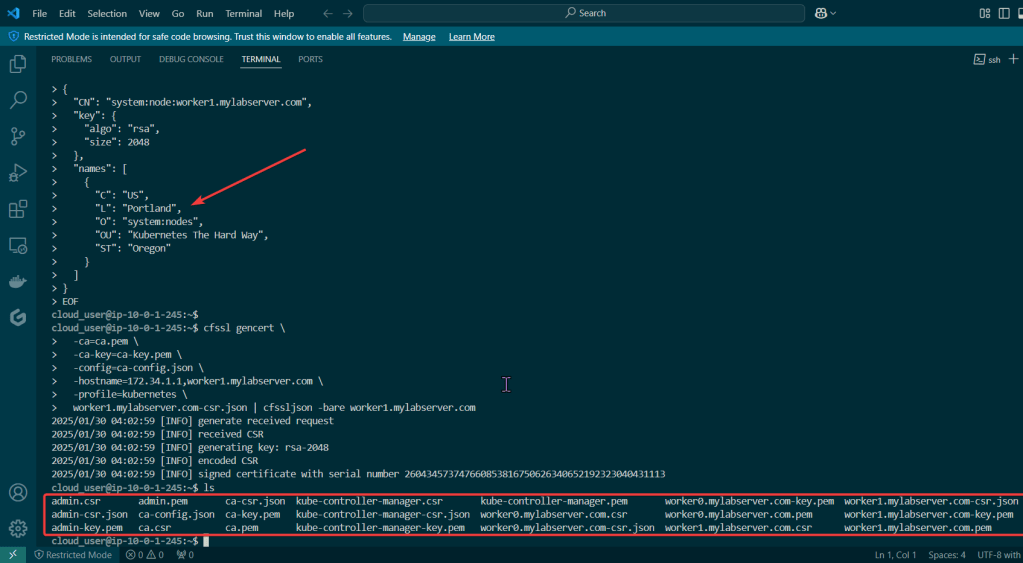
    • Create Kubernetes client certs & kubelet client certs for two (2) nodes:
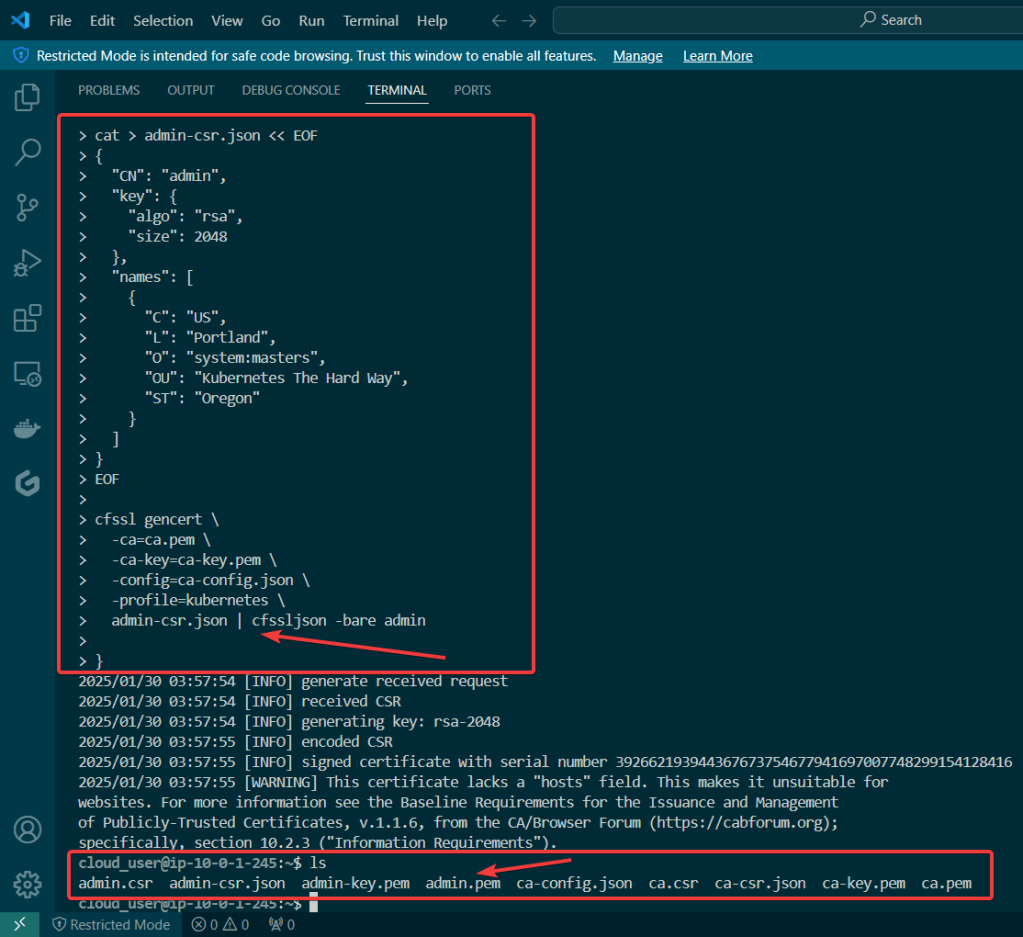
      • Admin Client Certificate
      • Kubelet Client Certificate
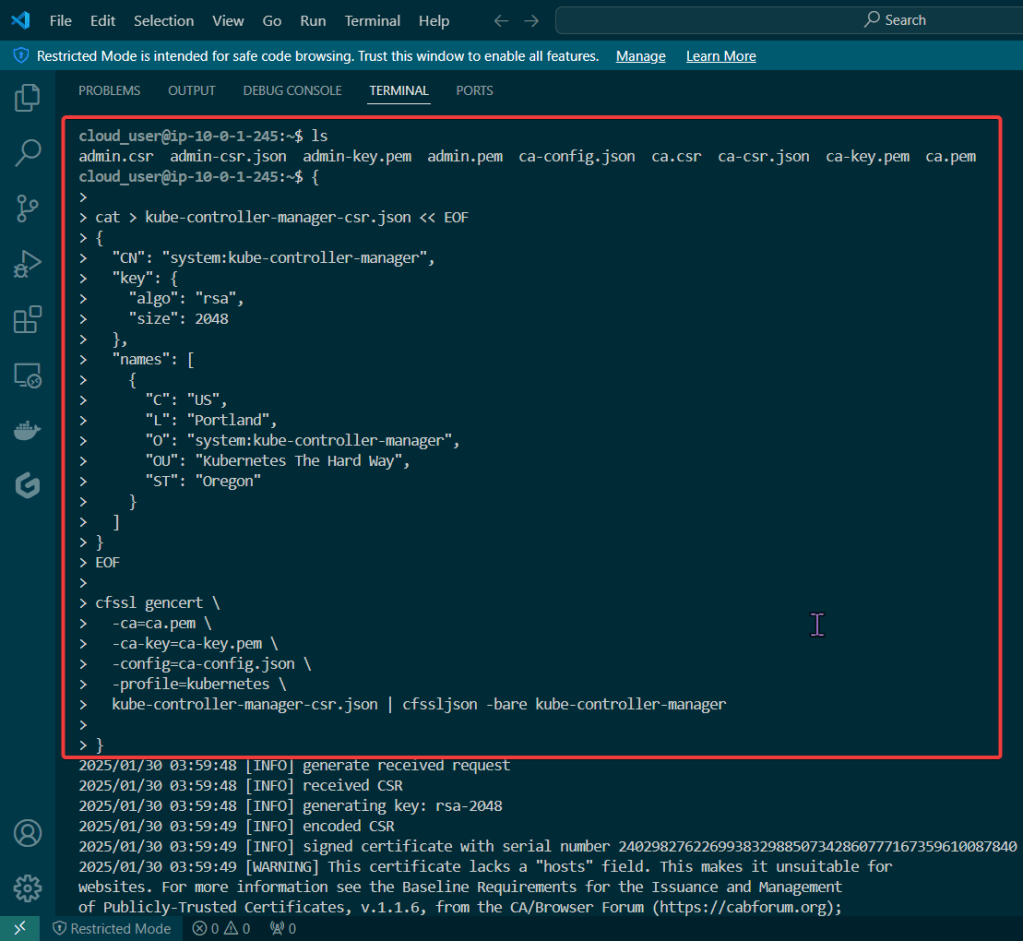
      • Manager Client Cert
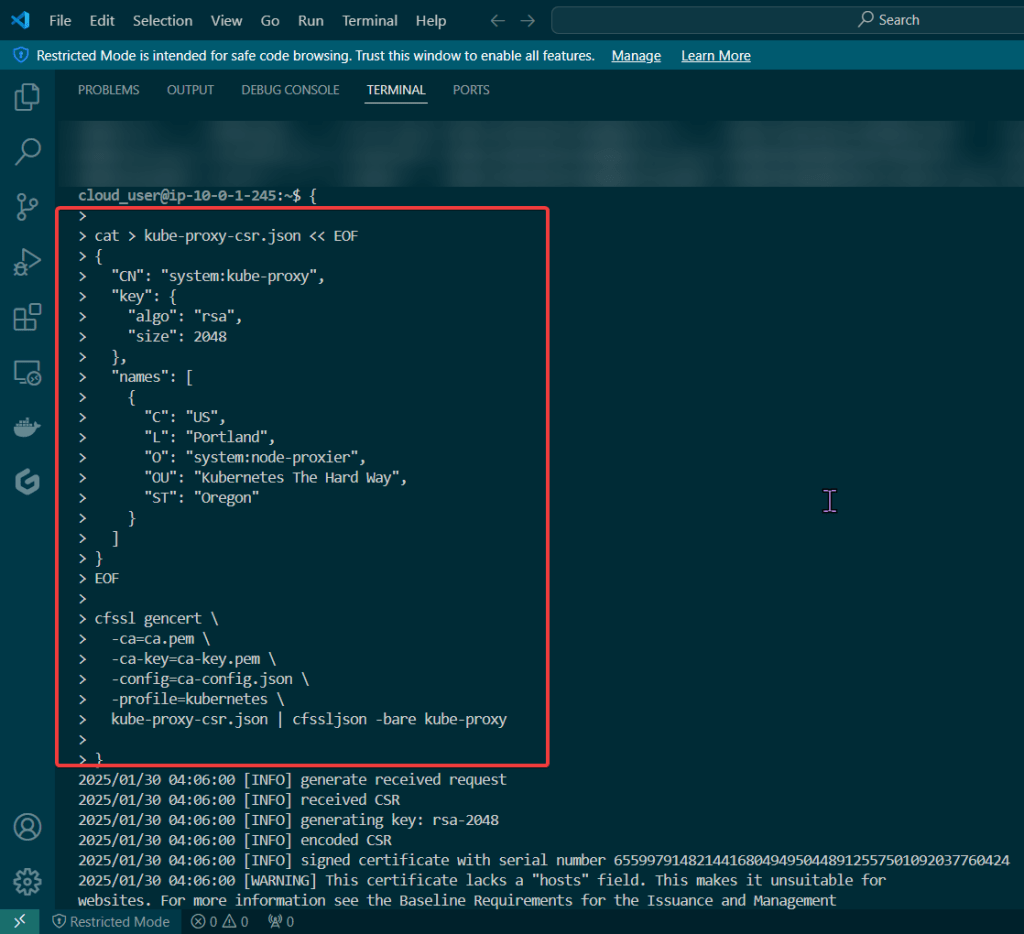
      • Kube-Proxy Client Certificate
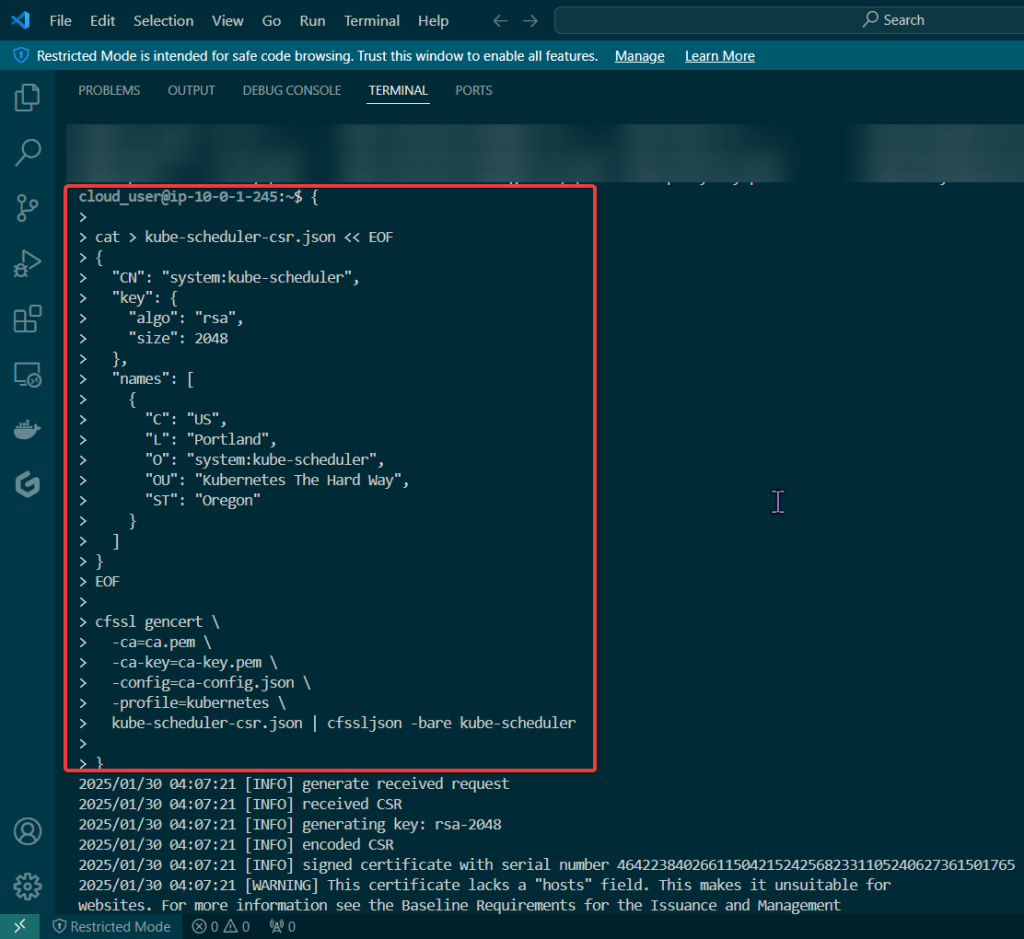
      • Kube-Scheduler Client Certificate
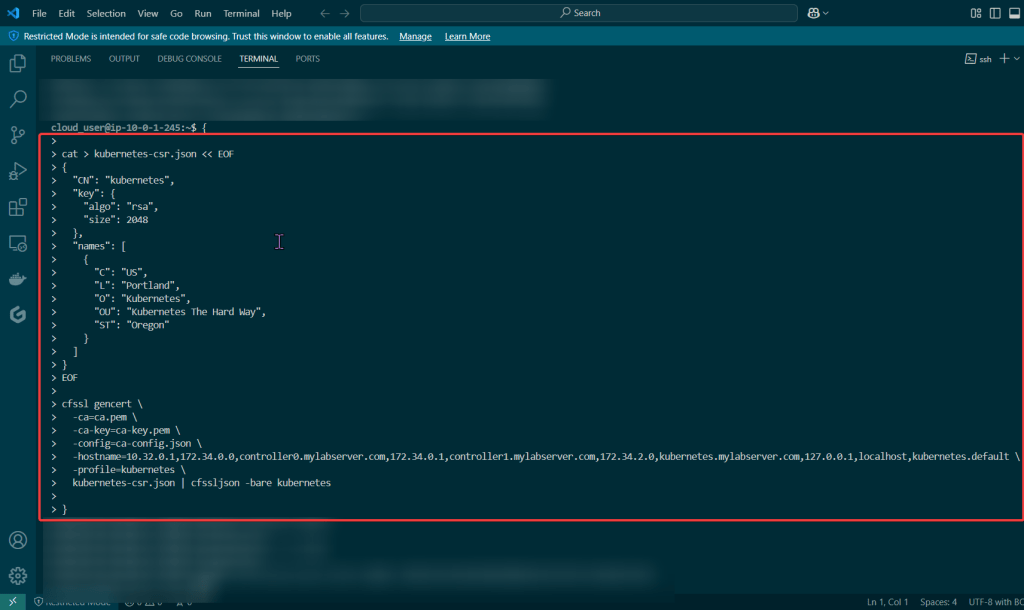
    • Kubernetes API server certificate
    • Kubernetes service account key pair
    • If you follow these lessons learned, you will not let this happen to you – don’t be Karen.
    • Created to sign other certificates & other certs can now use the CA to show legitness (its a word, look it up in the dictionary..urban, dictionary..) that no fakers are occurring

    Admin Client Certificate:

    Kubelet Client Certificate:

    Manager Client Cert:

    Kube-Proxy Client Certificate:

    Kube-Scheduler Client Certificate:

    • These gifs are TOOOOO good for info commercial’s in the late 90s’/early 2000s’

    Create Kubernetes API server certificate:

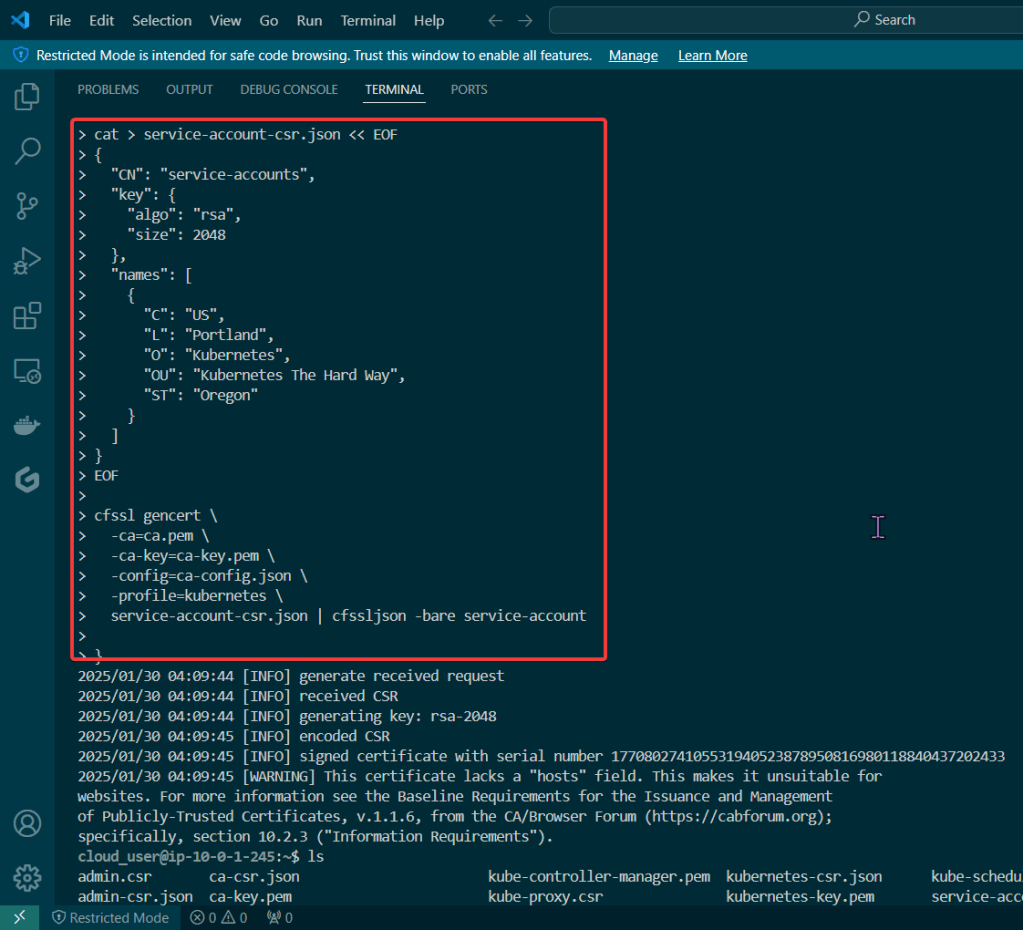
    Create Kubernetes service account key pair:

    When you see Smoke – – – there is Kubernetes Cluster being Tested..

    Goal:

    Stuff happen, so when it does – it is good to know what to do w/your Kubernetes cluster. The answer is – drum roll please… smoke testing, tahhh-dahhh! This is useful not just when stuff hits the fan, but to see if the known vulnerable features are working properly becuase the goal is to verify the health of the cluster.

    Example of smoke tests of the Kubernetes cluster conducted will contain:

    • Data Encryption
    • Deployment
    • Port Forwarding
    • Logs
    • Exec
    • Services

    Lessons Learned:

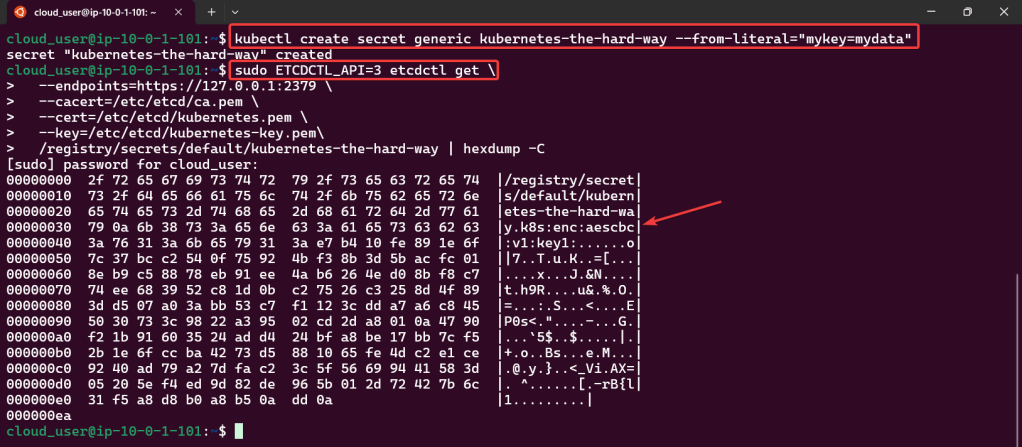
    • Cluster Data Encryption
    • Deployments Work
    • Remote Access works w/Port Forwarding
    • Access Container Logs w/Kubectl Logs
    • Execute Commands inside the Container
    • Services Work
    • Create test data for secret key
    • Ensure secret key is stored
    • Create & verify deployment
    • Snag that pod name & store in variable
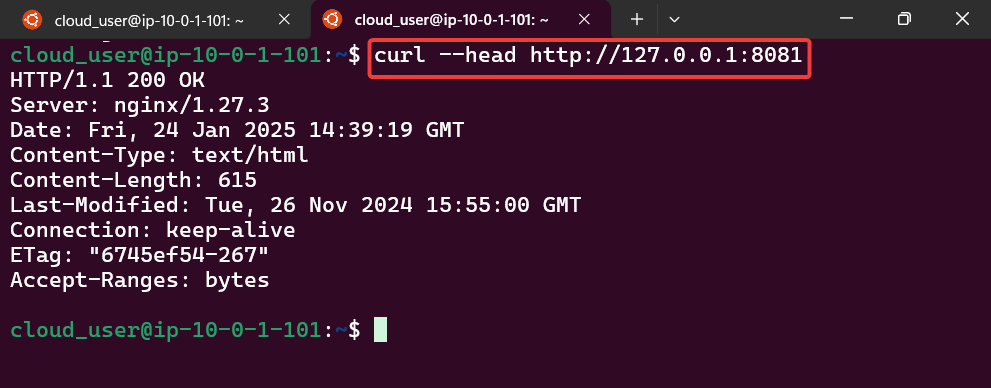
    • Forward port to nginx pod
    • Open new terminal – – – & curl IP address/port
    • Get logs from nginx pod
    • Confirm you can run “exec” command & will see the version

    • Test to see if service can be deployed
    • Get node port from variable
    • Curl IP address/port

    Release the Helm Kraken!

    Goal:

    Humans aren’t constant, but Helm versions are! So this is an efficient way to release & clarify your versions of charts in Helm. Then for gigs we will rollback to the original state, cuz – why not?

    Lessons Learned:

    • Update index & version #
      • Update values.yaml
      • Update chart.yaml
    • Initialize
      • Helm install
    • Release the chart & confirm version #
      • Check the node port & see it launched!
    • Update index data & version #
      • Update the files again
    • Rollback it on back now! – – – to Previous Version #:

    Update index & version #:

    • Updated index & type of service as well as nodeport #

    Update values.yaml:

    Update Chart.yaml:

    • Update version #
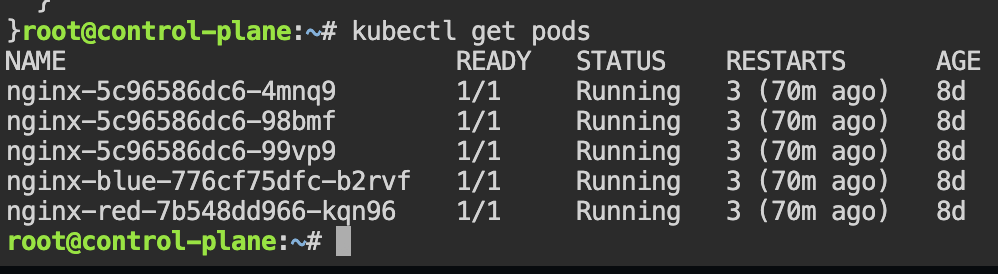
    Initialize & Patch Helm:

    Helm install:

    Release the chart & confirm version #:
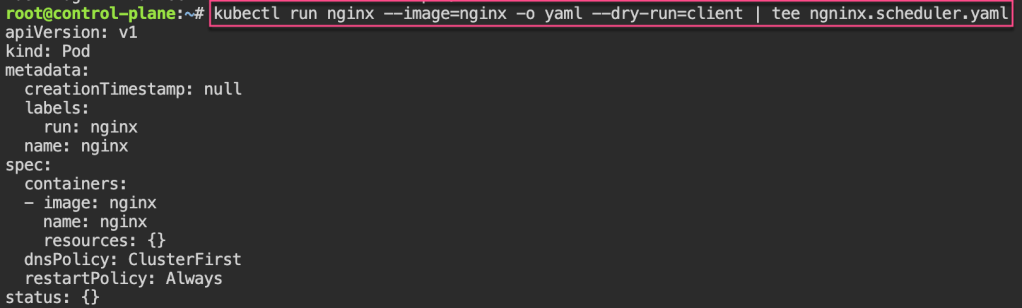
    Check the node port & see it launched!

    Update Index Data & Version #:

    Update the files again:

    Helm ls –short & upgrade the release

    • Just go to the values & Chart yaml files – – just update something!

    Rollback it on back now! – – – to Previous Version #: