Wanna Monitor a CloudFormation stack w/AWS Config?

Goal:

Lets see how to use AWS Config to monitor if EC2 instances that are launched comply w/the instance types specified in AWS Config

Lessons Learned:

  • Create AWS Config Rule
  • Make EC2 instance compliant w/config rule

Create AWS Config Rule:

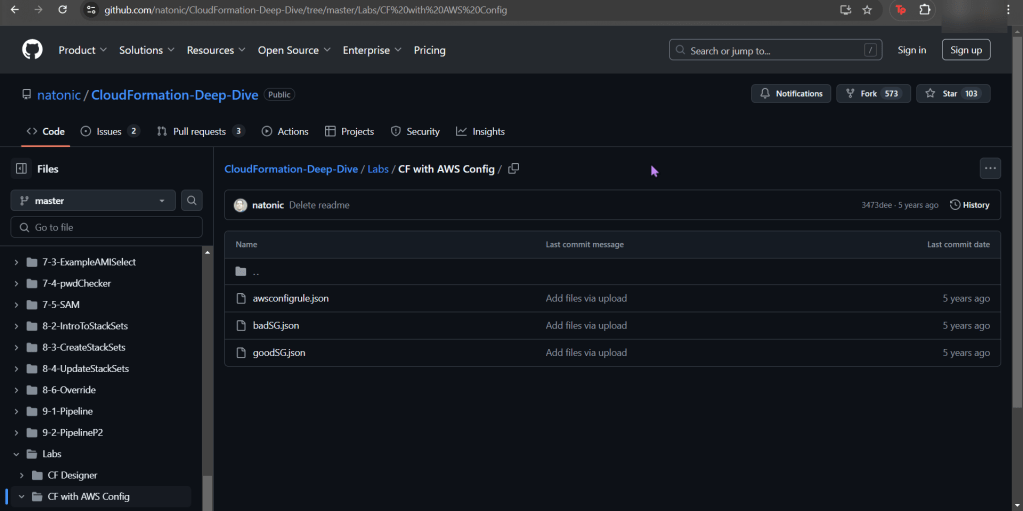
  • You will see a couple json files, grab the 2nd one “badSG”
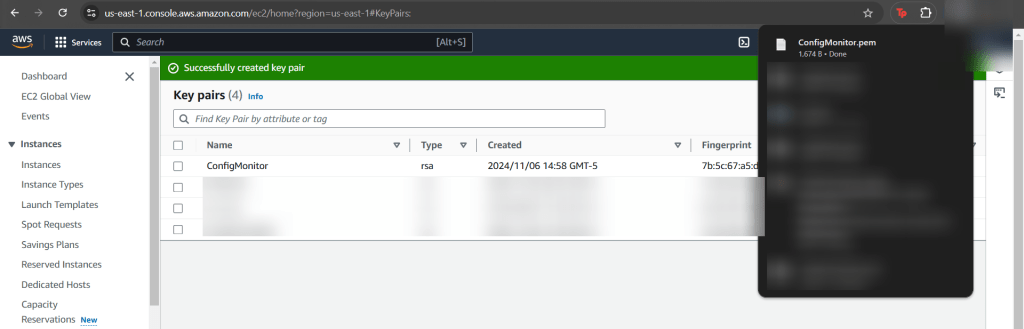
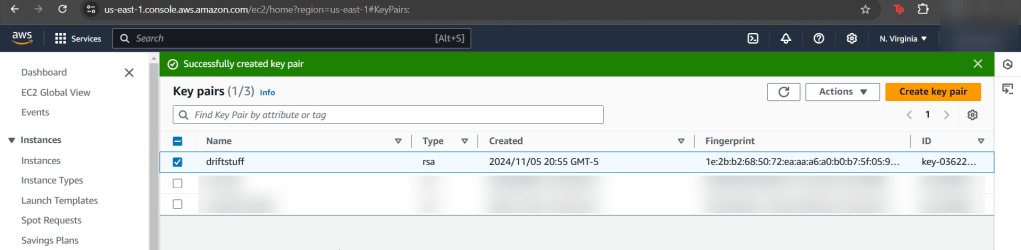
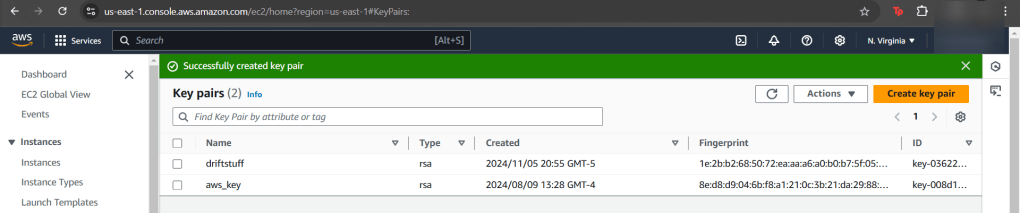
  • Create a key-pair
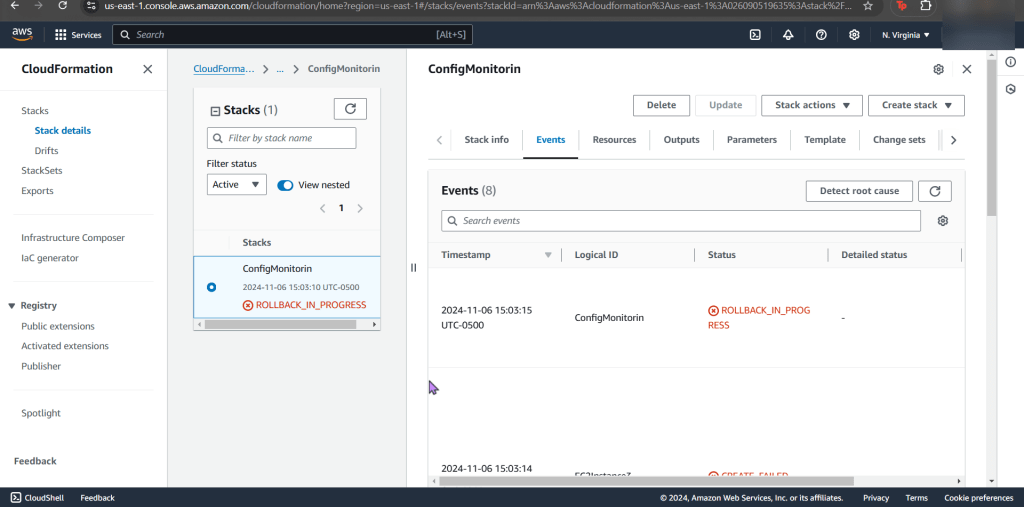
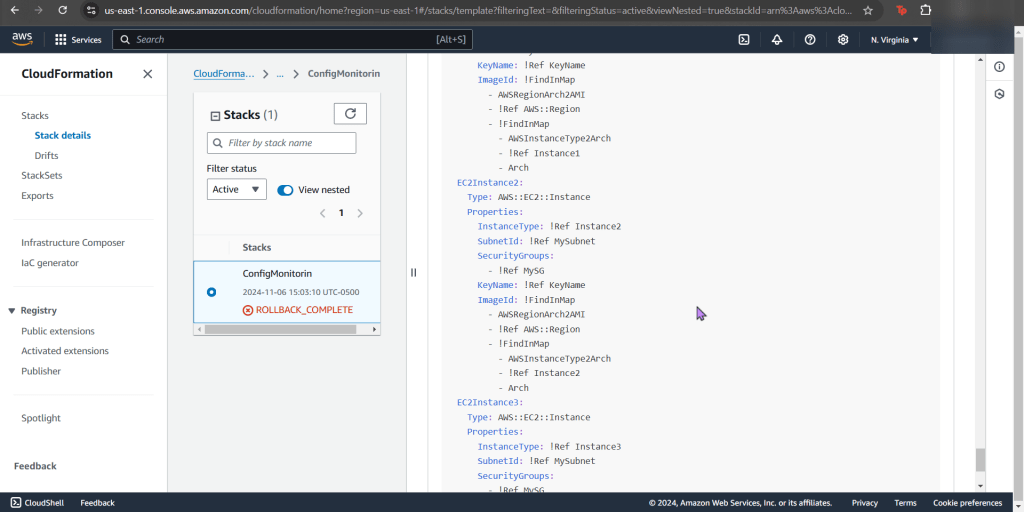
  • Example of the issue in the CloudFormation Stack
  • Here you can see we only say “securitygroups” – – – not, “SecuritygroupIDs”.
    • Easy fix, once you find it in the documentation.
Create new stack for updated SG:

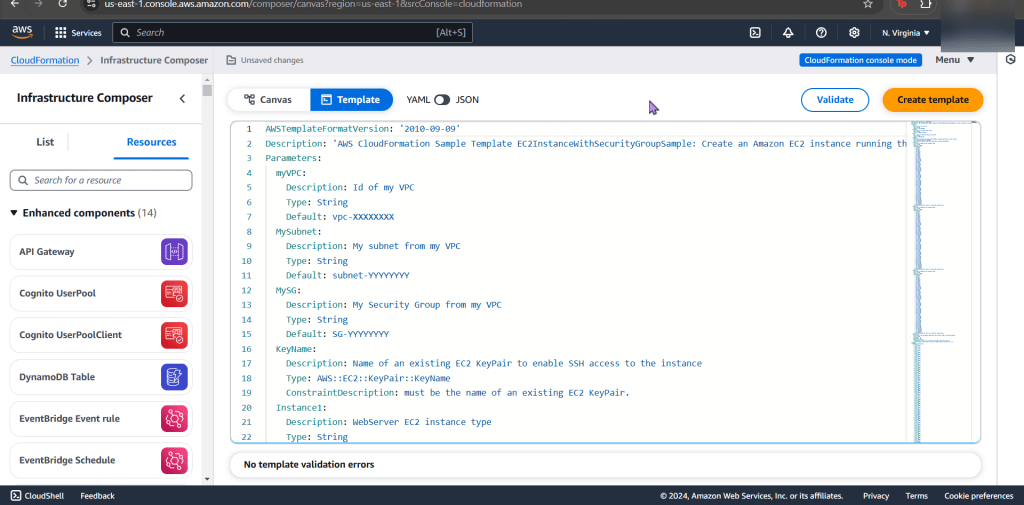
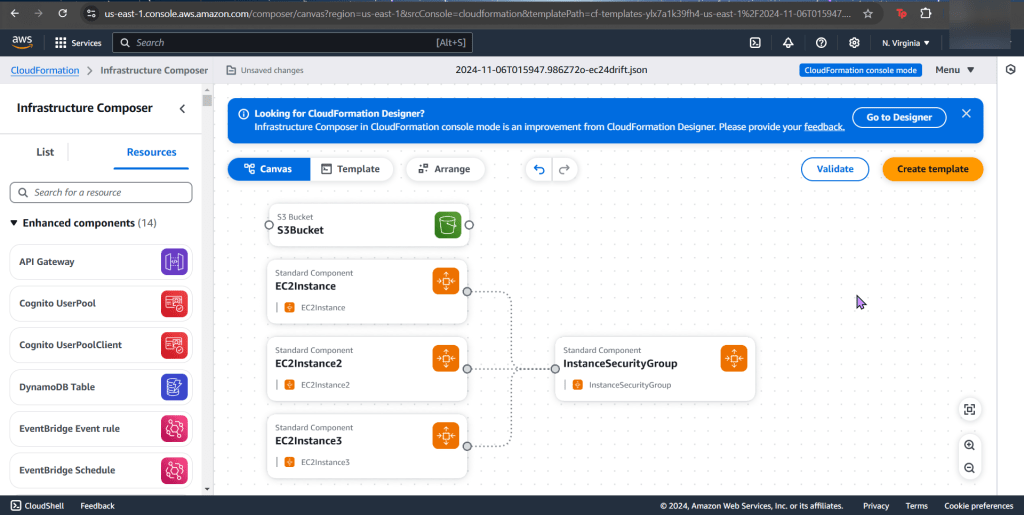
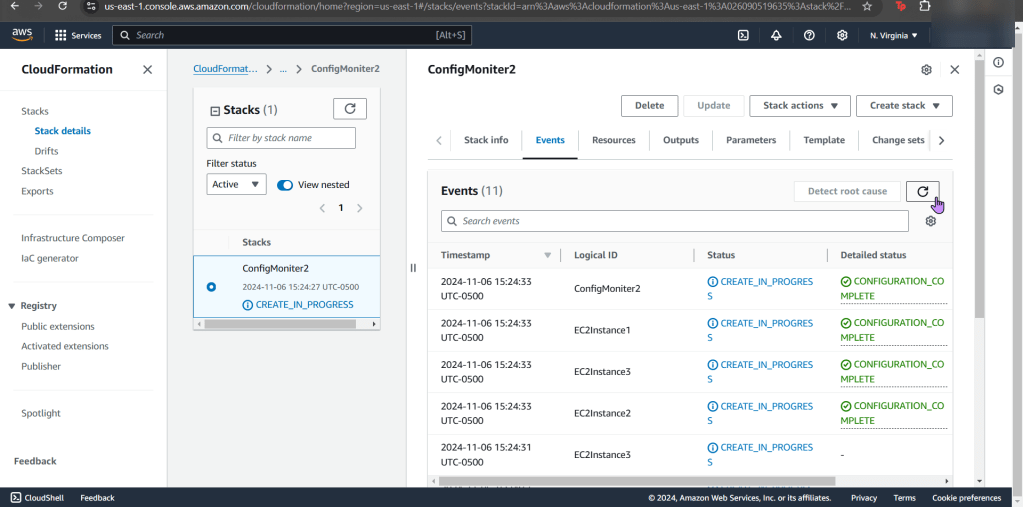
  • Go ahead & post the 3rd json file in the “infrastructure composer” under CloudFormation
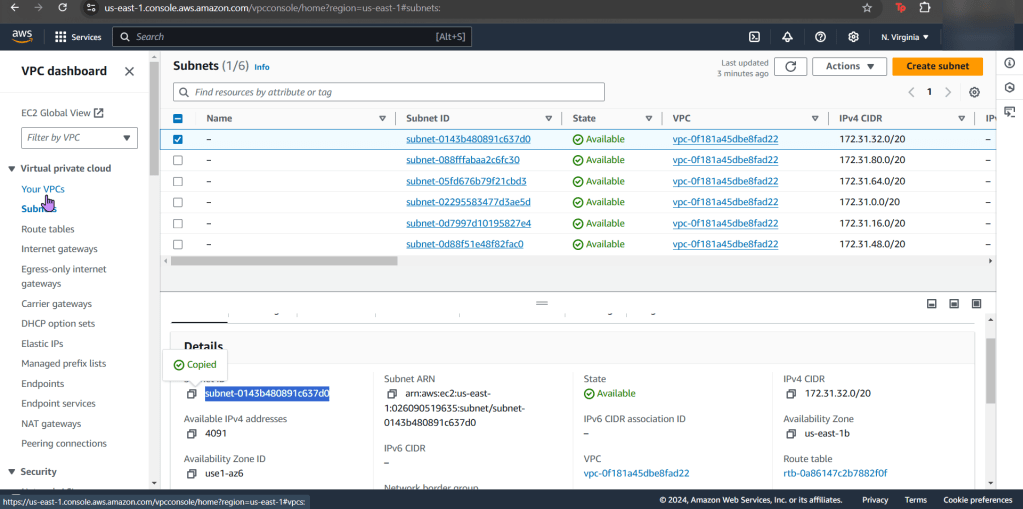
  • Like before go get your subnet, SG, & VPC IDs
Make EC2 instance compliant w/config rule:

  • Snag the 1st json file in the CloudFormation github link
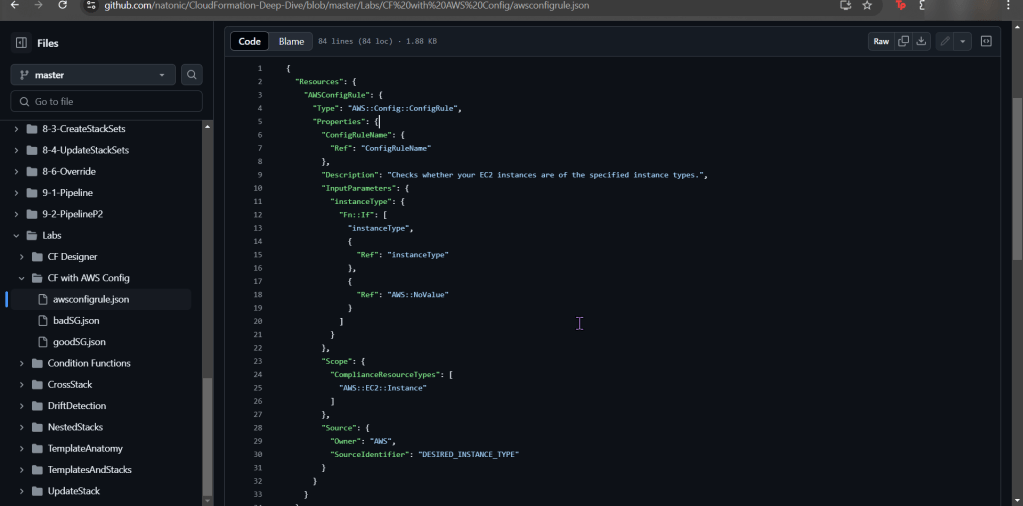
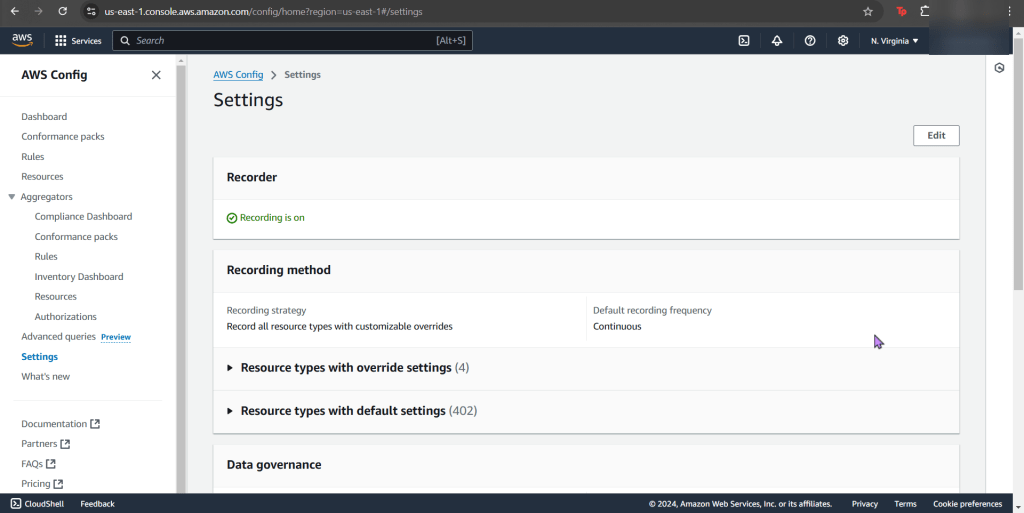
  • Go to AWS Config
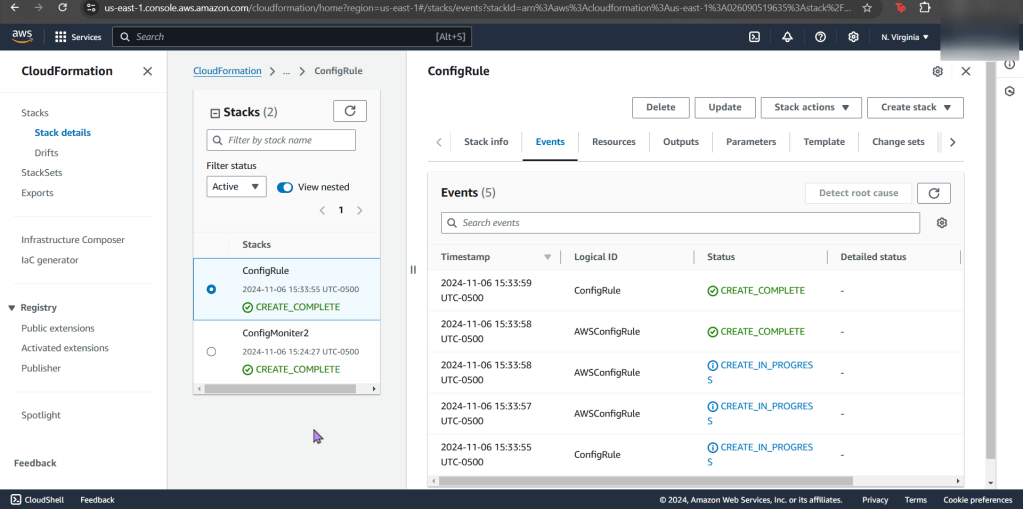
  • Now create a new stack for config record
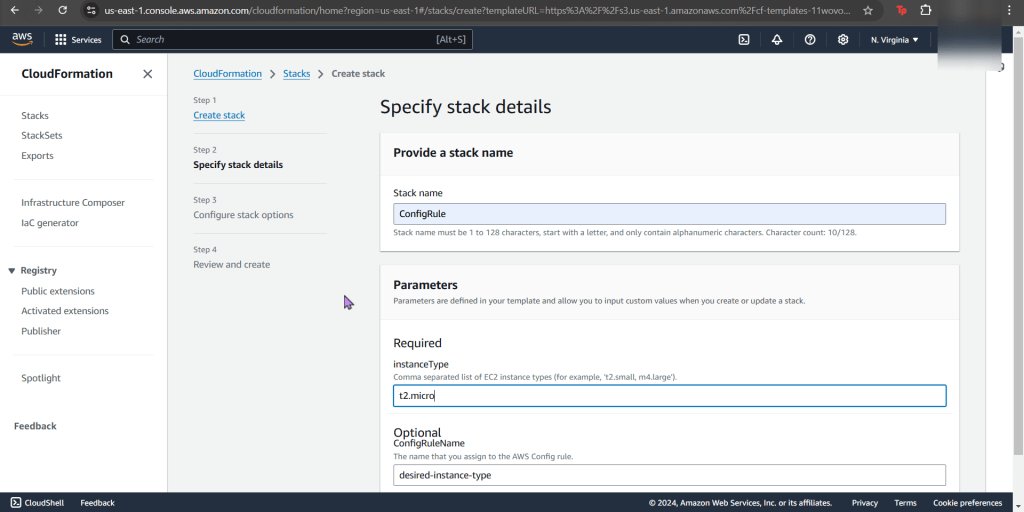
  • Now your stack is created – wow.
  • Jump back to AWS Config to see your rules, are you compliant?
    • If not, re-upload your CloudFormation template depending what your AWS Config found
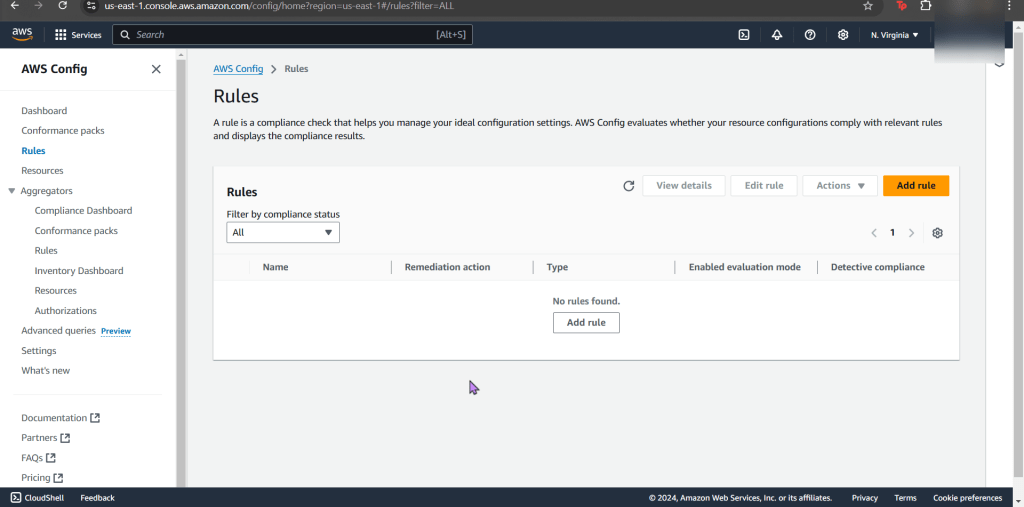
      • Example
        • EC2 instance non-compliant
  • Now what? Well delete whatever is not in use. OR don’t & see your bills pile up!
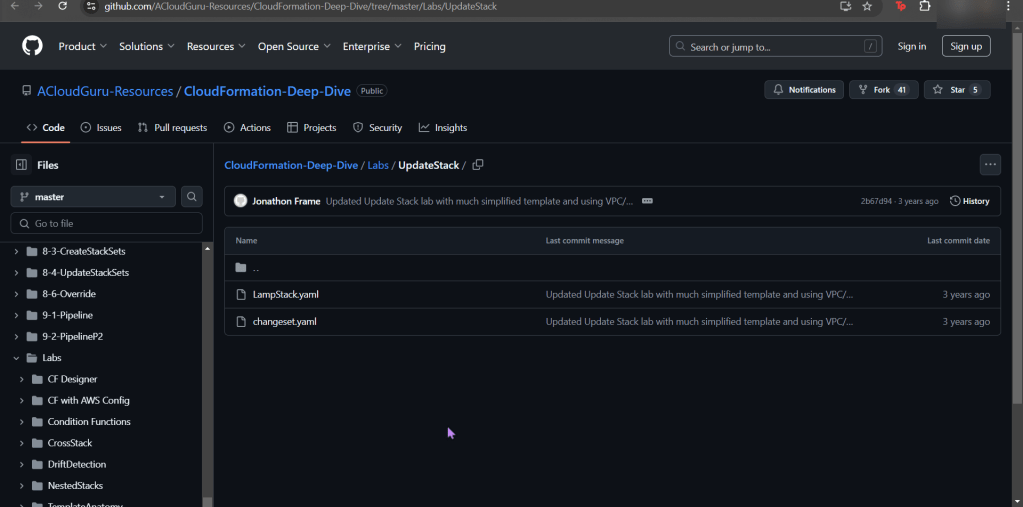
Updating your goodies in CloudFormation Stacks

Goal:

Wanna see what happens when one can update CloudFormation stacks w/direct updates & use change sets to update the stack? Well sit back & watch the show.

Lessons Learned:

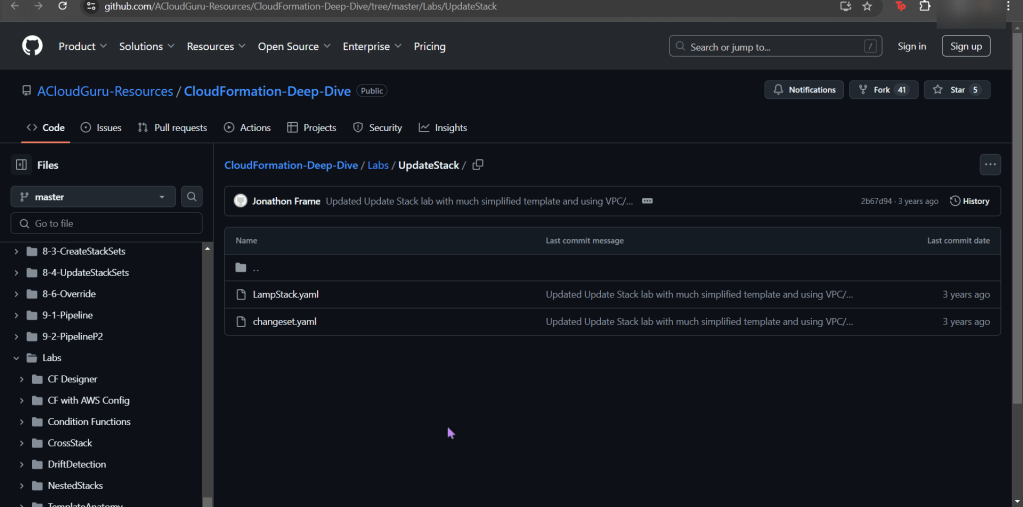
  • Deploy a stack using AWS CloudFormation Templates
  • Update stack to scale up
  • Update stack to scale out

Deploy a stack using AWS CloudFormation Templates:

  • After downloading the stack, go create key pair. What are you waiting for? Go, quick, run, go!
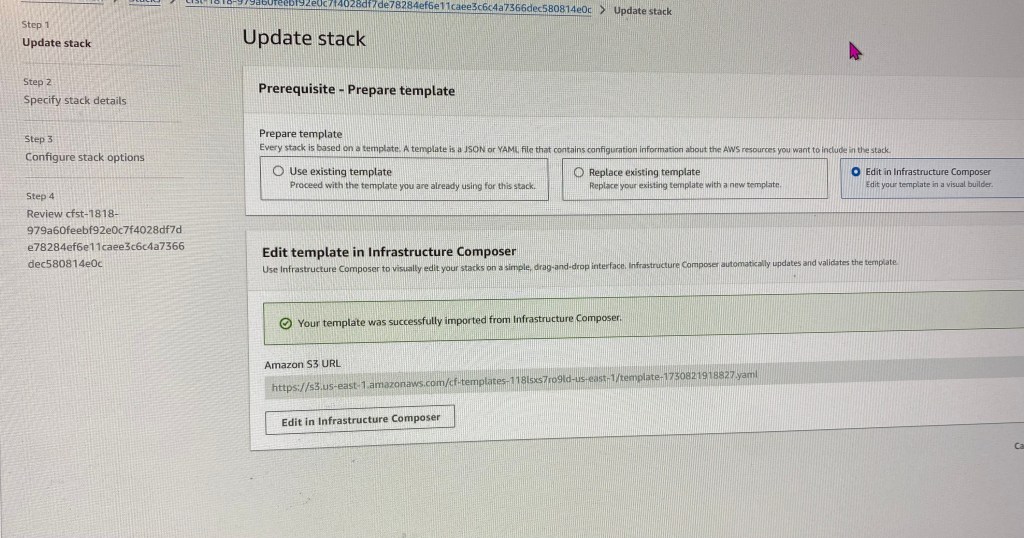
  • Remember the slick view one can peer into?!
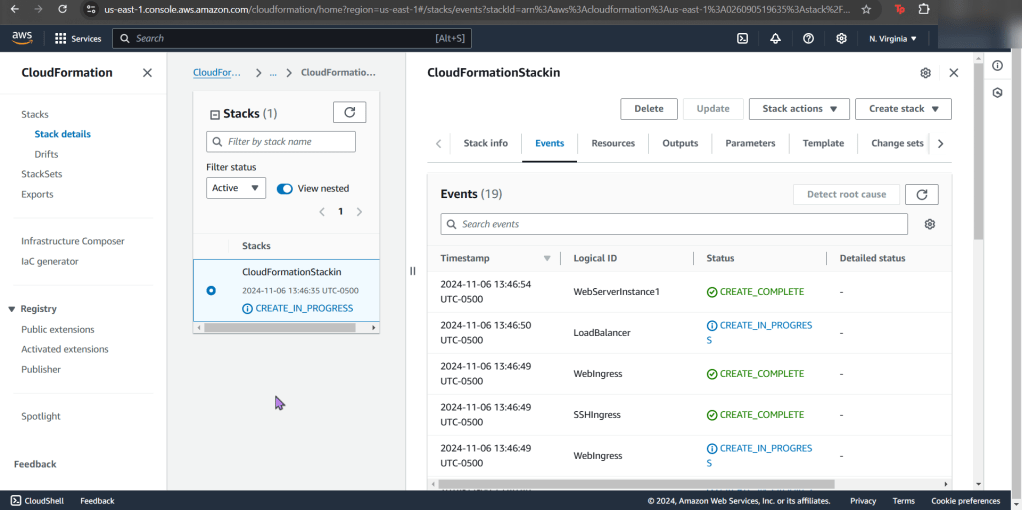
  • Hope your stackin like this?

Update stack to scale up:

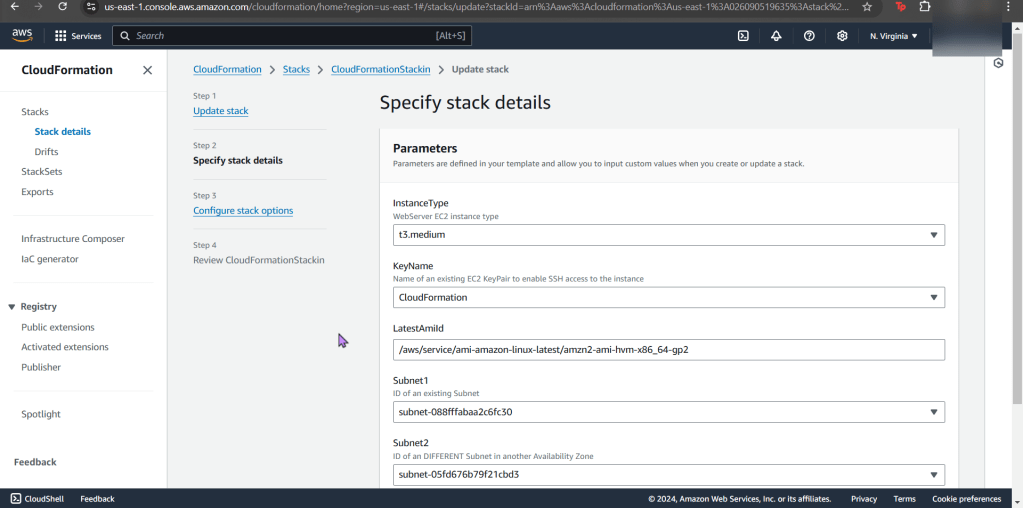
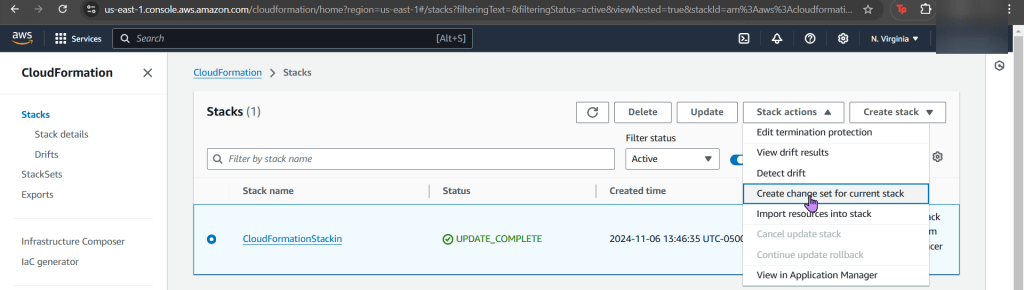
  • Yeah, you know what to do. Update the stack EC2 instance to medium. Just do it.
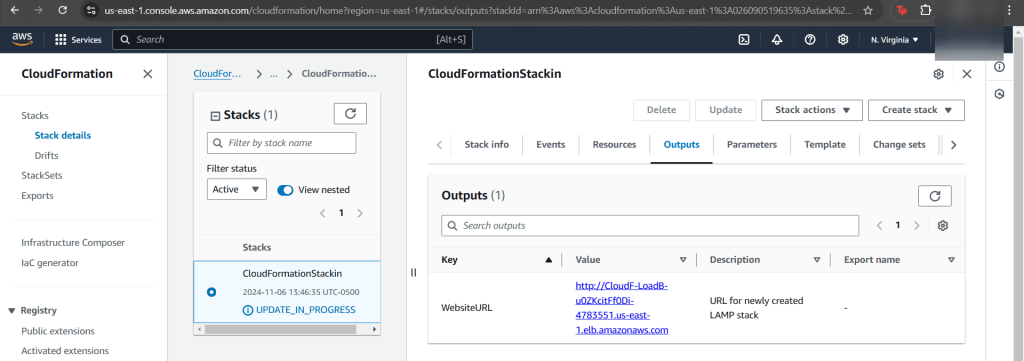
  • To double-check your work, snag that http above in “value”.
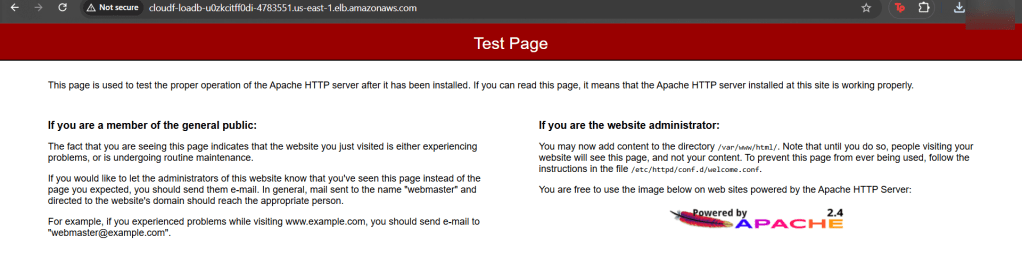
    • See the same test page below!?

Update stack to scale out:

  • Lastly snag that bottom yaml file & re-upload into your stack #CHAAAAANGE
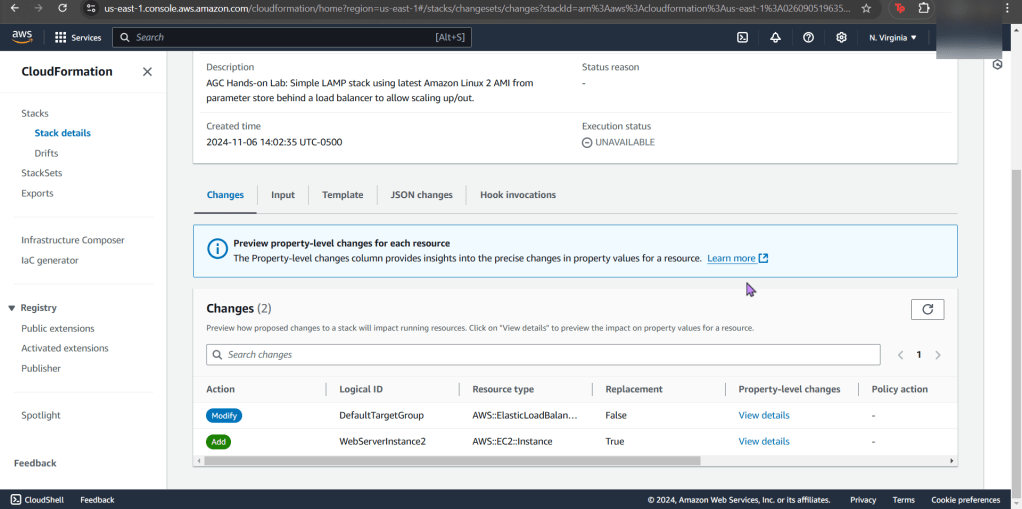
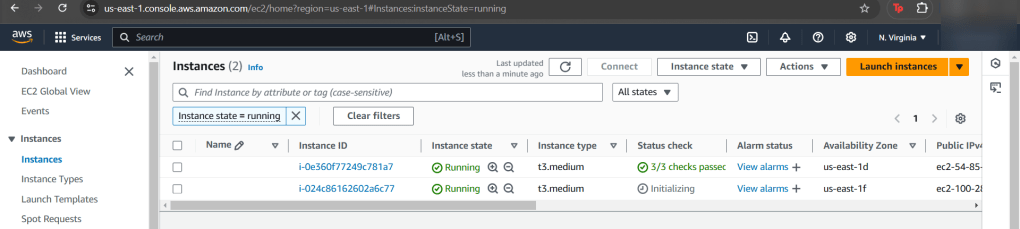
  • Difference here is we have 2 new instances added
  • Scroll to bottom of seeing the summary of changes
  • And like before, see the changes happening live!
    • I know, fancy – ooooo ahhhh

Play Detective w/CloudFormation

Goal:

Configuration draft is like poetry, & everyone hates poetry…Cloudformation can assist in bringing the stack back in sync to the original template after IDing the drift.

Lessons Learned:

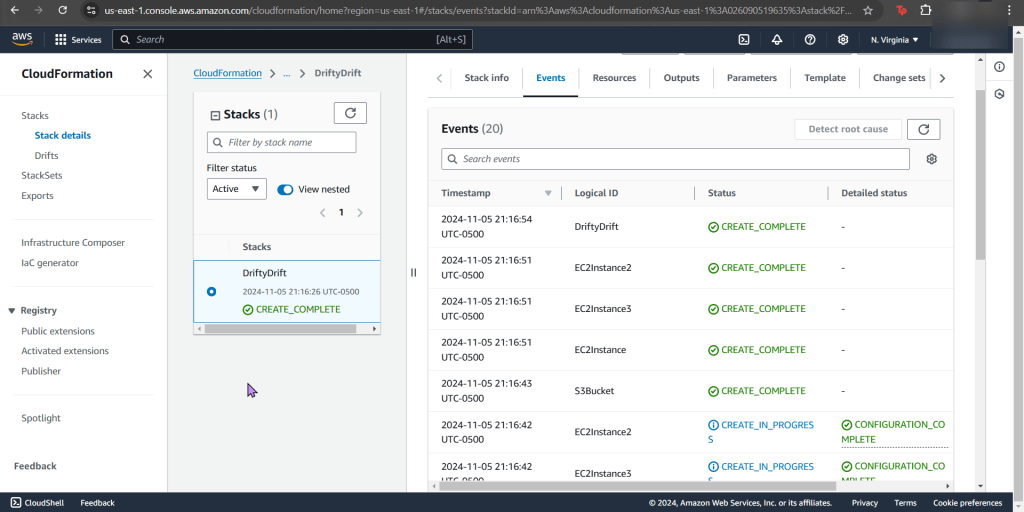
  • Create CloudFormation Stack
  • Terminate an EC2 instance for stack drfit
  • Eliminate drift from stack

Create Key Pair:

  • Before you get into the house, gotta have keys right?!

Create CloudFormation Stack:

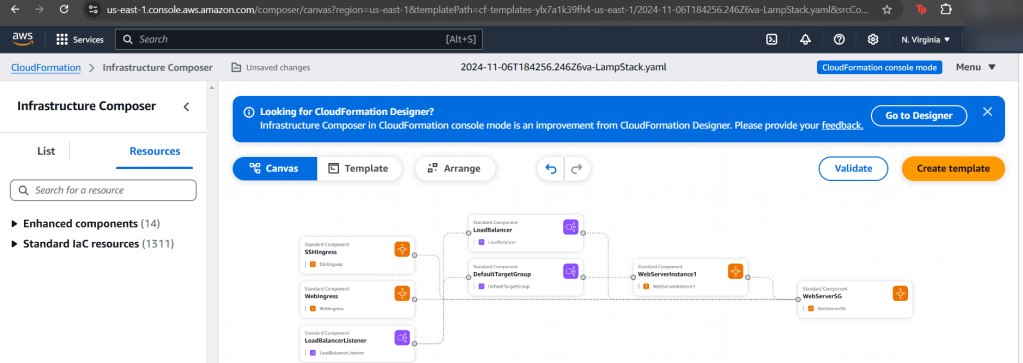
  • I think what AWS has in the “infrastructure composer” is sick, both options of “canvas” and “template” are so slick, also toggling between “YAML” & “JSON” is epic!
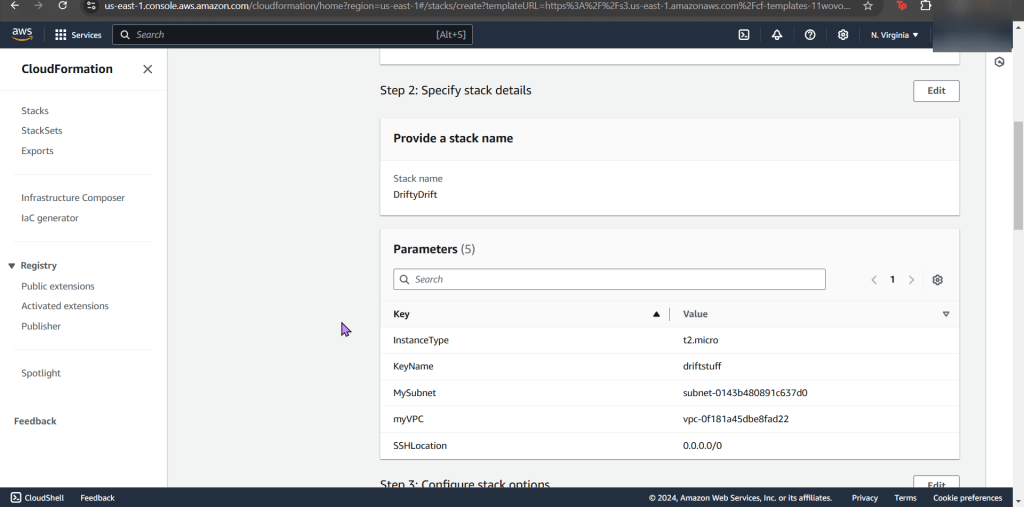
  • After the template is created, go ahead & select your VPC as well as subnet of choice
  • Tahhhhh DAhhhhhhhhhhhhhhhhhh!!!!

Terminate an EC2 instance for stack drift:

  • Annnnnd now its time to run some EVILLL experiments, muuhh-hahahaha… ahemm..
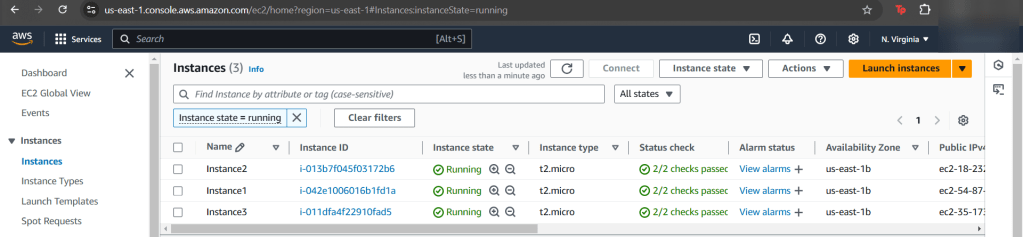
    • Go to your EC2 instances
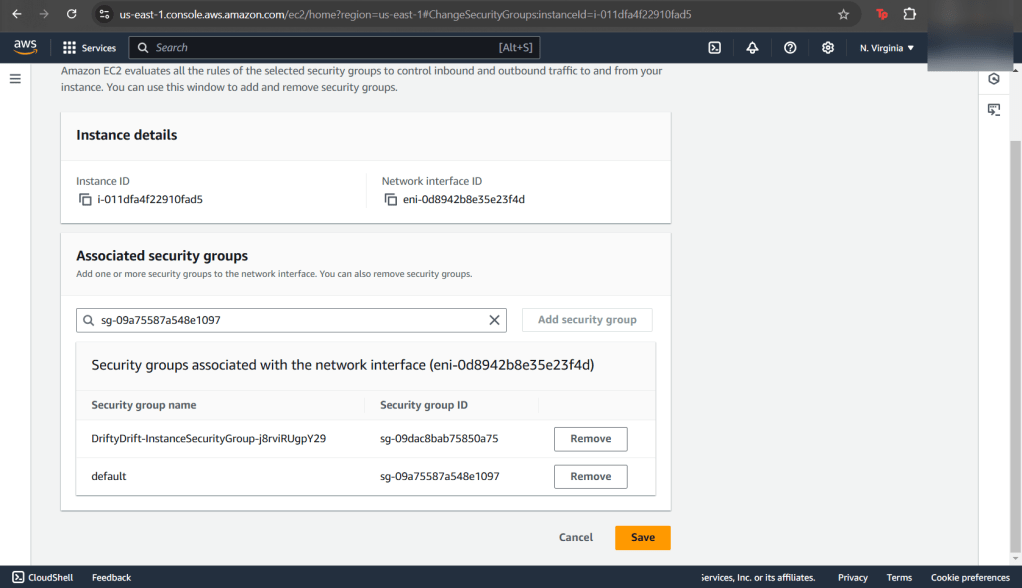
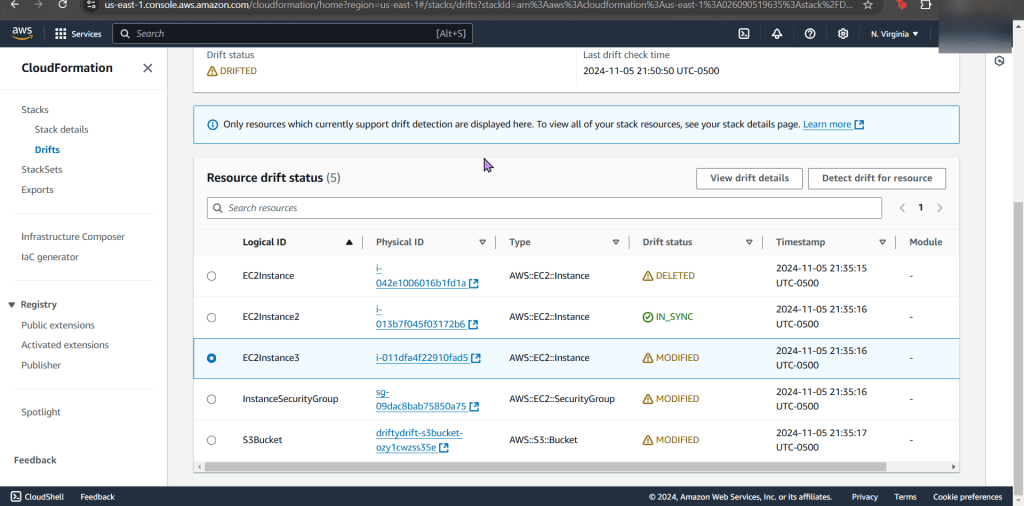
  • Change instance 3 security groups
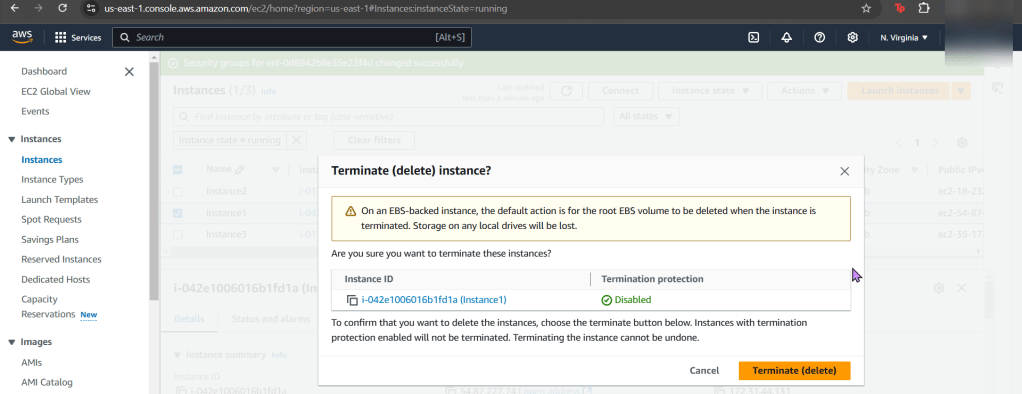
  • Delete/Terminate instance 1!!
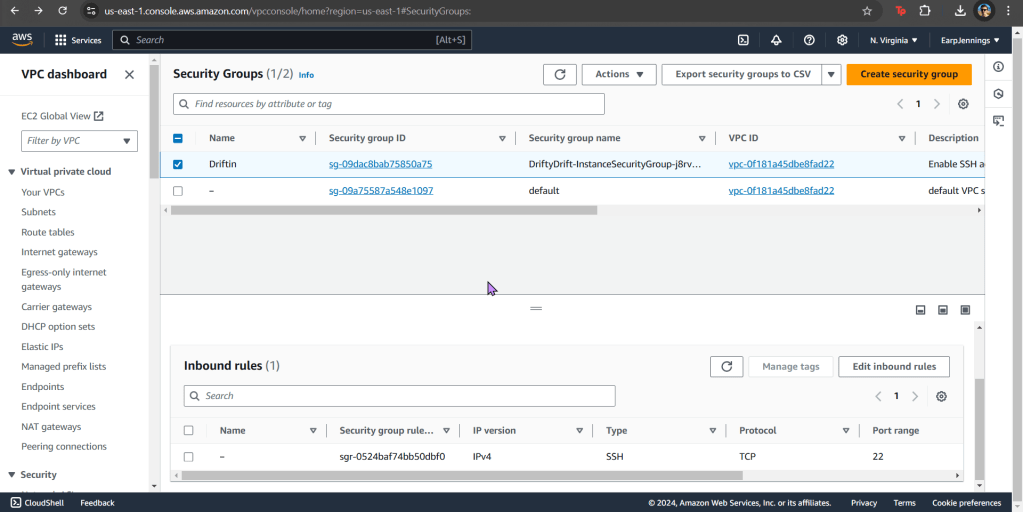
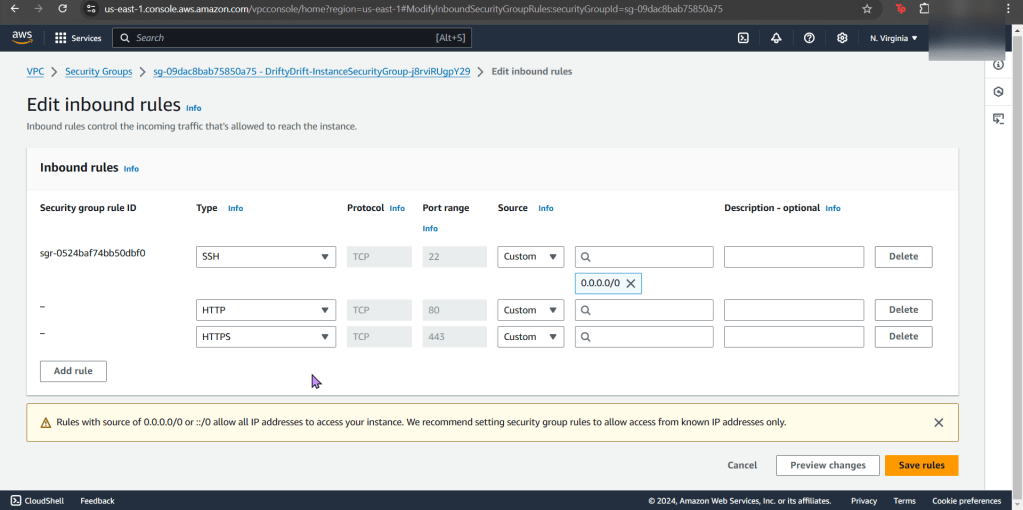
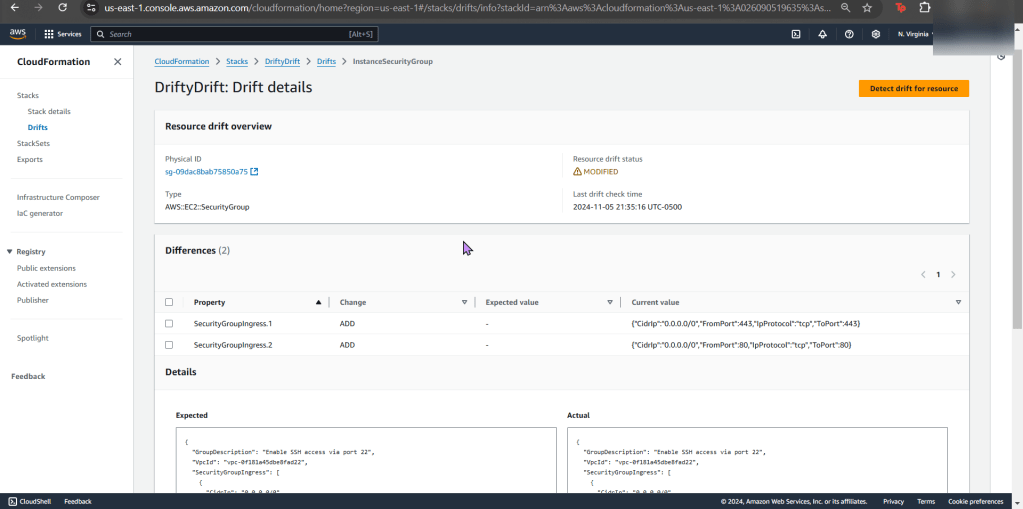
  • Now edit your security group inbound rules
    • Add HTTP & HTTPs
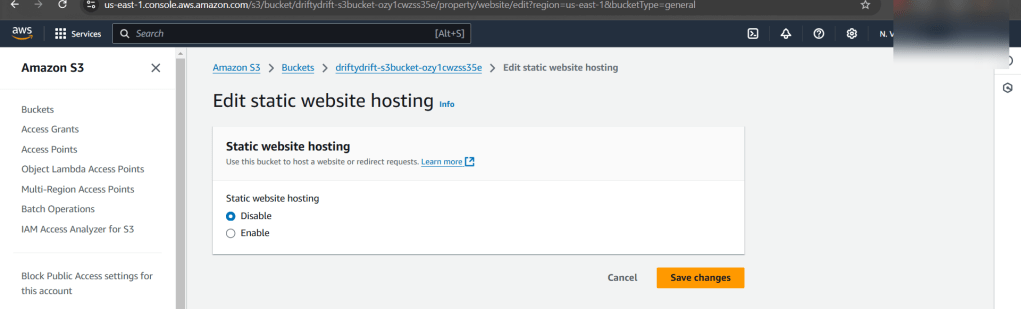
  • Go to S3
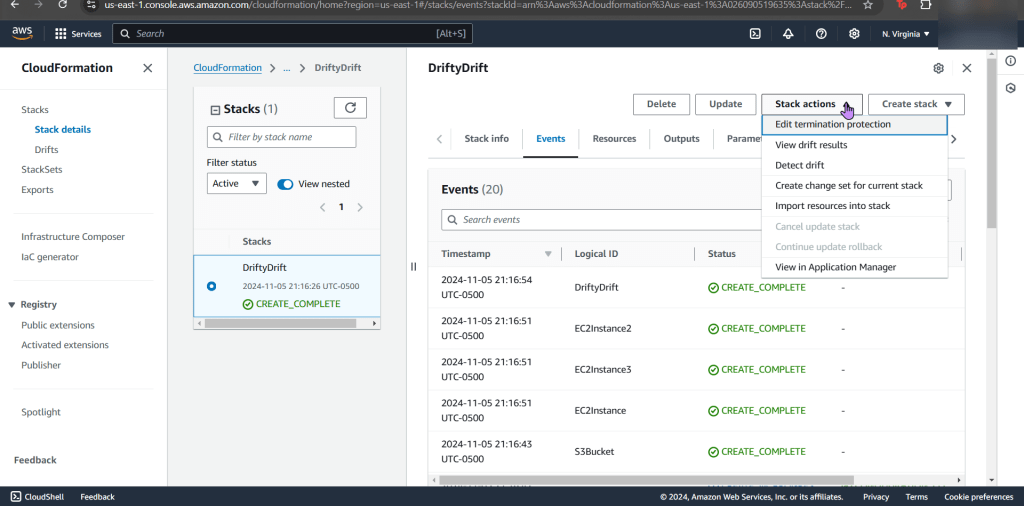
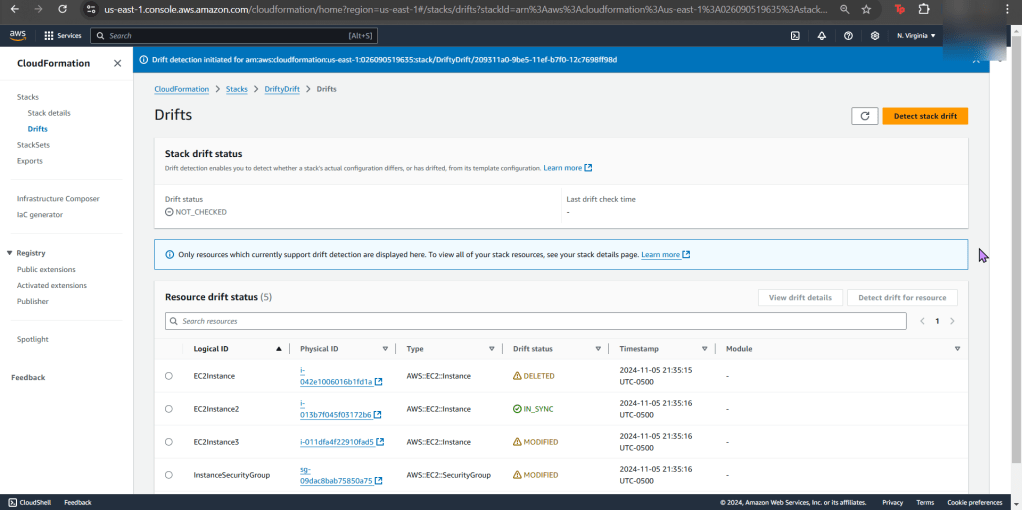
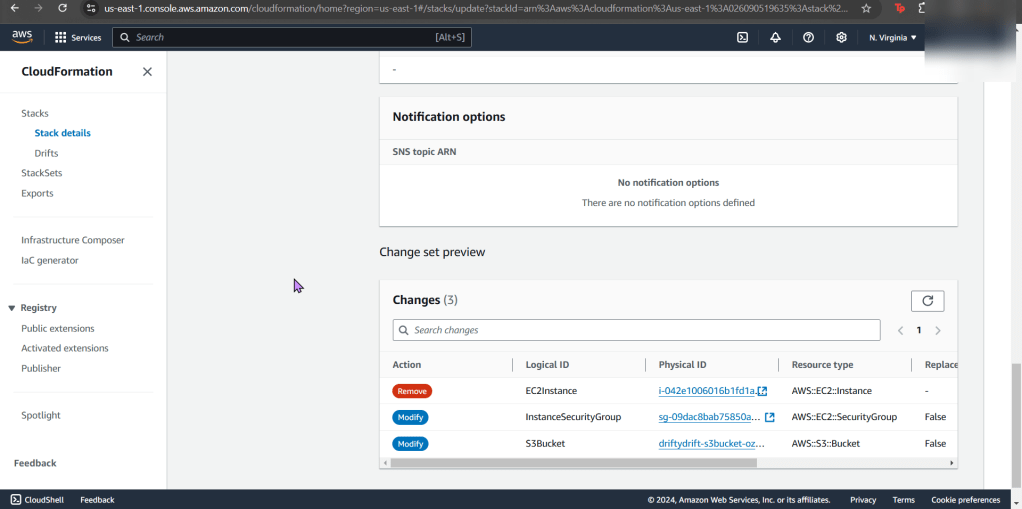
  • Detect drift on CloudFormation stack
  • You can see the details of your drift detection & compare the before/after

Terminate Drift on Individual Resource:

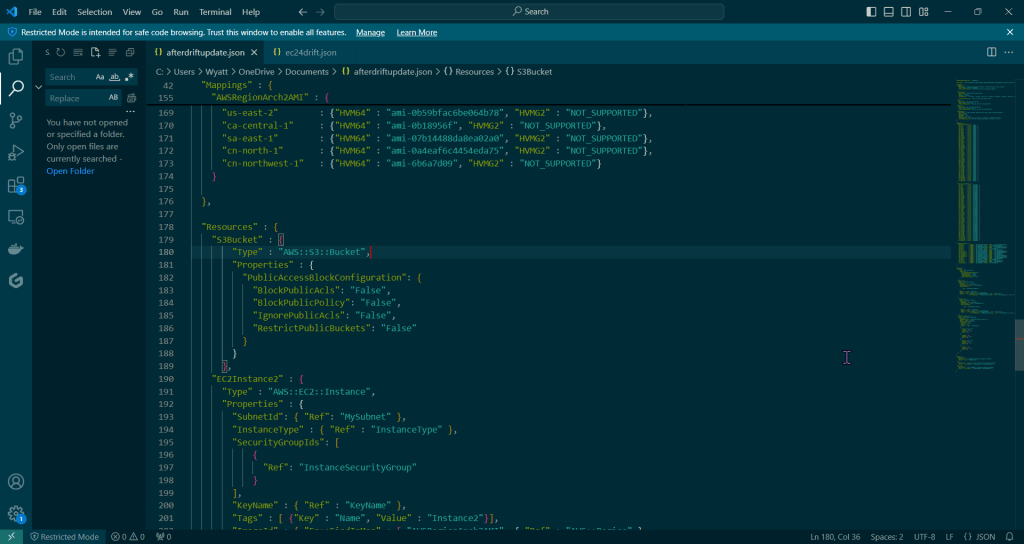
  • Put the “afterdriftdetection” file in & prepare for re-upload

Update Stack to Eliminate Drift:

  • Go giggles, you can manually re-add the security group and re-enable the s3 static web hosting… OR just upload the other file & see the magic happen.
    • Cuz as as seen above, AWS tells you the difference for the drift & w/that code you can re-update the file for re-upload. #ohhhyeaaaaah
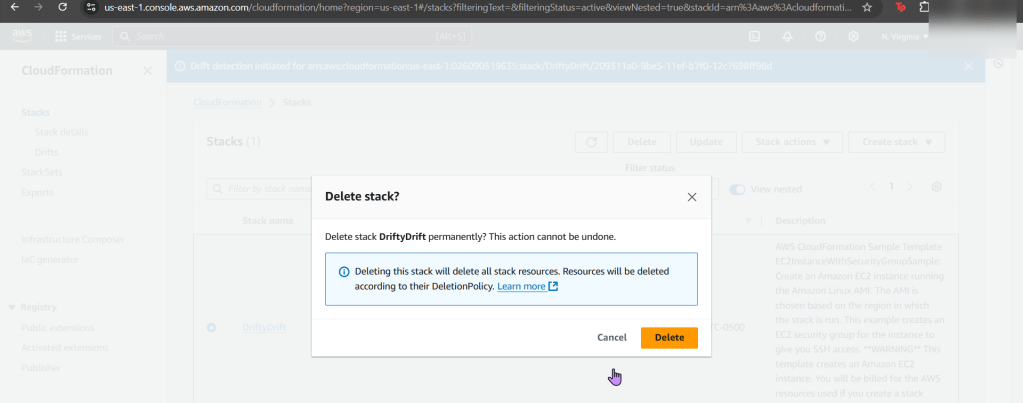
  • Dont forget to delete your stack if your done, orrrr it will stay there – – – … 4Evahhhh

Gettin’ cheaper infrastructure w/CloudFormation

Goal:

GREAT-SCOTT! One just realized our EC2 instance is more compute power than required, & thats not all! Plus were spending wayyy to much chedahhhhhhhh (we want to save for more other goodies – like Pokemon cards & new fancy coffee mugs.. just a thought)

Lessons Learned:

  • Configure InstanceType Parameter to “t3.micro”
  • Launch Updated stack & ensure EC2 can connect

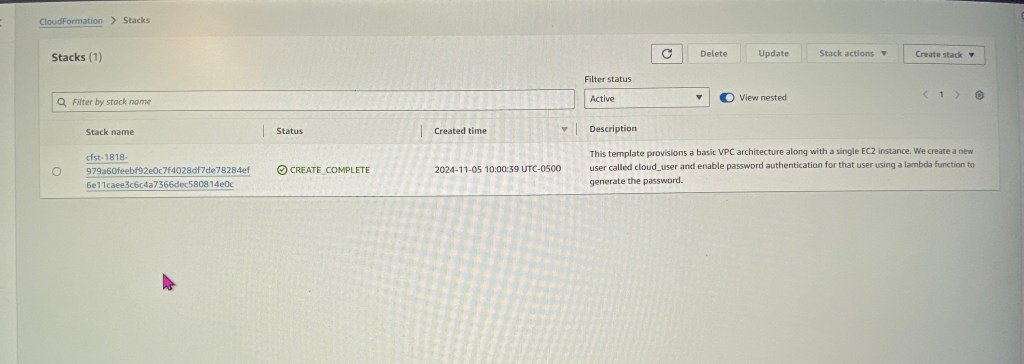
The Appetizer before configuring “t3.micro” & Updating the stack:

Configure InstanceType Parameter to “t3.micro”:

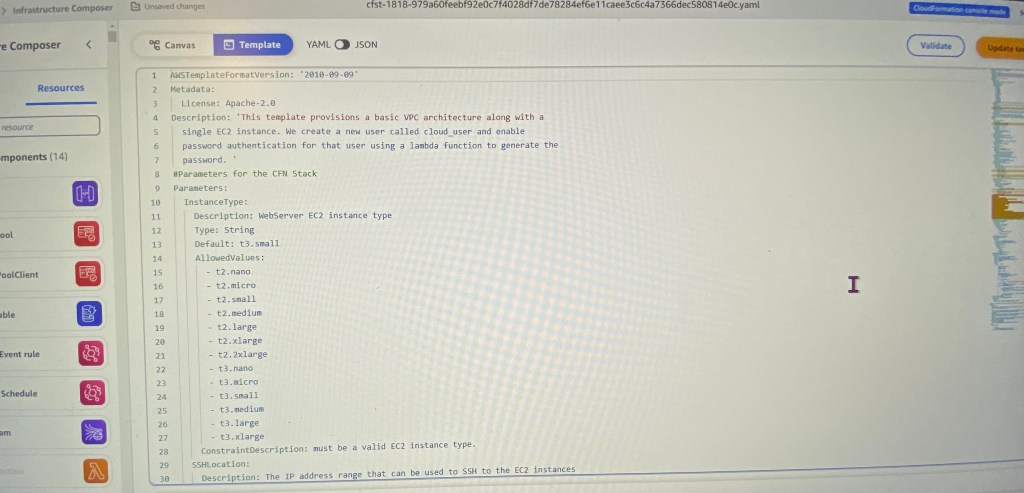
  • After maneuvering to your CloudFormation stack & selecting update – take a peak at the template as seen below.
    • Don’t fret, all these lines can be leveraged from the link above in the github repository.
  • Screenshot below shows the “Default: t3.small” that requires update
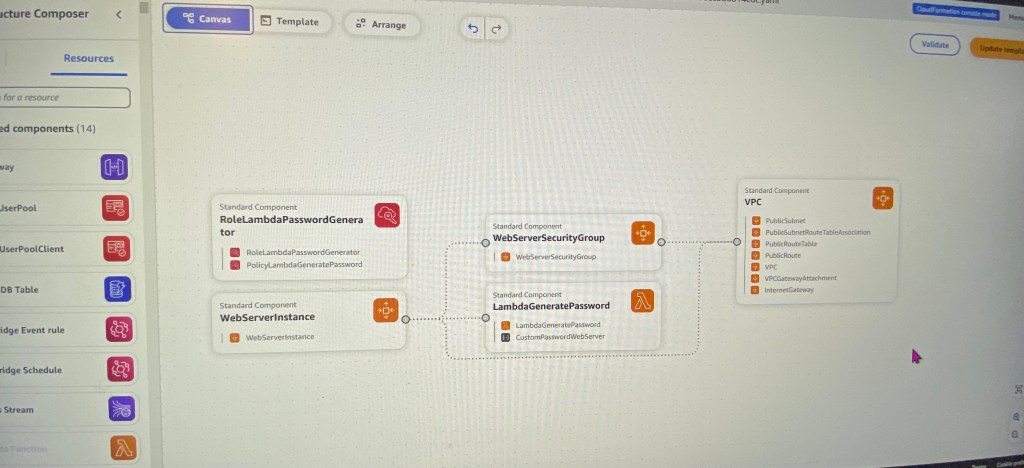
  • This is a perty-neat feature I thunk you would find dope. Instead of lines of code, you can mold your own visual CloudFormation by selections on the side.
    • OR you can just see how each AWS service connects to one another.
  • After you make the minor edit for the EC2 size, select validate
  • Once that is complete, your screen will look like this below

Launch Updated stack & ensure EC2 can connect:

  • Queue Jeopardy theme song…
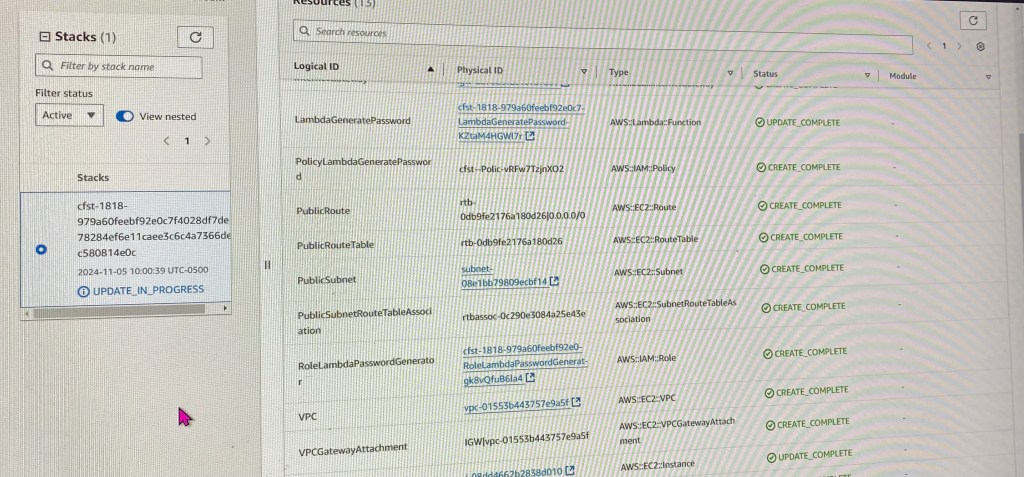
    • After a couple minutes you will see updates to your template
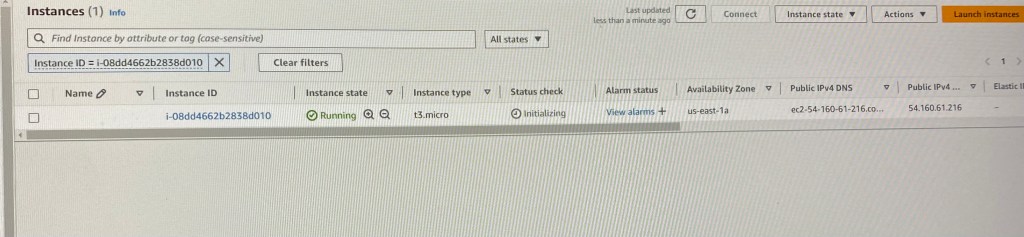
  • Scroll down to find your instance ID to see if your instance update is complete
  • SEEE!??!
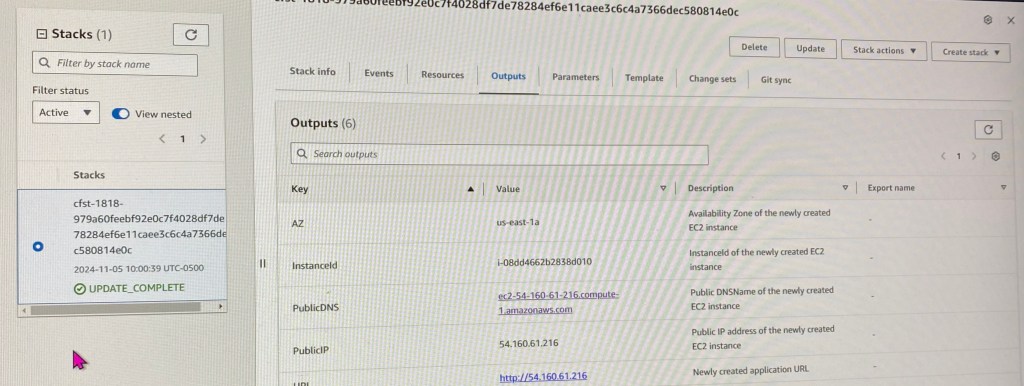
  • Wanna double check? Go to outputs & lastly snag your Public IP address