K8s on Roidz aka K8sGPT

Blog post includes installing K8s…GPT, see below for the goodies:

Installszz:

Github
https://github.com/k8sgpt-ai/k8sgpt
k8sgpt Docx:
https://docs.k8sgpt.ai/getting-started/in-cluster-operator/?ref=anaisurl.com
Ubuntu
# curl -LO https://github.com/k8sgpt-ai/k8sgpt/releases/download/v0.4.26/k8sgpt_amd64.deb
# sudo dpkg -i k8sgpt_amd64.deb
# k8sgpt version
# k8sgpt --help (handful of commands & flags available)

Pre-Reqzz:

Minikube
# unset KUBECONFIG
# minikube start
# minikube status
OpenAi
#  https://platform.openai.com/account/api-keys
K8sgpt
# k8sgpt generate
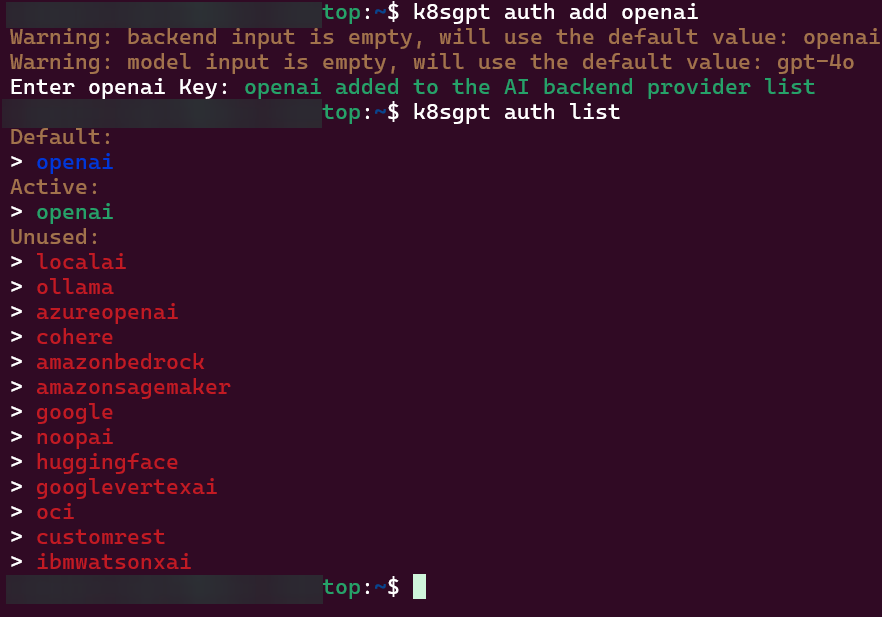
# k8sgpt auth add openai
# k8sgpt auth list
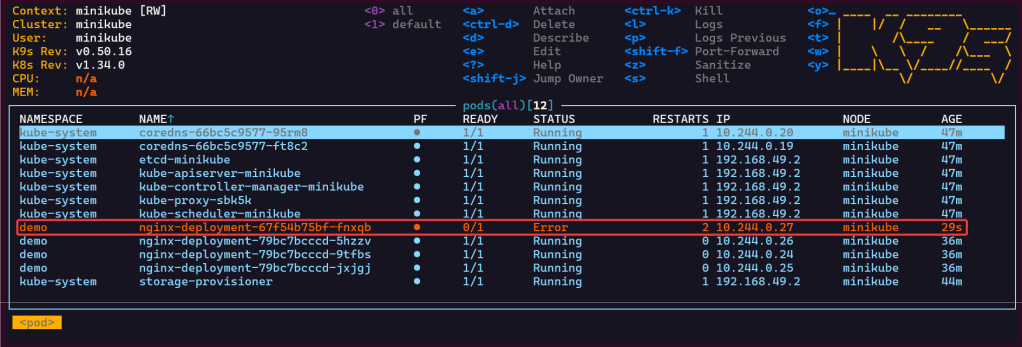
Troubleshoot why deployment is not running:

  • Create yaml file
  • Create namespace
  • Apply file
  • Review K9s
  • Utilize k8sgpt to see what’s going on…

2 Links to leverage:

# deployment2
apiVersion: apps/v1
kind: Deployment
metadata:
  name: nginx-deployment
  labels:
    app: nginx
spec:
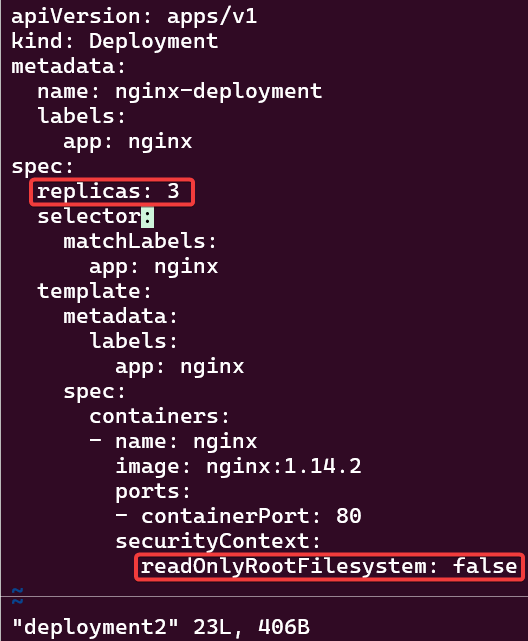
  replicas: 3
  selector:
    matchLabels:
      app: nginx
  template:
    metadata:
      labels:
        app: nginx
    spec:
      containers:
      - name: nginx
        image: nginx:1.14.2
        ports:
        - containerPort: 80
        securityContext:
          readOnlyRootFilesystem: true
# kubectl create ns demo
# kubectl apply -f deployment2 -n demo
# k8sgpt analyse
# k8sgpt analyse --explain


Set pods, deployments, etc w/the following commands
# kubectl get pods -n demo
# kubectl get pods -A
# kubectl get deployments -n demo
# kubectl get pods --all-namespaces
# k8sgpt integration list
# k8sgpt filters list
# k8sgpt analyse --filter=VulnerabilityReport
# vi deployment2
# kubectl apply -f deployment2 -n demo
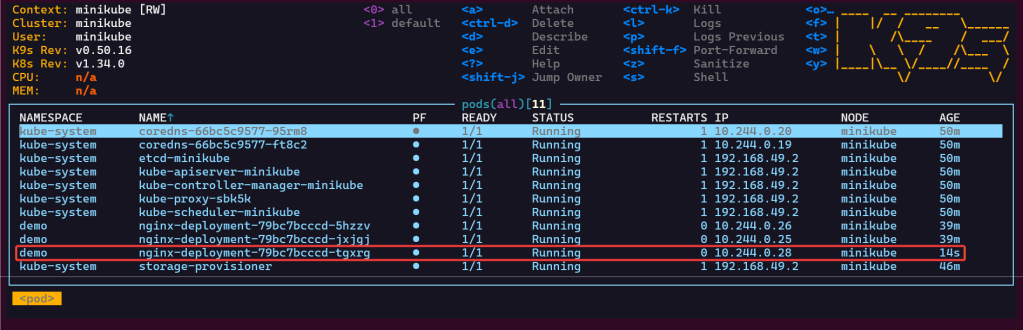
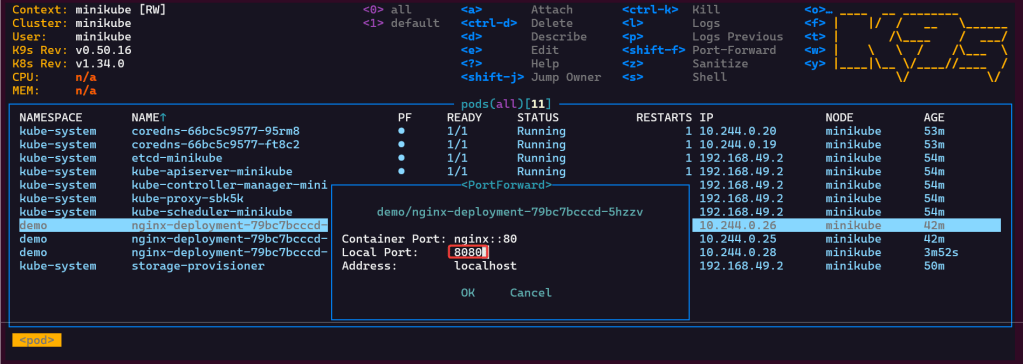
  • port-forward to ensure can access pod

K8s Operator:

# brew install helm
# helm repo add k8sgpt https://charts.k8sgpt.ai/
# helm repo update
# helm install release k8sgpt/k8sgpt-operator -n k8sgpt-operator-system --create-namespace --values values.yaml

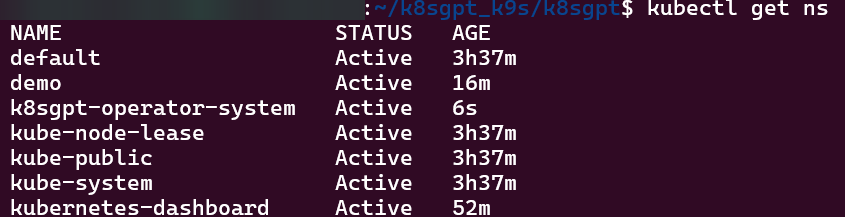
Commands to see if your new ns installed:
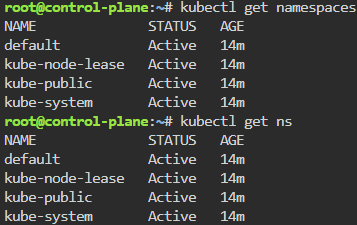
# kubectl get ns
# kubectl get pods -n k8sgpt-operator-system
# k9s
ServiceMonitor to send reports to Prometheus & create DB for K8sgpt:

# helm repo add prometheus-community https://prometheus-community.github.io/helm-charts
# kube-prometheus-stack has been installed. Check its status by running:
  kubectl --namespace k8sgpt-operator-system get pods -l "release=prom"
Commands to squirrel away:
- Get Grafana 'admin' user password by running:
# kubectl --namespace k8sgpt-operator-system get secrets prom-grafana -o jsonpath="{.data.admin-password}" | base64 -d ; echo
- Access Grafana local instance:
# export POD_NAME=$(kubectl --namespace k8sgpt-operator-system get pod -l "app.kubernetes.io/name=grafana,app.kubernetes.io/instance=prom" -oname)
  kubectl --namespace k8sgpt-operator-system port-forward $POD_NAME 3000
- Get your grafana admin user password by running:
  kubectl get secret --namespace k8sgpt-operator-system -l app.kubernetes.io/component=admin-secret -o jsonpath="{.items[0].data.admin-password}" | base64 --decode ; ech

OpenAi API-Keyz for K8s Secret:

# export OPENAI_TOKEN=<YOUR API KEY HERE>
# kubectl create secret generic k8sgpt-sample-secret --from-literal=openai-api-key=$OPENAI_TOKEN -n k8sgpt-operator-system
# 
apiVersion: core.k8sgpt.ai/v1alpha1
kind: K8sGPT
metadata:
  name: k8sgpt-sample
  namespace: k8sgpt-operator-system
spec:
  ai:
    enabled: true
    model: gpt-4o-mini
    backend: openai
    secret:
      name: k8sgpt-sample-secret
      key: openai-api-key
  noCache: false
  version: v0.4.26
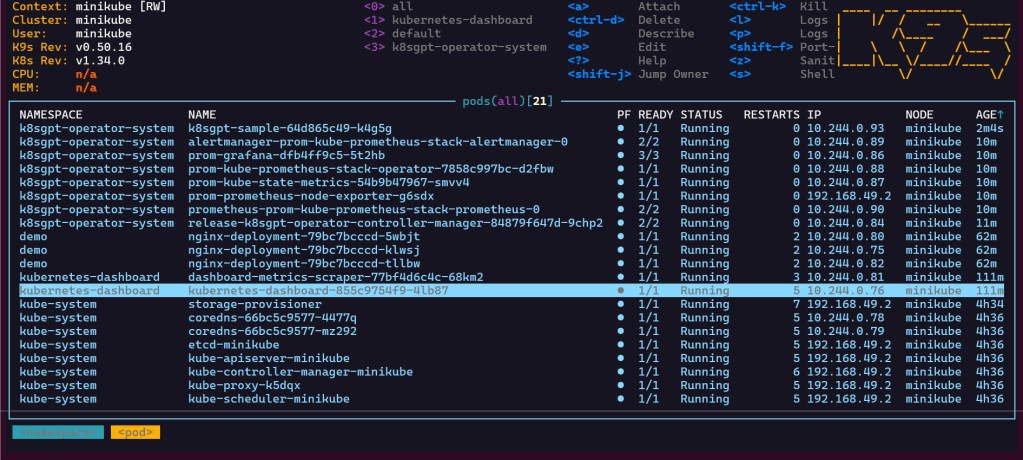
# kubectl apply -f k8sgpt-resource.yaml -n k8sgpt-operator-system
k9s
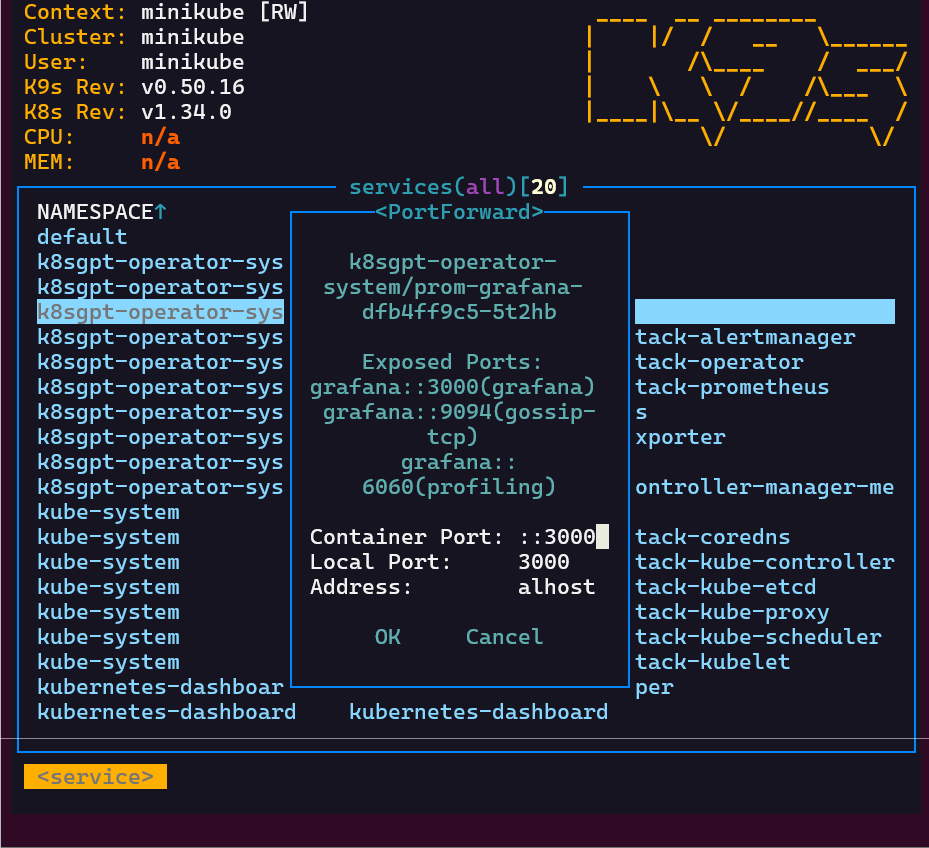
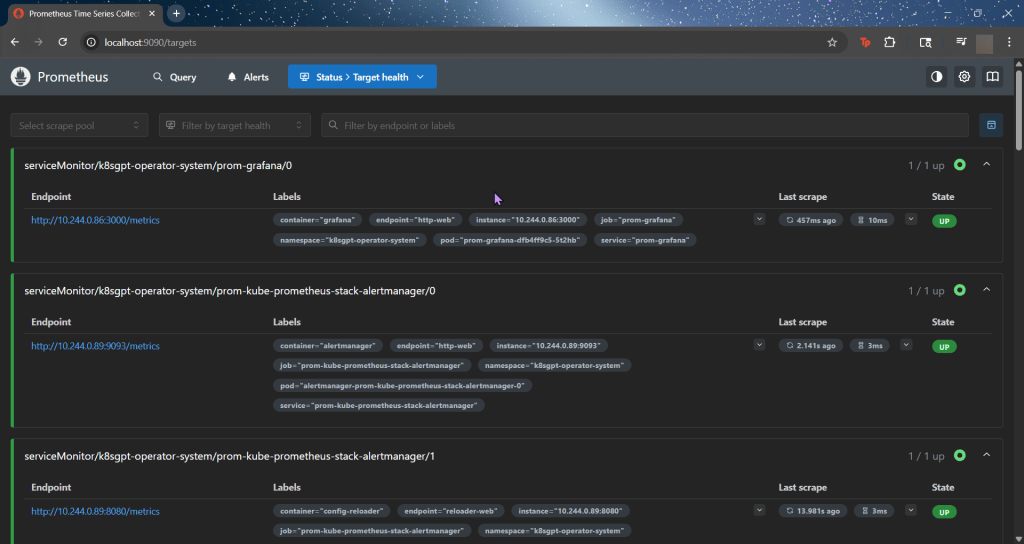
- services, shift-f, port-forward prometheus-operated:9090
# kubectl get results -n k8sgpt-operator-system
# kubectl port-forward service/prom-grafana -n prom 3000:80
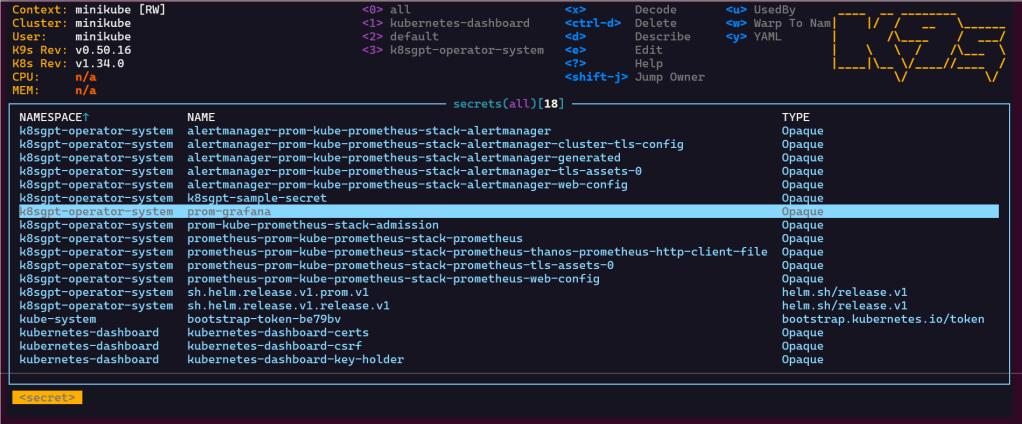
Finding grafana password
- secrets & press-x
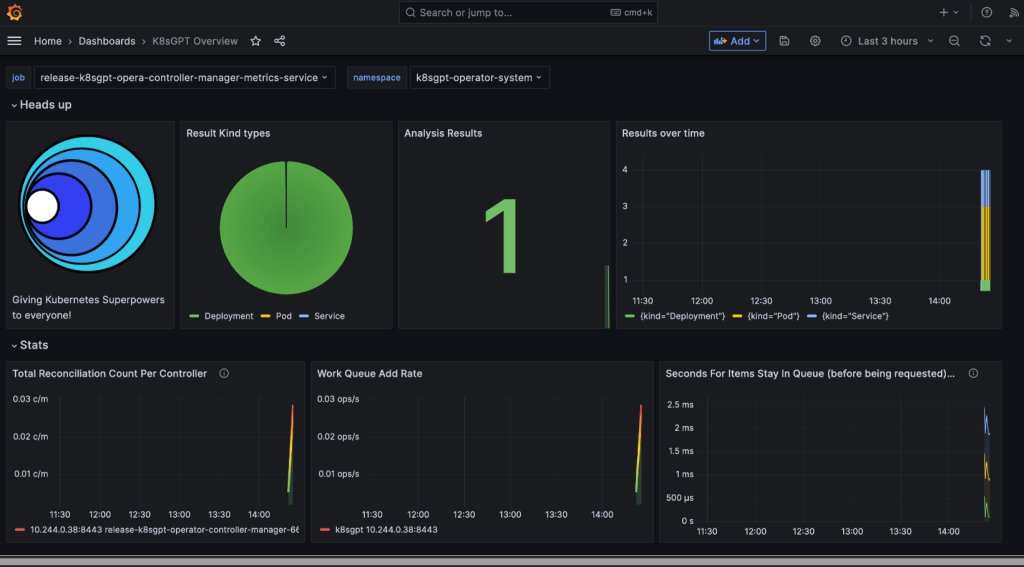
microk8s or mini-me?

Pre-Reqx:

# snap install kubectl -classic
# kubectl version --client
# sudo snap install microk8s --classic
# sudo usermod -a -G microk8s <username>
# sudo chown -R <username> ~/.kube
# newgrp microk8s
# microk8s kubectl get nodes
# cd $HOME
# mkdir .kube
# cd .kube
# microk8s config > config
# microk8s start

K8s Cluster:

  • Might have to add SSH keys – so go to your github account, setting, ssh keys, & add new SSH key
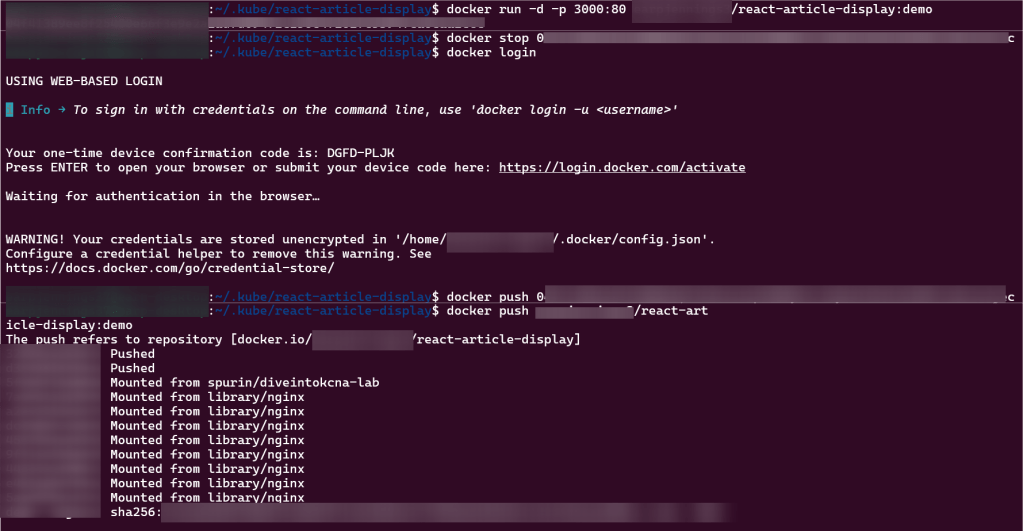
# git clone git@github.com:<docker_hub_name>/react-article-display.git
# cd react-article-display
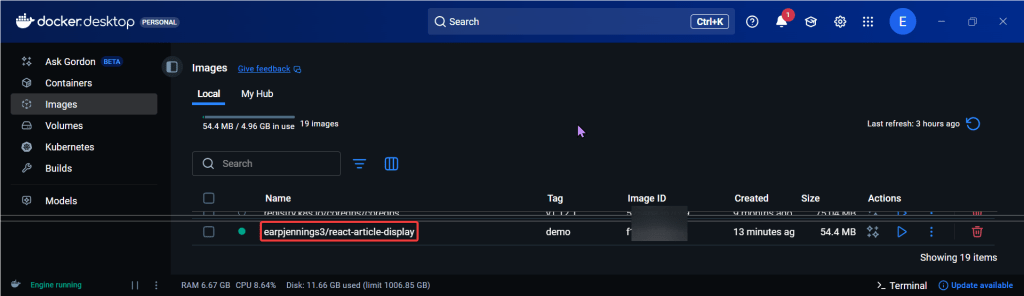
# docker build -t <docker_hub_name>/react-article-display:demo .
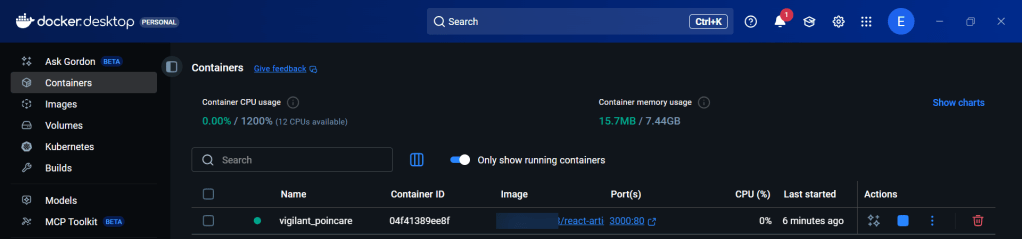
# docker run -d -p 3000:80 <docker_hub_name>/react-article-display:demo
localhost:3000
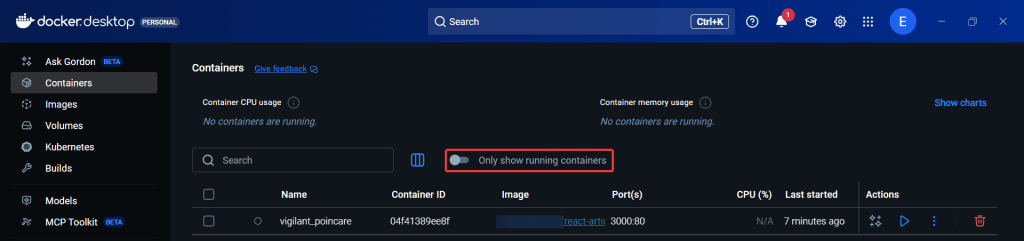
# docker stop <see string above from previous command>
# docker login
# docker push <image name>
# kubectl run my-app-image --image <above>
# kubectl get pods
# kubectl port-forward my-app-image 3000:80

KCNA: P1 & P2 Cloud Arch. Fundyzz Containers w/Docker

Blog post includes covering Cloud Architecture Fundamental’s in preparation for the KCNA.

  • Autoscaling
    • Reactive
    • Predictive
    • Vertical
    • Horzontal
    • Cluster Autoscaler
      • HPAs
        • Scale # of replicas in an app
      • VPAs
        • Scale resource requests & limits of a pod
    • Keda
      • Scaled object should scale & what are triggers while scaling to 0
  • Serverless
    • Event driven & billed accordingly upon execution
    • Knative & OpenFaaS & CloudEvents
  • Cloud Native Personas
    • DevOps Engineer
    • Site Reliability Engineer
    • CloudOps Engineer
    • Security Engineer
    • DevSecOps Engineer
    • Full Stack Developer
    • Data Engineer
  • Open Standards
    • Docker, OCI, runc
    • PodMan – image-spec
    • Firecracker – runtime-spec
    • Container Network Interface (CNI)
      • Calico
    • Container Storage Interface (CSI)
      • Rook
    • Container Runtime Interface (CRI)
      • Goes to containerd, kata, firecracker, etc..
    • Service Mesh Interface (SMI)
      • Istio!

Blog post includes covering Containers w/Docker in preparation for the KCNA.

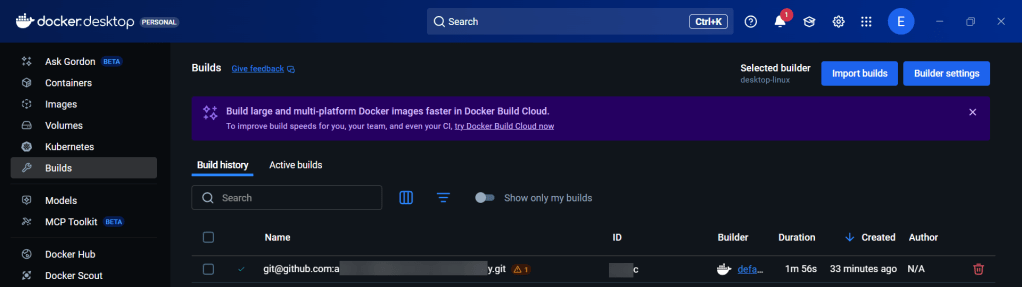
  • Docker Desktop
    • docker vs docker desktop
    • k8s w/docker desktop
  • Containers:
    • History womp womp
    • Linux
      • user, pid, network, mount, uts, ipc, namespace, & cgroups
  • Images
    • container vs container image
    • registry
    • tag
    • layers
    • union
    • digest vs ids
  • Running Containers
    • docker run -it –rm…
  • Container Networking Services/Volumes
    • docker run –rm nginx
    • docker run -d –rm nginx
    • docker ps
    • docker run -d –rm -P nginx
    • curl
    • docker run -d –rm -p 12345:80 nginx
    • docker exec -it bash
  • Building Containers
    • https://github.com/abishekvashok/cmatrix
    • docker pull, images, build . -t,
    • vim
      • FROM
      • #maintainer
      • LABEL
    • docker run –rm -it sh
      • git clone
        • apk update, add git
      • history
    • vim
      • history
    • docker buildx create, use, build –no-cache linux/amd64, . -t –push
    • docker system prune

KCNA: P3 Kubernetes Fundyzzz..part 2

Blog post includes covering Kubernetes Fundamental’s in preparation for the KCNA.

  • Deployments & ReplicaSets
  • Services
  • Jobs
  • ConfigMaps
  • Secrets

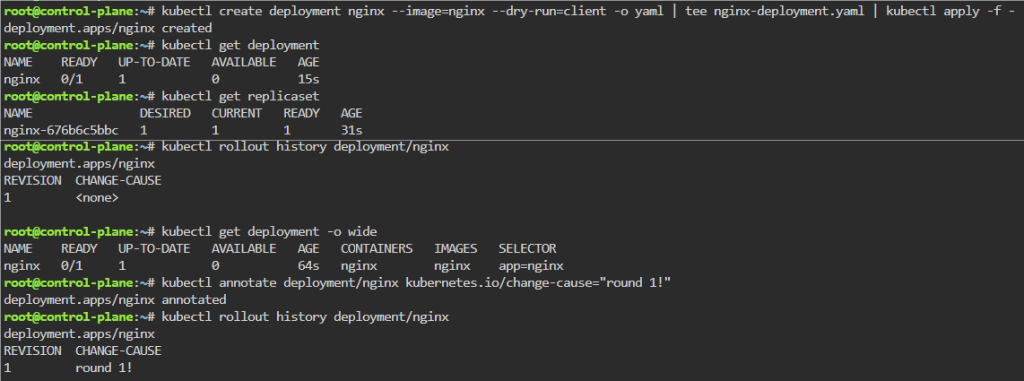
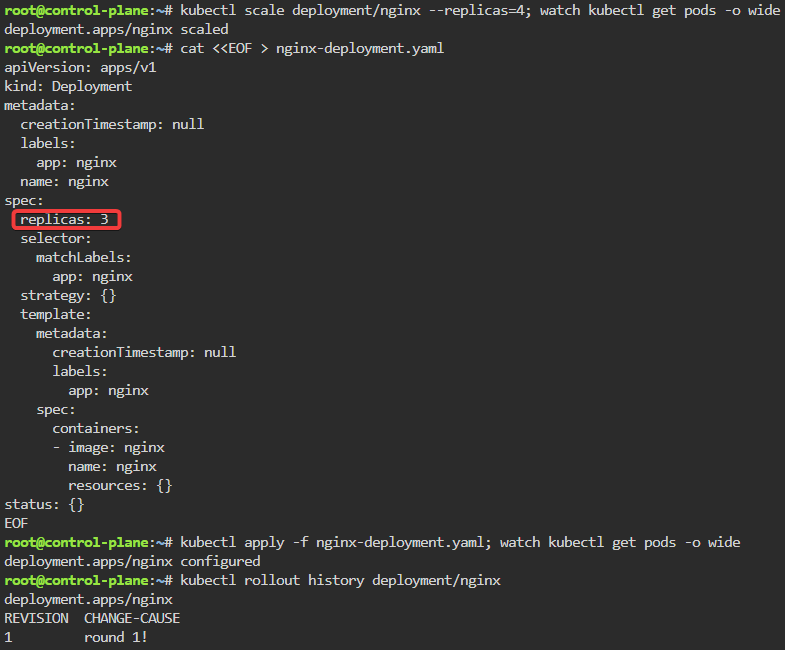
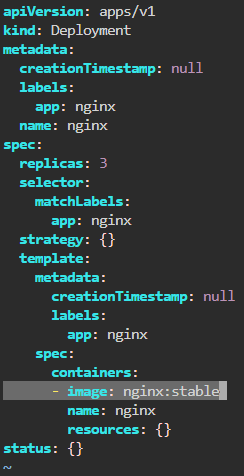
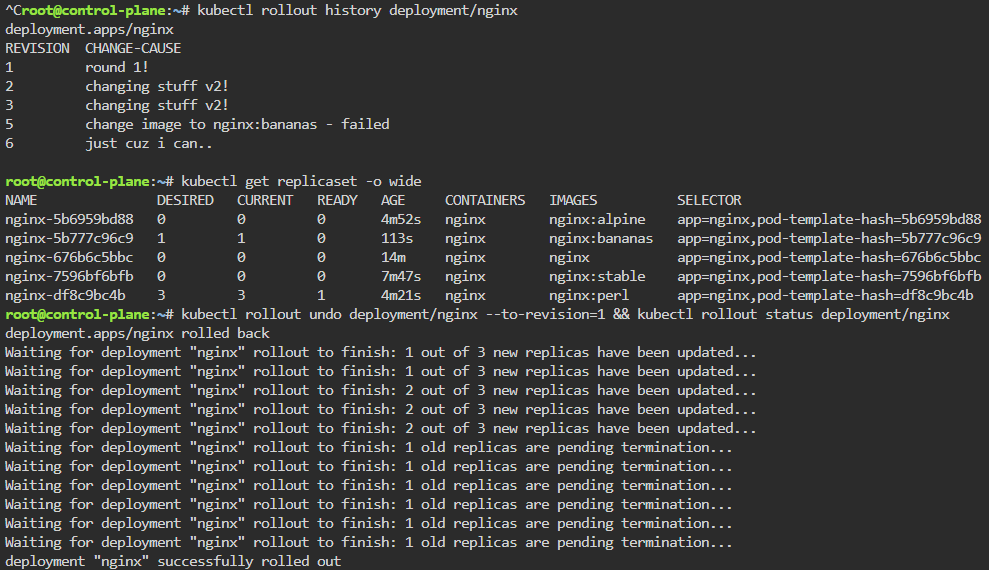
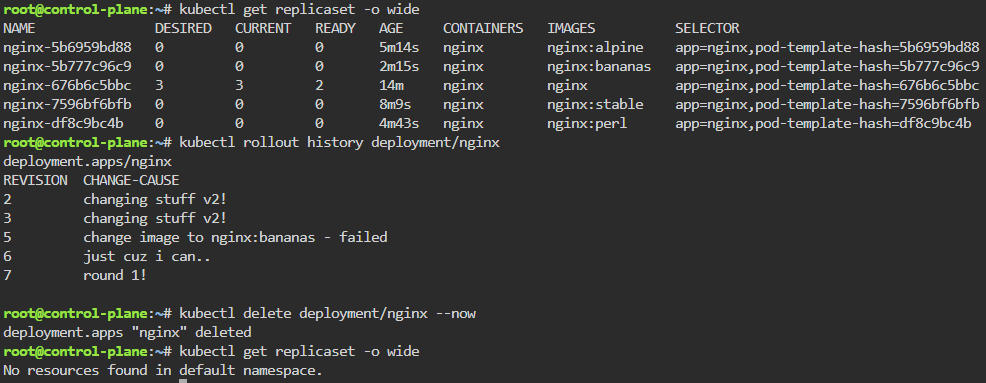
Deployments & Replicasets: create image deployment & replicaset, annotate/version yaml alteration by changing scale or image name, view rollout history, & undo/revert back deployment to specific version/annotation.

kubectl create deployment nginx --image=nginx --dry-run=client -o yaml | tee nginx-deployment.yaml | kubectl apply -f -
kubectl scale deployment/nginx --replicas=4; watch kubectl get pods -o wide
kubectl rollout history deployment/nginx
kubectl get pods -o wide
kubectl rollout undo deployment/nginx --to-revision=1 && kubectl rollout status deployment/nginx
kubectl delete deployment/nginx --now

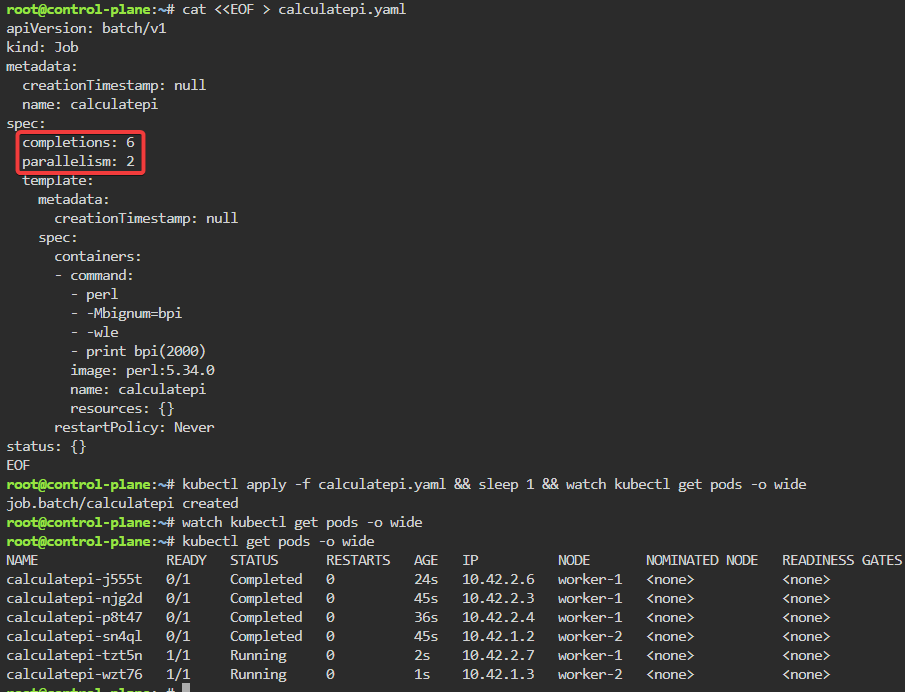
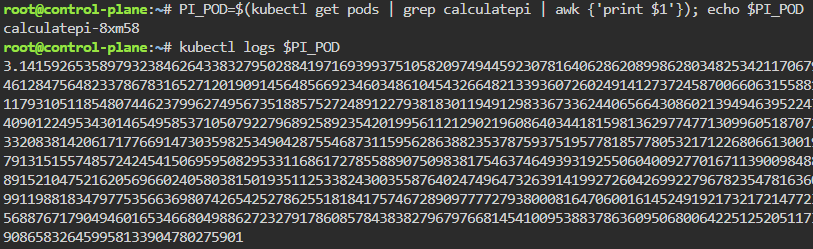
Jobs/Cron-Job: create a job & watch rollout of pod, alter yaml file to add pod amount, grep to see log of answer, then also can set cronjob of when to launch a pod.

kubectl create job calculatepi --image=perl:5.34.0 -- "perl" "-Mbignum=bpi" "-wle" "print bpi(2000)"
watch kubectl get jobs
kubectl apply -f calculatepi.yaml && sleep 1 && watch kubectl get pods -o wide
PI_POD=$(kubectl get pods | grep calculatepi | awk {'print $1'}); echo $PI_POD
kubectl create cronjob calculatepi --image=perl:5.34.0 --schedule="* * * * *" -- "perl" "-Mbignum=bpi" "-wle" "print bpi(2000)"

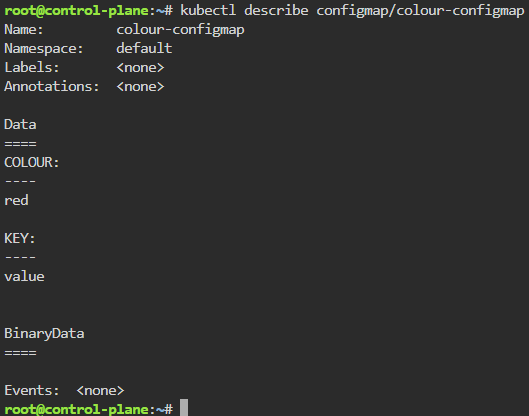
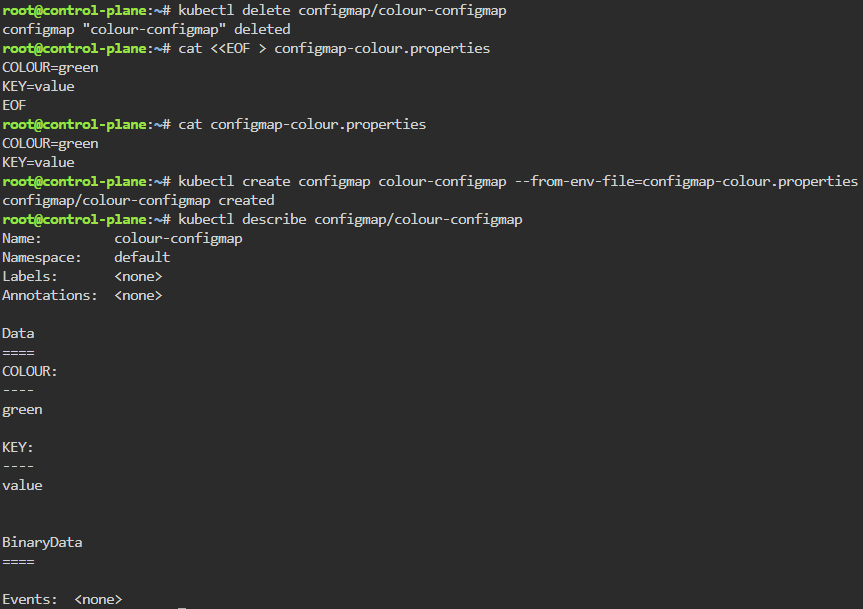
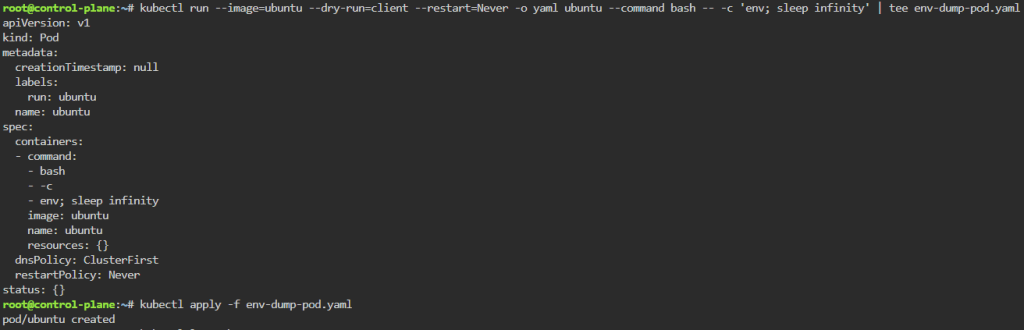
ConfigMaps: create configmap, edit, run, logs, delete…rinse & repeat.

kubectl create configmap colour-configmap --from-literal=COLOUR=red --from-literal=KEY=value
kubectl describe configmap/colour-configmap
cat configmap-colour.properties
kubectl create configmap colour-configmap --from-env-file=configmap-colour.properties
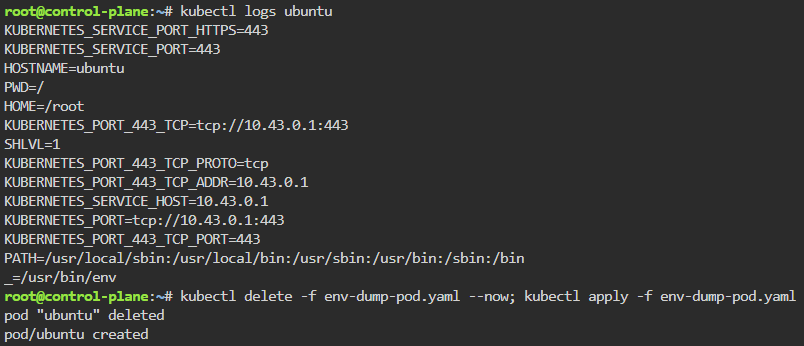
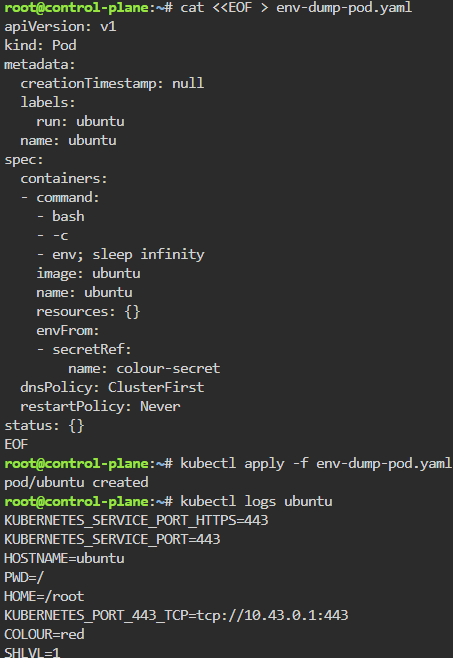
kubectl run --image=ubuntu --dry-run=client --restart=Never -o yaml ubuntu --command bash -- -c 'env; sleep infinity' | tee env-dump-pod.yaml
kubectl delete -f env-dump-pod.yaml --now; kubectl apply -f env-dump-pod.yaml

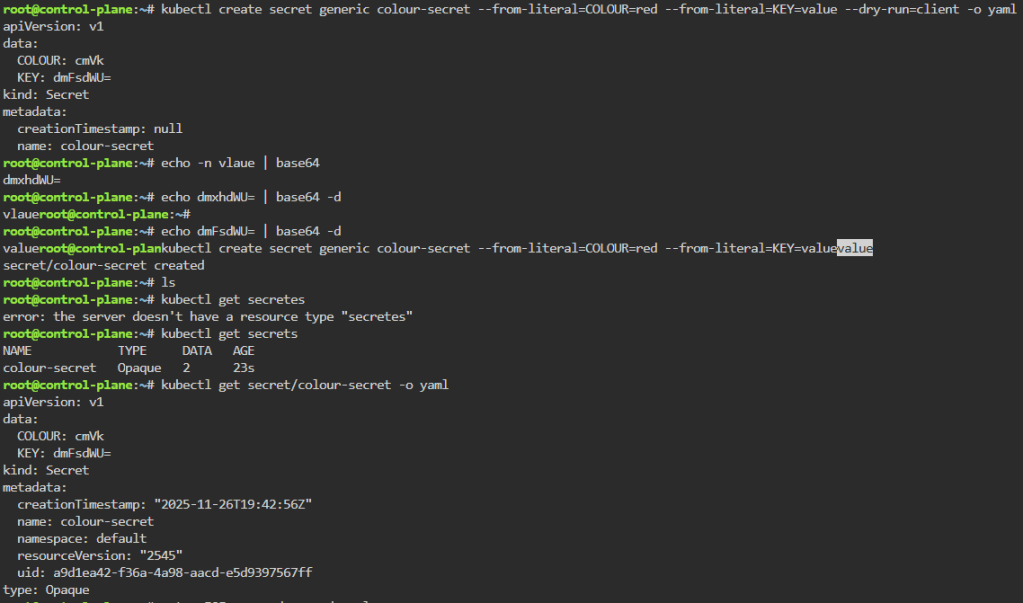
Secrets: create a secret color, echo decode w/base64, & then cat to apply

kubectl create secret generic colour-secret --from-literal=COLOUR=red --from-literal=KEY=value --dry-run=client -o yaml
echo -n value | base64
echo dmFsdWU= | base64 -d
kubectl get secret/colour-secret -o yaml
kubectl apply -f env-dump-pod.yaml
kubectl logs ubuntu

Services:

  • Can cover multiple types –
    • ClusterIP
    • NodePort
    • LoadBalancer
    • ExternalName
    • Headless

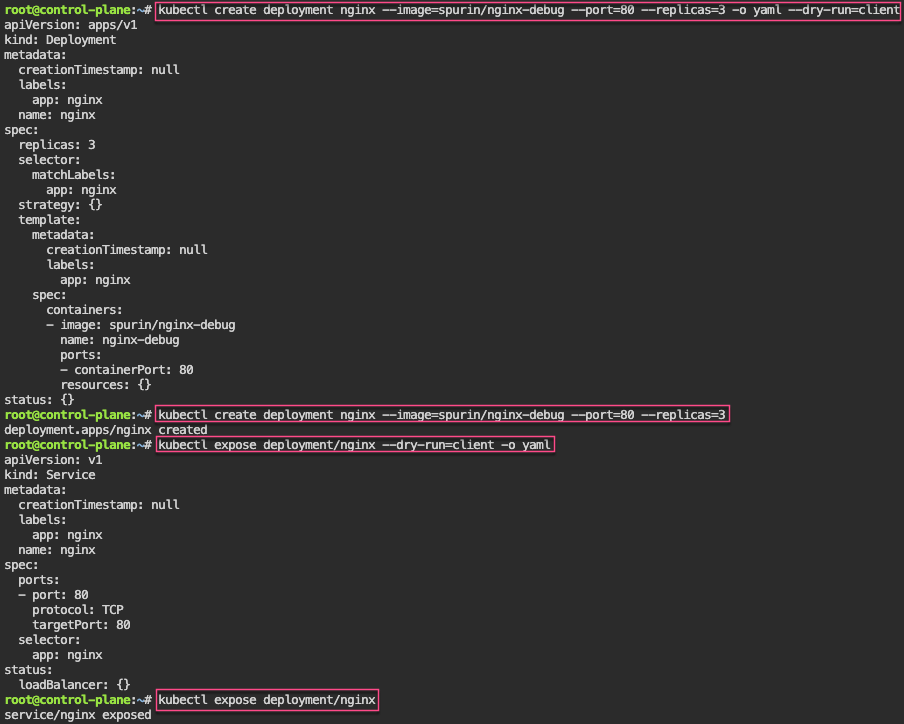
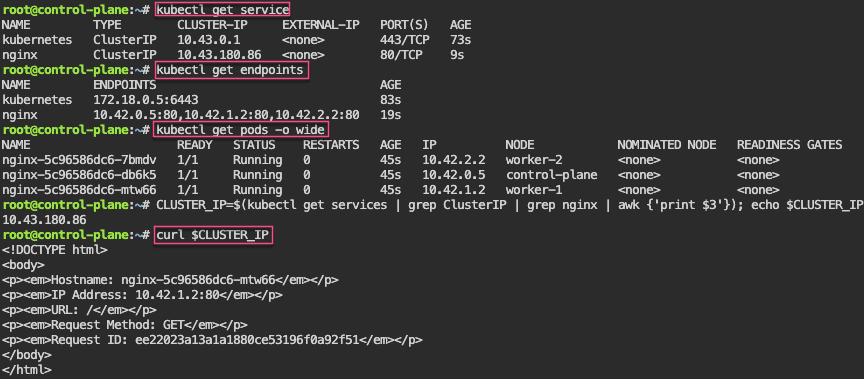
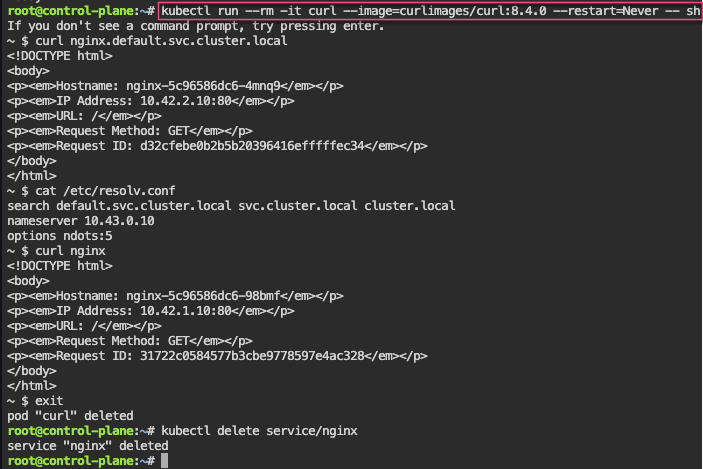
Service – ClusterIP: create image deployment on port 80 w/3 replicas, expose, get IP, & shell into curl

kubectl create deployment nginx --image=spurin/nginx-debug --port=80 --replicas=3 -o yaml --dry-run=client
kubectl create deployment nginx --image=spurin/nginx-debug --port=80 --replicas=3
kubectl expose deployment/nginx --dry-run=client -o yaml
kubectl expose deployment/nginx
kubectl run --rm -it curl --image=curlimages/curl:8.4.0 --restart=Never -- sh

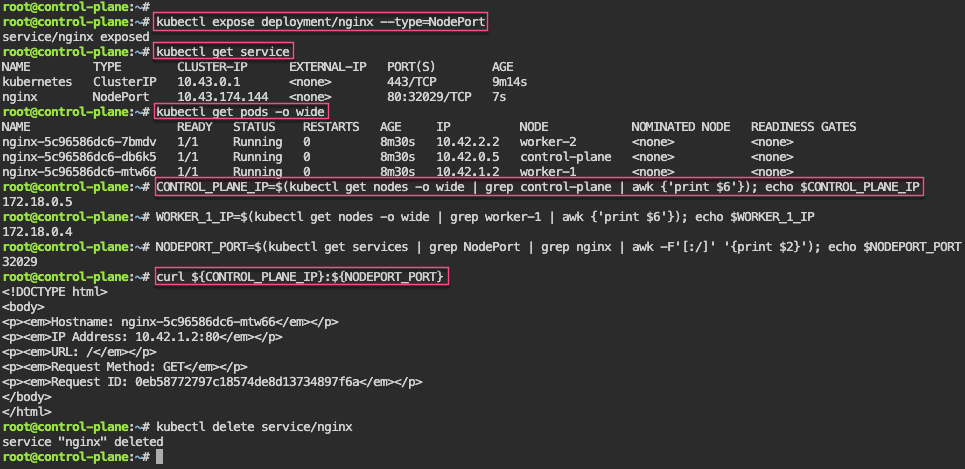
Service – NodePort: expose a node, grep to get control-plane-ip & nodeport-port, then shell into curl the pod information

kubectl expose deployment/nginx --type=NodePort
CONTROL_PLANE_IP=$(kubectl get nodes -o wide | grep control-plane | awk {'print $6'}); echo $CONTROL_PLANE_IP
NODEPORT_PORT=$(kubectl get services | grep NodePort | grep nginx | awk -F'[:/]' '{print $2}'); echo $NODEPORT_PORT
curl ${CONTROL_PLANE_IP}:${NODEPORT_PORT}

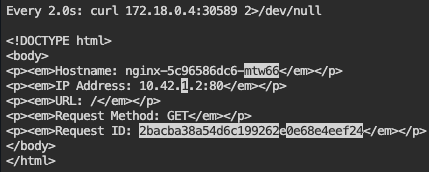
Service – LoadBalancer: expose LB to port 80, grep to get IP & port, then scale to watch the IP change from each of the 3 scaled pods

kubectl expose deployment/nginx --type=LoadBalancer --port 8080 --target-port 80
LOADBALANCER_IP=$(kubectl get service | grep LoadBalancer | grep nginx | awk '{split($0,a," "); split(a[4],b,","); print b[1]}'); echo $LOADBALANCER_IP
LOADBALANCER_PORT=$(kubectl get service | grep LoadBalancer | grep nginx | awk -F'[:/]' '{print $2}'); echo $LOADBALANCER_PORT
kubectl scale deployment/nginx --replicas=1; watch --differences "curl ${LOADBALANCER_IP}:${LOADBALANCER_PORT} 2>/dev/null"
watch --differences "curl ${LOADBALANCER_IP}:${LOADBALANCER_PORT} 2>/dev/null"

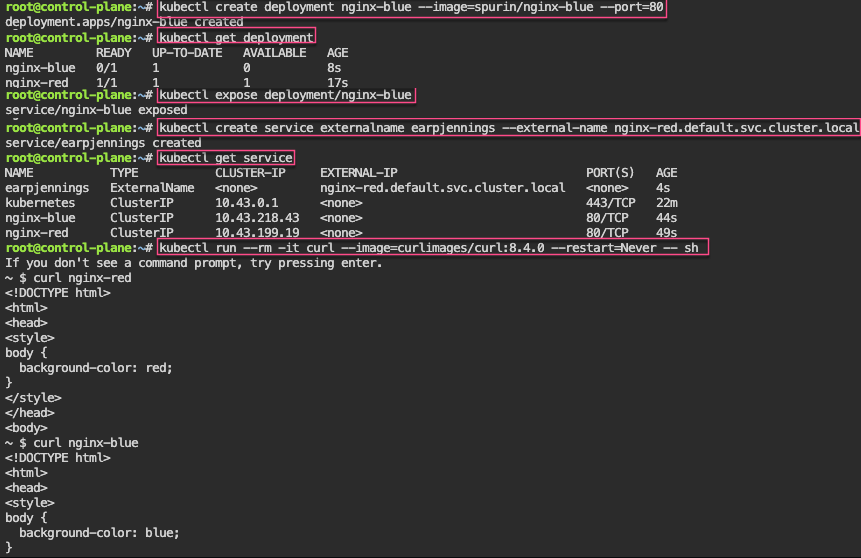
Service – ExternalName: create various deployments on port 80, then expose them, & finally curl IP to shell into deployment name

kubectl create deployment nginx-blue --image=spurin/nginx-blue --port=80
kubectl expose deployment/nginx-blue
kubectl create service externalname my-service --external-name nginx-red.default.svc.cluster.local
kubectl run --rm -it curl --image=curlimages/curl:8.4.0 --restart=Never -- sh
curl nginx-blue

KCNA: P3 Kubernetes Fundyzzz..part 1

Blog post includes covering Kubernetes Fundamental’s in preparation for the KCNA.

  • Init-Containers
  • Pods
  • Namespaces
  • Labels

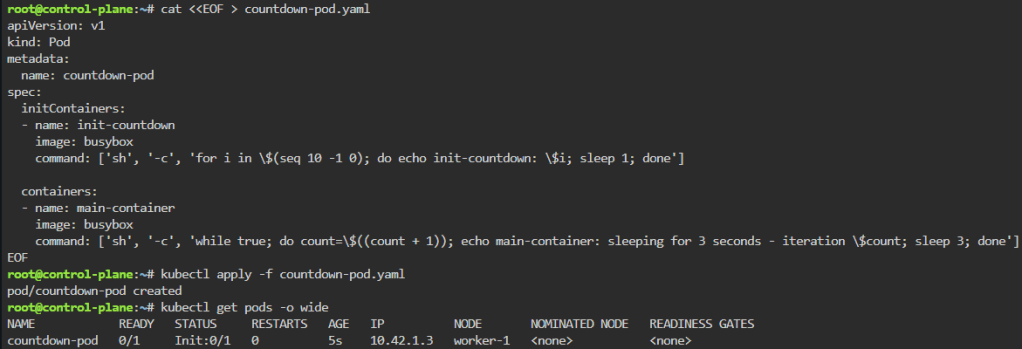
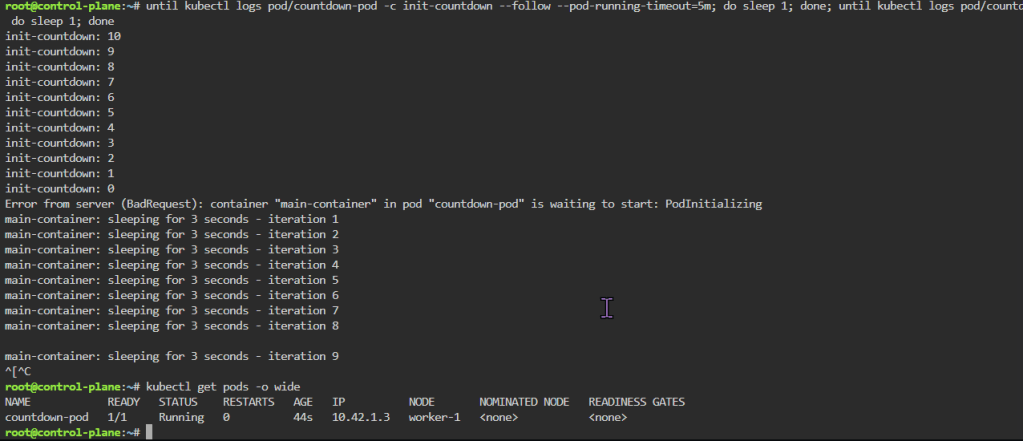
K8 Pods – Init Containers: create yaml file w/init container before main container, apply, & then watch logs

cat <<EOF > countdown-pod.yaml
apiVersion: v1
kind: Pod
metadata:
  name: countdown-pod
spec:
  initContainers:
  - name: init-countdown
    image: busybox
    command: ['sh', '-c', 'for i in \$(seq 120 -1 0); do echo init-countdown: \$i; sleep 1; done']

  containers:
  - name: main-container
    image: busybox
    command: ['sh', '-c', 'while true; do count=\$((count + 1)); echo main-container: sleeping for 30 seconds - iteration \$count; sleep 30; done']
EOF
kubectl apply -f countdown-pod.yaml
kubectl get pods -o wide
until kubectl logs pod/countdown-pod -c init-countdown --follow --pod-running-timeout=5m; do sleep 1; done; until kubectl logs pod/countdown-pod -c main-container --follow --pod-running-timeout=5m; do sleep 1; done
kubectl get pods -o wide

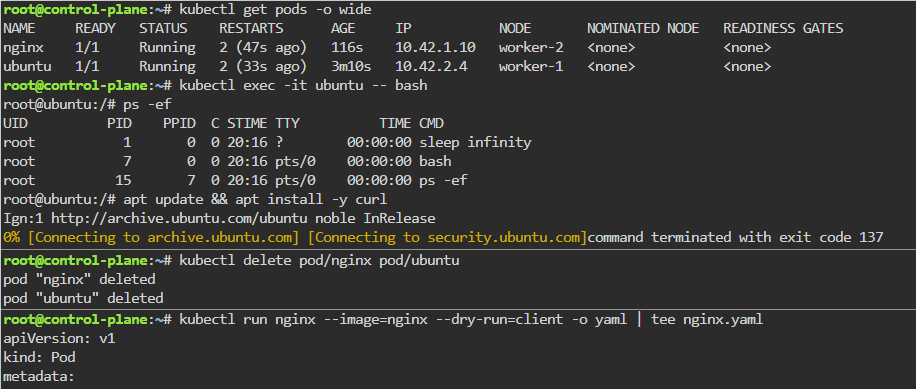
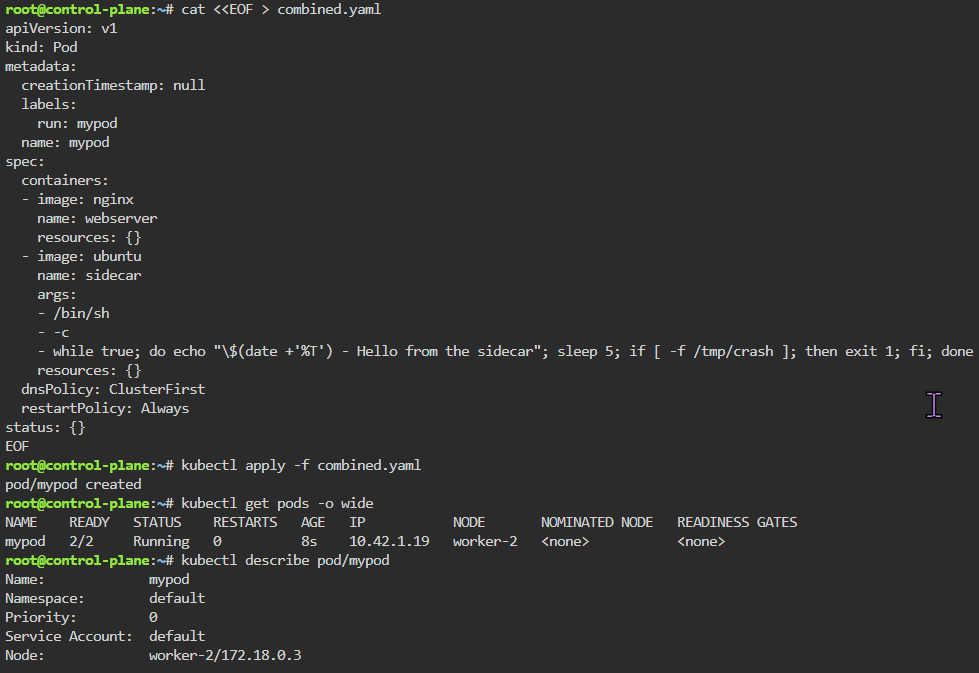
K8 Pods: create image, port forward, curl/shell into pod, create another yaml file image combined as sidecar, & output sidecar response of pod containers

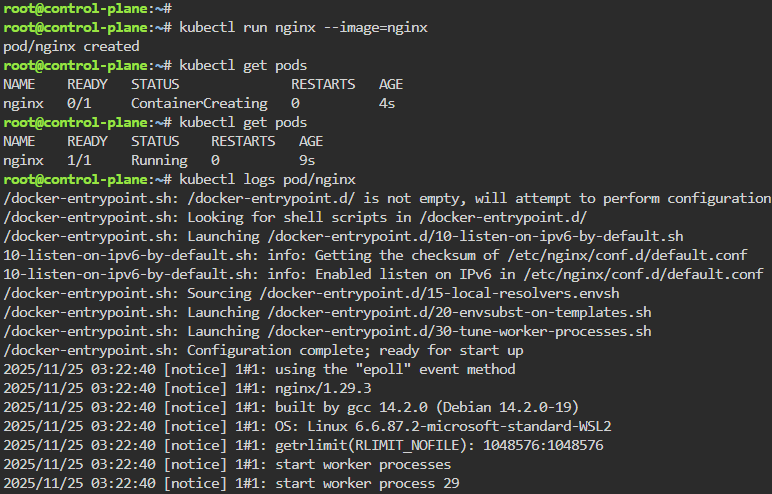
kubectl run nginx --image=nginx
kubectl get pods
kubectl logs pod/nginx
kubectl get pods -o wide
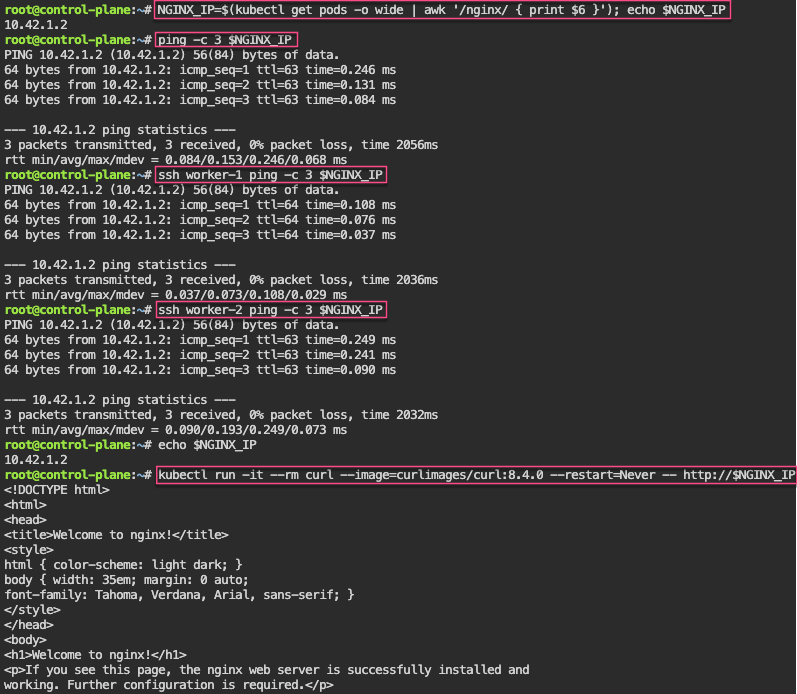
NGINX_IP=$(kubectl get pods -o wide | awk '/nginx/ { print $6 }'); echo $NGINX_IP
ping -c 3 $NGINX_IP
ssh worker-1 ping -c 3 $NGINX_IP
ssh worker-2 ping -c 3 $NGINX_IP
echo $NGINX_IP
kubectl run -it --rm curl --image=curlimages/curl:8.4.0 --restart=Never -- http://$NGINX_IP
kubectl exec -it ubuntu -- bash
apt update && apt install -y curl
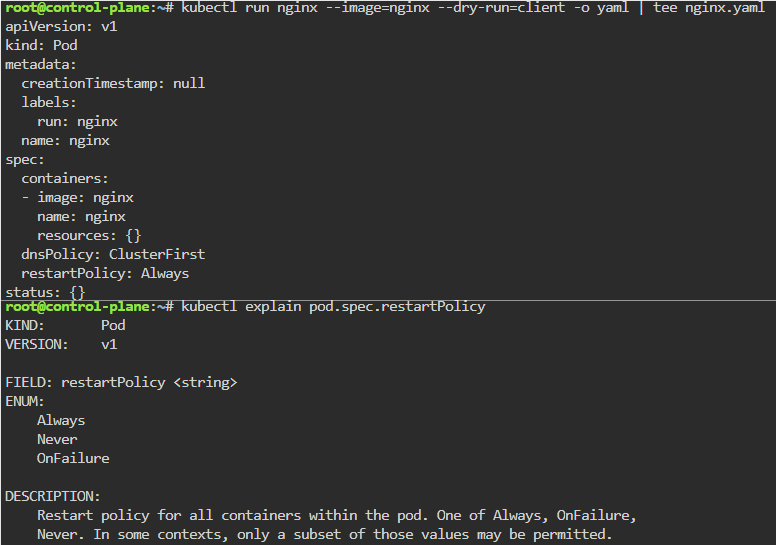
kubectl run nginx --image=nginx --dry-run=client -o yaml | tee nginx.yaml
cat <<EOF > combined.yaml
apiVersion: v1
kind: Pod
metadata:
  creationTimestamp: null
  labels:
    run: mypod
  name: mypod
spec:
  containers:
  - image: nginx
    name: webserver
    resources: {}
  - image: ubuntu
    name: sidecar
    args:
    - /bin/sh
    - -c
    - while true; do echo "\$(date +'%T') - Hello from the sidecar"; sleep 5; if [ -f /tmp/crash ]; then exit 1; fi; done
    resources: {}
  dnsPolicy: ClusterFirst
  restartPolicy: Always
status: {}
EOF
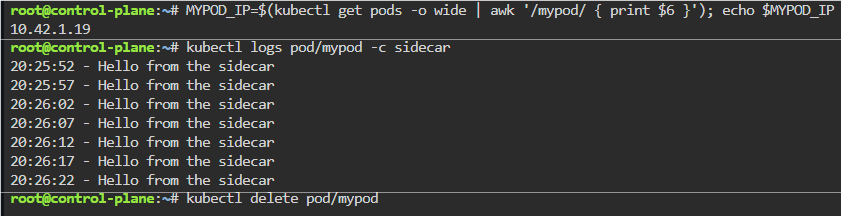
MYPOD_IP=$(kubectl get pods -o wide | awk '/mypod/ { print $6 }'); echo $MYPOD_IP
kubectl logs pod/mypod -c sidecar
kubectl delete pod/mypod --now

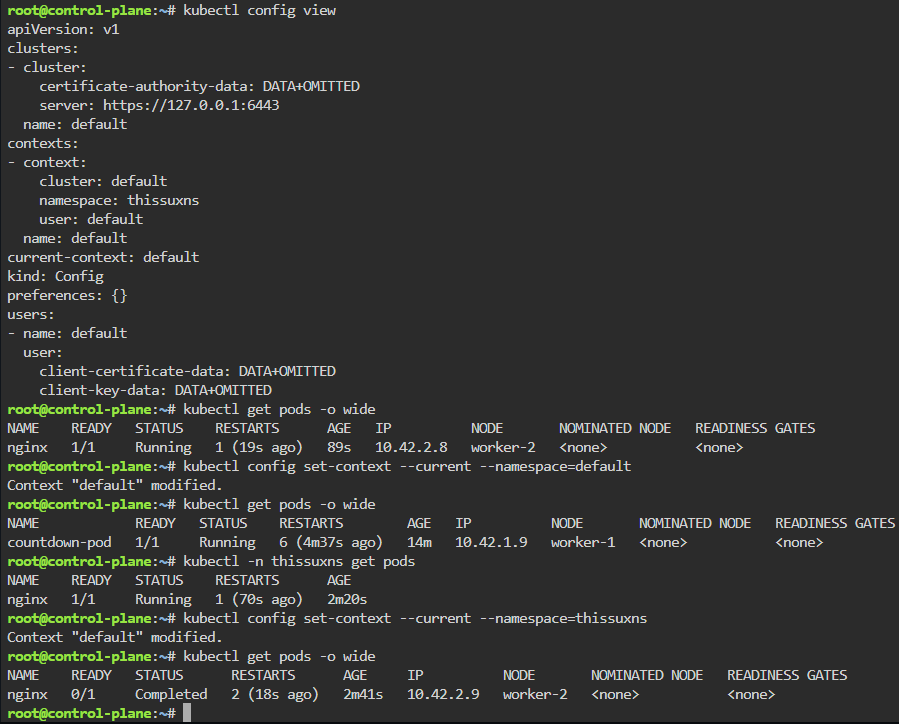
    Namespaces: make an ns w/image, change config context default to new ns, & switch back & forth to notice not all pods created under ns

    kubectlget ns
    kubectl -n thissuxns run nginx --image=nginx
    kubectl get pods -o wide
    kubectl -n thissuxns get pods
    kubectl config view
    kubectl config set-context --current --namespace=thissuxns
    kubectl get pods -o wide
    kubectl config set-context --current --namespace=default
    kubectl get pods -o wide

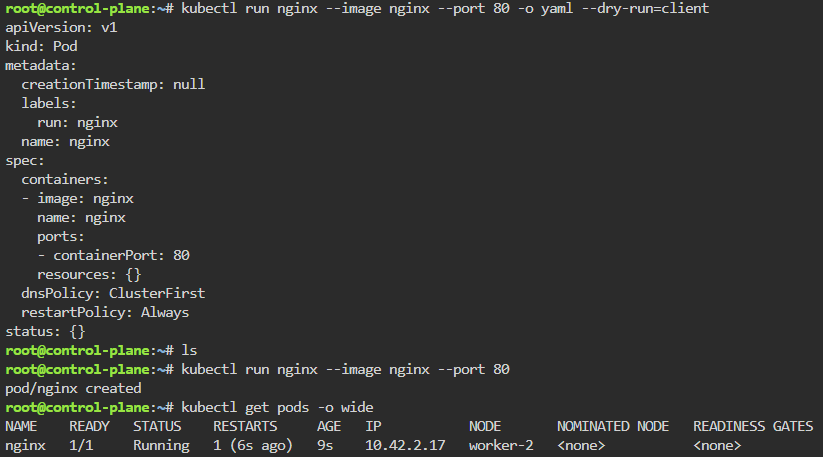
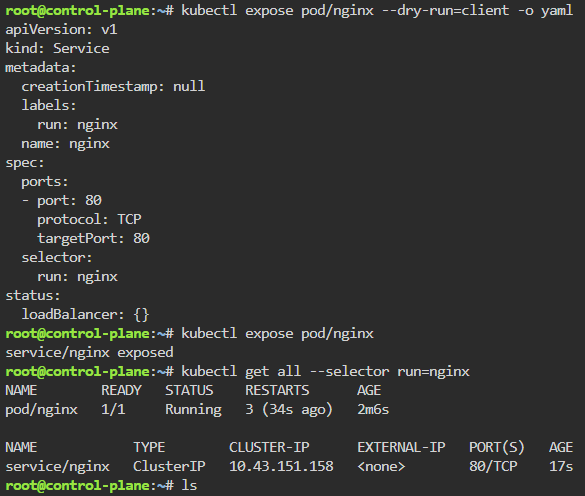
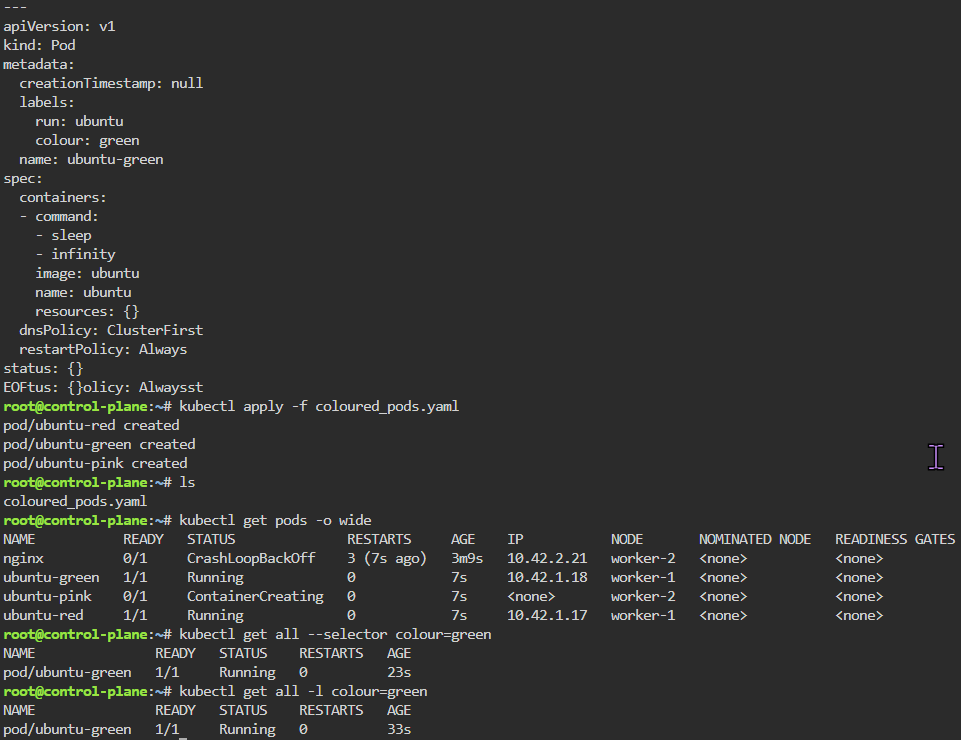
    Labels: starting pod on port 80, utilize selector label, apply new yaml file of 3 options for selector label, & then get pods for just that particular label selector

    kubectl run nginx --image nginx --port 80 -o yaml --dry-run=client
    kubectl run nginx --image nginx --port 80
    kubectl expose pod/nginx --dry-run=client -o yaml
    kubectl expose pod/nginx
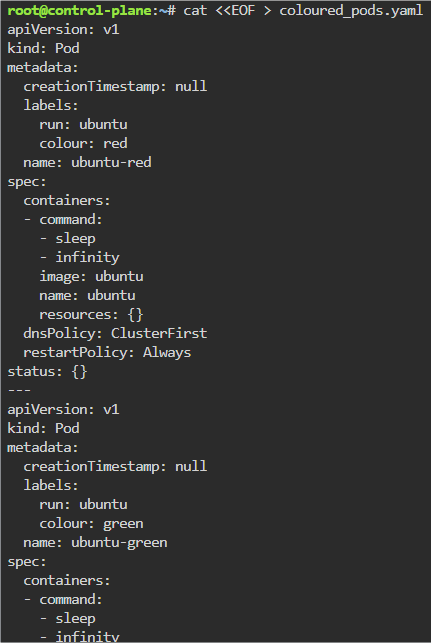
    cat <<EOF > coloured_pods.yaml
    apiVersion: v1
    kind: Pod
    metadata:
      creationTimestamp: null
      labels:
        run: ubuntu
        colour: red
      name: ubuntu-red
    spec:
      containers:
      - command:
        - sleep
        - infinity
        image: ubuntu
        name: ubuntu
        resources: {}
      dnsPolicy: ClusterFirst
      restartPolicy: Always
    status: {}
    ---
    apiVersion: v1
    kind: Pod
    metadata:
      creationTimestamp: null
      labels:
        run: ubuntu
        colour: green
      name: ubuntu-green
    spec:
      containers:
      - command:
        - sleep
        - infinity
        image: ubuntu
        name: ubuntu
        resources: {}
      dnsPolicy: ClusterFirst
      restartPolicy: Always
    status: {}
    ---
    apiVersion: v1
    kind: Pod
    metadata:
      creationTimestamp: null
      labels:
        run: ubuntu
        colour: pink
      name: ubuntu-pink
    spec:
      containers:
      - command:
        - sleep
        - infinity
        image: ubuntu
        name: ubuntu
        resources: {}
      dnsPolicy: ClusterFirst
      restartPolicy: Always
    status: {}
    EOF
    kubectl apply -f coloured_pods.yaml
    kubectl get pods -o wide
    kubectl get all --selector colour=green

    Lets save Martha aka MiniKube..

    Goal:

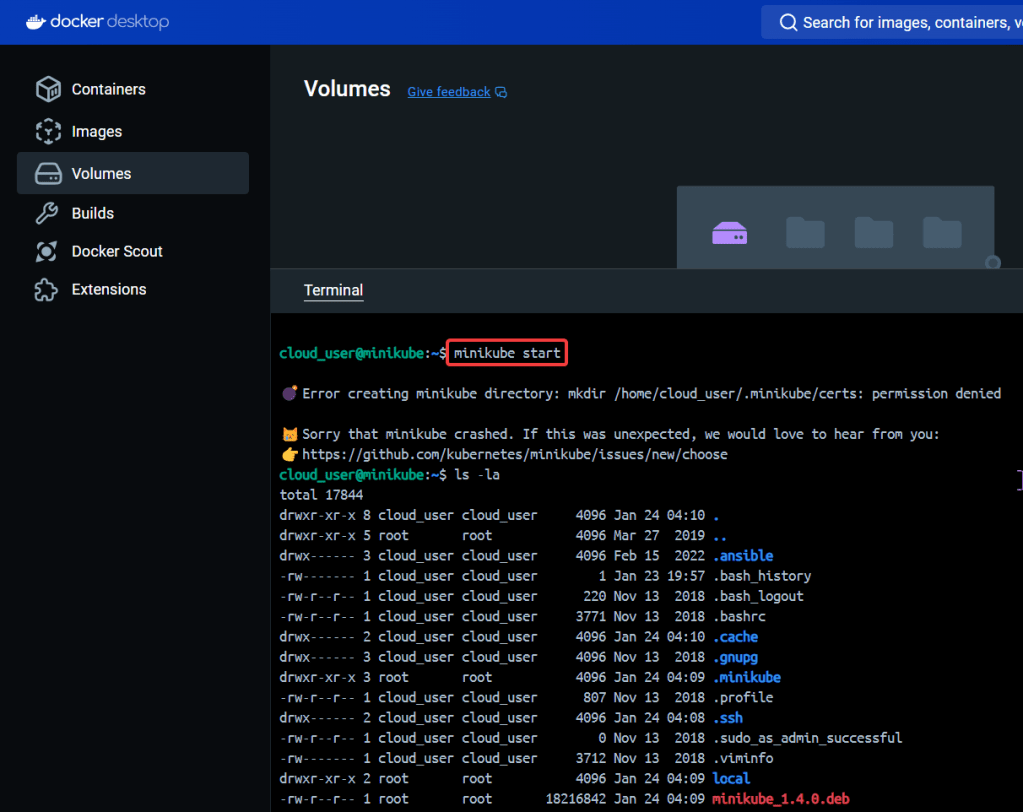
    The Bat signal has been lit in the sky, its time to suit up, & don’t let the kryptonite divide us. Fix the broken Minikube cluster

    Lessons Learned:

    • Start up the Bat Mobile (Minikube)
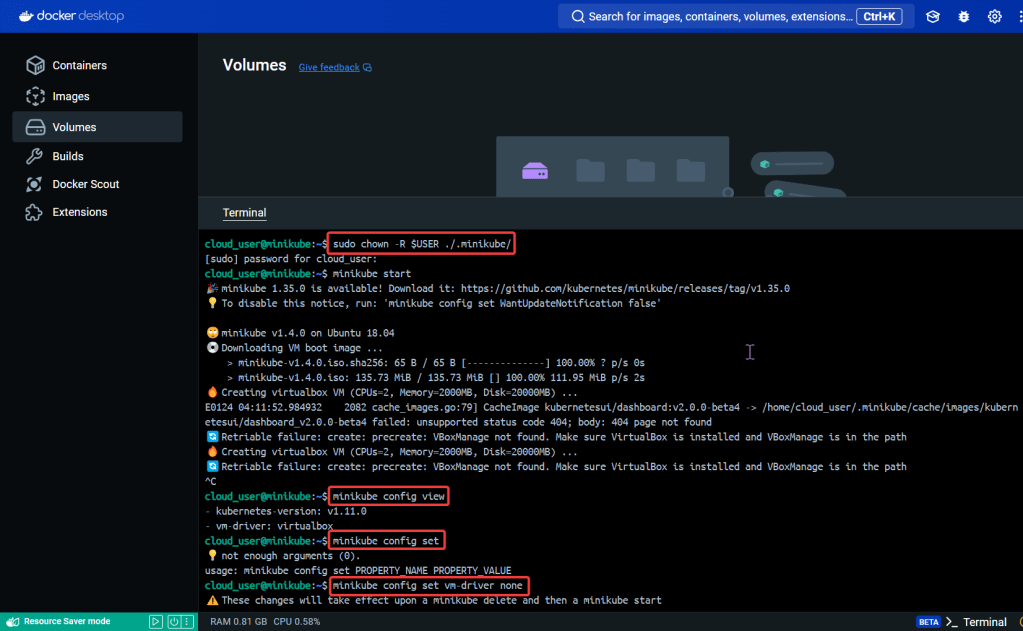
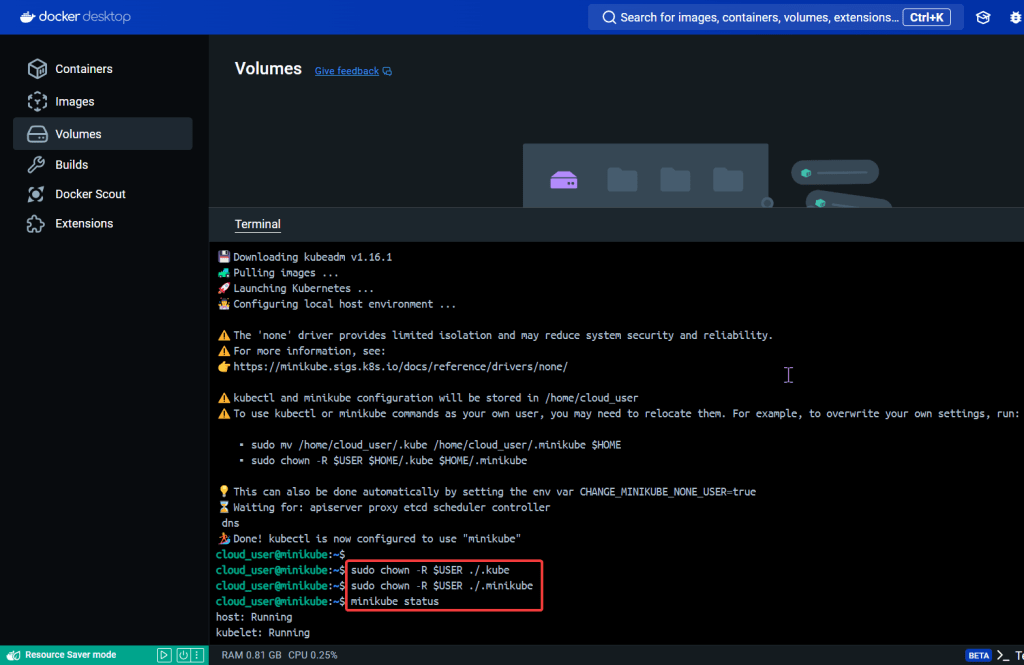
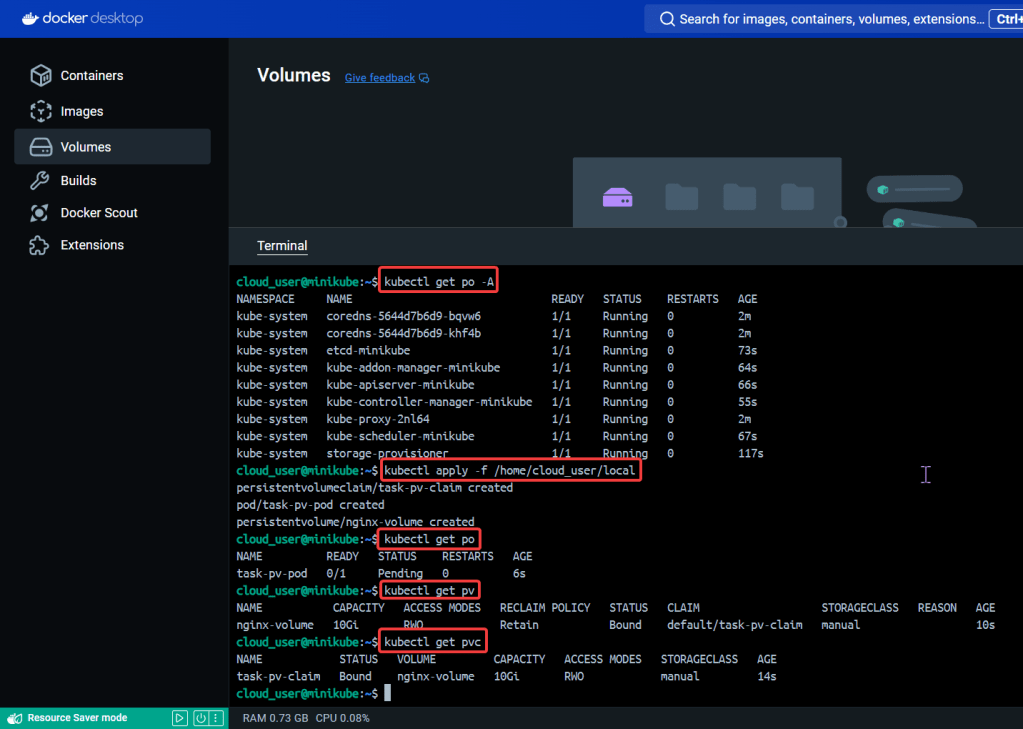
      • See screenshot for a whole slew of commands
    • Create Object in YAML files to Confirm Cluster is up
      • Kubectl apply -f
      • Kubectl get po/pv/pvc

    Start up the Bat Mobile (Minikube):

    See screenshot for a whole slew of commands:

    • Minikube start
    • sudo chown -R
      • Change directory owner
        • .kube
        • .minikube
    • Minikube config set
      • Update the version
    • Sudo apt install -y docker.io
      • Get docker
    • Kubectl apply -f
    • Kubectl get
      • po
      • pv
      • pvc

    Create Object in YAML files to Confirm Cluster is up:

    • Kubectl apply -f
    • Kubectl get po/pv/pvc

    Part 2: Monitoring Containers w/Prometheus

    Goal:

    Context:

    Lets show how you can help a team migrate their infrastructure to Docker containers..

    Part 2 Activities:

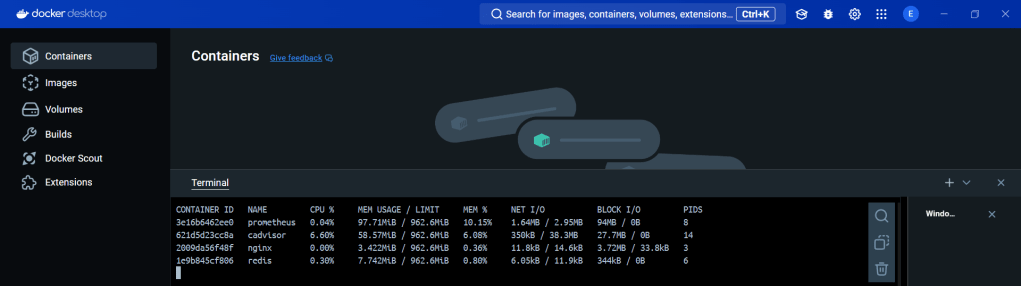
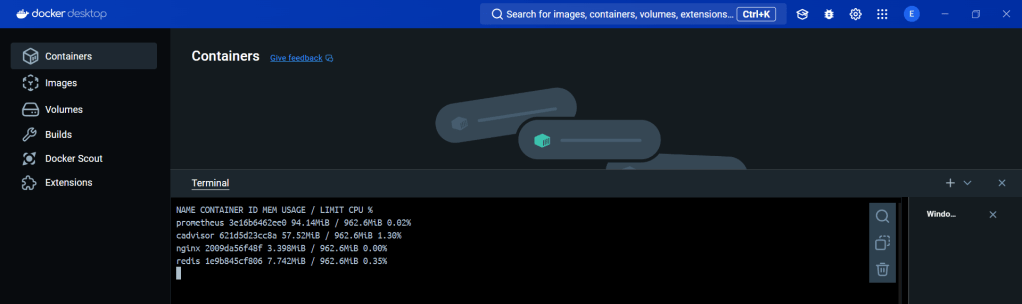
    Monitor the new environment w/Docker (stats) & Prometheus, you can see how to utilize a cool feature like Docker Compose & cAdvisor.

    Lessons Learned:

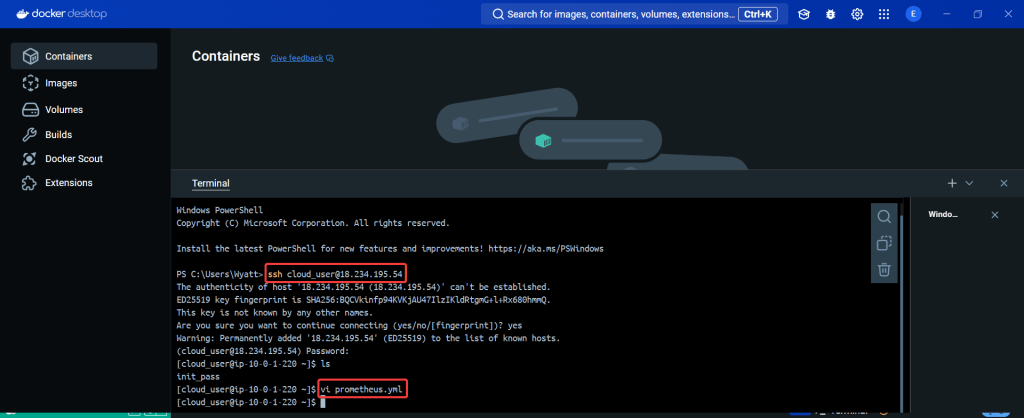
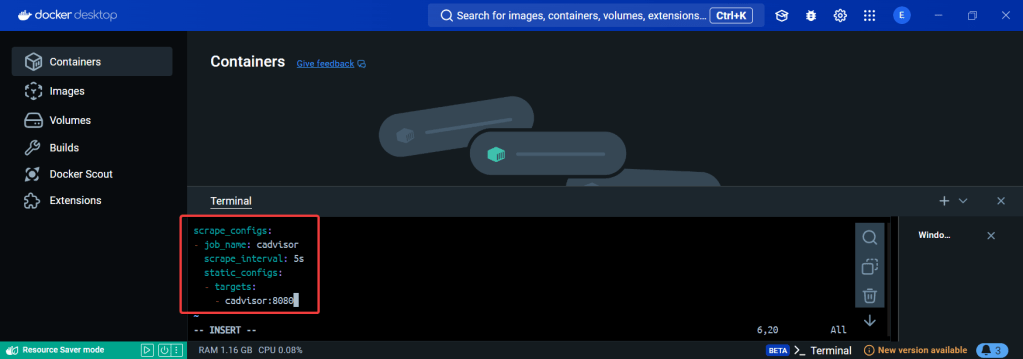
    • Create a Prometheus YAML File
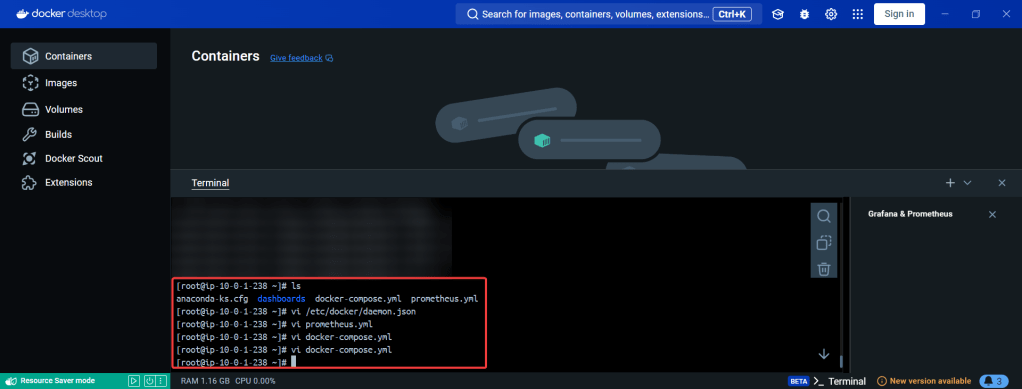
      • vi prometheus.yml
    • Create a Prometheus Service
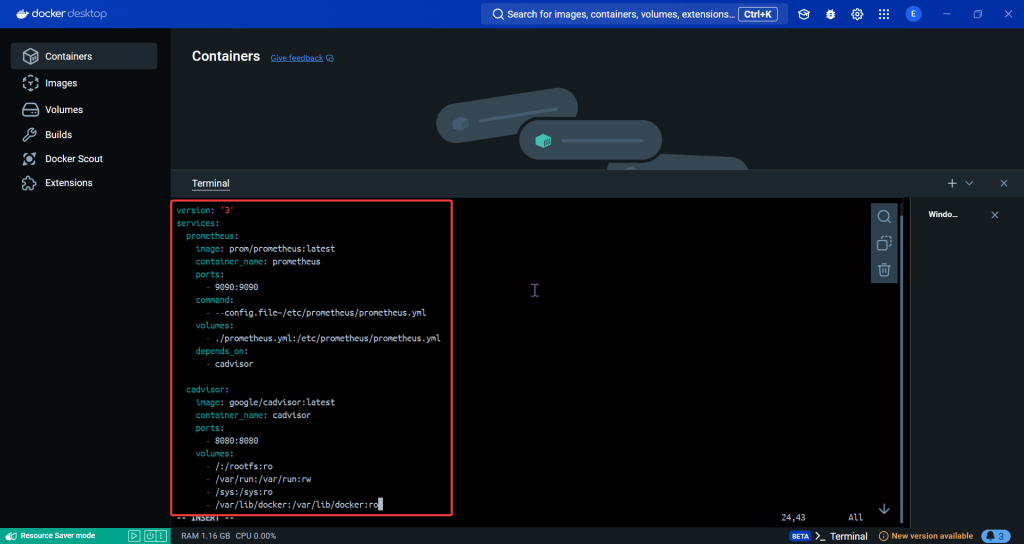
      • vi docker-compose.yml
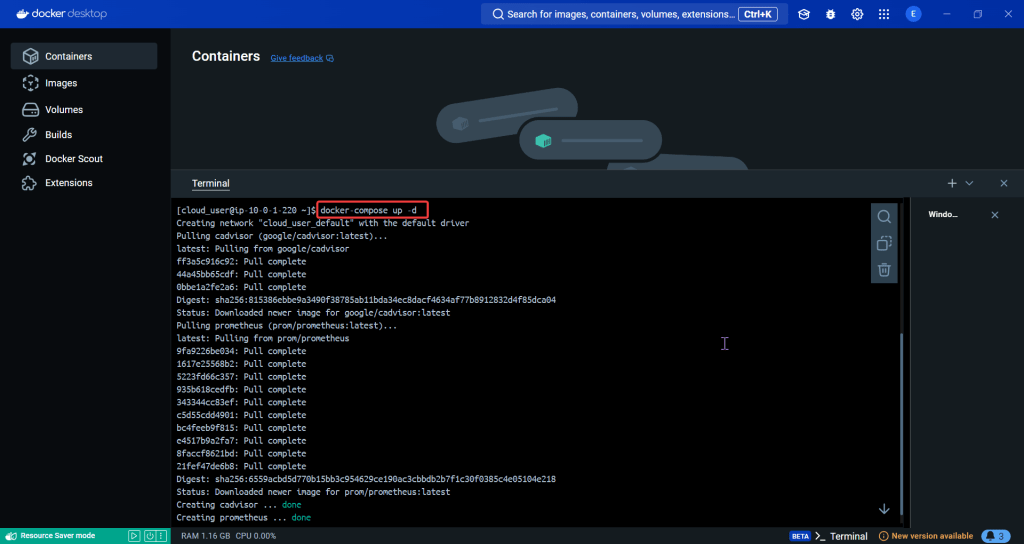
      • docker-compose up -d
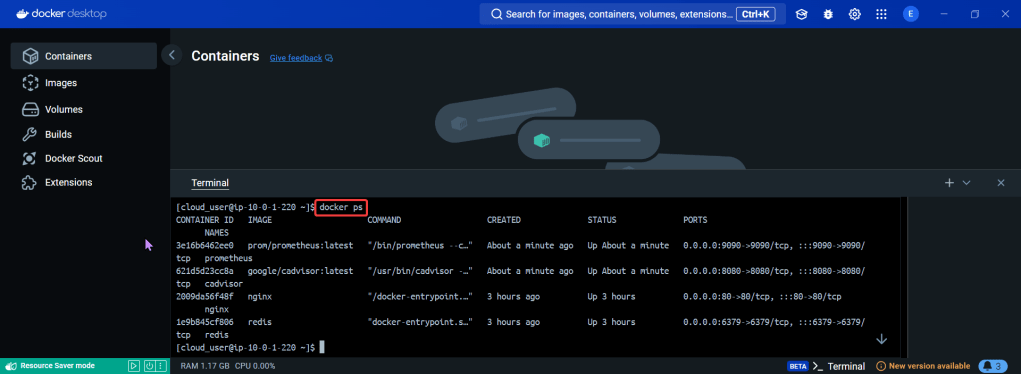
      • docker ps
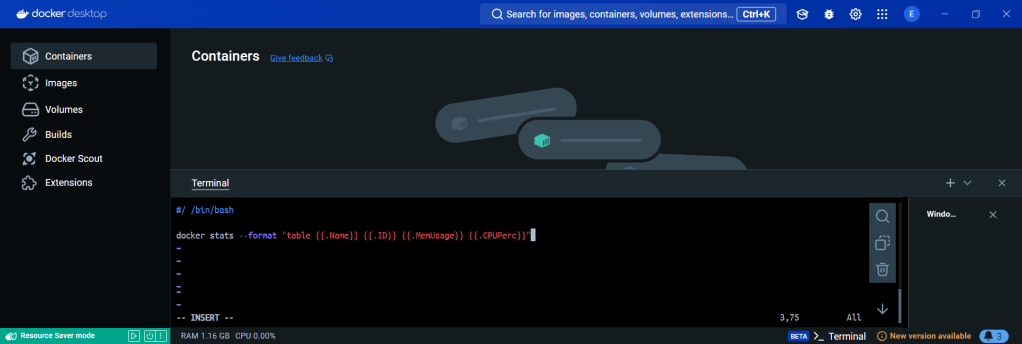
    • Create Stats Shell
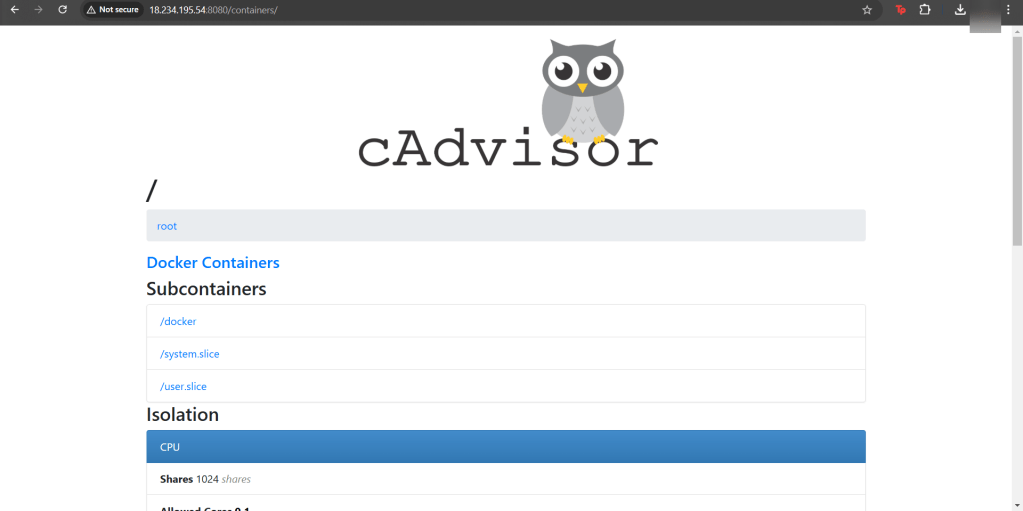
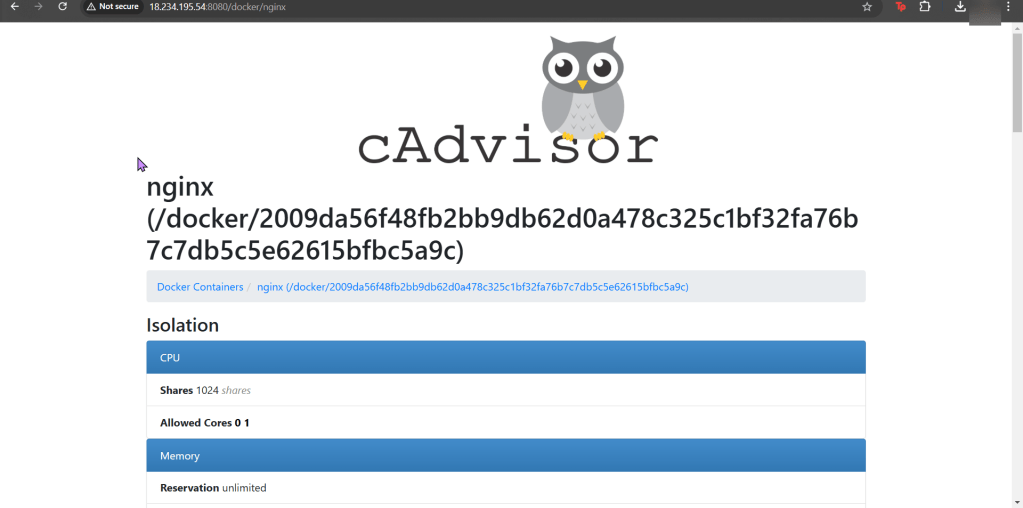
      • Investigate cAdvisor
      • Stats in Docker
      • Doper Stats

    Create a Prometheus YAML File:

    • Collect metrics & monitoring using Prometheus/cAdvisor to deploy containers using docker-compose

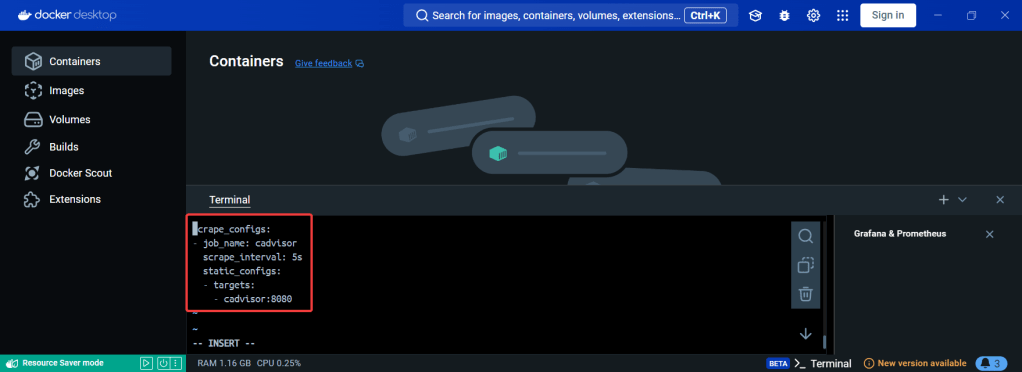
    vi Prometheus.yml:

    Create a Prometheus Service:

    vi docker-compose.yml:

    docker-compose up -d:

    docker ps

    Create Stats Shell:

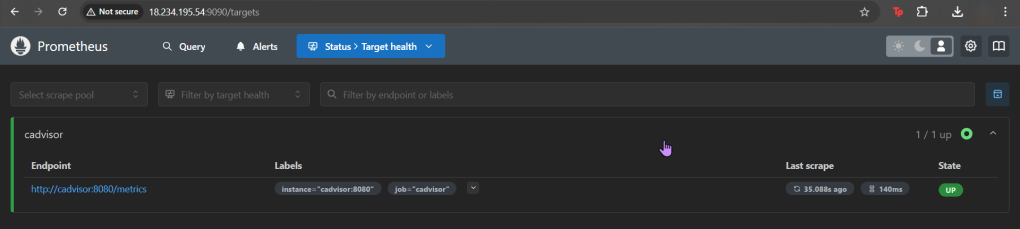
    Investigate cAdvisor:

    Stats in Docker:

    • docker stats

    Doper Stats:

    • vi stats.sh
    • chmod a+x stats.sh

    Part 1: Use Grafana w/Prometheus for Alert & Monitoring

    Goal:

    Context:

    Lets show how you can help a team migrate their infrastructure to Docker containers..

    Part 1 Activities:

    See how to utilize Prometheus to monitor your toys (containers). Then you can use the gangster tool of Grafana to visualize & alert!

    Lessons Learned:

    • Pre-Req
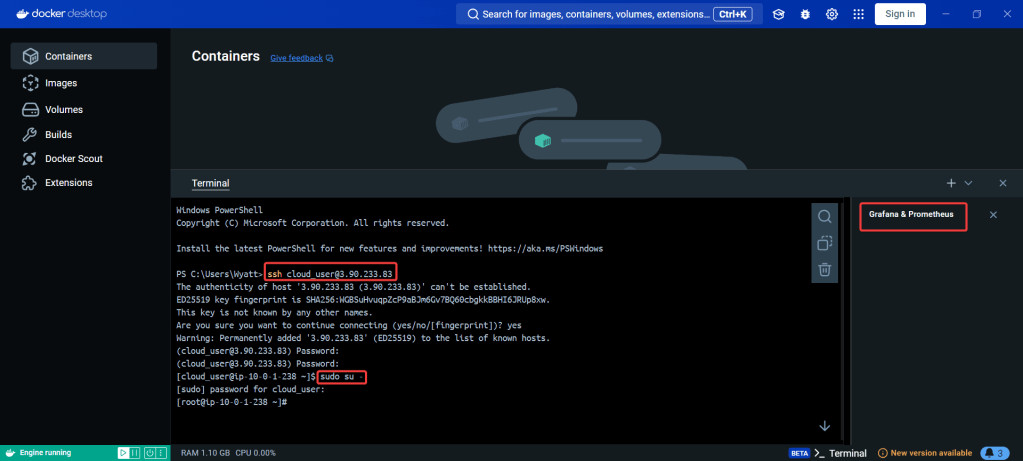
      • SSH & Eleevate to Sudo su – !!
    • Configure Docker
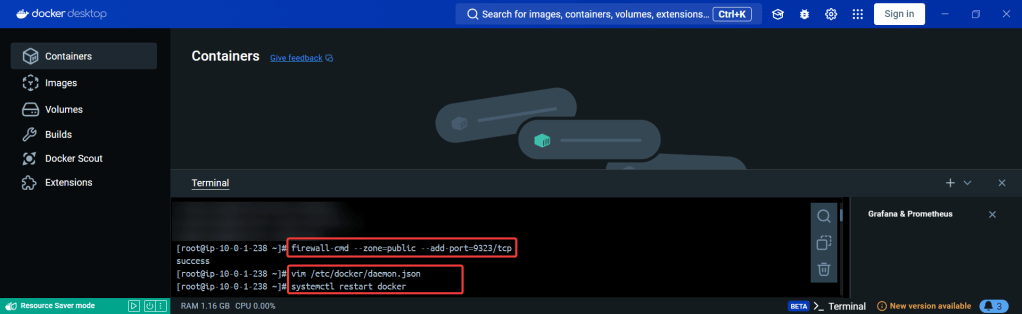
      • Open Port
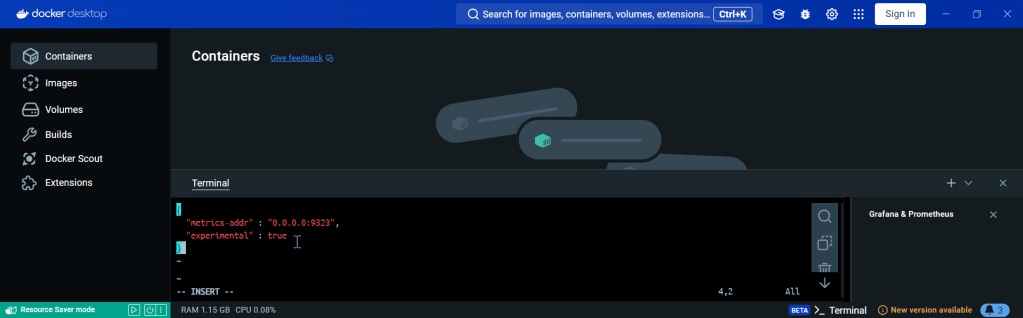
      • Create daemon.json file
      • Restart docker
      • Curl to test Docker
    • Update the Prometheus YAML File
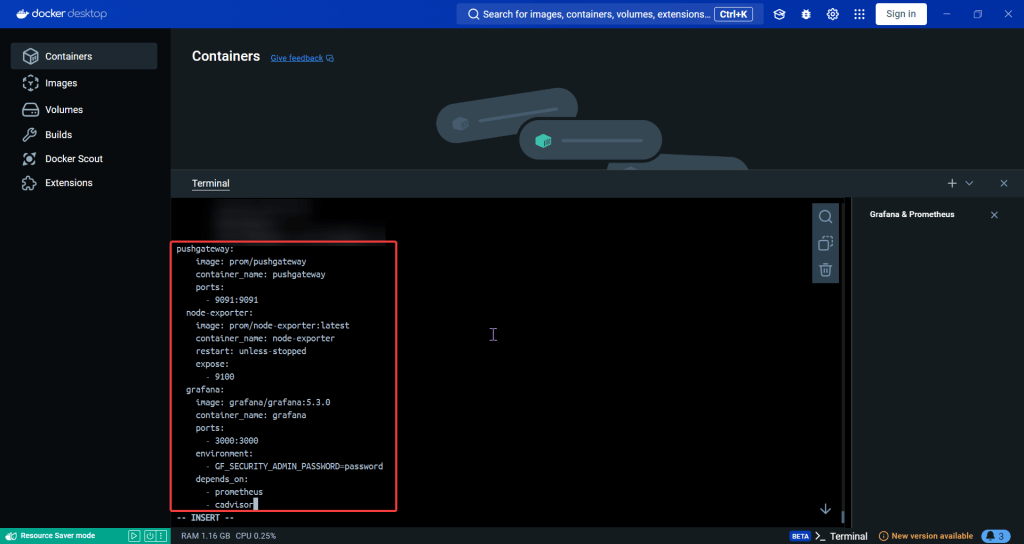
    • Update the Docker-Compose YAML File
      • docker-compose.yml
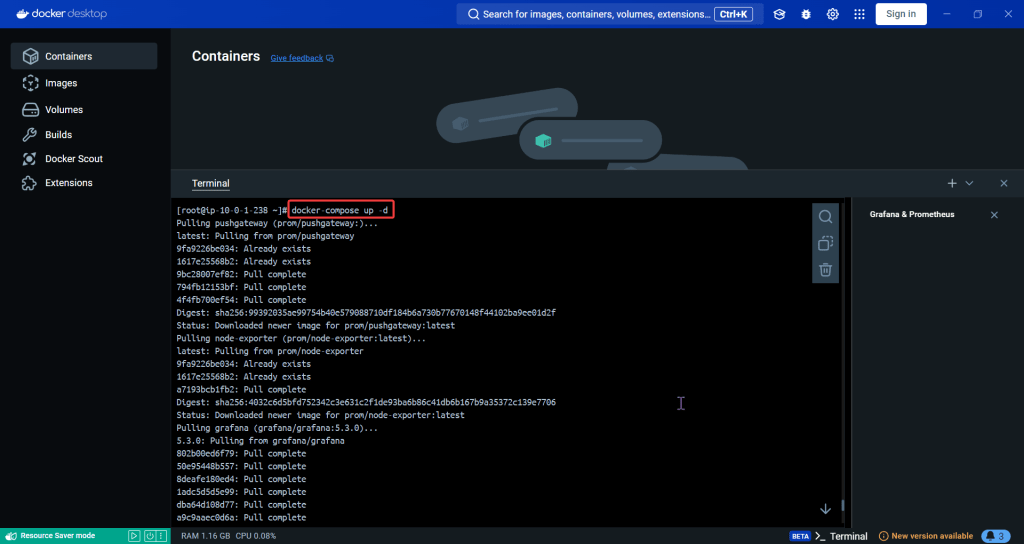
      • Apply changes & rebuild
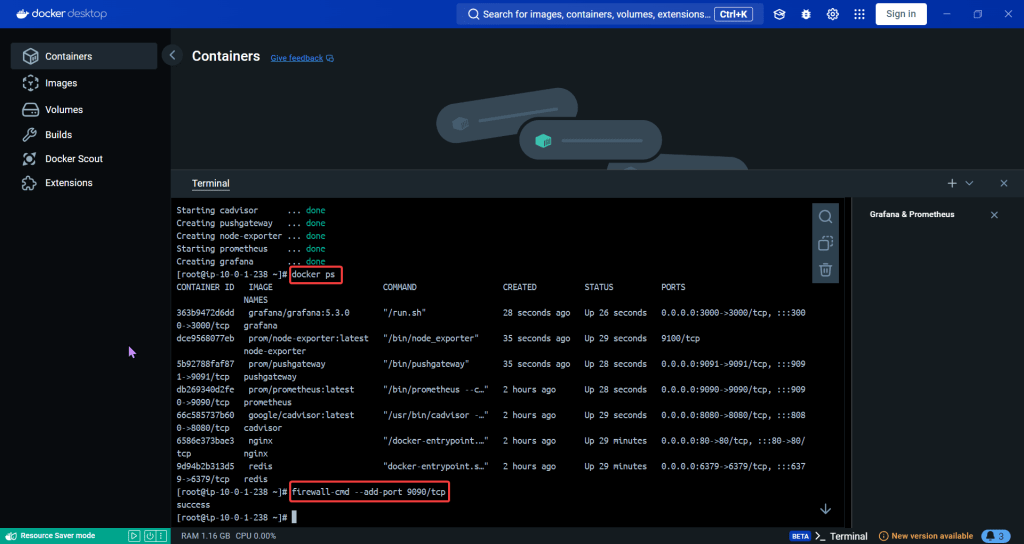
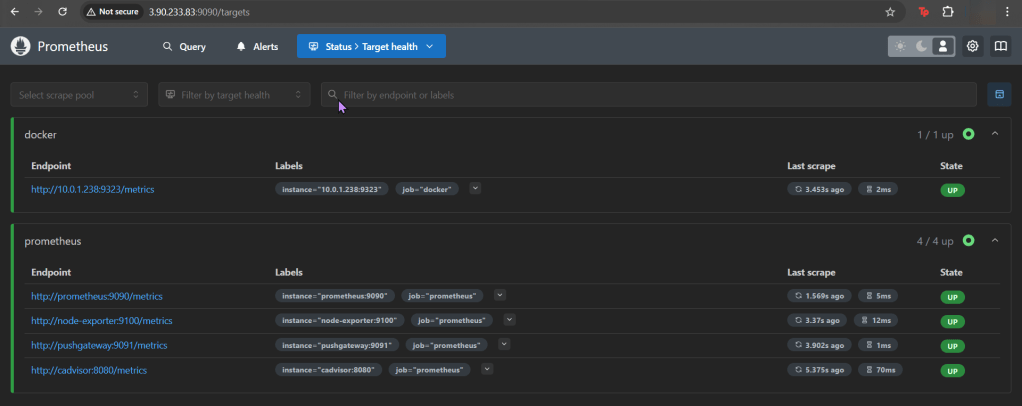
      • Ensure stuff is runnin’!
      • Open port 9090
    • Install the Docker & Monitoring DB
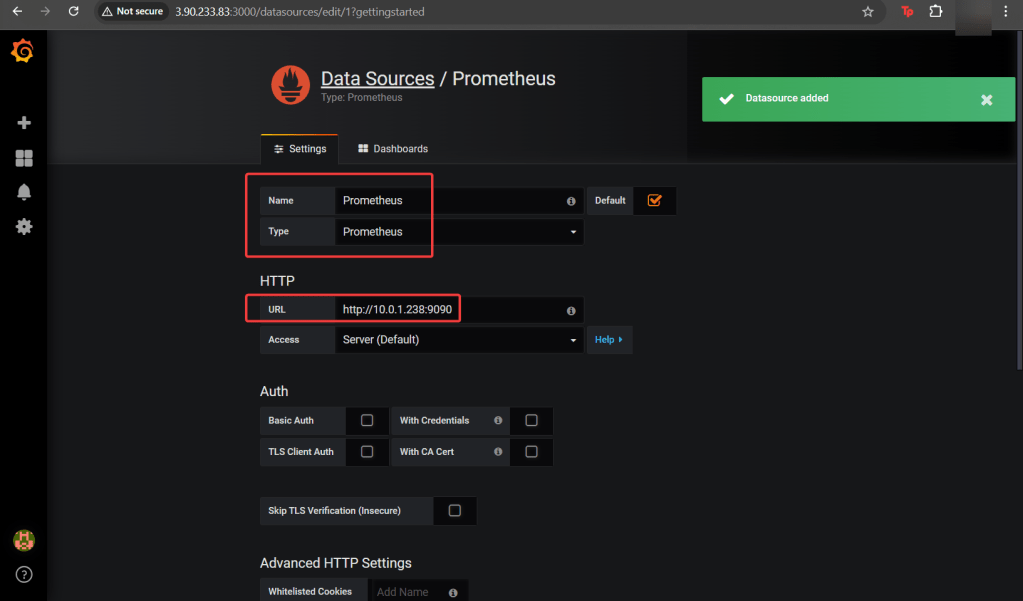
      • Create Grafana Data Source
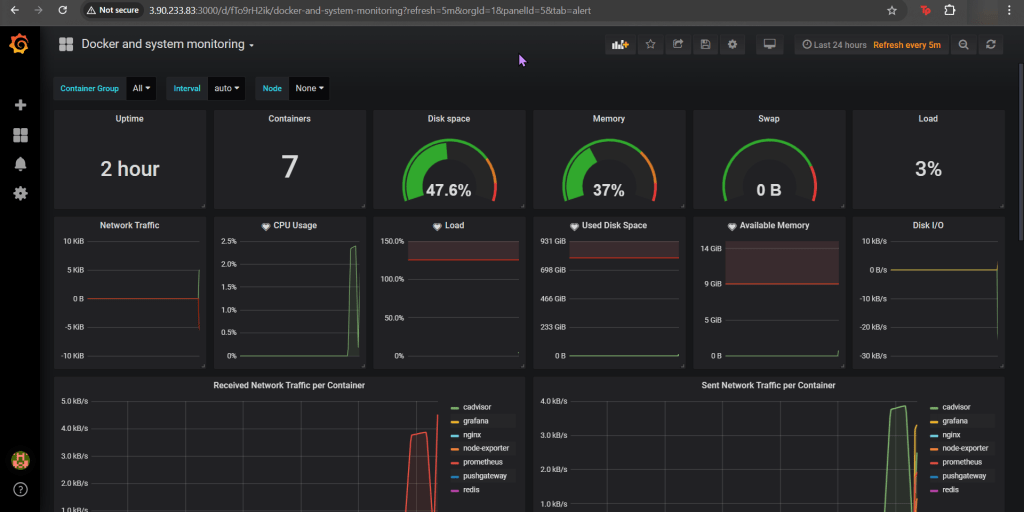
      • Add Docker Dashboard
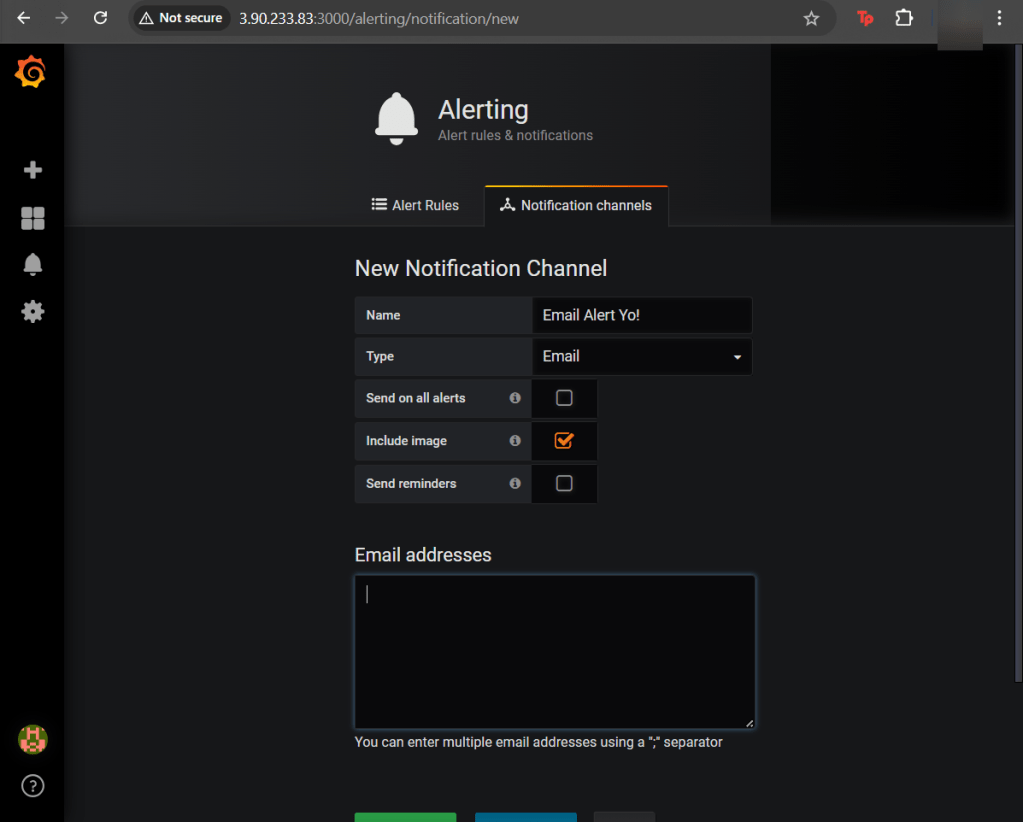
      • Add email notification
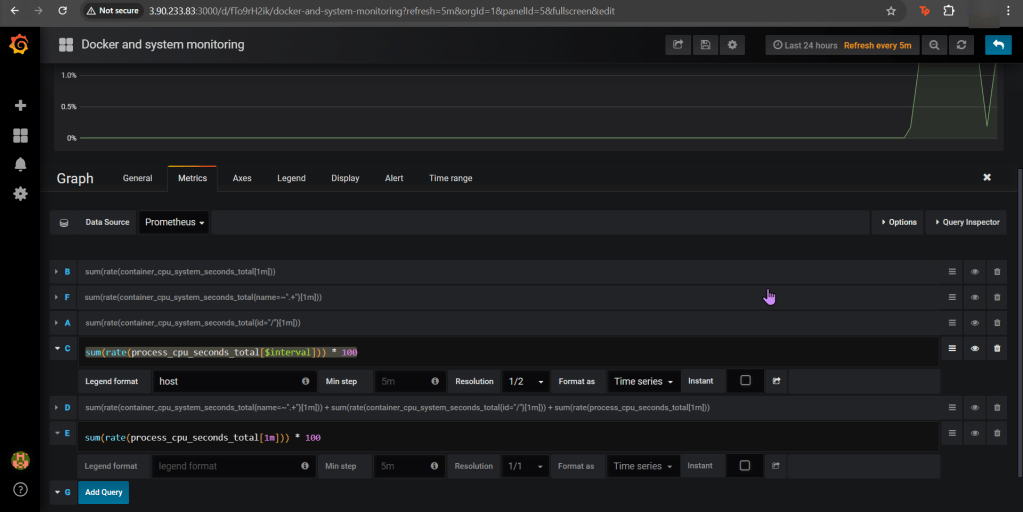
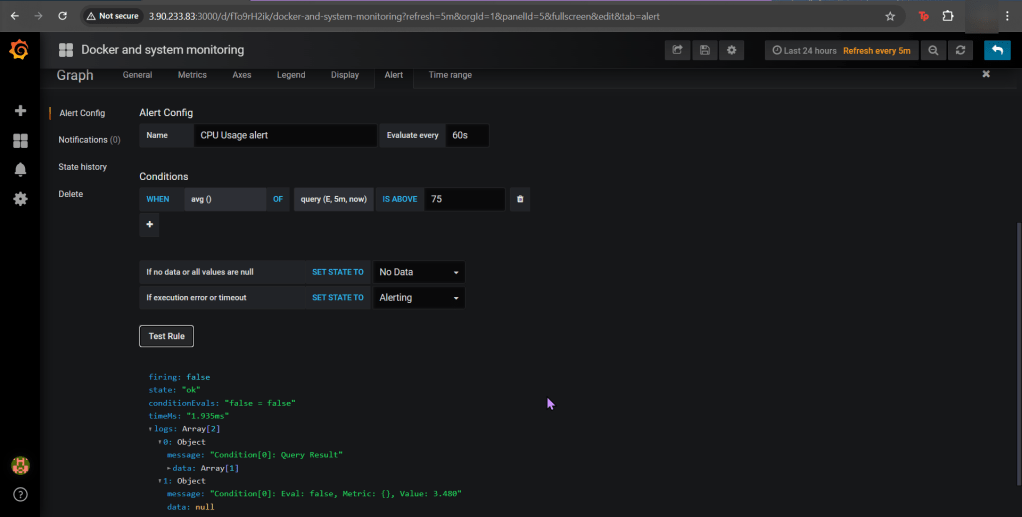
      • Alert for CPU Usage

    Pre-Req:

    SSH & Elevate to Sudo su – !!:

    Configure Docker:

    Open Port (for FW in Docker reporting under Prometheus):

    Create daemon.json file:

    Restart Docker:

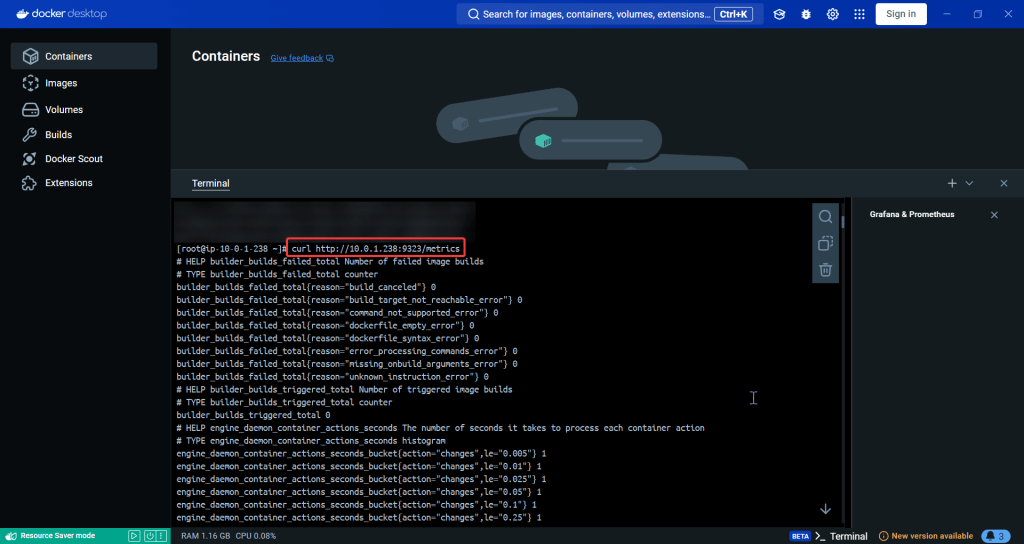
    Curl to test Docker:

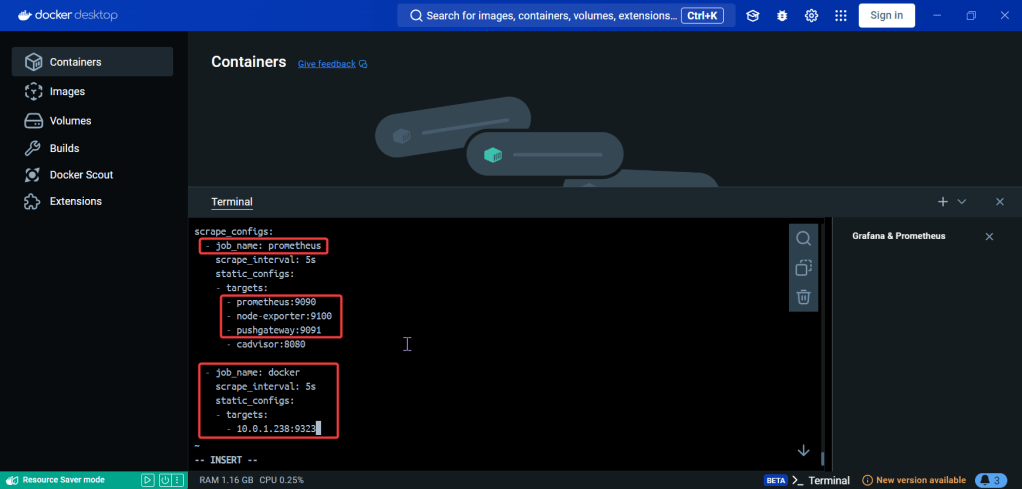
    Update the Prometheus YAML File:

    • Add gateway & Grafana to have visualization/reporting for Docker metrics

    Update the Docker-Compose YAML File:

    docker-compose.yml:

    Apply changes & rebuild (docker-compose up -d):

    Ensure stuff is runnin (docker ps) & Open port 9090:

    Install the Docker & Monitoring DB:

    Create Grafana Data Source:

    Add Docker Dashboard:

    Add email notification:

    Alert for CPU Usage:

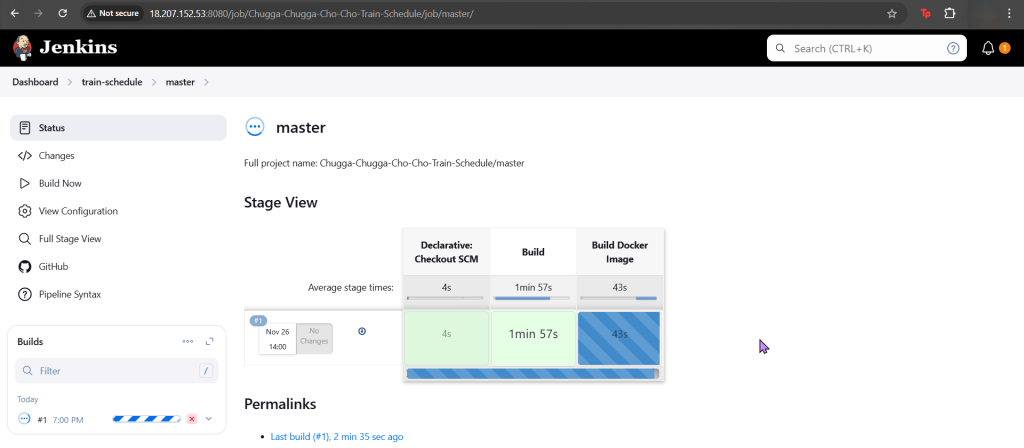
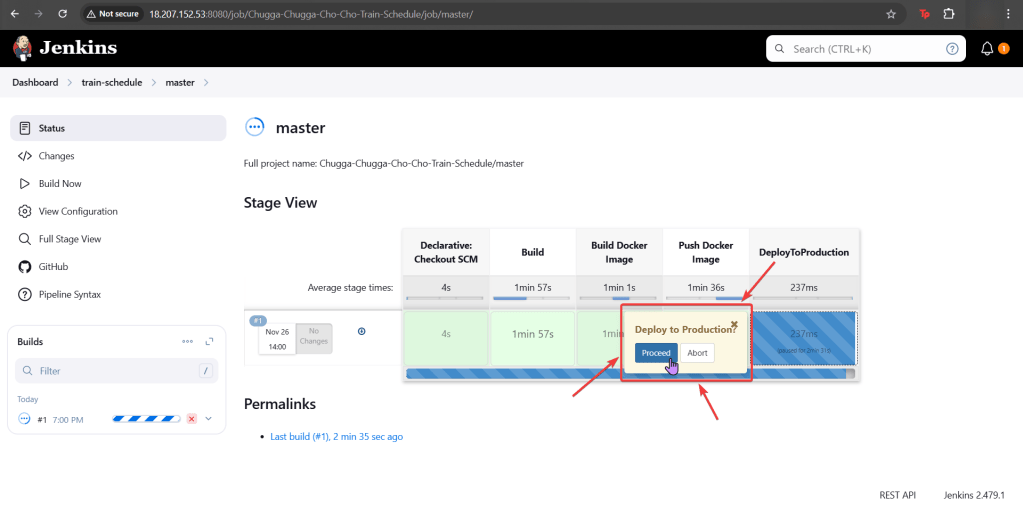
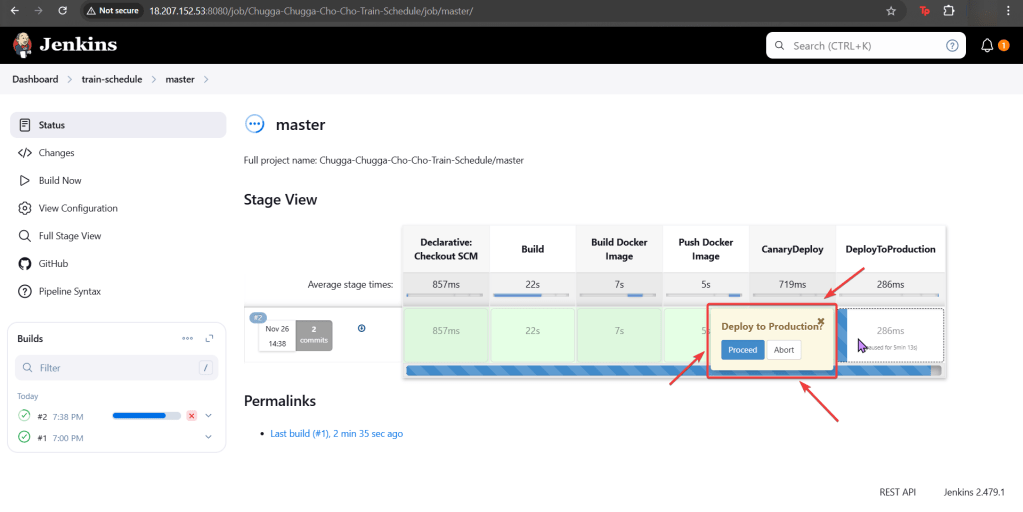
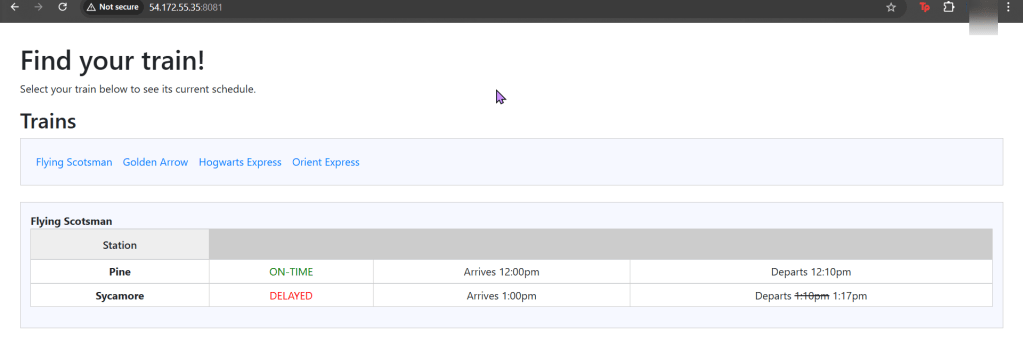
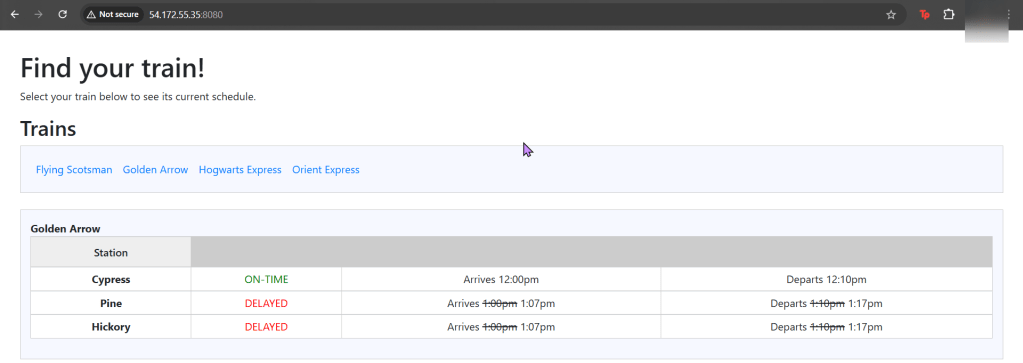
    Canary in Coal Mine to find Kubernetes & Jenkins

    Goal:

    Our coal mine (CICD pipeline) is struggling, so lets use canary deployments to monitor a Kubernetes cluster under a Jenkins pipeline. Alright, lets level set here…

    • You got a Kubernetes cluster, mmmmkay?
    • A pipeline from Jenkins leads to CICD deployments, yeah?
    • Now we must add the deetz (details) to get canary to deploy

    Lessons Learned:

    • Run Deployment in Jenkins
    • Add Canary to Pipeline to run Deployment

    Run Deployment in Jenkins:

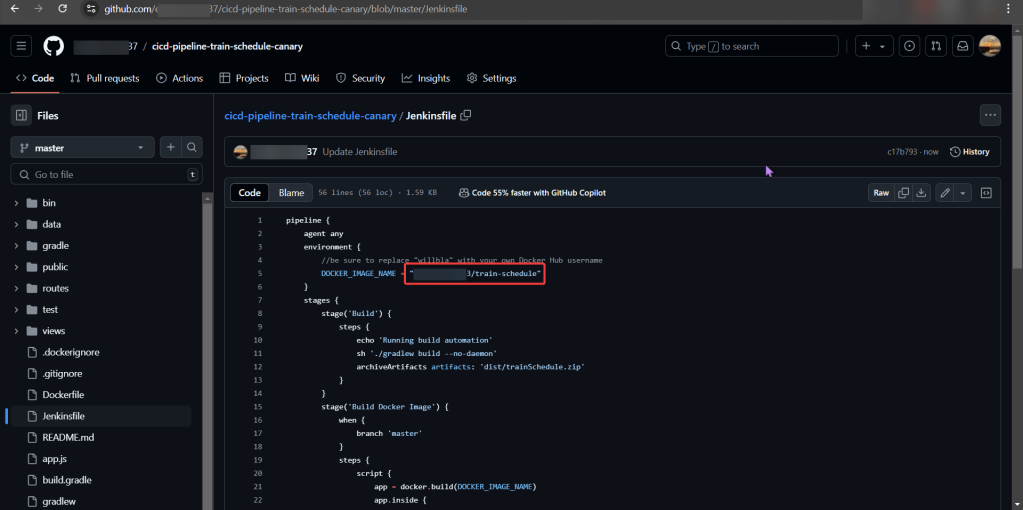
    Source Code:

    • Create fork & update username

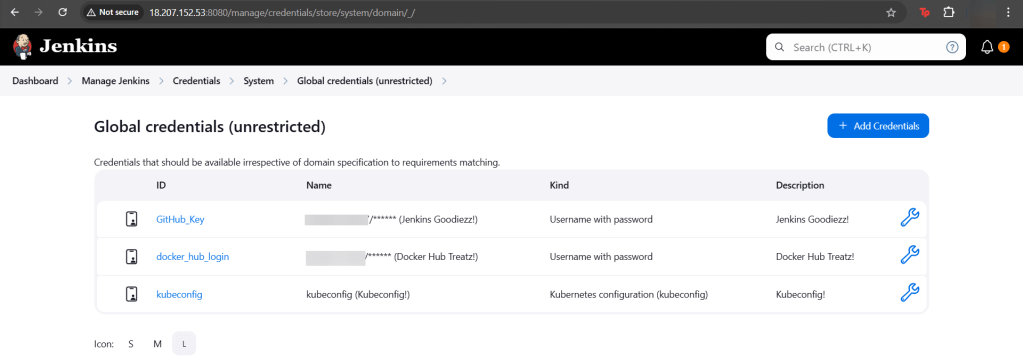
    Setup Jenkins (Github access token, Docker Hub, & KubeConfig):

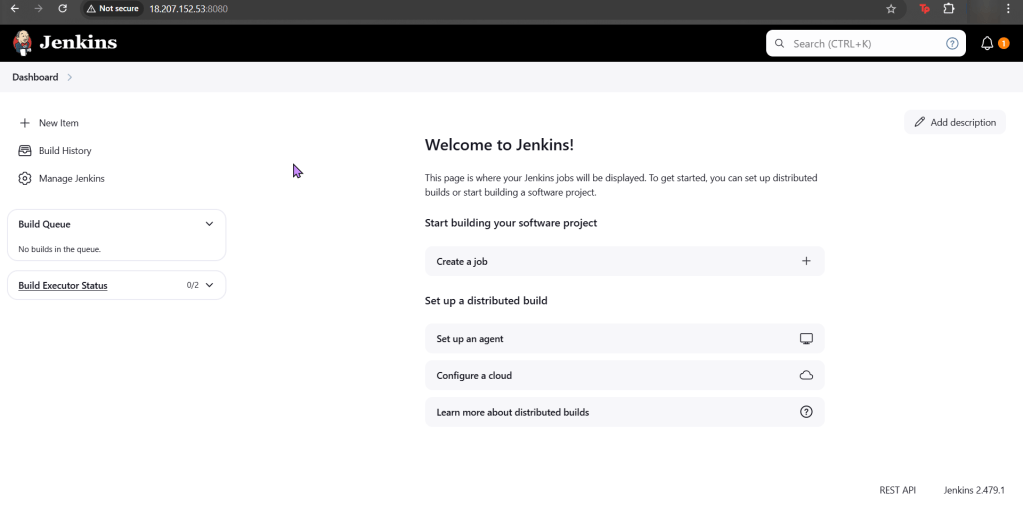
    Jenkins:

    • Credz
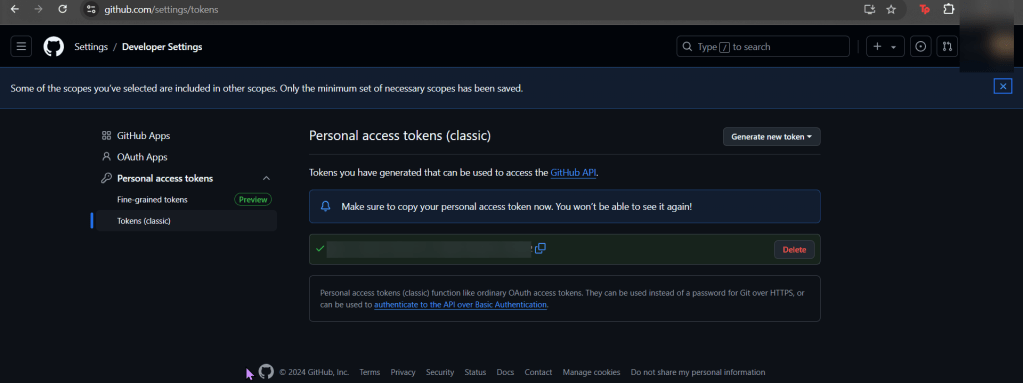
      • Github user name & password (Access token)

    Github:

    • Generate access token

    DockerHub:

    • DockerHub does not generate access tokens

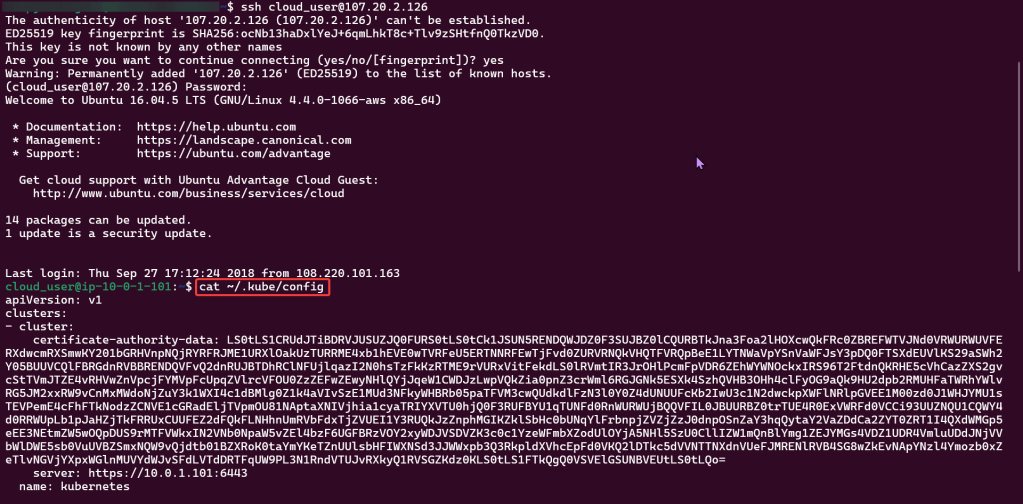
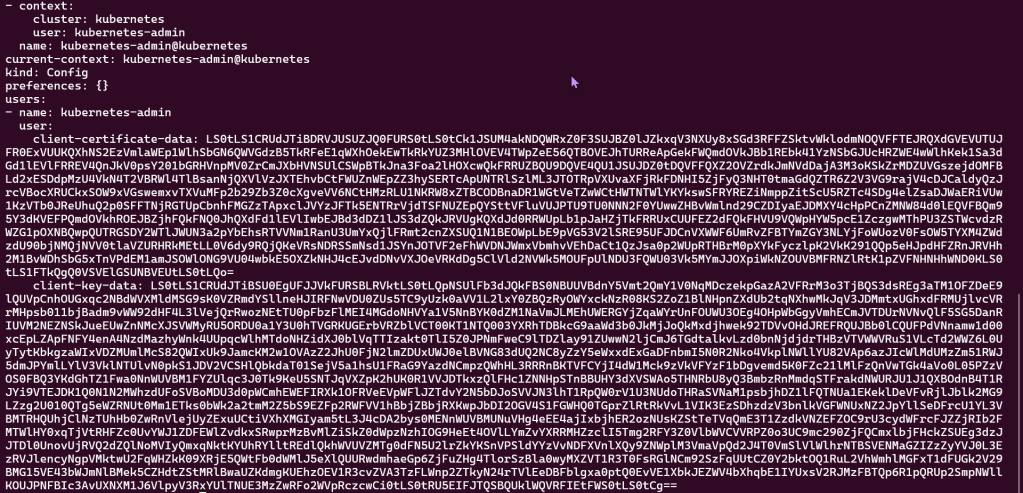
    Kubernetes:

    Add Canary to Pipeline to run Deployment:

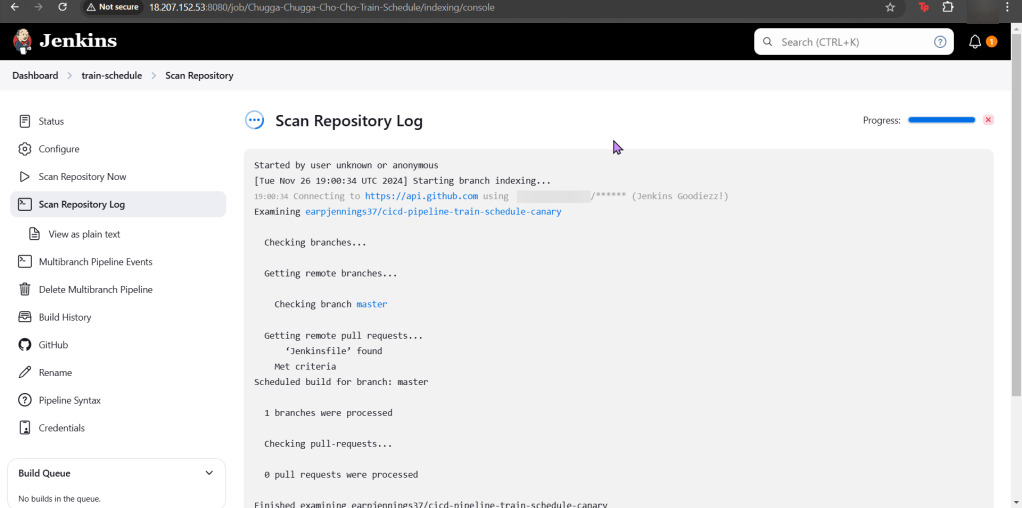
    Create Jenkins Project:

    • Multi-Branch Pipeline
    • Github username
    • Owner & forked repository
      • Provided an option for URL, select deprecated visualization
    • Check it out homie!

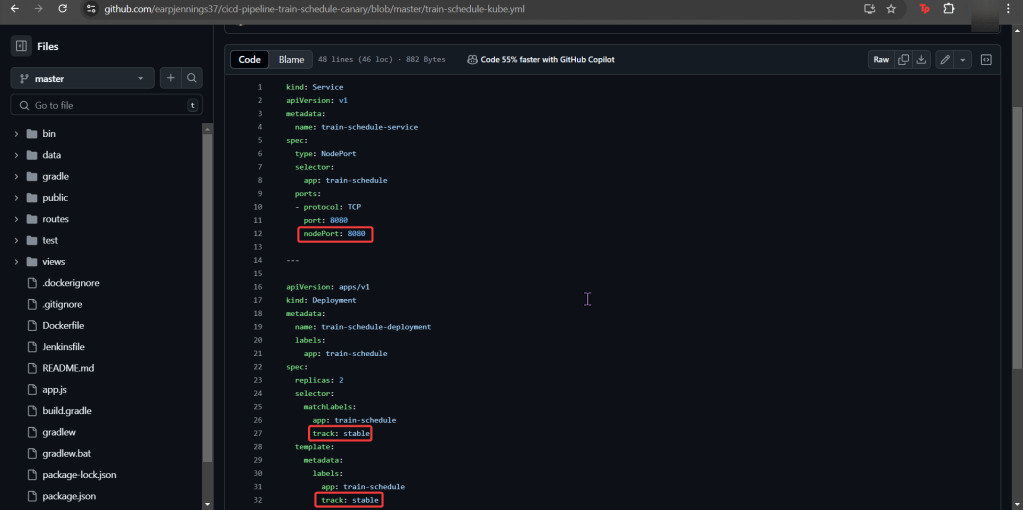
    Canary Template:

    • We have prod, but need Canary features for stages in our deployment!
    • Pay Attention:
      • track
      • spec
      • selector
      • port

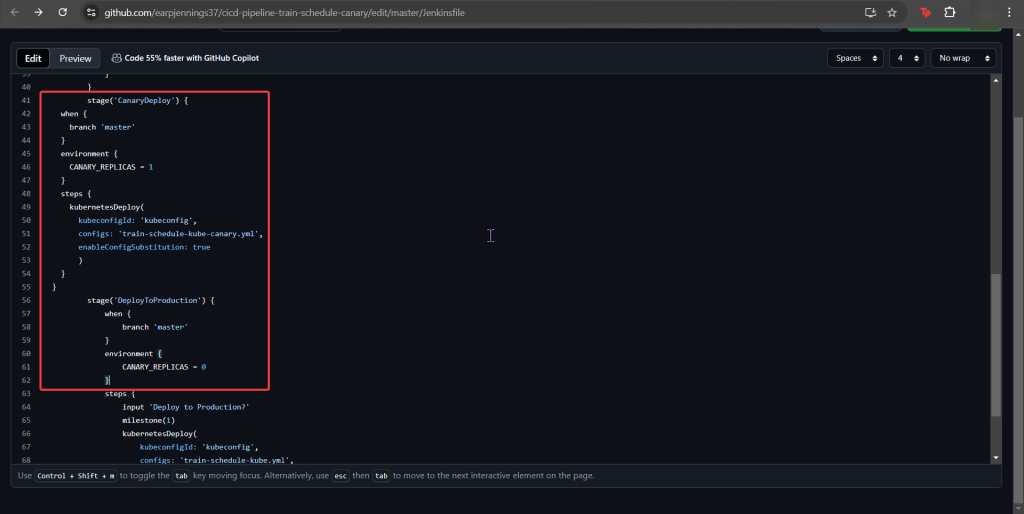
    Add Jenkinsfile to Canary Stage:

    • Between Docker Push & DeployToProduction
      • We add CanaryDeployment stage!

    Modify Productions Deployment Stage:

    EXECUTE!!

    Stacks on Stacks of Docker Swarmzzz

    Goal:

    • Migrate my plethora of Docker Containers w/Docker SWARRRRRRM

    Lessons Learned:

    • Set up Swarm cluster w/manager & worker nodes
    • Test cluster

    Initialize the SWARRRM:

    • Connect w/command:
      • SSH into public IP address
    • Begin to conduct swarm w/command:
      • Perform docker swarm init \
    • Establish private IP address w/command:
      • –advertise-addr
    • BOOOOM, now your an assistant-to-the-regional-manager!
    • Now you receive a command to place in your worker node, you did create a worker node…right?
    • Once your worker node is connected, quick see your list of nodes w/command:
      • docker node ls
    • Now create Ngninx service for the swarm w/the command above
      • (see above for the 4 lines of code)
    • To quick see your list of services w/the command:
      • docker service ls

    Add Worker to Cluster:

    • Connect w/command:
      • SSH into public IP address
    • Add worker node to manager node w/command seen below
      • (see below for lengthy command)