K8s on Roidz aka K8sGPT

Blog post includes installing K8s…GPT, see below for the goodies:

Installszz:

Github
https://github.com/k8sgpt-ai/k8sgpt
k8sgpt Docx:
https://docs.k8sgpt.ai/getting-started/in-cluster-operator/?ref=anaisurl.com
Ubuntu
# curl -LO https://github.com/k8sgpt-ai/k8sgpt/releases/download/v0.4.26/k8sgpt_amd64.deb
# sudo dpkg -i k8sgpt_amd64.deb
# k8sgpt version
# k8sgpt --help (handful of commands & flags available)

Pre-Reqzz:

Minikube
# unset KUBECONFIG
# minikube start
# minikube status
OpenAi
#  https://platform.openai.com/account/api-keys
K8sgpt
# k8sgpt generate
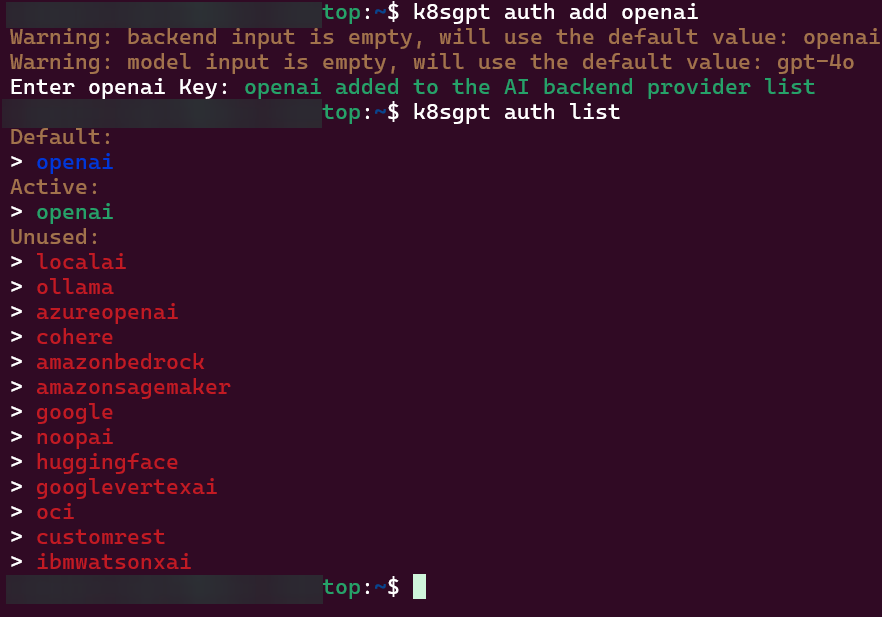
# k8sgpt auth add openai
# k8sgpt auth list
Troubleshoot why deployment is not running:

  • Create yaml file
  • Create namespace
  • Apply file
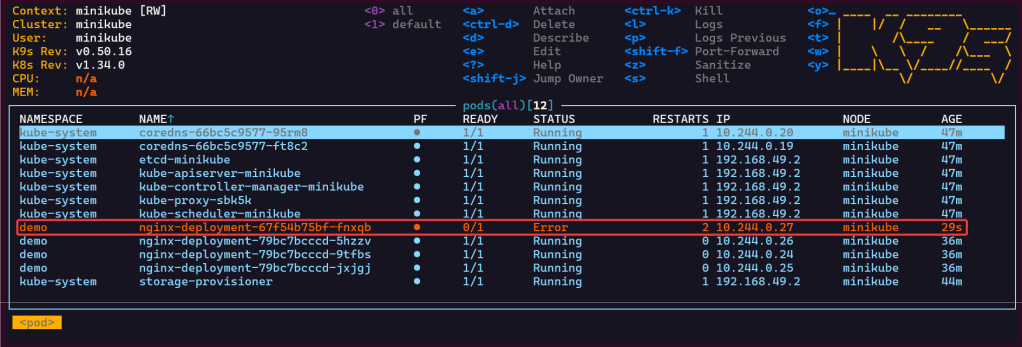
  • Review K9s
  • Utilize k8sgpt to see what’s going on…

2 Links to leverage:

# deployment2
apiVersion: apps/v1
kind: Deployment
metadata:
  name: nginx-deployment
  labels:
    app: nginx
spec:
  replicas: 3
  selector:
    matchLabels:
      app: nginx
  template:
    metadata:
      labels:
        app: nginx
    spec:
      containers:
      - name: nginx
        image: nginx:1.14.2
        ports:
        - containerPort: 80
        securityContext:
          readOnlyRootFilesystem: true
# kubectl create ns demo
# kubectl apply -f deployment2 -n demo
# k8sgpt analyse
# k8sgpt analyse --explain


Set pods, deployments, etc w/the following commands
# kubectl get pods -n demo
# kubectl get pods -A
# kubectl get deployments -n demo
# kubectl get pods --all-namespaces
# k8sgpt integration list
# k8sgpt filters list
# k8sgpt analyse --filter=VulnerabilityReport
# vi deployment2
# kubectl apply -f deployment2 -n demo
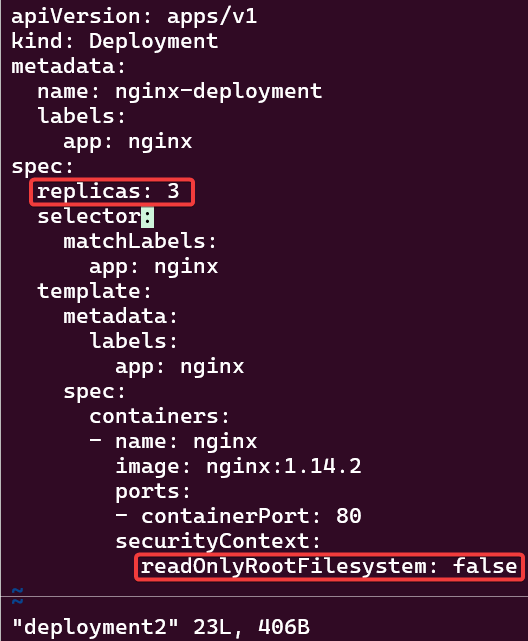
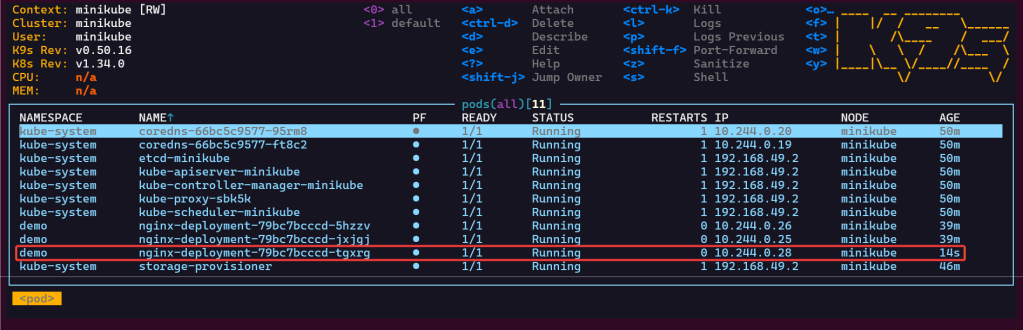
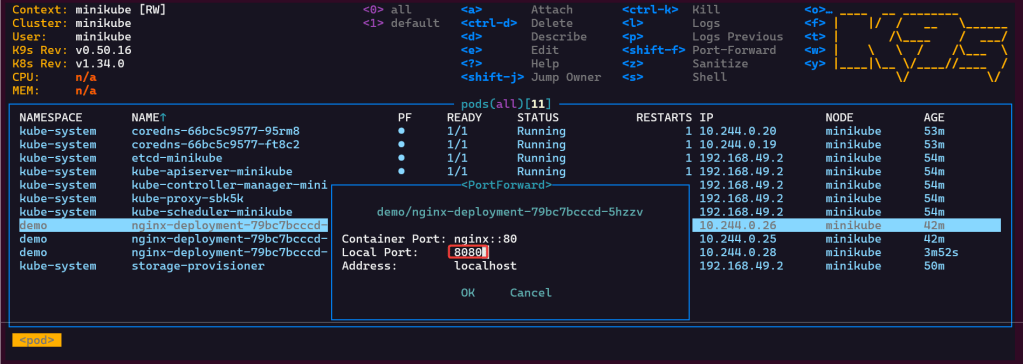
  • port-forward to ensure can access pod

K8s Operator:

# brew install helm
# helm repo add k8sgpt https://charts.k8sgpt.ai/
# helm repo update
# helm install release k8sgpt/k8sgpt-operator -n k8sgpt-operator-system --create-namespace --values values.yaml

Commands to see if your new ns installed:
# kubectl get ns
# kubectl get pods -n k8sgpt-operator-system
# k9s
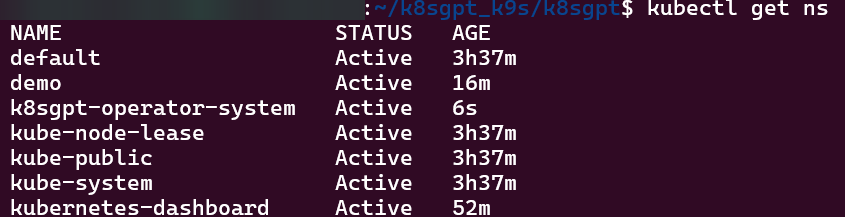
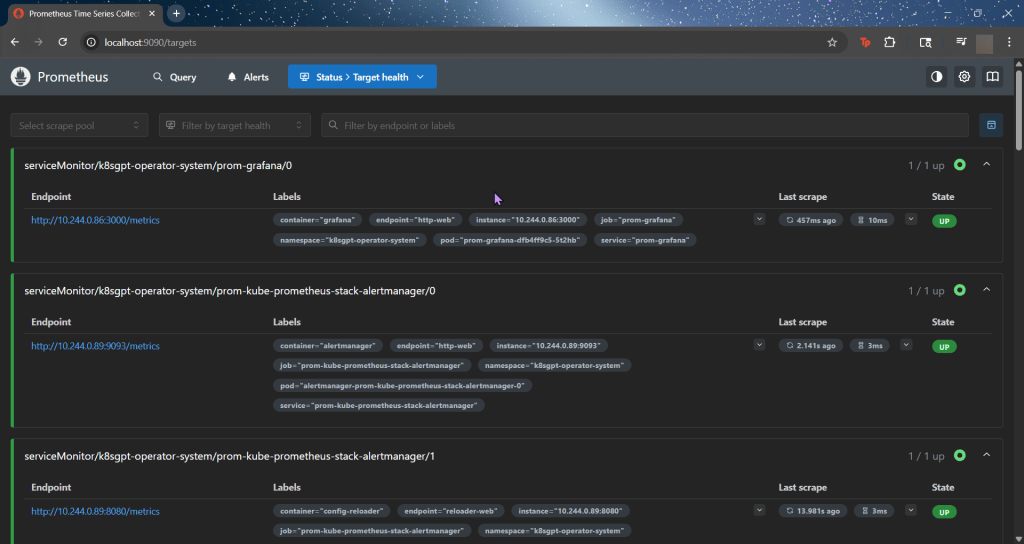
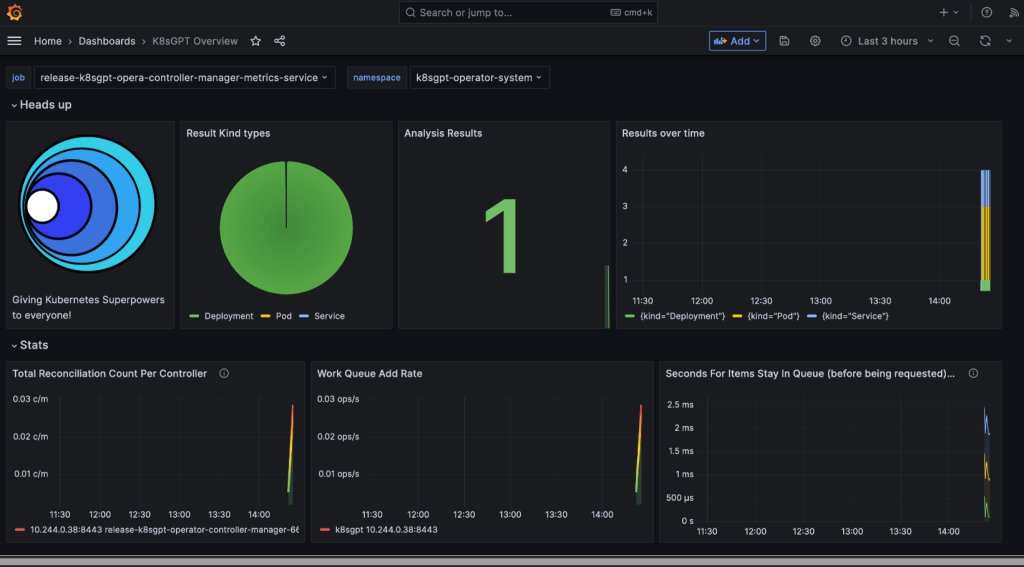
ServiceMonitor to send reports to Prometheus & create DB for K8sgpt:

# helm repo add prometheus-community https://prometheus-community.github.io/helm-charts
# kube-prometheus-stack has been installed. Check its status by running:
  kubectl --namespace k8sgpt-operator-system get pods -l "release=prom"
Commands to squirrel away:
- Get Grafana 'admin' user password by running:
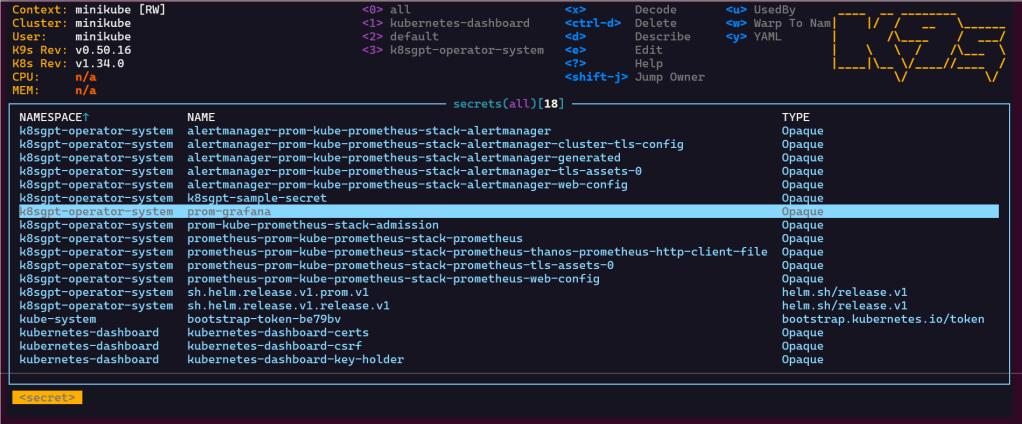
# kubectl --namespace k8sgpt-operator-system get secrets prom-grafana -o jsonpath="{.data.admin-password}" | base64 -d ; echo
- Access Grafana local instance:
# export POD_NAME=$(kubectl --namespace k8sgpt-operator-system get pod -l "app.kubernetes.io/name=grafana,app.kubernetes.io/instance=prom" -oname)
  kubectl --namespace k8sgpt-operator-system port-forward $POD_NAME 3000
- Get your grafana admin user password by running:
  kubectl get secret --namespace k8sgpt-operator-system -l app.kubernetes.io/component=admin-secret -o jsonpath="{.items[0].data.admin-password}" | base64 --decode ; ech

OpenAi API-Keyz for K8s Secret:

# export OPENAI_TOKEN=<YOUR API KEY HERE>
# kubectl create secret generic k8sgpt-sample-secret --from-literal=openai-api-key=$OPENAI_TOKEN -n k8sgpt-operator-system
# 
apiVersion: core.k8sgpt.ai/v1alpha1
kind: K8sGPT
metadata:
  name: k8sgpt-sample
  namespace: k8sgpt-operator-system
spec:
  ai:
    enabled: true
    model: gpt-4o-mini
    backend: openai
    secret:
      name: k8sgpt-sample-secret
      key: openai-api-key
  noCache: false
  version: v0.4.26
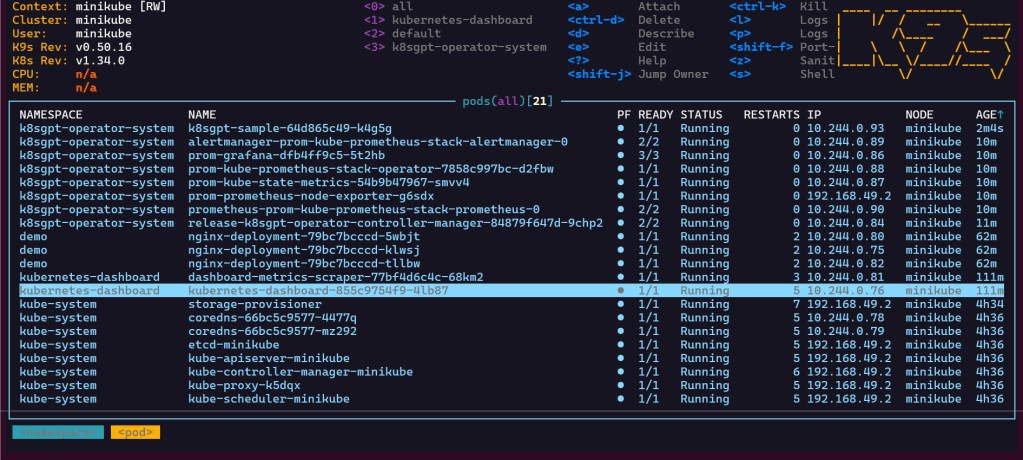
# kubectl apply -f k8sgpt-resource.yaml -n k8sgpt-operator-system
k9s
- services, shift-f, port-forward prometheus-operated:9090
# kubectl get results -n k8sgpt-operator-system
# kubectl port-forward service/prom-grafana -n prom 3000:80
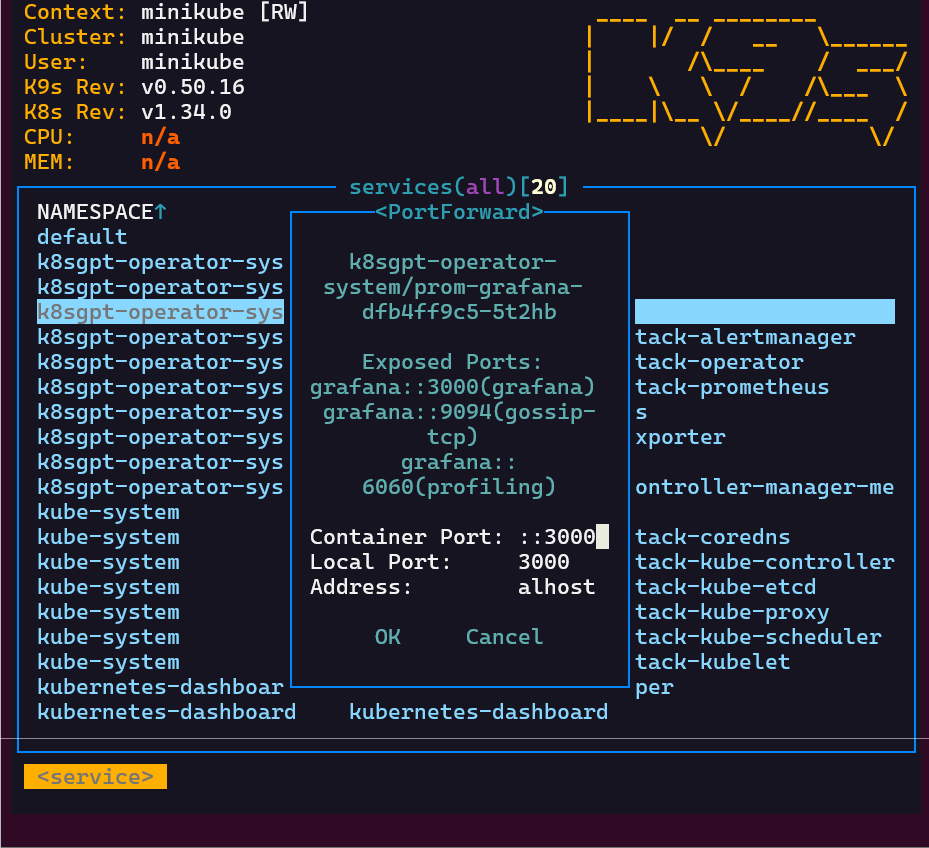
Finding grafana password
- secrets & press-x
KCNA: P5 Automate Em’ All

Blog post includes covering K8s Automation, Telemetry, & Observability in preparation for the KCNA.

  • Helm Charts
  • Prometheus
  • Grafana
  • Probes & Kubelet
  • When Nodes Fail

Helm Charts: there magic simply put..conduct your standard linux practices & can navigate thru your helm chart install
# apt update && apt install -y git tree
# curl https://raw.githubusercontent.com/helm/helm/main/scripts/get-helm-3 | bash
# cd flappy-app
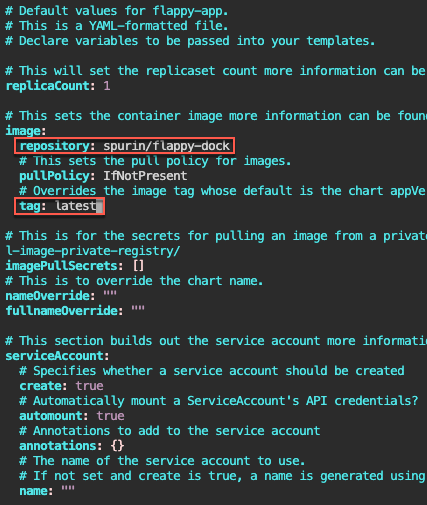
# vim Chart.yaml
# vim values.yaml
# helm install flappy-app ./flappy-app-0.1.0.tgz
# export POD_NAME=$(kubectl get pods --namespace default -l "app.kubernetes.io/name=flappy-app,app.kubernetes.io/instance=flappy-app" -o jsonpath="{.items[0].metadata.name}"); export CONTAINER_PORT=$(kubectl get pod --namespace default $POD_NAME -o jsonpath="{.spec.containers[0].ports[0].containerPort}"); echo "Visit http://127.0.0.1:8080 to use your application"; kubectl --namespace default port-forward $POD_NAME 8080:$CONTAINER_PORT
# kubectl get deployment; echo; kubectl get pods; echo; kubectl get svc

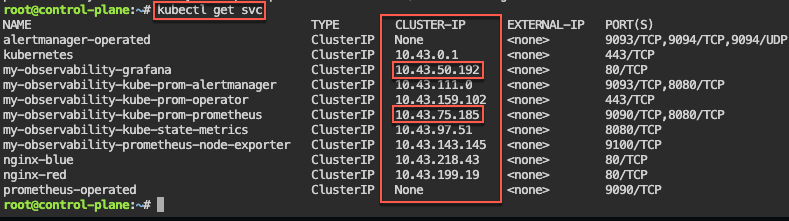
Prometheus & Grafana: 1st – add specific helm version for prometheus. 2nd – add nginx pod every 30 seconds. 3rd – then use cluster-ip to see the pods being added in prometheus & grafana.

# apt update && apt install -y git
# curl https://raw.githubusercontent.com/helm/helm/main/scripts/get-helm-3 | bash
# helm repo add prometheus-community https://prometheus-community.github.io/helm-charts
# helm search repo prometheus-community/kube-prometheus-stack -l
# helm install my-observability prometheus-community/kube-prometheus-stack --version 55.5.0
# kubectl get all -A
# kubectl get svc
# for i in {1..10}; do kubectl run nginx-${i} --image=nginx; sleep 30; done
# helm uninstall my-observability
# kubectl -n kube-system delete service/my-observability-kube-prom-kubelet --now

When Nodes Fail:

  • Start as Healthy Nodes
  • Deployment
  • Stop kubelet & fail
    • Documentation informs us that we wait 5 minutes before posting as unknown & evicted
  • Grep to see pods moving from node to node
  • If a node stops reporting & taking pods… it becomes NotReady, existing workload continues if permitted, after 5 minutes the node controller evicts the pods onto healthy nodes, & can describe to see the status as unknown

Probes & The Kubelet:

  • Health Checks tell k8s what to do w/a container..
    • Liveness Probe
      • ARE YOU ALIVE!? if fails, kubelet restarts container
    • Readiness Probe
      • Ready for traffic? if fails, kubelet tells API to remove pod from svc endpt
        • Does NOT restart
    • Startup Probe
      • Kubelet checks if application is inside the container & started
        • If probe is running, liveness, & readiness checks are paused..once succeeds & probes take over
    • Probes don’t act on their own

Part 1: Use Grafana w/Prometheus for Alert & Monitoring

Goal:

Context:

Lets show how you can help a team migrate their infrastructure to Docker containers..

Part 1 Activities:

See how to utilize Prometheus to monitor your toys (containers). Then you can use the gangster tool of Grafana to visualize & alert!

Lessons Learned:

  • Pre-Req
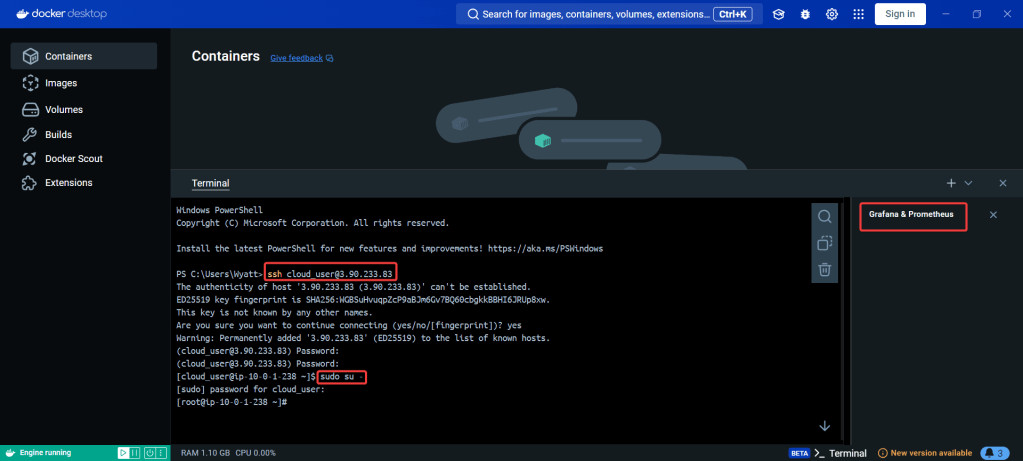
    • SSH & Eleevate to Sudo su – !!
  • Configure Docker
    • Open Port
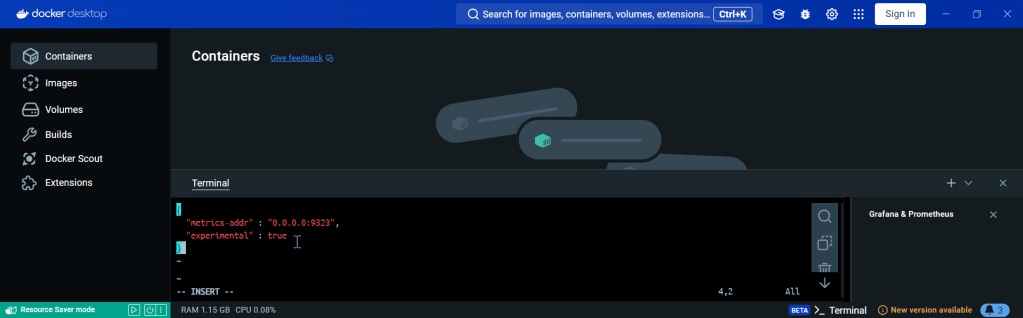
    • Create daemon.json file
    • Restart docker
    • Curl to test Docker
  • Update the Prometheus YAML File
  • Update the Docker-Compose YAML File
    • docker-compose.yml
    • Apply changes & rebuild
    • Ensure stuff is runnin’!
    • Open port 9090
  • Install the Docker & Monitoring DB
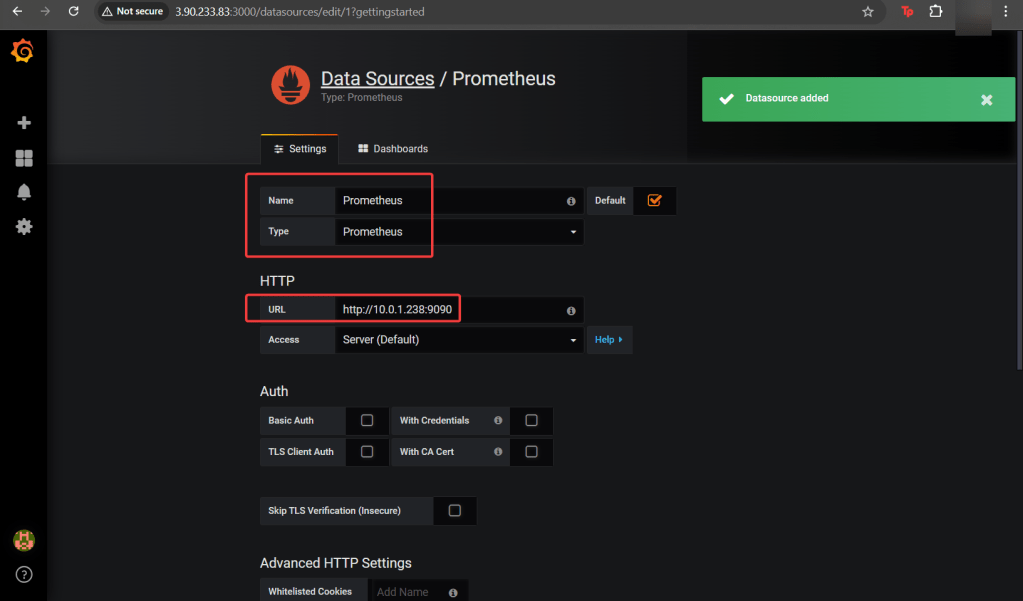
    • Create Grafana Data Source
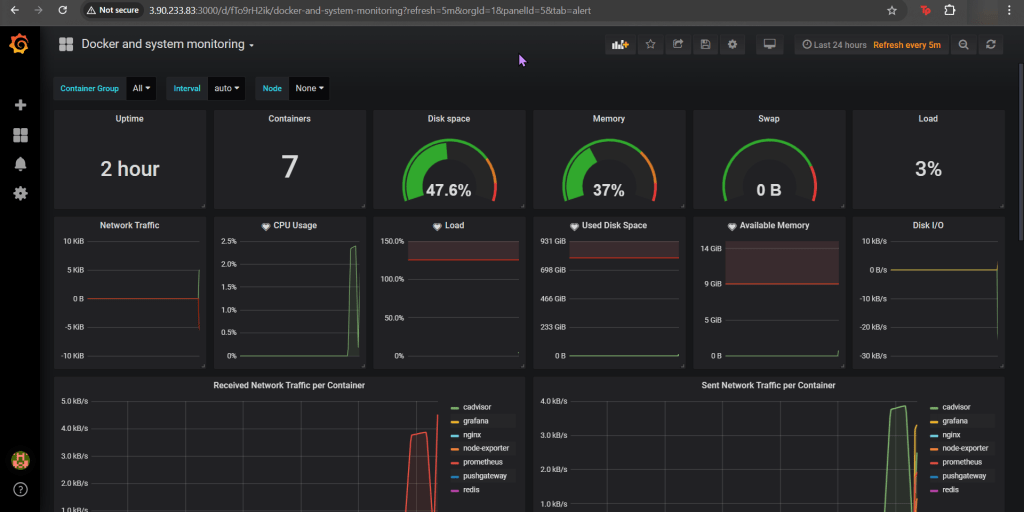
    • Add Docker Dashboard
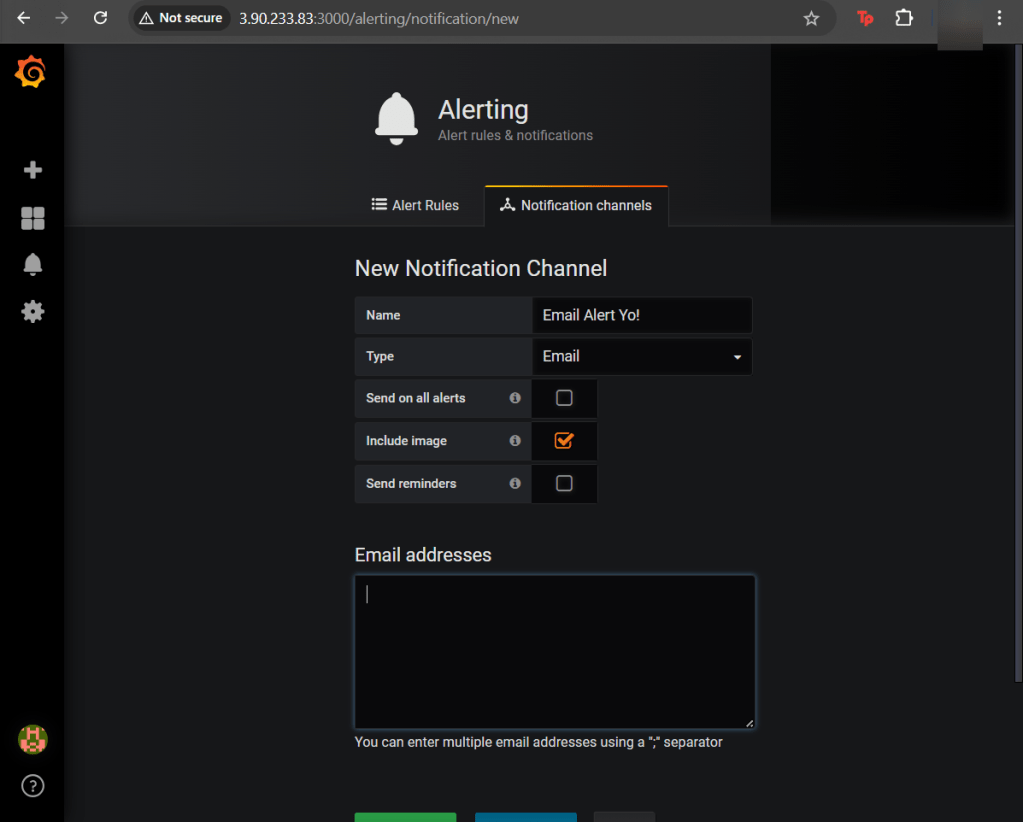
    • Add email notification
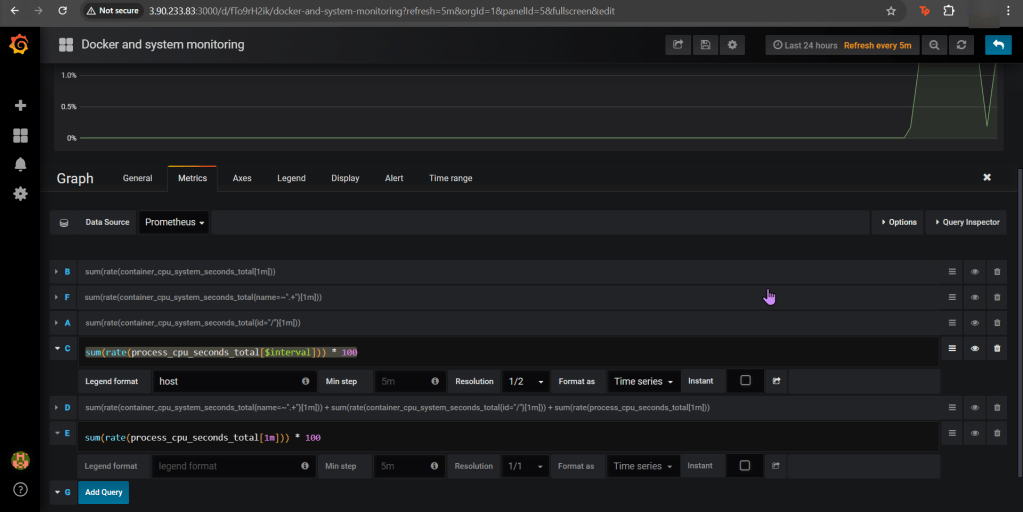
    • Alert for CPU Usage

Pre-Req:

SSH & Elevate to Sudo su – !!:

Configure Docker:

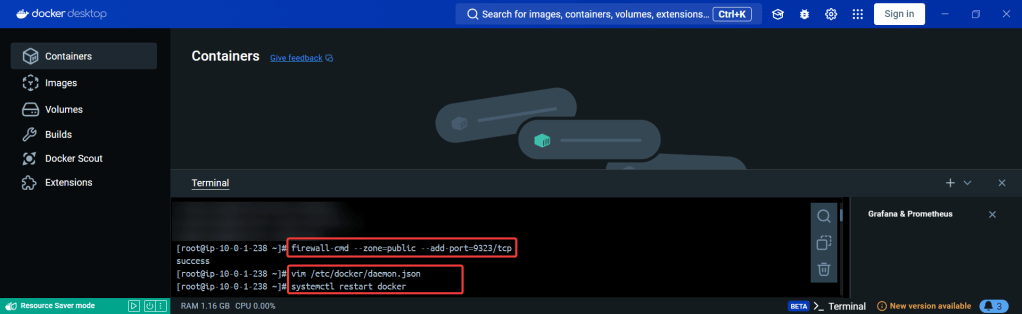
Open Port (for FW in Docker reporting under Prometheus):

Create daemon.json file:

Restart Docker:

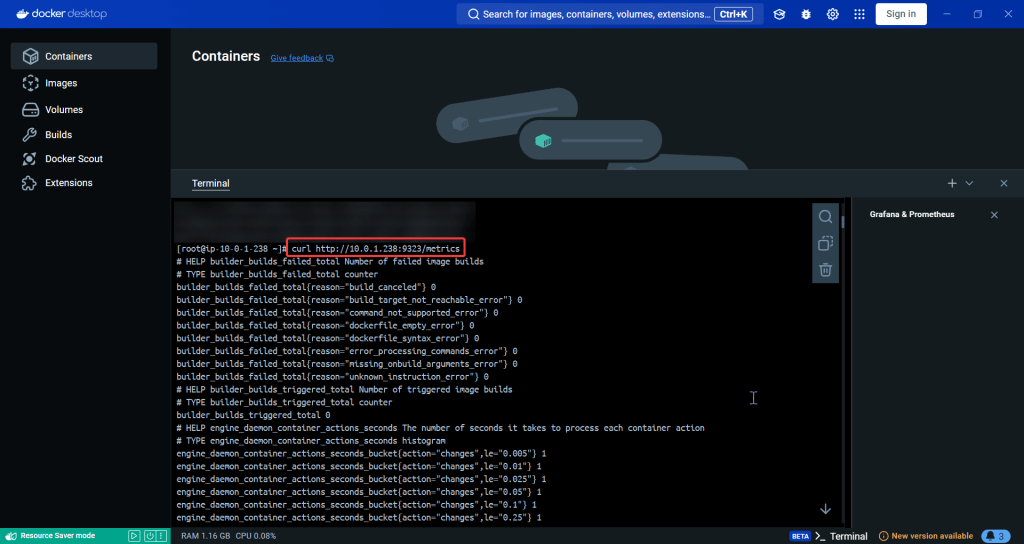
Curl to test Docker:

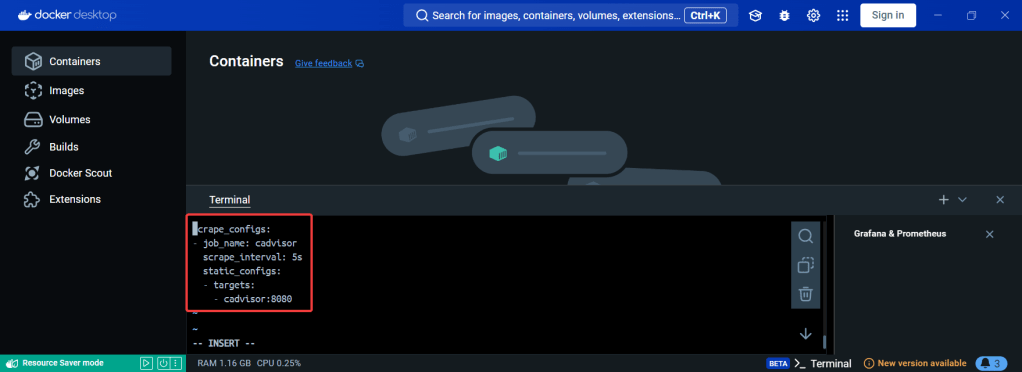
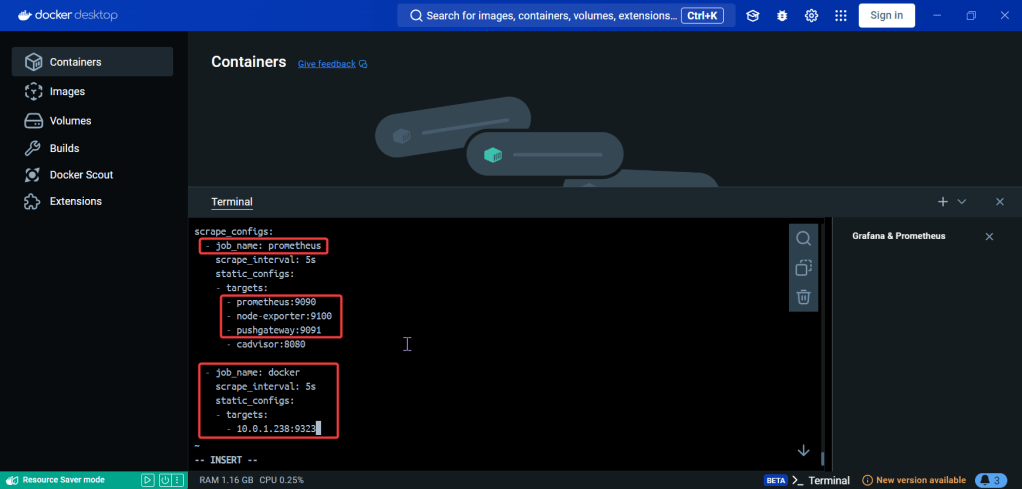
Update the Prometheus YAML File:

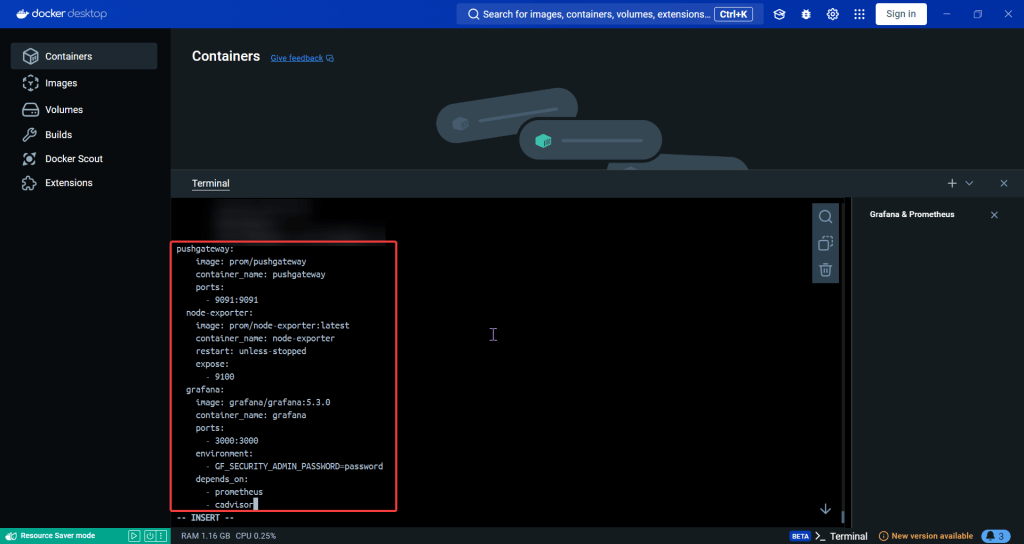
  • Add gateway & Grafana to have visualization/reporting for Docker metrics

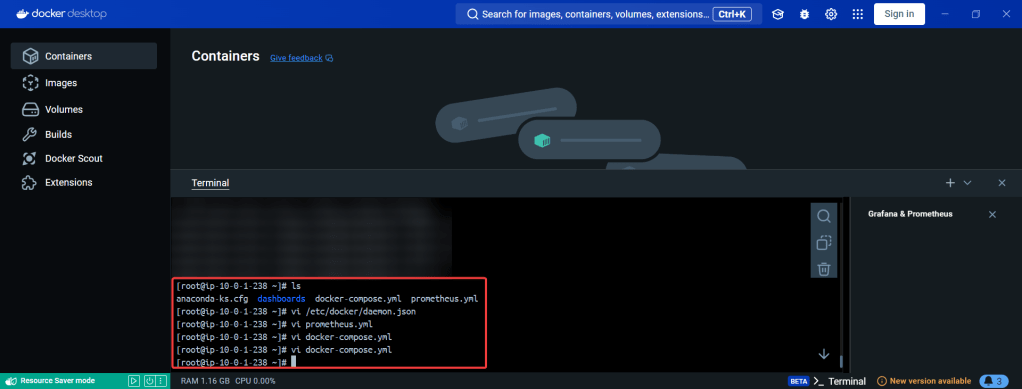
Update the Docker-Compose YAML File:

docker-compose.yml:

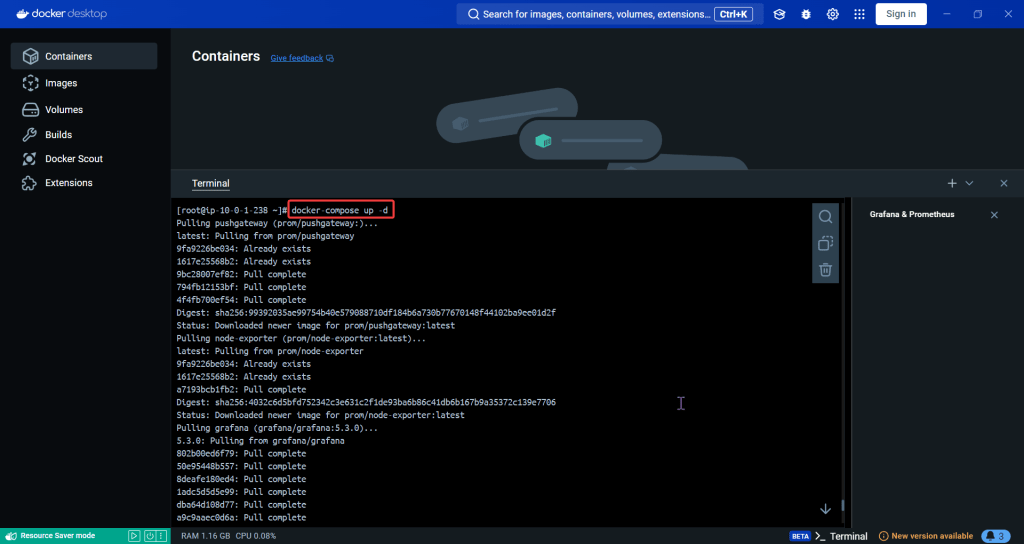
Apply changes & rebuild (docker-compose up -d):

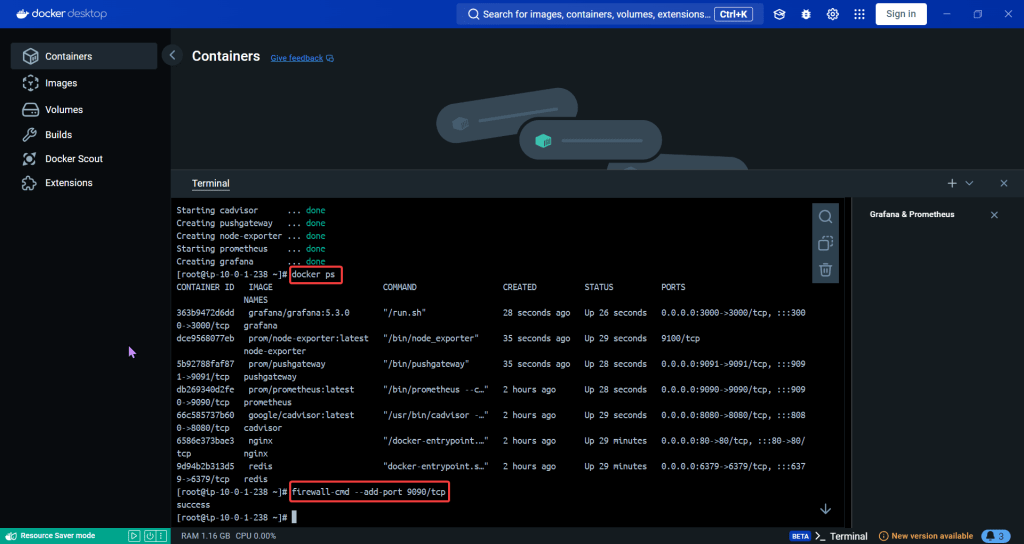
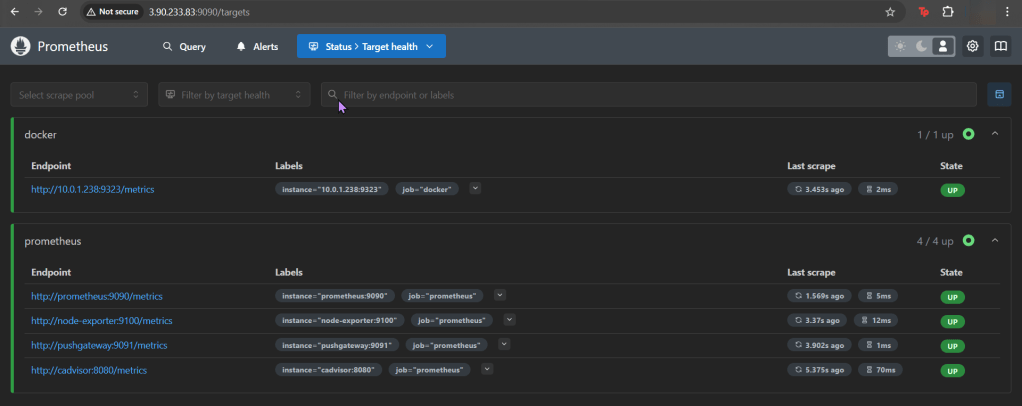
Ensure stuff is runnin (docker ps) & Open port 9090:

Install the Docker & Monitoring DB:

Create Grafana Data Source:

Add Docker Dashboard:

Add email notification:

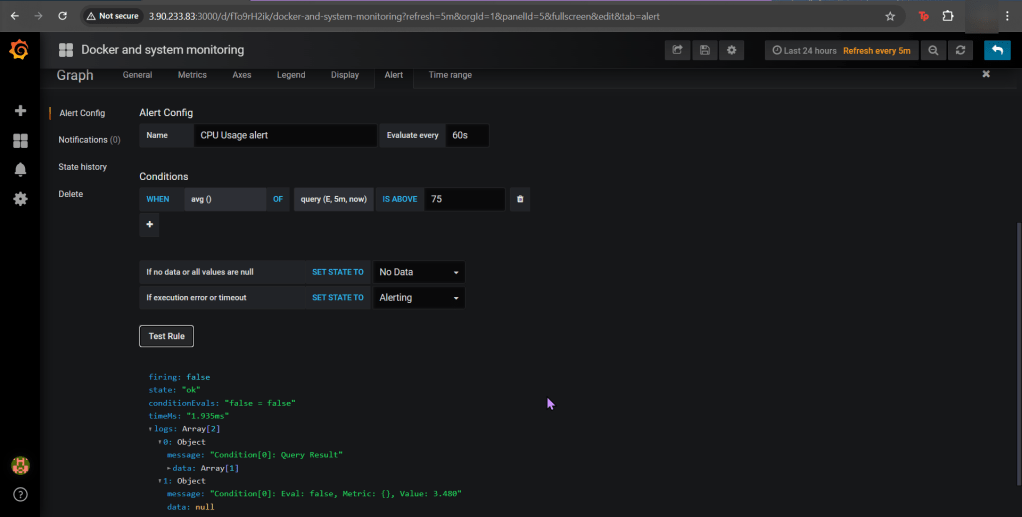
Alert for CPU Usage:

Prometheus 2 the movie, Featuring Kubernetes & Grafana

Goal:

Imma monitor a CI/CD pipeline w/3 tools, wanna see if we use Prometheus to synthesize the data & Grafana to display the data? Our goal is get some insight on performance dawg!

Lessons Learned:

  • Use Helm to install Grafana
  • Install Prometheus in Kubernetes Cluster
  • Install Grafana in Kubernetes Cluster

Use Helm to install Grafana

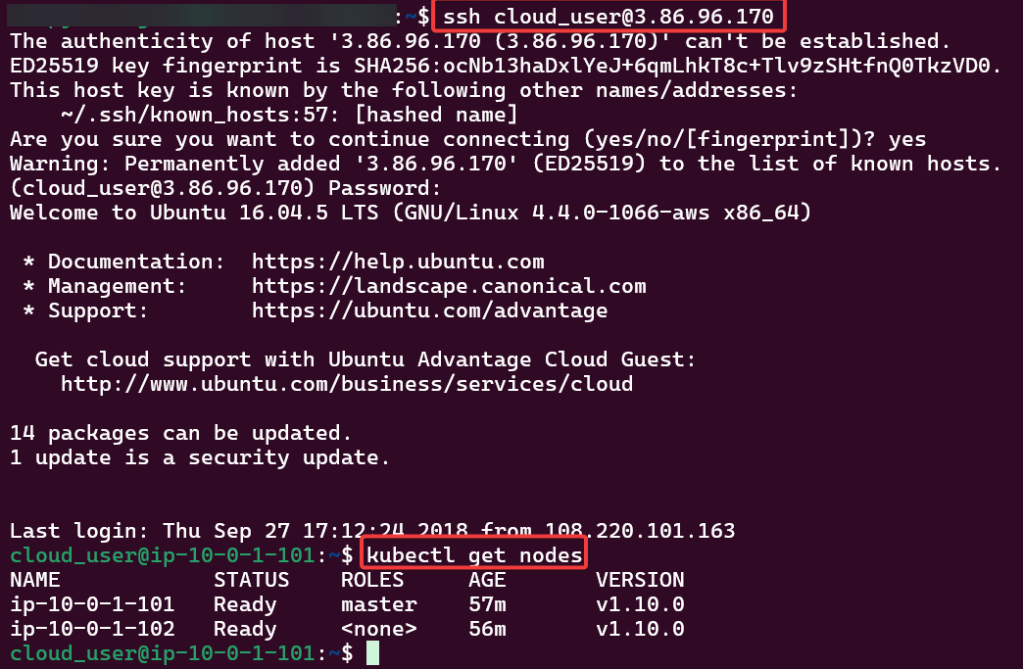
SSH into Master Public IP:

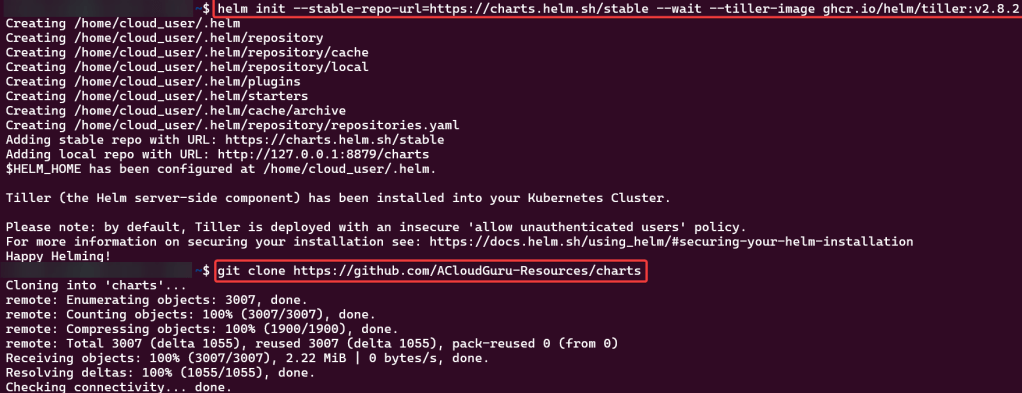
Initiate Helm:

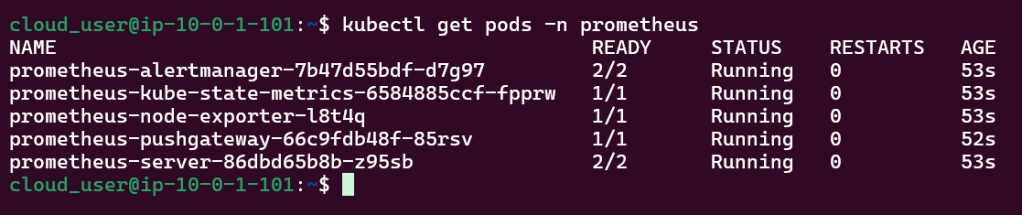
Install Prometheus in Kubernetes Cluster

Create Prometheus YAML File:

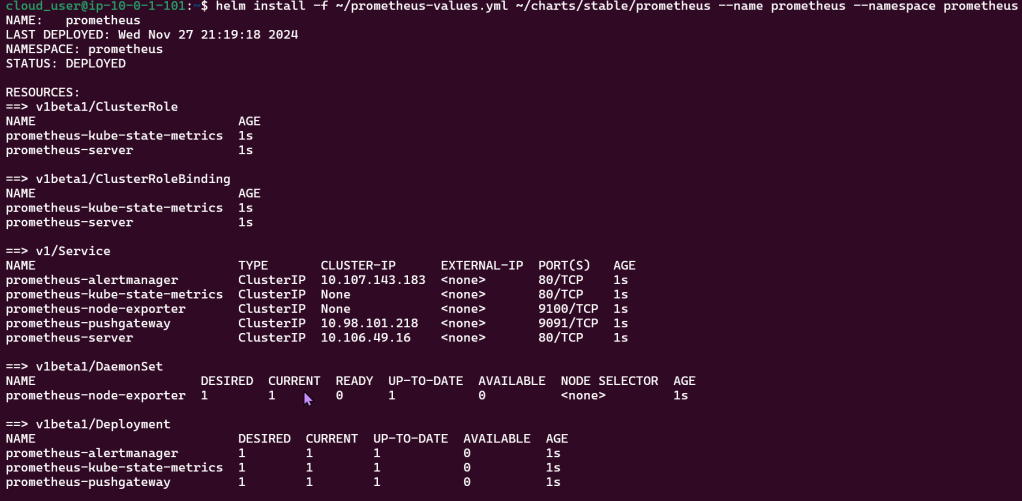
Install Prometheus:

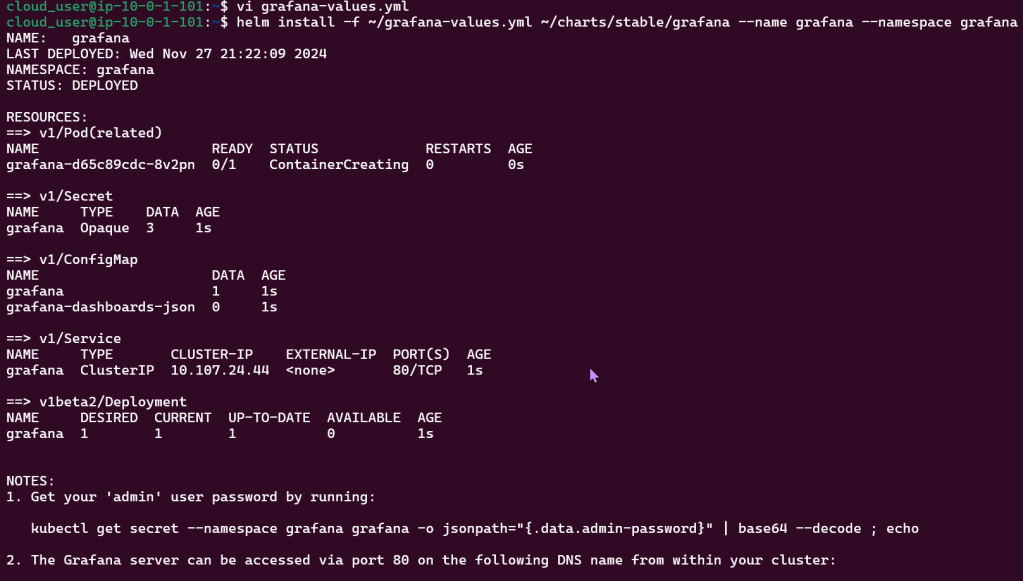
Install Grafana in Kubernetes Cluster

Create Grafana YAML File:

Install Grafana:

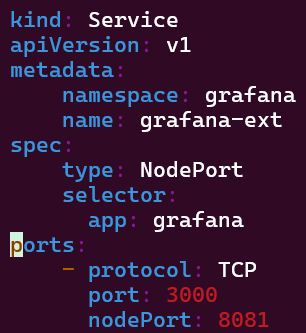
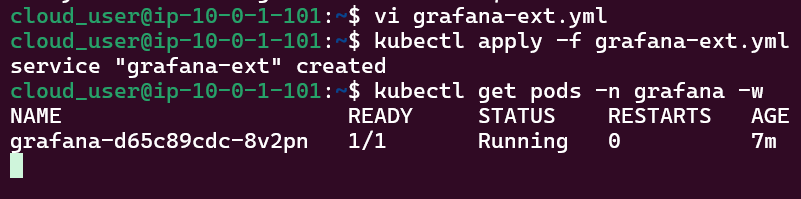
Create Grafana-Extension YAML File:

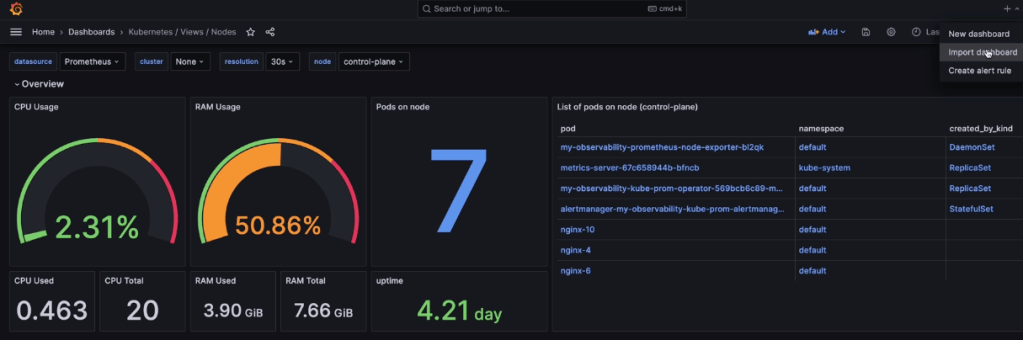
Log-in to Grafana: