
KCNA: P3 Kubernetes Fundyzzz..part 1

Blog post includes covering Kubernetes Fundamental’s in preparation for the KCNA.

  • Init-Containers
  • Pods
  • Namespaces
  • Labels

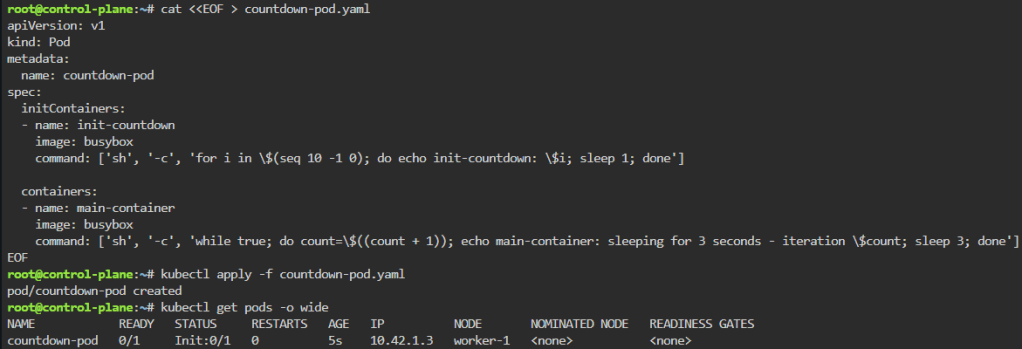
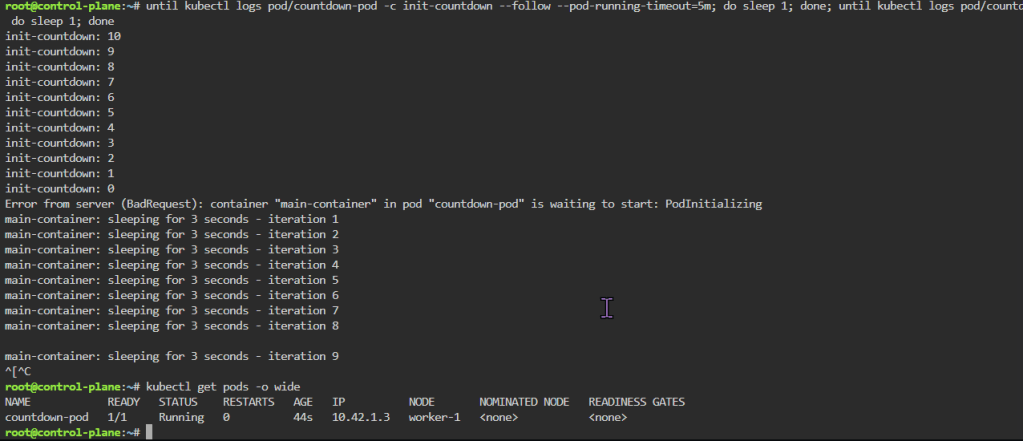
K8 Pods – Init Containers: create yaml file w/init container before main container, apply, & then watch logs

cat <<EOF > countdown-pod.yaml
apiVersion: v1
kind: Pod
metadata:
  name: countdown-pod
spec:
  initContainers:
  - name: init-countdown
    image: busybox
    command: ['sh', '-c', 'for i in \$(seq 120 -1 0); do echo init-countdown: \$i; sleep 1; done']

  containers:
  - name: main-container
    image: busybox
    command: ['sh', '-c', 'while true; do count=\$((count + 1)); echo main-container: sleeping for 30 seconds - iteration \$count; sleep 30; done']
EOF
kubectl apply -f countdown-pod.yaml
kubectl get pods -o wide
until kubectl logs pod/countdown-pod -c init-countdown --follow --pod-running-timeout=5m; do sleep 1; done; until kubectl logs pod/countdown-pod -c main-container --follow --pod-running-timeout=5m; do sleep 1; done
kubectl get pods -o wide

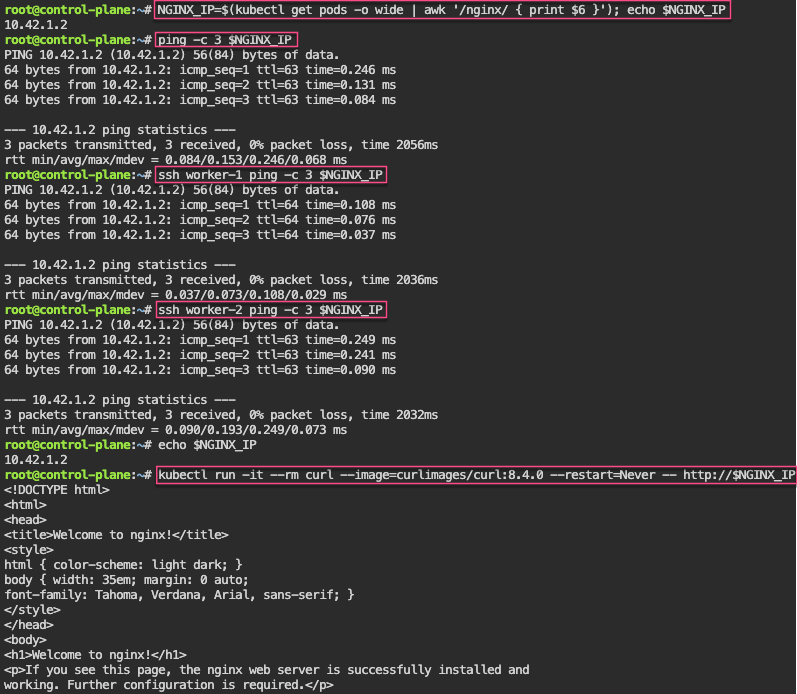
K8 Pods: create image, port forward, curl/shell into pod, create another yaml file image combined as sidecar, & output sidecar response of pod containers

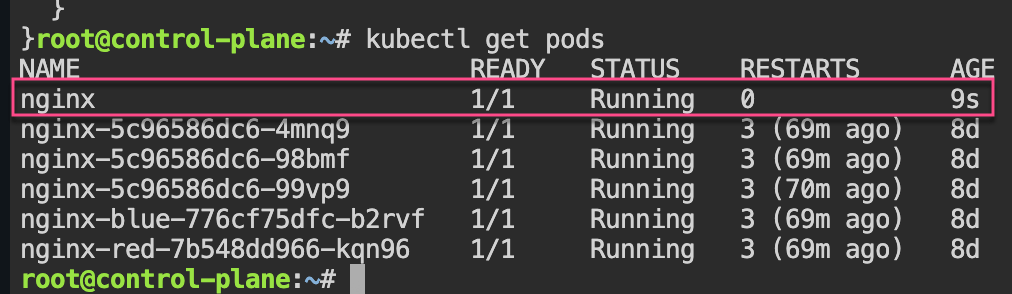
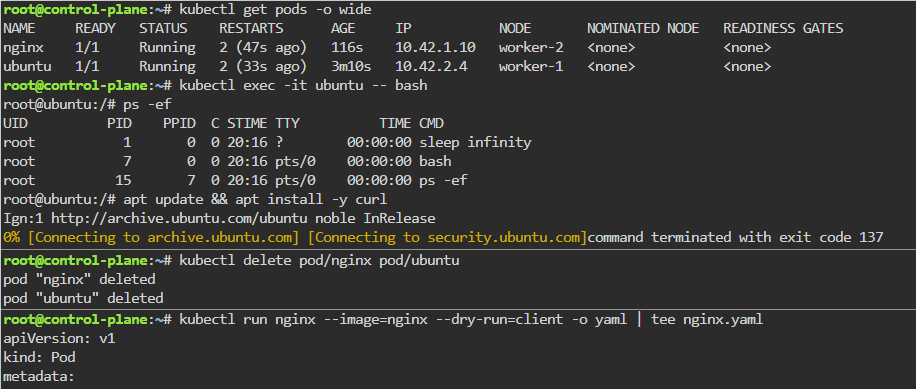
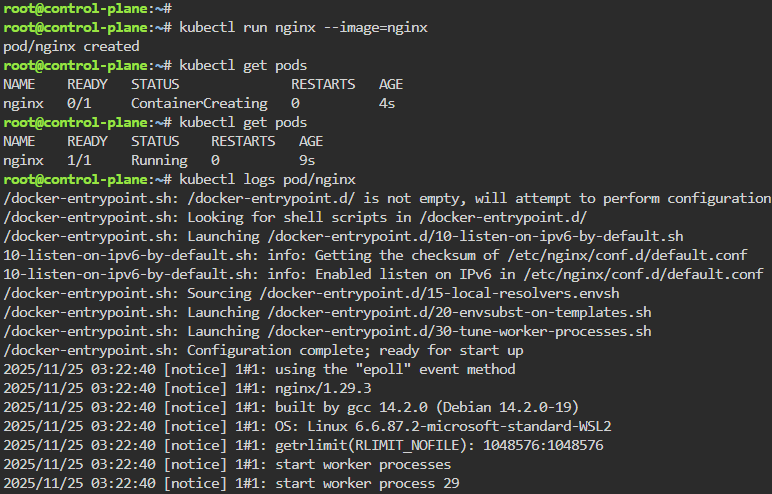
kubectl run nginx --image=nginx
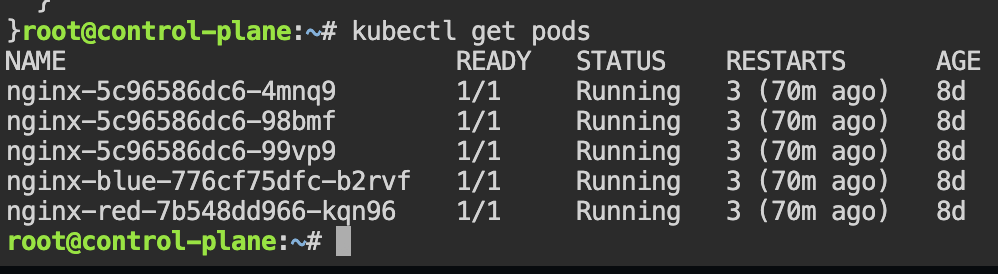
kubectl get pods
kubectl logs pod/nginx
kubectl get pods -o wide
NGINX_IP=$(kubectl get pods -o wide | awk '/nginx/ { print $6 }'); echo $NGINX_IP
ping -c 3 $NGINX_IP
ssh worker-1 ping -c 3 $NGINX_IP
ssh worker-2 ping -c 3 $NGINX_IP
echo $NGINX_IP
kubectl run -it --rm curl --image=curlimages/curl:8.4.0 --restart=Never -- http://$NGINX_IP
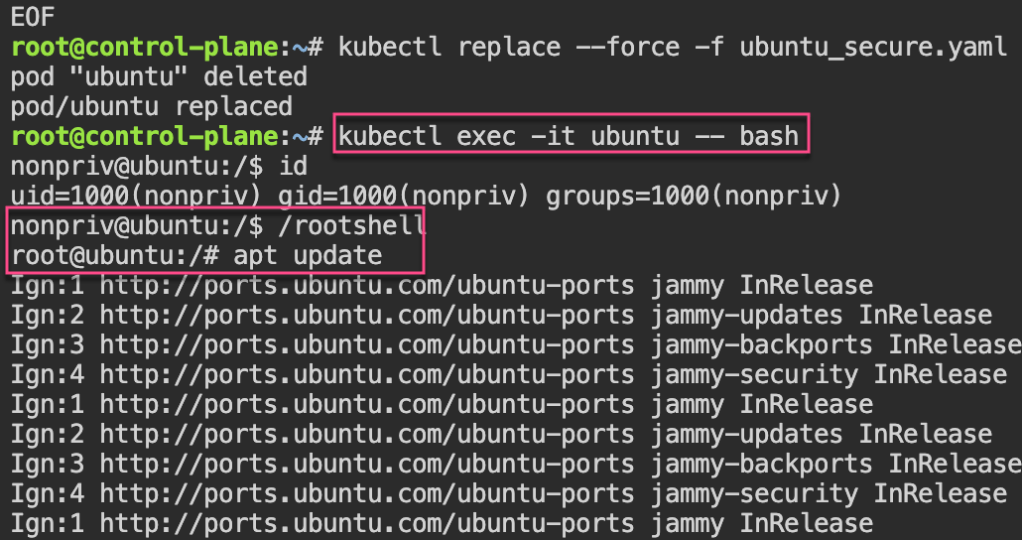
kubectl exec -it ubuntu -- bash
apt update && apt install -y curl
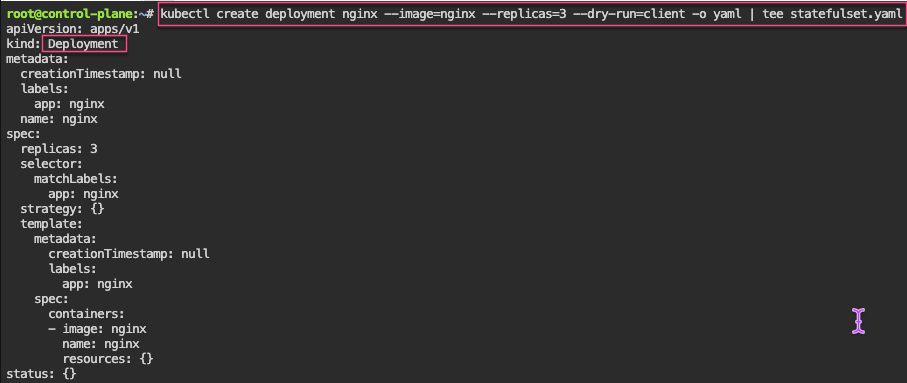
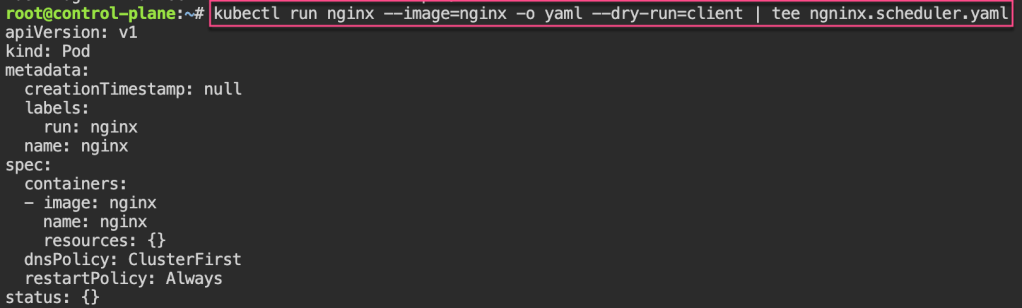
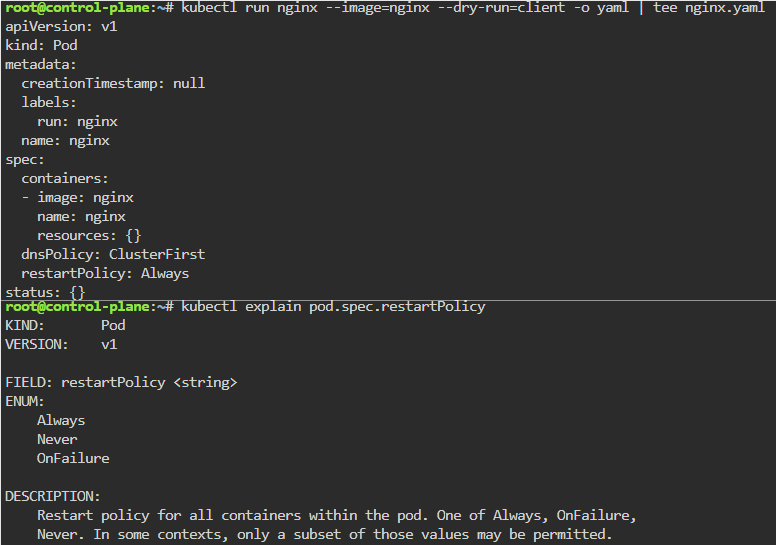
kubectl run nginx --image=nginx --dry-run=client -o yaml | tee nginx.yaml
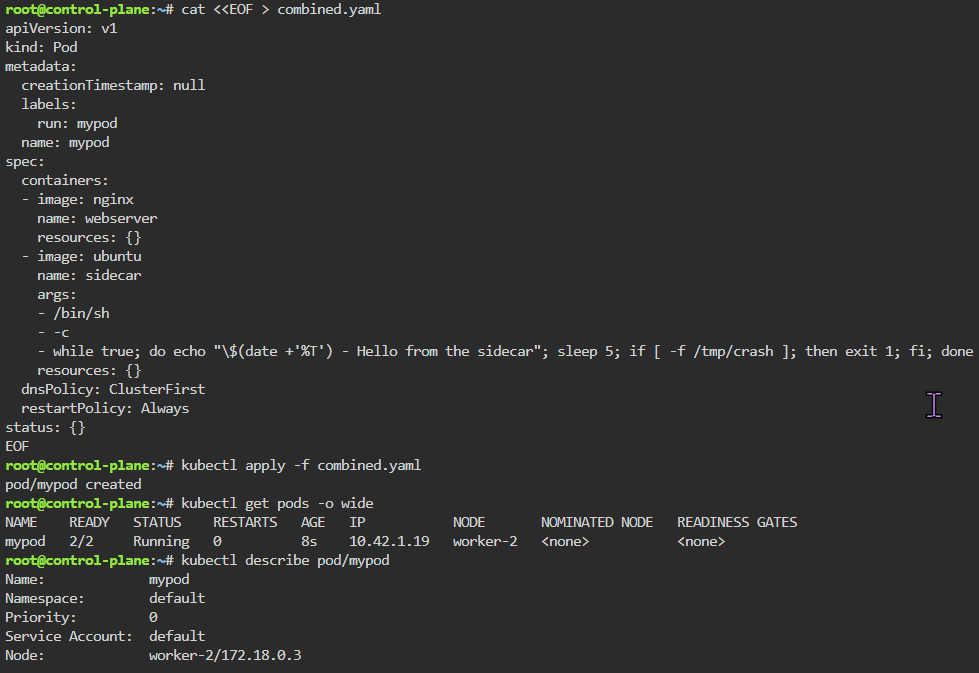
cat <<EOF > combined.yaml
apiVersion: v1
kind: Pod
metadata:
  creationTimestamp: null
  labels:
    run: mypod
  name: mypod
spec:
  containers:
  - image: nginx
    name: webserver
    resources: {}
  - image: ubuntu
    name: sidecar
    args:
    - /bin/sh
    - -c
    - while true; do echo "\$(date +'%T') - Hello from the sidecar"; sleep 5; if [ -f /tmp/crash ]; then exit 1; fi; done
    resources: {}
  dnsPolicy: ClusterFirst
  restartPolicy: Always
status: {}
EOF
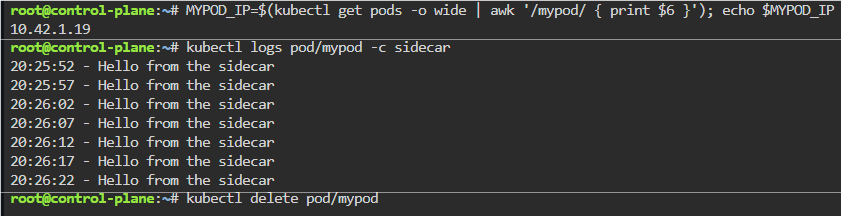
MYPOD_IP=$(kubectl get pods -o wide | awk '/mypod/ { print $6 }'); echo $MYPOD_IP
kubectl logs pod/mypod -c sidecar
kubectl delete pod/mypod --now

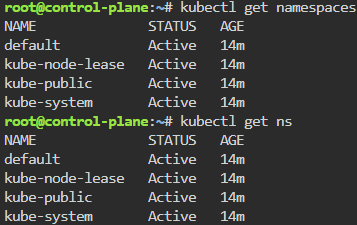
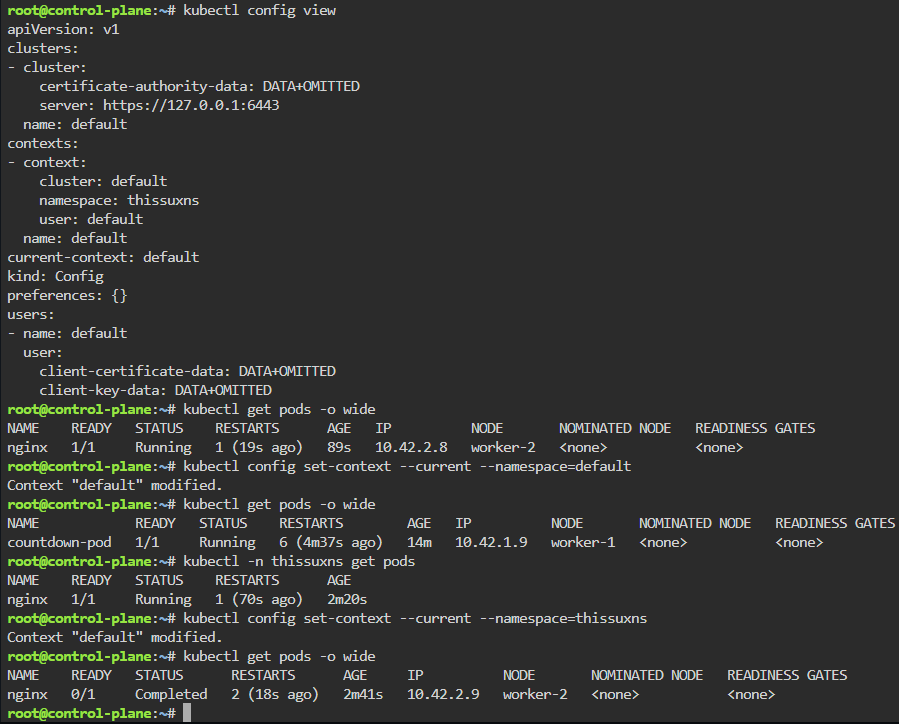
    Namespaces: make an ns w/image, change config context default to new ns, & switch back & forth to notice not all pods created under ns

    kubectlget ns
    kubectl -n thissuxns run nginx --image=nginx
    kubectl get pods -o wide
    kubectl -n thissuxns get pods
    kubectl config view
    kubectl config set-context --current --namespace=thissuxns
    kubectl get pods -o wide
    kubectl config set-context --current --namespace=default
    kubectl get pods -o wide

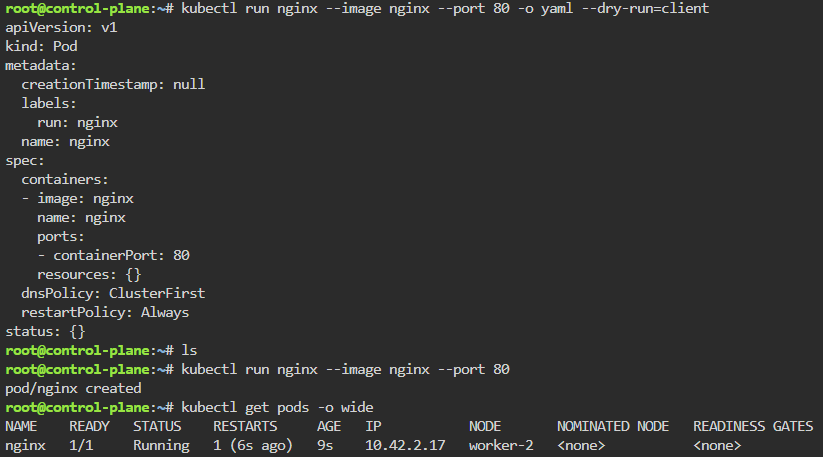
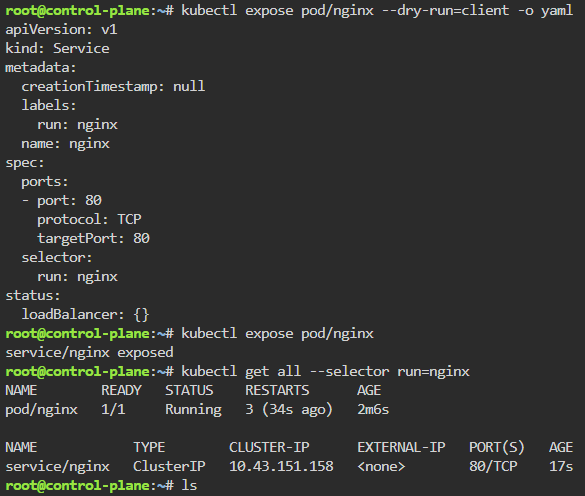
    Labels: starting pod on port 80, utilize selector label, apply new yaml file of 3 options for selector label, & then get pods for just that particular label selector

    kubectl run nginx --image nginx --port 80 -o yaml --dry-run=client
    kubectl run nginx --image nginx --port 80
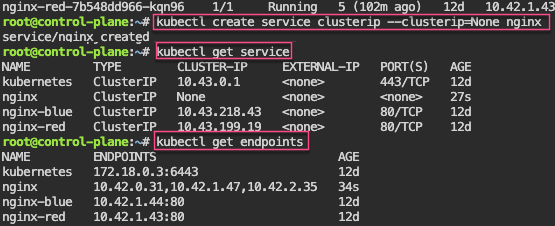
    kubectl expose pod/nginx --dry-run=client -o yaml
    kubectl expose pod/nginx
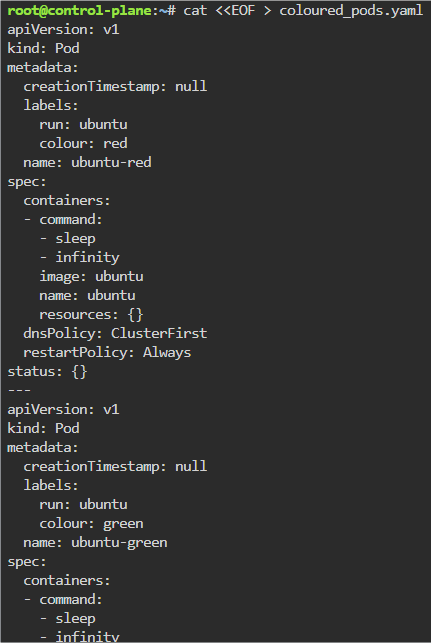
    cat <<EOF > coloured_pods.yaml
    apiVersion: v1
    kind: Pod
    metadata:
      creationTimestamp: null
      labels:
        run: ubuntu
        colour: red
      name: ubuntu-red
    spec:
      containers:
      - command:
        - sleep
        - infinity
        image: ubuntu
        name: ubuntu
        resources: {}
      dnsPolicy: ClusterFirst
      restartPolicy: Always
    status: {}
    ---
    apiVersion: v1
    kind: Pod
    metadata:
      creationTimestamp: null
      labels:
        run: ubuntu
        colour: green
      name: ubuntu-green
    spec:
      containers:
      - command:
        - sleep
        - infinity
        image: ubuntu
        name: ubuntu
        resources: {}
      dnsPolicy: ClusterFirst
      restartPolicy: Always
    status: {}
    ---
    apiVersion: v1
    kind: Pod
    metadata:
      creationTimestamp: null
      labels:
        run: ubuntu
        colour: pink
      name: ubuntu-pink
    spec:
      containers:
      - command:
        - sleep
        - infinity
        image: ubuntu
        name: ubuntu
        resources: {}
      dnsPolicy: ClusterFirst
      restartPolicy: Always
    status: {}
    EOF
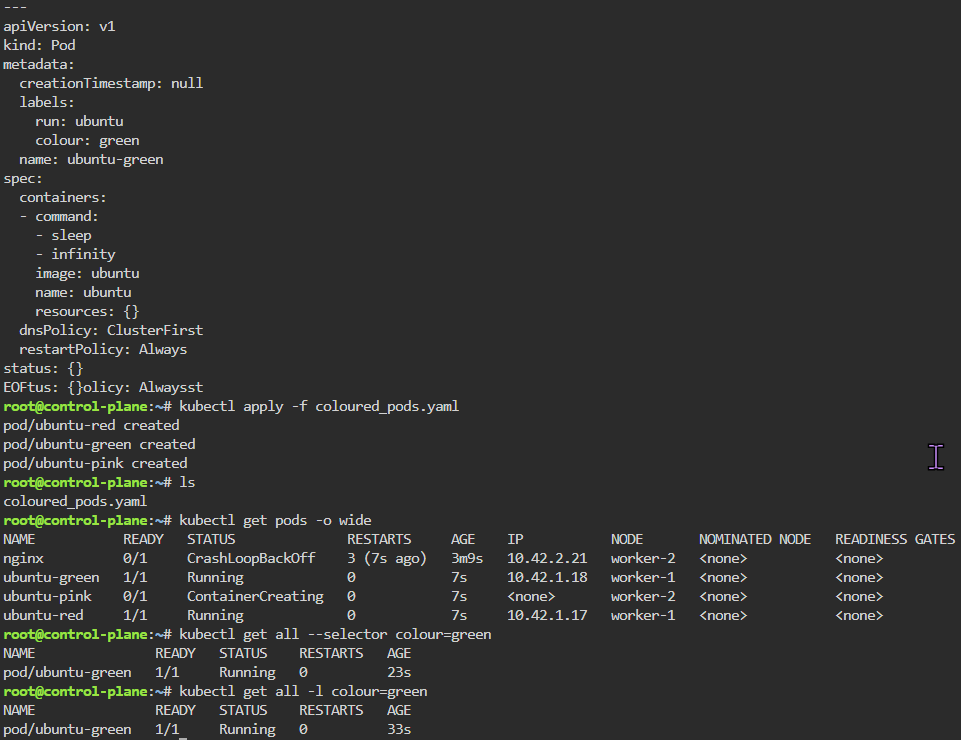
    kubectl apply -f coloured_pods.yaml
    kubectl get pods -o wide
    kubectl get all --selector colour=green
    Wanna secure EKS w/CA & TLS?

    Goal:

    DO YOU HAVE A KUBERNETES CLUSTER! IS IT INSECURE!? …. I’m out of breath & getting dizzy, Idk how those commercials bring that outside voice & energy – – its exhausting!

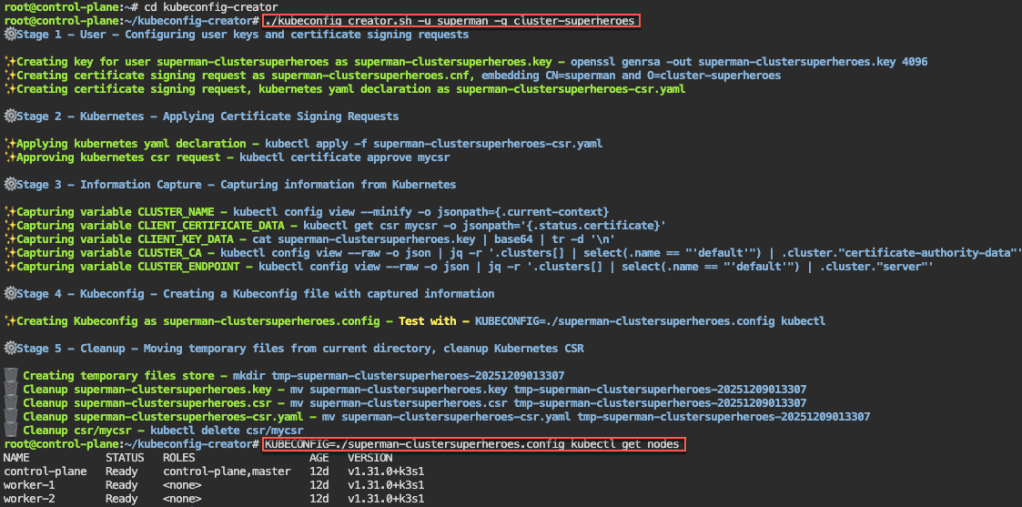
    Alright, I’m back – all this will show you is how to secure your cluster. Below you can see how one can authenticate w/one another’s Kubernetes after you have a certificate & attach a certificate authority (CA) by creating certificate’s to bootstrap your Kubernetes cluster.
    • Please note – there are two (2) controllers, two (2) workers, & an Kubernetes API Load Balancer

    Lessons Learned:

    • Permit/Provision CA
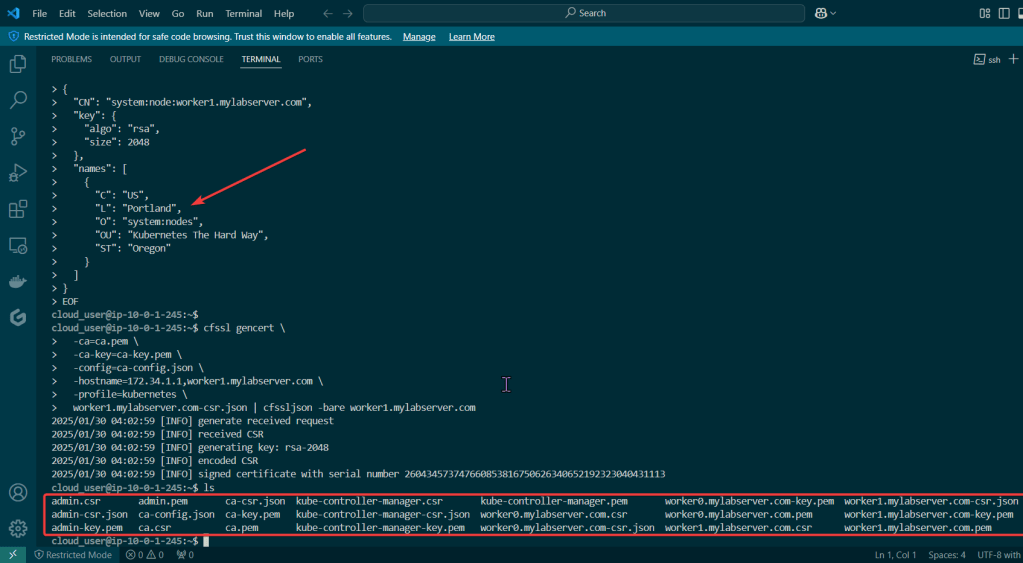
    • Create Kubernetes client certs & kubelet client certs for two (2) nodes:

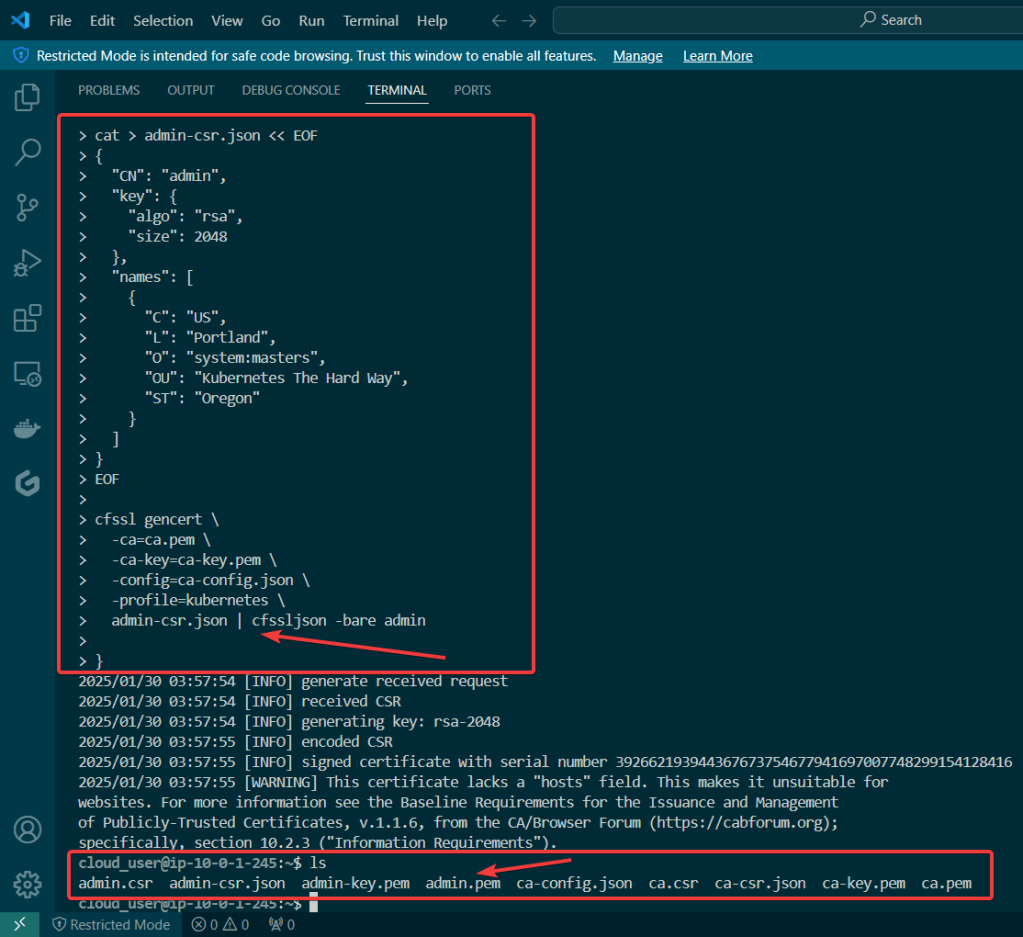
      • Admin Client Certificate
      • Kubelet Client Certificate
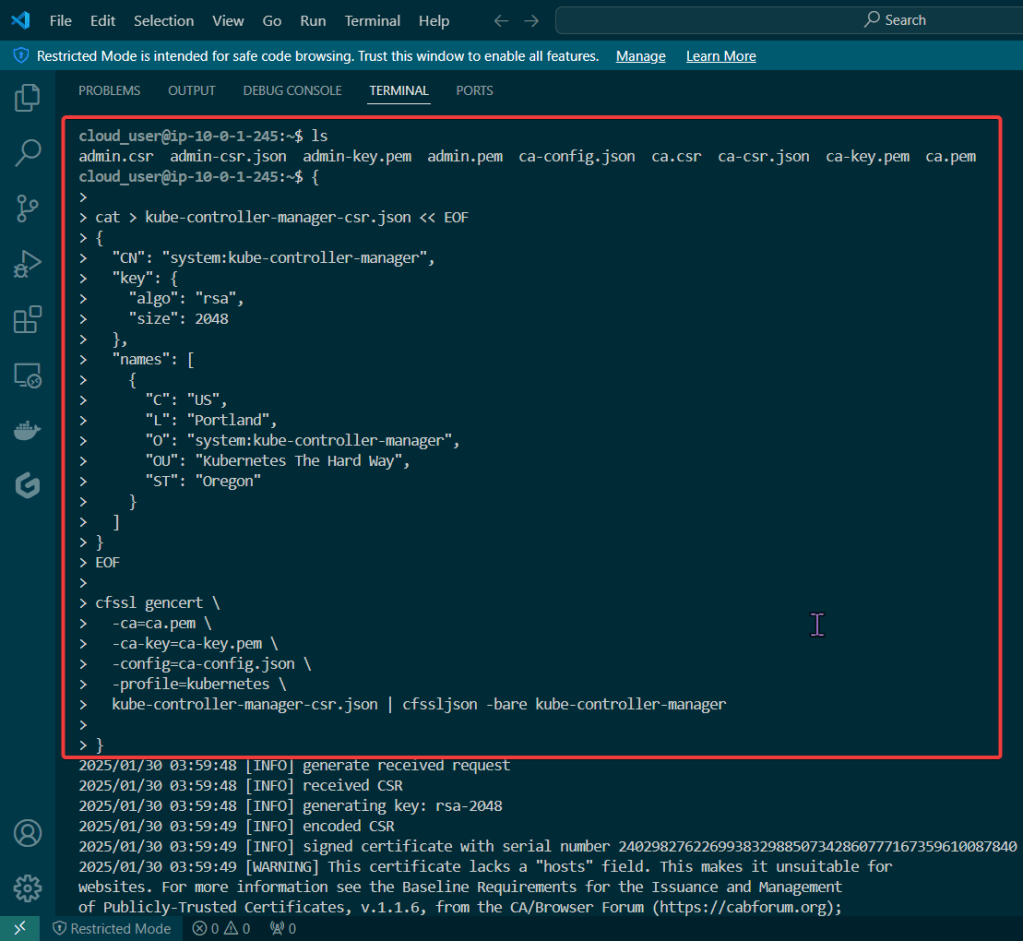
      • Manager Client Cert
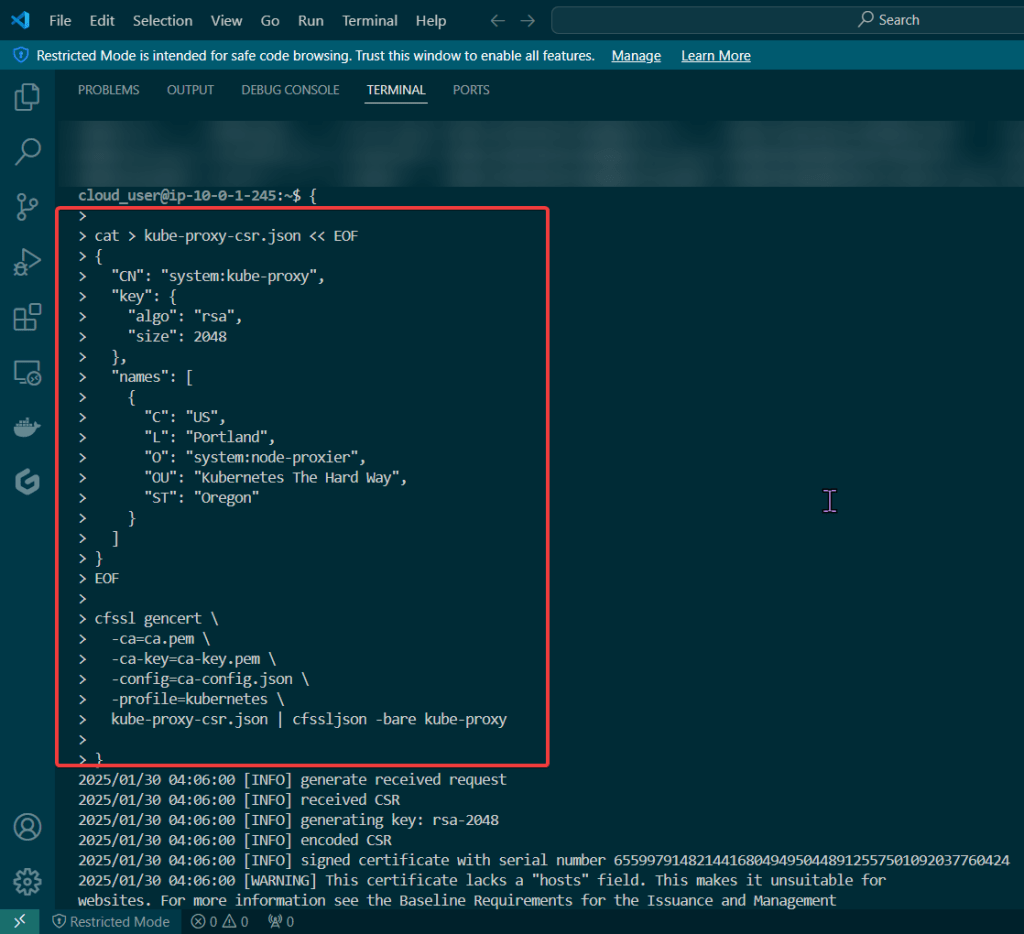
      • Kube-Proxy Client Certificate
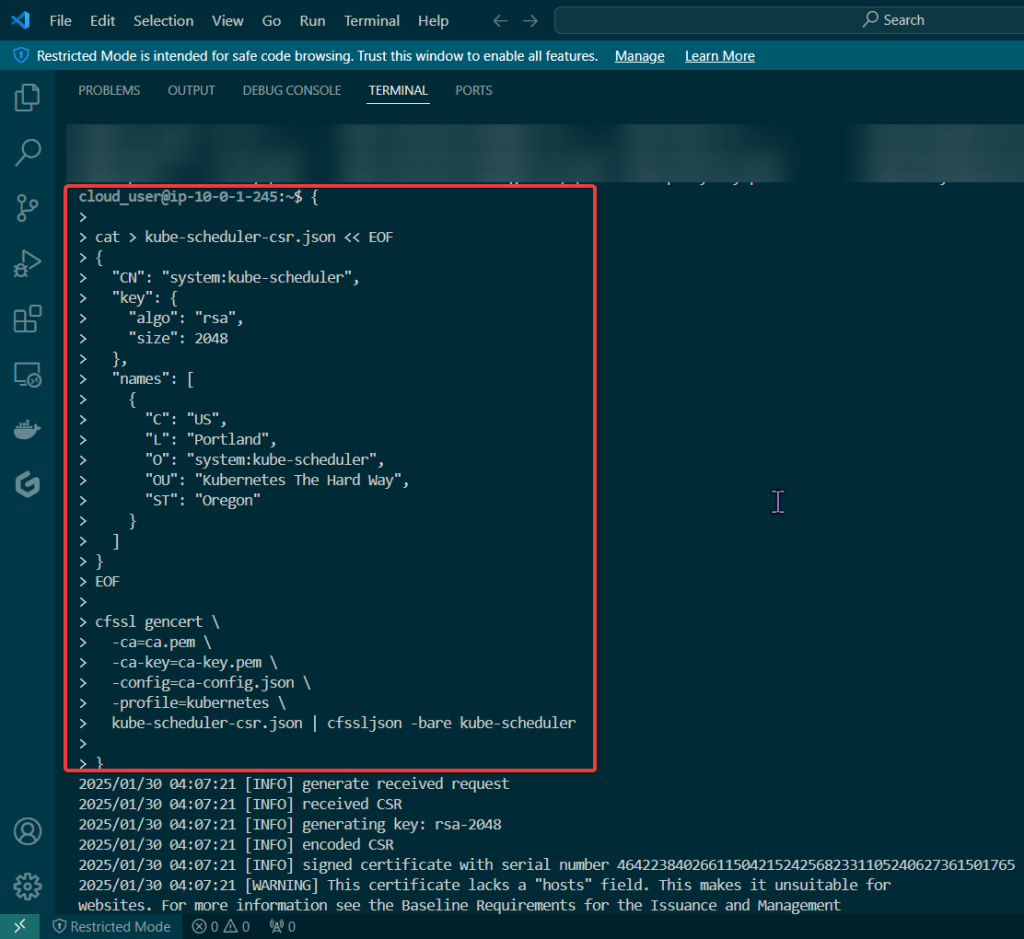
      • Kube-Scheduler Client Certificate
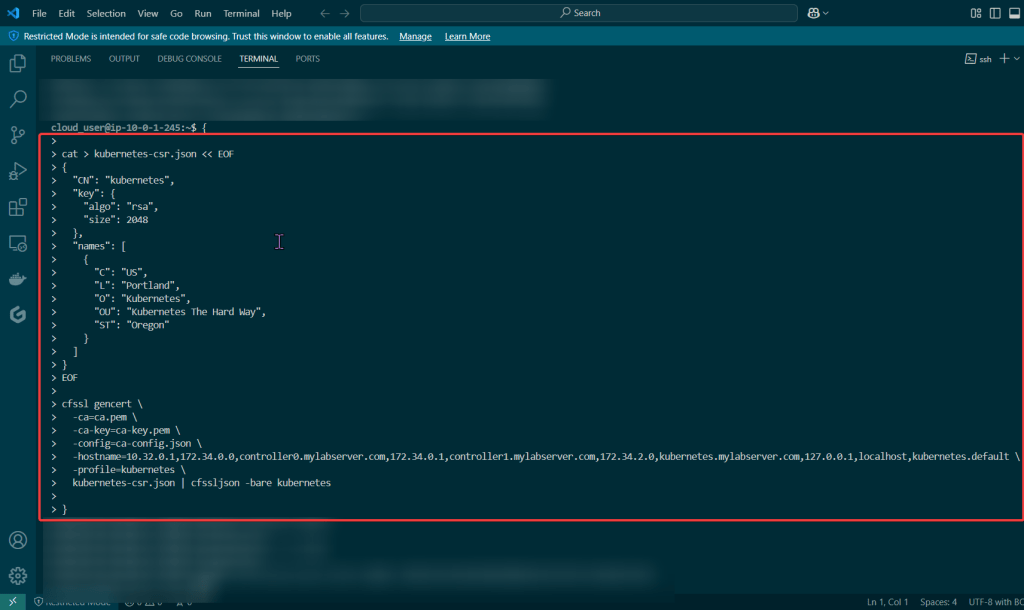
    • Kubernetes API server certificate
    • Kubernetes service account key pair
    • If you follow these lessons learned, you will not let this happen to you – don’t be Karen.
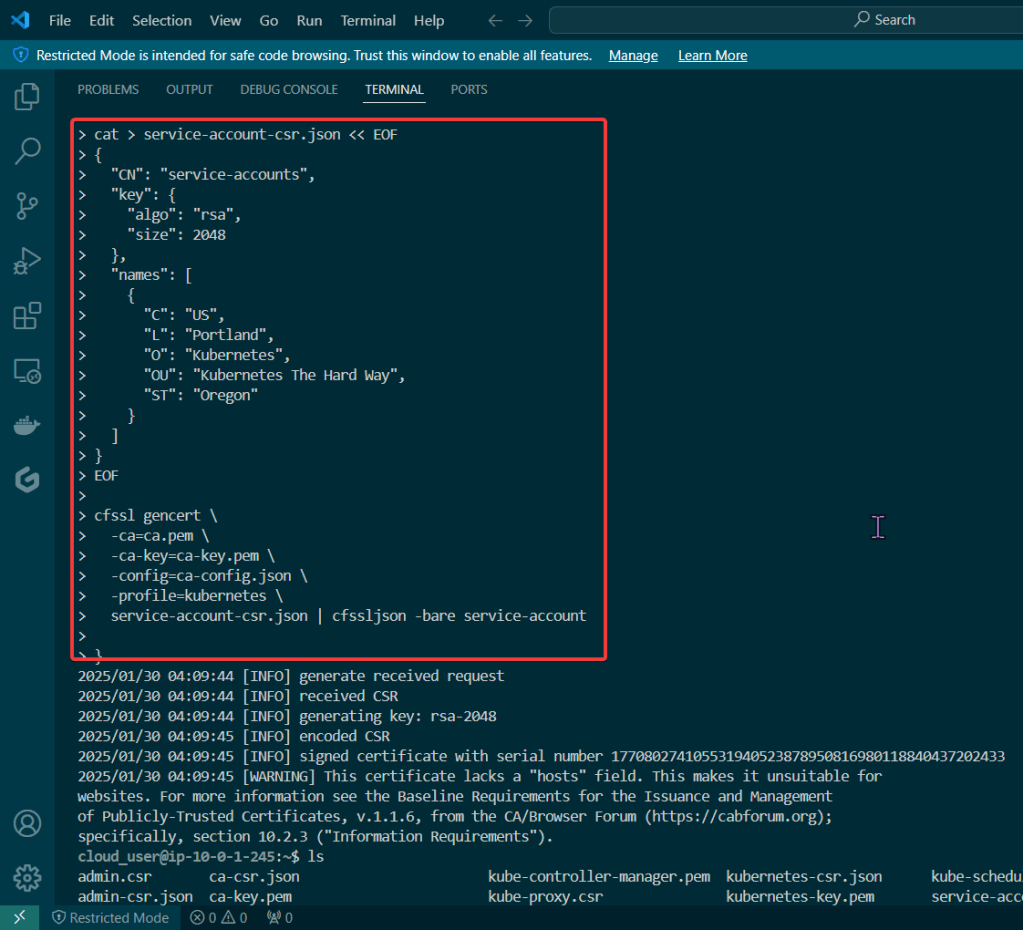
    • Created to sign other certificates & other certs can now use the CA to show legitness (its a word, look it up in the dictionary..urban, dictionary..) that no fakers are occurring

    Admin Client Certificate:

    Kubelet Client Certificate:

    Manager Client Cert:

    Kube-Proxy Client Certificate:

    Kube-Scheduler Client Certificate:

    • These gifs are TOOOOO good for info commercial’s in the late 90s’/early 2000s’

    Create Kubernetes API server certificate:

    Create Kubernetes service account key pair:

    When you see Smoke – – – there is Kubernetes Cluster being Tested..

    Goal:

    Stuff happen, so when it does – it is good to know what to do w/your Kubernetes cluster. The answer is – drum roll please… smoke testing, tahhh-dahhh! This is useful not just when stuff hits the fan, but to see if the known vulnerable features are working properly becuase the goal is to verify the health of the cluster.

    Example of smoke tests of the Kubernetes cluster conducted will contain:

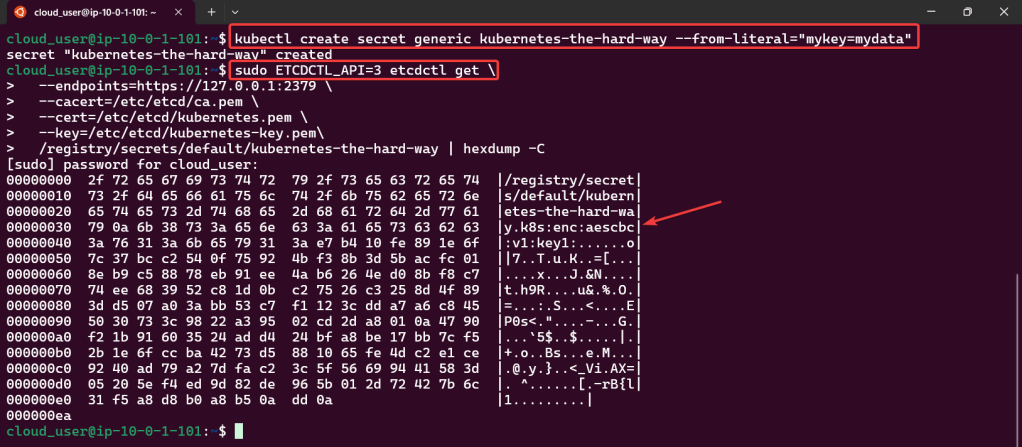
    • Data Encryption
    • Deployment
    • Port Forwarding
    • Logs
    • Exec
    • Services

    Lessons Learned:

    • Cluster Data Encryption
    • Deployments Work
    • Remote Access works w/Port Forwarding
    • Access Container Logs w/Kubectl Logs
    • Execute Commands inside the Container
    • Services Work
    • Create test data for secret key
    • Ensure secret key is stored
    • Create & verify deployment
    • Snag that pod name & store in variable
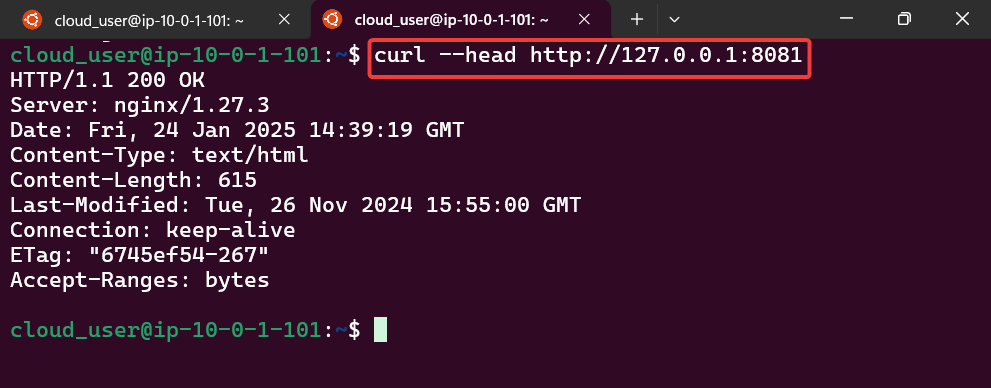
    • Forward port to nginx pod
    • Open new terminal – – – & curl IP address/port
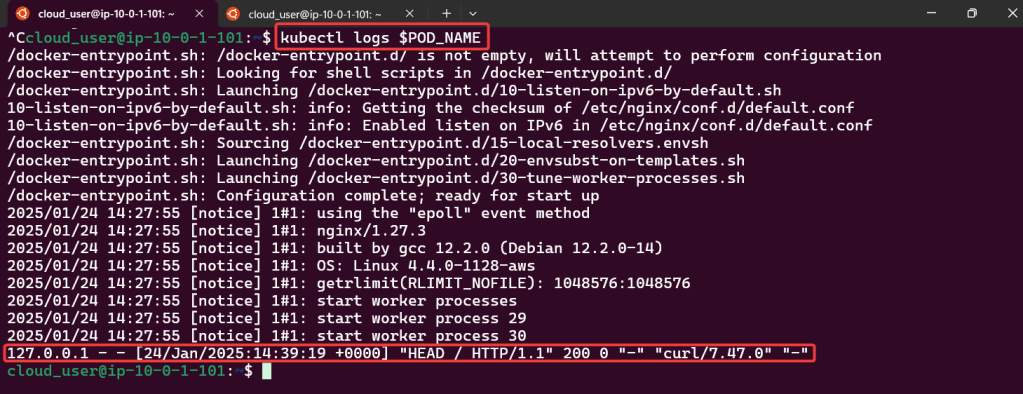
    • Get logs from nginx pod
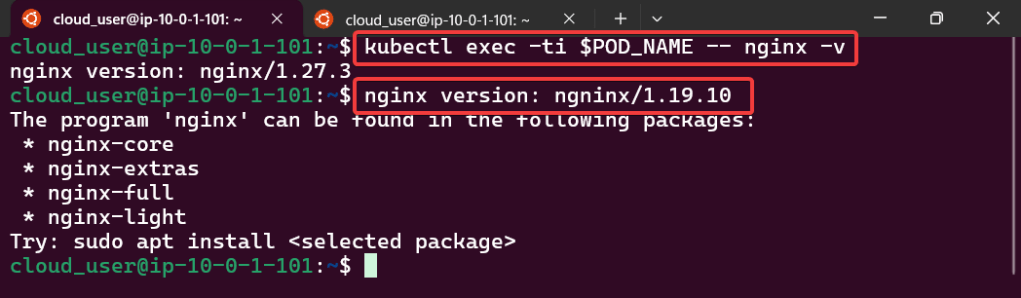
    • Confirm you can run “exec” command & will see the version
    • Test to see if service can be deployed
    • Get node port from variable
    • Curl IP address/port

    Release the Helm Kraken!

    Goal:

    Humans aren’t constant, but Helm versions are! So this is an efficient way to release & clarify your versions of charts in Helm. Then for gigs we will rollback to the original state, cuz – why not?

    Lessons Learned:

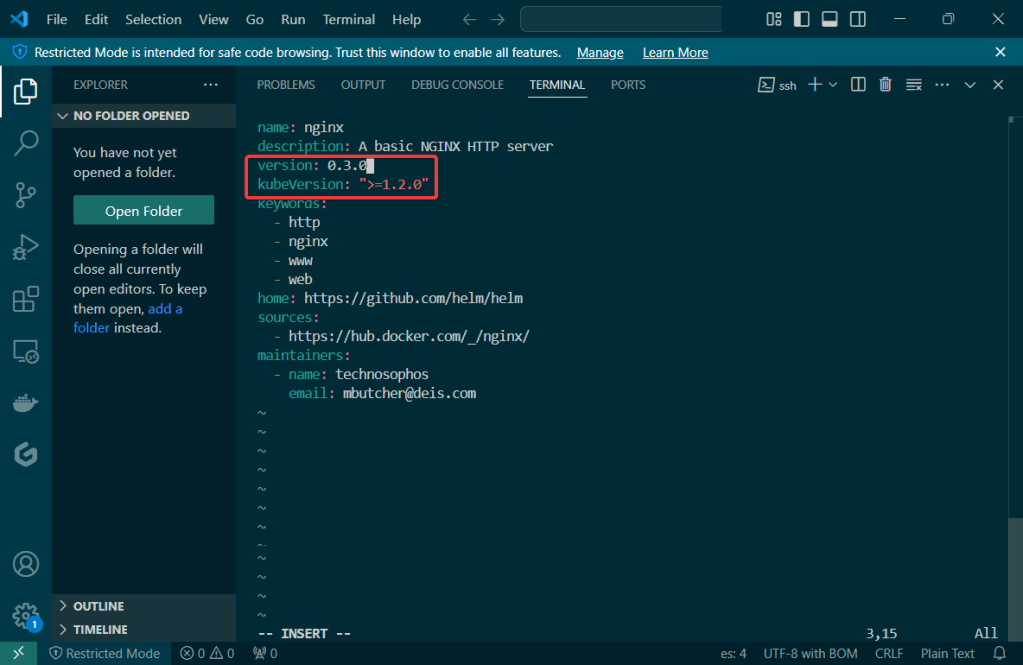
    • Update index & version #
      • Update values.yaml
      • Update chart.yaml
    • Initialize
      • Helm install
    • Release the chart & confirm version #
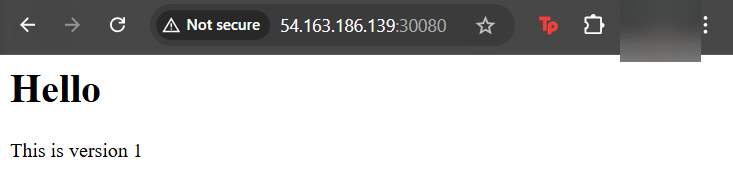
      • Check the node port & see it launched!
    • Update index data & version #
      • Update the files again
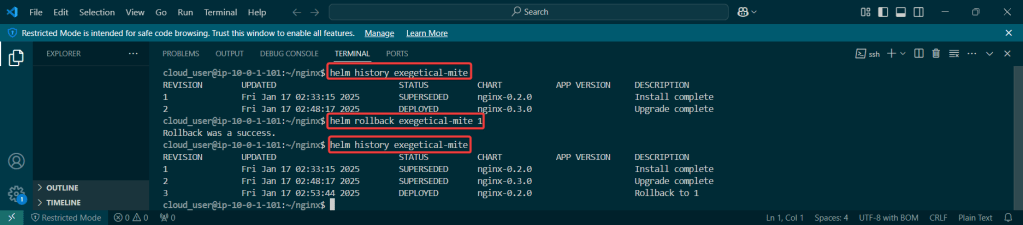
    • Rollback it on back now! – – – to Previous Version #:

    Update index & version #:

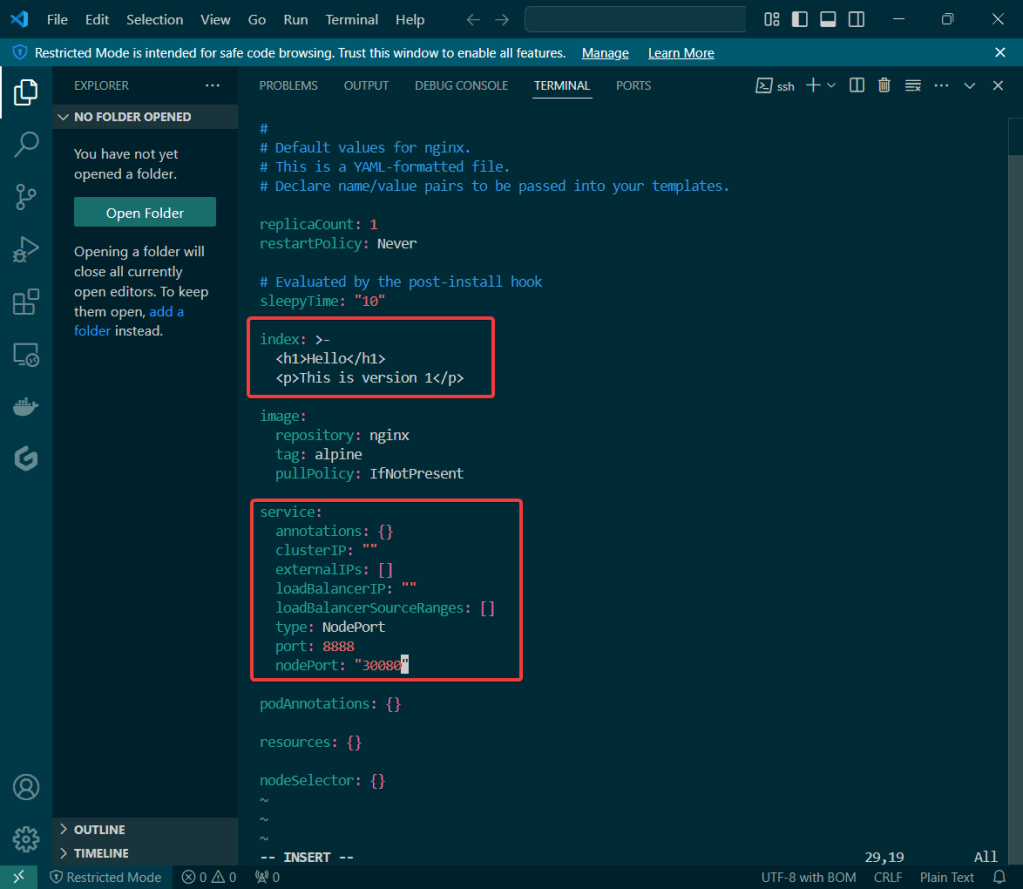
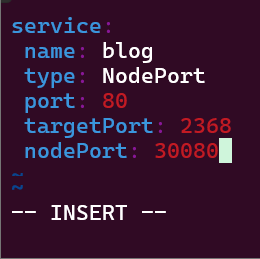
    • Updated index & type of service as well as nodeport #

    Update values.yaml:

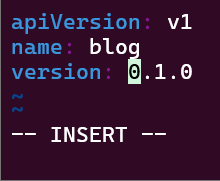
    Update Chart.yaml:

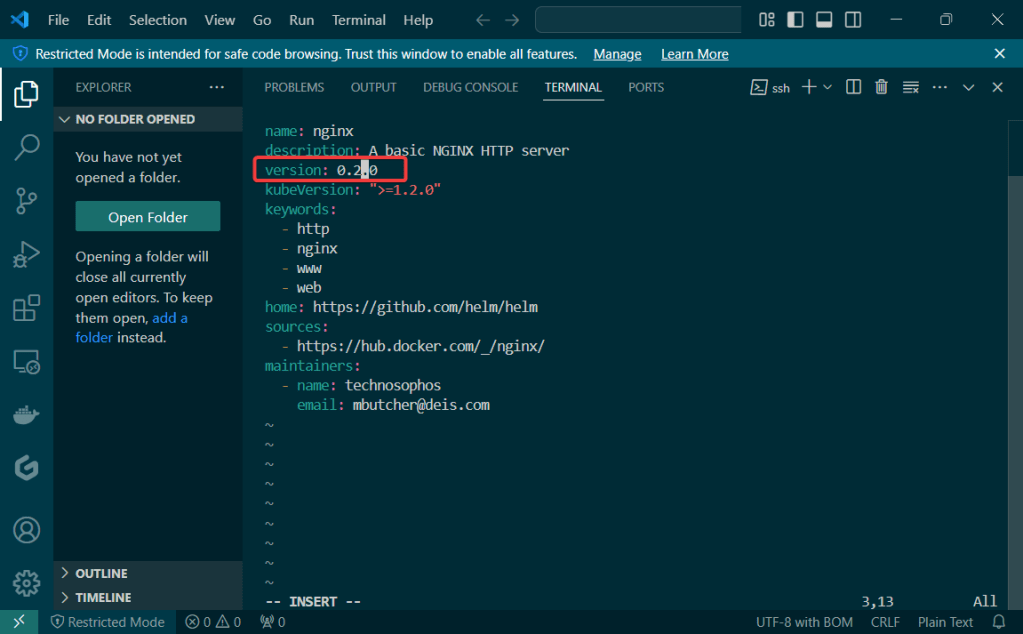
    • Update version #

    Initialize & Patch Helm:

    Helm install:

    Release the chart & confirm version #:

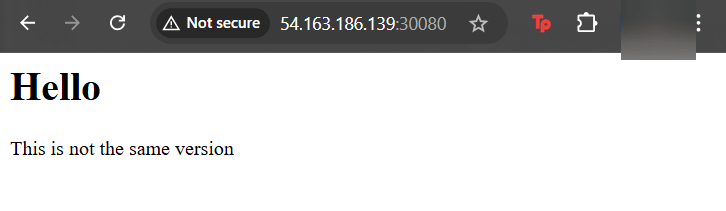
    Check the node port & see it launched!

    Update Index Data & Version #:

    Update the files again:

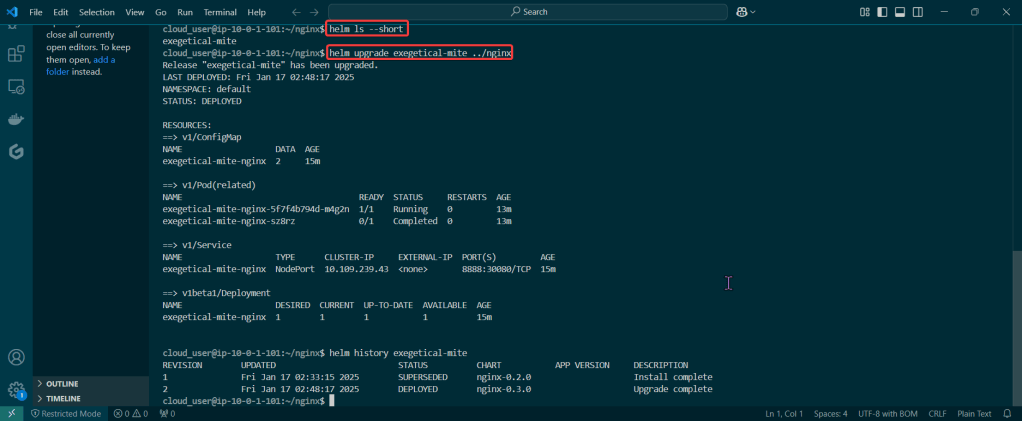
    Helm ls –short & upgrade the release

    • Just go to the values & Chart yaml files – – just update something!

    Rollback it on back now! – – – to Previous Version #:

    Dude, where is my Helm Chart?

    Goal:

    Scenario:

    • Uhhhhh dude, wheres my car? REMIX!
    • Uhhhhh dude, where’s my chart? But I have a Kubernetes deployment & I just want to convert it to a Helm chart! Wait you can do that? TEACH ME!

    You right now:

    Golly, it be nice to have a chart right now…also would be really nice to know how to have a Kubernetes deployment be converted into a Helm chart..Sooooooo, lets use what we got & convert this bad boiiiiii into a ….. HELM CHART (mic drop).

    TLDR:

    • Basically your app is in prod already has a manifest & convert it to a helm chart to release the resources w/a template for Kubernetes from a values file

    Lessons Learned:

    • Convert Service Manifest into a Service Template in a New Helm Chart
    • Convert Application Manifest into a Deployment Template in a New Helm Chart
    • Check the Manifests & Deploy NodePort Application

    Convert Service Manifest into a Service Template in a New Helm Chart:

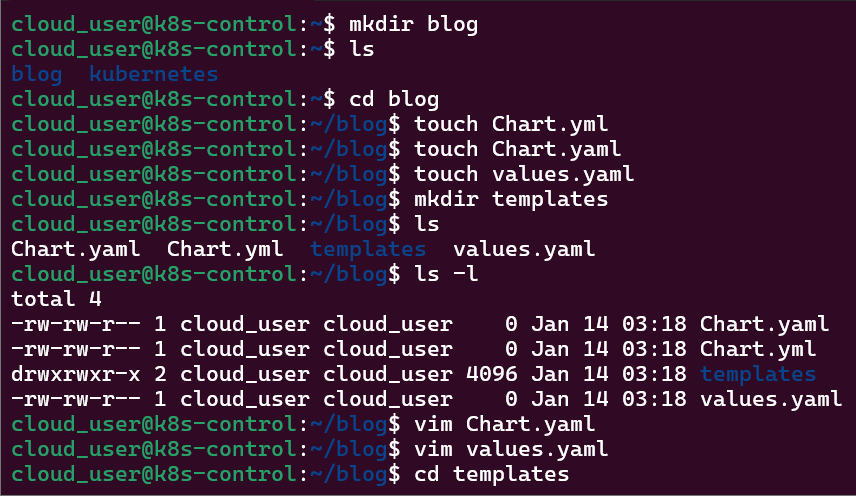
    Make directories & YAML files:

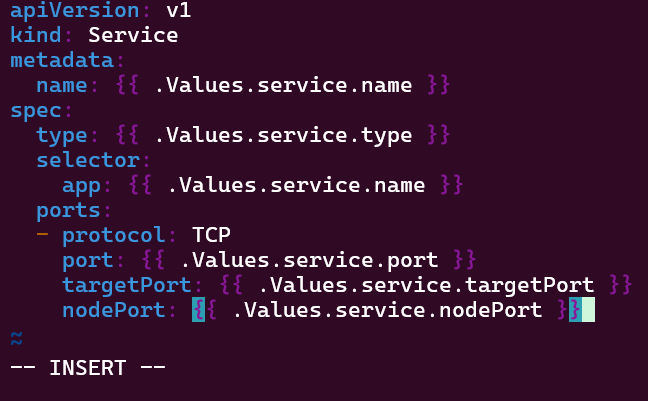
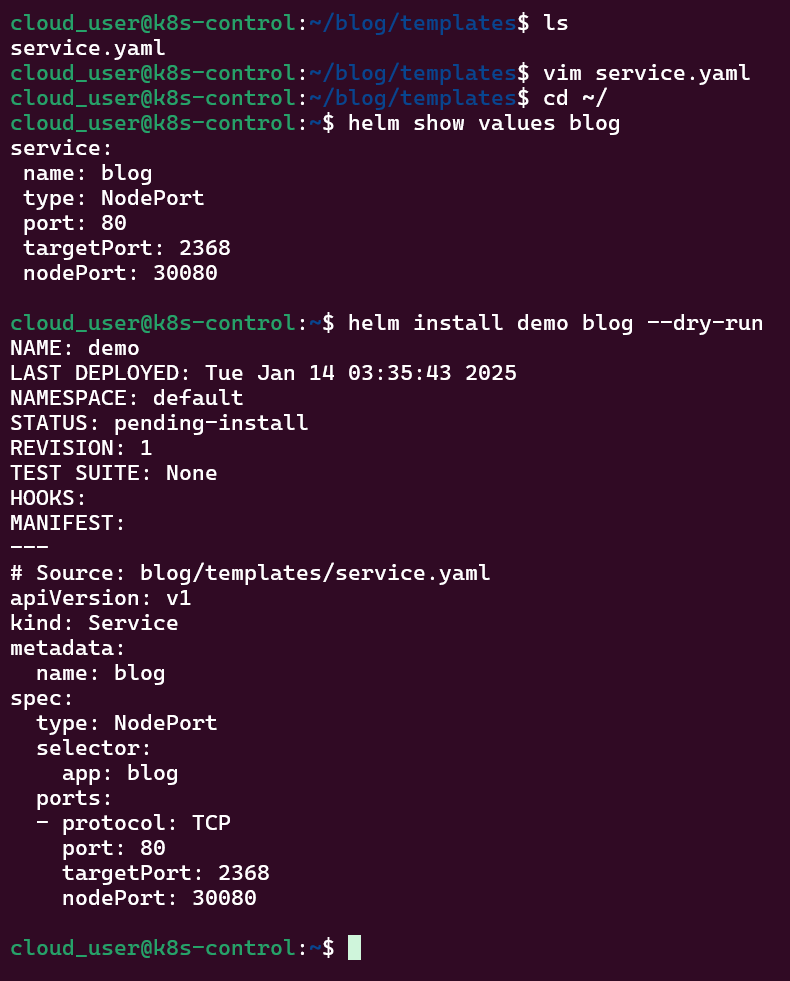
    Copy yaml file, update service file, & run Helm:

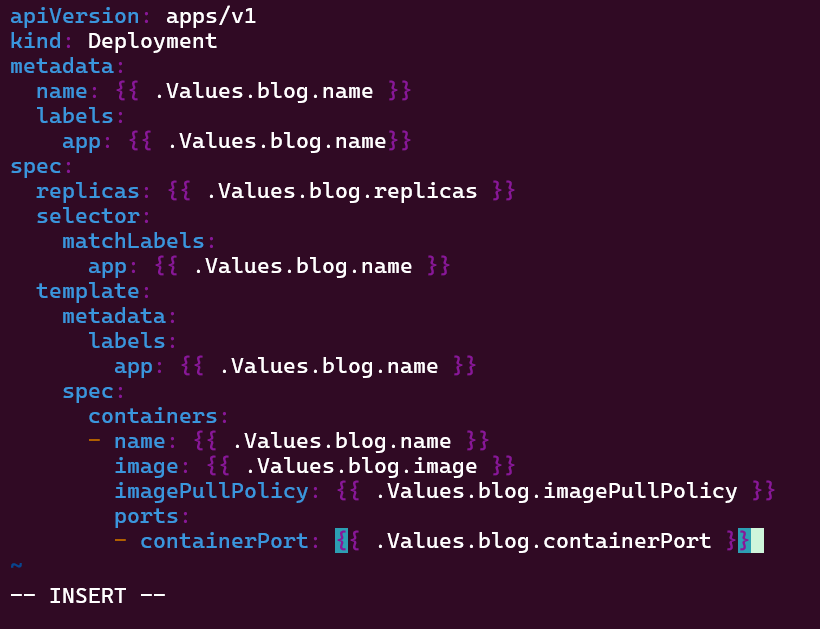
    Convert Application Manifest into a Deployment Template in a New Helm Chart:

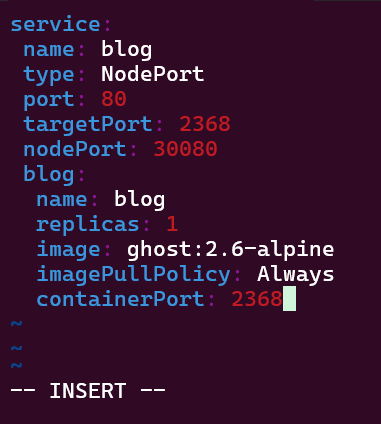
    Edit values.yaml & copy application.yaml to edit:

    Check the Manifests & Deploy NodePort Application:

    Run helm install & deploy, get pod/svc details:

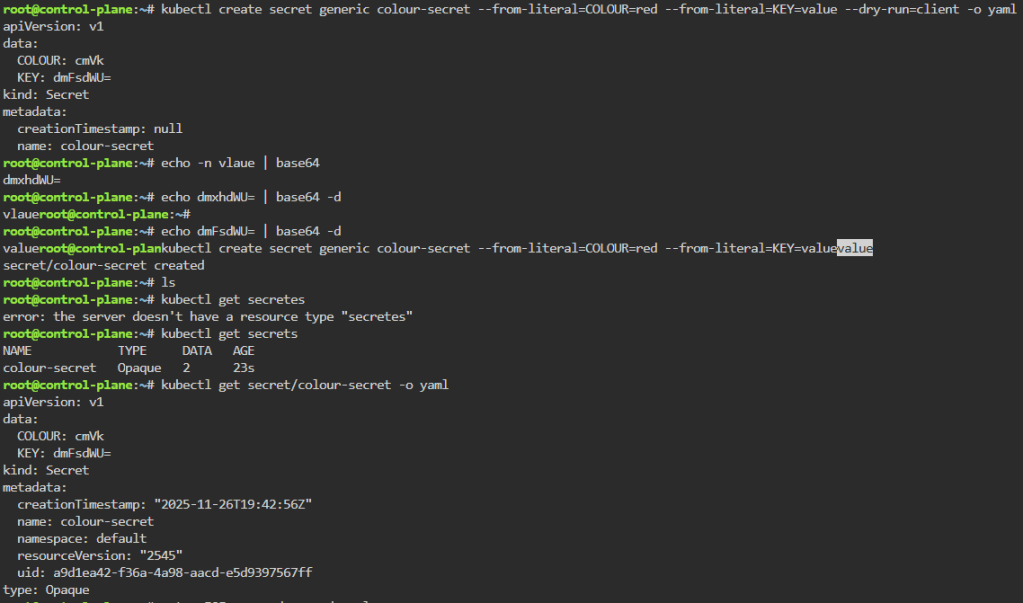
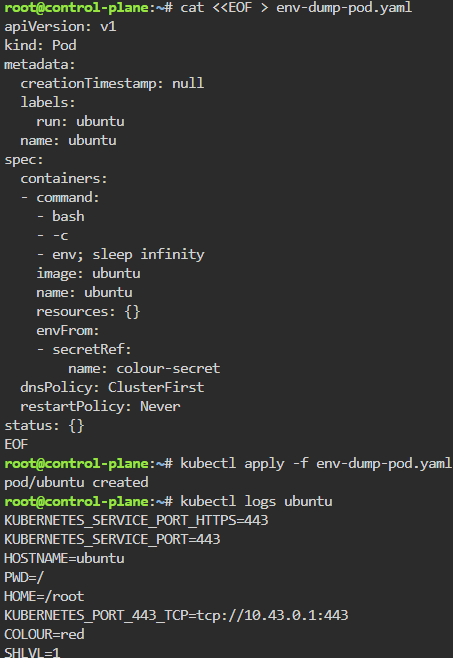
    Deep Pass of Secret’s to Kubernetes Container

    Kubernetes is dope for data bro! Watch how we send configuration data from containers to applications that were stored in secrets & ConfigMaps.

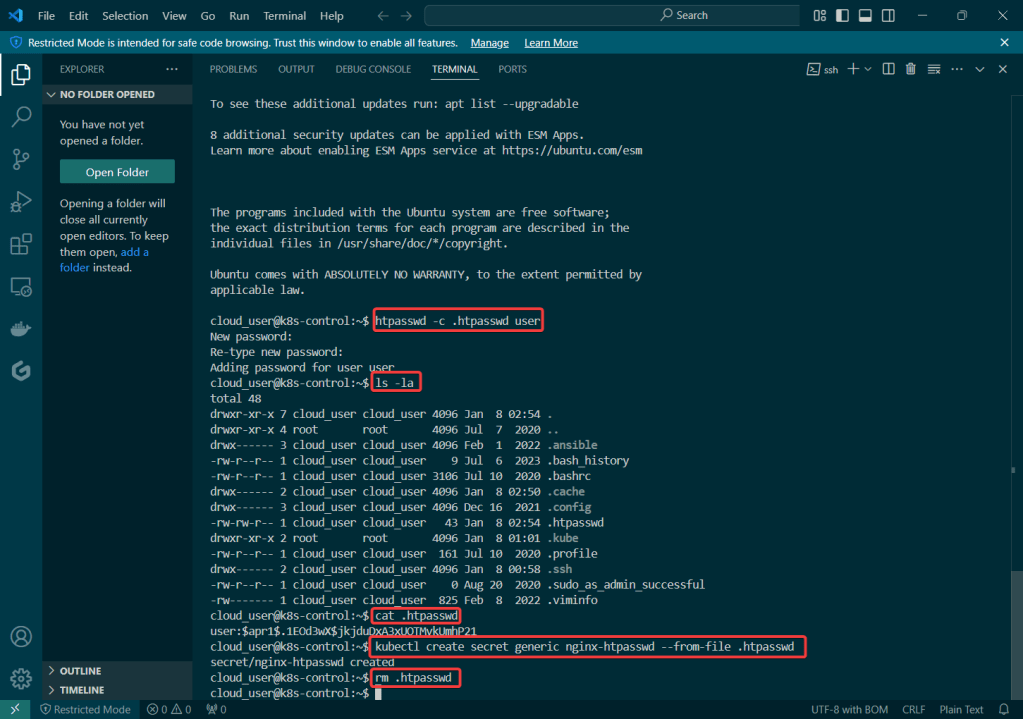
    • Created password file & store it in ….. secrets..
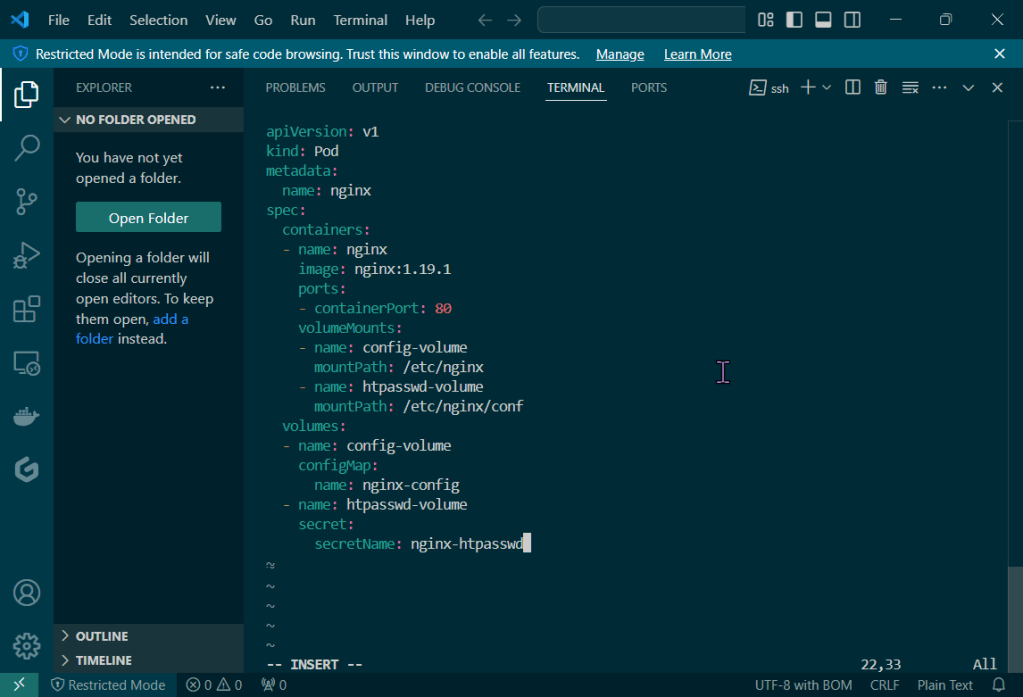
    • Create the Nginx Pod

    Generate a file for the secret password file & data:

    Vi pod.yml:

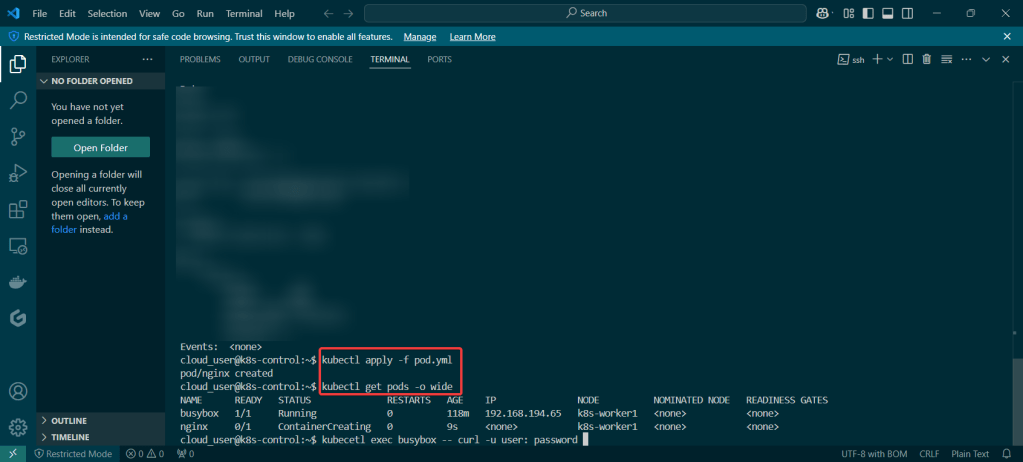
    Kubectl exec — curl -u user: <PASSWORD> <IP_ADDRESS>: