
Prometheus 2 the movie, Featuring Kubernetes & Grafana

Goal:

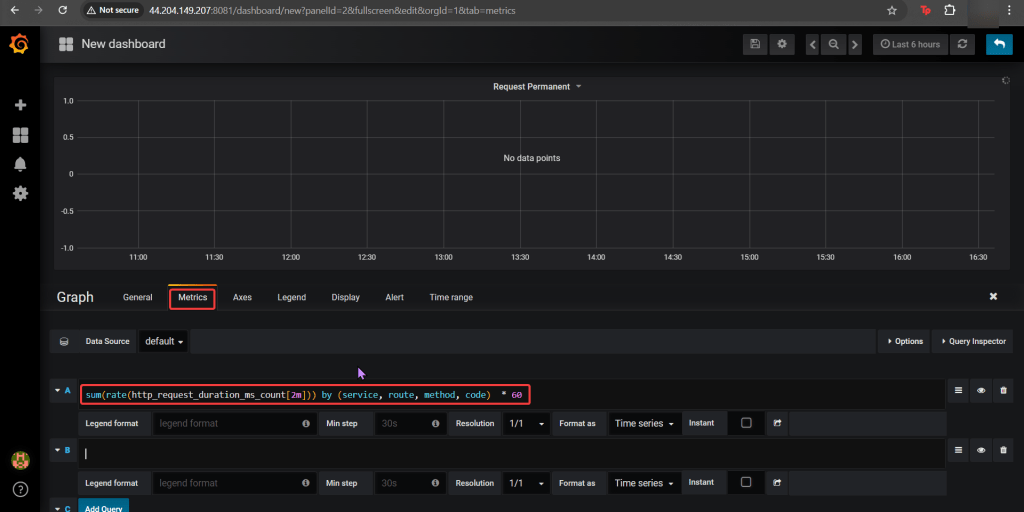
Imma monitor a CI/CD pipeline w/3 tools, wanna see if we use Prometheus to synthesize the data & Grafana to display the data? Our goal is get some insight on performance dawg!

Lessons Learned:

  • Use Helm to install Grafana
  • Install Prometheus in Kubernetes Cluster
  • Install Grafana in Kubernetes Cluster

Use Helm to install Grafana

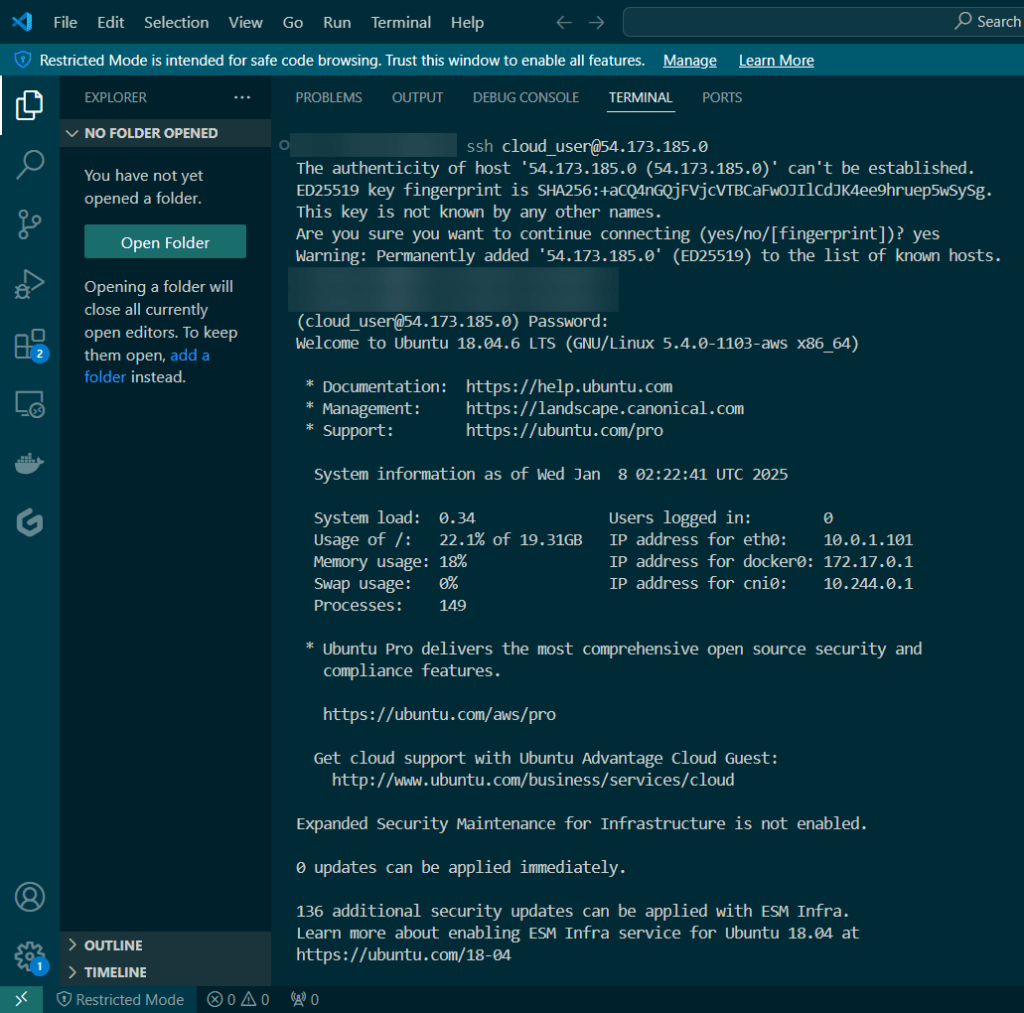
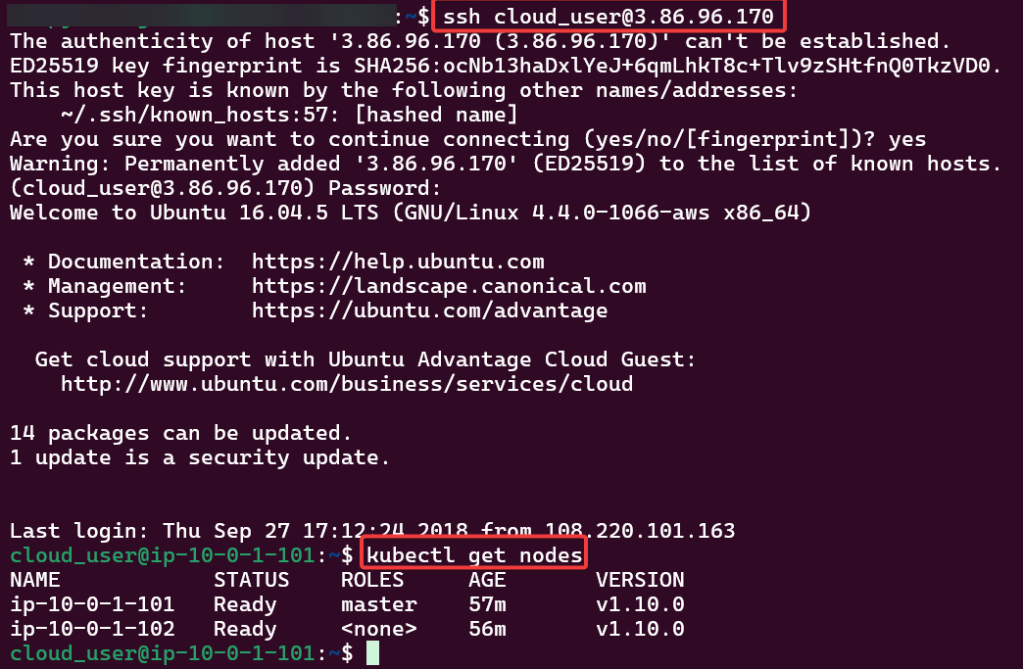
SSH into Master Public IP:

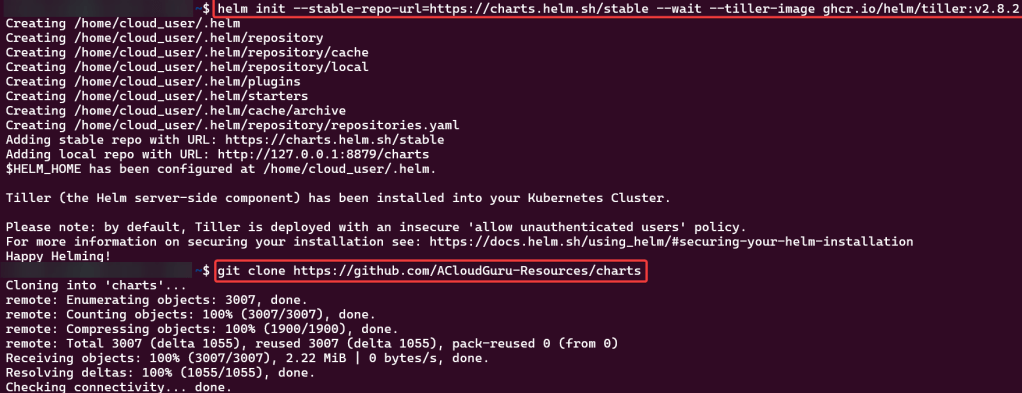
Initiate Helm:

Install Prometheus in Kubernetes Cluster

Create Prometheus YAML File:

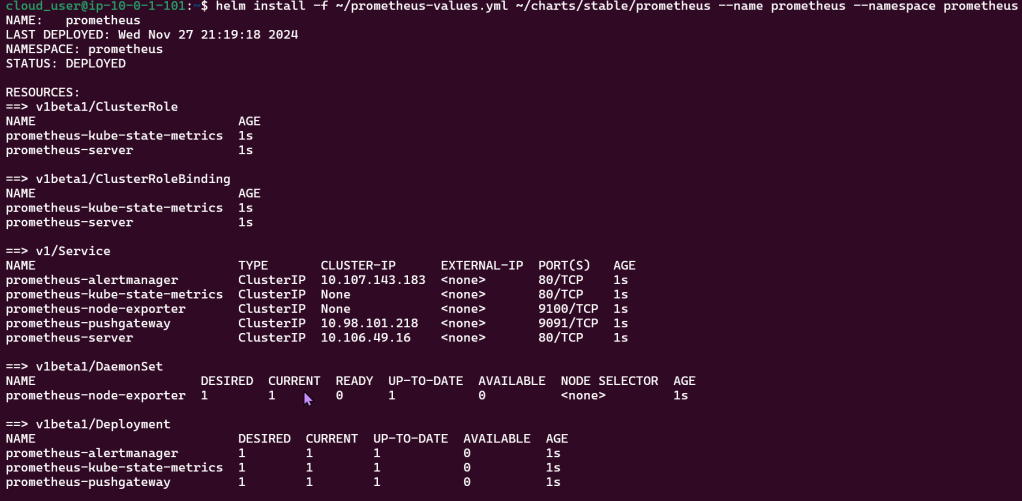
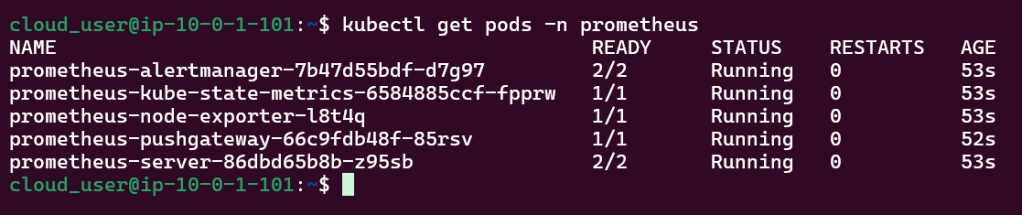
Install Prometheus:

Install Grafana in Kubernetes Cluster

Create Grafana YAML File:

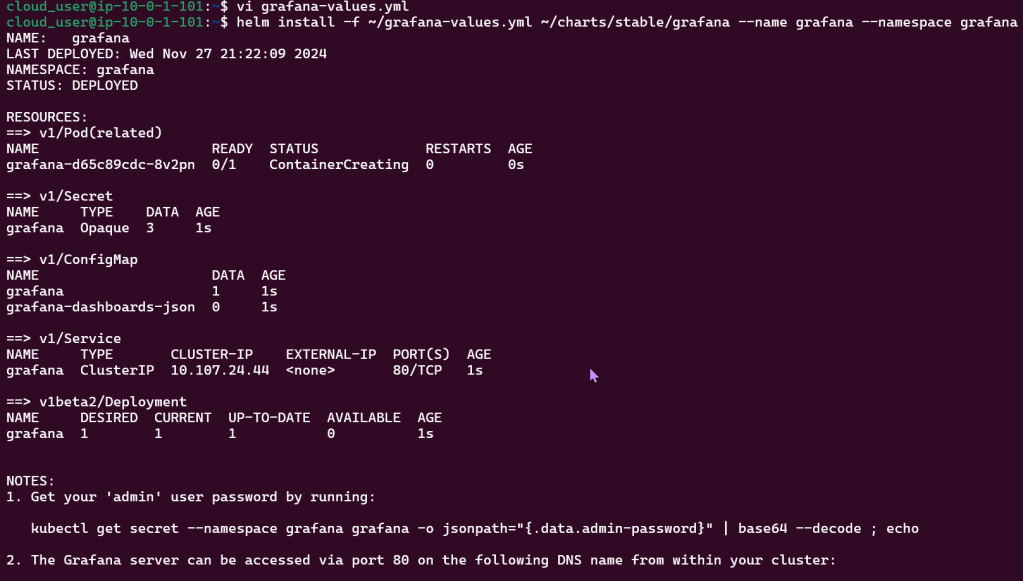
Install Grafana:

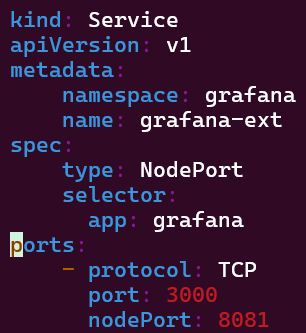
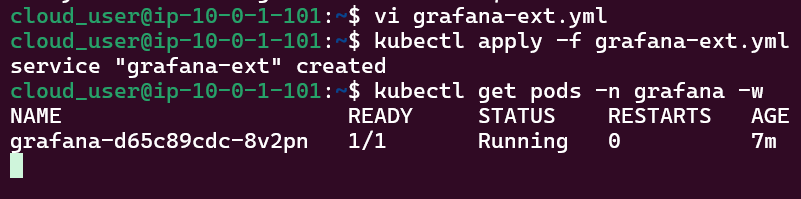
Create Grafana-Extension YAML File:

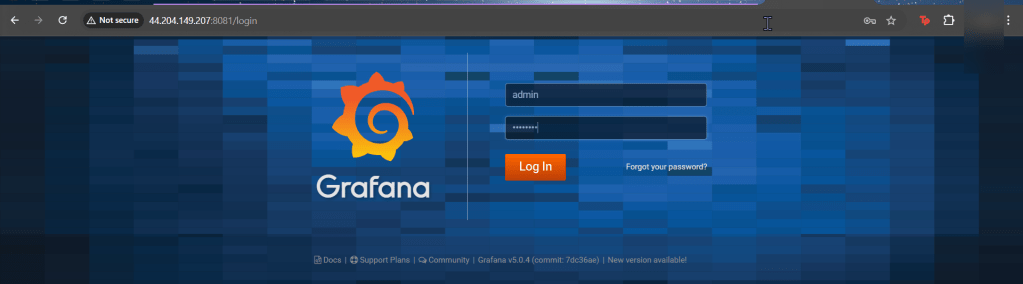
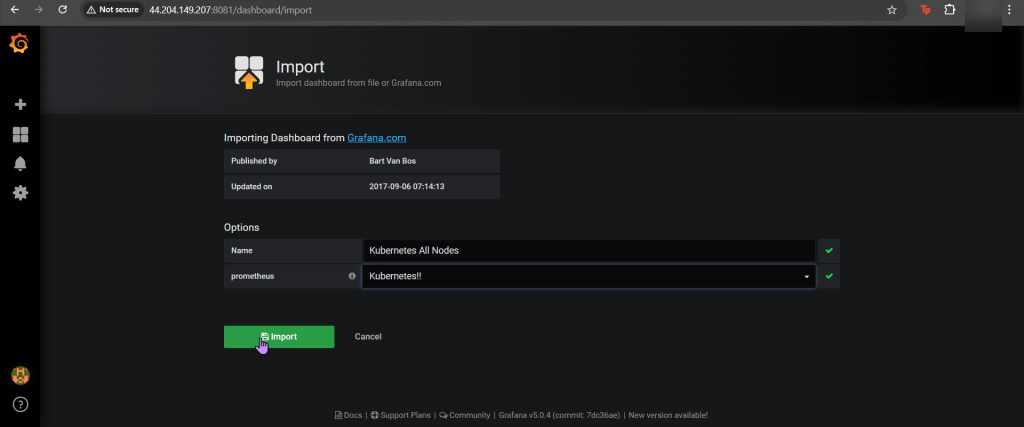
Log-in to Grafana:

Canary in Coal Mine to find Kubernetes & Jenkins

Goal:

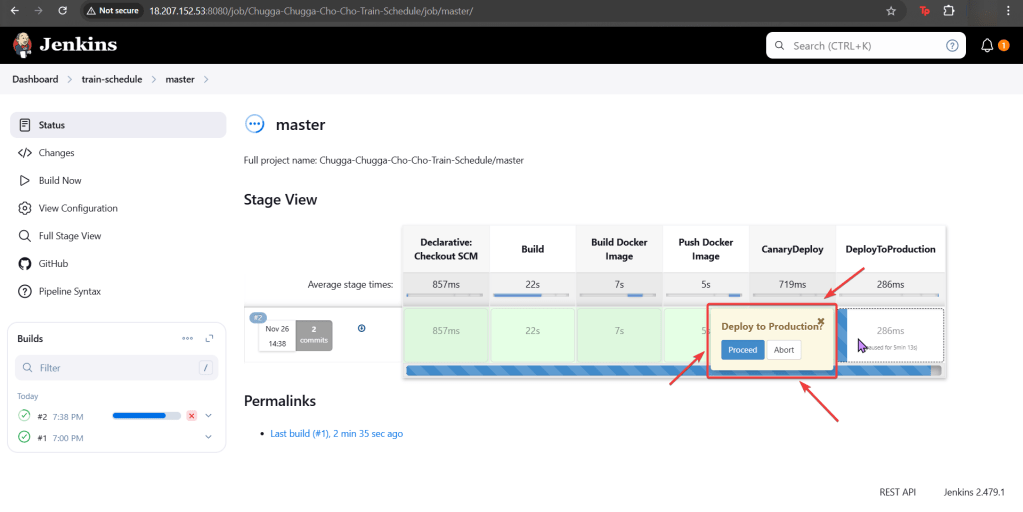
Our coal mine (CICD pipeline) is struggling, so lets use canary deployments to monitor a Kubernetes cluster under a Jenkins pipeline. Alright, lets level set here…

  • You got a Kubernetes cluster, mmmmkay?
  • A pipeline from Jenkins leads to CICD deployments, yeah?
  • Now we must add the deetz (details) to get canary to deploy

Lessons Learned:

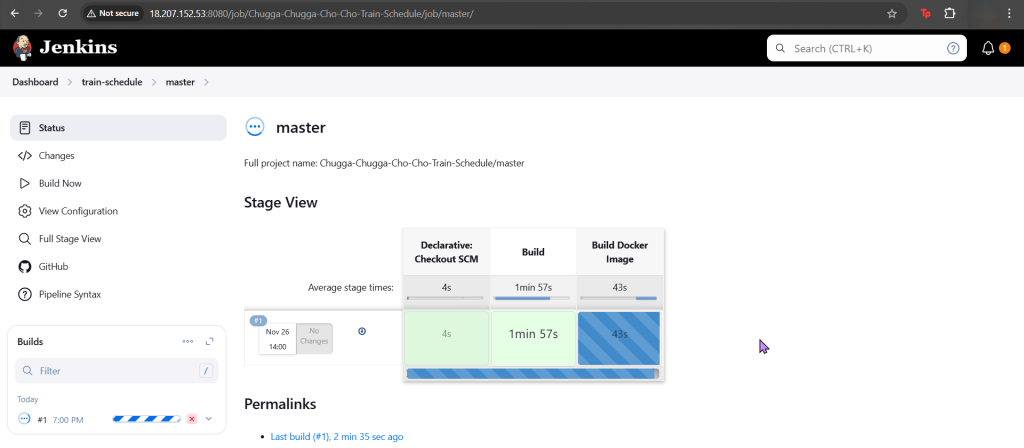
  • Run Deployment in Jenkins
  • Add Canary to Pipeline to run Deployment

Run Deployment in Jenkins:

Source Code:

  • Create fork & update username

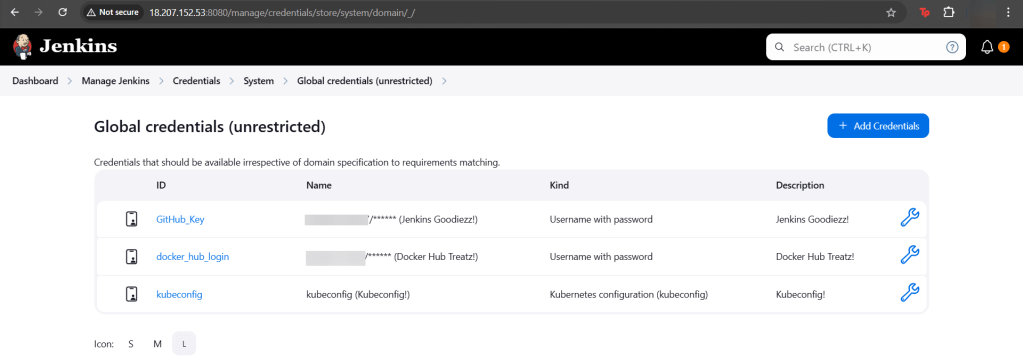
Setup Jenkins (Github access token, Docker Hub, & KubeConfig):

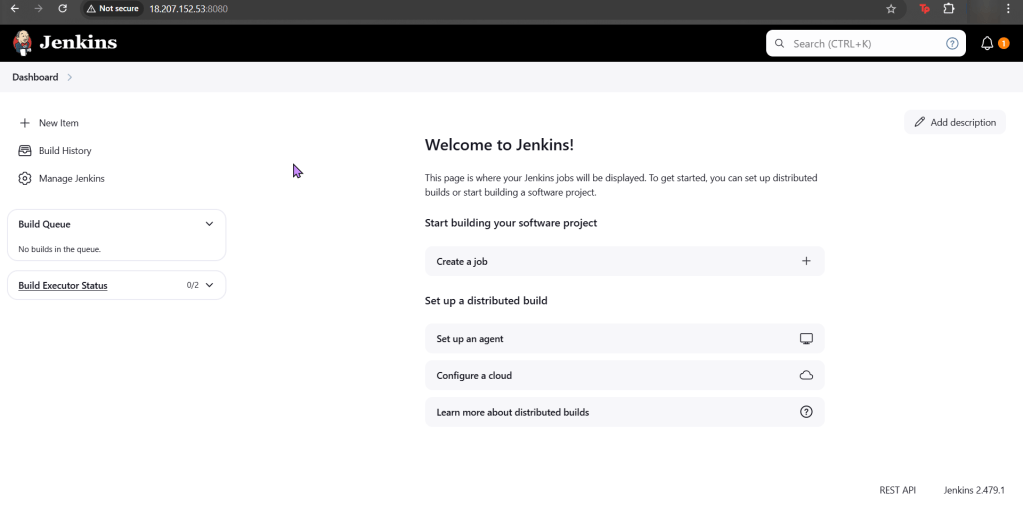
Jenkins:

  • Credz
    • Github user name & password (Access token)

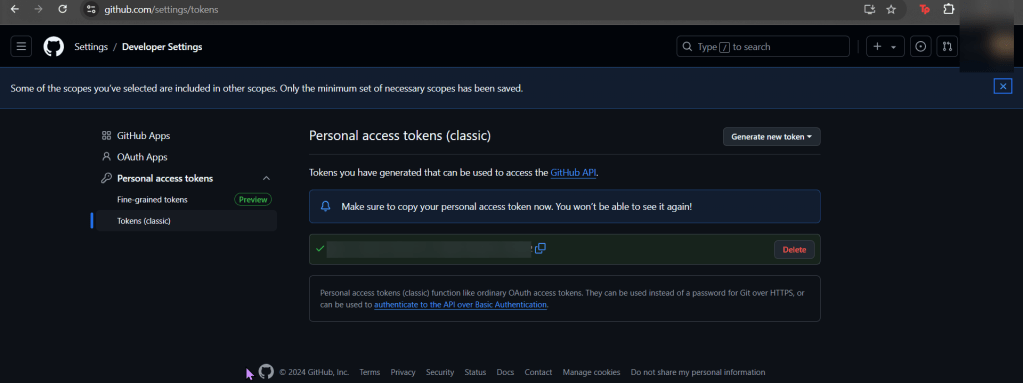
Github:

  • Generate access token

DockerHub:

  • DockerHub does not generate access tokens

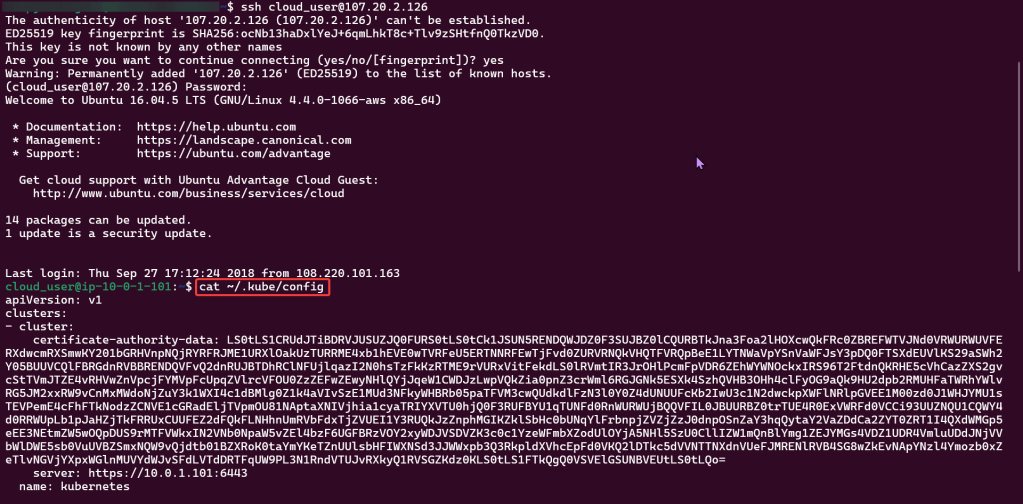
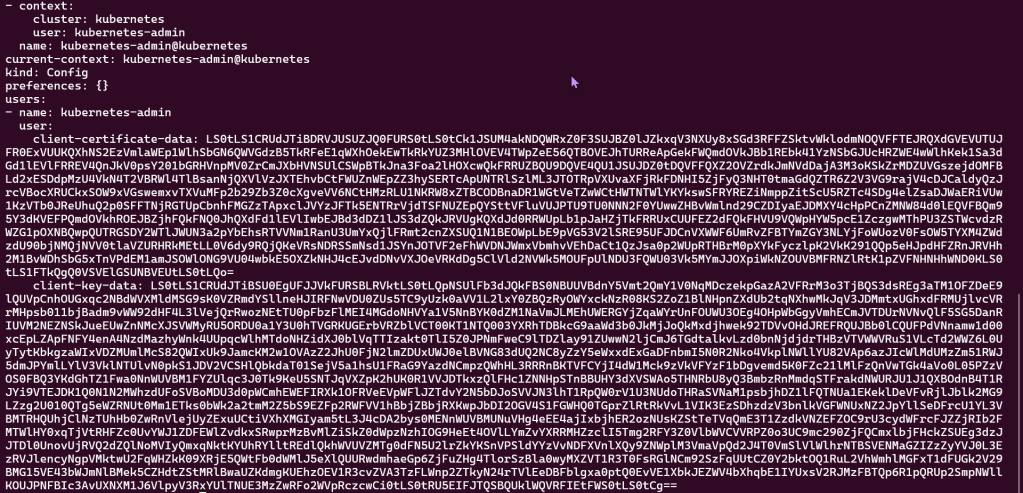
Kubernetes:

Add Canary to Pipeline to run Deployment:

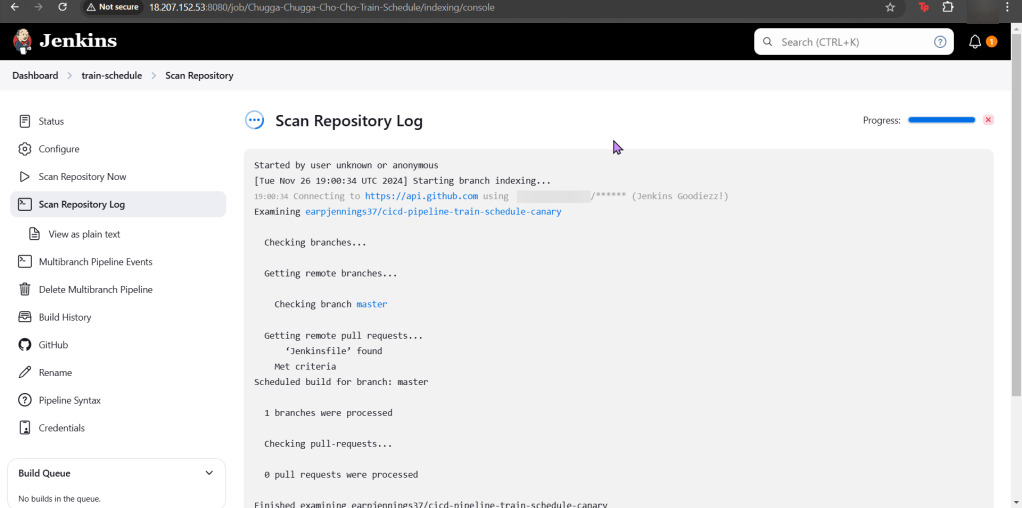
Create Jenkins Project:

  • Multi-Branch Pipeline
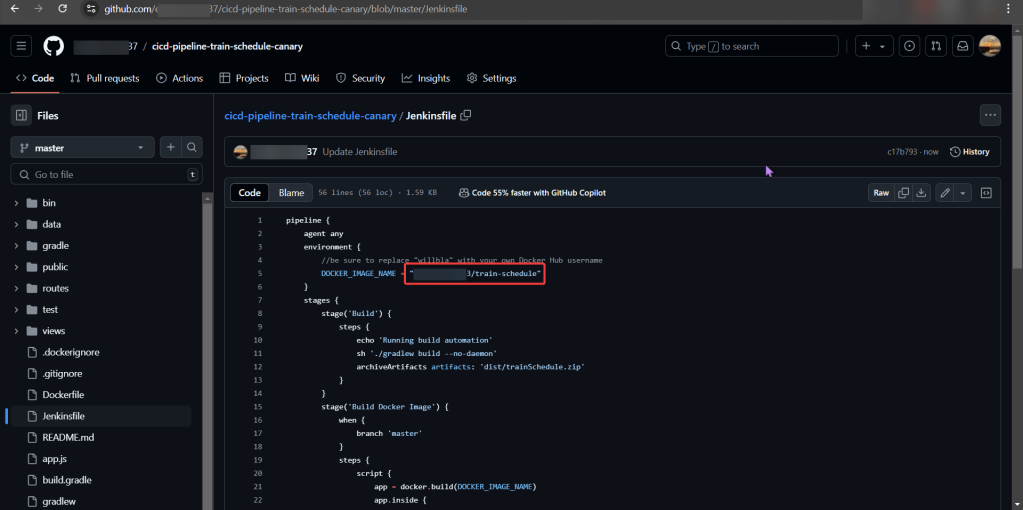
  • Github username
  • Owner & forked repository
    • Provided an option for URL, select deprecated visualization
  • Check it out homie!

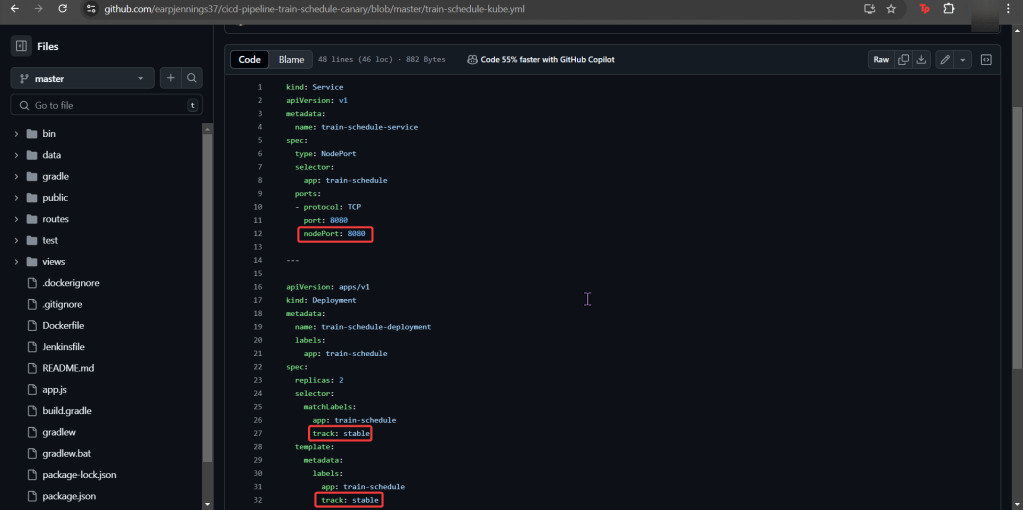
Canary Template:

  • We have prod, but need Canary features for stages in our deployment!
  • Pay Attention:
    • track
    • spec
    • selector
    • port

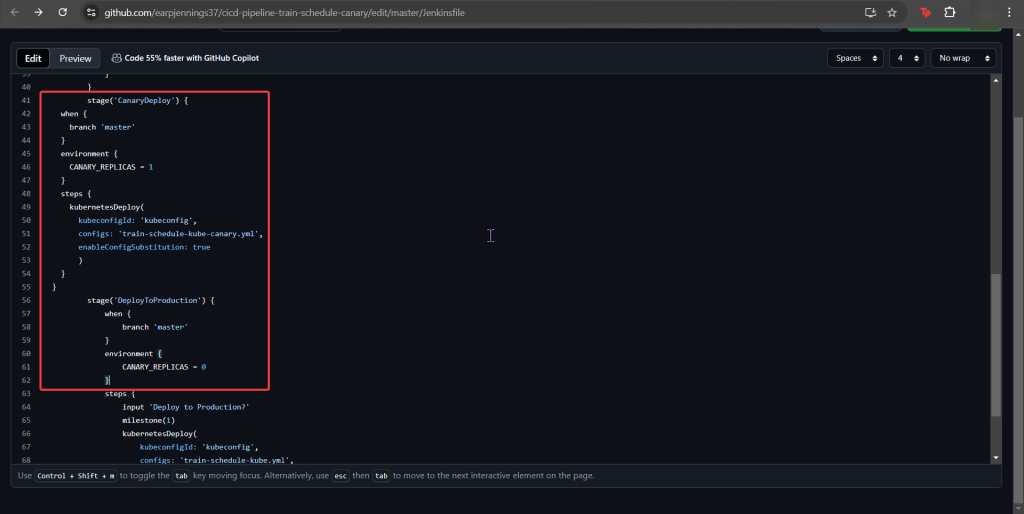
Add Jenkinsfile to Canary Stage:

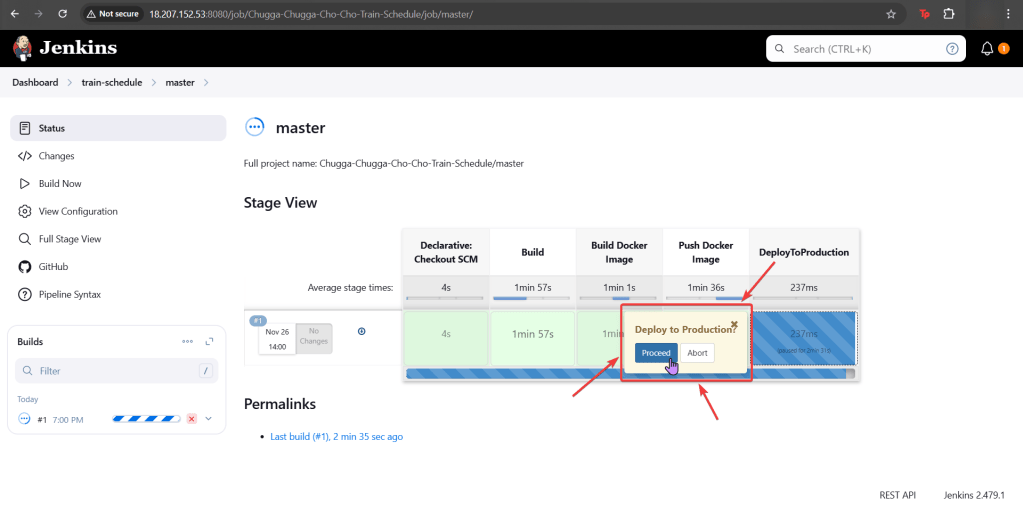
  • Between Docker Push & DeployToProduction
    • We add CanaryDeployment stage!

Modify Productions Deployment Stage:

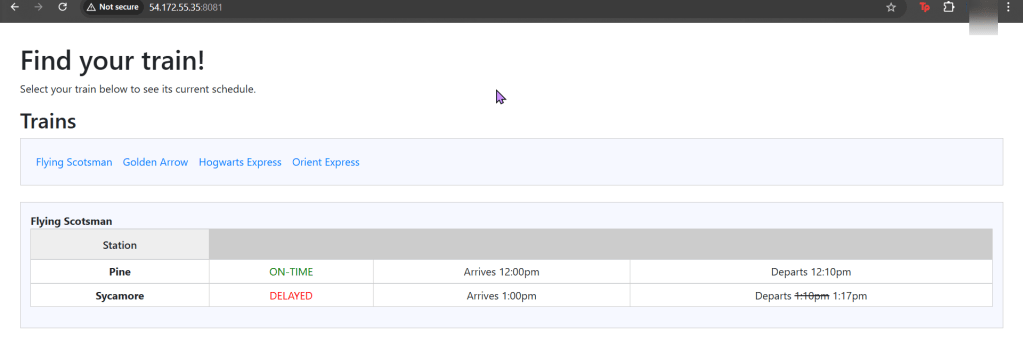
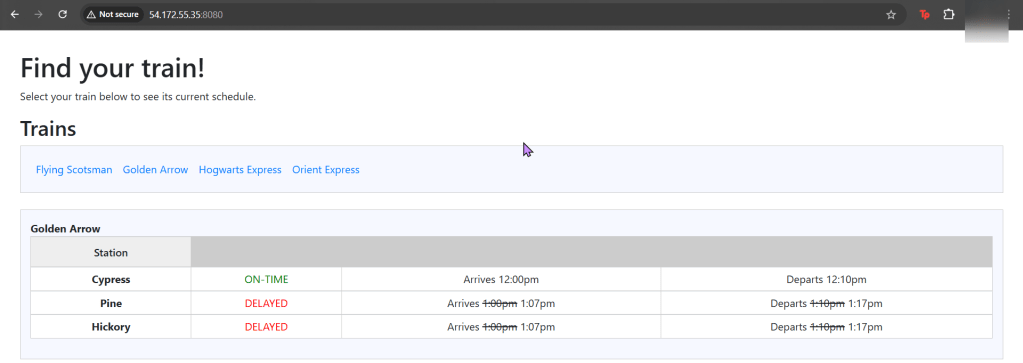
EXECUTE!!

Xbox Controller w/EKS & Terraform

Goal:

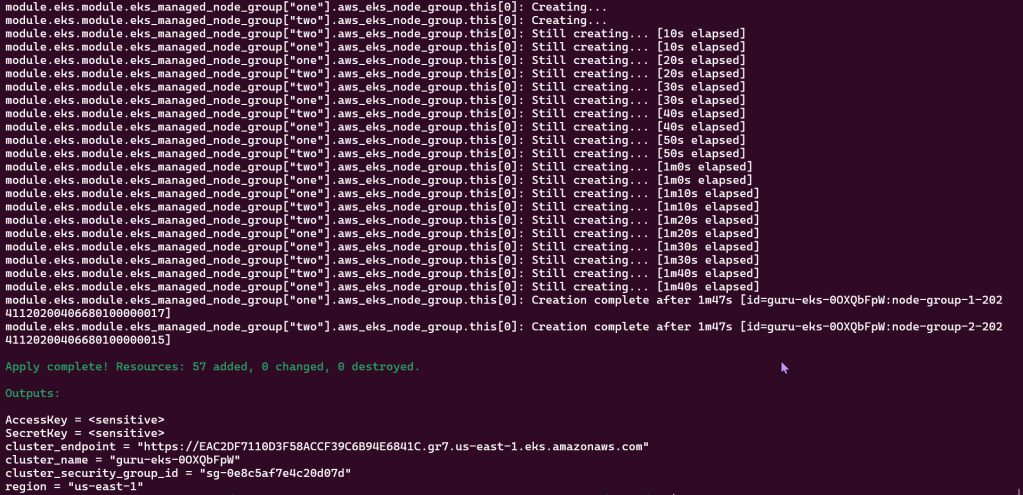
Okay, were not using Xbox controllers… but PS5 controllers! JK.. but what we will mess w/is deploy an EKS cluster to create admission controllers from a Terraform configuration file.

  • So what had happen was…
    • Deploy homebrew w/AWS CLI, kubectl, & terraform
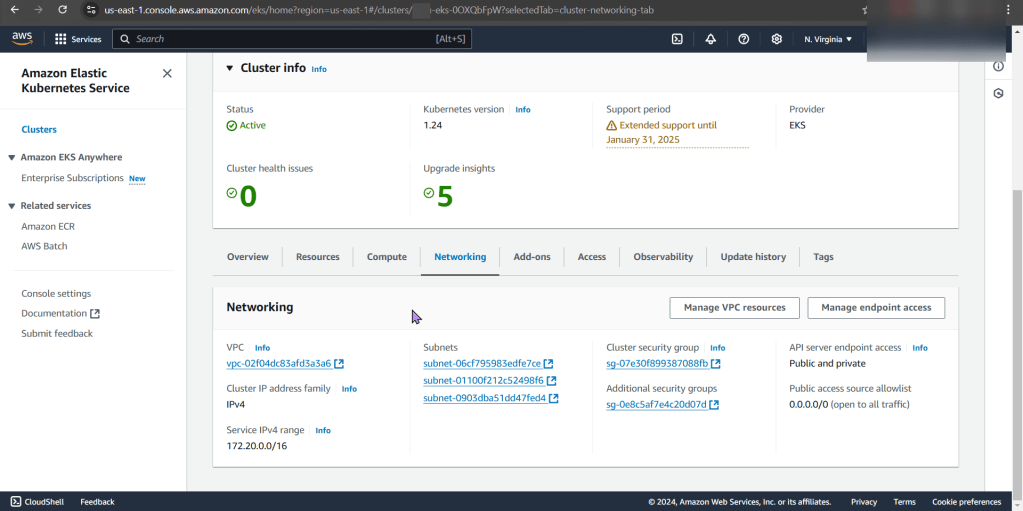
    • Which will communicate to AWS EKS & VPC.
    • Got it? Okay dope, lets bounce.

Lessons Learned:

  • Installing Homebrew, AWS CLI, Kubernetes CLI, & Terraform
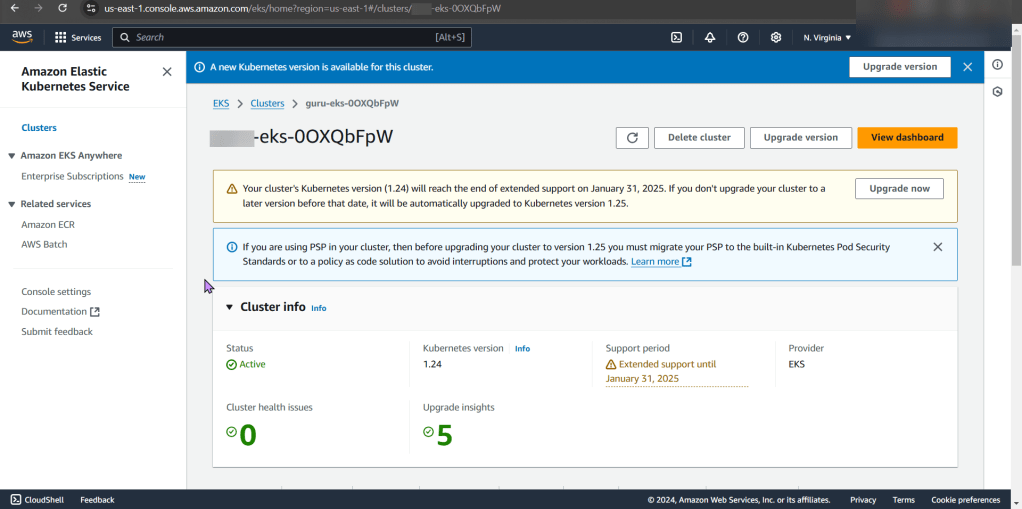
  • Deploy EKS Cluster

Install da Toolzz:

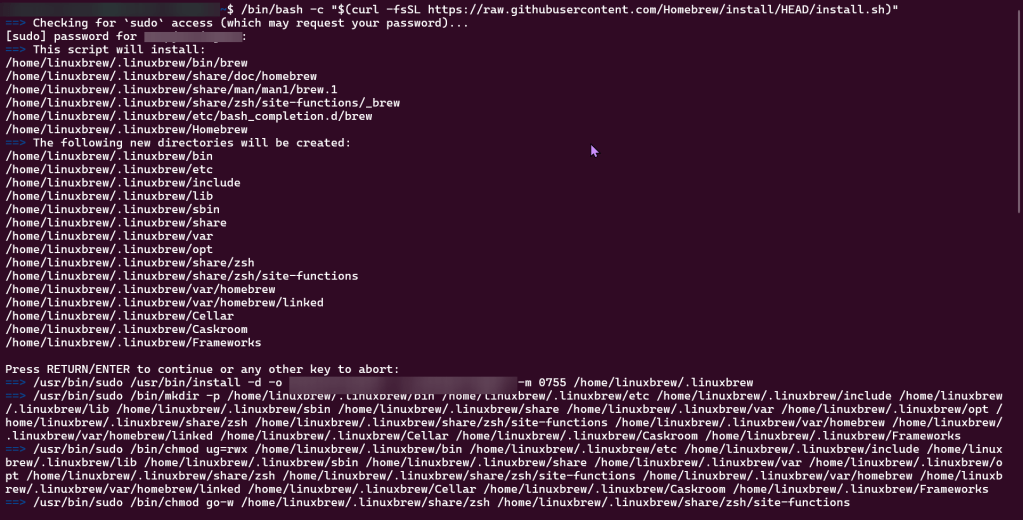
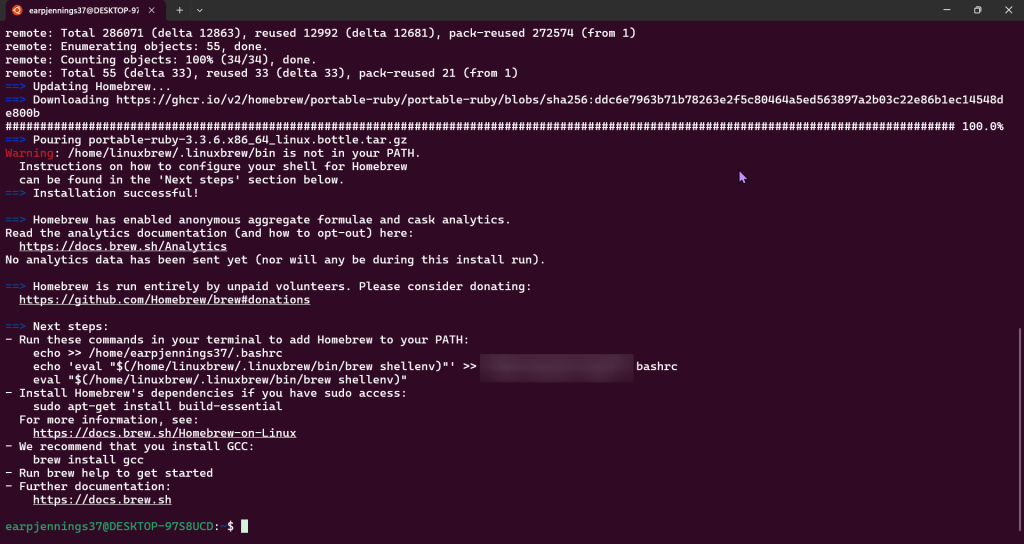
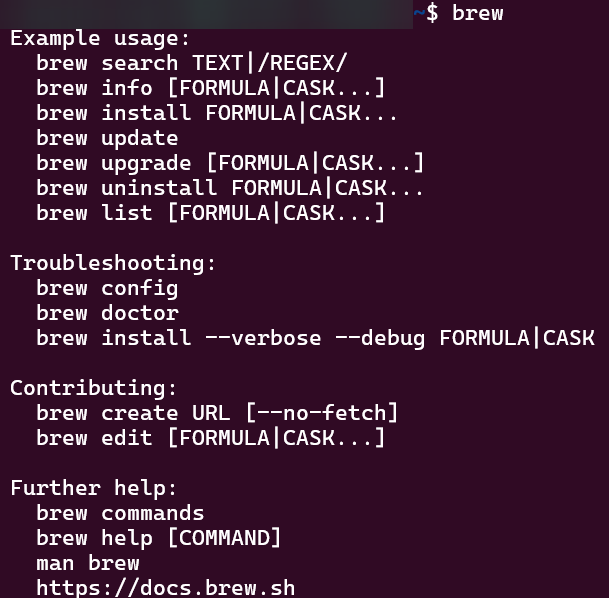
Homebrew:

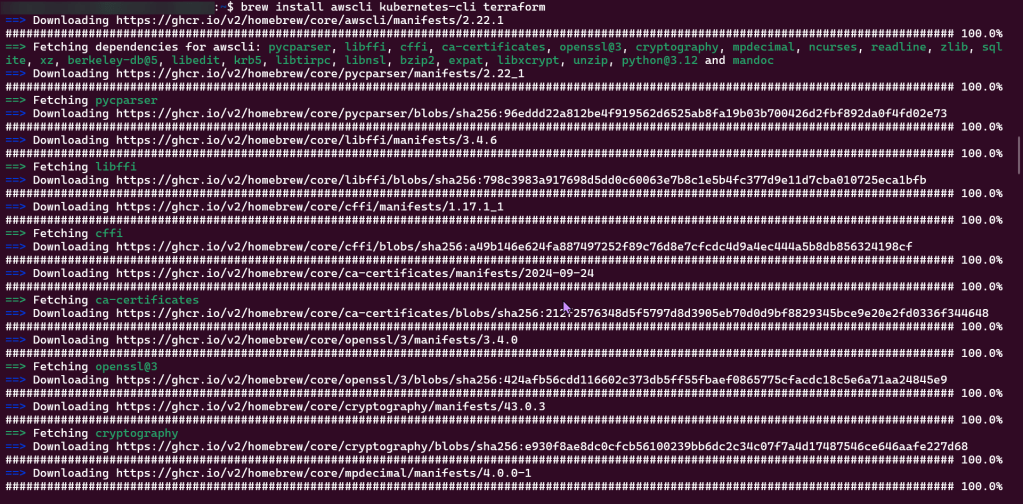
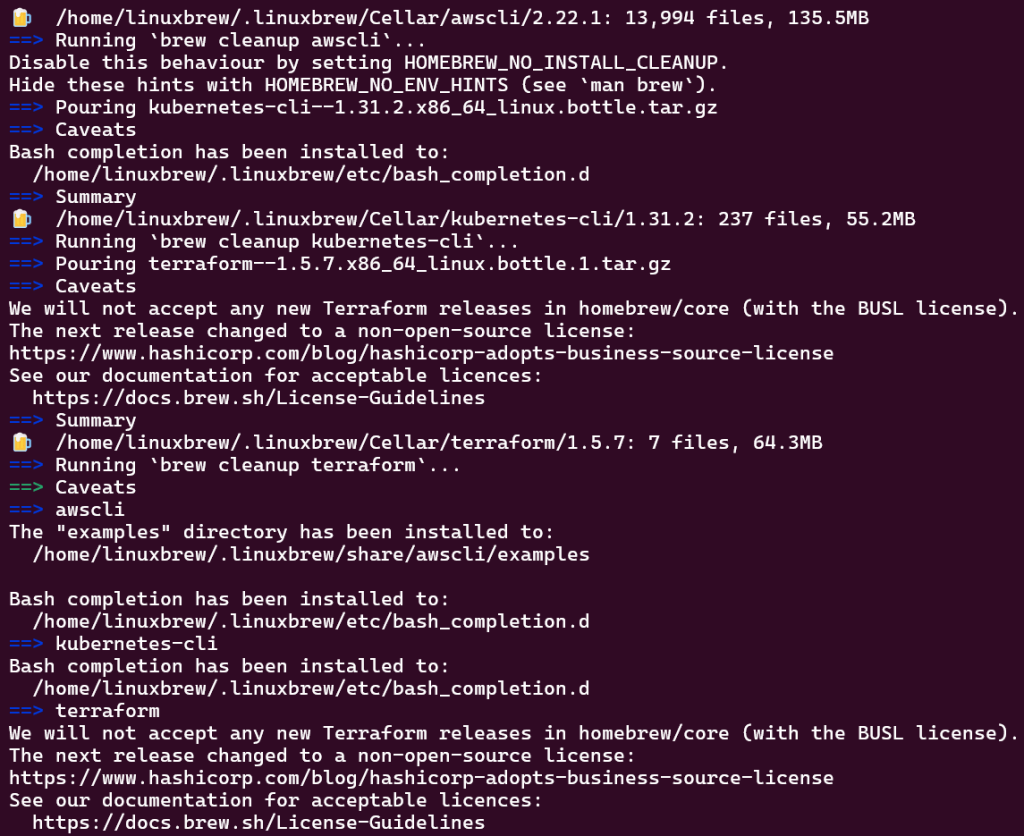
Brew Install:

  • AWS CLI
  • Kubernetes-cli (kubectl)
  • Terraform

Deploy EKS Cluster

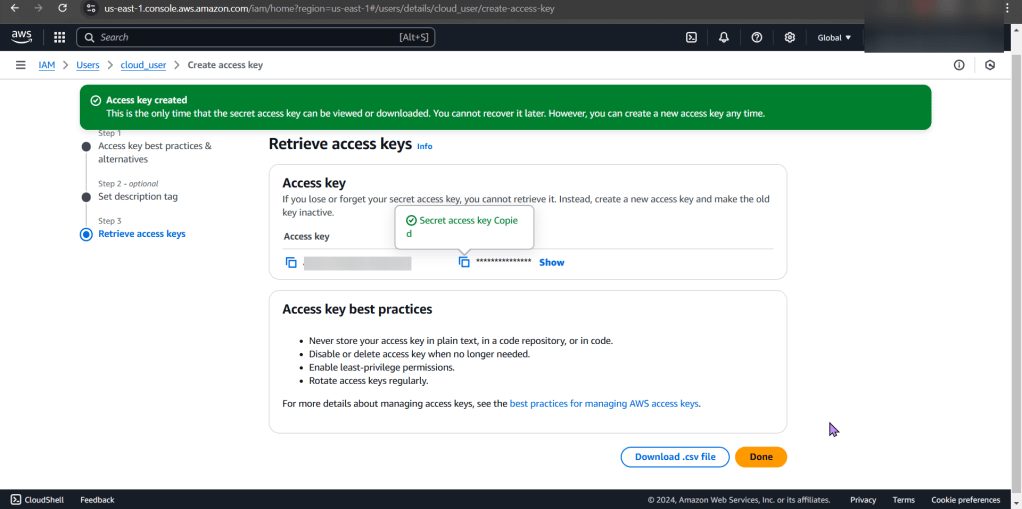
Create Access Keys:

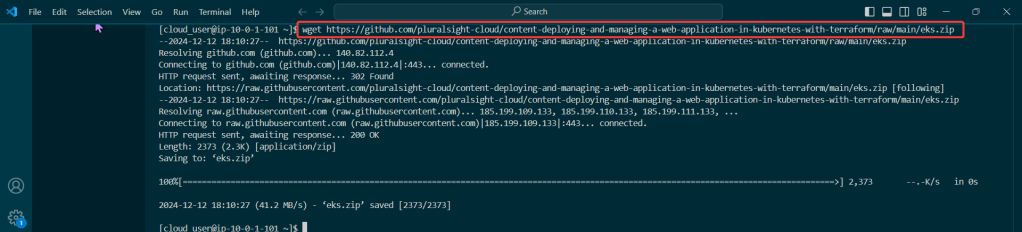
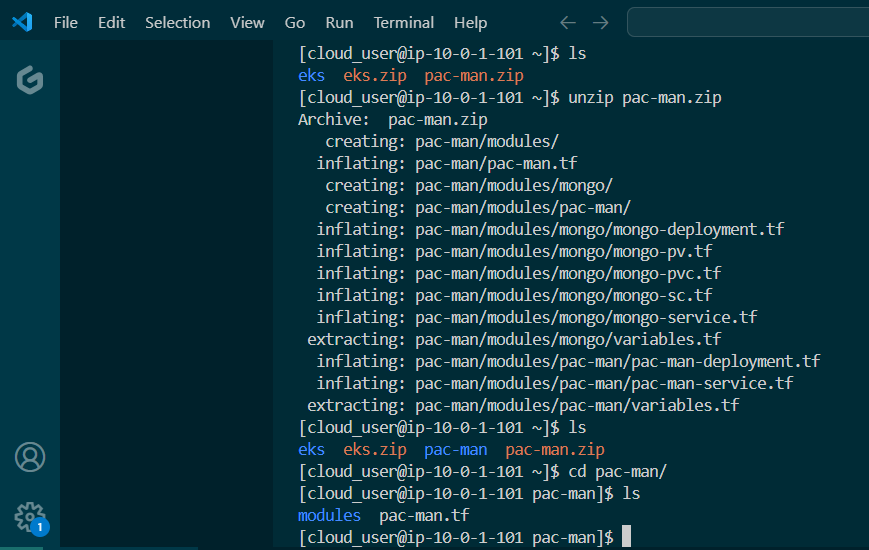
Clone Repo:

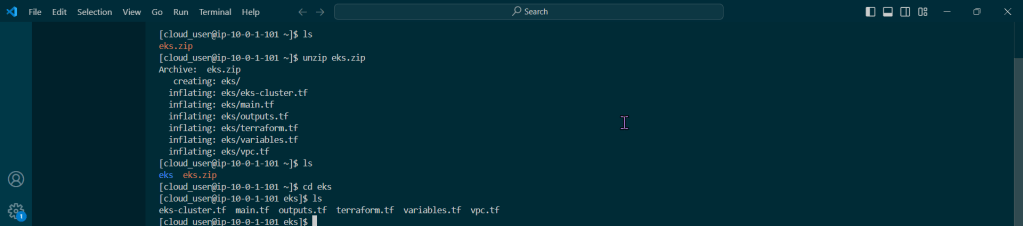
Move into EKS Directory:

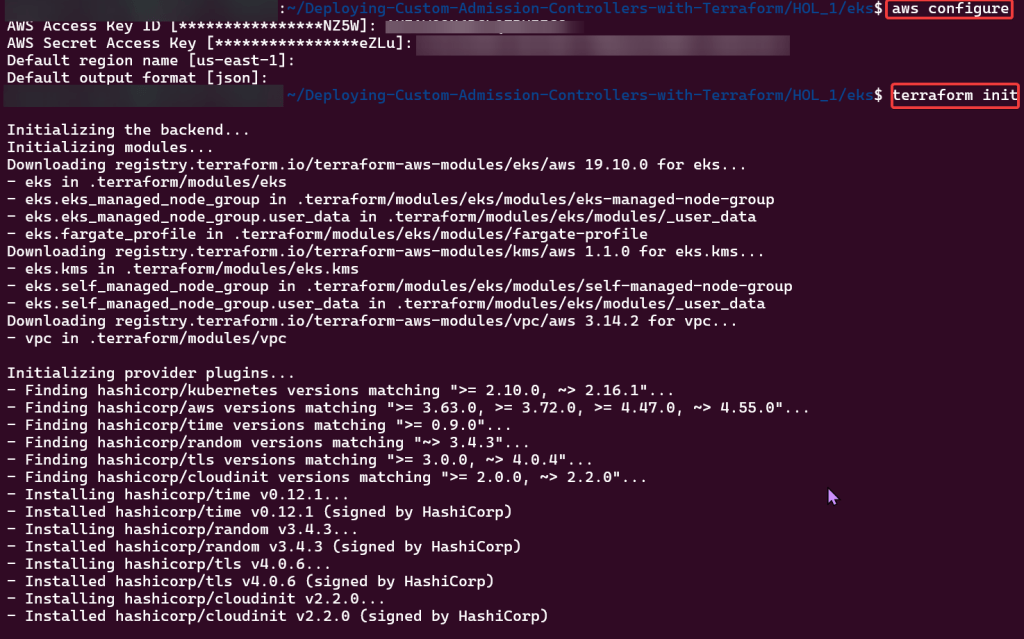
Initialize Directory:

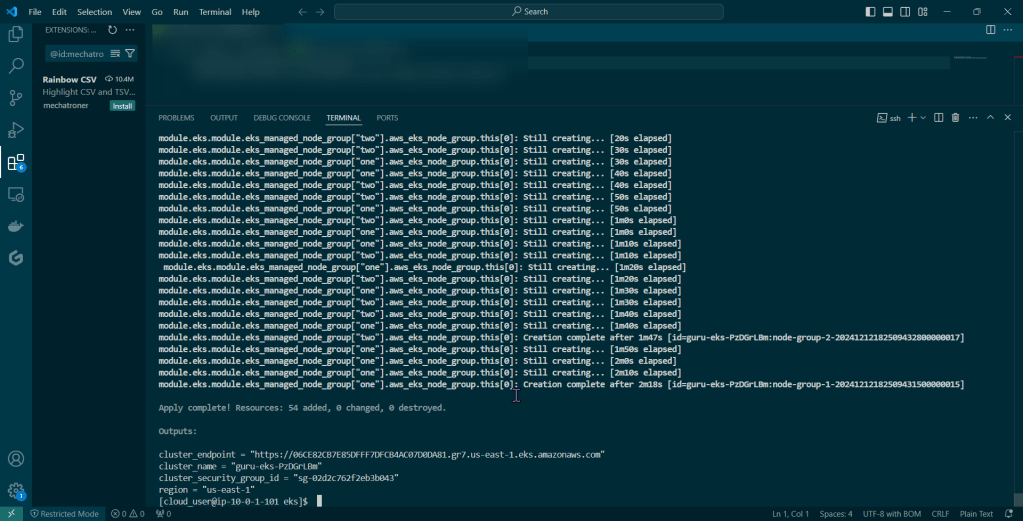
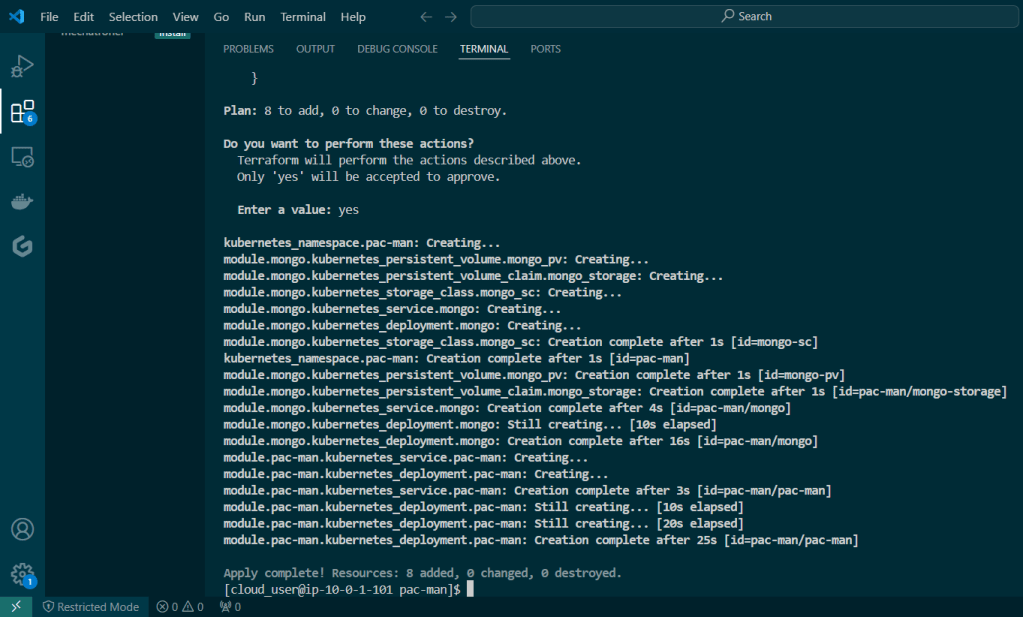
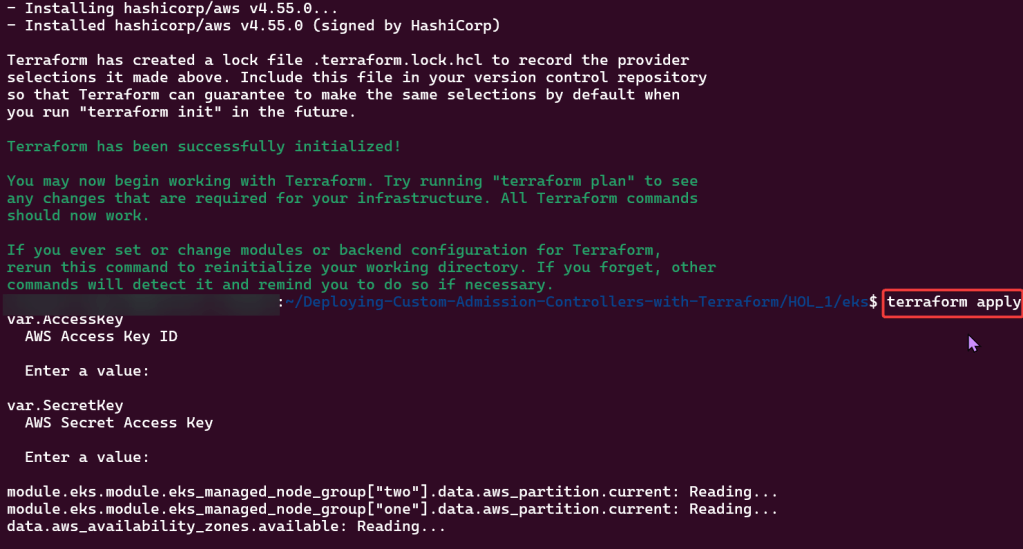
Apply Terraform Configuration:

Configure Kubernetes CLI w/EKS Cluster:

Are you connected bruh?

Wanna Monitor a CloudFormation stack w/AWS Config?

Goal:

Lets see how to use AWS Config to monitor if EC2 instances that are launched comply w/the instance types specified in AWS Config

Lessons Learned:

  • Create AWS Config Rule
  • Make EC2 instance compliant w/config rule

Create AWS Config Rule:

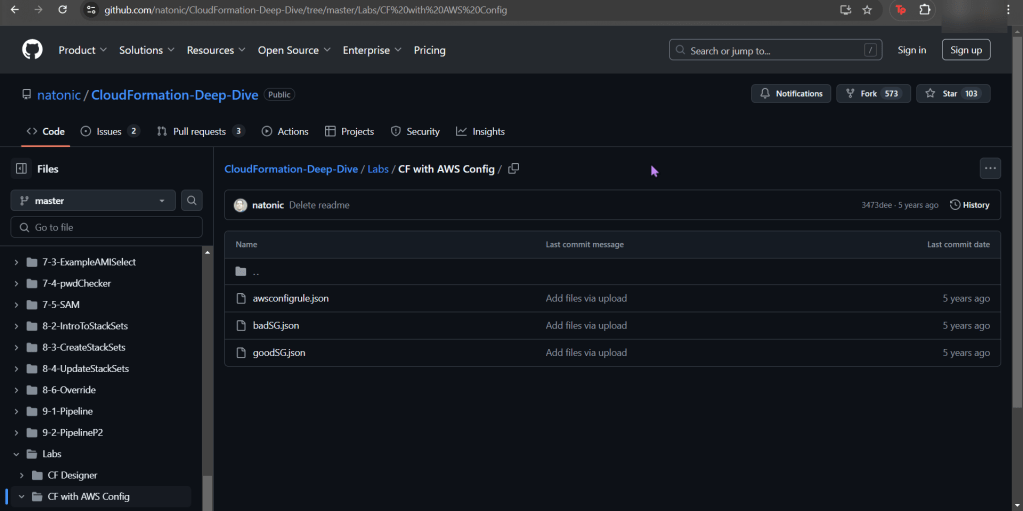
  • You will see a couple json files, grab the 2nd one “badSG”
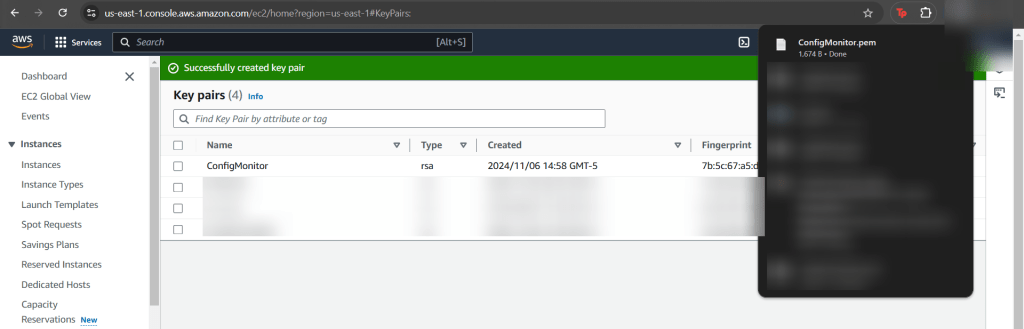
  • Create a key-pair
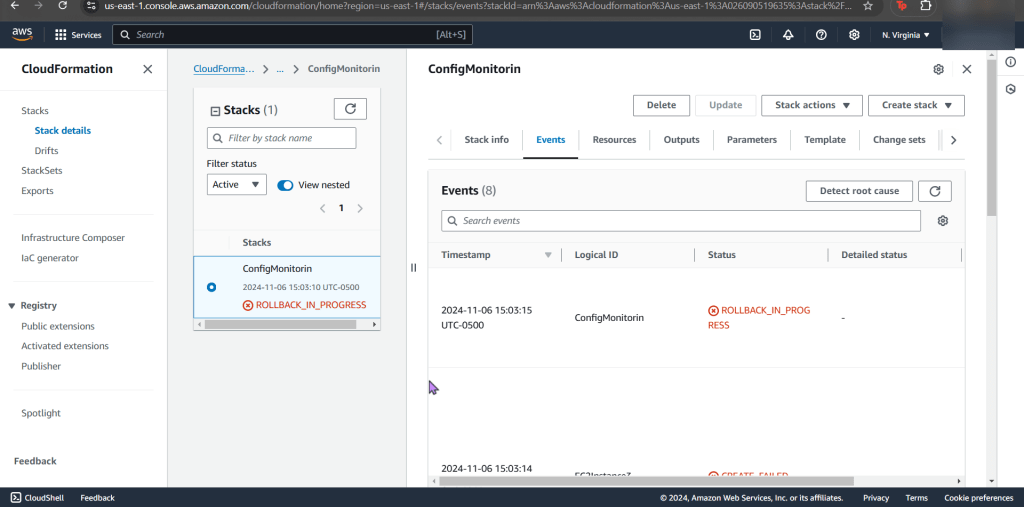
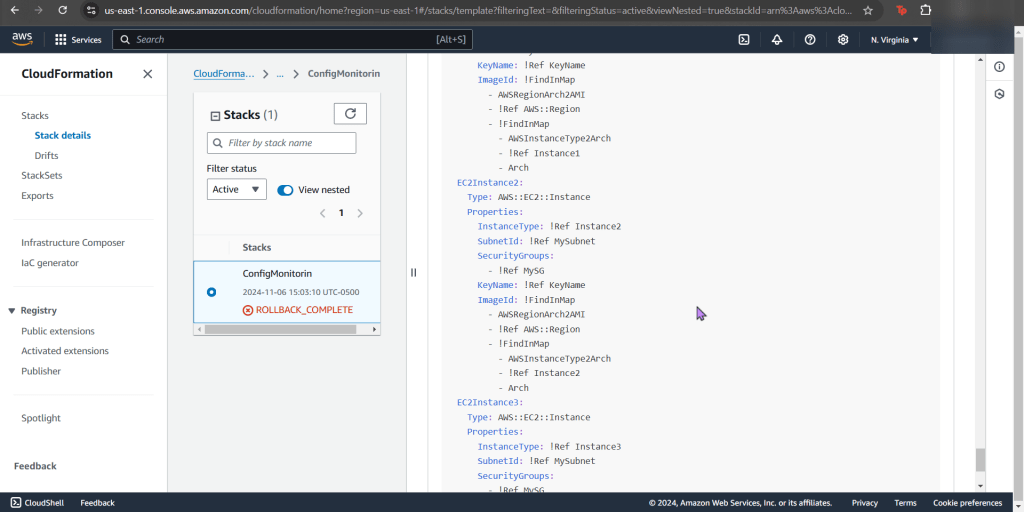
  • Example of the issue in the CloudFormation Stack
  • Here you can see we only say “securitygroups” – – – not, “SecuritygroupIDs”.
    • Easy fix, once you find it in the documentation.

Create new stack for updated SG:

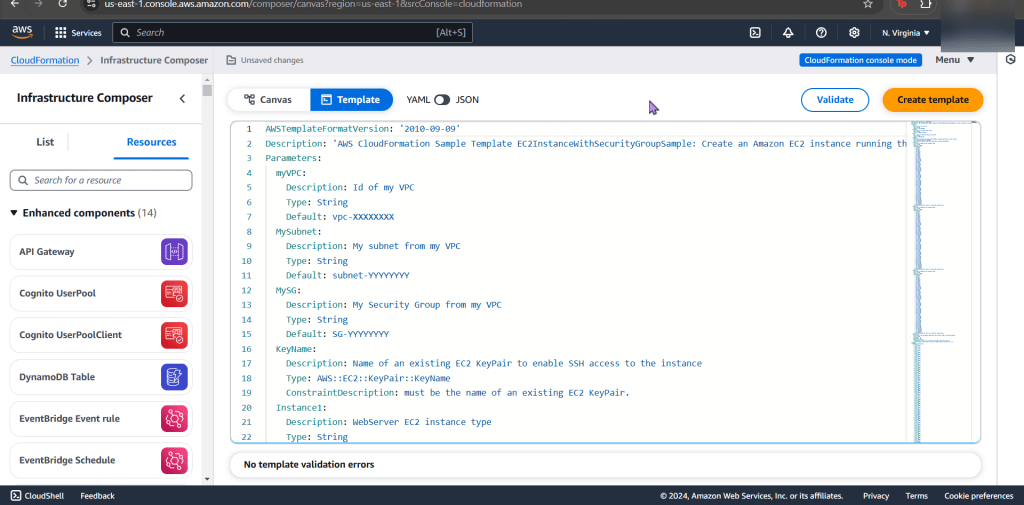
  • Go ahead & post the 3rd json file in the “infrastructure composer” under CloudFormation
  • Like before go get your subnet, SG, & VPC IDs

Make EC2 instance compliant w/config rule:

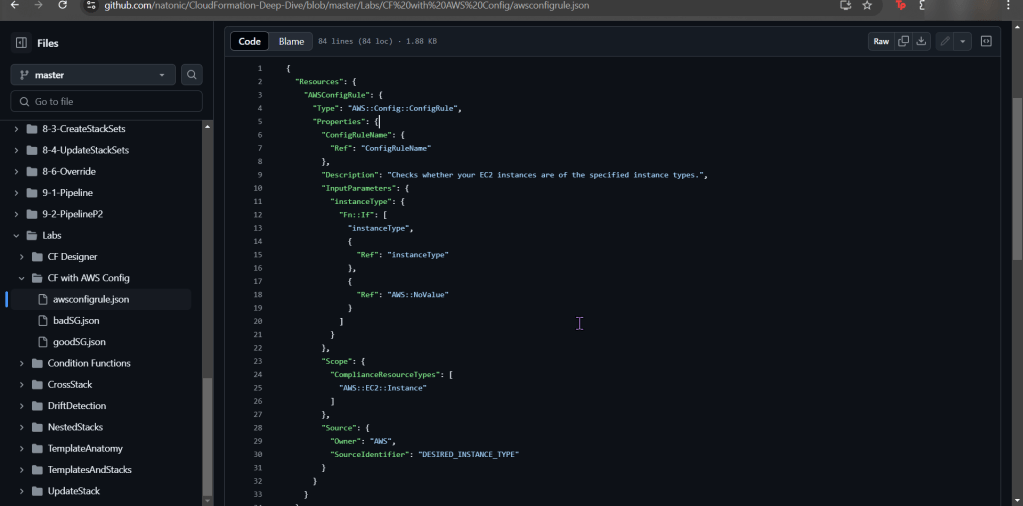
  • Snag the 1st json file in the CloudFormation github link
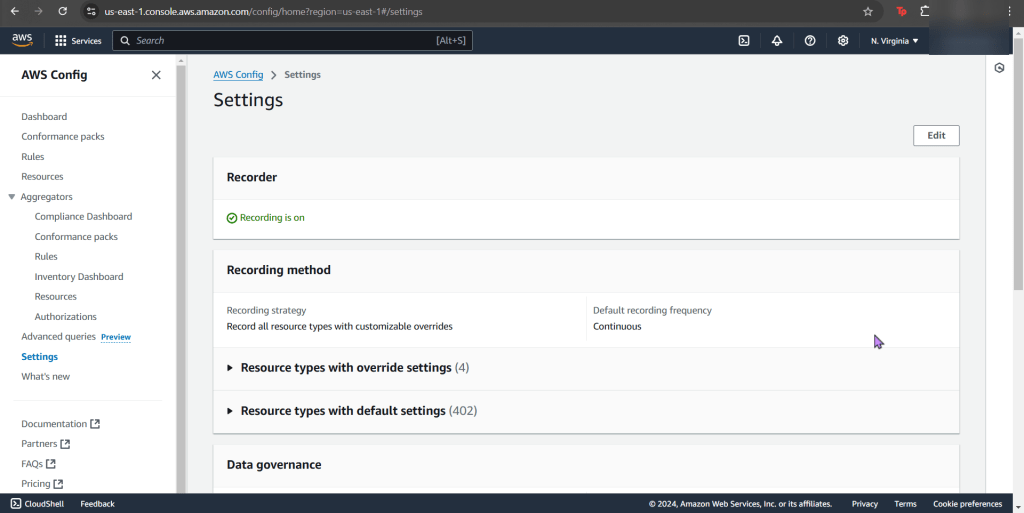
  • Go to AWS Config
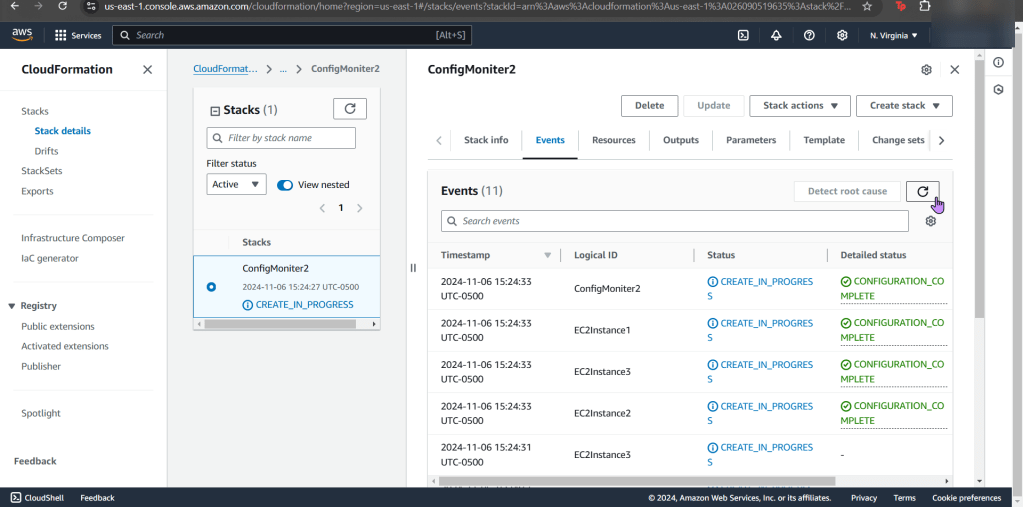
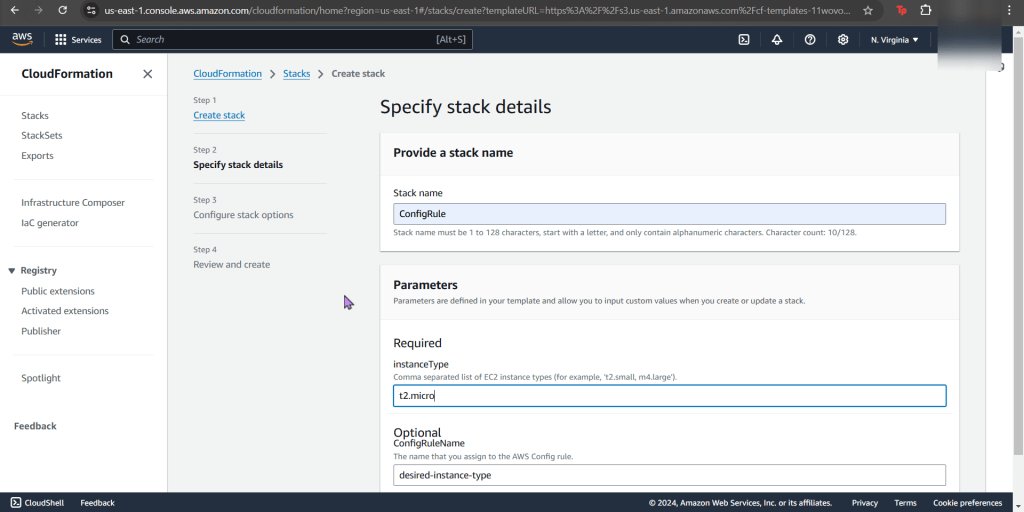
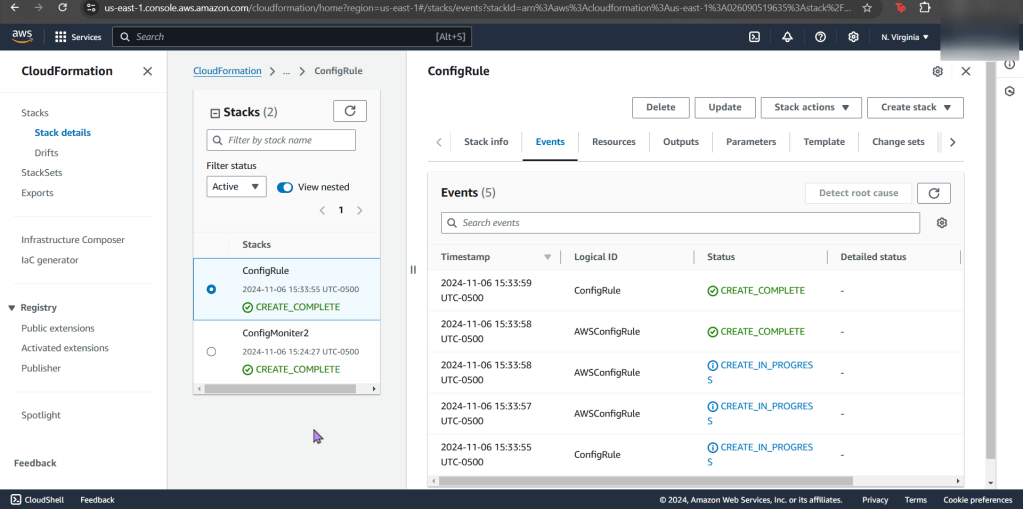
  • Now create a new stack for config record
  • Now your stack is created – wow.
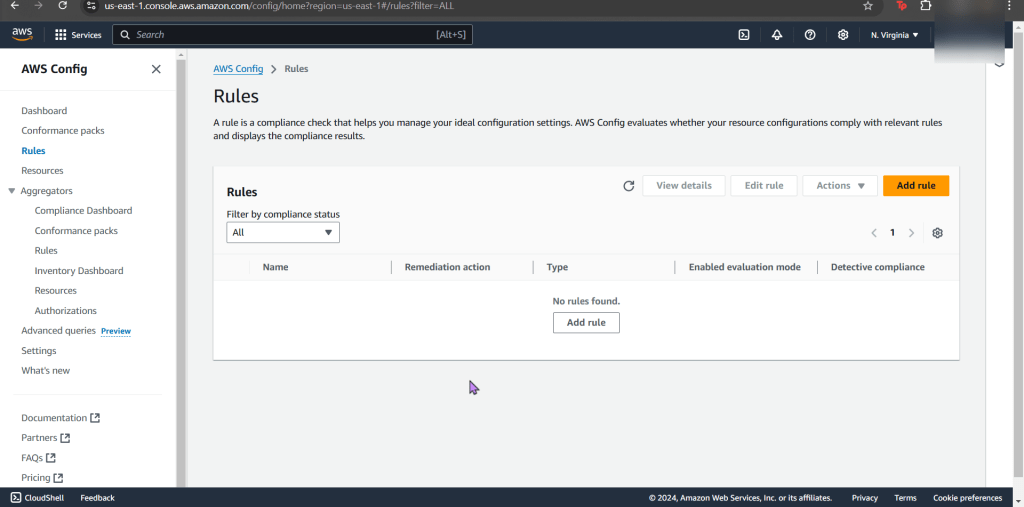
  • Jump back to AWS Config to see your rules, are you compliant?
    • If not, re-upload your CloudFormation template depending what your AWS Config found
      • Example
        • EC2 instance non-compliant
  • Now what? Well delete whatever is not in use. OR don’t & see your bills pile up!

Stacks on Stacks of Docker Swarmzzz

Goal:

  • Migrate my plethora of Docker Containers w/Docker SWARRRRRRM

Lessons Learned:

  • Set up Swarm cluster w/manager & worker nodes
  • Test cluster

Initialize the SWARRRM:

  • Connect w/command:
    • SSH into public IP address
  • Begin to conduct swarm w/command:
    • Perform docker swarm init \
  • Establish private IP address w/command:
    • –advertise-addr
  • BOOOOM, now your an assistant-to-the-regional-manager!
  • Now you receive a command to place in your worker node, you did create a worker node…right?
  • Once your worker node is connected, quick see your list of nodes w/command:
    • docker node ls
  • Now create Ngninx service for the swarm w/the command above
    • (see above for the 4 lines of code)
  • To quick see your list of services w/the command:
    • docker service ls

Add Worker to Cluster:

  • Connect w/command:
    • SSH into public IP address
  • Add worker node to manager node w/command seen below
    • (see below for lengthy command)