AWS IAM +1 to partayyyy

  • logged into AWS
    • aws configure
  • Created 4 tf files
    • main
    • variables
    • output
    • tfvars
main.tf
provider "aws" {
  region = var.aws_region
}

# Create IAM user
resource "aws_iam_user" "example_user" {
  name = var.user_name
}

# Attach policy to the user
resource "aws_iam_user_policy_attachment" "example_user_policy" {
  user       = aws_iam_user.example_user.name
  policy_arn = var.policy_arn
}

# Create access keys for the user
resource "aws_iam_access_key" "example_user_key" {
  user = aws_iam_user.example_user.name
}
output.tf
output "iam_user_name" {
  value = aws_iam_user.example_user.name
}

output "access_key_id" {
  value = aws_iam_access_key.example_user_key.id
}

output "secret_access_key" {
  value     = aws_iam_access_key.example_user_key.secret
  sensitive = true
}
variables.tf
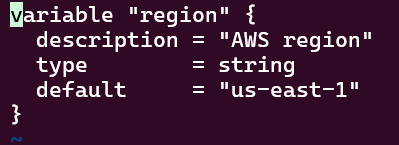
variable "aws_region" {
  description = "AWS region"
  type        = string
  default     = "us-east-1"
}

variable "user_name" {
  description = "IAM username"
  type        = string
  default     = "example-user"
}

variable "policy_arn" {
  description = "IAM policy ARN to attach"
  type        = string
  default     = "arn:aws:iam::aws:policy/AmazonS3ReadOnlyAccess"
}
terrform.tfvars
aws_region = "us-east-1"
user_name  = "terraform-user"
policy_arn = "arn:aws:iam::aws:policy/AdministratorAccess"
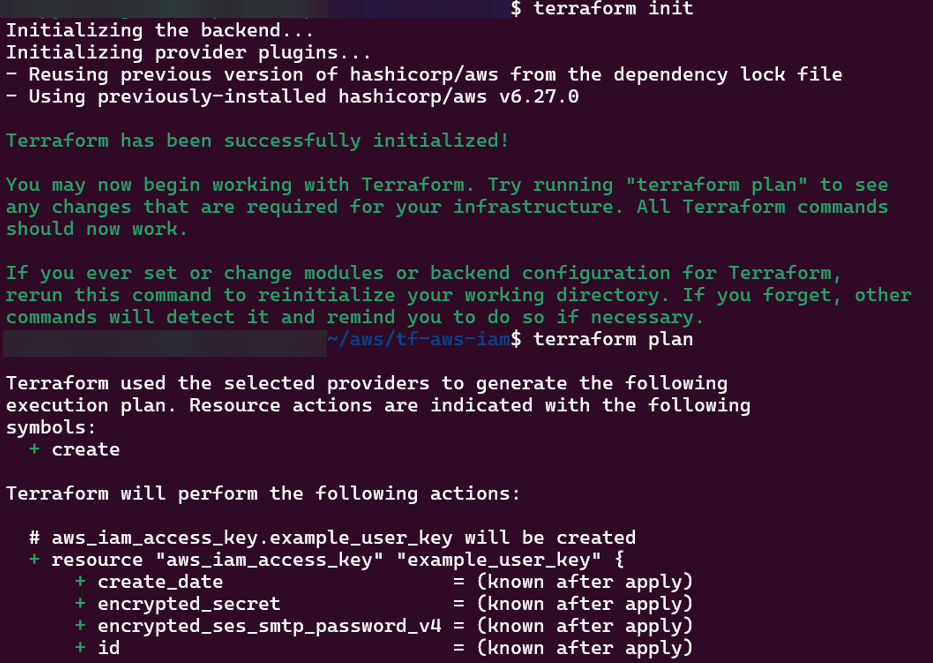
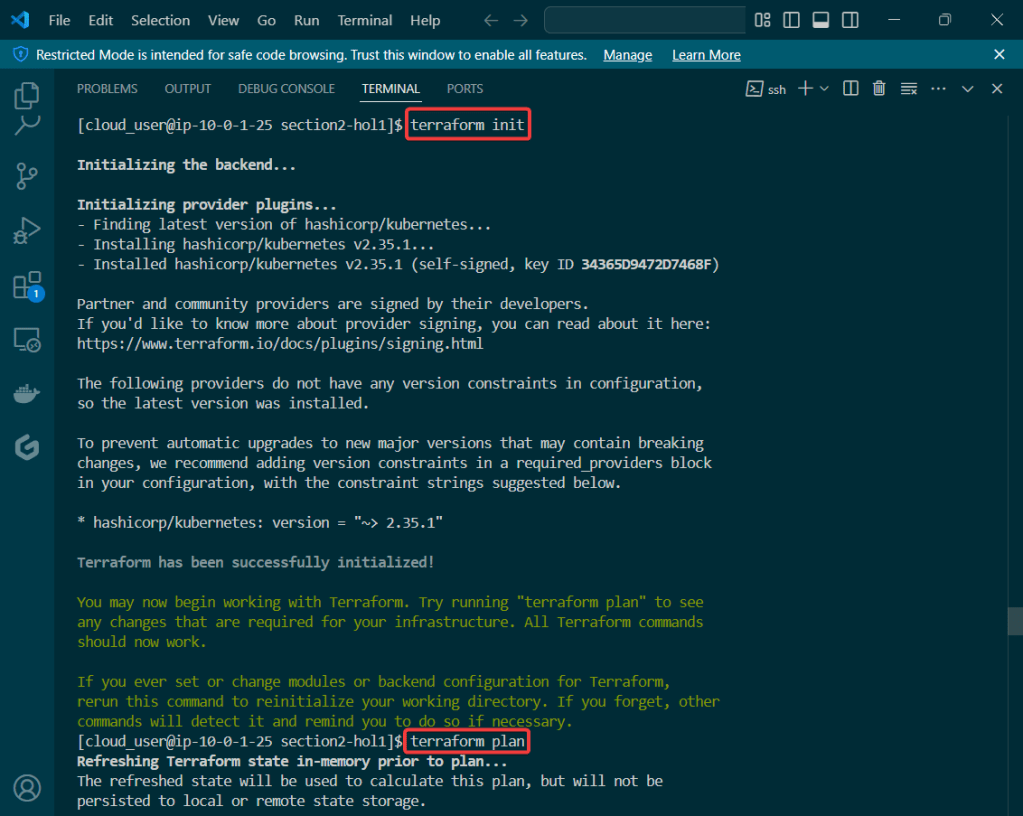
  • terraform fmt
  • terraform init
  • terraform plan
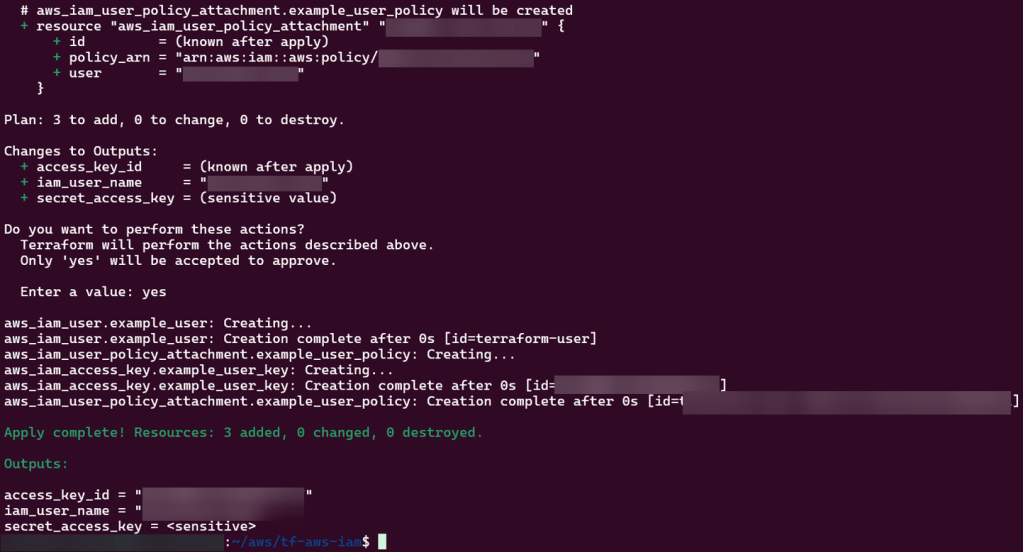
  • terraform apply

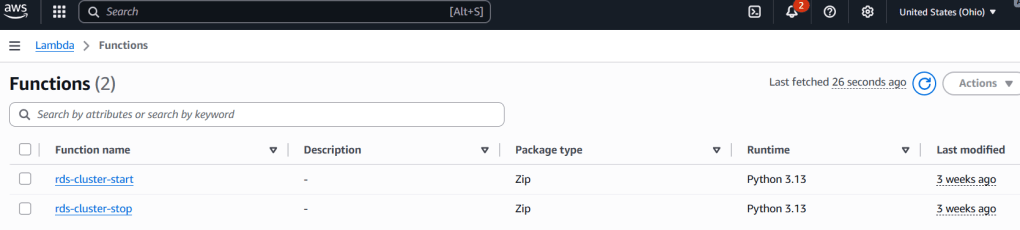
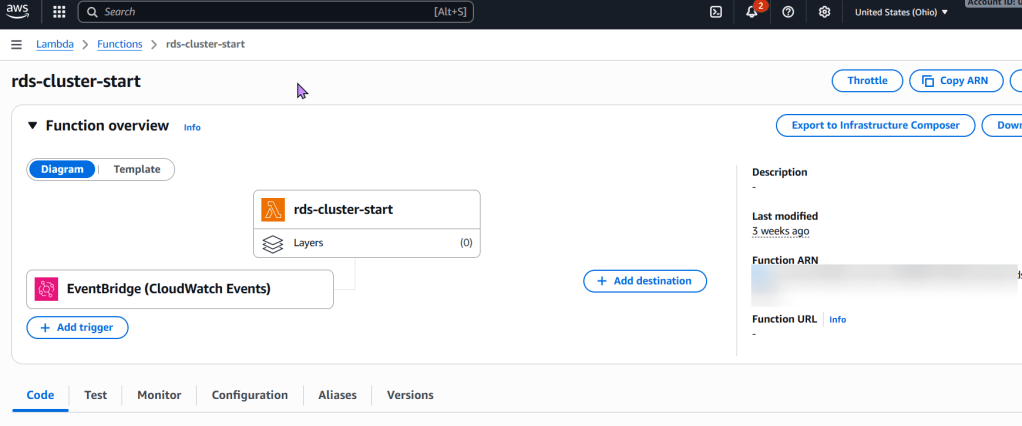
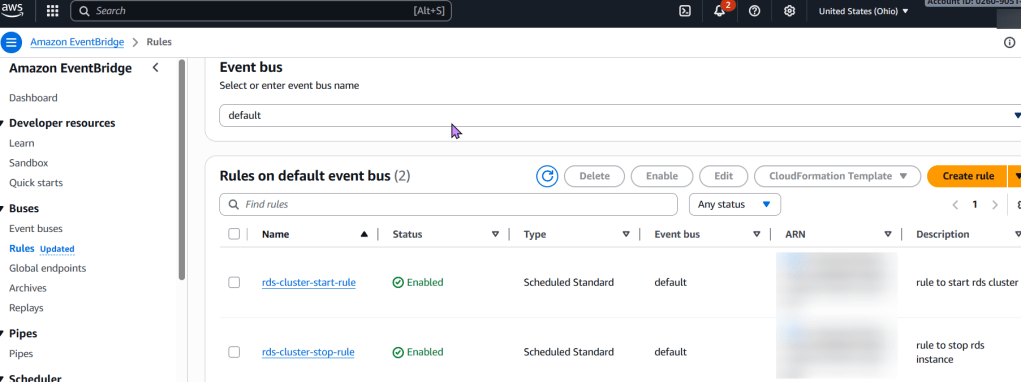
Lambda Magic for RDS

Steps below to create:

To stop an RDS instance every 7 days using AWS Lambda and Terraform, below are the following concepts followed:

Explanation:

  • Step 1
  • Step 2
    • Lambda FunctionA Python-based Lambda function that uses the AWS SDK (boto3) to stop the specified RDS instance(s).
  • Step 3
  • Step 4
    • To deploy:
      • Save the Terraform code in .tf files and the Python code as lambda_function.py.
      • Zip the Python file into lambda_function.zip.
      • Initialize Terraform: terraform init
      • Plan the deployment: terraform plan
        • Apply the changes: terraform apply
  • Main.tf
# Define an IAM role for the Lambda function
resource "aws_iam_role" "rds_stop_lambda_role" {
  name = "rds-stop-lambda-role"

  assume_role_policy = jsonencode({
    Version = "2012-10-17",
    Statement = [
      {
        Action = "sts:AssumeRole",
        Effect = "Allow",
        Principal = {
          Service = "lambda.amazonaws.com"
        }
      }
    ]
  })
}

# Attach a policy to the role allowing RDS stop actions and CloudWatch Logs
resource "aws_iam_role_policy" "rds_stop_lambda_policy" {
  name = "rds-stop-lambda-policy"
  role = aws_iam_role.rds_stop_lambda_role.id

  policy = jsonencode({
    Version = "2012-10-17",
    Statement = [
      {
        Effect = "Allow",
        Action = [
          "rds:StopDBInstance",
          "rds:DescribeDBInstances"
        ],
        Resource = "*" # Restrict this to specific RDS instances if needed
      },
      {
        Effect = "Allow",
        Action = [
          "logs:CreateLogGroup",
          "logs:CreateLogStream",
          "logs:PutLogEvents"
        ],
        Resource = "arn:aws:logs:*:*:*"
      }
    ]
  })
}

# Create the Lambda function
resource "aws_lambda_function" "rds_stop_lambda" {
  function_name = "rds-stop-every-7-days"
  handler       = "lambda_function.lambda_handler"
  runtime       = "python3.9"
  role          = aws_iam_role.rds_stop_lambda_role.arn
  timeout       = 60

  # Replace with the path to your zipped Lambda code
  filename         = "lambda_function.zip"
  source_code_hash = filebase64sha256("lambda_function.zip")

  environment {
    variables = {
      RDS_INSTANCE_IDENTIFIER = "my-rds-instance" # Replace with your RDS instance identifier
      REGION                  = "us-east-1"       # Replace with your AWS region
    }
  }
}

# Create an EventBridge (CloudWatch Event) rule to trigger the Lambda
resource "aws_cloudwatch_event_rule" "rds_stop_schedule" {
  name                = "rds-stop-every-7-days-schedule"
  schedule_expression = "cron(0 0 ? * SUN *)" # Every Sunday at 00:00 UTC
}

# Add the Lambda function as a target for the EventBridge rule
resource "aws_cloudwatch_event_target" "rds_stop_target" {
  rule      = aws_cloudwatch_event_rule.rds_stop_schedule.name
  target_id = "rds-stop-lambda-target"
  arn       = aws_lambda_function.rds_stop_lambda.arn
}

# Grant EventBridge permission to invoke the Lambda function
resource "aws_lambda_permission" "allow_cloudwatch_to_call_lambda" {
  statement_id  = "AllowExecutionFromCloudWatch"
  action        = "lambda:InvokeFunction"
  function_name = aws_lambda_function.rds_stop_lambda.function_name
  principal     = "events.amazonaws.com"
  source_arn    = aws_cloudwatch_event_rule.rds_stop_schedule.arn
}
  • lambda_function.py (Python code for the Lambda function):
import boto3
import os

def lambda_handler(event, context):
    rds_instance_identifier = os.environ.get('RDS_INSTANCE_IDENTIFIER')
    region = os.environ.get('REGION')

    if not rds_instance_identifier or not region:
        print("Error: RDS_INSTANCE_IDENTIFIER or REGION environment variables are not set.")
        return {
            'statusCode': 400,
            'body': 'Missing environment variables.'
        }

    rds_client = boto3.client('rds', region_name=region)

    try:
        response = rds_client.stop_db_instance(
            DBInstanceIdentifier=rds_instance_identifier
        )
        print(f"Successfully initiated stop for RDS instance: {rds_instance_identifier}")
        return {
            'statusCode': 200,
            'body': f"Stopping RDS instance: {rds_instance_identifier}"
        }
    except Exception as e:
        print(f"Error stopping RDS instance {rds_instance_identifier}: {e}")
        return {
            'statusCode': 500,
            'body': f"Error stopping RDS instance: {e}"
        }
  • Zipping the Lambda Code:
zip lambda_function.zip lambda_function.py

Come on, lets Explore Terraform State w/Kubernetes Containers

Let’s blend some pimp tools together & launch something into space – cyber space that is. Below is an example to show useful it is to understand Terraform state, deploy resources w/Kubernetes, & see how Terraform maintains the state file to track all your changes along w/deploying containers!

  • Check Terraform & Minikube Status
  • Clone Terraform Code & Switch Proper Directory
    • Switch directories
  • Deploy Terraform code & Observe State File
    • Terraform Init
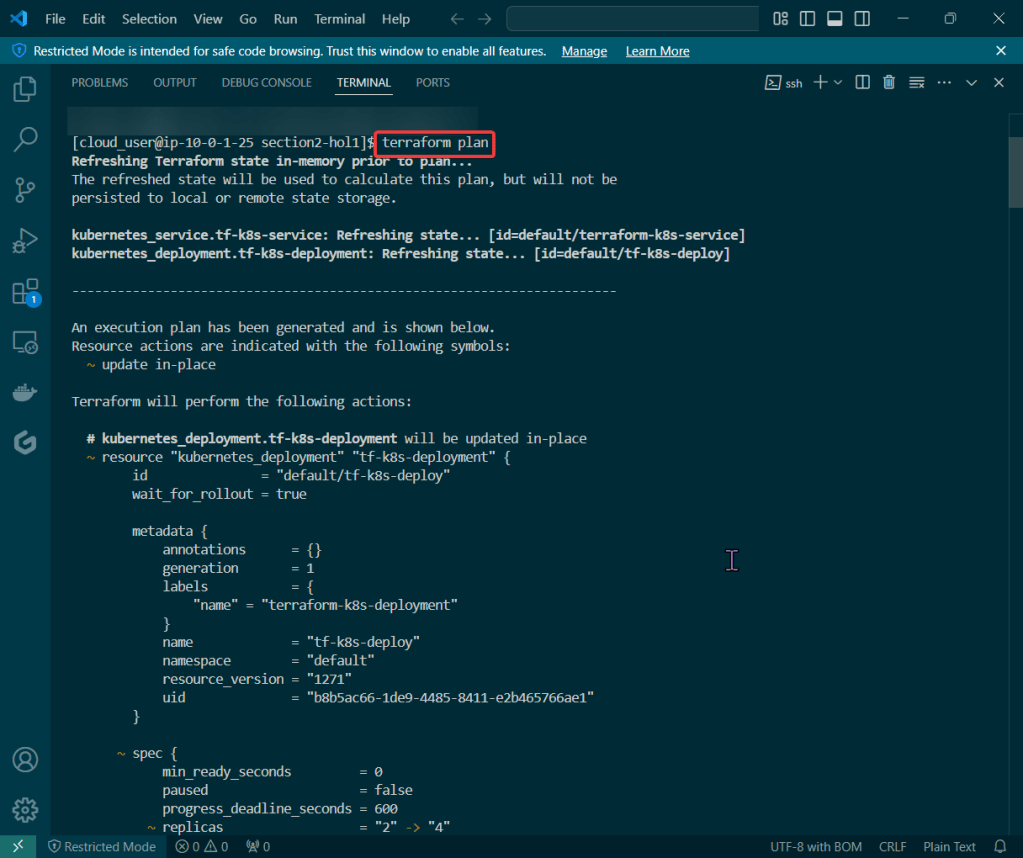
    • Terraform Plan
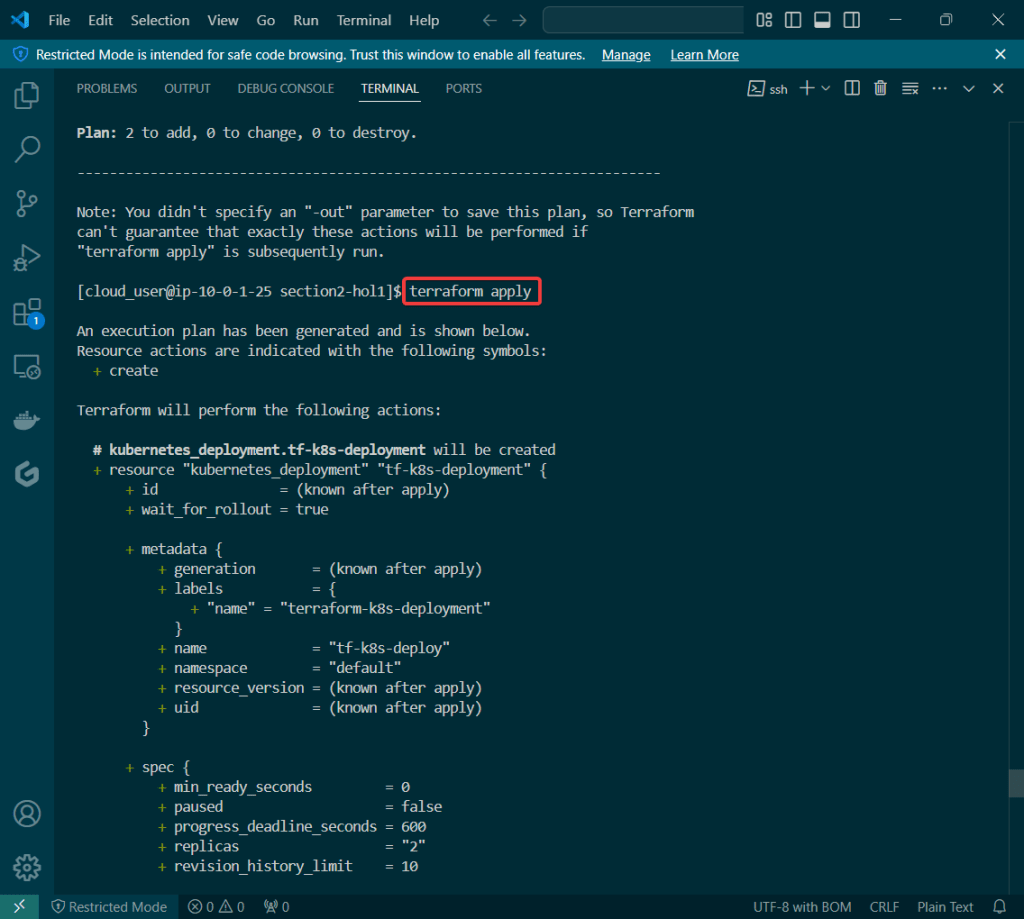
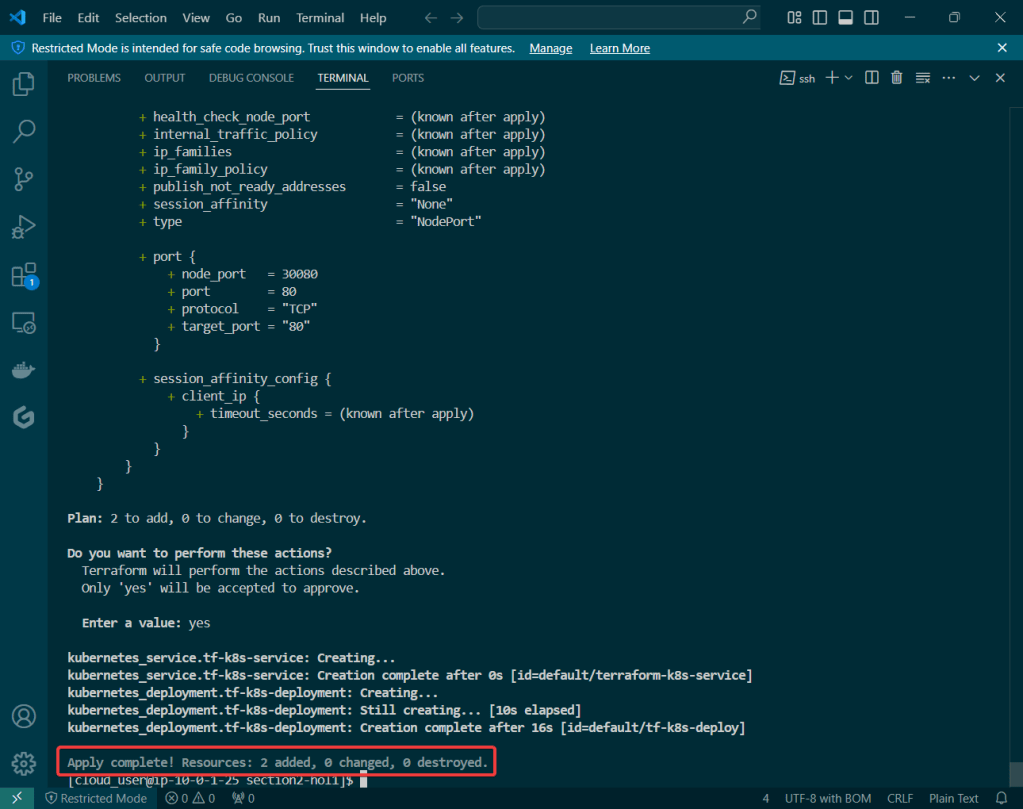
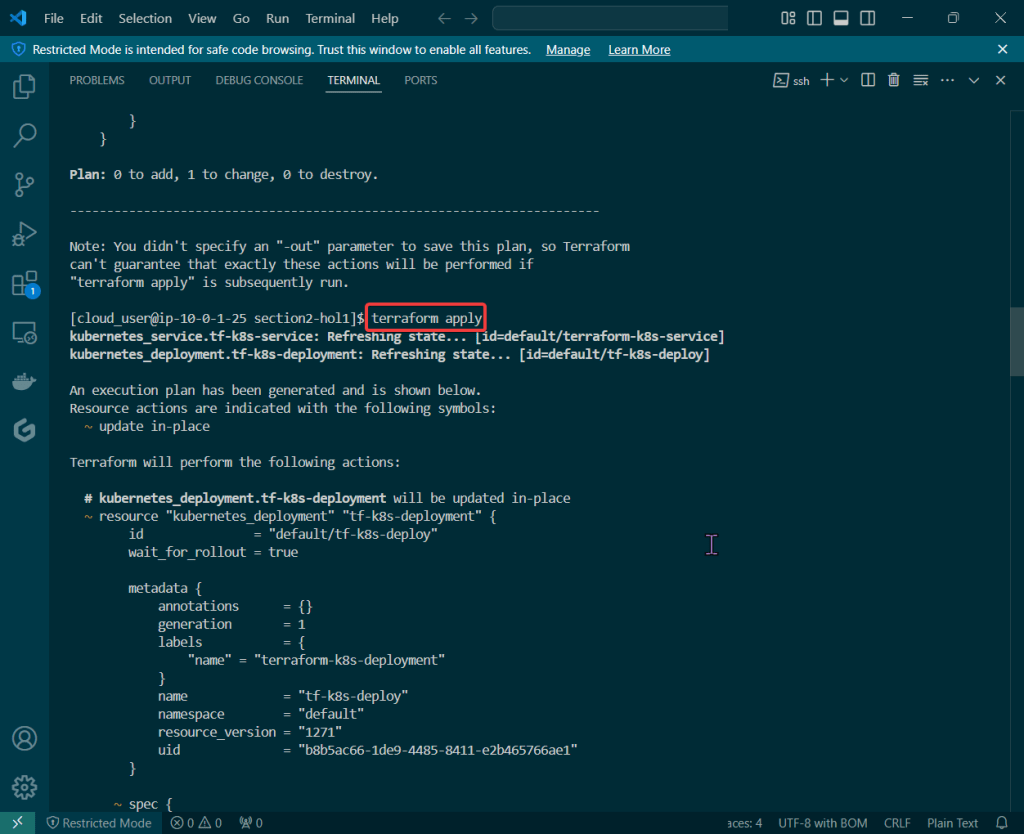
    • Terraform Apply
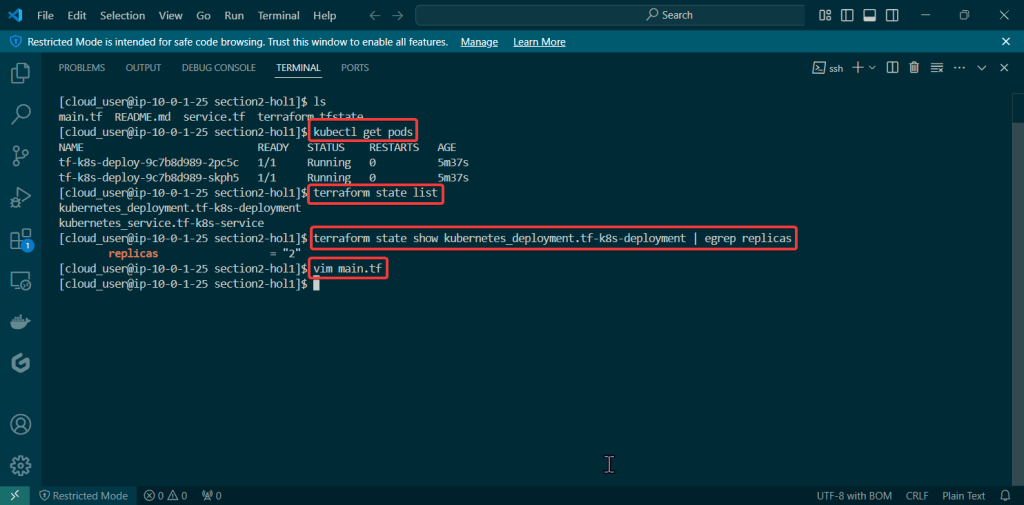
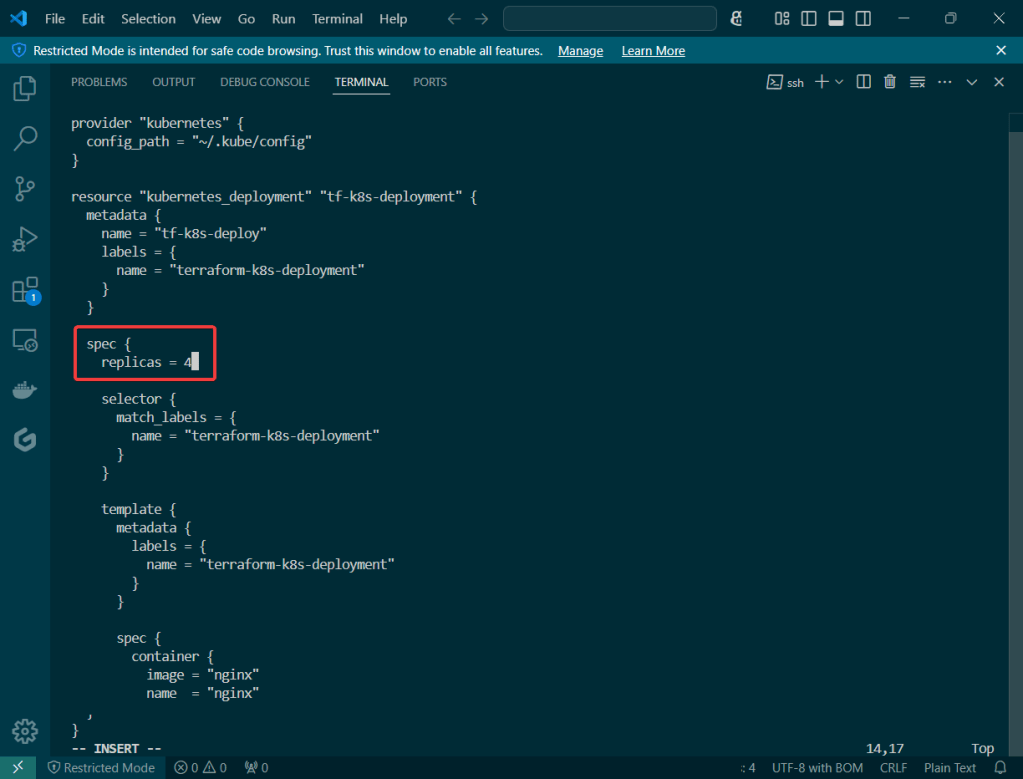
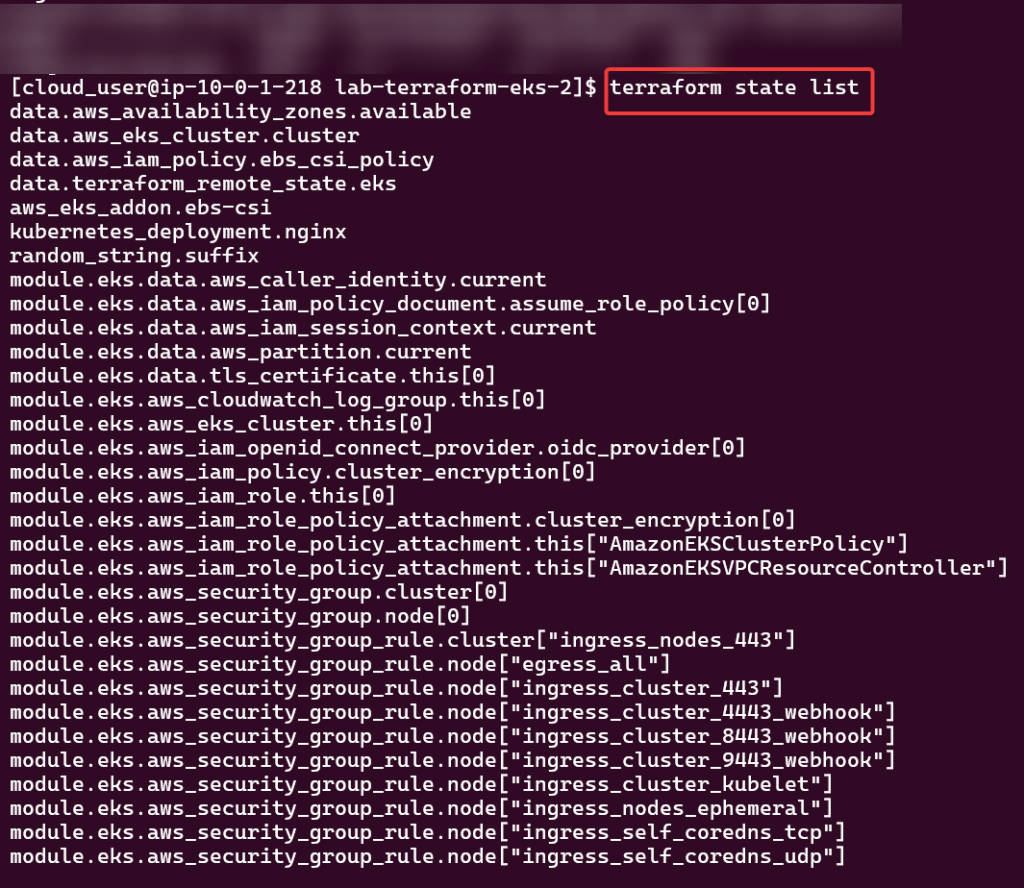
  • Terraform State File Tracks Resources
    • Terraform State
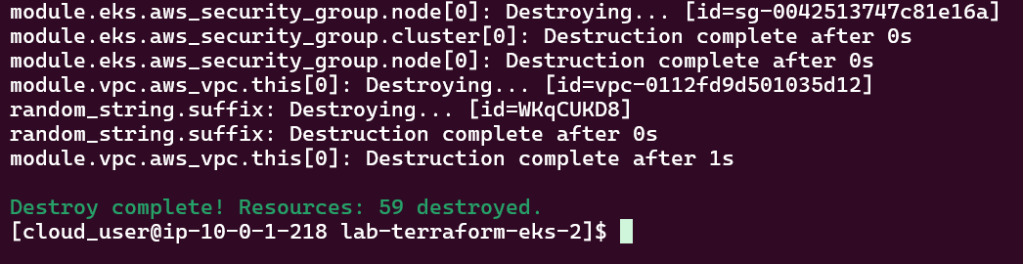
    • Terraform Destroy
  • terraform version

Switch directories:

  • Terraform –
    • Init
    • Plan
    • Apply

Terraform State File Tracks Resources:

Terraform Plan:

Terraform Apply:

Terraform Destroy:

TF + EKS = Deployed Yo!

Goal:

Look man, I just wanna set up a tin EKS cluster w/a couple nodes using Terraform.

Lessons Learned:

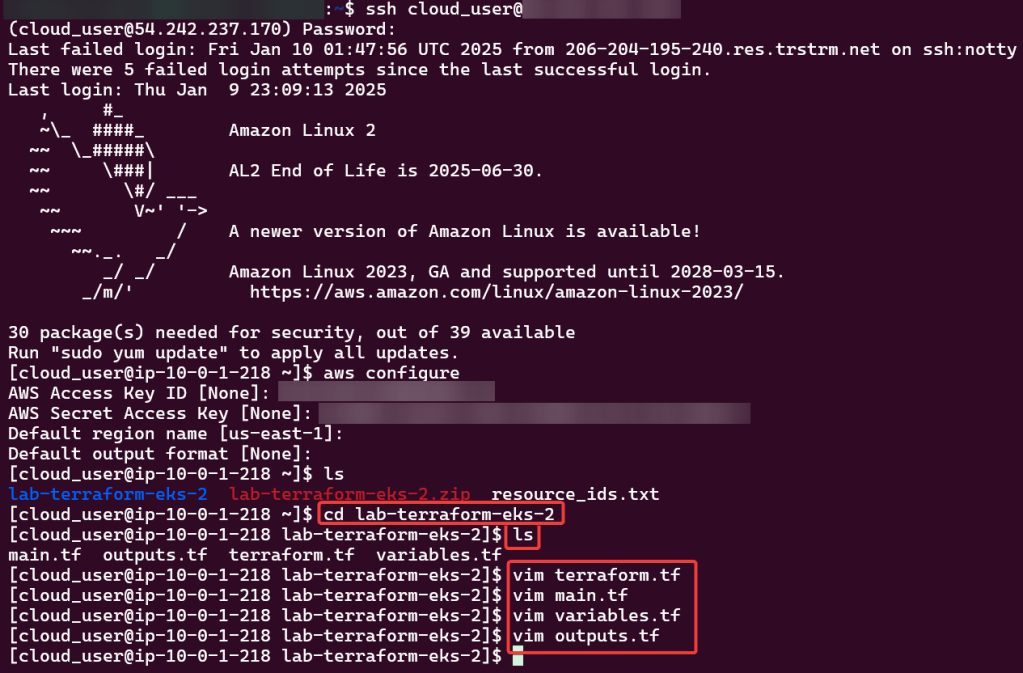
  • Configure AWS CLI
  • Deploy EKS Cluster
  • Deploy NGINX Pods
  • Destroy!!!

Configure AWS CLI:

Use Access & Secret Access Key:

Change Directory:

Review TF Configuration Files:

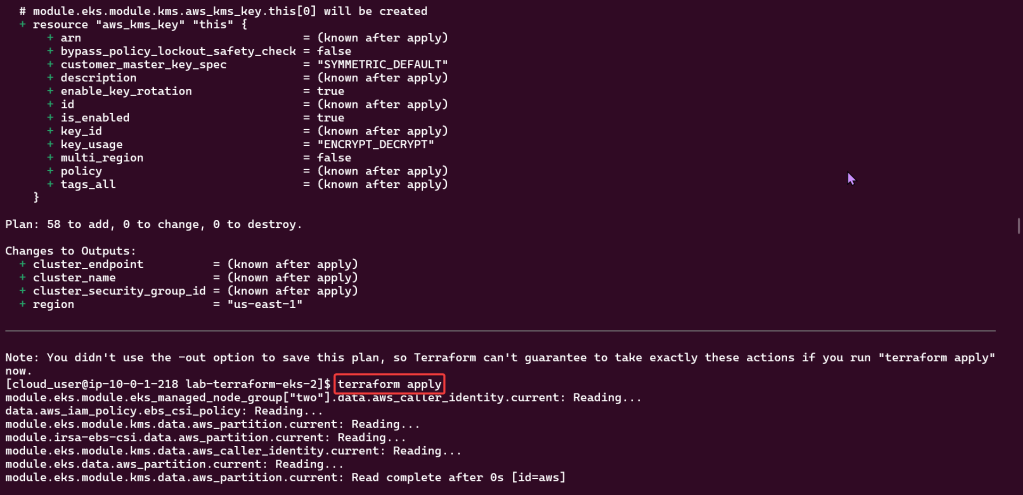
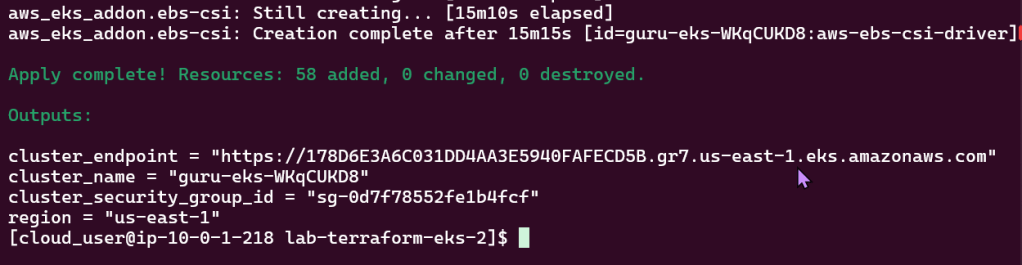
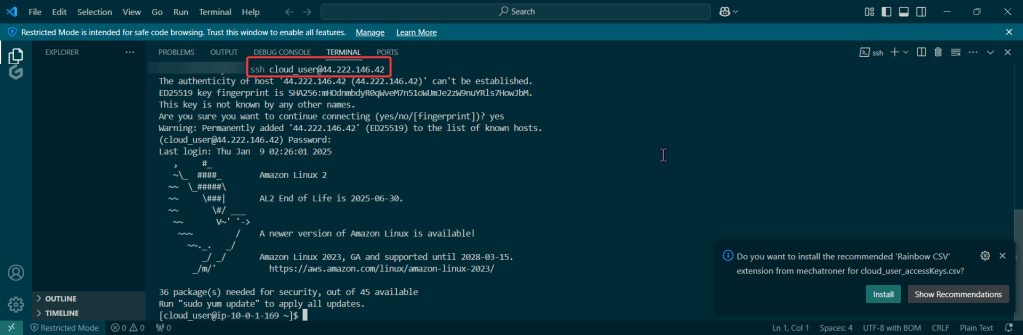
Deploy EKS Cluster:

Terraform init, plan, & apply:

Kubectl to chat w/yo EKS cluster:

Check to see your cluster is up & moving:

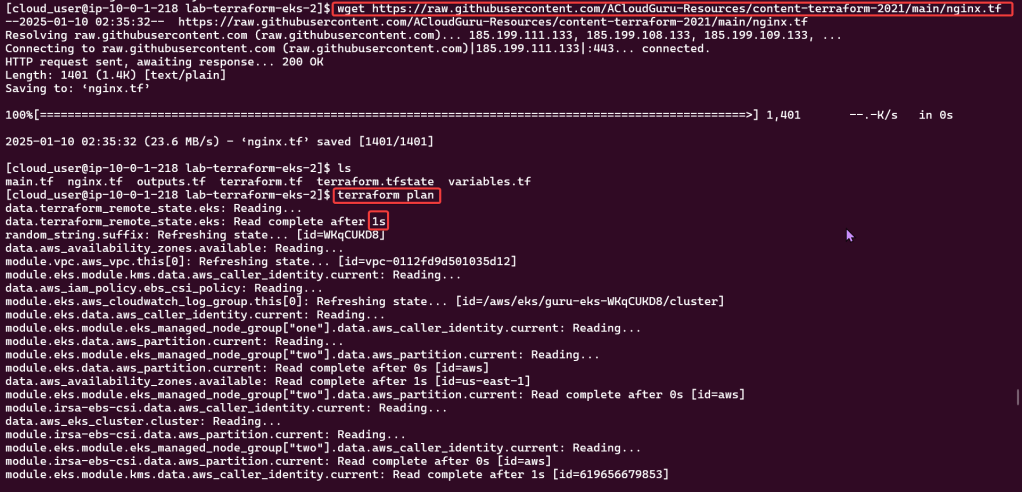
Deploy NGINX Pods:

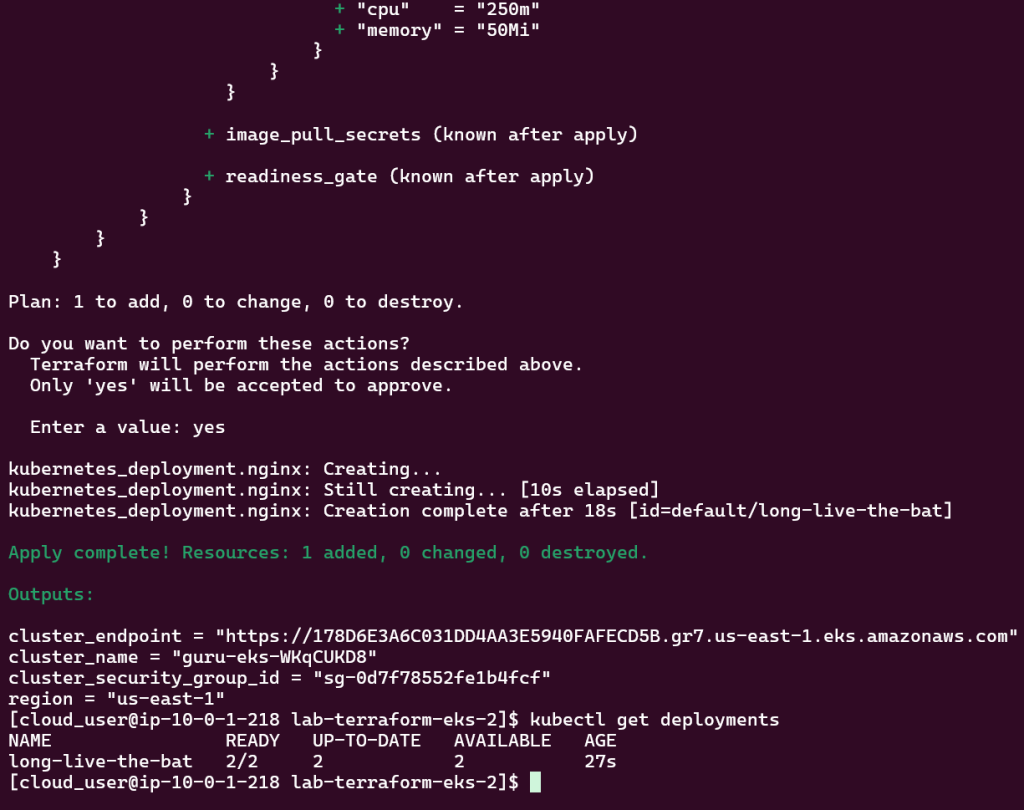
Deploy to EKS Cluster:

Check again if your cluster is up… & MOVINGG!:

Destroy!!

Deploy Nodes w/Terraform in Kubernetes

Kubernetes is up & running!? Sick! Buuuuuuuuuuuuuuuuuuut, I wanna make some changes – so Imma use Terraform. W/out further a-due… lets get these nodes deployed!

  • Initially set up a cluster using kubectl
  • Deployed NGINX nodes using Terraform
  • As an admin I deployed a NodePort to Kubernetes clstuer w/NGINX Nodes
  • Used Terraform to deploy NodePort & scale NGINX nodes
  • ….DESTROY video boy (…..what is Benchwarmers..)

Set up the goodies:

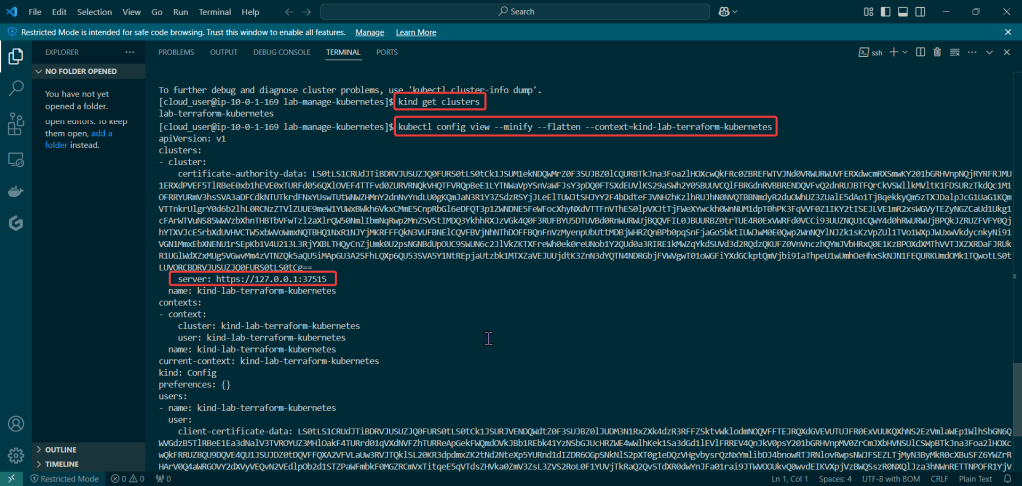
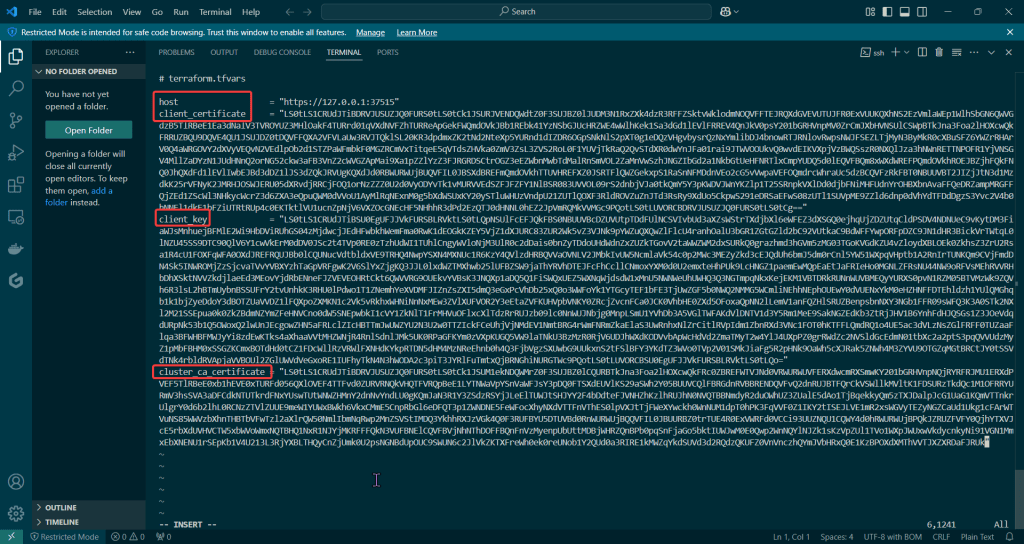
Check to see cluster is created & get SSL info for server IP address:

Edit Variables file:

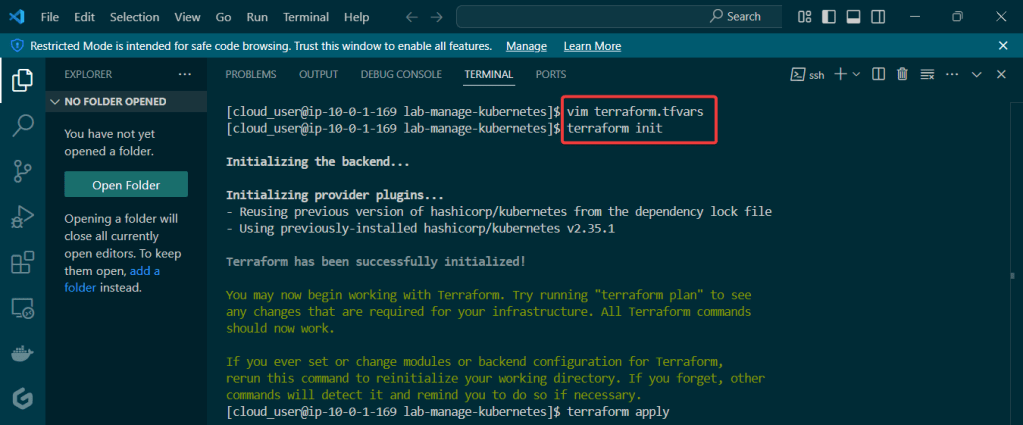
Terraform init & apply:

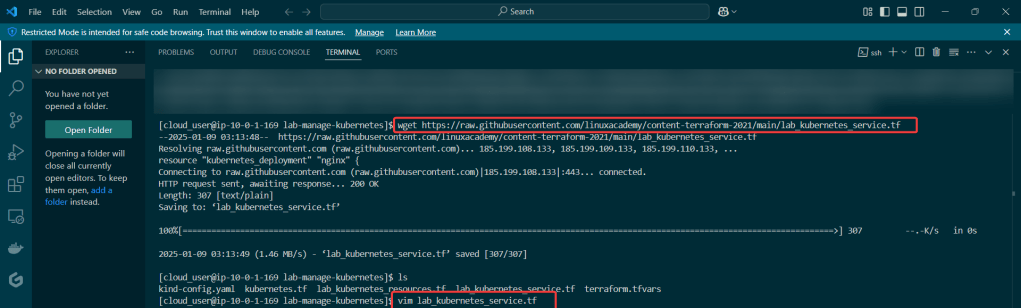
Get the TF config file:

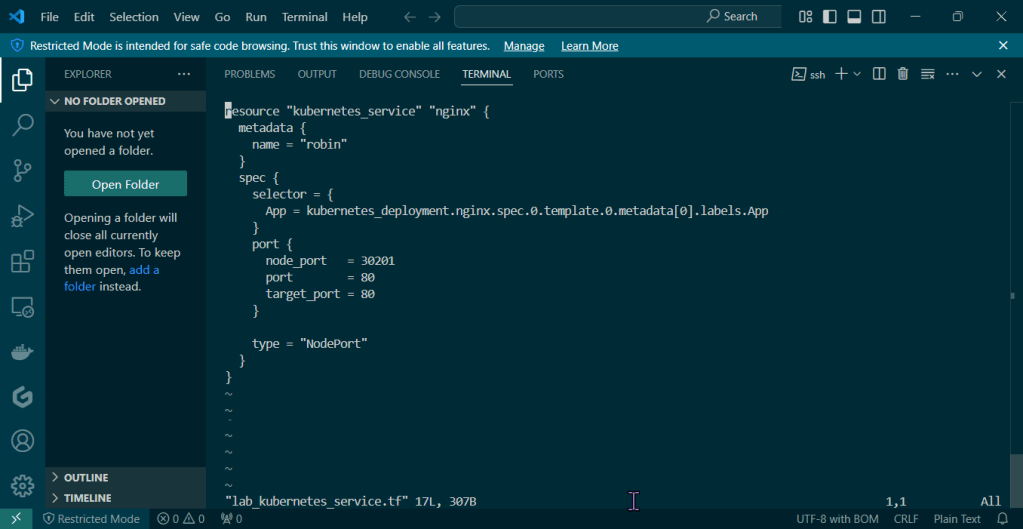
Vim lab_kubernetes_service.tf:

vim lab_kubernetes_resources.tf:

  • Terraform Destroy
  • kind delete cluster –name lab-terraform-kubernetes

Kubernetes Cluster & Terraform

Goal:

Lets see if I can deploy a web app to my EKS cluster & Terraform. After EKS cluster is deployed w/Terraform I’ll provision the cluster & run Node.js & use MongoDB as the backend DB.

Basically it goes like this:

  • Web Browser – – – EKS Cluster – – – Public Endpoint
  • Namespace – – – Node.js – – – Docker Image Repository – – – MongoDB

Lessons Learned:

  • Deploy EKS Cluster w/Terraform:
  • Complete Terraform Configuration:
  • Deploy Web App w/Terraform:
  • Scale Kubernetes Web App:

Deploy EKS Cluster w/Terraform:

  • Cloud User – – – Security Credz – – – Access Keys
  • Add key details in CLI

Couple Commands to Leverage for Sanity Check:

  • LS files
  • Unzip
  • LS
  • CD
  • LS
    • Now can see all TF files

Terraform – init, fmt, apply:

Complete Terraform Configuration:

Double Check its Running:

Couple Commands:

Vim modules/pac-man/pac-man-deployment.tf:

Vim pac-man.tf:

Terraform – Fmt, Init, & Apply:

Deploy Web App w/Terraform:

Scale Kubernetes Web App:

Change Deployment Files

  • MongoDB = 2
  • Pacman Pods = 3

Double Check Working:

Xbox Controller w/EKS & Terraform

Goal:

Okay, were not using Xbox controllers… but PS5 controllers! JK.. but what we will mess w/is deploy an EKS cluster to create admission controllers from a Terraform configuration file.

  • So what had happen was…
    • Deploy homebrew w/AWS CLI, kubectl, & terraform
    • Which will communicate to AWS EKS & VPC.
    • Got it? Okay dope, lets bounce.

Lessons Learned:

  • Installing Homebrew, AWS CLI, Kubernetes CLI, & Terraform
  • Deploy EKS Cluster

Install da Toolzz:

Homebrew:

Brew Install:

  • AWS CLI
  • Kubernetes-cli (kubectl)
  • Terraform

Deploy EKS Cluster

Create Access Keys:

Clone Repo:

Move into EKS Directory:

Initialize Directory:

Apply Terraform Configuration:

Configure Kubernetes CLI w/EKS Cluster:

Are you connected bruh?

AWS, Terraform, Ansible & a lil Jenkins – oh my!

  • Dragon Ball Z
  • Pokemon
  • X-Men
  • Avengers
  • Justice League
  • & now this is your queue to think of your bestest squaaaaad.

My Goal:

W/that said, why not look at how these dope tools can integrate together!? This post is dedicated to showing how AWS, Ansible, Jenkins, & Terraform can work together.

Lessons Learned (so what had happen was…):

  • Deploy a distributed multi-region Jenkins CI/CD Pipeline
  • Include VPC (& of course peering!) along w/gateways, public subnets & security groups
  • In addition are EC2 that have Jenkins running w/main & worker nodes
    • Place Jenkins main node behind an ALB that is attached to allow HTTPs traffic w/a SSL certificate from AWS certificate manager in a Route 53 public zone
  • Create Ansible playbooks to install software for Jenkins & apply configurations 
6–9 minutes
Below is a table of contents for your ability to jump around to key places you fancy (click here to see table of contents)
  1. Pre-requisites:
    • Install Terraform, IAM Permissions, Ansible, & AWS CLI
    • Create S3 Bucket, Vim backend.tf, Vim Providers.tf & Variables.tf
  2. Network Deployment – VPC, Subnets, Security Groups, & Internet Gateways:
    • Create environment w/networks.tf file
      • Includes route table, VPC peering, etc
    • Quick view into AWS console to see Terraform magic
    • Create ALB.tf w/Jenkins Master & Worker
    • Created security_groups.tf
    • Created variables.tf w/Jenkins variables
  3. VM Deployment – AMIs, Key Pairs, & Jenkins:
    • Deploy Jenkins to snag AMI IDs from the SSM parameter store
    • Create instances.tf
    • Deploy key pairs into Jenkins to permit SSH access
    • Deploy Jenkins master & worker instances
      • Update isntances.tf, variables.tf, & outputs.tf w/IP addresses
    • SSH into EC2 Jenkins Master/Worker nodes
  4. Terraform Configuration Management w/Ansible:
    • Create new directory for Jenkins regions to hold ansible_templates
    • Update ansible.cfg backend file
    • Create inventory_aws directory
    • Update instances.tf
  5. Routing Traffic via ALB to EC2:
    • Update ALB.tf w/a new playbook for ingress rules into the security group & port information
    • Update instances.tf & security_groups.tf w/port information
    • Update output.tf w/DNS
    • Create jenkins-master/worker-sample.yml
  6. Route 53 & HTTPs:
    • Create path for user to connect to application from Route 53, ALB, & ACM
    • Create acm.tf for certification requests to be validated via DNS route 53
  7. Ansible Playbooks:
    • Create playbook w/7 tasks to install Jenkins master/worker
    • Generate SSH key-pair
  8. Jinja2:
    • Build Jinja2 template for Ansible playbook for tasks
  9. Verifying IaC Code & Terraform Apply:
    • Do the thing, terraform fmt, validate, plan, & apply
  10. Conclusion – Summary:

Here are some housekeeping items I addressed before I stood up this environment:

Installed Terraform:

IAM Permissions for Terraform

  • sudo apt-get -y install python-pip
  • pip3 install awscli –user

Connect Ansible:

AWS CLI:

  • A extensive policy was created & seen here, copy & prepare to pasta!
  • Log-in to your AWS Console & either;
    • Create a separate IAM user w/required permissions
    • Create an EC2 (IAM Role) instance profile w/required permissions & attach it to EC2

Create S3 Bucket:

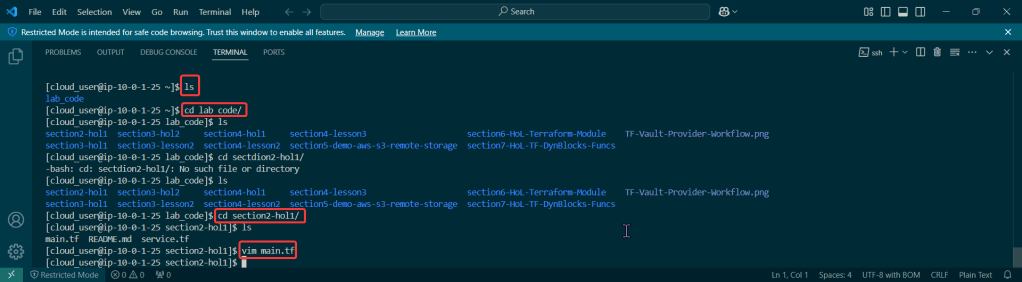
  • Ls
  • cd deploy_iac_tf_ansible
  • aws s3api create-bucket –bucket terraformstatebucketwp
  • Important Notes:
    • Remember the region you are in
    • S3 bucket names are global, so don’t copy-pasta my bucket or you will get an error
    • The bucket name can be between 3 and 63 characters long, and can contain only lower-case characters, numbers, periods, and dashes.

Vim Backend.tf

  • Step showed how to tie AWS & Terraform together in a quick script, screenshots below

Vim Providers.tf & Variables.tf in Terraform:

  • Created 2 files that will be the key/foundation to the rest of infrastructure built & reference. This is the source code used to manage Terraform resources:
    • The first file/variable is where the EC2 instances are deployed in
    • The second file displays the providers region.

Goal is to create:

  • Environment w/VPC, internet gateway, & 2 public subnets
  • Environment w/VPC, internet gateway, & 1 public subnet

Lessons Learned:

  • vim networks.tf
  • terraform fmt
  • terraform validate

Goal is to create:

  • VPC Peering connection between 2 regions
  • As well as route tables for each VPC
  • View the magic in AWS!!

Lessons Learned:

  • Vim networks.tf
  • terraform fmt
  • terraform validate
  • terraform plan

Terraform Fmt & Validate:

Terraform Plan:

  • AWS account to see Terraform communicating w/AWS #maaaaaaagic

Goal is to create:

  • Deploy Security Groups w/ALB communicating w/Jenkins Master & Worker

Lessons Learned:

  • Vim Security_groups.tf
  • Vim variables.tf
  • Terraform plan
  • Terraform apply

Vim security_groups.tf:

Vim Variables.tf:

  • Added Jenkins worker variable

Terraform Plan:

Terraform Apply:

Goal is to create:

  • Deploying application node to Jenkins application that will fetch AMI IDs
    • Data Source (SSM Parameter Store) to AMI IDs

Lessons Learned:

  • Terraform Data Source for SSM Parameter
  • SSM Parameter Store – Parameter for Public AMI IDs
  • Terraform SSM Data Source Returns AMI ID

Vim Instances.tf

  • #Get Linux AMI ID using SSM Parameter endpoint in us-east-1 data “aws_ssm_parameter” “linuxAmi” { provider = aws.region-master name = “/aws/service/ami-amazon-linux-latest/amzn2-ami-hvm-x86_64-gp2” }
  • #Get Linux AMI ID using SSM Parameter endpoint in us-west-2 data “aws_ssm_parameter” “linuxAmiOregon” { provider = aws.region-worker name = “/aws/service/ami-amazon-linux-latest/amzn2-ami-hvm-x86_64-gp2” }

Terraform Init & fmt & validate:

Terraform Plan:

Vim Backend.tf:

Goal is to create:

  • Deploying EC2 key pairs into Jenkins EC2 instance to permit SSH access

Lessons Learned:

  • Create SSH-key gen private/public key
  • Edit script to incorporate key-pairs for both regions

SSH:

Vim instances.tf

Terraform fmt, validate, plan, & apply:

Goal is to create:

  • Deploy Jenkins Master & Worker Instances

Lessons Learned:

  • Created 1 new script (outputs) & edited 2 scripts (instances & variables)
  • Can connect instances over SSH & IP addresses

Vim instances, variables, & outputs:

Terraform fmt, validate, plan, & apply:

SSH into EC2 Jenkins Master & Worker Nodes:

Goal is to create:

  • Configure TF Provision’s for Config Mgmt via Ansible

Lessons Learned:

  • Created new directory to hold 2 new scripts for Jenkins regions
  • Update script to call Ansible playbook

Mkdir ansible templates:
Vim ansible.cfg:

Mkdir inventory_aws:
wget -c: (might have to re-do)
Vim ‘tf_aws_ec2.yml: (created from above)

Vim pip3 install boto3 –user:

Vim instances.tf:

Terraform fmt, validate, plan, & apply:

JQ:

  • sudo yum install jq
  • jq

Goal is to create:

  • Create ALB to route traffic to EC2 node
  • Via Terraform run a web server behind ALB on EC2

Lessons Learned:

  • Use Ansible playbook on EC2 nodes to run Jenkins application
    • Create new playbook for ALB
    • Edit variable playbook for port information as well as the security groups playbook ingress rule

Vim alb.tf:

Vim variables.tf:

Vim security_groups.tf:

Vim outputs.tf:

Vim jenkins-master-sample.yml:

Terraform fmt, validate, plan, & apply:

Goal is to create:

  • Create path for user to connect to Jenkins application from Route 53, ALB, & ACM

Lessons Learned:

  • Create AWS Route 53 & generate SSL certificate
  • Connect w/public hosted zone connected pointing to DNS ALB
  • Traffic routed to Jenkins EC2 application

Vim variables.tf:

Vim acm.tf:

Vim dns.tf:

Vim alb.tf:

Terraform fmt, validate, plan, & apply:

Goal is to create:

Building Ansible playbook w/tasks by installing Jenkins Master/Worker

Lessons Learned:

  • Install dependencies
  • Clone Jenkins files
  • Set up Jenkins repo & GPG key
  • Install Jenkins & ensure its stopped
  • Delete default installation & copy clone Jenkins fles
  • Restore Jenkins files & restart Jenkins
  • Wait for Jenkins to start up before ending playbook
Vim install_jenkins_master.yml:

ansible-playbook –syntax-check -e”passed_in_hosts-localhost” install_jenkins_master.yml

Lessons Learned:

  • Generate SSH key-pair & add own public key to file
  • Copy Jenkins worker agent XML config file
    • Jinja Template
  • Read SSH private key from copying over Jenkins worker credz XML Jinja template & embed into private key
  • Install dependencies
    • yum
  • Download Jenkins API from Jenkins Master
  • Copy Jenkins auth file
  • Use Jenkins API client to create credz for Jenkins worker & connect to Jenkins Master

Vim install_jenkins_worker.yml (under ansible_templates):

ansible-playbook –syntax-check -e”passed_in_hosts-localhost” install_jenkins_worker.yml

Goal is to create:

  • Build Jinja2 Templates for Ansible Playbooks

Lessons Learned:

  • Leverage Jinja2 from Ansible playbook tasks created

Vim Node.j2:

Vim cred-privkey.j2:

Goal is to create:

  • Go-live & hope it doesn’t break…

Lessons Learned:

  • Ensure all dependencies such as Ansible, Terraform, AWS, CLI, boto3, & SSH work!
  • Run that Terraform fmt, validate, plan, & apply!

Vim instances.tf:

Vim variables.tf:

Terraform fmt, validate, plan, & apply:

  • Annnnnnnnnd time. Done. Now can connect CiCd pipelines w/distributed jobs.

Annnnnnnnnd time. Done. Now can connect CiCd pipelines w/distributed jobs.

Create a Blog w/IaC, maybe?

Inspiration is clutch & I received it for starting this bad boy, so why not dedicate the first post in how I Frankensteined (woah – I created a blog, a blog post, & a past tense verb all in one) it together?

My Goal:

Was to create a blog & WordPress site – I then had a brain blast (Queue Jimmy Neutron), what if I did this through some from of IaC? So I tried the basic goodies, you know:

  • Terraform
  • Ansible
  • Docker
  • AWS
  • ChatGPT
    • WUT!?
  • Click-Opps
    • Back-pocked that for last on the learning journey

All were fun to mess w/& see where I got stuck quicker than others to debug some of the code. However this post follows the option of AWS & I see joy in posting the other journeys I had later, but for now lets not see double & jerk that pistol & go to work (name that movie).

Lessons Learned:

  • New ways to spend my Bennies ($$$) w/a AWS Account, ayyyy
  • Create an RDS instance for the MySQL database
  • Create an EC2 instance for the WordPress application
  • Install and configure WordPress on EC2
  • Upload and download files to and from S3
  • Access your WordPress site from the internet

Step 1: Create a RDS instance for MySQL Database

  • Prolly important to have something to store “my precious” (another movie quote) data aka goodiezzzz

Step 2: Create EC2 Instance

  • I wanted to get virtual & had a plethora of options to configure w/AMI, instance type, storage, tags, key names, security groups, etc.
    • Oh yeah, I overlooked the key pair part…I didn’t save/remember that information – so I had to re-do this. #DOAHHHHH

Step 3: SSH into EC2

  • Here was a quick double check of my work that helped me re-navigate in the console to find key information to plug-in to my SSH command (yeah, I used PowerShell. Why? Cuz its the most powerfullest, duh)
    • Example Below:
      • ssh -i wordpress-key.pem ec2-user@public-ip-address
  • Then after some yum & systemctl – I had an apache test page… Woah, I know fancy.
  • Really had to pay attention to the next handful of commands to download the latest WordPress Package, Extract it, change ownership w/some chown, & then nano/vi into the configuration file.
  • Couple Example Below (sparing you all the commands):
    • wget https://wordpress.org/latest.tar.gz
    • tar -xzf latest.tar.gz
    • sudo chown -R apache:apache /var/www/html/
      sudo find /var/www/html/ -type d -exec chmod 755 {} \;
      sudo find /var/www/html/ -type f -exec chmod 644 {} \;
    • sudo nano /var/www/html/wp-config.php
  • Then after copy-pasta the public-IP-Address from AWS I started to click more stuff..

Conclusion:

  • Just like that it was done & could check into the blog & AWS to see the specimen…. ANNNNND then I tore it down. Why? Cuz I was intrigued by the other options available & see the other avenues to create a blog. I don’t have a favorite, but as mentioned above I’ll have posts about how to create a WordPress blog in the handful of options above. Yeah, even some Chat GPT action, stay tuned.